

Last Updated on April 17, 2026
The QuickBooks company file won’t open is a recurring issue faced by many users. Let’s look into why you are encountering this issue and ways to fix it effectively.
When working on software, there is always a base file where users store data, and these files form the core of the application. Similarly, a company file is an essential part of QuickBooks and stores all a user’s accounting data. Therefore, the proper functioning of the company file is important for a business to manage its accounting and bookkeeping tasks effortlessly.
But recently, we have seen users encounter the QuickBooks Company File Won’t Open error message from time to time. The issue appears without an error code and provides few details. You are at the right spot if you are looking for ways to fix the problem.
Is your QuickBooks company file not opening and interrupting your productive routine? Find insights from this guide or reach out to our Accounting Helpline experts at 1.855.738.2784 to get professional assistance.
Potential Reasons Why QuickBooks Won’t Open the Company File
The company file might not open in QuickBooks Desktop for several reasons. This error message may unexpectedly flash while accessing your company files, disrupting your work.
QuickBooks encounters technical issues opening the file. These include:
- The company file got damaged when it was opened the last time.
- A corrupt hard drive can cause problems while opening the QB company file.
- The file location and extension may have issues.
- Using an outdated QuickBooks version may cause the error.
- Issues with the reports in your file might cause QuickBooks to be unable to open the company file.
- An incorrect file type might also cause this issue.
- A damaged company file can be the culprit of this error.
- If your QBDT program is corrupted, you can face this problem
- Inherent installation issues with the QB Desktop application might cause this error
These are the potential causes why your QuickBooks company file won’t open.
Methods to Use if Your QuickBooks App Will Not Open the Company File
Listed below are the methods you can use to troubleshoot the problem of QuickBooks not being able to open the company file:
Solution 1: Manually Update the QB Desktop App
You can update the QuickBooks Desktop app manually to resolve the problem of the QB company file not opening with the steps given below:
- Close all the company files.
- Exit the QB Desktop application.
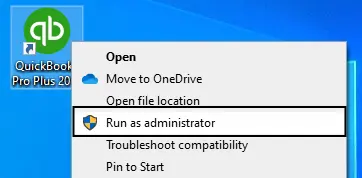
- Look for the QuickBooks icon on your desktop.
- If you cannot find the icon on the desktop, click on the Windows Start menu and search for QuickBooks Desktop.
- Once you locate the icon, right-click on the QB icon and choose Run as administrator.

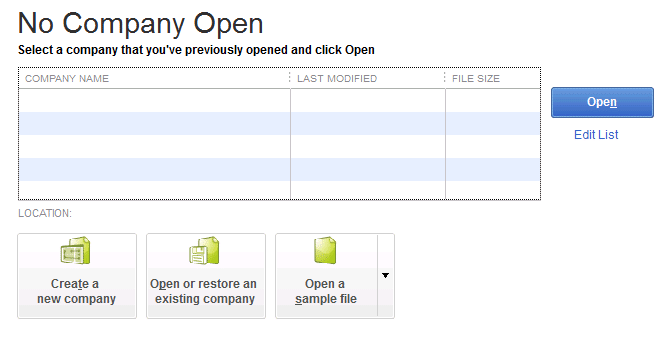
- When you select the Run as administrator option, the No Company Open screen of QuickBooks will open up.

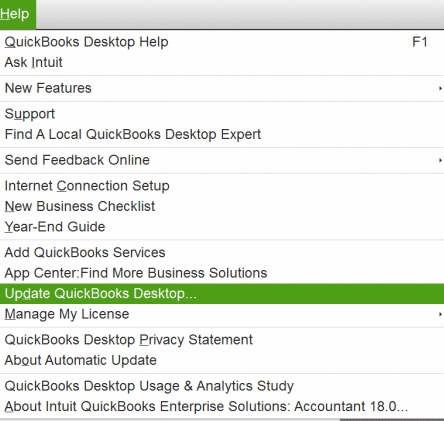
- Navigate to the Help menu and choose Update QuickBooks Desktop.

- Click on the Options tab.
- Select Mark All and then Save.
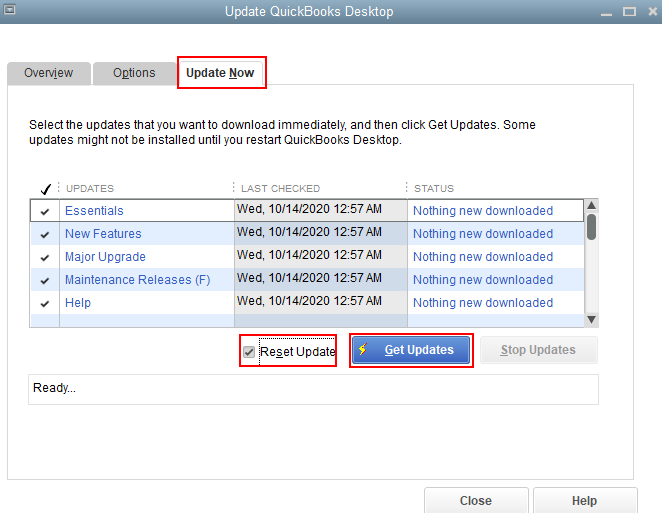
- Finally, use the Update Now tab and click on the Reset Update checkbox.
- At last, you must click on the Get Updates button to start the manual update of QuickBooks.

- You must close and reopen the QuickBooks application to install the downloaded updates.
Now, the QuickBooks company file won’t open error should be resolved.
Solution 2: Copy & Paste Your Company File to Your Desktop
The problem might stem from the location of your company file. Transfer the file to your desktop and open it from there.
If your company file is shared on a network, ensure all users are signed out before proceeding with the following steps:
- Open the File Explorer on your system.
- Locate your company file (.QBW) in File Explorer and right-click on it.
- Press the Copy option.
- Right-click anywhere on your Desktop.
- Select Paste.
- Now, open the QuickBooks File menu and select Open or Restore Company to open the copied file from the new location.

- If the file opens, the old QB file folder is damaged.
- Transfer your company file to a new folder. If it’s on the network, share the new folder there.
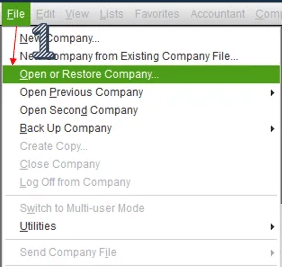
This would resolve the error you were dealing with.
Solution 3: Change the Names of the.TLG &.ND Files
The.TLG and ND files are essential for QuickBooks to function. But if these files get corrupted, you might not be able to open the company file in QuickBooks. To resolve the problem, you can rename the ND and TLG files with the steps given below:
- Open the File Explorer on your PC.
- Navigate to the folder that contains your company file.
- Instead of the primary company file, you must look for the.TLG and .ND files. They will have the same as your company file, but with a different extension.
- The files will appear like this:
- [Your company file name].qbw.tlg
- [Your company file name].qbw.nd
- Right-click the files individually and add Old at the end of each file name after pressing Rename:
- For example: [Your company file name].qbw.tlg.Old
Once you complete the steps above, open the QuickBooks Desktop app and check whether the error is resolved. If not, move ahead to the next solution.
Solution 4: Use the QuickBooks Install Diagnostic Tool
You can use the QB Install Diagnostic Tool from the QB Tool Hub if your QuickBooks is unable to open the company file with the steps given below:
- Download and install the QuickBooks Tool Hub app.

- Double-click on the QuickBooks Tool Hub icon to open it.
- Navigate to the Installation Issues app.
- Choose QuickBooks Install Diagnostic Tool to launch the scan.

- The scan may take 20-25 minutes, and you must not access any other application during this procedure.
- After the scan completes, restart the system.

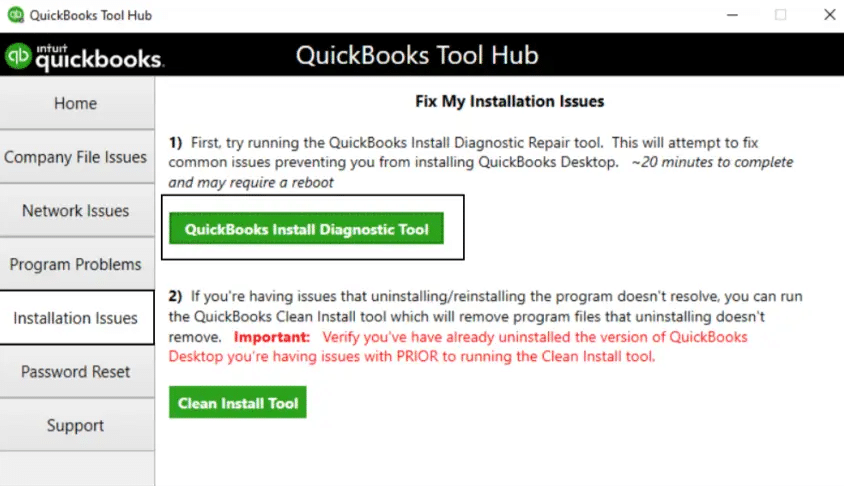
This should resolve the issue where the QB company file won’t open.
Solution 5: Verify and Rebuild the QB Company File Data
You can verify and rebuild your QB company file data to resolve the issue of QB not being able to open the company file with the steps given below:
- Open the QB Desktop application.
- Navigate to the File menu.
- Click on Utilities.
- Press Verify Data.

- Then, go to the File menu again.
- Select Utilities.
- Click on the Rebuild Data option.

- QB will ask to create a backup file before it rebuilds your company file.
- Hit OK.
- A backup is required to be made before rebuilding your company’s data.
- Choose where you wish to save the backup.
- Press OK.
- Do not replace an existing backup file.
- Enter a new name in the File name field.
- Press Save.
- Hit OK when you get the message stating that Rebuild has completed.

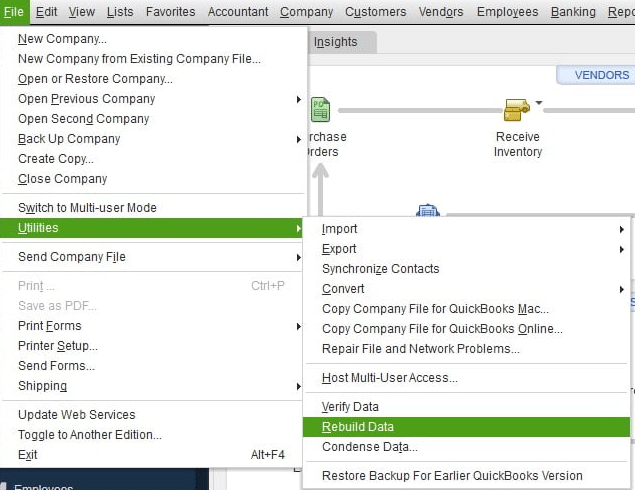
Now, the problem should be resolved.
Solution 6: Use Quick Fix My Program
You can use the Quick Fix My Program tool from the QB Tool Hub to fix the issue where the QuickBooks company file won’t open with the steps given below:
- Open the QuickBooks Tool Hub app.
- Navigate to the Program Problems tab.
- Click on Quick Fix My Program.

- Let the tool run.
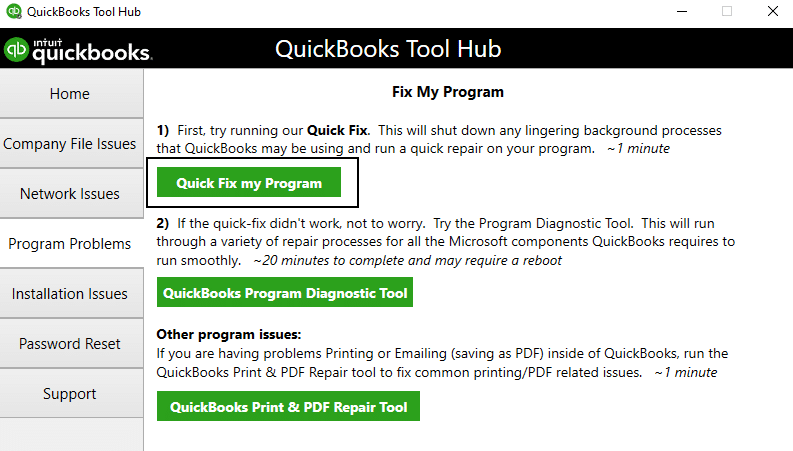
This would resolve the error you were dealing with.
Solution 7: Use the QB File Doctor Tool
A damaged company file can be fixed by using the QuickBooks File Doctor Tool from the QB Tool Hub, using the steps given below:
- Open the QuickBooks Tool Hub app.
- Navigate to the Company File Issues tab.
- Click on Run QuickBooks File Doctor:

- If it doesn’t open, search for QuickBooks Desktop File Doc to open it manually.
- Select your company file from the dropdown menu:
- If you can’t see your file, click on Browse and search to find your file.
- Click on the Check your file option.
- Press Continue.
- Enter the QB admin password.
- Hit Next.
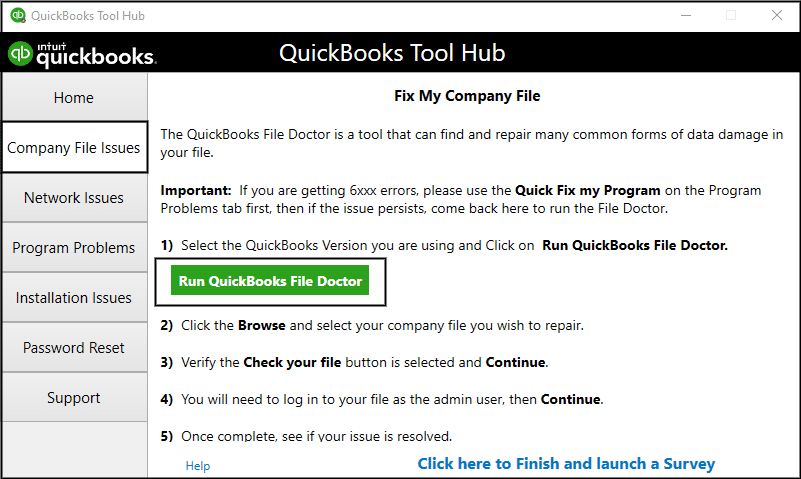
The file doctor would now scan and check your file for any issues and resolve them automatically.
Solution 8: Check whether it’s QuickBooks or the Company File that is damaged
You need to identify the cause of the issue, whether it’s your company file or the application itself.
- Firstly, click the Windows Start menu.
- Press the Ctrl key and double-click the QB icon on your Desktop to open the application with the No Company Open screen.
- Tap Open a sample file.

- If QuickBooks is not opening, or the sample file throws errors while opening, then that means the issue is with the QB Desktop application.
- If it opens without issues, then that means the company file is corrupted
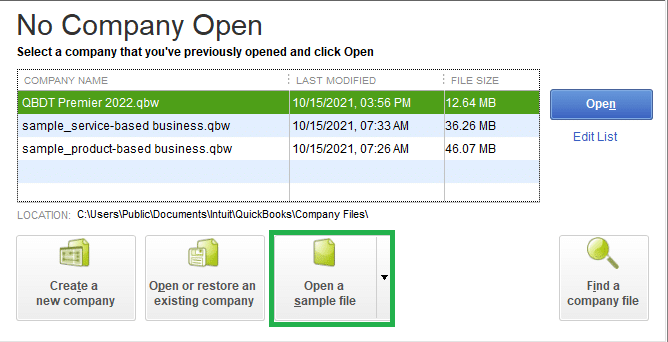
Check the next solution for restoring a backup copy of your file.
Solution 9: Restore the Latest Backup
If you have a recent backup, restore it because data damage may have corrupted your company file:
- Launch QuickBooks.
- Navigate to the File menu and choose Open or Restore Company.
- Click on the Restore a backup copy option.

- Hit Next.
- Press Local Backup.
- Select Next.
- Browse your system for the backup company file.
- The backup file should look like this: [Your company file].qbb.
- Choose the folder where you wish to restore the backup file.
- Hit Open.
- Press Save.
- If you see a message about overwriting any data, choose the option that best fits your needs.
- Do not overwrite anything unless you wish to.
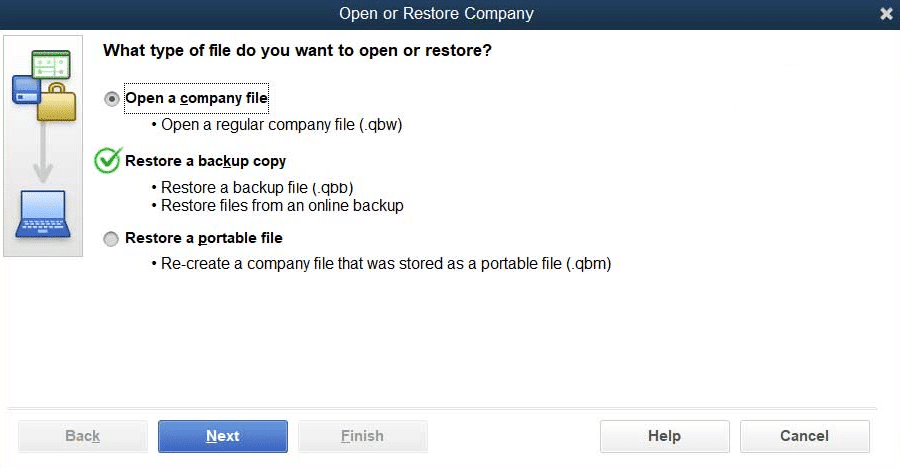
Restoring a backup file of your QB company file should resolve the error you were dealing with.
Solution 10: Modify the Folder Permissions of Your Company File
If your file is in the read-only network folder or has inadequate permissions, try the following steps to resolve the QuickBooks Company File won’t open issue:
- Navigate to the computer hosting your company file.
- Then go to the folder where your QB company file is stored.
- Right-click the folder and choose Properties.
- Proceed to the Security tab
- Select the user experiencing issues, then click Edit.
- Enable Full Control under the Allow section.
- Select Apply, followed by OK.
Ensure you have the necessary permissions and the company file is not in the read-only network folder:
- Right-click on the company file (.QBW).
- Choose Properties.
- Ensure it’s not set to Read-only.
If you were having trouble opening your company file due to insufficient folder permissions, these steps should resolve the QuickBooks company file won’t open error.
Solution 11: Toggle the User Account Control Settings
User Account Control can block access to specific files in Windows. We suggest you right-click QuickBooks and choose the Run as administrator option to access your company File. If that doesn’t work, toggle UAC settings:
- Open the Start menu on your system.
- Search for and open the Control Panel.
- Choose “User Accounts” and then “User Accounts” (Classic View).
- Click on “Change user account control settings.”
Note: If prompted by UAC, select Yes to proceed. - Adjust the slider:
- Set to “Never Notify” and click OK to disable UAC.
- Set to “Always Notify” and click OK to enable UAC.
Note: If prompted by UAC, select Yes to continue.
- Restart your PC.
If QuickBooks is unable to open the company file, check the next solution.
Solution 12: Configure the Firewall Settings for QBDT
You can make Firewall exclusions for the QB Desktop application if your company file won’t open, with the steps given to you below:
- Open the Start menu.
- Search for and open the Windows Firewall.
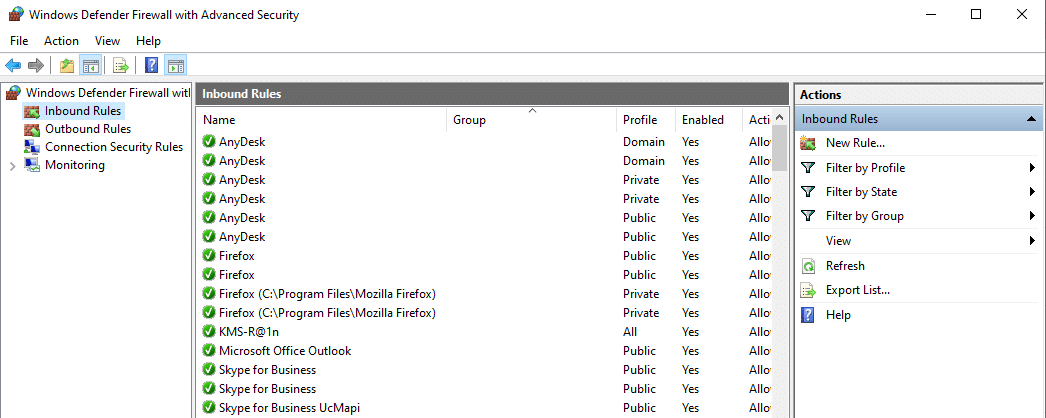
- Click on Advanced Settings.

- Right-click on Inbound Rules:

- You’ll create Outbound Rules later on.
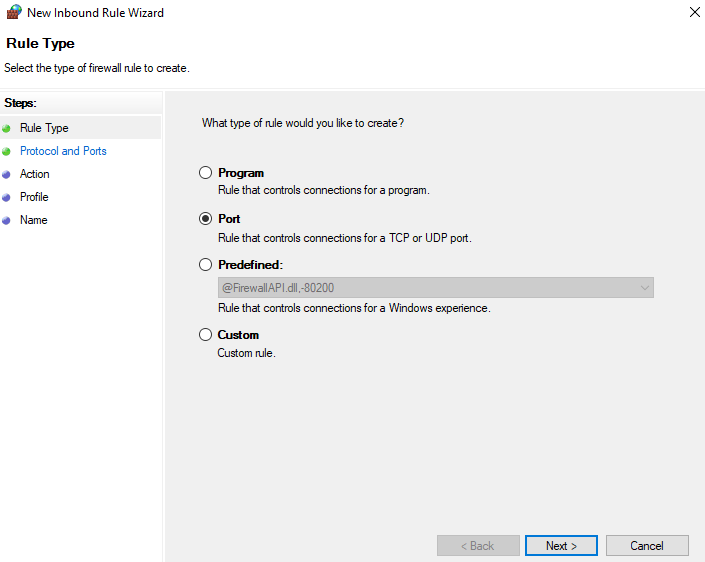
- Select New Rule.
- Click on Port and hit Next.

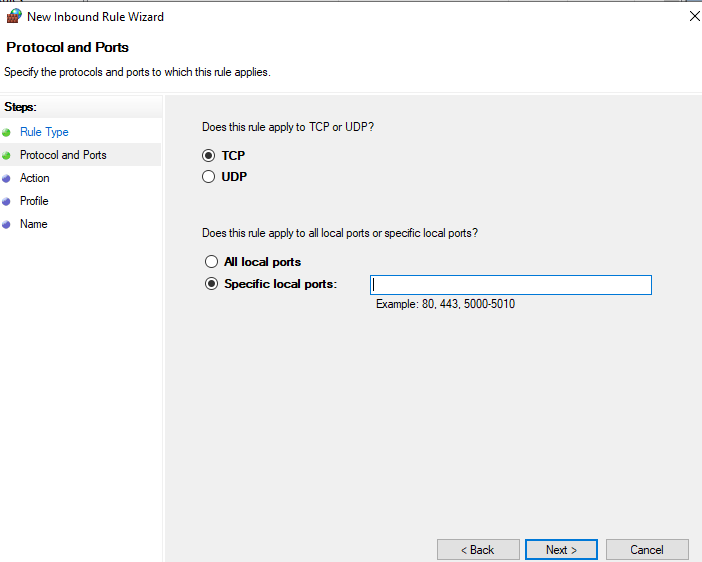
- Ensure that TCP is selected.
- Go to the Specific Local Ports.

- Feed in the specific ports needed for your QB year version:
- QuickBooks Desktop 2020 and later: 8019, XXXXX
- QuickBooks Desktop 2019: 8019, XXXXX
- QuickBooks Desktop 2018: 8019, 56728, 55378-55382
- QuickBooks Desktop 2017: 8019, 56727, 55373-55377
- Hit Next after entering the port number.
- Click on Allow the Connection.
- Press Next.
- Ensure all profiles are marked if you are prompted.
- Select Next.
- Create a rule.
- Name it something like QBPorts(year).
- Hit Finish.
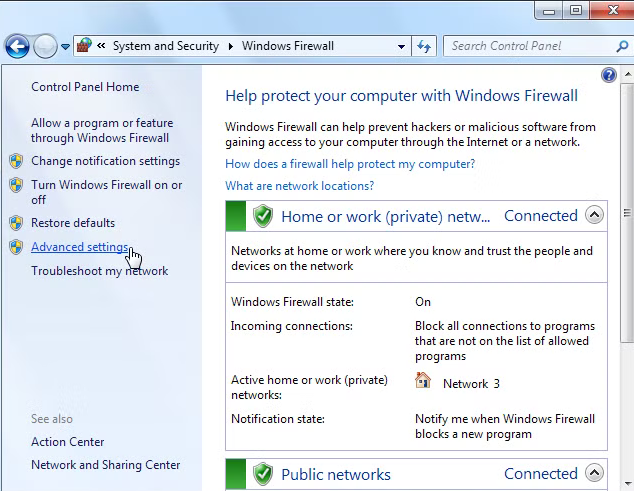
Repeat the steps to make outbound rules for QB Desktop. Just choose outbound rules after clicking on Advanced Settings, and follow the rest as it is. The issue should now be resolved.
Solution 13: Disable Hosting on Non-Server Workstations
If your company file is hosted on a network, it’s important to disable hosting on workstations and reserve this function for the server computer exclusively.
To deactivate hosting on your workstations, follow these steps:
- Open QuickBooks on one of your workstations.
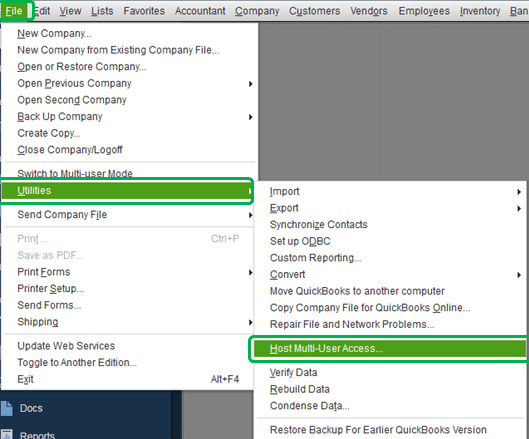
- Instead of opening your company file, navigate to the File menu.
- Click on the Utilities option.
- If you see the option stating Host Multi-User Access, do not select it. Proceed to the next workstation, as it is not the source of the issue.

- If you find the option to Stop Hosting Multi-User Access, select it.
- If you see the option stating Host Multi-User Access, do not select it. Proceed to the next workstation, as it is not the source of the issue.
- Repeat these steps on all the non-server workstations.
After confirming your workstations, proceed to address the server computer, which hosts the company files over a shared network.
- Launch QuickBooks on your server computer.
- Open the File menu.
- Click on the Utilities Option.
- If Host Multi-User Access is available, select it.
- Toggle the multi-user setting off and then back on.
- Access File, Utilities, and then select Stop Hosting Multi-User Access.

- Tap File, Utilities, and then choose Host Multi-User Access.
- Access File, Utilities, and then select Stop Hosting Multi-User Access.
- Attempt to open your company file once more.
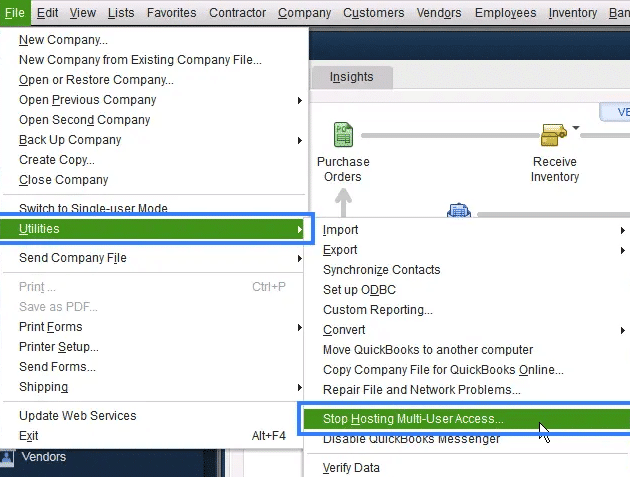
This would resolve the problem you were dealing with.
Solution 14: Avoid Saving the QB Desktop Configuration When Closing QB
QuickBooks automatically reopens any windows left open when your company file is closed. If there are extensive reports or multiple windows set to open by default, QuickBooks may freeze during startup.
To access your company file without saving the open windows, follow the steps given below:
- Launch QuickBooks Desktop.
- In the “No Company Open” window, choose your company file.
- Hold down the ALT key on your keyboard and then click Open. Keep holding ALT until the file opens. If QuickBooks prompts you to log in, release ALT, enter your password, and then press and hold ALT again before selecting OK.
- Once your company file opens successfully, disable the “Save the desktop when closing” preference.
Follow these steps:
- Navigate to Edit and choose Preferences.
- Click on Desktop View.
- Choose “Don’t save the desktop” and click OK.
- Close and reopen QuickBooks, and then open your company file.
- If the file opens successfully, you’re all set.
The problem would now be resolved.
Solution 15: Your File Shouldn’t be Compressed or Encrypted
Ensure your file isn’t compressed or encrypted through the following steps:
- Right-click your company file, then choose Properties.
- Hit Advanced.
- Erase the Compress and Encrypt checkboxes.
- Tap OK.
Now, the QuickBooks company file won’t open issue should be mended.
Conclusion
The QuickBooks company file won’t open error can occur when you try to access your company file to work on your accounting and bookkeeping tasks in the QB Desktop application. We have covered the potential factors that can trigger this problem to appear on your screen, along with the methods needed to troubleshoot it in this blog. If you are still facing the same problem, feel free to contact our Accounting Helpline’s experts at 1.855.738.2784 today to resolve your issue in no time!
FAQs
Should I remember anything before implementing the troubleshooting steps?
Before you decide to troubleshoot the QuickBooks company file won’t open issue, you should follow the steps given in the list below:
– Ensure that you have updated the QB Desktop app to the latest released version.
– When you open QuickBooks Desktop from the icon, press and hold the Ctrl key. If the QB Desktop app opens without any issues, then that means the problem is with your company file.
– Only your server should host the company file in the network. Switch off hosting access in the single-user mode.
Why am I not able to launch my company file?
Problems opening the company file can arise from an outdated QB version, a long file name, a damaged file, a corrupt hard drive sector, etc. Listed below are the other reasons for it:
– Incomplete QuickBooks installation or missing components can cause issues.
– Placing the company file in the wrong location can lead to access problems.
– Extremely large files might struggle to open in some QuickBooks versions.
– Data integrity issues can prevent file access.
– Insufficient user permissions can restrict access to the company file.
– Firewall or security software settings may block file access.
How do I eliminate the QuickBooks company file, not an opening issue?
When the QuickBooks company file won’t open, try the following solutions:
– Use QB Tool Hub’s Quick Fix My Program and QB Install Diagnostic Tool.
– Update QB.
– Don’t preserve the desktop when exiting QB.
– Disable hosting on your workstations.
– Implement the QuickBooks File Doctor Tool.
– Run the Verify and Rebuild Data utility.
– Provide sufficient permissions to the file.
– Reboot your system.
When does the QB company file not-launching issue occur?
The QuickBooks company file won’t open when you attempt to launch the application or the file. The circumstances for this situation are as follows:
– Data issues or software glitches can lead to file corruption, preventing it from opening.
– After updating QuickBooks to a new version, compatibility issues may arise with the company file.
– Connectivity issues or improper network location settings can hinder file access.
– Extremely large files may experience performance issues and fail to launch.
– A damaged or incomplete QuickBooks installation can disrupt file access.
– Insufficient permissions can restrict access to the company file.
How to open a locked company file in QB Desktop?
A locked QB company file can be opened through the following steps:
– Hold the keyboard’s Alt key.
– Tap Open.
– Don’t leave the Alt key.
– Linger for the file to open.
– Sign in after releasing Alt.
– Input the password.
– Re-hold Alt and hit OK.
Related Posts-
QuickBooks Error 30134 – What Do I Do Next?
How to Get Rid of QuickBooks Error 6176 Once and for All
QuickBooks Error 1328: Comprehensive Guide to Fix
Don’t Fix QBDBMgrN Not Running on This Computer Without Reading This
QuickBooks Error 6150 -1006: Quick Troubleshooting Methods

Edward Martin is a Technical Content Writer for our leading Accounting firm. He has over 10 years of experience in QuickBooks and Xero. He has also worked with Sage, FreshBooks, and many other software platforms. Edward’s passion for clarity, accuracy, and innovation is evident in his writing. He is well versed in how to simplify complex technical concepts and turn them into easy-to-understand content for our readers.