
Last Updated on September 15, 2025
As a small business owner or an accountant, you might rely on QuickBooks for your financial tasks. However, you might see that you can’t update QBDT. This can be the result of the QuickBooks error 15102. It is an update error that can render you unable to download the payroll and QB updates. This is an extremely inconvenient error, as it hampers your work progress and essential business processes. Due to this issue, you might not be able to work on your company file, calculate taxes accurately, and send paychecks to your employees.
This blog covers the steps you need to know in order to patch the error 15102 in QuickBooks Desktop. First, we’ll list the potential causes that can trigger this error to appear on your screen.
Are you having trouble updating your QB Desktop app and Payroll? Contact our Accounting Helpline’s experts today at 1.855.738.2784, who can help resolve your problem in no time!

Potential Triggers for the QuickBooks Error 15102
Given below are some of the reasons you might not be able to update your QuickBooks Desktop application:
- Incorrectly mapped Shared Download drive.
- Some components or files needed for the payroll update might be missing.
- Windows Firewall is blocking QuickBooks.
- A disabled QB File Copy Service (FCS).
- Digital signature not verified.
- Damaged Windows OS file.
Now, let us proceed to list the methods you can use to solve the 15102 error in the QuickBooks application.
Troubleshoot the Error 15102 in QuickBooks Desktop
Given below are the methods you can implement to troubleshoot the QuickBooks error code 15102:
Download the QB Updates With Admin Rights
One of the main reasons your updates might be failing in QuickBooks is a lack of admin rights. Follow these steps to mend it:
- Close the QB company file.
- Exit the QBDT app.
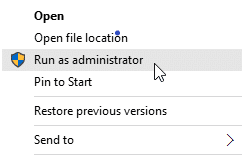
- Now, right-click on the QB Desktop icon.
- Press the Run as Administrator option.

- If prompted, select Yes:
- You might have to enter the admin password:
- If you’re not logged in as an admin on your PC.
- You might have to enter the admin password:
- Download the QB updates again.
If this doesn’t resolve the QuickBooks error 15102, check the next solution.
Make Use of the Quick Fix My Program Tool
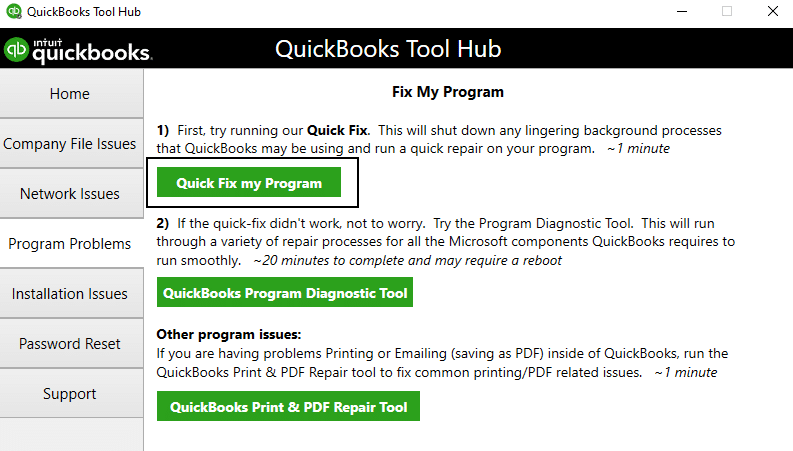
You can use the Quick Fix My Program Tool from the QuickBooks Tool Hub to fix error 15102 in QuickBooks with the following steps:
- Download and install QuickBooks Tool Hub.

- Open the Tool Hub.
- Click on the Program Problems tab.
- Now, select Quick Fix My Program.

- Wait for the tool to finish working.

Now, you would be able to download the latest QB Desktop and payroll updates on your workstation.
Install a Digital Signature Certificate for QuickBooks
An invalid digital signature can trigger the QuickBooks error 15102 in your workstation. Install a digital signature with these steps:
- Navigate to C:\Program Files\Intuit\QuickBooks.
- Right-click on QBW32.exe.
- Click the Properties option.
- Press Digital Signature.
- Now, check and ensure that:
- Intuit is selected in the signature list.
- Then, select the Details option.
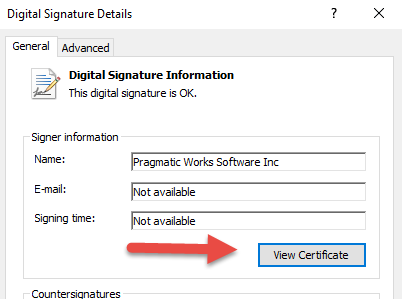
- Click on View Certificate:
- It is present in the Digital Signature Details window.
- Press Next until you see Finish.
- Select Finish.
- Restart your PC.
The error you were facing would now be resolved.
Repair the QuickBooks Desktop Application
You can repair the QB Desktop app with the QuickBooks Install Diagnostic Tool using the steps given below:
- Open the QuickBooks Tool Hub.
- Navigate to the Installation Issues tab.
- Select the QuickBooks Install Diagnostic Tool.

- Let the tool run.
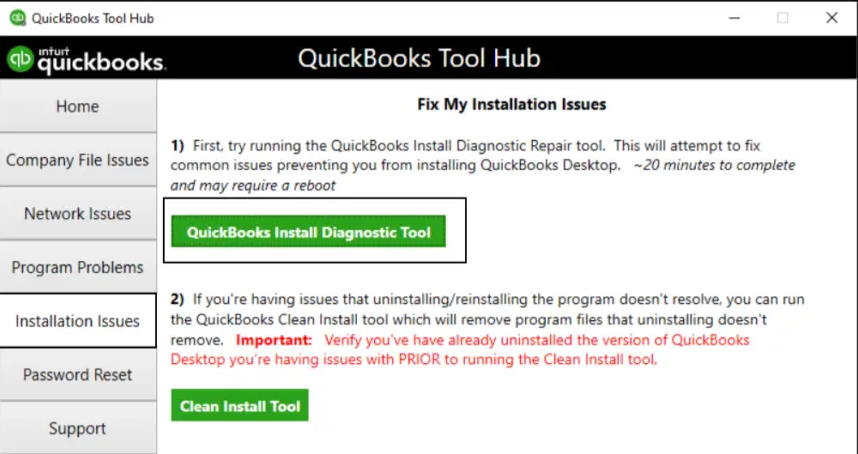
This would fix any inherent installation issues in your program, ultimately getting rid of the QuickBooks error 15102.
Configure the Windows Firewall for QuickBooks
Your Firewall might be blocking your QB Desktop application, leading to QuickBooks payroll error 15102. You can make exceptions for QuickBooks in Windows Firewall to resolve this problem. If this doesn’t fix your issue, move on to the following solution.
Update the QuickBooks Application in Selective Startup
You can update the QuickBooks Desktop in selective startup to resolve the QuickBooks error code 15102 with these steps:
- Open the Run menu.
- Type msconfig.
- Press Enter.
- Go to the General tab.
- Click on Selective Startup.
- Press Load system services.
- Go to the Services tab and mark the option to Hide all Microsoft services.

- Tap on the Disable all button, and now deselect the option to Hide all Microsoft services.
- Make sure Windows Installer is selected from the list of services.
- Now click OK.
- Restart your system.
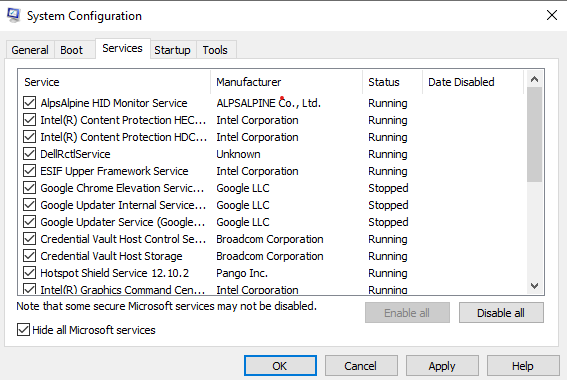
Download the software/payroll updates, and once you are done, this is how you can switch back to normal mode:
- Open msconfig.
- Press Normal Startup.

- Restart your PC.
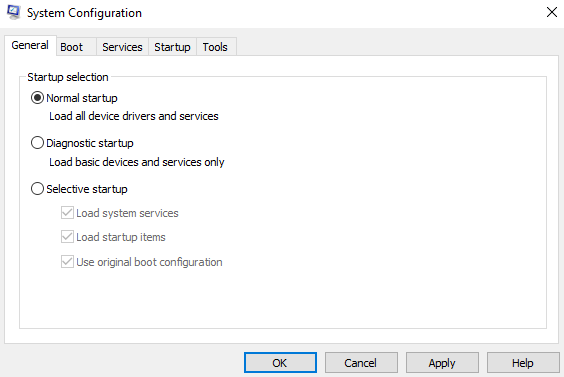
Now, the error would be resolved.
Use the TLS 1.2 Tool from the Tool Hub
The QuickBooks experts recommend that you use TLS 1.2 for the application to run smoothly. You can ensure you are using it with the following steps:
- Run the QuickBooks Tool Hub app.
- Navigate to the Installation Issues tab.
- Press the QuickBooks TLS 1.2 Tool option.

- Click OK.
- This would open the tool.
- Now, for the EULA Agreement, click on Yes.
- Select Run.
- Now, wait for the tool to finish working.
- Lastly, press Exit.
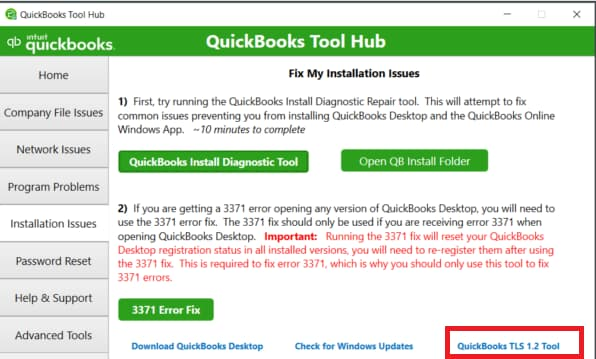
The QuickBooks error 15102 would now be fixed.
Clean Install the QuickBooks Desktop Application
If you’re still trying to tackle the same problem, you might have to perform a clean installation of the QuickBooks Desktop app. This will get rid of any issues present with the files of QBDT. You can read our comprehensive blog on this process to know the in-depth steps.
Some Other Error Codes Related to the QuickBooks 15102 Error
Now, let us list some of the error codes similar to 15102 in the next section. Tabulated below are the errors that can occur due to the same causes as error 15102 in QB:
The QuickBooks Error 15102 – A Quick View Table
Here is a concise summary of this blog on the topic of resolving the error 15102 in QuickBooks in tabular form:
| Description | The error 15102 is an update error that renders you unable to download the latest QuickBooks Desktop and payroll updates. This can hamper your workflow and lead to delays in your business progress. Therefore, it is essential to resolve this problem in a timely fashion. |
| Causes | Wrongly mapped shared download drives, missing files or components for the payroll update to work, QuickBooks is blocked by the Firewall, disabled QB File Copy Service, unverified digital signature, and damaged Windows OS file. |
| Ways to fix it | Download the updates with admin privileges, use Quick Fix My Program, install the digital signature, repair the QBDT app, configure the Firewall, update QBDT in selective startup, use the TLS 1.2 tool, and clean install the QB Desktop application. |
| Tools used | Quick Fix My Program, QuickBooks Install Diagnostic Tool, and QuickBooks TS 1.2 Tool. |
Conclusion
In this blog, we talked about the QuickBooks error 15102 and the issues that can cause it. We also gave you step-by-step guided methods you can use to resolve this error on your own. If you are still facing challenges with the same issue, you can contact our Accounting Helpline’s experts today at 1.855.738.2784!
FAQs
What is Error 15103 in QuickBooks Update?
The error 15103 in QuickBooks is an update error, due to which you might not be able to install the payroll and software updates. It is caused if the shared drives weren’t mapped correctly or if there is a missing file component.
How do I fix the QuickBooks update error 15102
To fix the error 15102 in QuickBooks, you can download the updates with admin rights, use the Quick Fix My Program tool, install a digital signature, repair the QBDT app, and configure the Firewall settings.
What is error 15101 in QuickBooks Desktop?
The error 15101 in QBDT is an update error just like the error 15102. It can render you unable to download and install the latest QB updates and may hamper your important business processes. It is generally caused by misconfigured Firewall settings and an invalid digital signature certificate.
Related Posts-
I Encountered QuickBooks Error 12038! – What’s Next?
Tested Techniques to Counter QuickBooks Unexpected Error
QuickBooks Error H202 in Multi-User & Solutions to Fix it
Step-by-step instructions to resolve QuickBooks Error 12157
QuickBooks File Doctor Not Working! Here’s What to Do
Fixing the QuickBooks Problem With Multi-User Hosting Setup

Edward Martin is a Technical Content Writer for our leading Accounting firm. He has over 10 years of experience in QuickBooks and Xero. He has also worked with Sage, FreshBooks, and many other software platforms. Edward’s passion for clarity, accuracy, and innovation is evident in his writing. He is well versed in how to simplify complex technical concepts and turn them into easy-to-understand content for our readers.