
Last Updated on June 3, 2026
Sometimes, when you launch the Payroll Liability Balances report, your unpaid liabilities are shown there as they should be. But when you navigate to the Pay Liabilities tab in the Payroll Center, you will identify that the QB payroll liabilities are not appearing there. Several users have also complained about this problem. Thus, it is crucial to identify the reasons that lead to the issue of QuickBooks payroll liabilities not showing and implement suitable solutions accordingly.
What Leads to the Issue of QB Payroll Liabilities Not Showing?
Go through the following reasons to know why you’re facing the issue of QuickBooks payroll liabilities not showing.
- If, for that particular responsibility period, no liability payment has been posted.
- Whether the payroll service, the QuickBooks program, or both are out of date.
- If QuickBooks Desktop’s data is damaged.
Prevent the occurrence of the issue of QB payroll liabilities not showing by knowing the reasons mentioned above.
Let’s Troubleshoot the Issue of QuickBooks Payroll Liabilities Not Showing
It is highly advised to take adequate measures to get rid of the reasons that lead to this issue with payroll liabilities in QB. To fix this, you must carefully perform the methods given below. Go through these solutions and move to the next if the issue is still occurring.
Update QBDT & Payroll Tax Tables
You must check for QB Desktop and payroll updates at least once a month to ensure you do not experience an interruption in payroll. Initially, you need to download and install the QB application updates. Then, download the latest tax table updates if QB payroll liabilities are not showing up.
- Firstly, close all the company files and then the QB application.
- Then, navigate to the desktop, right-click the QB Desktop icon, and select the option to Run as Administrator.
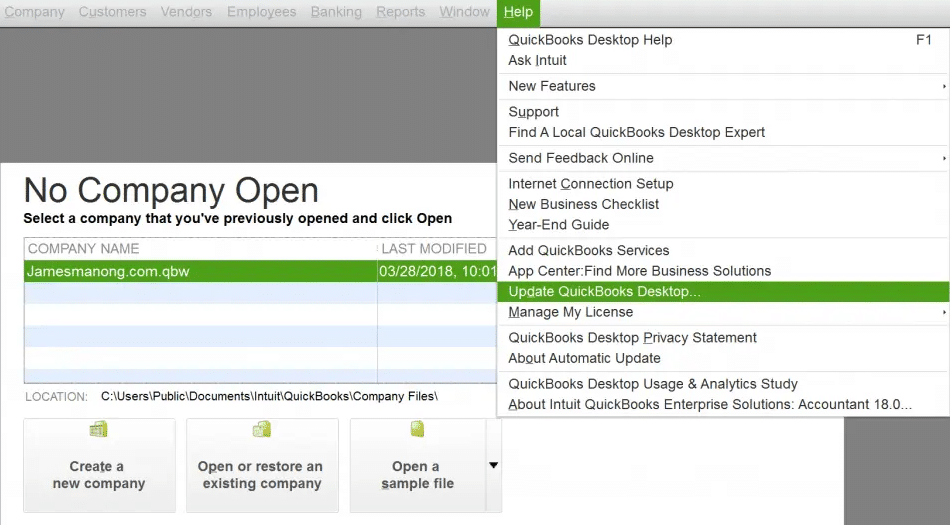
- Then, you will see the No Company Open window on the screen. From there, go to the Help menu and select the option to update the QuickBooks Desktop application.

- Under the Options tab, select Mark All; then, hit the Save option.
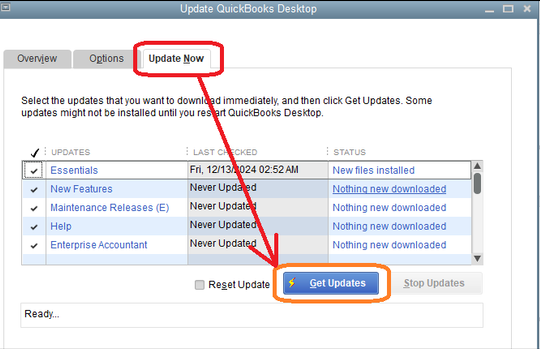
- Under the Update Now tab, tick the Reset Update checkbox and select Get Updates.

- When the procedure of downloading the updates is completed, close and re-launch the QB program.
- To install the updates, you need to select the Yes option.
- Then, restart the system.
Follow the steps below to download the most recent tax table in QuickBooks:
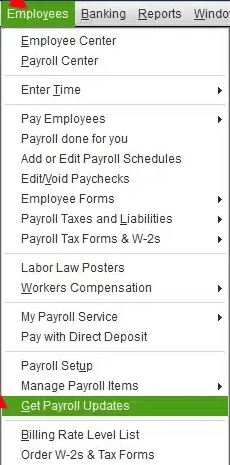
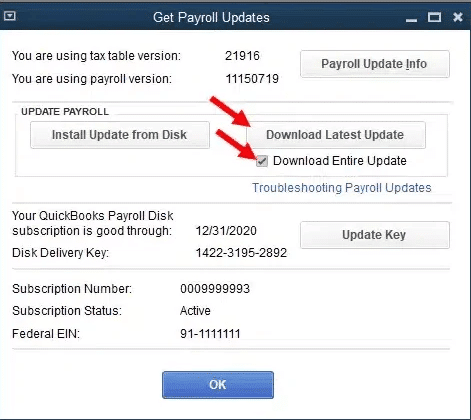
- First, select the Get Payroll Updates option under the Employee tab.

- Then, you need to tick the checkbox next to Download Entire Update.

- Finally, select Download Latest Update.
If you are still facing the issue of QuickBooks payroll liabilities not showing, move to the next solution.
Verify the Payroll Liability Report
The simplest thing you should do is to verify the payroll liability report. With the assistance of this report, you can quickly check if your company has any existing unpaid liabilities or not.
- First, you need to move to the Reports menu and choose the Employees & Payroll option.
- According to the liability schedule, update the report date.
- You can understand the pending liability by knowing the following:
- The negative numbers (underlined in red) mean overpayment.
- The positive numbers (highlighted in yellow) indicate that a liability balance still exists.
- A zero balance (underlined blue) indicates a liability is paid.
- If you want to check the wrong posting of a liability payment, you need to double-click the liability amount.
- Then, perform the above action to reveal the Liability History and Payment Details.
- If you identify any Overlapping Liability Payment(s), you can resolve the dates to update the balances.
If you’re still encountering the issue of payroll liabilities not showing in QuickBooks Desktop, you must perform the next method.
Launch the Verify and Rebuild Tool in QB
If your company file is damaged or corrupt, Verify/Rebuild is an excellent utility that can assist you in resolving it. This utility will find and diagnose the issue due to which payroll liabilities are not showing up in QBDT. You need to follow the steps given below to use the Verify and Rebuild tool:
Check the Data Damage
- First, you need to move to the Window tab and select the Close All option. This will close the company file.
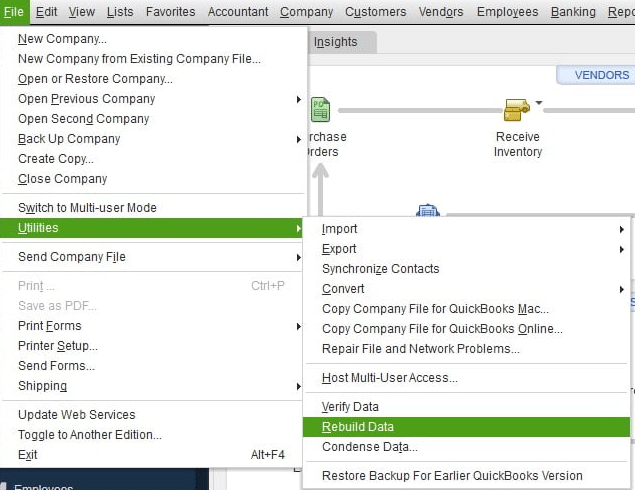
- Then, move to the File menu, choose Utilities, and then Verify Data.

- Now, you will see the following options on the screen:
- If you can see that QB detected no problems with the data, there is no requirement to take any further actions, as the data has no errors.
- If you identify an error message, you must visit the QBDT application support site or access the qbwin.log file to find info on this specific issue and instructions to resolve it.
- If you can see that the data has lost integrity, launch the rebuild data utility to remove the issues.

You need to rebuild the damaged data
- Under the File tab, select the Utilities option, and then select the option to Rebuild Data.

- Before rebuilding the data, QuickBooks will ask you to make a backup of the company file. You must click the OK option, as it is always recommended to have a backup.
- Next, pick a location on the system to save the backup, then select the OK option. You need to ensure that you do not replace another backup file with the new one.
- In the File Name, you need to enter a different name for the new backup file and click the Save option.
- Then, choose OK when you get a message that says Rebuild has been finished.
- If you wish, you can once again Verify Data to double-check for additional damage.
- If you identify any other damage, you have to fix that manually.
- In case you do not find any issue, you can restore a recent backup. You can do that by choosing the File menu, and from the drop-down, click Open or Restore Company.
If this solution doesn’t solve the issue of QuickBooks payroll liabilities not showing, you can perform the next method.
You Need to Adjust the Payroll Liabilities
You can adjust the payroll liabilities, as this will help you with the issue where the company payroll liabilities are not showing up in QuickBooks. Making liability adjustments to resolve your employee’s year-to-date (YTD) or quarter-to-date (QTD) payroll details is advised. Now, you have to follow the steps mentioned below to make a liability adjustment:
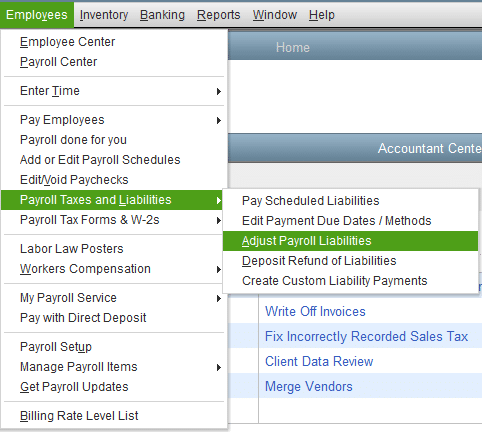
- First, you need to select the Payroll Taxes and Liabilities option under the Employees menu.

- Then, select Adjust Payroll Liabilities and fill in the needed fields.
- Next, you need to select the employee and fill out the Taxes and Liabilities field.
- Finally, choose the Accounts Affected option and then select OK.
You must go through the solutions mentioned above and resolve the issue of QuickBooks payroll liabilities not showing quickly.
The Quick View Table – QuickBooks Payroll Liabilities Not Showing
Let’s discuss the crucial points we mentioned in this blog article.
| What is the issue with QuickBooks payroll liabilities not showing? | Incorrect payroll item setup, unrecorded unpaid payroll taxes, corrupted payroll data, or out-of-date payroll updates can all cause QuickBooks payroll liabilities to not appear. The problem may be found and fixed by checking payroll settings, updating QuickBooks, and generating payroll obligation reports. |
| Reasons why you face this issue | The following points are the reasons why you face this issue: 1. If, for that particular responsibility period, no liability payment has been posted. 2. Whether the payroll service, the QuickBooks program, or both are out of date. 3. If QuickBooks Desktop’s data is damaged. |
| How to resolve this issue? | You can resolve this issue by updating QBDT & Payroll Tax Tables, verifying the payroll liability report, launching the Verify and Rebuild Tool in QB, and adjusting the payroll liabilities. |
Conclusion
In this blog, we have discussed the issue of QuickBooks payroll liabilities not showing in detail. We also covered the reasons why QB users face this problem. Also, we covered the solutions to fix this issue. If you’re experiencing issues related to QuickBooks payroll liabilities not showing, don’t hesitate to reach out to our Accounting Helpline experts at 1.855.738.2784.
Frequently Asked Questions
Which QuickBooks report shows the total Payroll Liabilities balance?
The Payroll Liability Balance report gives the info on most corporate contributions, most deductions, and payroll items given to a liability account.
What do you mean by Payroll Adjusting Entry?
The adjustment entry boosts expenses on the income statement by debiting Wages Expense for the payroll amount accrued during that time. Also, it credits Accrued Payroll Liability with the same amount, which also results in a liability for the accrued pay owing to employees on the balance sheet.
Does multi-user mode impact payroll liabilities visibility?
Yes, if QB is in multi-user mode and files aren’t properly synced, the liability balance may not display for all users. You can fix this issue by refreshing the file or restarting QB.
Why do liabilities show in some reports but not others?
This usually happens due to report filters, wrong data ranges, or inactive payroll items. You have to double-check the report settings and make sure that all accounts are active in the Chart of Accounts.
Related Posts-
What to do When QuickBooks Won’t Update? (10 Fixes)
QuickBooks Tool Hub – One Stop Solution for All QB Errors
QuickBooks Error 6123, 0- Fix with Expert Guide
All About QuickBooks Payroll Subscription You Must Know
QuickBooks is Unable to Open Company File: Working Solutions
QuickBooks Error PS036: Issue with Payroll Subscription

Edward Martin is a Technical Content Writer for our leading Accounting firm. He has over 10 years of experience in QuickBooks and Xero. He has also worked with Sage, FreshBooks, and many other software platforms. Edward’s passion for clarity, accuracy, and innovation is evident in his writing. He is well versed in how to simplify complex technical concepts and turn them into easy-to-understand content for our readers.