

Last Updated on June 1, 2026
There can be a number of reasons why the QuickBooks company file gets damaged and corrupted. For instance, an unexpected system shutdown, a virus attack, a large company file size, a network disruption, or poor software update. Consequently, you might face issues such as QuickBooks crashing, missing transactions, error messages, or being unable to access the company file, and thus need QuickBooks file repair.
It helps diagnose and repair damaged company files, ensuring smooth accounting processes. To check for and fix data corruption in QuickBooks Desktop, you have been provided with different tools by Intuit. These include Verify Data and Rebuild Data. For severe damage, one can also use the QuickBooks File Doctor feature or restore the most recent company file backup, and for QuickBooks company file repair.
It is crucial to know about corrupt QuickBooks file repair as soon as possible to avoid data loss, payroll disruptions, and incorrect accounting. This guide explains the various causes of file corruption, the preventive measures to protect QuickBooks files, and ways to repair and recover QuickBooks company data.
Reasons Why QuickBooks File Gets Corrupted
External factors and software conflicts can be some of the reasons that can cause data damage in your QuickBooks company file. Hover over the section to explore the common cause of the damaged data:
- Hardware issues might impact the way the software runs. This can cause data damage in the company file.
- It might be caused by the computer’s RAM.
- The location where the hard drive is stored can also affect the data in QuickBooks.
- An improper shutdown of the computer can be one reason.
- It can also occur due to connected devices, such as printers or USB drives.
- A malware attack can impact files on the computer and make them unreadable.
- It can also happen due to integrated external programs with QuickBooks that prevent it from sending data.
- An outdated operating system update can cause data corruption.
- Sometimes the file size increases so much that it impacts your computer’s resources and makes the QuickBooks company file corrupted.
After knowing the causes why the data gets damaged and corrupted, move forward and learn how to repair a QuickBooks file.
How to Repair a QuickBooks Company File?
Below are the methods that can fix data damage on your QuickBooks Desktop company file. It includes using the Rebuild Data Tool, running QuickBooks File Doctor, running Quick Fix my File, QuickBooks file repair software, and many others.
Run the Rebuild Data Utility
This tool is a built-in feature that repairs damage in the company file data. See how:
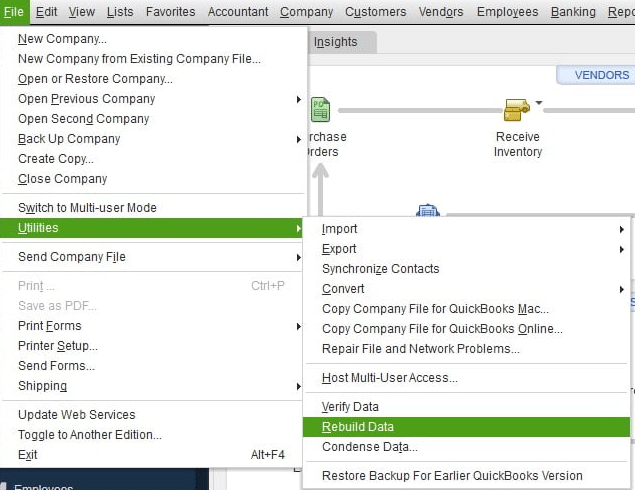
- Go to the File menu.
- Choose Utilities > Rebuild Data.

- It will ask you to create a backup; choose OK.
- Follow the onscreen instructions to save a backup.
- Give the tool time to repair your file. Remember, this process is time-consuming.
- Also, QuickBooks might seem stuck, but when you move the mouse, you will find it is working.
- When the tool finishes, choose OK.
- Move to the File menu.
- Select Utilities > Verify Data.

- Now, let the tool work on your data issues.
- If QuickBooks doesn’t find any damage to the data, choose OK and keep using your company file.
- If QuickBooks still finds issues with the company file, choose Rebuild Now.

Move to the next method and learn to fix corrupted files using the QuickBooks file repair tool.
Run QuickBooks File Doctor
Again, this tool is compiled in QuickBooks Tool Hub, and to access this utility, you will need to download and install the Tool Hub first.
Here are the steps to download and install the QB Tool Hub.
- Close the QuickBooks program.
- Download the most recent release of the Tool Hub.

- Save the file to a place where it is easy to access later.
- Note: If you already have this tool hub installed on your computer, you can find out the version you have. Go to the Home tab, and the version will be at the bottom.
- Now open the file you downloaded (QuickBooksToolHub.exe).
- Go through the instructions to install and agree to the terms and conditions.
- When it is installed, double-click the icon on your Windows desktop to open the Tool Hub.
- If you are unable to find the icon, search for QuickBooks Tool Hub and select the program.

Now, run QuickBooks File Doctor for QuickBooks data file repair.
- Open the Tool Hub.
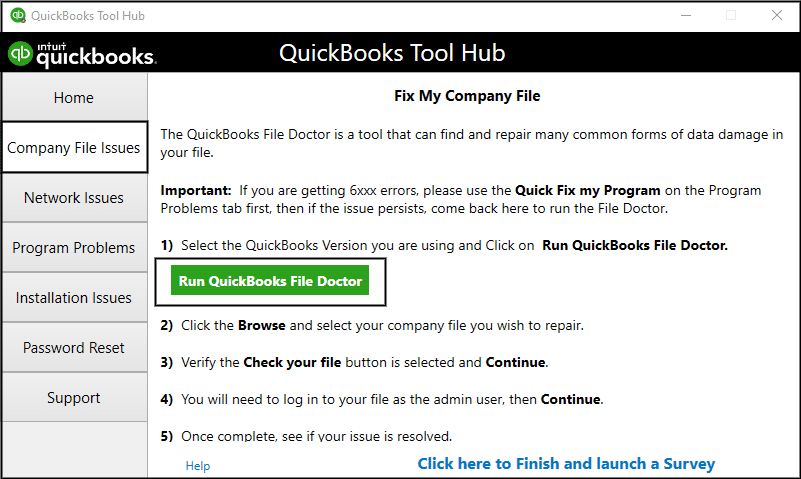
- Choose Company File Issues.
- Click on Run QuickBooks File Doctor and wait for it to open up.

- If the utility doesn’t open, go to the search bar and search for QuickBooks File Doctor to open it manually.
- Go to the company file dropdown.
- Choose the file that you want to repair.
- If you can’t see your file, choose Browse and search to get it.
- Select Check your file (middle option only).
- Select Continue.
- Enter the QB admin password.
The scan process might take up to 15 minutes, depending on the internet speed and the file size. Also, the scan may say it was successful even if it fixes the issue. When the scanning is done, open QuickBooks and the company file.
If the File Doctor Tool doesn’t help you repair QuickBooks company file, move to the next solution.
Manually Repair Your Company File by Rebuilding Your Data
You can also repair your company data by rebuilding it manually. You can fix the errors from the Verify Results window.
- Go to the File menu.
- Hover over Utilities > Verify Data.
- Let the tool work on your data issues.
- Here, from the Verify Results screen, choose Expand All.
- Choose the See Online Article to look at the steps to fix the error. If you don’t see any article for the error, connect with an Accounting Helpline expert.
Rebuilding the company file manually can repair the QuickBooks file. If this doesn’t help, try implementing the next solution.
Update QuickBooks Desktop to the Latest Release
Sometimes, the problem might occur due to outdated features of the program. Therefore, download the latest release of QuickBooks.
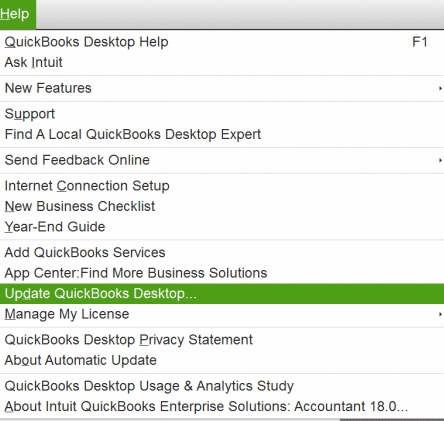
- Go to the Help menu.
- Choose Update QuickBooks Desktop.

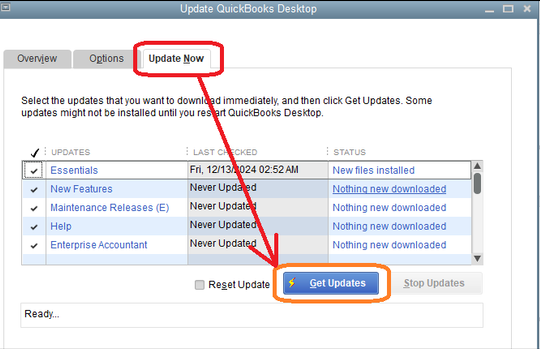
- Select Update Now.
- Click Get Updates.

- When the updates are finished, restart QuickBooks.
- When it prompts you to install the update, select Install Now.
If updating QuickBooks does not resolve the QuickBooks corrupt file repair, follow the steps for the next solution.
Run Quick Fix My File
Run this utility to repair a corrupt QuickBooks company file. Go through the steps mentioned:
- Open the QuickBooks Tool Hub.
- Choose Company File Issues.
- Select Quick Fix my File.
- When it is completed, open your application.
Running Quick Fix My File from the Tool Hub can help you repair a corrupt QuickBooks file. If this doesn’t help in QuickBooks damaged file repair, jump to the next method.
Ensure You Open the Correct File
In QuickBooks Desktop, you can see the types of file extensions that are used to store different types of data. And the company file is stored with the .QBW extension, and backup data files (QBB) are totally different file types.
Below are some common file types and extensions you may see in QuickBooks Desktop for Windows and Mac.
- QBW – QuickBooks Company file
- QBB – QuickBooks Backup file
- QBM – QuickBooks Portable file
- QBO – QuickBooks Bank Statement file
- DES – Layout Designer Template file
- QBR – QuickBooks Report Template file
- QWC – QuickBooks Web Connector file
- QBX – Accountant’s Review Copy / Transfer file
- QBA – Accountant’s Copy file
- ND – Network Data file
- TLG – Transaction Log file
This was all about QuickBooks data file repair. Now, download the repair file in QuickBooks and move forward to different segments and gain useful insights.
Prevention of Data Corruption From Occurring in the Future
To maintain Data integrity and protect your business operations. Below, we have listed some best practices that can prevent data corruption in the future.
- Set up regular backups
- Keep the QuickBooks applications and Windows updated
- Maintain comprehensive logs of data operations
- Verify data integrity
- Invest in reliable storage and networking equipment
- Store only correct and intended data
These pointers will ensure data integrity and prevent corruption.
An Overview Table: QuickBooks File Repair
Below, you can see a table that has compiled all the information given in this guide. Understanding and implementing things becomes easy with the table.
| Error | QuickBooks company file corruption or damage |
| Causes | Hardware issues, malware, improper shutdown, outdated system, large file size |
| Solutions | Rebuild Data Tool, File Doctor, Quick Fix my File, QuickBooks update, run QuickBooks file repair utility |
| Repairing Tools | QuickBooks Tool Hub, Verify Data, File Doctor, QuickBooks company file repair tool, QuickBooks data file repair tool |
| Preventive Measures | Regular backups, system updates, and reliable storage |
Conclusion
In conclusion, file corruption can occur due to multiple factors. Therefore, we have compiled this guide that explains common causes, QuickBooks file repair service, and their solutions. Poor internet connection, outdated program, virus attack, and network disruption are some examples. To fix it up, you can attempt to use the Rebuild Data Tool, run QuickBooks File Doctor, manually repair your company file by rebuilding your data, update QuickBooks Desktop to the latest release, run Quick Fix my File, or ensure you open the correct file. If you are still stuck and want to connect with Accounting Helpline experts, dial 1.855.738.2784.
Frequently Asked Questions
What are the reasons behind the company file corruption in QuickBooks?
The common causes for the company file corruption include:
– Hardware issues
– Improper system shutdowns
– Malware attacks
– Damaged hard drives
– Outdated Windows updates
– Oversized company files.
How to repair the QuickBooks data file?
You can repair a damaged QuickBooks company file using tools like Rebuild Data Tool, QuickBooks File Doctor, and Quick Fix my File available in the QuickBooks Tool Hub.
What is a QuickBooks File Doctor?
QuickBooks File Doctor is a built-in utility available in the QuickBooks Tool Hub that helps diagnose and repair company files and network-related issues in QuickBooks Desktop.
How long does QuickBooks File Doctor take to scan a file?
Usually, the scanning process takes up to 15-20 minutes, which depends on the file size and internet speed.
How can I prevent QB file corruption from happening again so I don’t have to use the QB file repair tool?
Prevent QB file corruption as follows:
– Shrink your file size using file condensation.
– Begin with a new QB with opening balances.
However, if the issue is far deeper than the file size, consider the methods in this blog or go to a QB expert for resolution.
How to identify data corruption and the need for QuickBooks file repair?
You may see the need for QB file repair arising when you face troubles running QB, opening company files, etc., seamlessly. Also, when you run the verify and rebuild data utility tool, it highlights the issues affecting your system.
Related Posts-
Fix QuickBooks Error 3371 status code 11118/11104/1 With Hustle Free
QuickBooks Error 6123, 0- Fix with Expert Guide
QuickBooks Tool Hub – One Stop Solution for All QB Errors
QuickBooks is Unable to Open Company File: Working Solutions
QuickBooks Error PS036: Issue with Payroll Subscription
QuickBooks Error 6000 301: Pro Tips for Resolution

Edward Martin is a Technical Content Writer for our leading Accounting firm. He has over 10 years of experience in QuickBooks and Xero. He has also worked with Sage, FreshBooks, and many other software platforms. Edward’s passion for clarity, accuracy, and innovation is evident in his writing. He is well versed in how to simplify complex technical concepts and turn them into easy-to-understand content for our readers.