

Last Updated on May 22, 2026
QuickBooks error 3645 indicates issues with the company file, often caused by a damaged or incomplete QB installation. It might occur if you are running an outdated QBDT software. Other possible factors include damaged system files, third-party apps interference, and misconfigured Windows Firewall. When this problem arises, you will see a pop-up on the screen with a message saying:
“Data Integrity Verification Failed (Error Code: – 3645)”
You may notice that QuickBooks goes off after every 30 seconds. Some users started getting this problem after upgrading their software and adding a new company file. As a result, you will not be able to access your company file, which can create hindrances to the business workflow. To avoid further destruction, you must create a backup of your data. Alright, let’s go through the blog and learn about its major causes and figure out some technical ways to resolve them.
If you are tired of troubleshooting QuickBooks error 3645 on your own and getting no results, consider consulting a professional for guidance. Give a ring to 1.855.738.2784 and talk to an Accounting Helpline expert about it.
What is QuickBooks Desktop Error Code 3645?
Error code 3645 in QuickBooks prevents you from accessing the company file. This problem can take place in every QB version (Pro, Premier, Enterprise). The factors that might contribute to it include insufficient permissions to access company data, damaged system files, or an antivirus application on your system. You can try running and rebuilding data, or using QB Tool Hub to fix such an issue.
Know the Possible Reasons Why You Encounter Error 3645 in QuickBooks
A number of reasons can trigger error code 3645 in the QB application. Let’s take you through each factor one by one:
- If your company file has lost its integrity.
- You can encounter this problem if you have installed the QBMaker on your system.
- It can arise due to network connection issues.
- When the QuickBooks program is not installed properly on the computer.
- Third-party applications running in the background might be consuming system resources, which is why you are unable to run QB properly.
- If the system files are either damaged or not functioning properly.
- Interruption by the Windows Firewall can be one reason behind it.
- Hardware problems related to the computer can cause difficulties running QB.
- When the QB user doesn’t have sufficient permissions to access the company data.
- QB fails to verify the company file because it is corrupted.
After you have understood the factors the QuickBooks error code 3645 stems from, let’s proceed and explore different methods to get rid of it.
Top 6 Fixes That Work For QuickBooks Desktop Error Code 3645
In this segment, we have outlined some technical resolutions that can be used to eliminate error code 3645 in QuickBooks. Let’s walk you through those methods and help you implement them accordingly.
Run Verify and Rebuild Data Tool
You should verify and then rebuild company data to ensure a higher level of data integrity and minimize the risk of undetected issues.
Step 1: Verify QuickBooks company file data
Try running the verify utility to scan your company file for errors or data damage. See how:
- Head over to the Window, choose Close All.
- Go to the File menu.
- Choose Utilities.
- Tap Verify Data.

- After doing this, you may receive one of the following messages:
- If you get a message saying “QuickBooks detected no problems with your data,” it means your data is clean, and you don’t need to do anything with it.
- If you encounter an error at this point, search for a specific error message on the QBDT support site and learn to fix it.
- A message stating “Your data has lost integrity” indicates that the data is damaged. Proceed to rebuild your company file data to repair it.
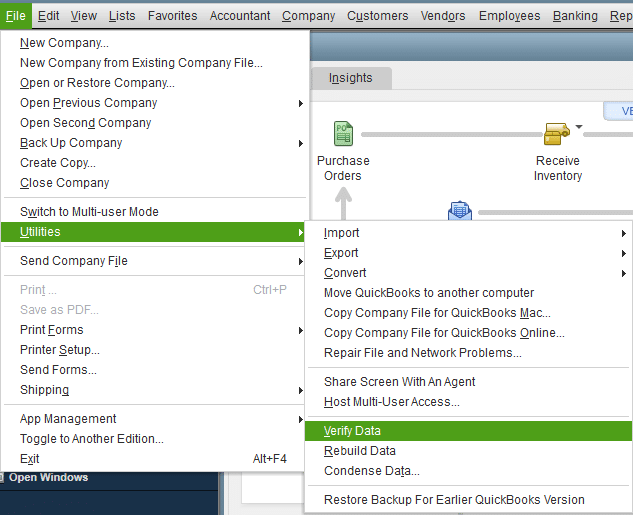
This step will find data with damage, and in the next step, we will rebuild the data to fix it.
Step 2: Rebuild your company file data
If verifying data finds damage to the company file, follow the instructions below to repair your data.
Note: If you use Assisted Payroll, contact experts before the rebuilding procedure.
- Move to the File menu.
- Click on Utilities.
- Choose Rebuild Data.

- Now, QB will ask you to create a backup before you rebuild your data.
- Choose OK and pick a location where you will save the backup file.
- Tap OK, but don’t replace another backup file.
- Then, enter a new name in the File name section.
- Choose Save.
- Click OK when you get the message Rebuild has completed.
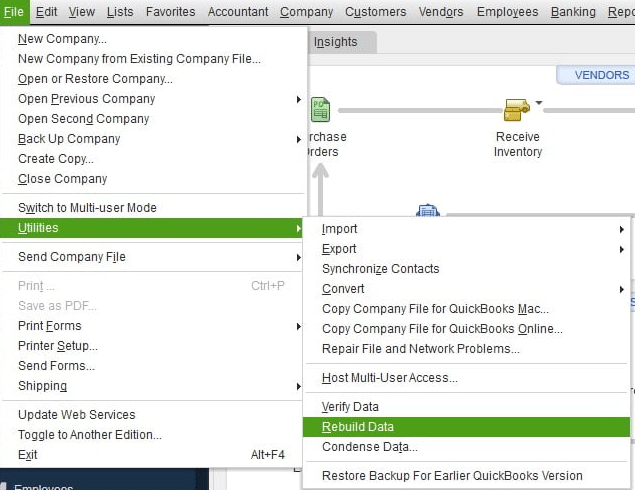
Doing this will repair your damaged data, and we will then run the verification tool again to find any remaining issues in the data, if any.
Step 3: Verify data to check for remaining issues
Verify your company data once again to ensure the repairs were successful and there is no further damage.
- Jump to the File menu.
- Choose Utilities and then click on Verify Data to check for additional damage.
- If this finds more damage, you will have to fix it manually. Search for the errors in the qbwin.log on the QuickBooks Desktop support site for how to fix them.
- If your error is not there, restore a recent backup.
- Move to the File menu.
- Choose Open or Restore Company.

- Remember, you don’t need to replace your existing company file. Also, you will need to enter information into your company file again after the backup file is created.
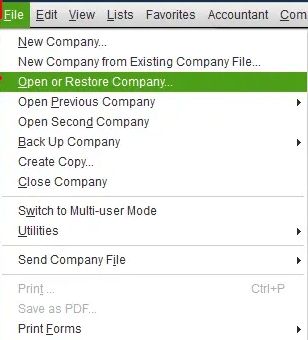
This method can repair the company file data if the error was caused by a damaged company file. If another factor is responsible for the issue, you will have to try a different solution for that. Go to the next method.
Run utilities from the Tool Hub to repair the company file
Tool Hub includes various tools to repair different QB errors. File Doctor helps to fix company file-related problems. Follow the steps below to run File Doctor:
Step 1: Use QB File Doctor
Here are the steps to run File Doctor in the Tool Hub.
- First, you need to open the QB Tool Hub.
- Click on the Company File Issues tab.
- After this, tap on Run QuickBooks File Doctor and wait for a few minutes to let the tool open.

- If, after waiting for a while, the tool is not opened, go to the search bar and type QuickBooks Desktop File Doc and open it manually.
- Now, head over to the company file dropdown.
- Pick the company file that needs to be repaired.
- If you can’t find the company file, tap on Browse and search to get it.
- Choose the option that says Check your file (middle option only).
- Tap Continue.
- Now, enter the QB admin password, followed by Next.
- The scanning process may take some time, depending on the file size and internet speed. The scan may indicate failure, even if it fixes your issue. When the scan is finished, open QB and the company file.
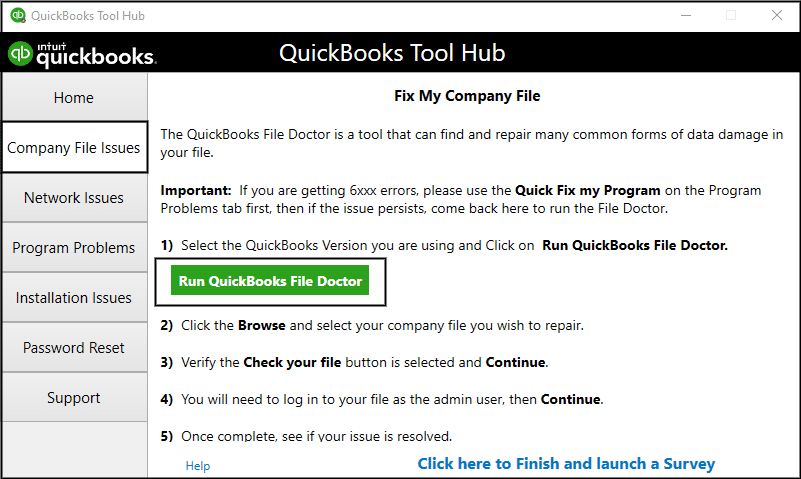
Step 2: Use Quick Fix My File
Follow the steps below to run Quick Fix My File.
- Open the Tool Hub and click on Company File Issues.
- Choose Quick Fix My File and then click OK.
- Open the QuickBooks application and see if the error is resolved.
- When the scan completes, open the program and your company file.
If running File Doctor or Quick Fix my File doesn’t rectify the QB error 3645, let’s move to the next method and follow the steps carefully to fix it.
Configure Windows firewall settings
The issue may be caused by improper settings of the Windows firewall that might be blocking QB from running. Let’s configure its settings and fix the error.
Add Firewall port exceptions for QuickBooks
If you have multiple versions of QB on your device, perform these steps for each version:
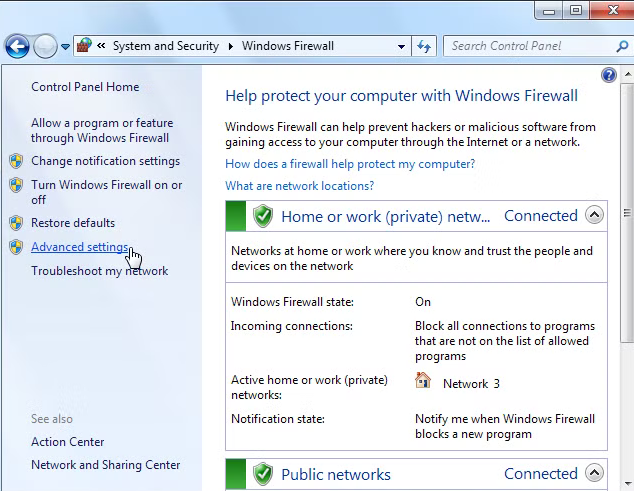
- Open the Start menu.
- Search for Windows Firewall and hit Enter to open it.
- Choose Advanced Settings.

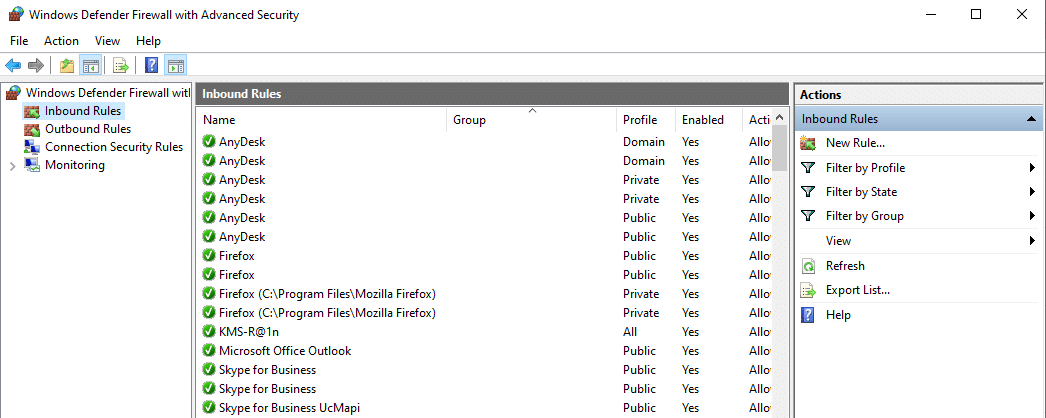
- Now, right-click on Inbound Rules.

- Choose New Rule.
- Tap Port, followed by Next.
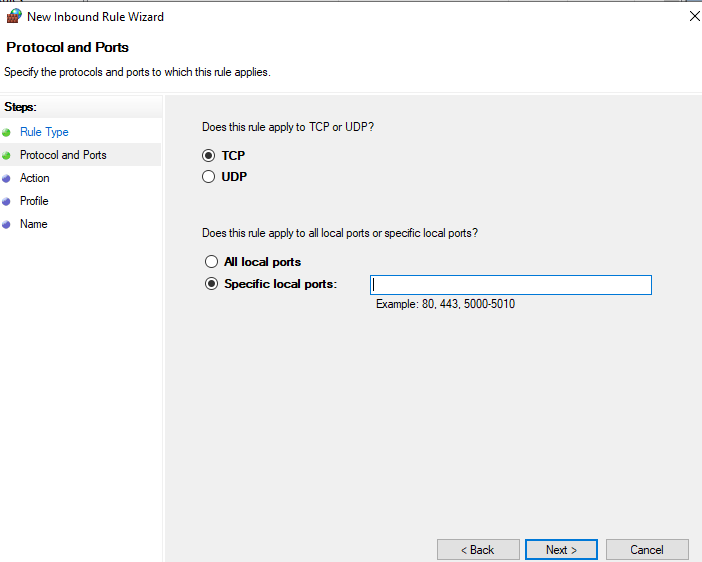
- Ensure that the TCP option is selected.
- Hover over the Specific local ports field.

- Enter the specific ports based on the QB version you have.
- QuickBooks Desktop 2020 and later: 8019, XXXXX.
- QuickBooks Desktop 2019: 8019, XXXXX.
- QuickBooks Desktop 2018: 8019, 56728, 55378-55382.
- QuickBooks Desktop 2017: 8019, 56727, 55373-55377.
Important: QBDT 2019, 2020, and future versions use dynamic ports. These ports are especially assigned during installation to ensure that the QB Desktop application gets exclusive use of a given port.
Here is how to get a dynamic port number:
- Open the Windows Start menu.
- Enter QuickBooks Database Server Manager into the search menu to open it.
- Head to the Port Monitor tab.

- Find your QB version.
- Note down the port number, which we will use for your firewall port exceptions.

You can choose the Renew option to change the assigned port number. To reset firewall permissions, go to Scan Folders, followed by Scan Now. Remember, you will only be able to renew ports for Desktop 2019 and later versions, not ports for older versions of QB.
- After you have entered the port number, choose Next.
- Click on the Allow the Connection option, followed by Next.
- If you get any prompt, ensure that all the profiles are marked. Then, choose Next.
- Create a rule here with a name like “QBPorts(year).”
- When it is done, choose Finish.
You will have to follow the steps again to create Outbound Rules. But, choose Outbound Rules in step 4, where you were selecting Inbound Rules. Later, open QB Desktop and see if the error is fixed.
Create Windows firewall exceptions for QuickBooks programs
To perform different tasks, QB uses executable files (.exe). Follow the steps below to create exceptions for each executable file listed in the table.
- Launch the Start menu.
- Enter Windows Firewall and hit Enter to open it.
- Choose Advanced Settings.
- Right-click on Inbound Rules.
- Tap New Rule.

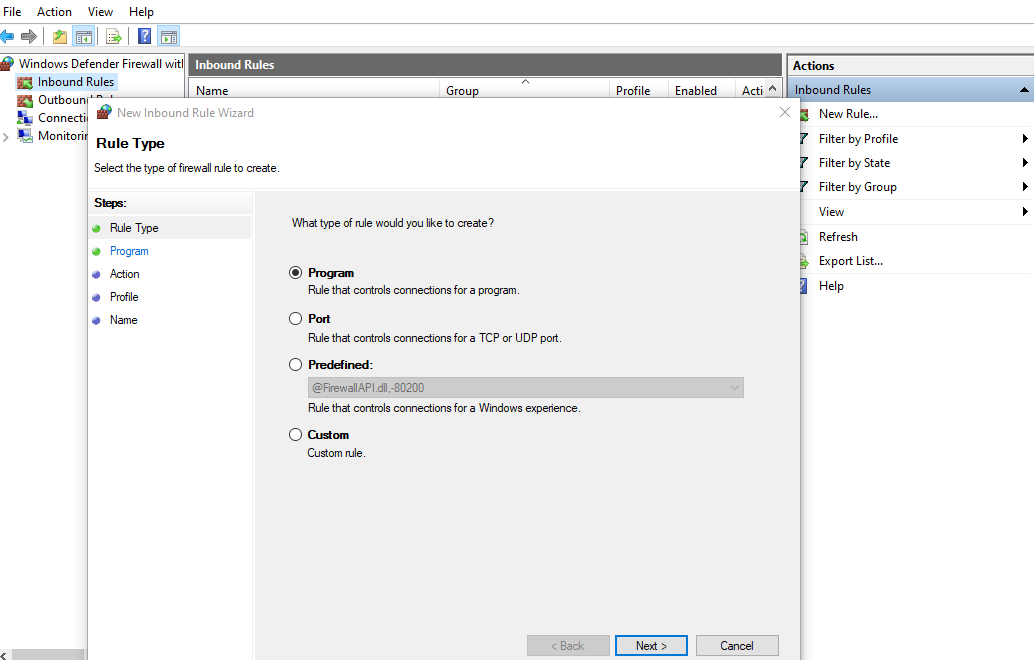
- Choose Program, followed by Next.
- Click on This Program Path and then choose Browse.

- Search and choose one of the executable files in the table below. Then, choose Next.
- Click on the Allow the Connection option, followed by Next.
- If prompted, ensure that all the profiles are marked.
- Choose Next.
- Create a rule at this point and name it like “QBFirewallException(name.exe).”
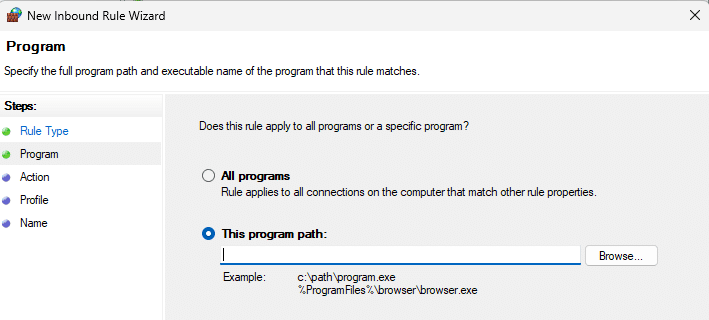
Follow the steps again to create Outbound Rules. But, choose Outbound Rules in step 4, where you were selecting Inbound Rules.
| AutoBackupExe.exe | C:\Program Files\Intuit\QUICKBOOKS YEAR |
| Dbmlsync.exe | C:\Program Files\Intuit\QUICKBOOKS YEAR |
| DBManagerExe.exe | C:\Program Files\Intuit\QUICKBOOKS YEAR |
| FileManagement.exe | C:\Program Files\Intuit\QUICKBOOKS YEAR |
| FileMovementExe.exe | C:\Program Files\Intuit\QUICKBOOKS YEAR |
| QuickBooksMessaging.exe | C:\Program Files\Intuit\QUICKBOOKS YEAR |
| QBW32.exe | |
| QBDBMgrN.exe | C:\Program Files\Intuit\QUICKBOOKS YEAR |
| QBServerUtilityMgr.exe | C:\Program Files\Common Files\Intuit\QuickBooks |
| QBCFMonitorService.exe | C:\Program Files\Common Files\Intuit\QuickBooks |
| QBLaunch.exe | C:\Program Files\Common Files\Intuit\QuickBooks |
| QBUpdate.exe | C:\Program Files\Common Files\Intuit\QuickBooks\QBUpdate |
| IntuitSyncManager.exe | C:\Program Files\Common Files\Intuit\Sync |
| OnlineBackup.exe | C:\Program Files\QuickBooks Online Backup |
Open the QB application and see if the error is eliminated. If configuring the firewall doesn’t fix the problem, go to the next solution.
Remove third-party software running in the background
Sometimes, third-party apps running in the background can cause such issues. Follow the steps below to stop these background applications.
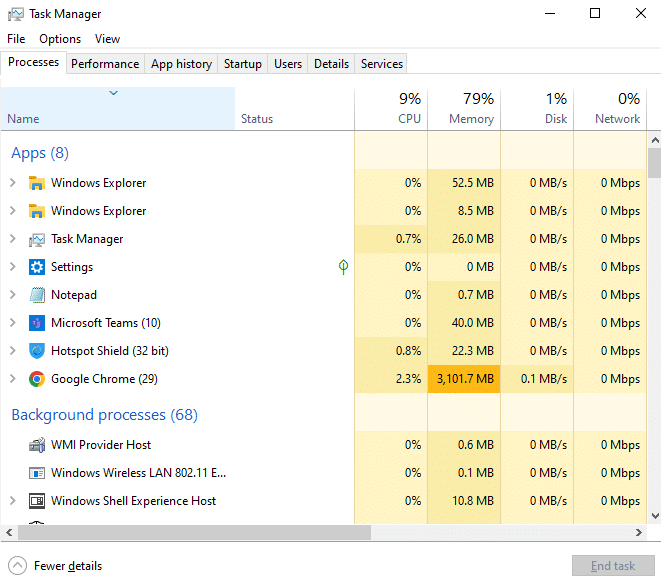
- Press Ctrl+Alt+Delete to open the Task Manager window.

- Head over to the Task Manager and choose the Processes menu.
- Click on different third-party apps that are running in the background.
- Choose End Task, which will stop the tasks running on your device.
- Then, you can open your QB application and try to access company files.
If you are still stuck with QuickBooks error 3645, try to run the QB Install Diagnostic Tool.
Repair the QuickBooks Desktop program
The error may arise if there are problems with the software itself. Let’s try the steps below and repair the QB application.
Step 1: Run Quick Fix My Program
To run this utility, you must install the Tool Hub if it is not already installed on your device. If you have already installed it, follow the steps below to run the Quick Fix My Program. This tool will close any QB-related background processes. Follow the steps below to run it:
- Open the QB Tool Hub.
- Head over to the Program Problems.
- Tap on the Quick Fix My Program tool.

- After the tool completes repairing, restart your QBDT.
- Open your company file.
- See if the data verification is resolved.
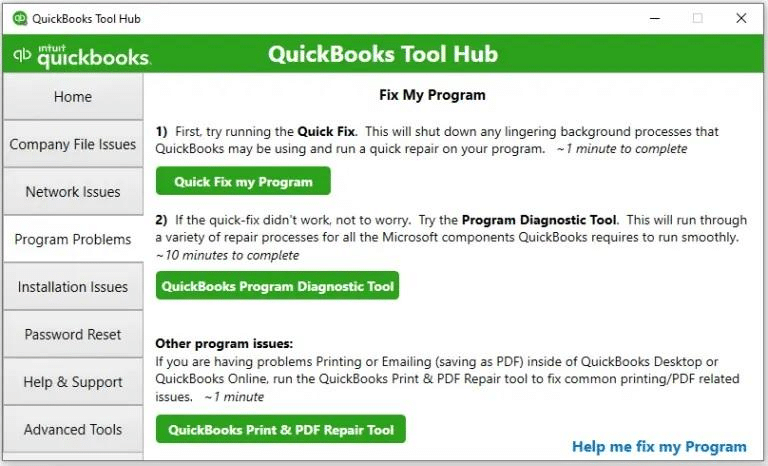
If this utility doesn’t help you rectify the QuickBooks error code 3645, go through step 2.
Step 2: Run QuickBooks Install Diagnostic Tool
Run this utility if the Quick Fix my Program doesn’t resolve the problem. Here are the steps you need to implement in order to fix it.
- First, launch the QB Tool Hub.
- Head over to the Installation Issues tab.
- Next, choose QuickBooks Install Diagnostic Tool and wait for up to 20 minutes to let the tool repair program issues.

- After it completes the repair, restart your computer and open the QB application.
- Also, access your company file and update the software and QB Payroll to the latest version.
- When all the steps are done, check if the program’s problem is fixed.
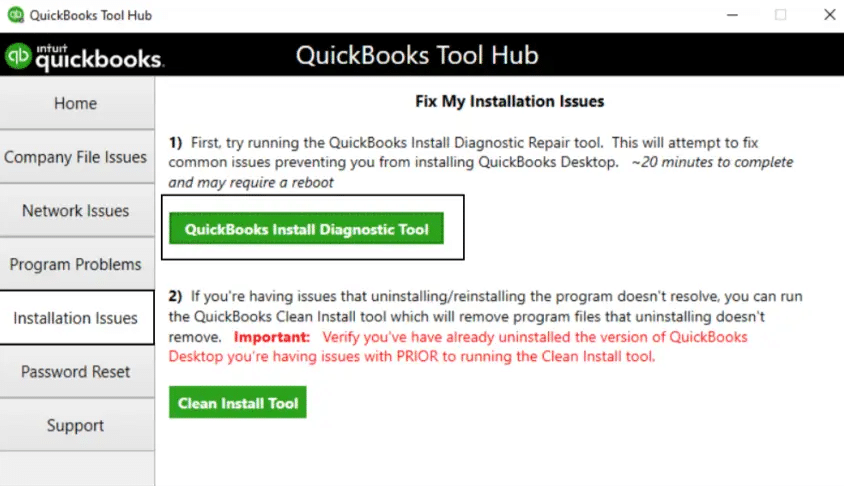
If running the Connection Diagnostic Tool does nothing, proceed and try to resolve the issue using the next solution.
Manually removing QB downloader files
If nothing helps in fixing QuickBooks error message 3645, try to remove the QBDT downloader files to repair the issue.
- First, open the Windows File Explorer by pressing Win+E.
- Look for the QuickBooksDownloader.exe.config and QuickBooksDownloader.exe.manifest files.
- After you have found the files, right-click each file.
- Choose Delete.
- You need to delete both files manually.
- Reopen QB and verify your data again.
Let’s move ahead and go through the next section to get a brief about the error in tabular form.
A Quick Table View – QuickBooks Desktop Error 3645
Here, we have provided you with a table to give you brief information about the error, causes, and solutions.
| What does QuickBooks error 3645 state? | Error 3645 in QuickBooks is a company file issue that indicates that data integration verification failed. It prevents you from accessing the company file. |
| Its potential factors | 1. Insufficient user permissions 2. Inability to verify or access the data file 3. Issues with the QuickBooks application 4. Network connection issues 5. Damaged system files |
| Some technical fixes | 1. Run Verify and Rebuild Data Tool 2. Run utilities from the Tool Hub to repair the company file 3. Configure Windows firewall settings 4. Remove third-party software running in the background 5. Repair the QuickBooks Desktop program 6. Manually removing QB downloader files |
Summing It Up
In order to conclude it, we can say QuickBooks error 3645 is nothing but a company file-related problem, indicating failed data integration verification. Moreover, we have included different segments about its causes and solutions. We hope that this will help you get rid of the issue. In case you are still stuck and want a professional’s assistance, give 1.855.738.2784 and talk to an Accounting Helpline expert.
Frequently Asked Questions
What causes QuickBooks Desktop error 3645?
It is caused by the following factors:
– Data damage
– Incorrect file path
– QBMaker files
– Multi-user conflict
How do I fix “Data Integrity Verification Failed” (-3645)?
Method 1: Run the Verify/Rebuild Data utility
Method 2: Use QuickBooks Tool Hub
Method 3: Repair QuickBooks Desktop
Method 4: Check folder permissions
Method 5: Configure firewall settings
Can I fix error code 3645 in QuickBooks without restoring a backup?
Running the Rebuild Data tool can help resolve data issues without reverting to a previous backup. If the file damage is severe, you must restore a backup.
How to tackle QuickBooks error 3645 in multi-user mode?
– Make sure that the company file is on a local drive, not on an external device like a USB drive.
– Verify that the network drive is correctly mapped.
– Ensure that the server is hosting the file, not workstations.
Related Posts-
Delve into the Detailed Guide on QuickBooks Data Conversion Services
How to Set up Payroll in QuickBooks? An In-depth Guide
Fix QuickBooks Closes Unexpectedly with Expert’s Solution
QuickBooks is Unable to Open Company File: Working Solutions
All About QuickBooks Payroll Subscription You Must Know
What is QuickBooks Data Migration Services & How to do Migration

Edward Martin is a Technical Content Writer for our leading Accounting firm. He has over 10 years of experience in QuickBooks and Xero. He has also worked with Sage, FreshBooks, and many other software platforms. Edward’s passion for clarity, accuracy, and innovation is evident in his writing. He is well versed in how to simplify complex technical concepts and turn them into easy-to-understand content for our readers.