
Last Updated on January 5, 2026
QuickBooks Enterprise is a software used by many industry-grade growing businesses to handle their accounting and bookkeeping tasks. The QB Enterprise software offers significant advantages over the base QB Desktop app, such as Advanced inventory with bin tracking and barcode scanning, advanced reporting with deeper insights and custom reports, and supports up to 40 users. However, just like any other software, a QuickBooks Enterprise error can occur while using it. We’ll cover the troubleshooting methods you need to know to fix different Enterprise errors you can face. First, let us start with the various kinds of errors you can encounter while using the QB Enterprise app.
Are you facing errors while using the QuickBooks Enterprise app on your PC? Feel free to contact our Accounting Helpline experts today at 1.855.738.2784 to resolve your issue in no time!

Various QuickBooks Enterprise Errors You Can Encounter
The several kinds of error codes and issues you can come across while using the QB Enterprise application are given in the list below:
- 6XXX series of company file errors like –6176, 6210, –6189, -83.
- QB installation errors like 1601, 1603, and 1642.
- 15XXX series payroll errors like 15224, 15250, 15103, 15408.
- 12XXX series payroll errors like 12001, 12007, 12006, 12031.
- QB Enterprise PDF and print errors.
- HX0X series multi-user mode errors like H202, H303, and H505.
- QB has stopped working.
These are the various errors you can encounter.
Troubleshooting Various QuickBooks Enterprise Errors You Might Face
We’ll list the potential solutions for several error codes you can encounter while using the QuickBooks Enterprise Error:
QuickBooks Enterprise PSXXX Series Errors
If the QuickBooks Enterprise Error you’re facing is of the PSXXX series, such as the PS032 error, follow the solutions given below to resolve it:
Sol 1. Check the Payroll Service Subscription
- Close all your company files.
- Restart your PC.
- Open the QB Desktop app.
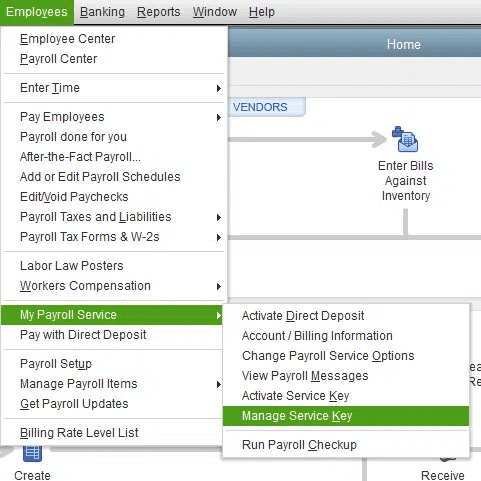
- Navigate to the Employees menu.
- Click on My Payroll Service.
- Press the Manage Service Key.

- The following two fields should display as Active:
- Service Name
- Status
- Click on Edit.
- Verify the service key number.
- Enter the correct service key if it is incorrect.
- Hit Next.
- Unmark the Open Payroll Setup box.
- Press Finish.
- This would download the entire payroll update.
Sol 2. Send Your Payroll Data or Usage Data
- Open the QB Desktop app.
- Navigate to the Employees menu.
- Click on My Payroll Service.
- Select Send Usage Data:
- If you don’t see this option, follow the next step.
- Navigate to the Employees menu and select Send Payroll Data.
- The Send/Receive Payroll Data window would open.
- Press Send All.
- Enter your payroll service PIN.
Performing these methods would troubleshoot the QuickBooks Enterprise error PSXXX.
15XXX Series Payroll Errors in QB Enterprise
The 15XXX series of errors can appear on your screen while updating the QB Desktop app or the payroll and tax tables. The methods to resolve the 15XXX series errors are given below:
Sol 1. Install a Digital Signature Certificate
- Navigate to C:\Program Files\Intuit\QuickBooks.
- Right-click on QBW32.exe.
- Select Properties.
- Click on Digital Signature.
- Verify that Intuit is selected in the signature list.
- Select Details.
- The Digital Signature Details window would open.
- Press View Certificate.
- Click on Install Certificate in the Certificate window.
- Click on Next until you see Finish.
- Press Finish.
- Restart your PC.
Sol 2. Download the Updates With Admin Rights
- Close all your company files.
- Exit the QB Enterprise app.
- Right-click on the QuickBooks Enterprise icon.
- Select the Run as Administrator option.
- If you get a message stating “Do you want to allow this program to make changes to your computer?”, press Yes.
Now, the 15XXX series error you were dealing with should be fixed.
QuickBooks Enterprise 12XXX Series Errors
The 12XXX series of errors can appear on your screen while updating the QB Desktop app or the payroll and tax tables. The methods to resolve the 12XXX series errors are given below:
Sol 1. Check the Date & Time Settings On Your PC
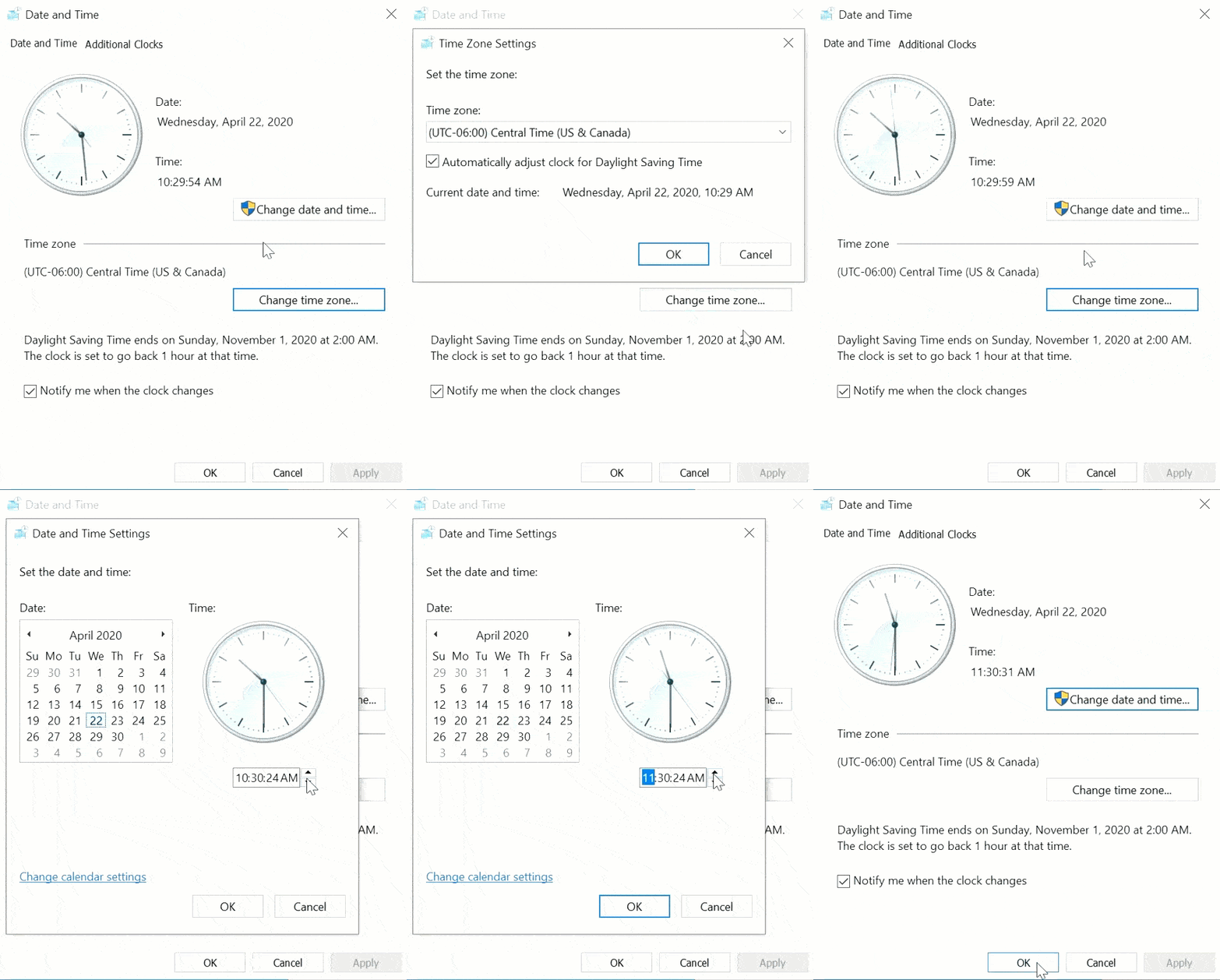
- Right-click on the system clock on your desktop.
- Select Adjust Date/Time.
- Click on Change date and time.

- Specify the current date and time.
- Hit OK twice.
- Close and reopen QuickBooks Desktop.
Sol 2. Multiple Instances of QuickBooks on the Same PC
Update errors can occur if you have more than one installation of QBDT of the same version year installed on the same computer, for example, QuickBooks Enterprise Solutions 22.0 and QuickBooks Premier 2022. If this is the case, you can download and install a manual update for one or more versions of QuickBooks Enterprise.
QB Enterprise Installation Errors (1601, 1603, and 1642)
You can fix the QuickBooks Enterprise error that can occur while installing it, such as 1601, 1603, and 1642, with the methods given below:
Sol 1. Use the QB Install Diagnostic Tool
You can use the QuickBooks Install Diagnostic Tool to resolve installation errors with the QB Desktop app using the steps given below:
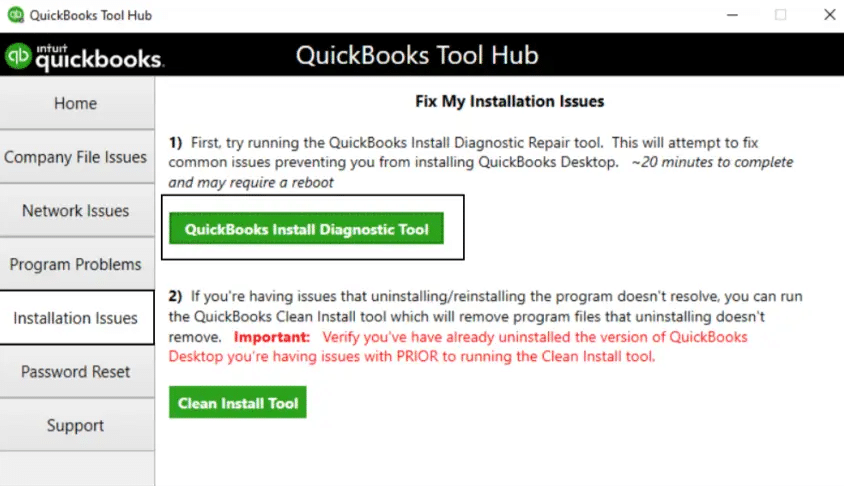
- Download and install the QuickBooks Tool Hub.

- Open the QB Tool Hub app.
- Navigate to the Installation Issues tab.
- Click on QuickBooks Install Diagnostic Tool.

- Let the tool run.
- It can take up to 20 minutes to finish working.

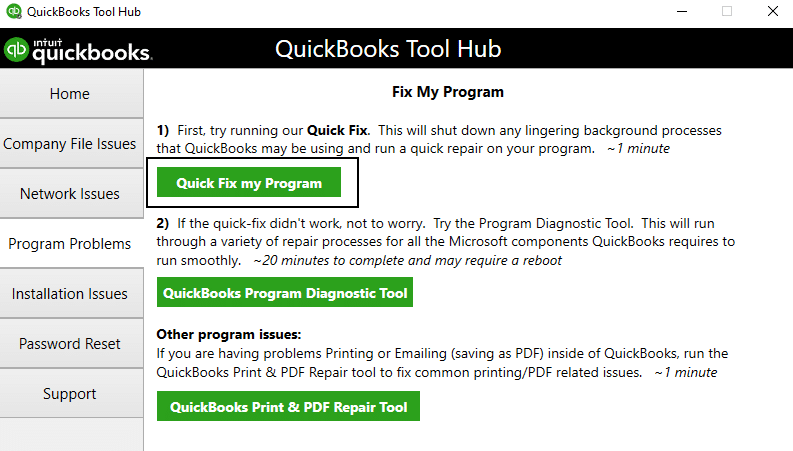
Sol 2. Use Quick Fix My Program
- Open the QuickBooks Tool Hub app.
- Navigate to the Program Problems tab.
- Click on Quick Fix My Program.

- Let the tool run.
This would resolve the QB Enterprise installation error.
6XXX Series of Company File Errors in QB Enterprise
You can get the QuickBooks Enterprise error 6XXX when your company file is damaged. You can fix a damaged company file with the methods given below:
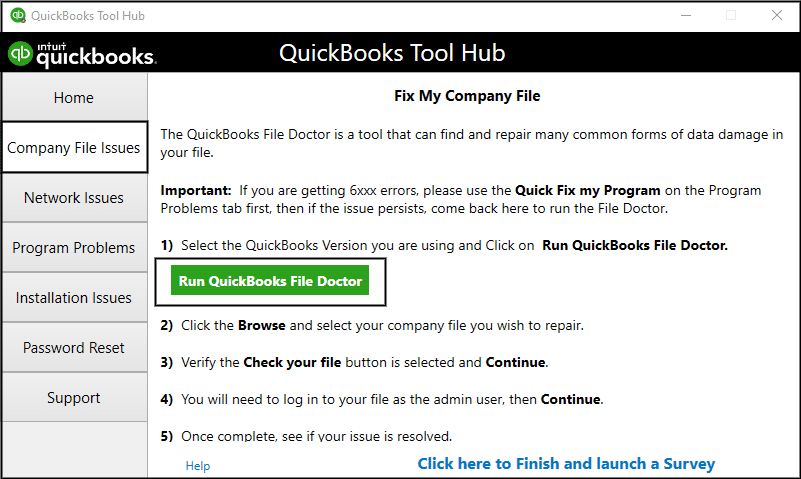
Sol 1. Use the QB File Doctor
- Open the QuickBooks Tool Hub app.
- Navigate to the Company File Issues tab.
- Click on Run QuickBooks File Doctor.

- It can take up to a minute for the File Doctor to open:
- If it doesn’t open, search for the QuickBooks Desktop File Doc and open it manually.
- Choose your company file from the dropdown menu:
- If you can’t see your file, press Browse and search to find your file.
- Select the Check your file option.
- Hit Continue.
- Enter your QB admin password.
- Press Next.
Sol 2. Verify & Rebuild the Company File Data
- Open the QB Desktop app.
- Navigate to the File menu.
- Click on Utilities.
- Select Verify Data.

- Go to the File menu again.
- Select Utilities.
- Then, click on the Verify Data option.
- QB will ask to create a backup file before rebuilding your company data.
- Press OK.
- A backup is required to rebuild your company’s data.
- Choose where the backup would be saved.
- Hit OK.
- Ensure not to replace an existing backup file.
- Enter a unique name in the File name field.
- Press Save.
- You will get a message stating that “Rebuild has completed.”
- Hit OK.

Now, the company file error should be resolved.
HX0X Series of QuickBooks Enterprise Errors
The QB Enterprise error codes H202 and H505 usually occur when something blocks the multi-user connection to your server computer. These errors typically mean your PCs are unable to communicate with the company file stored on the host server. You can use the solutions given below to resolve this:
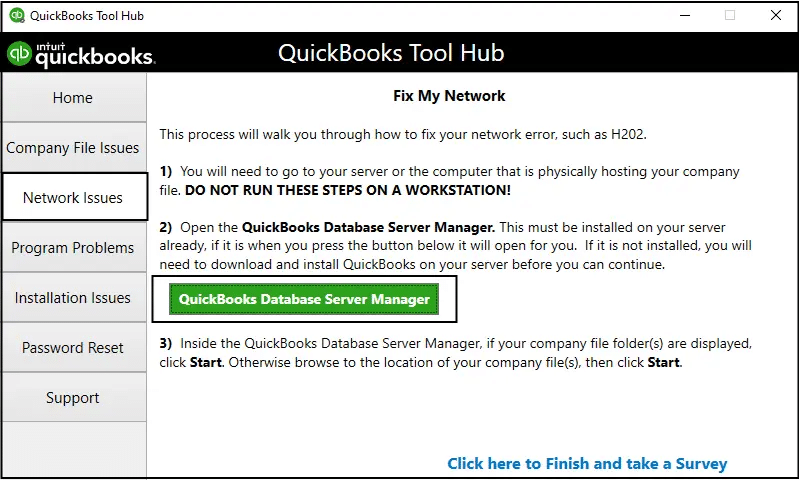
Sol 1. Use the QB Database Server Manager
- Open the QuickBooks Tools Hub app.
- Navigate to the Network Issues tab.
- Select QuickBooks Database Server Manager:

- If QB isn’t on your server PC, it’ll prompt you to install it.
- Inside the QB Database Server Manager, select Start Scan if you see your company file folder(s):
- If you don’t see them, click on Browse and go to the location of your company file.
- Then, select Start Scan.
- The QB Database Server Manager would repair your firewall permissions automatically.
- When the scan finishes, press Close.
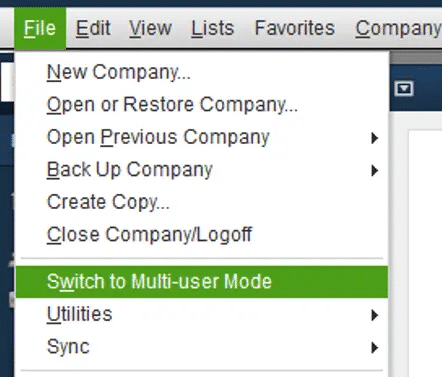
- Open QuickBooks on each workstation where you see Error H202.
- Go to the File menu.
- Then, select Switch to Multi-user Mode:

- If you use your server computer as a workstation, make sure to check it too.
Sol 2. Check the Services On Your Server
- Open the Windows Start Menu on your server PC.
- Search for and open the Run menu.
- Enter “services.msc” into the Run window.
- Then, press the Enter key.
- Find and double-click QuickBooksDBXX from the list of services:
- XX notes your version of QB Enterprise plus 10. Example: QuickBooks Enterprise 23.0 is QuickBooksDB33.
- Now, select Automatic for the Startup type.
- Make sure the Service status is either one of the following:
- Running
- Started
- If it’s neither, select Start.
- Navigate to the Recovery tab.
- Select Restart the Service from each of these dropdown menus:
- First failure
- Second failure
- Subsequent failures
- Click on Apply.
- Then, select OK to save the changes.
- Repeat these steps for QBCFMonitorService.
This would resolve the multi-user connection error in QB Enterprise.
Fix the QuickBooks Unrecoverable Error XXXXX XXXXX
You can see a QuickBooks Unrecoverable error XXXXX XXXXX when you open or close a file, save a copy, select any menu option, button, or link in QB, update QuickBooks Enterprise, or run file utilities. You can fix the unrecoverable error with the methods given below:
Sol 1. Use a Different QB Enterprise User
- Open the QB Enterprise app.
- Navigate to the Company menu.
- Then, click on Users.
- Proceed to select Set Up Users and Roles.
- Press Add User…
- Type the username and password.
- Then, choose Next:
- Ensure not to use the damaged user name.
- Customize the user as necessary.
- Click on Finish.
- Navigate to the File menu.
- Proceed to click on Close Company/Logoff.
- Sign in to the company file using the new login credentials.
Sol 2. Use Quick Fix My Program
- Open the QuickBooks Tool Hub app.
- Navigate to the Program Problems tab.
- Click on Quick Fix My Program.
- Let the tool run.
This would fix the unrecoverable error you were facing in the QuickBooks Enterprise app.
QuickBooks Enterprise Error – A Quick View Table
In the table below is given a concise summary of this blog on the topic of various errors in the QuickBooks Enterprise Error:
| Description | Just like any other software, a QuickBooks Enterprise error can occur while using it. This can interfere with your accounting and bookkeeping processes, which can lead to a hampered workflow, ultimately affecting your business progress. Some of the common QuickBooks Enterprise errors are 12XXX series of error codes and 15XXX series of error codes. |
| Various errors | 1. 6XXX series of company file errors like -6176, 6210, -6189, -83. 2. QB installation errors like 1601, 1603, and 1642. 3. 15XXX series payroll errors like 15224, 15250, 15103, 15408. 4. 12XXX series payroll errors like 12001, 12007, 12006, 12031. 5. QB Enterprise PDF and print errors. 6. HX0X series multi-user mode errors like H202, H303, and H505. 7. QB has stopped working. |
| Their solutions | Check the payroll service subscription, send your payroll data, install a digital signature certificate, download the updates with admin rights, check the date & time settings on your PC, multiple instances of QB on the same PC, use the QB Install Diagnostic Tool, utilize Quick Fix My Program, use the QB File Doctor tool, verify & rebuild your company file data, use the QB Database Server Manager, check the services on your server, and use a different QB Enterprise user. |
Conclusion
Just like other software is prone to errors, a QuickBooks Enterprise error can occur while using it due to technical bugs and glitches. This can interfere with your accounting and bookkeeping processes, which can lead to a hampered workflow, ultimately affecting your business progress. Some of the common QuickBooks Enterprise errors are 12XXX series of error codes and 15XXX series of error codes. We have covered the troubleshooting methods you need to know in order to resolve various error codes you can encounter in the QB Enterprise app in this blog.
If you are still dealing with issues in your QuickBooks Enterprise Error, feel free to contact our Accounting Helpline experts at 1.855.738.2784 today to resolve your problem in no time!
FAQs
What are the different QB Enterprise errors?
The different QB Enterprise errors are given in the list below:
– 6XXX series of company file errors like -6176, 6210, -6189, -83.
– QB installation errors like 1601, 1603, and 1642.
– 15XXX series payroll errors like 15224, 15250, 15103, 15408.
– 12XXX series payroll errors like 12001, 12007, 12006, 12031.
– QB Enterprise PDF and print errors.
– HX0X series multi-user mode errors like H202, H303, and H505.
– QB has stopped working.
How to fix different QB Enterprise errors?
Check the payroll service subscription, send your payroll data, install a digital signature certificate, download the updates with admin rights, check the date & time settings on your PC, multiple instances of QB on the same PC, use the QB Install Diagnostic Tool, utilize Quick Fix My Program, use the QB File Doctor tool, verify & rebuild your company file data, use the QB Database Server Manager, check the services on your server, and use a different QB Enterprise user.
Related Posts-
Understanding QuickBooks Error 30159: Causes, Symptoms, and Solutions
How to Address QuickBooks Error PS058: Common Causes and Solutions
Decoding the QuickBooks Error PS034: Definition, Causes, and Solutions of the Error
How to Fix ‘QuickBooks Not Working After Windows Update’ Issue
Here’s How to Download QuickBooks Direct Deposit Form
QuickBooks Multi-User Setup – Benefits, Precautions & Limitations

Edward Martin is a Technical Content Writer for our leading Accounting firm. He has over 10 years of experience in QuickBooks and Xero. He has also worked with Sage, FreshBooks, and many other software platforms. Edward’s passion for clarity, accuracy, and innovation is evident in his writing. He is well versed in how to simplify complex technical concepts and turn them into easy-to-understand content for our readers.