

Last Updated on April 23, 2026
The QuickBooks multi-user mode is a feature that helps you host your company file over a shared network, through which numerous people can access and work on your company file simultaneously without using a single workstation. However, you might face a QuickBooks Problem with multi-user hosting setup. This should be fixed immediately without any second thoughts, as it can disrupt your workflow and important business processes. Therefore, we’ve made this blog so you can learn how to troubleshoot this issue yourself with our guided solutions. So, without wasting further ado, let’s move on to the next section.
Need help in hosting your QuickBooks company file over a shared network without any errors? Contact our Accounting Helpline’s experts today at 1.855.738.2784, who can help you resolve any issues you have in no time.
What are Some Problems with QuickBooks Multi-User Mode?
The QuickBooks multi-user errors are numerous and usually come with error codes like H202, H505, H103, and H101. This indicates that something might be blocking your connection with the server. This can render you unable to host your company file over the network or access the company file over someone else’s shared network. Let’s now list some of the reasons you might be facing a problem with a multi-user hosting setup for QuickBooks.
What Causes a QuickBooks Problem with Multi-User Hosting Setup?
If you’re facing a QuickBooks Problem with a multi-user hosting setup, it can be due to various reasons. Some of them are listed below:
- The server workstation, not having QB installed on it, can trigger this issue.
- If the file and folder permissions are incorrect.
- The Windows Firewall is blocking QB from performing necessary tasks.
- QuickBooks Database Server Manager or the hosting settings are improperly configured.
- The QuickBooks Database Server can’t open the file.
- Incorrect DNS settings can also cause this problem.
- Your server’s IP address might be inaccessible.
- The ND file is either corrupted or damaged.
Now that we know about the reasons that cause it, let’s look at some things you need to keep in mind before fixing the QuickBooks Problem With Multi-User Hosting Setup.
Things to Keep in Mind Before Fixing the QuickBooks Problem With Multi-User Hosting Setup
Before you troubleshoot the QuickBooks Problem with multi-user hosting setup issue with our guided solutions, first read and implement these things:
- Ensure that the version of your QuickBooks Database Server Manager is the one that your QBDT uses
- Check the permissions of your Windows files
- Do not open multiple files in QuickBooks on the workstation hosting the server
Now, let’s proceed to troubleshooting the QuickBooks Problem with multi-user hosting setup you might be facing.
Troubleshooting Different QB Multi-user Errors H202 and H505
H202 and H505 are some of the most common errors you can see while trying to use multi-user mode with a hosting setup. So let’s resolve them with step–by-step guided solutions.
Fix H202 if You Use Windows Server 2012 Essentials R2 to Host Your Network
If you’re using the Windows Server 2012 Essentials R2 to host your network, you can follow the steps given below to resolve it:
- Check the version of your server:
- Open the Start menu in your host workstation
- Type Settings in the search bar
- Open Settings
- Now, click on System
- Go to the About tab
- Check the version of your server
- Install the QuickBooks Database Server Manager.

- Set up the QBDSM:
- Either you can choose the Full Program option
- Or you can choose the Server Only option
- Restart the Base Filtering Engine Service:
- Firstly, stop the Base Filtering Engine Service.
- Open the Start menu.
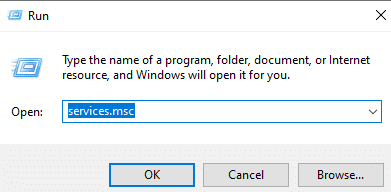
- Type Run in the search bar.
- Then, open Run.
- Now, type services.msc.

- Hit Enter.
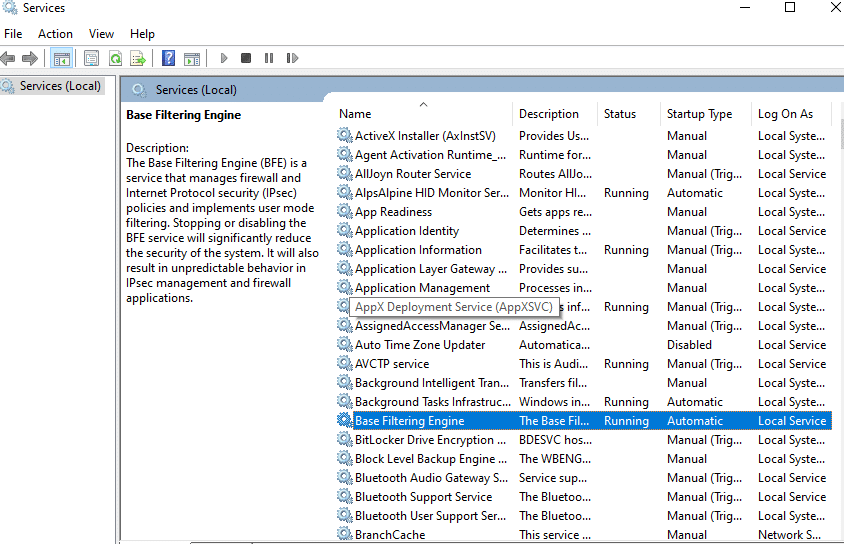
- Go to the Services list.
- Now, look for Base Filtering Engine.
- Right-click on Base Filtering Engine.

- Then, press Stop.
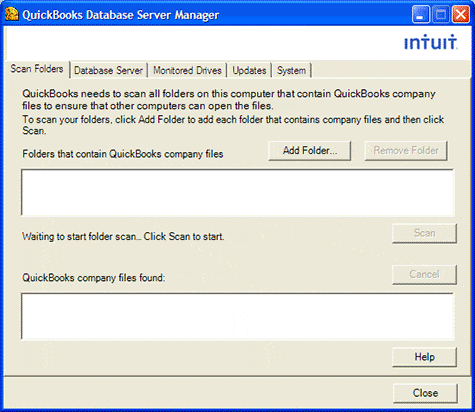
- Now, scan the QuickBooks files:
- Open the Start menu.
- In the search bar, type QuickBooks Database Server Manager.
- Open the QuickBooks Database Server Manager.

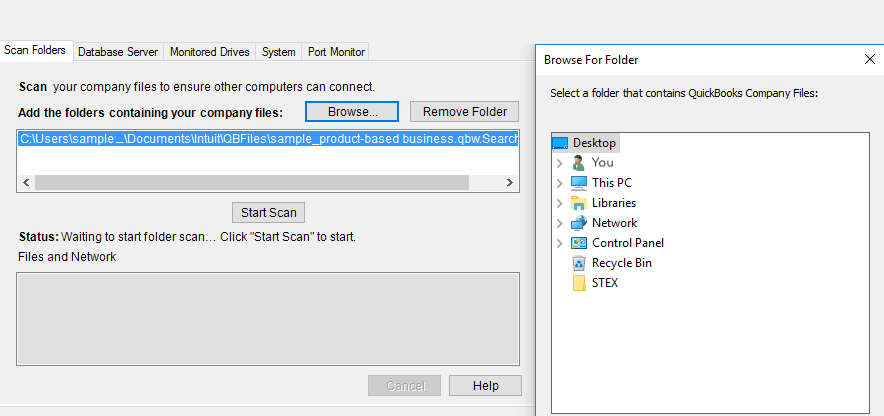
- Now, go to the folder where your company file is.
- Select it.
- Then, hit Start Scan.
- After the scan is finished, hit Close.
- Start the Base Filtering Engine Service again:
- Open the services list from services.msc again.
- Right-click on Base Filtering Engine Service.
- Then, press Start.
- Check if the Firewall is still running in the services list. If not:
- Right-click on Windows Firewall
- Then press Properties
- Finally, press Start
- Firstly, stop the Base Filtering Engine Service.
If you still face the QuickBooks problem with multi-user hosting setup, you can follow the steps given below.
Fix H202 by Utilizing the QB File Doctor Tool from the Tool Hub
You can use the QuickBooks File Doctor to fix the error H202 with the following steps:
- Download and install the QuickBooks Tool Hub.

- Double-click the QB Tool Hub.
- This would open it.
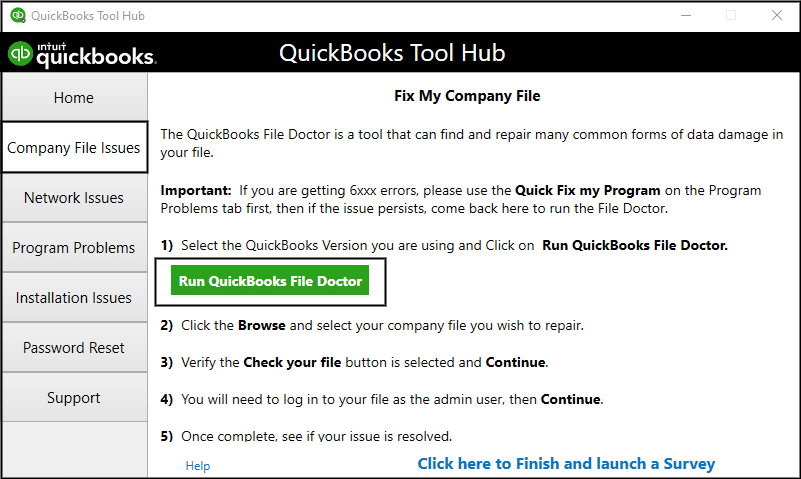
- Now, go to the Company File Issues tab.
- Click on Run QuickBooks File Doctor.

- Then, click on the dropdown menu.
- Select your company file.
- Now, press Check your file and Network.
- Hit Continue.
- Enter the QB admin password.
- Press Next.

If this doesn’t fix the QuickBooks problem with multi-user hosting setup, you’d have to resolve it manually.
Verify the Services On Your Server to Fix H202
To fix the QuickBooks problem with multi-user hosting setup, verify if the QB services are running on your system with the following steps:
- Open the Start menu on your desktop.
- Type and open the Run menu.
- Then, enter services.msc in the search bar.
- Hit Enter.
- Now, search for QuickBooksDBXX on the list.
Note: XX represents the version of your QBDT added by 10. For instance, if your QB Desktop version is 2022, the service would be called QuickBooksDB32. - Double-click on it.
- Now, for the Startup Type, choose Automatic.
- Verify if the service is displaying Running or Started.
- If neither, hit Start.

- Now, navigate to the Recovery tab.
- Press Restart the Service from the following dropdown menus:
- First failure
- Second failure
- Subsequent failures
- Click on Apply.
- Hit OK.
- Now, repeat the same steps for QBCFMonitorService.

Check if the issue is fixed; if not, go to the next solution.
Set Up Services to the Windows Admin Server Group
The first step should be to set up the folder permissions. Steps to do so have been given below.
Verify the Folder Permissions
- Open your File Explorer.
- Right-click the folder in which your company file is stored.
- Now, choose Properties.
- Go to the Security tab.
- Press the Advanced button.
- Then, click QBDataServiceUserXX.
- Press Edit.
- Now, set Allowed in the following fields.
- Traverse Folder/Execute File
- List Folder/Read Data
- Read Attributes
- Read Extended Attributes
- Create Files/Write Data
- Create Folders/Append Data
- Write Attributes
- Write Extended Attributes
- Read Permissions
Change the Folder Permissions
If you want to change the permissions for specific folders, follow these steps:
- Open the File Explorer.
- Now, select these folders:
- C:\Program Data\Intuit\Entitlement Client\v8
- C:\Program Data\Intuit\Entitlement Client\v6.0
- C:\Program Data\Intuit\Entitlement Client\v5
- C:\Program Data\Intuit\Entitlement Client\v3
- C:\Program Data\Intuit\Entitlement Client
- C:\Program Data\Intuit\QuickBooks Enterprise Solutions X.0
- C:\Program Data\Intuit\QuickBooks 20XX
- C:\Program Data\COMMON FILES\INTUIT
- C:\Program Data\COMMON FILES\INTUIT\QUICKBOOKS
- C:\Users\Public\Public Documents\Intuit\QuickBooks\FAMXX
- C:\Users\Public\Public Documents\Intuit\QuickBooks\Company Files
- C:\Users\Public\Public Documents\Intuit\QuickBooks\Sample Company Files\QuickBooks Enterprise Solutions X.0
- C:\Users\Public\Public Documents\Intuit\QuickBooks\Sample Company Files\QuickBooks 20XX
- Then right-click and hit Properties.
- Go to the Security tab.
- Select Everyone.
- Press Full Control.
- Click on Apply, followed by OK.
Now, just set up Windows access permissions for sharing the file.
Set Up Windows Access Permissions
For Windows 10/11
- Open the File Explorer.
- Right-click the folder with your company file.
- Then, hit Properties.
- Click Sharing.
- Choose Share Add.
- Now, select QBDataServiceUserXX.
- Set the permission levels to Full Control.
- Hit Share.
For Windows Server 2012
- Make sure that the File and Storage Services are installed.
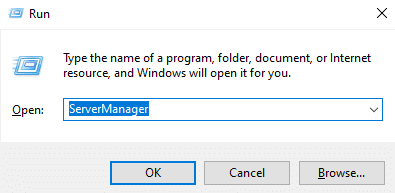
- Open the Run menu (hit Windows + R).
- Type in ServerManager.

- Hit Enter.
- Now, tick the option for File and Storage Services, and then go to Volumes and locate the Shares section.
- Open the Task dropdown menu.
- Click on New Share. You will now see a list of File Share Profiles. To know more about each profile, you can click on it and read the description.
- Select SMB Share – Quick.
Important: Know that the SMB Share – Quick profile is the default profile. However, you can choose to add a different profile accordingly. - Go to the Share Location section.
- Select Type a custom path.
- Click on Browse, and navigate to the folder you want to share.
- Finally, press Select a folder, followed by Next.
This would resolve the QuickBooks problem with multi-user hosting setup.
Configure the Windows Firewall Settings for QuickBooks Desktop
You might be facing a Problem with multi-user hosting setup QuickBooks because of a wrongly configured Windows Firewall. To fix that, configure your Windows Firewall to allow QB to access the internet. This would resolve any issues with the multi-user hosting setup you were encountering.
Ping the Server from a Workstation
Verify your internet connection by pinging the server from each workstation. The steps for that are:
- First, start the Network discovery option:
- Open the Start menu.
- Type Network in the search bar.
- Open the Network and Sharing Center.
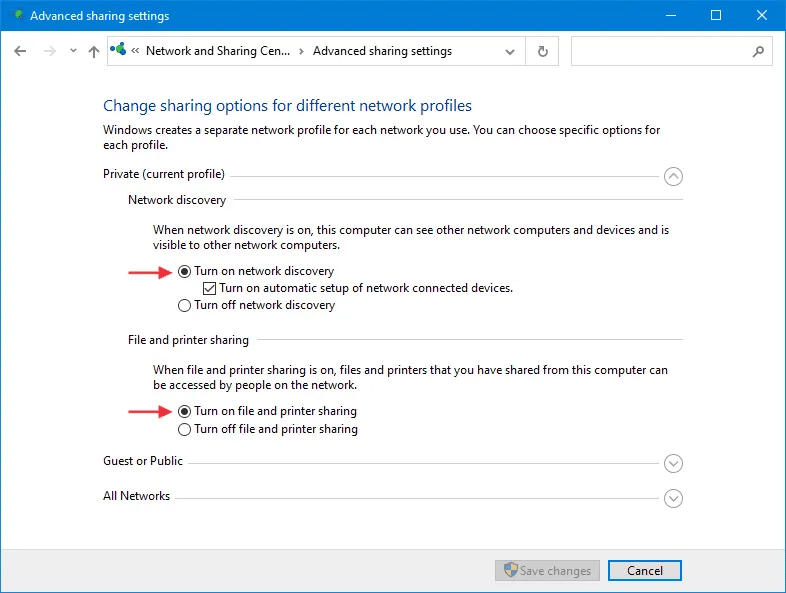
- Choose the Change advanced sharing settings option.

- Go to the Network Discovery and File and Printer sharing sections.
- Ensure that Turn on network discovery is selected.
- Now, get the name of your server:
- Access the Start menu.
- Type cmd.
- Open the Command Prompt.
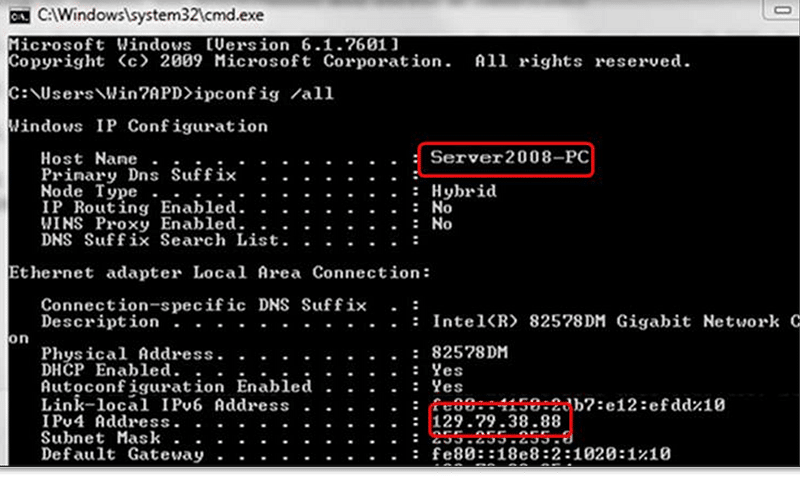
- Type in ipconfig/all.
- Hit Enter.
- Locate the Host Name in the Windows IP Configuration field.
- Copy the hostname into a Word document.
- Now, open the Command Prompt on the workstation experiencing the H202 error:
- Type in ping [your server name].
Note: Remove the brackets when typing your server name. - Hit Enter.
- Type in ping [your server name].
- Repeat the steps for every system facing the H202 error.
This would fix the QuickBooks Problem with multi-user hosting setup.
Fixing the Hosting Error H505, H101, and H303
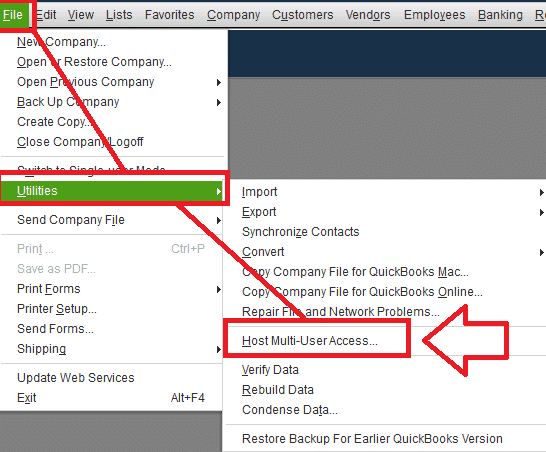
If you’re experiencing this error, it means that a workstation other than the one that has your company files is set up to host the QB server. To fix this, follow the steps below:
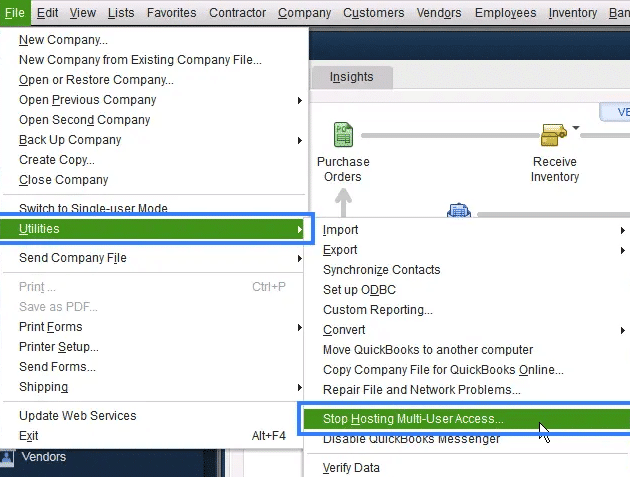
- Open the QBDT app:
- On the workstation where you are encountering the error H505, H101, or H303.
- Don’t open your company file.
- Go to the File tab.
- Click on Utilities.
- Check for the Host Multi-User Access option.

- If you’re able to find it, move on to the next workstation until you find the Stop Hosting Multi-User Access option.

- Select it.
- Repeat these steps for every workstation other than the one with your company file.
Performing these steps would eliminate the QuickBooks problem with multi-user hosting setup.
QuickBooks Problem With Multi-User Hosting Setup – A Quick View
Presented below is a concise summary of this blog on the topic of the QuickBooks problem with multi-user hosting setup in a tabulated format:
| Description | Users might face the QuickBooks problem with multi user hosting setup while hosting their company file over a shared network, so that other people can access and work on it. It can hamper your workflow and important business processes. |
| Causes | The hosting workstation doesn’t have QB installed, incorrect file and folder permissions, Windows Firewall blocking QB, wrongly configured hosting settings, the database server is unable to open the company file, incorrect DNS settings, and your company file is not accessible. |
| Ways to fix it | Fix the error if you use Windows Server 2012 Essentials R2, use the QuickBooks File Doctor, check the services on your server, set up the services on the Windows admin server, configure Windows Firewall, ping the server from another workstation, and fix the hosting error H505. |
Conclusion
In this blog, we discussed the QuickBooks problem with multi-user hosting setup and the factors that can cause it. Moreover, we provided you with step-by-step guided solutions you can follow along to fix this issue yourself. However, if you’re still facing a problem while hosting your company file over a shared network, contact our Accounting Helpline’s experts today at 1.855.738.2784.
FAQs
What is the error in QuickBooks host multi-user access?
This error signifies a problem with the host workstation of your QB company file. It can occur if QuickBooks isn’t installed on your server computer. It can also occur if the hosting settings are not adequately set up. Windows Firewall configuration issues can also be a key factor contributing to this problem.
What is the QuickBooks Error H202?
QuickBooks error H202 is a hosting error that occurs while trying to access the multi-user mode in QuickBooks. It is caused by incorrect host configuration settings or QB not being installed on the server workstation. To fix it, ensure the hosting settings are correct, and use the QuickBooks File Doctor if needed.
How do I force multi-user mode in QuickBooks?
To do so, open the QuickBooks Desktop app and go to the File menu. Then, click on Switch to Multi-user mode. This would force the multi-user mode in your QuickBooks Desktop application.
Related Posts-
Resolving QuickBooks Error H505: Causes and Troubleshooting Solutions
QuickBooks Error 15227 Troubling You? Do This to Fix it Now
An Expert’s Take on QuickBooks Error 15215: Guided Solutions
QuickBooks Error 6123, 0- Fix with Expert Guide
Complete Guide on QuickBooks Payroll Update: Errors & Solutions
How to Fix ‘QuickBooks Not Working After Windows Update’ Issue

Edward Martin is a Technical Content Writer for our leading Accounting firm. He has over 10 years of experience in QuickBooks and Xero. He has also worked with Sage, FreshBooks, and many other software platforms. Edward’s passion for clarity, accuracy, and innovation is evident in his writing. He is well versed in how to simplify complex technical concepts and turn them into easy-to-understand content for our readers.