

Last Updated on February 27, 2026
The payroll service is indispensable for you to send paychecks to employees and calculate the relevant taxes. However, sometimes, you may encounter the QuickBooks error 80004 on your system. This halts payroll operations and keeps you from installing the tax table updates. The problem may stem from an inactive payroll subscription, a missing payroll tax table, or the QuickBooks application not being updated to the latest version.
In this blog, we will help you understand the causes and troubleshoot errors on your system.
If you need any help with your payroll tax table, feel free to get in touch with our Accounting Helpline’s experts at 1.855.738.2784.

Potential Reasons Behind QuickBooks Error 80004
The following are the reasons for QuickBooks error code 80004 on your system:
- In case you don’t have the latest version of the QBDT installed.
- If the data is damaged or corrupt, you might run into error code 80004 in QuickBooks.
- After your payroll subscription ends, you try to access payroll services.
- If the payroll tax table is not updated to its latest version.
- When the QuickBooks installation is incomplete, damaged, or corrupted.
Now, let’s move on to the next section to learn how to fix QuickBooks payroll error 80004.
Tried and Tested Methods to Troubleshoot QuickBooks Error 80004
When you are facing the QuickBooks payroll tax table error 80004 in your system, here are the methods you can use to fix this error.
Solution 1. Use the Verify and Rebuild Tool
The tool will help you locate the damage or corruption in your company file and fix it.
- Head to the Window option.
- Then choose the Close All option.
- Move to the File section and select Utilities.
- Choose the Verify Data.

- QuickBooks detected no problems with your data: Your data is clean, and you do not need to do anything else.
- If the message “Your data has lost integrity” appears, then repair the file’s data integrity.

Now, head to the rebuild company data section.
- Head to the File menu.
- Move to the Utilities tab.
- When you see the pop-up message “Rebuild has completed,” tap OK.
Check if the issue persists or move on to the next troubleshooting method.
Solution 2. Update the QuickBooks Desktop
There are times when the issue can occur because you are using an older version of the QB application. Here’s how to update it.
- Launch the QuickBooks Desktop application.
- Go to the Help menu.
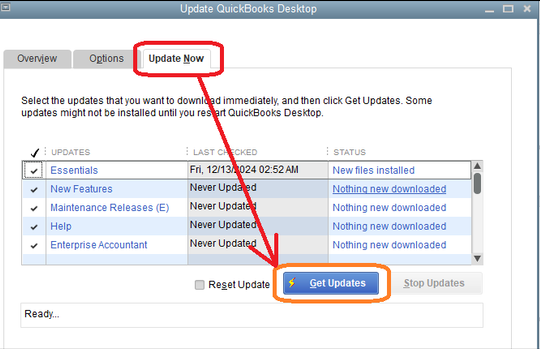
- Click on Update QuickBooks Desktop and then head to the Update Now menu.

- Click on the Reset Update Checkbox.
- Then, click on the Get Updates option.
Even if the update didn’t resolve your error, try the next troubleshooting step.
Solution 3. Clean Install the QuickBooks Desktop
If you encounter a QuickBooks payroll error on your system, you can resolve it by performing a clean install of the application. It will reinstall the application from scratch and prevent the error you are encountering. If the issue persists after updating the application, try updating the payroll tax table.
Solution 4. Update the Payroll Tax Table
Try updating to the latest version of the payroll tax table in your system to avoid QuickBooks error 80004. The steps are mentioned below for your ease:
- Access the QuickBooks application.
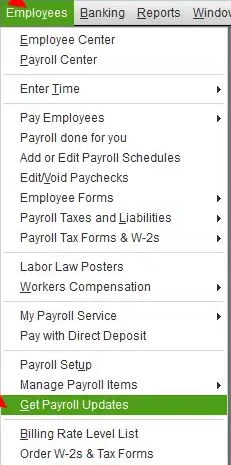
- Head to the Employees tab.
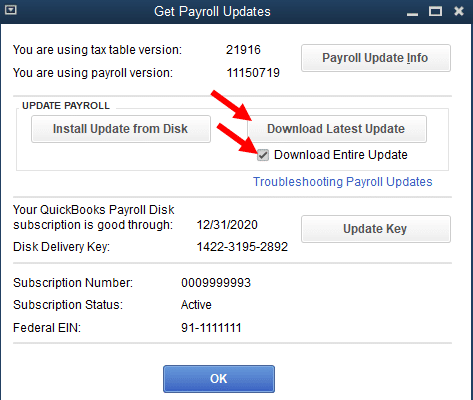
- Tap on the Get Payroll Updates option.

- Now, check the box with the Download Entire Payroll Update message.

- Tap on Update.
- Once the update is done, click on OK.
If you are already on the updated version of the payroll tax table, then check if you have an active subscription level.
Solution 5. Verify the Payroll Subscription
This error may appear in your system if the payroll subscription has ended or expired. Check and verify the status with the help of the following steps.
- Access the QuickBooks application.
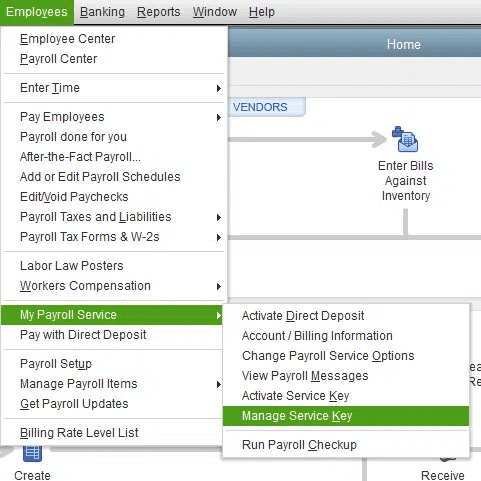
- Then, go to the Employees menu.
- Tap on the My Payroll Service option and then Manage Service Key.

- Verify the Service Name and Status, and ensure it is Active.
- Head to the Edit menu.
- Select the Service key option.
- Click on the Next option.
- Unmark the checkbox for Open Payroll Setup.
- Lastly, tap on Finish.
If the issue persists on your system, proceed to the next troubleshooting step.
Solution 6. Suppress the QuickBooks Desktop
Starting the application while suppressing it can help you bypass the error. The following steps will help you do so:
- Hold the Ctrl key on the keyboard.
- Now, access the QuickBooks Desktop application and wait for the No Company Open window to open.
- Access your company file from the No Company window.
- Now, hold the Alt key and choose the Open option.
- Enter the username and password for QBDT to log in.
These steps will help you to eliminate the QuickBooks error 80004 by suppressing the QBDT application.
Quick Overview for QuickBooks Error 80004
This section of the blog will cover a summary of everything we have discussed in this blog for QuickBooks error 80004.
| Description | QuickBooks error 80004 is related to the payroll tax table and can halt updates, operations, and even prevent access to the tax tables. |
| Causes | There can be different causes of the error, such as data damage in the company file, an outdated payroll tax table, or QuickBooks software issues, if the payroll subscription is inactive. |
| Ways to Fix | You can resolve the error by using the Verify and Rebuild tool, updating the payroll tax table, updating QuickBooks Desktop, checking whether the payroll subscription is active, or suppressing QBDT to bypass the error. |
Conclusion
The payroll tax table is an essential tool for payments and automatic payment setup. But there are times when you may encounter QuickBooks error 80004, which can halt updates and operations. In this blog, we have discussed the causes for the same and the troubleshooting methods you can use to resolve them. If you need any further help with QuickBooks payroll, get in touch with our Accounting Helpline’s experts at 1.855.738.2784.
Frequently Asked Questions (FAQs)
What is the error code 80004005 in QuickBooks Desktop?
QuickBooks error code 80004005 appears when you try to condense company data because the company file has exceeded its file size limit, preventing you from performing operations.
How to fix QuickBooks payroll error 80004?
To fix the payroll error 80004 in your QuickBooks Desktop, you can use the verify and rebuild tool, clean install the QuickBooks Desktop application, update the payroll tax table, check the subscription status of payroll, and suppress the QBDT application.
Why am I seeing the QB error code 80004?
If you encounter error 80004 in your system, it may be because the payroll tax table or the QBDT application is not up to date, the payroll subscription is inactive or has expired, or the payroll subscription is inactive or has expired.
Related Posts-
Troubleshooting tips to solve QuickBooks Error 6000 305
Try These Effective Fixes to Eliminate QuickBooks Error 15106
QuickBooks Multi-User Mode Not Working: Fix Connection & Access Issues
QuickBooks Error 12029! Try these 5 Steps for a Quick Fix
QuickBooks Error 1328: Comprehensive Guide to Fix
Why QuickBooks Desktop Keeps Crashing- Answers & Solutions

Edward Martin is a Technical Content Writer for our leading Accounting firm. He has over 10 years of experience in QuickBooks and Xero. He has also worked with Sage, FreshBooks, and many other software platforms. Edward’s passion for clarity, accuracy, and innovation is evident in his writing. He is well versed in how to simplify complex technical concepts and turn them into easy-to-understand content for our readers.