

Last Updated on September 10, 2025
It’s important to upgrade PCs from time to time in order to stay updated with the latest hardware and software releases. Old systems might become slow and clunky over time, resulting in a poor user experience. This might be the very reason for you to transfer your QuickBooks app from one system to another. However, the process to transfer a QuickBooks license to new computer can be challenging and time-consuming. That’s precisely why we have crafted this blog, in order to make your license transferring procedure smooth and hassle-free. So let us get started with understanding what a QuickBooks license is.
Are you facing any troubles in moving QuickBooks to a new computer? Contact our Accounting Helpline’s experts today at 1.855.738.2784. Our experts can make your migration process free of any challenges.

What is a QuickBooks License Number?
Just like other paid or subscription-based applications, QB needs a license code in order to prove the authenticity of the program, eliminating piracy-related issues. When you purchase QuickBooks Desktop or the Online version, the license grants you access to the software and provides you with additional add-on features you might have purchased with the app. This is precisely why you would need to transfer the QuickBooks license after moving the software to another PC.
How Can I Transfer a QuickBooks License to a New Computer?
To transfer your QuickBooks license to a new computer, it is important to have the information in hand. To see the product and license information, you should follow the steps given below:
- Open the QuickBooks Desktop application on your old PC.
- Then, press the F2 key on your keyboard.
- This would open the Product Information window.
- Then, look for the product name, product number, and license number.
Note it down somewhere safe. Now, you should proceed to deactivate your old QBDT with the steps given in the next section.
First, Uninstall the QB Desktop Application
You would have to uninstall the QB Desktop app in your old system before activating it in your new system to transfer the QuickBooks license to new computer with the following steps:
- Close the QB Desktop app on your old PC.
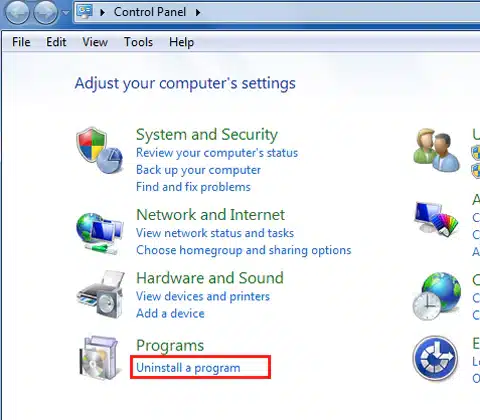
- Go to Control Panel.
- Click on Uninstall a Program.

- Select QuickBooks Desktop.
- Uninstall it.
Now, install the QuickBooks application on your new system.
Finally, Register QuickBooks Desktop
To transfer the license to a new computer, you would need to register your QB Desktop app with the following steps:
- Open the QBDT app on your new pc.
- Navigate to the Help menu.
- Select Register QuickBooks.
- Now, enter your original license info that you saved earlier.
This would transfer your QBDT license to a new computer. If you need to transfer your QuickBooks License to New Computer, the process is quite different and is only allowed under special cases. Therefore, we’ll discuss how to do the same in the section given below.
Steps to Transfer QuickBooks License to New Owner
Intuit only allows the QB Desktop product to be transferred to a new owner under specific circumstances, which include:
- If the business, including all the assets, is sold to a new owner.
- If the owner is donating the software to a non-profit organization.
- If the information filled in during the product registration is incorrect.
If you meet the criteria, you would need to fill out and send the Transfer a License form to Intuit. After review, you will be mailed about your transfer status within 24-48 hours of sending the form. Let’s take a look at the steps to transfer QB Online to a new owner.
First, Transfer Ownership of QuickBooks Online Company File
To transfer QuickBooks Online to new computer, first you need to follow the given steps:
- Click on the Gear Icon.
- Now, go to the Your Company section.
- Click on Manage Users.
- Select Add User.
- Then, choose Company Admin.
- Click the Next option.
- Enter the email address and name for the new user.
- Click on Save.
- An email will now be sent to the new user:
- An invite to become the company admin.
- They would need to use the activation link to set up the account.
- If they already have a QBO account, they can use their existing user ID and password:
- Otherwise, they can set up a new account.
- Now, the master admin should sign out and sign in again.
Now, to transfer the master admin rights, follow the steps in the next section.
Next, Change the QuickBooks Online Primary Admin
To transfer QuickBooks Online primary admin rights to a new owner, follow the steps given below:
- Log in to the QB account as a primary admin user.
- Click on Settings.
- Press the Manage Users option.
- Now, search for the user you want to make the primary admin.
- Go to the Role column.
- Ensure the user is listed as an admin:
- If not, select Edit to change the user’s role.
- Then, select the Actions option.
- Choose the Make primary admin option.
- Click on Change primary admin to confirm the change.
- Sign out of QuickBooks.
This would transfer QB Online to a new owner.
Conclusion
In this blog, we talked about the steps you need to take to transfer a QuickBooks license to new computer. Additionally, we also provided you with the steps to transfer your QB license to a new owner in the Online and Desktop versions of the accounting platform. If you need further assistance with transferring your QuickBooks company, contact our Accounting Helpline’s professionals today at 1.855.738.2784!
FAQs
How to change the owner’s name in QuickBooks Online?
You would need to transfer the primary admin ownership in order to change the owner’s name in QB Online. You can do so by following the steps given in this blog.
How to transfer ownership of QuickBooks Online?
To transfer the ownership of QuickBooks Online, go to the Settings icon, click on Manage Users, find the user you want to make the primary admin, and change their role to the Primary Admin.
How to transfer QuickBooks to a new owner?
In QuickBooks Desktop, you can also transfer the owner if you meet one of three criteria:
– The business has been sold to a new owner.
– Wrong info was entered while registering QB Desktop.
– You’re donating your business to a nonprofit organization.
If you meet one of the three criteria, you can fill out the Transfer a License form to transfer it to a new owner.
Related Posts-
QuickBooks Migration Failed Unexpectedly: Here’s What to Do Now
Fix QuickBooks Error PS033 With Pro-Recommended Techniques
Step-by-step instructions to resolve QuickBooks Error 12157
Know what to do when QuickBooks Hosting Mode is Off
Fix QuickBooks Error 16026 with Effective Troubleshooting Ways
QuickBooks Error H202 in Multi-User & Solutions to Fix it

Edward Martin is a Technical Content Writer for our leading Accounting firm. He has over 10 years of experience in QuickBooks and Xero. He has also worked with Sage, FreshBooks, and many other software platforms. Edward’s passion for clarity, accuracy, and innovation is evident in his writing. He is well versed in how to simplify complex technical concepts and turn them into easy-to-understand content for our readers.