

Last Updated on September 4, 2025
If you are wondering how to find the QuickBooks validation code in registry, you are at the right place.
When you purchase a QuickBooks product, a unique license key or validation code is provided to activate the software you bought. The license key may be sent to you at the email address that you entered while making the purchase of a product. This key plays a crucial role in commencing the registration process and activating your account in QuickBooks Enterprise; therefore, it is necessary for you to save it carefully.
Go through this guide to learn how you can find the license key through the Windows registry and proceed to reinstall or update QB Enterprise.
Our Accounting Helpline experts will resolve your QB validation Code issues. Call 1.855.738.2784 now to speak with a certified specialist and find the QuickBooks license number quickly.

What is the Importance of a License Key or Validation Code for QuickBooks?
When you purchase a QuickBooks product, a validation code is included with it in order to verify and authenticate your software. If your software is already activated and you simply want to view the QuickBooks validation code in registry that was entered, then you can find it inside the QuickBooks registration .dat file.
If the purchase of a product was in the form of an installation disk version, then you will find the license key or the validation code printed on the packaging paper of the product. This case requires you to be even more cautious about how you store the key, as without this code, you can not update or reinstall the QB program in the future. If you don’t update to the latest QuickBooks Desktop version, then the application will cause issues and ultimately fail to function properly.
Where You Will Find QuickBooks Validation Code or License Number
The information that you need for registering the QuickBooks products is stored in the QBRegistration.dat file. It is a registration file that is usually stored in the “C:\ProgramData\Common Files\Intuit\QuickBooks” folder on your system. Alternatively, you can type in “QBRegistration” in the search box in your File Explorer or locate and open the file through QuickBooks.
Let’s delve into this guide to learn how you can find the QuickBooks validation code in registry through various methods to recover the lost license key. Before we move to that, let’s go through some of the benefits that you get from the validation code for QuickBooks.
Key Benefits of QuickBooks Validation Code in Registry
Let’s go through some of the significant benefits that you get because of the QuickBooks 2016 validation code generator from Intuit in the list below.
- With a valid QB license key, you can get support from Intuit through email or call for assistance throughout the activation process of your product.
- When you reinstall QuickBooks on the same computer, you will get the activation code automatically and will not be required to enter it again manually.
- QuickBooks Enterprise Validation code provides a code lookup feature, which helps users access data related to installation and activation.
- It is a unique identification number for your QuickBooks Desktop application.
- You can activate all the QB applications and services through just one validation code for QuickBooks.
Now, moving on, we will learn how you can find the QuickBooks validation code in registry with various methods.
Methods for Finding the License Number and QuickBooks Validation Code in Registry
In this section, we have outlined a number of methods to find the QuickBooks activation code in the registry. You can follow the procedure with the given steps to get the details you are looking for.
Find QuickBooks Validation Code in Registry Files
You can follow the detailed steps to find the validation code for QuickBooks in the registry files of your system, provided below:
- To begin, log in to your QuickBooks account.
- Open a QuickBooks company file to work with.
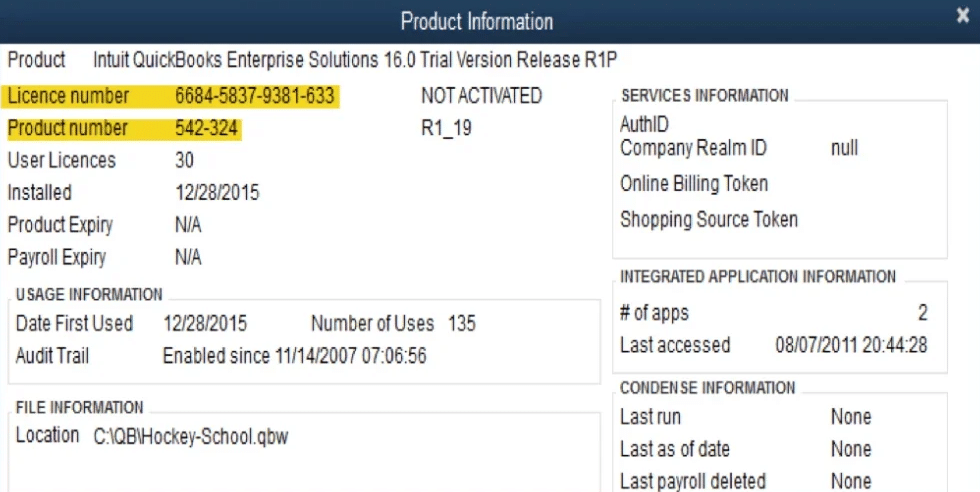
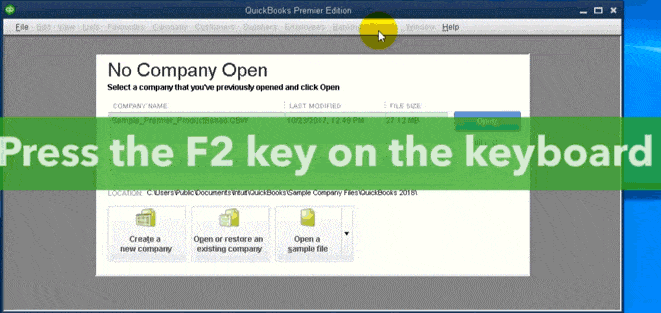
- Hit the F2 key to open the Product Information tab.
- You will see details about your QuickBooks product and registration.
- Next, hit F3 on your keyboard to open the Help Application Screen.
- With the Help Application Screen, you can access several internal program files.
- Locate and click on Open File from the navigation bar.
- You will see a list of QuickBooks-related files on your screen.
- Press Ctrl + F together to access the search bar.
- Type in the file extension ‘.dat’ to find it.
- Locate the file named QBRegistration.dat from the list.
- Once found, select it and then hit Open from the menu.
- If it doesn’t open in Notepad, then you may be asked to choose a program to open it.
- Select Notepad from the list of applications and open the file.
- Once the QBRegistration.dat file is open, scroll through it.
- Look for the validation code entry, which should be listed alongside other registration details.
With the procedure given above, you can find the QuickBooks validation code in registry files easily and note it down for later use. Now, let’s look into the process for how to find the QB license number on your system.
Find QuickBooks License Number in Windows Registry
To get the QuickBooks Pro license number of the software, you may refer to the step-by-step procedure below.
- Start QuickBooks Desktop on your computer.
- Press F2 on your keyboard to get the Product Information window.

- Press F3 to access the Tech Help section.
- Navigate to the Open File tab.
- Find the QBRegistration.dat file from the list of files.
- To open the QBRegistration.dat file, click on it.

- If it fails to open, then right-click the file and choose Open from the menu.
- Select Open with Notepad from the list and then tap OK.
- Once the file has been opened, press the Ctrl and F keys on your keyboard.
- Enter “License Number” in the Find dialog box and press Enter.

- When the license number is located, it will be displayed next to or below the search item.
- Be sure to note down the license number or copy and paste it into a Notepad file.
- Store the license number safely, as it is necessary for the QuickBooks Desktop registration process.
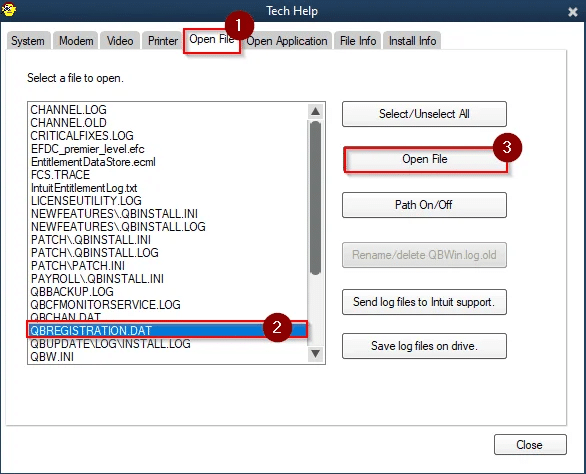
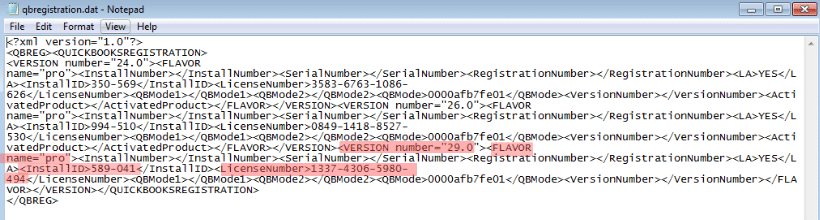
The above-mentioned steps will guide you on how to find the QB license number on your application. You should save this information somewhere to refer to or use later in registration and troubleshooting.
Below, we shall demonstrate to you where to find the QuickBooks validation code in the registry in the case you are unable to locate the file on your own.
Where to Find the QuickBooks Registration File?
If you can’t locate your QuickBooks registration file, then continue reading this section to easily access it. The QBRegistration.dat file contains all the information related to QuickBooks validation code in the registry and purchase. In order to locate this file, you can select any of the following options listed below:
Through File Explorer
You can follow these steps to find the registration file through your Windows file explorer.
- Open File Explorer and enter QNRegistration in the search bar.
- Once located, open it directly through QuickBooks.
Through Folder Path
Alternatively, you can also find the registration file through the folder path that you can enter on your computer’s File Explorer.
- Open the Windows File Explorer.
- Navigate to the following path:
- C:\ProgramData\Common Files\Intuit\QuickBooks Folder.
The above steps can help you find your QB registration file so that you can then check the validation code or license number stored in your system. In some cases, you may face an error with the registration file or the information you have entered to find the QuickBooks validation code in the registry. Some of the common errors that might show up on your screen are as follows:
” Error: The validation code is incorrect or the service is temporarily unavailable when activating.”
” Message: You cannot use Online Banking because QuickBooks is not registered.”
” You must subscribe to the accountant’s copy file transfer service.”
Now, are you curious about how to change the QB Desktop license number in the Windows registry files? Then, let’s go into the next section, where we will show you the steps you need to take to modify it.
How to Modify the QuickBooks Desktop License Number?
If you are looking to update the license number in QB Desktop without having to uninstall the application or reinstall the software entirely, then we have covered all the details for that. Read through this section and follow the steps below based on your operating system to update the QB license number.
For Windows Users
Follow this step-by-step process to modify your QB license number on a Windows operating system:
- Begin by opening QuickBooks Desktop.
- Expand the Help menu from the top menu bar.
- From the dropdown list, select Manage My License.
- Select the “Change My License Number” option from the expanded column.

- A new window will appear, where you have to type in your new license number.
- After you enter the new license number, tap Next to continue.
- Lastly, press Finish to get out of the update process.
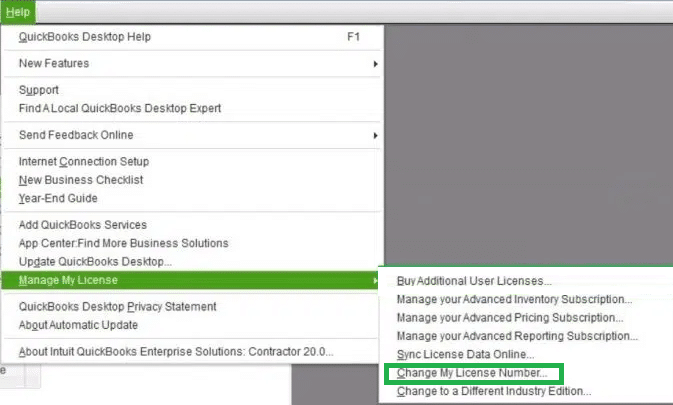
Once you have completed these steps, your QB Enterprise will be activated with the new license number that you just created, and you can also store the QuickBooks validation code in registry.
For Mac Users
If you use QuickBooks Desktop for Mac, then follow the simple steps listed below to change your license number:
- Open QuickBooks on Mac.
- Click on the QuickBooks dropdown menu in the top menu bar.
- Choose Manage My License from the given options.
- Select ‘Deauthorize This Computer‘ from the next screen.
- You will get a confirmation pop-up window.
- Click on Deauthorize to proceed.
- Close all the QuickBooks windows by hitting Exit.
- Then, open QBDT again to commence the registration process.
- During the setup, enter your license number.
- There, type your new license number and proceed with the registration steps.
After completing the steps given above, your new license number will be registered on QuickBooks Enterprise for Mac, and you can begin to use it.
Procedure for Registering the QuickBooks Validation Code in Registry Files
Once the QB Desktop is installed on your computer, you can proceed to register and activate the software. It is necessary to validate your product number to be eligible for support and updates; therefore, you have to register it with a product code or a licence number. You can take the steps below to register and complete QuickBooks Desktop without issues:
- Head to QuickBooks Desktop on your computer.
- Click on the Help menu from the navigation bar.
- Select the Register QuickBooks option from the dropdown.

- On the registration screen, click on Begin Registration to commence the process.
- Scroll down and enter your account number in the given fields.
- If you do not have an account number, then you must create a new QuickBooks account first to get the account number.
- Once your account is created, go back to the QuickBooks Desktop register screen.
- Then, enter the account number in the designated field.
- Follow the given instructions on your screen to continue.
- Lastly, hit Register to complete the registration process.
After you have completed all the above steps, your QuickBooks Enterprise will be successfully registered.
QuickBooks Validation Code in Registry – An Overview
In this section, we have provided you with a summary of the blog that gives an overview of the QuickBooks validation code generator in registry files in tabular format.
| Importance of the QuickBooks Pro license number | A validation code or license number is necessary when you want to update or reinstall the QB program, as well as for registering the software on another device. |
| Its benefits | Support from Intuit through email and call for activation, automatic activation code during re-registration, a lookup feature for codes to access installation and activation data, a unique identification number for the QB application, activation of all QB products and services. |
| How to find QuickBooks license number | Through the Windows registry files on your system, or the QBRegistration.dat file on the software, |
The Bottom Line
The QuickBooks validation code in registry files on your Windows can help you in cases when you want to update or reinstall the application. Additionally, if you are looking to install the application on another device, then again, you will need the QuickBooks activation code to do so. We have discussed various methods to help you find the code or license number on your computer without encountering unnecessary hassle. Stuck on the QB Desktop register screen? Don’t worry—our expert team at Accounting Helpline is here to help you find your validation code. Dial 1.855.738.2784 to connect with a specialist today.
Frequently Asked Questions (FAQs)
How to find the QuickBooks license number in the registry?
In order to find the QuickBooks license number in the Windows registry, you can follow the steps listed below on your computer:
– Log in to your QuickBooks account and open a company file.
– Hit F2 to launch the Product Information window.
– Next, press F3 to go to the Help Application Screen.
– Locate and select the Open File section.
– Press Ctrl + F keys together to access the search box.
– Enter ‘.dat’ to locate QBRegistration.dat file.
– Select it and press Open with Notepad.
– Scroll through it and find the validation code entry under registration details.
Where do I find my QuickBooks validation code?
You can find the QuickBooks validation code in registry files of Windows, or inside the QBRegistration.dat file on your software, or the packaging paper of the product if you purchased it in the form of an installation disk. You can try out various methods listed above to find the license number manually or contact our specialists to get assistance for locating it.
What is a QuickBooks validation code?
The QuickBooks validation code is a unique number or code that is used to activate any software or product that you purchased. You may receive the code through your email that you had provided while making the product purchase, or inside the packaging of the product if you purchased it as an installation disk. Be sure to store this validation code for QuickBooks carefully so that you don’t lose it, as it is necessary for updating or reinstalling the product.
Related Posts-
How to Fix QuickBooks Payroll Error Message 15240 After Update
What Steps to Follow When QuickBooks Won’t Open
QuickBooks Error 6144 and 301 with Expert Opinion {FIXED}
QuickBooks File Doctor Not Working! Here’s What to Do
Here’s a Quick Way to Resolve QuickBooks Error 12057
How to Fix QuickBooks Error 2308 with an Expert’s Advice

Edward Martin is a Technical Content Writer for our leading Accounting firm. He has over 10 years of experience in QuickBooks and Xero. He has also worked with Sage, FreshBooks, and many other software platforms. Edward’s passion for clarity, accuracy, and innovation is evident in his writing. He is well versed in how to simplify complex technical concepts and turn them into easy-to-understand content for our readers.