

Last Updated on March 9, 2026
Payroll is an add-on feature for QuickBooks offered by Intuit, through which small businesses can perform tasks like calculating taxes and sending paychecks more easily and autonomously. Payroll is a subscription-based feature, which is billed annually (or according to your subscription plan). However, you might face the problem of QuickBooks Reactivate Subscription not working while trying to resubscribe to it. In this blog, we’ll cover the in-depth troubleshooting methods to resolve this error in no time!
Are you having trouble resubscribing to your QuickBooks Payroll subscription? Contact our Accounting Helpline experts at 1.855.738.2784 to resolve your issue today!

Causes for QuickBooks Reactivate Subscription Not Working
Given below are the potential factors due to which you are unable to reactivate your QuickBooks Payroll subscription:
- Your QuickBooks Desktop app is outdated.
- You haven’t updated your billing info in QBDT.
- An outdated payroll and tax table can also cause this problem.
- Program problems with the QB Desktop app.
- Installation problems with the QBDT software.
Now that we know about the causes of why you are unable to resubscribe to QB Payroll, let us take a look at the methods to fix it.
Methods to Fix the Unable to Renew QuickBooks Payroll Subscription Problem
Given below are the troubleshooting methods you can implement to fix the problem of QuickBooks Reactivate Subscription not working:
Update the QB Desktop App
If you’re unable to renew your QB Payroll subscription, it can be because of an outdated QB Desktop application. Update the QBDT app to the latest release version to resolve this issue. It would also fix any other problems you might be facing with the app.
Update the Tax Table to the Latest Version
If your tax table and payroll are outdated, you will not be able to renew your payroll subscription. Update the tax table with the steps given below:
- Open the QuickBooks Desktop app.
- Go to the Employees menu.
- Click on Get Payroll Updates.

- Select Download Entire Update.
- Press Update.
- An informational window would appear after the download is complete.
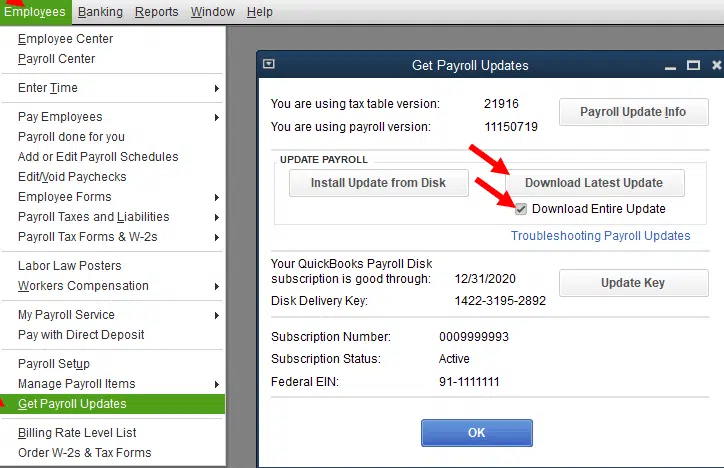
This would let you renew your payroll subscription in QBDT.
Update Your Billing Info in QB Desktop
If you have recently changed your billing address, update your billing info to renew your payroll subscription with the following steps:
- Sign in to the Intuit CAMPS website.
- Go to the Products & Services list.
- Find your app or subscription from the list.
- Select Details.
- Now, go to the Billing Information section.
- Find Payment Method.
- Select Edit.
- Update your billing information.
- Press Save and Close.
Now, the reactivate payroll subscription error in QuickBooks Desktop would be fixed.
Reactivate Your Payroll Subscription
To reactivate your payroll subscription from the QB Desktop app, follow the steps given below:
- Open the QB Desktop app.
- Navigate to the Employees menu.
- Select My Payroll Service.

- Click on Account/Billing Information.
- Log in to your Intuit account and open the QuickBooks Account page.
- Under the Status section, select Resubscribe.
- Follow the steps on your screen to reactivate your payroll service.
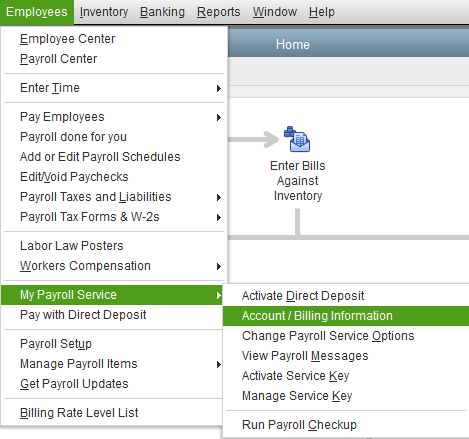
This would let you reactivate your payroll subscription in QBDT.
Use the Quick Fix My Program Tool
There might be inherent problems with your QBDT app, responsible for you not being able to renew your payroll subscription. You can fix that using the QB Tool Hub with the following steps:
- Download and Install the QuickBooks Tool Hub.

- Open the QB Tool Hub app.
- Navigate to the Program Problems tab.
- Click Quick Fix My Program.

- Let the tool run.

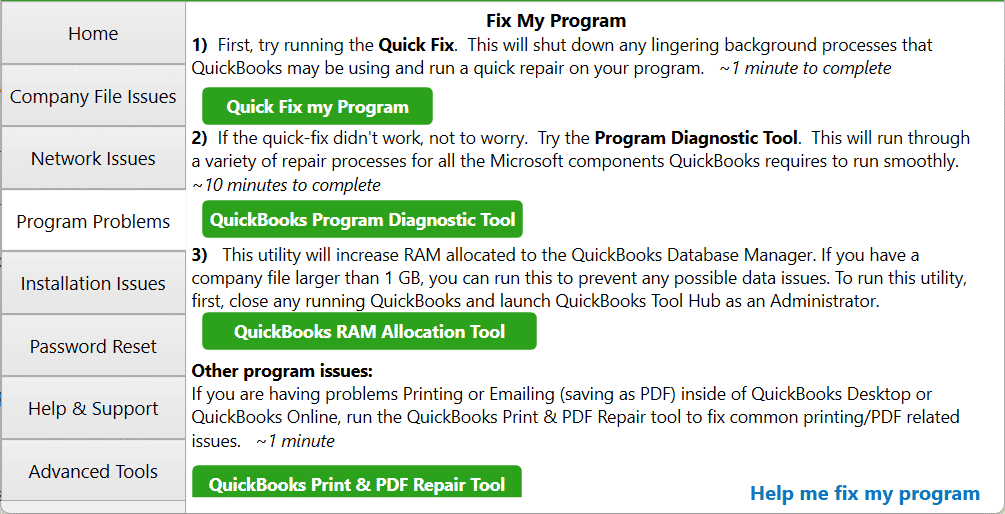
This would resolve issues with your QB Desktop application.
Re-Enter Your Payroll Service Key
If your payroll service key is missing, you won’t be able to renew your QB Payroll subscription. Re-enter your payroll service key with these steps:
- Go to the Employees menu.
- Select the My Payroll Service option.

- Open the QuickBooks Service Keys window.
- Press Add if no payroll service key is listed.
- Choose Edit if there’s no listed Payroll.
- Press Edit again.
- Click on the Edit icon, which appears again.
- Not down your service key.
- Remove the payroll service key.
- Press Next.
- The Payroll Update message would appear.
- Hit OK.
- Verify if the Service Status shows Active.
- Hit OK.
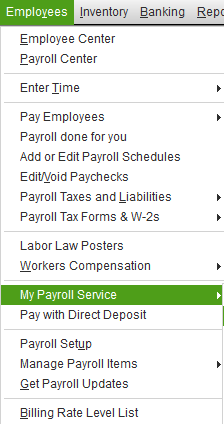
Performing these steps would fix the issue of QuickBooks Reactivate Subscription not working.
Validate Your Payroll Service Key
You might not be able to renew your payroll subscription due to an incorrect payroll service key. Verify your service key with the following steps:
- Close your company file and restart your PC.
- Open the QBDT app.
- Go to the Employees menu.
- Select the My Payroll Service option.
- Press the Manage Service Key.

- Verify if the Service Name and Status fields display Active.
- Press Edit to verify the service key number.
- If it is incorrect, enter your correct service key.
- Press Next.
- Unmark the Open Payroll Setup checkbox.
- Press Finish.
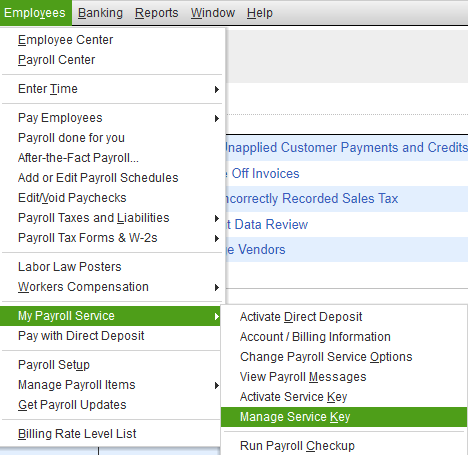
This would let you renew your payroll subscription.
QuickBooks Reactivate Subscription Not Working – A Quick View Table
Given in the table below is a concise summary of this blog on the topic of reactivating the payroll subscription issue:
| Description | Many QuickBooks users face the problem of not being able to reactivate their payroll subscription. This can hamper your workflow and important business processes. |
| Its causes | An outdated QB Desktop app, outdated billing information, an outdated payroll and tax table, an incorrect payroll service key, and program problems with the QBDT app. |
| Ways to fix it | Update the QBDT app, update the payroll and tax table, update your billing info, reactivate your payroll, use Quick Fix My Program, re-enter your payroll service key, and validate your payroll service key. |
Conclusion
In this blog, we talked about why you are not able to renew your payroll subscription in QuickBooks Desktop. Additionally, we also provided you with the troubleshooting methods you can use to resolve this problem on your own. If you are still unable to reactivate your payroll subscription, contact our Accounting Helpline’s experts at 1.855.738.2784 to fix your issue today!
FAQs
Why won’t my payroll subscription reactivate?
The reasons your payroll subscription won’t reactivate are given below:
– An outdated QB Desktop app.
– Outdated tax tables and payroll.
– Problems with the QBDT app.
– An invalid payroll service key.
How can I fix the Reactivate payroll subscription error in QuickBooks?
You can fix the reactivate payroll subscription error with these steps:
– Update the QBDT app.
– Update your QB Payroll and tax table.
– Update the billing info in QB Desktop.
– Reactivate your payroll subscription.
– Use Quick Fix My Program.
– Re-enter your payroll service key.
– Validate your payroll service key.
Related Posts-
QuickBooks Error H202 in Multi-User & Solutions to Fix it
How to Fix QuickBooks Payroll Update Not Working Error? Experts Solutions
What Steps to Follow When QuickBooks Won’t Open
Fixing the QuickBooks Error 1712: Causes and Step-Wise Troubleshooting Methods
Know what to do when QuickBooks Hosting Mode is Off
Effortless Fixes to the QuickBooks Error 6138 105 – 6000 Series

Edward Martin is a Technical Content Writer for our leading Accounting firm. He has over 10 years of experience in QuickBooks and Xero. He has also worked with Sage, FreshBooks, and many other software platforms. Edward’s passion for clarity, accuracy, and innovation is evident in his writing. He is well versed in how to simplify complex technical concepts and turn them into easy-to-understand content for our readers.