
Last Updated on March 23, 2026
QuickBooks error 6123, 0 appears when a user tries to restore a company file backup. The message may state with regret about the QB company file not opening. You may also see suggested solutions for this error, which may or may not work. Certain factors and technical glitches that cause QuickBooks Desktop error 6123 can be resolved effortlessly by following the troubleshooting steps in this article. We have also listed the most common reasons for QuickBooks error messages 6123 and 0.
QuickBooks error 6123, 0 must be taken seriously, as it affects company data and can cause permanent data loss. Get Direct Assistance from Certified Accounting Helpline Experts by dialing our Support Number: 1.855.738.2784.

What is QuickBooks Error Code 6123, 0?
QuickBooks 2023 error 6123 generally appears when users attempt to open, upgrade, or restore their company files. It can also show up while accessing files on a network. Users face significant troubles operating their company files and require quick redressal.
The error description, as it appears in QuickBooks, is given below:
“Problem Connecting to Server Error: -6123, 0“
We’re sorry, but QuickBooks can’t open your company file. Here are a couple of ways to fix the problem:
- Run the QuickBooks File Doctor.
- Make sure your server is set up for the QuickBooks Database Manager.
IMPORTANT: Before troubleshooting the error, make sure to update QuickBooks and manually back up your company file to a safe storage location to avoid data loss due to any mishap while troubleshooting.
What Causes QuickBooks Company File Error 6123, 0?
The following are the reasons that often lead to the QuickBooks error 6123, 0, company file error:
- Utilizing an outdated QuickBooks Desktop application is one of the prominent reasons QuickBooks displays error message 6123.
- A damaged QuickBooks company file not only triggers error 6123 in QuickBooks but also accounts for several other 6000 series errors.
- If you are trying to restore the backup from an online or an external storage service like Dropbox, a flash drive, etc., then you might face error 6123 in QB.
- If QuickBooks Database Server Manager is not running on Windows. QB error -6123 may emerge.
- The firewall network might be blocking the connection to the server hosting the company file, leading to QuickBooks error code 6123.
- If QuickBooks installation files are damaged or corrupted, it can lead to various errors, including the QuickBooks -6123 error.
- While using McAfee antivirus, if the Block Web Bugs filter is disabled, it can lead to error code 6123 in QuickBooks Desktop.
- Opening the same company file on any other QB version can also lead to this error.
- Inadequate or faulty user permissions to access, edit, or delete the company file folder may contribute to error -6123 QuickBooks
NOTE: The QuickBooks company file can only be accessed from the QuickBooks Desktop application. If you try to open it in Windows Explorer by double-clicking the file, QuickBooks will throw error code 6123. Make sure you are accessing the file from within the QuickBooks Desktop application.
Due to these reasons, users need to learn how to fix QuickBooks error 6123.
Expert Resolutions to Resolve QuickBooks Company File Error 6123,0
Here are the top solutions you need to undertake to resolve the error 6123 QuickBooks:
Solution 1: Run QuickBooks Desktop Update
When trying to open a company file, you might see an error message that explicitly states “Error -6123” or “Connection to the QuickBooks company file has been lost.”
Keeping your QuickBooks updated ensures that it is free from bugs and other issues that can negatively affect the end-user experience. For complete information on updating QuickBooks Desktop to the latest released version, follow our article How to Update QuickBooks Desktop to the Latest Released Version.
Solution 2: Install and Run QuickBooks Tools Hub
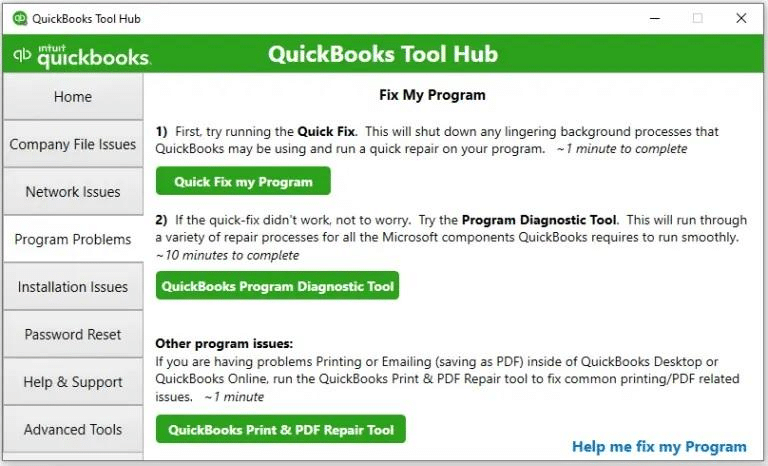
Quick Fix My Program is a tool that is specifically developed to refresh the QuickBooks installation and re-register the installation files, which helps eliminate general company file and program errors like error 6123 in QuickBooks Desktop. Follow the instructions given below to download and install QuickBooks Tool Hub to run the Quick Fix My Program Tool:
- Double-click the QuickBooks Tools Hub icon on your Desktop.

- Select the Program Problems tab from the left pane and then click Quick Fix My Program.

- Once the program repairs the application, close the tool and rerun QuickBooks.
- Try to take a backup of your company file and check if the QuickBooks error 6123, 0 is resolved.
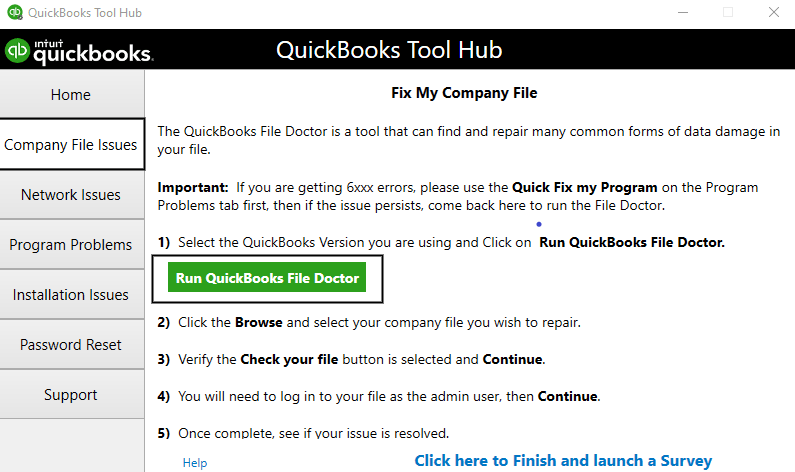
If QuickBooks Desktop error code 6123 continues to bother you, then this indicates damage in the company file that can be resolved by running QuickBooks Desktop File Doctor. Follow the next step for detailed instructions.
Solution 3: Download and Run QuickBooks File Doctor to Repair File Damage
For complete info on downloading and running QuickBooks File Doctor, you can consult our dedicated article on QuickBooks File Doctor.
If you are able to access the company now, then the error is resolved. If you are getting the 6123 error in QuickBooks while restoring the company file from an external storage device, follow the next troubleshooting step for a quick fix.
Solution 4: Restore the Backup from Local Storage
If you have your backup in the local storage, restore it as follows:
- Navigate to the QuickBooks backup file folder, usually inside the QuickBooks company file folder.
- Look for the file with the .qbb extension having the same name as your company file.
- Copy the backup file to your computer’s local storage.
- Now open QuickBooks and restore the company file that you have moved to the local storage.
If QB error 6123 persists, this must be happening because of restoring the company file on a new computer. Follow the next troubleshooting step to get error 6123 fixed while restoring the company file on a new PC.
Solution 5: Restore the Backup using the Portable Company File
If you are trying to restore the backup file .qbb on a new device other than the one where it was created, you can get QB 6123 for security reasons. The solution is to create a portable company file .qbm instead of the regular backup file .qbb.
- Open QuickBooks on the old device where you created the backup and click the File tab.
- Now select Create Copy and choose Create Portable Company File.
- Click Next and enter a name for the company file.
- Select the location where you want to save the company file and click Save and OK.
- Now, move the portable company file to the new computer where you want to restore the backup.
- Open QuickBooks > Click the File tab > Select Restore a Portable File > Hit Next.
- Now browse the portable company file with the .qbm extension and click Open.
- Carefully read the instructions given on where you want to restore the file page.
- Finally, click Next and click Save before opening the company file.
If QuickBooks error 6123, 0 continues to show up, repair for
Solution 6: Fix the Damaged Data Files
It’s possible that your .nd Network Data and .tlg Transaction Log Files are damaged or corrupt. Changing the name of the file can create a new error-free file. So, fix the damaged data files as follows:
- Go to the Windows Start button and search for File Explorer.
- Visit the location of your company file and right-click the company file with the .nd extension. It would be companyfilename.qbw.nd.
- Right-click this file and choose the Rename option.
- Add the .old to the QuickBooks .nd file, making it companyfilename.qbw.nd.old.
- Press Enter to save these changes.
However, if you continue to face a problem, you can rebuild the company file.
Solution 7: Utilize the Verify and Rebuild Data Utility
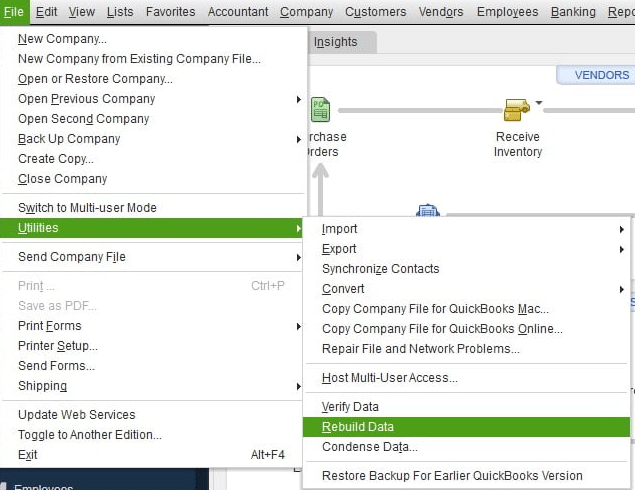
The built-in QuickBooks utility to verify the company data for any errors and rebuild the file to repair these issues is quite useful. The following steps need to be taken for the same:
- Launch QuickBooks Desktop.
- Access the File menu.
- Check the Utilities option.
- Click the Verify Data option.

- The process will yield errors affecting the QuickBooks file.
- After doing so, you need to follow the steps to rebuild the data.
- To do so, go back to the File menu.
- Opt for the Utilities option.
- Choose the Rebuild Data.

- Run it and let all your errors dissolve.

If you are accessing the company file in single-user mode, you should make sure that hosting access is disabled.
Solution 8: Modify QB Hosting Settings
The next solution you can implement is changing the hosting settings of the QuickBooks application to resolve error 6123 QuickBooks Desktop. The following steps are essential for this method:
- Go to the QuickBooks Desktop app and open your company file.
- Move to the File tab.
- Switch the file to single-user mode if it is in multi-user mode.
- Alternatively, go to the File menu, opt for the Utilities option, and choose the Stop hosting multi-user access option.
- Now, again, host the multi-user access by going to the File menu, opting for the Utilities option, and choosing the option that says host multi-user access.
- Hit Yes when a dialog box asking to switch to multi-user access hosting appears.
- End by going to the File menu and switching to the multi-user mode from the single-user mode.
If this doesn’t work and you still see an error, move to the next step.
Solution 9: Transfer QB files to a new location
The next method involves moving QuickBooks files to a new location to check if the error lies with the location of the company file or the file itself. Do so as follows:
- Right-click on your desktop screen and choose the option named New, followed by Folder.
- After creating the new folder (give it any suitable name), go to the folder where your company files are saved.
- Copy these files from this location using the Ctrl + C keys or right-click> Copy.
- Now go back to the new folder you created and press Ctrl + V or Right-click > Paste.
Now, attempt to open the company file through the new location.
A Quick View – Error Code 6123 in QuickBooks Desktop
In this section, we will provide concise information on what we cover in this blog.
| Error description | You might not be able to access the company file and run into QuickBooks error 6123 0. |
| Why does it occur | Firewall or security software blocks QB. There is a corruption in the .qbw or .nd file, the company file is damaged, or the installation files have become corrupt |
| How to fix it | Run Quick Fix my Program and QuickBooks File Doctor, restore a backup, or utilize the Auto Data Recovery utility, and repair the company file. |
Conclusion
This blog should help you troubleshoot the company file error and get back on track with your accounting operations. If you are still facing issues/difficulties resolving QuickBooks error 6123, 0, you can contact our Accounting Helpline experts at 1.855.738.2784. They will immediately look into the matter and resolve it for you as quickly as possible.
FAQs
While configuring the firewall settings, what programs can you add to manage error 6123?
You need to add the following programs to your firewall settings to release any blockage:
– QuickBooks Desktop: This is the primary QuickBooks application that needs network access.
– QuickBooks Database Server Manager: If you are in a multi-user environment, you’ll need to allow access to the QuickBooks Database Server Manager to facilitate multi-user access to the company file.
– QBDBMgrN.exe: This is the QuickBooks Database Server Manager executable file.
– QBDBMgr.exe: Another executable file related to QuickBooks Database Server Manager.
– QBUpdate.exe: The QuickBooks Update service is used to download and install updates.
What else can you do to resolve QuickBooks Error 6123?
You can resolve QB error 6123 by doing the following:
– Remove the special characters from your file name to ensure it adheres to the prescribed limits.
– Using the QuickBooks Auto Data Recovery (.adr) file can also help fix error 6123.
– End background tasks on the Task Manager by right-clicking and choosing the End Task button.
– Restart all the QuickBooks database services.
What are the prerequisites to remember while troubleshooting QuickBooks error 6123?
The following prerequisites need to be run when you need to troubleshoot QuickBooks error 6123:
– You need to update your QuickBooks Desktop application to the latest version.
– Restart your computer once before you begin with the troubleshooting solution.
– When the QB company file is hosted on the server, check if the QuickBooksDBXX service is running.
– Update Windows/ Mac before running the application.
Why does QuickBooks error 6123 affect my system?
QuickBooks error 6123 attacks my system because:
– The network connection is corrupt.
– The company file is problematic.
– The firewall restricts the QuickBooks connection.
– An outdated QB Desktop or Windows OS may cause this problem.
– Trying to extract a backup from an online or external storage.
– QBDSM is not running on Windows
– Poor internet connection.
– You changed the host system name.
– Multiple QB instances run on your device.
– Not having the necessary user permissions.
When does QB error 6123 arise?
QuickBooks error 6123 affects the system in the following scenarios:
– When you try opening, upgrading, or restoring your company file
– When you don’t have QB Database Server Manager installed
– When your firewall ports aren’t configured correctly
– When you have multiple QuickBooks programs running
– When your network connection is poor
– When your installation files are damaged
– When you’re restoring your backup on a new device
Related Posts-
QuickBooks Multi-User Mode Not Working: Fix Connection & Access Issues
QuickBooks Error 30134 – What Do I Do Next?
Solving QuickBooks Won’t Open After Windows Update Issue
QuickBooks Full Service Payroll for Small Businesses
How to Resolve QuickBooks Error 15263 Like a Pro?
QuickBooks Clean Install Tool: The Right Way to Reinstall

Edward Martin is a Technical Content Writer for our leading Accounting firm. He has over 10 years of experience in QuickBooks and Xero. He has also worked with Sage, FreshBooks, and many other software platforms. Edward’s passion for clarity, accuracy, and innovation is evident in his writing. He is well versed in how to simplify complex technical concepts and turn them into easy-to-understand content for our readers.