

Last Updated on March 26, 2026
The 1601 error code in QuickBooks Desktop (QBDT) is displayed when your Windows installer or the program that you have installed is damaged. Additionally, in case the program installation was improper or incomplete, or there were network issues during the update process, then you might also get QuickBooks error 1601. Your QB functionality may be hindered due to this error, as some sections of the program no longer operate normally.
You could reinstall the QBDT application, run the Install Diagnostic tool, or use Quick Fix My Program to resolve the QuickBooks error code 1601. Alternatively, the Windows firewall and antivirus settings could also be changed to resolve network issues. Go through this guide to troubleshoot the 1601 error in QuickBooks through these quick methods.
Need support with QuickBooks error 1601 Windows Installer issue? Our Accounting Helpline’s specialists are just a call away. Reach out to us at 1.855.738.2784 and let our experts guide you.

An Overview of QuickBooks Error 1601 and How It Affects Your Workflow
You may face problems when using the application because QuickBooks Windows Installer error 1601 leads to crashes and fails to load the QB application, as listed below.
- Error 1601: Windows Installer is not accessible.
- Error 1601: There was a problem installing “Microsoft .NET Framework 1.1”.

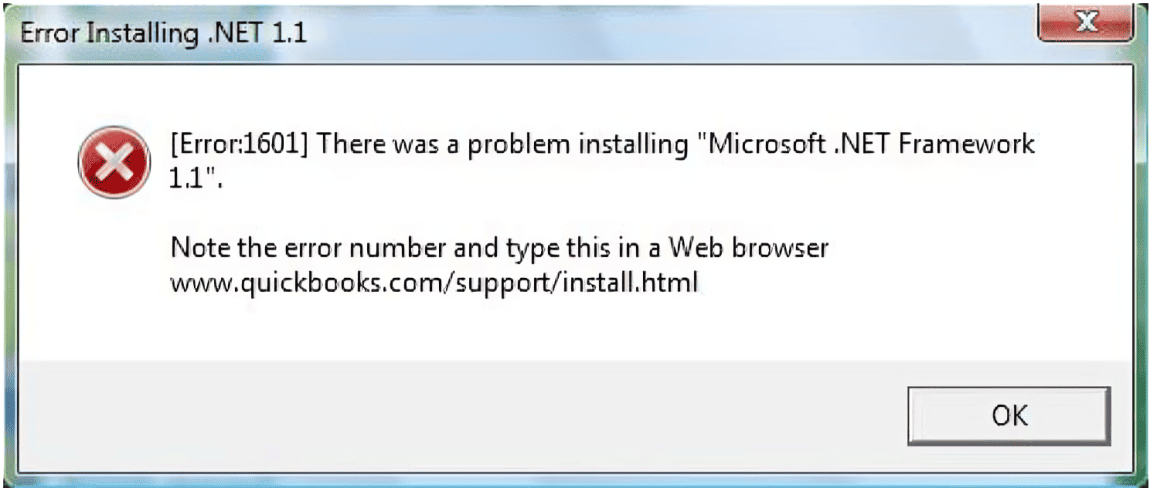
Users get these messages on their computer screen, and their QuickBooks application crashes or fails to launch. Your Windows computer’s performance also goes down significantly, and the QuickBooks application gets slower, freezes, or stops briefly when you are using it.
Now, let us see what leads to the above error.
Primary Contributors to the QuickBooks Windows Installer Error 1601
The following list includes key causes and reasons for the QB Windows installer error 1601:
- Damaged or malfunctioning Microsoft Windows installer.
- No permissions to install or update the application.
- Damaged or corrupted QB installation source.
- Third-party apps are causing a conflict.
- Windows Firewall is restricting QuickBooks from downloading the updates.
- Improper or incomplete QuickBooks installation.
- A virus or malware in your computer system.
These are the key factors that often lead to the 1601 error code in QuickBooks Desktop for users. Now, go through the solutions listed below to resolve it.
Proven Methods for Troubleshooting the QuickBooks Error 1601
This section entails various solutions that you can follow in order to resolve QuickBooks error 1601. You can update or reinstall the QBDT application, or run tools to detect and repair issues as outlined in the process below.
Solution 1: Update QuickBooks Desktop
An outdated version is slower and lacks new features, unlike the latest version of QuickBooks Desktop. Update the QBDT application to the newest version through this guide to prevent the Windows Installer error 1601:
Steps to Update QuickBooks through the Application
Follow the given steps to update QBDT from within the application:
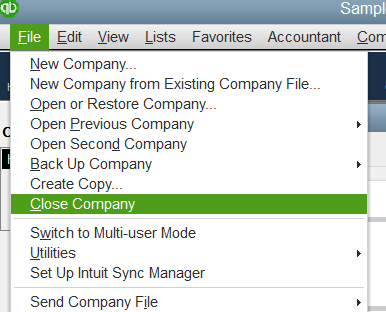
- Launch QuickBooks and select Close Company/Logoff under the File menu.

- Click on Exit and close the File tab.
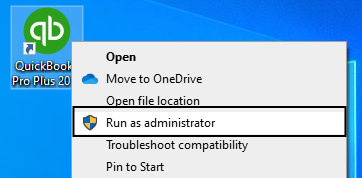
- Now, open the menu on QuickBooks Desktop and select Run as Administrator.

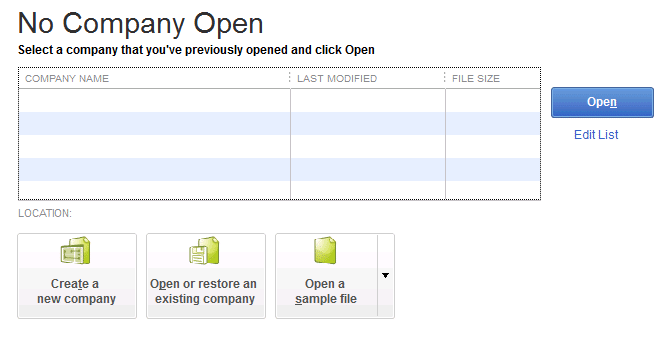
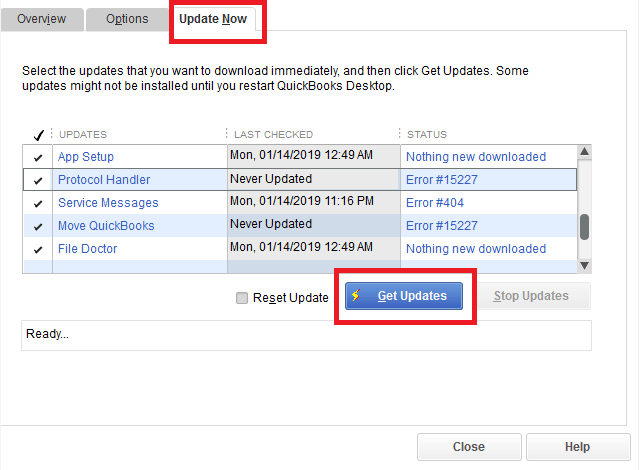
- Once you see No Company Open, tap on the Help tab and select Update QuickBooks.

- Choose Mark All in the Options menu and tap on Save.
- Now, tick the Reset Update checkbox in the Update Now menu.
- Once the “Update Now” option is visible, click “Get Updates,” and close the application.

- Relaunch QuickBooks Desktop and tap Yes on the Install Updates pop-up.
- The updates will begin to install
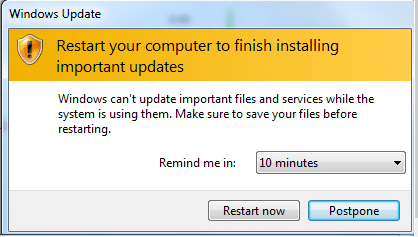
- Restart your system once all updates have been installed.
Steps to Update QuickBooks through the Web
Follow the given steps to update QBDT via an online web browser:
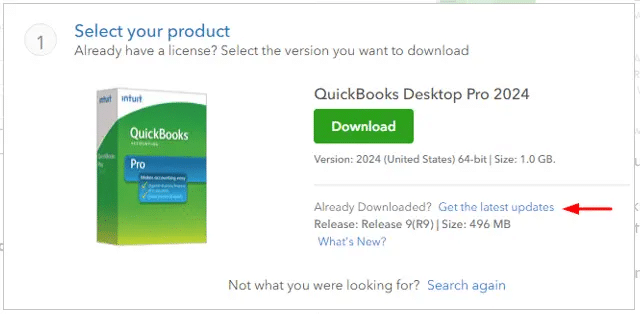
- Open Intuit’s website.
- Go to the Downloads & Updates page.
- Choose the Product menu and click on QuickBooks Product in the dropdown.

- Now, find your QuickBooks version and its year from the Version dropdown.
- Select “Get the latest updates”, followed by Save/Save File.
- Download the update patch and open it on your desktop.
- Now, do as the instructions say to install the Update.
- Restart your computer and finish updating.

The QB error 1601 will likely get resolved after the QuickBooks Desktop has been updated. If the Windows installer issue persists, reinstall the QBDT application entirely using the process outlined below.
Solution 2: Reinstall the QuickBooks Desktop
An incomplete installation of the application may also cause the QuickBooks error 1601 to appear on your system. Through the following steps, you can reinstall the QBDT application as the Windows admin:
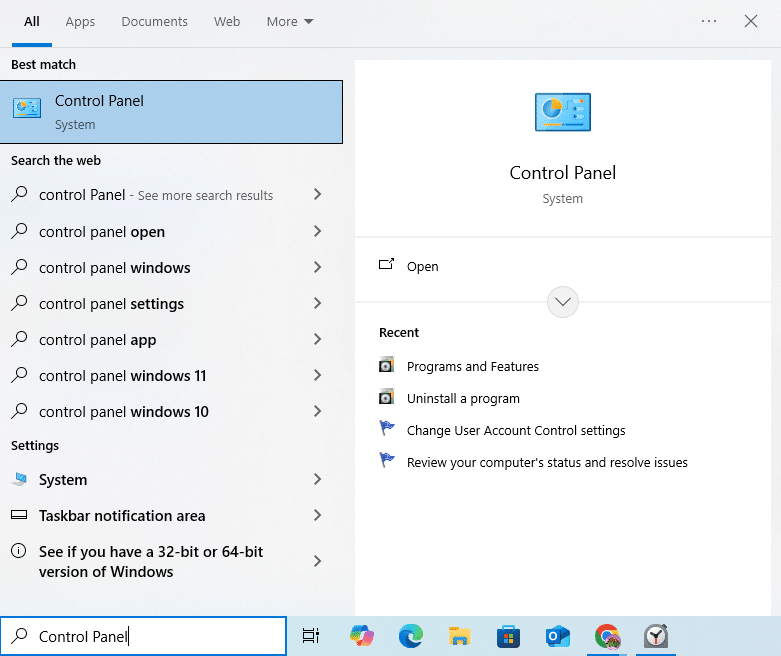
- Open the search box on your taskbar and enter the Control Panel.
- Launch Control Panel.

- Open Programs and select Programs and Features or Uninstall a Program.

- A list of programs will be visible to you.
- Choose QuickBooks Desktop.
- Now click on Uninstall, Remove, and Next.
- After uninstalling, download and install QuickBooks Desktop once again.
- The QBDT will create new folders and rename the old folders during installation.
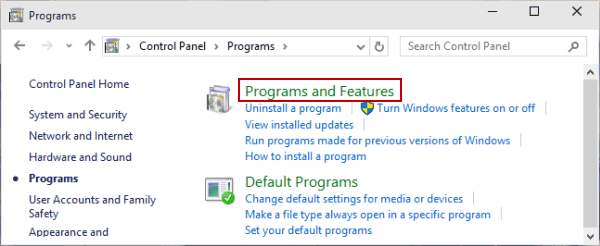
The QuickBooks Windows installer error 1601 will likely be resolved once you successfully reinstall the application. If it does not, proceed to the following method for updating the Windows OS.
Solution 3: Update the Windows Operating System
An outdated Windows operating system may prevent the proper QBDT application installation and cause the QuickBooks error 1601. Now, follow the process below to update your Windows operating system on 10 or 11 to the latest release.
Steps for Windows 11
The following steps are to be taken to update the Windows OS in Windows 11:
- Start your system
- Head to Settings
- Select Windows Update
- Click on Check for updates
- Available updates will show up on your screen
- Click on Download & Install
Steps for Windows 10
Through the steps given below, you can update the Windows OS in Windows 11:
- Launch your system
- Open Settings
- Choose Update & Security
- Head to Windows Update

- Click on Check for updates
- If updates are available, then select Download & install
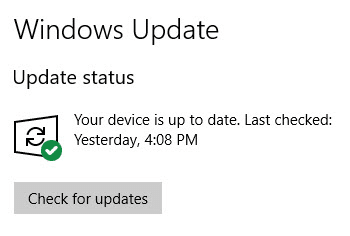
If new updates are available, your device will automatically download and install them. Any damaged Microsoft components will also be repaired, and the QuickBooks Windows installer error 1601 will be addressed.
If it does not, then you should repair the QB program through the next step.
Solution 4: Use Quick Fix My Program
Follow the process below to use the Quick Fix my Program for QuickBooks error code 1601.
- Download and install QuickBooks Tool Hub.

- Launch the QuickBooks Tool Hub
- Locate Program Problems.
- Now, head to the Program Problems section
- Select Quick Fix My Program.

- Then, sign in to your company file on QuickBooks Desktop.
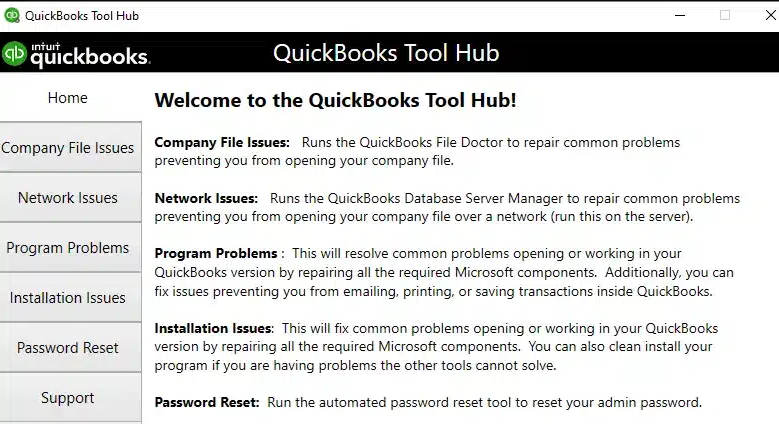
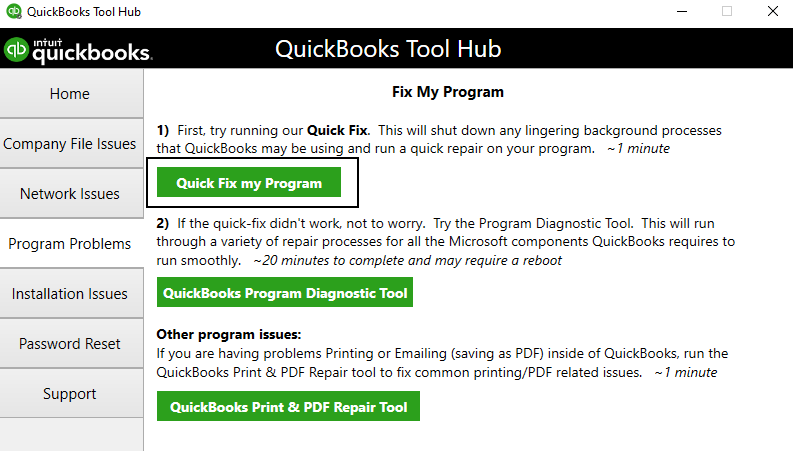
The above tool should resolve the Windows Installer error 1601. If you still come across the error 1601, then run the QB Install Diagnostic Tool as shown below.
Solution 5: Run the QB Install Diagnostic Tool
Error code 1601 might often be a result of issues with installation files and Windows components. To run the QB Install Diagnostic Tool to address the installation issues, follow the steps below.
- Launch the QB Tool Hub.

- Select the Installation issues tab.
- Choose and run the QuickBooks Install Diagnostic Tool.

- Now, let the tool repair installation issues.
- Once done, restart your computer and relaunch QBDT.

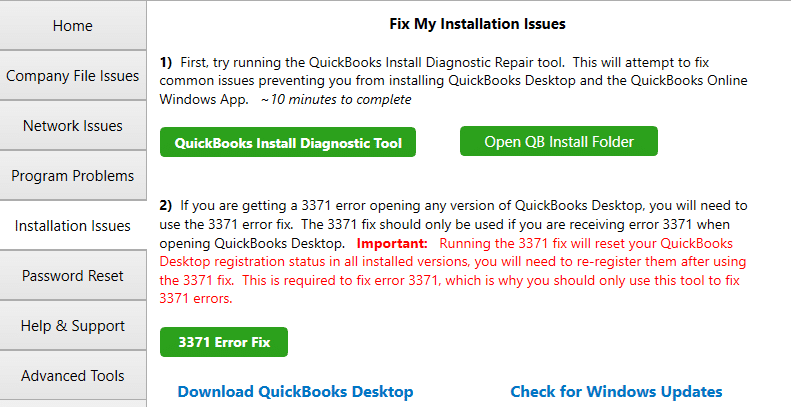
Update your QuickBooks Desktop as foretold in ‘Solution 1’ after running the QB install diagnostic tool. If the Windows installer error 1601 QuickBooks has not been resolved, then you may need to create a Windows Firewall exception for QB Desktop through the following process.
Solution 6: Create an exception for QuickBooks in Windows Firewall
The Windows Firewall may cause blockages to QBDT, which results in a 1601 error in QuickBooks. You will need to create Firewall exceptions for QB to prevent any restrictions or disturbances, as outlined in this guide.
Once done, head back to QuickBooks Desktop and confirm whether the Windows Installer error 1601 has been resolved or not. If the error is caused by a damaged Microsoft .NET Framework, then follow the next process to repair or reinstall it.
Solution 7: Repair or Reinstall the Microsoft .NET Framework
Damaged MSXML and .NET Framework components in Windows may sometimes cause the QuickBooks error 1601. The Windows components are specifically developed to run applications, so it is necessary to repair any damage to them to prevent interruptions.
- Open the Control Panel.

- Go to Programs.
- Now, under the Programs and Features section, select Uninstall a program.
- Find the ‘Turn Windows Features On or Off’ option and click on it.

- Locate the affected version of the .NET Framework in the list, and unmark it.
- Then, it will be disabled once you restart your computer.
- Once done, head back to ‘Turn Windows Features On or Off’.
- Tick the Microsoft .NET Framework checkbox to reinstall it.
- When it’s installed, tap OK.
- Finally, restart your computer to update.
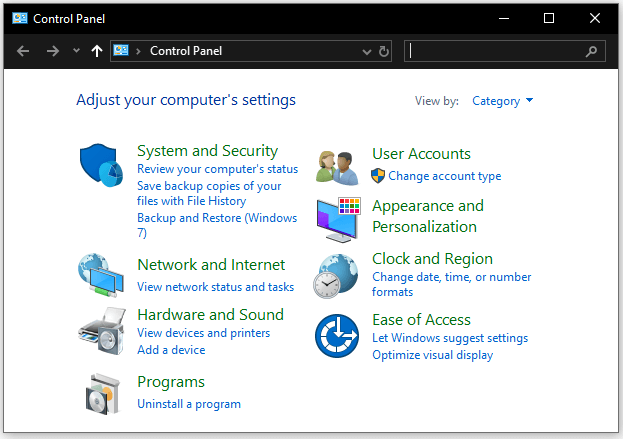
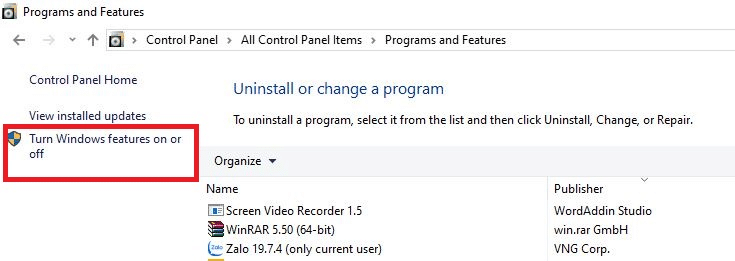
Check if the QuickBooks Windows installer error 1601 has been resolved after you repair and reinstall the Microsoft .NET Framework on your system.
These are methods proven to work and resolve the Windows Installer 1601 error code in QuickBooks. In case you missed any vital information in the text above, read the following tabulated overview of the entire blog.
Quickview Table for QuickBooks Error 1601
In this segment, we have provided you with a tabulated overview of the Windows installer 1601 error code in QuickBooks.
| Error description | Error 1601: Windows Installer is not accessible |
| Error message | Error 1601: There was a problem installing “Microsoft .NET Framework 1.1” |
| Its causes | A damaged Microsoft Windows installer, a lack of permission to install or update, Windows Firewall blocking QuickBooks updates, an incomplete QuickBooks installation, a damaged QB installation source, a virus in the computer system, and conflicts with third-party apps. |
| Troubleshooting methods | Update or reinstall QuickBooks Desktop, update Windows OS, run QuickBooks Install Diagnostic Tool or Quick Fix My Program, create Windows Firewall exception for QuickBooks, and repair Microsoft .NET Framework. |
| Tools required | QuickBooks Install Diagnostic Tool, Quick Fix my Program, QuickBooks Tool Hub. |
The table will come in handy for quickly resolving the problem mentioned above.
Final Thoughts
Many users often encounter the QuickBooks error 1601 Windows installer issue, which causes interference when opening QBDT and hinders their productivity. We have listed the primary reasons for this error to occur on your device so that you understand why it might be appearing on your screen. We have also provided proven solutions that can help you troubleshoot this Windows installer error and continue using QuickBooks Desktop without any interruption.
If you are stuck with the 1601 error code in QuickBooks, Accounting Helpline’s expert team is here to help you. Dial 1.855.738.2784 to connect with an Accounting Helpline specialist today.
Frequently Asked Questions (FAQs)
What is Error Code 1601 in QuickBooks?
The QuickBooks error code 1601 is a Windows installer issue that prevents the installation or update of the latest QB Desktop version. Several reasons, such as a damaged Microsoft Windows installer, a Firewall blocking QuickBooks updates, an incomplete QuickBooks installation, damaged QB installation files, a virus in the computer system, and conflicts with third-party apps, are primary contributors to QuickBooks error 1601.
How to Fix Error Code 1601 in QuickBooks?
To fix the QuickBooks Windows installer error 1601, you can try following proven methods to update or reinstall the QB Desktop, update the Windows operating system, run the QuickBooks Install Diagnostic Tool or Quick Fix my Program, create a Windows Firewall exception for QuickBooks, repair or reinstall Microsoft .NET Framework, and more.
How do you Properly Reinstall QuickBooks Desktop to avoid getting Error 1601?
To properly reinstall QuickBooks Desktop to avoid getting error 1601, follow the steps below as the Windows admin:
– Head to the Control Panel.
– Choose Programs and select Programs and Features or Uninstall a Program.
– Locate QuickBooks Desktop.
– Select Uninstall, Remove, and Next.
– Install the QBDT and then reinstall it.
– QuickBooks will create new folders and rename old folders.
Related Posts-
A Comprehensive Guide to the QuickBooks Migration Tool for Data Transferring
How to Troubleshoot: Error Initializing QBPOS Application Log
How to Void Deposit Payments in QuickBooks Desktop
An Expert’s Guide on QuickBooks Write Check Columns Missing
QuickBooks Print and PDF Repair Tool: How to Fix Print Problems
07 Solutions to Fix QuickBooks Not Sending Emails Issues

Edward Martin is a Technical Content Writer for our leading Accounting firm. He has over 10 years of experience in QuickBooks and Xero. He has also worked with Sage, FreshBooks, and many other software platforms. Edward’s passion for clarity, accuracy, and innovation is evident in his writing. He is well versed in how to simplify complex technical concepts and turn them into easy-to-understand content for our readers.