

Last Updated on February 23, 2026
Are you just tired of this frequent QuickBooks update stuck issue? This is a common yet challenging issue encountered worldwide by users. With every update, QuickBooks seems to evolve and add more features. Intuit also recommends that its users download the updates right away to avoid missing out on the updated features. A QuickBooks update can be caused by any QuickBooks desktop update error, including error codes 12045, 12157, 12037, 12038, and the 15xxx error series. Such errors prevent you from updating QuickBooks to the latest release and cause the ‘QuickBooks desktop update’ error.
Are you unable to fix the QuickBooks Desktop update error? Speak to our dedicated Accounting Helpline experts by dialling our toll-free number 1.855.738.2784. They are all ears to understand your concerns and help you fix the software update issues instantly.

Meaning of QuickBooks Update Stuck at Writing Registry Values
The most common reason QuickBooks updates get stuck is a problem with the system registry. Anytime QuickBooks cannot write to the system registry, it might encounter an error and fail during the update. It is where the system registry stores all the Windows and applications installed on your system, along with their settings and information.
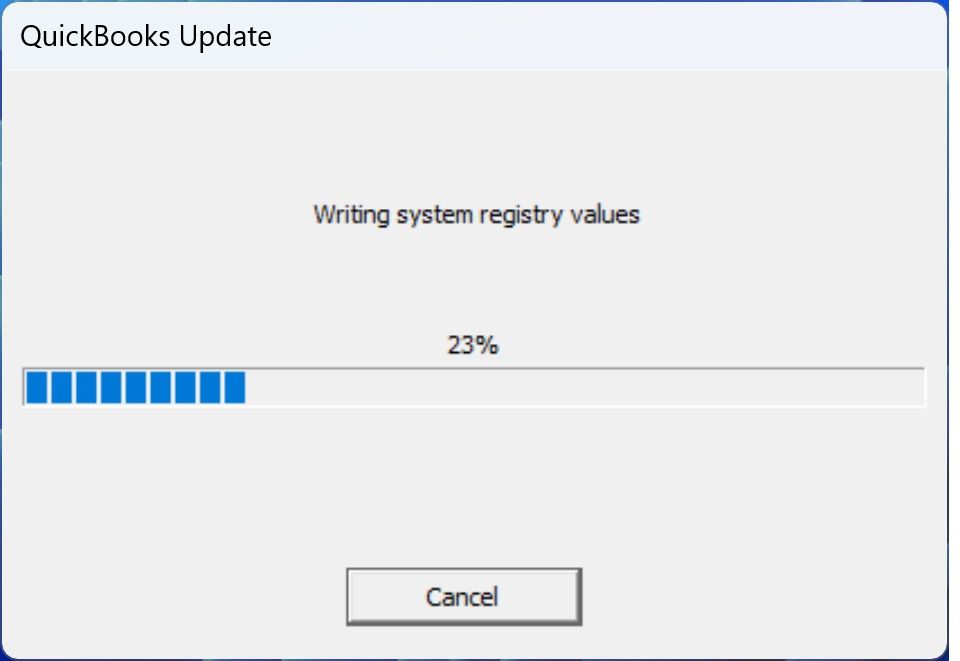
Generally, the error message QuickBooks users encounter in such situations is related to system registry issues or extremely long update times. According to QuickBooks Support, such a case where the application stopped writing to the system registry generally results from one of the following causes:
- Corruption in the QuickBooks files will cause an error during the update process when writing to the registry.
- Some security programs, such as firewalls or antivirus software, could block QuickBooks‘ access to the registry or prevent updates from completing.
- You might not be able to install the update if you are running an outdated version of QuickBooks, as it does not support your current operating system.
- Errors or corruption in the Windows registry prevent QuickBooks from making the required change, so the update will not be complete.
These were the causes of the QuickBooks Stuck at updating system registry issues. There can also be some QuickBooks update errors that can cause the issue of ‘QuickBooks update stuck at writing system registry values.’ Let’s take a look at the QuickBooks issue where it gets stuck on updating the registry.
What Triggers QuickBooks Desktop Stuck Errors?
While updating QuickBooks, many things can go wrong and cause QuickBooks desktop errors. The general causes of QBDT update errors are:
- The PC’s time and date settings are incorrect.
- Issues may arise from an unstable internet connection.
- Firewall ports and personal applications might cause interruptions during updates.
- If QuickBooks Desktop can’t verify the digital signature of your file, you’ll face problems with the QB Desktop update.
- Insufficient admin permissions on QB or Windows can trigger problems with QB updates.
- There may be compatibility issues because your system doesn’t meet the minimum requirements.
- If you have multiple versions of QuickBooks Desktop installed on your system, you may experience issues with the QuickBooks update taking too long.
- Users may have a damaged file and request that it be updated.
- The file may be read incorrectly on a Windows PC.
- Hard disk corruption or damage.
- Missing or damaged QBWUSER.INI file.
- An extended company name can cause a reboot during updates.
- Incorrect installation of QuickBooks Desktop.
- Outdated and old operating system.
- The configuration files might get bloated over time.
These are some of the common scenarios where you can expect QuickBooks update stuck errors. You can minimize the risk of such errors by keeping the points mentioned above in mind.
What to do if QuickBooks Update Stuck in the Middle?
If your QuickBooks update gets stuck at 100%, 30%, 24%, 26%, 28%, or 34%, there may be a reason: an internet connection issue, corrupted files, or a system conflict. Do the following:
- If there’s a QuickBooks update stuck at 100 writing system registry values, restart your computer and see if your internet connection has stabilized. Try reinstalling QuickBooks.
- If it is stuck at 30%, close all other applications, disable your antivirus and firewall, and see if your internet stabilizes.
- If you are stuck in the reboot loop, restart in Safe Mode using the QuickBooks Clean Install Tool.
- If the results are 24%, 26%, or 28%, check your internet speed, disable background programs, and run the File Doctor.
- On 34%, repair files with the File Doctor or reinstall QuickBooks.
- If a QuickBooks update is stuck on patching files, it means there is an issue downloading or installing the update.
- If there’s a QuickBooks update stuck on writing registry values, this might be because of a firewall or antivirus security issue in QuickBooks.
Make sure you reach a point where your system has enough space and can use the updated version of QuickBooks. Sometimes, it might feel that the QuickBooks update is taking too long to process. All you need to do is wait for a while, then proceed to the solutions.
Solutions to Fix QuickBooks Update Stuck Issue in Simple Steps
Now that the damage has been done, you have to deal with the QuickBooks update error. But don’t worry, users! We have got you covered. Here are some of the solutions that will help you fix QuickBooks update stuck errors in quick and easy steps:
- Reconfiguring Date and Time Settings.
- Verifying the Internet Connection Settings.
- Updating QuickBooks Version manually.
- Installing the Digital Signature Certificates.
- Downloading the updates in Safe Mode.
- Renaming the QuickBooks Components Folder.
- Launching QuickBooks Install Diagnostic Tool.
- Verifying Internet Security and Firewall Settings.
- Running the Reboot.bat File.
- Using Windows as an Administrator.
These are the solutions that you can implement to resolve the QuickBooks Update Stuck issue on your desktop. Let’s have a look at each one of them in detail.
Solution 1: Reconfiguring Date and Time Settings
While downloading the update, if the digital signature certificate of Intuit shows validity dates that do not match your system’s date and time, the browser fails to recognize the website as secure, and the update fails to download. You can try to correct the date and time settings by following the steps mentioned below.
- Right-click the system clock on the desktop and tap Adjust Date/Time.

- Click Change date and time, then set the current date and time.
- Select OK twice.
- Close QuickBooks Desktop, then reopen it.
- Re-run the update for QuickBooks Desktop.
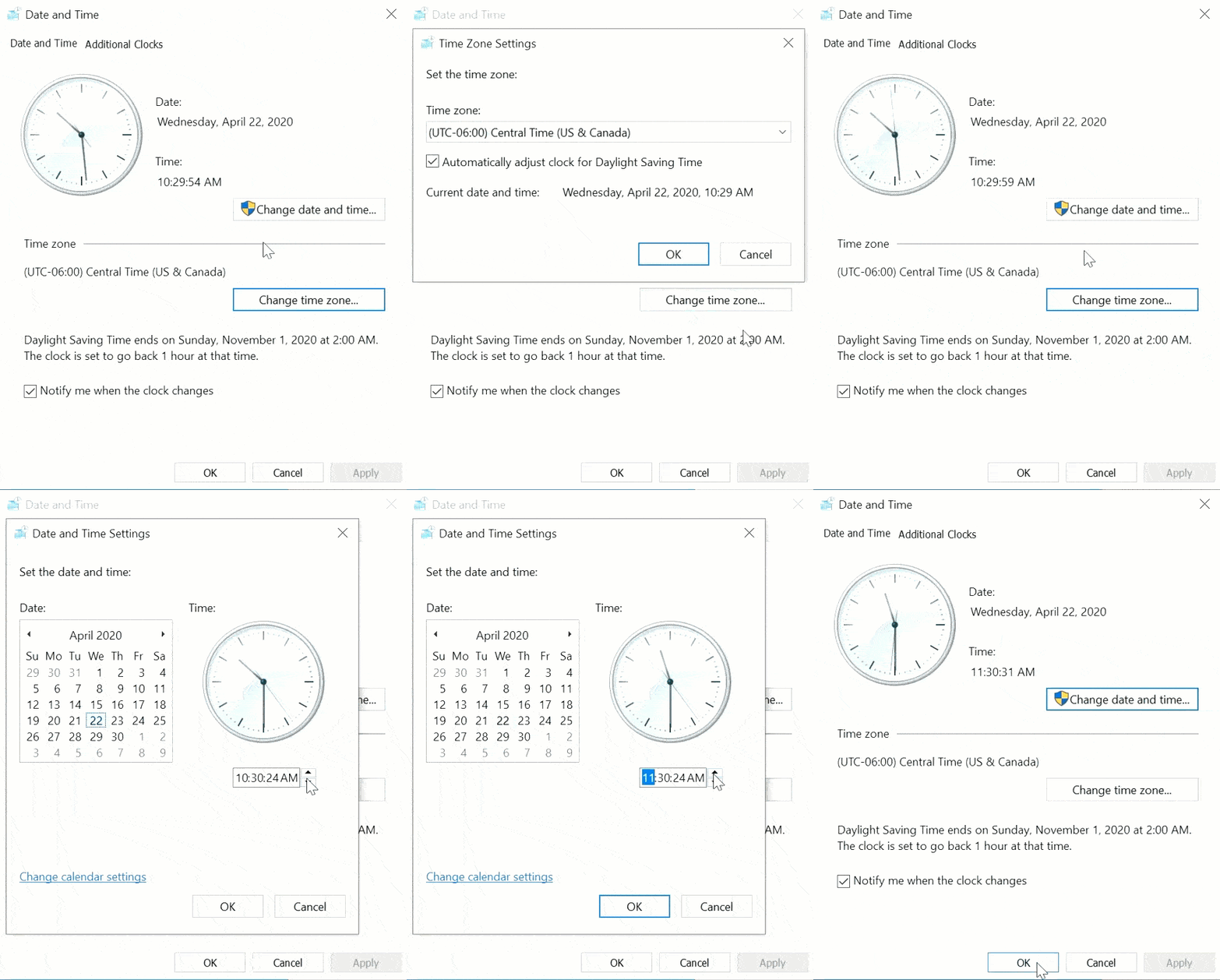
These are the steps to fix date and time issues on your computer. If the previous solution does not resolve the QuickBooks update stuck error, proceed to the next solution.
Solution 2: Verifying the Internet Connection Settings
If your internet connection is down, try checking your bank’s website in a web browser. If you can’t visit the website, contact your internet service provider. However, if you can use a browser to surf the internet, follow the steps below.
- Visit the Help menu in QuickBooks.
- Choose Internet Connection Setup, then click Use my computer’s Internet connection settings to establish a connection when this application accesses the Internet.
- Click Next, then go to Advanced Connection Settings.
- Visit the Advanced tab and choose Restore Advanced Settings.
- At last, click on OK and Done.
- Try to update QuickBooks again.
Verifying the internet connection settings is an important step in resolving the QB desktop update errors. Now, proceed to the next solution.
Solution 3: Updating QuickBooks Version Manually
If the user has installed and is currently running two different versions of QuickBooks Desktop on the same computer, the automatic update download will malfunction. In this case, you must download the updates manually for each QuickBooks version, one at a time, as follows:
- Exit QuickBooks after closing the company files, then go to the desktop.
- Right-click one of the QB icons, then choose Run as administrator.

- Select the Help menu, then click Update QuickBooks Desktop.

- Under the Options tab, click Mark All, then choose Save.
- Go to the Update Now tab and put a tick mark on the Reset Update checkbox by clicking on it.

- Select Get Updates, then close QuickBooks once the update finishes.
- Reopen QuickBooks and click Yes to install the updates.
- Repeat the same steps for the other QuickBooks version.
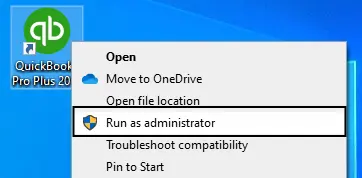
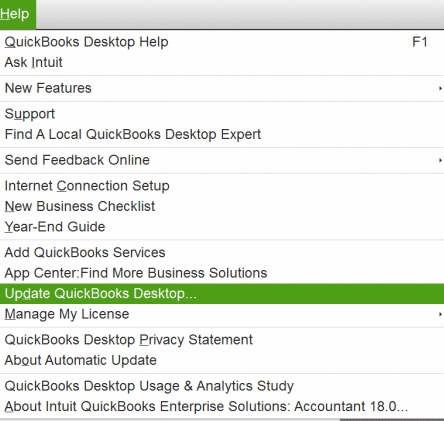
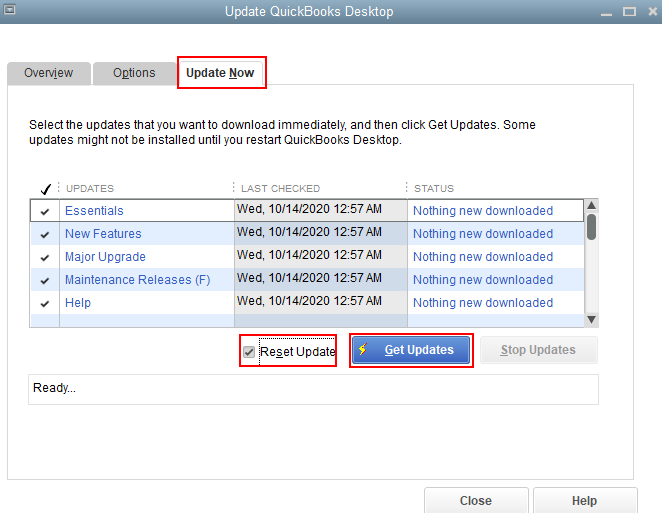
After proceeding to update the centre, you’ll see the “Hold tight, we’re updating your QuickBooks” message. This means that the QuickBooks software is currently being updated on your system. An updated application/software has a minimum chance of crashing or freezing.
Solution 4: Installing the Digital Signature Certificates
Suppose the existing digital signature certificate is lost or accidentally deleted by a program. In that case, the Intuit servers cannot allocate the user’s software credentials, and the QuickBooks Desktop update fails even before the download starts. Follow the steps below to reinstall the QuickBooks digital signature certificate.
- Exit from QuickBooks and press the Windows Key + E to open the File Explorer.
- Go to This Computer or My Computer and double-click on C: Drive.
- Under the Program Files folder, open the Intuit.
- Open the QuickBooks folder, then right-click the .exe file.
- Choose Properties, then click the Digital Signature tab.
- Verify that Intuit is checked in the signature list and go to Details.
- Click on View Certificate, and under the Certificate Window, choose Install Certificate.
- Keep selecting Next until the Finish button appears.
Finally, reboot the system and open QuickBooks to download the updates again. If this method does not work, you can try the next one.
Solution 5: Downloading the Updates in Safe Mode
Safe mode prevents any program from running automatically unless the user starts it. If another program is interfering with the QuickBooks update download, the user can try downloading the QB updates in safe mode.
- Exit from QuickBooks and restart your computer system while holding the Shift key.
- The computer will start to choose an Option.
- Click Troubleshoot, then select Advanced options.
- Choose Startup Settings, then click Restart.
- Once it restarts, press the F4 key to start the computer in Safe Mode.
- Download the QuickBooks updates.
- Once the updates are downloaded, press the Windows Key + R to open the Run
- Type MSConfig in the search box and press Enter
- Under the Boot tab, click Boot options, then uncheckSafe Boot 34%, repair files with the File Doctor, or try reinstalling QuickBooks.
Now, restart the PC to open it in Normal Mode, then install the updates by opening QuickBooks Desktop. If this does not work, you can try the next solution.
Solution 6: Renaming the QuickBooks Component Folder
It might be that one of the previously downloaded updates is corrupted and is now causing issues with downloading new updates. The only fix is to rename the folder by following the given steps.
- Exit from QuickBooks and go to the C:\ Program Data\ Intuit\ QuickBooks 20[YY]\ Components.
- 64-bit users, go to the C:\ Program Files (x86)\ Intuit\ QuickBooks 20[YY]\ Components.
- Right-click the Components folder, then select Rename.
- Add WBG to the end of its name, then press Enter to save the action.
As soon as you open QuickBooks and access the company file, QuickBooks will automatically create a new folder.
Solution 7: Launching QuickBooks Install Diagnostic Tool
Usually, problems such as improper installation, corrupted or broken installation files, issues with the Windows registry, or Microsoft components can cause various types of errors. The QuickBooks Install Diagnostic Tool fixes these problems with components and the registry. It is located in QuickBooks Tool Hub.
- Close all windows for QuickBooks Desktop.
- Open QuickBooks Tool Hub by double-clicking its application icon from your Desktop or Start menu.
- Now select the Installation Issues tab.
- Click on QuickBooks Install Diagnostic Tool.

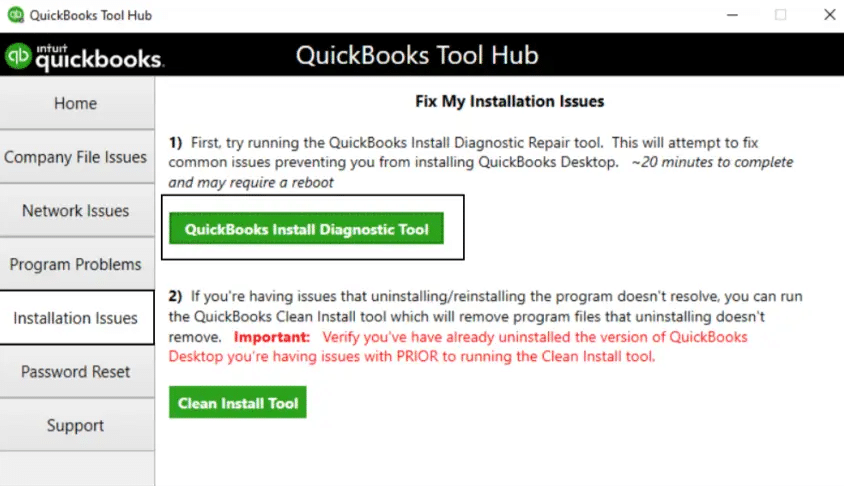
The QB Install Diagnostic Tool will begin repairing all corrupt components and files that QuickBooks needs to work properly. When the tool is finished repairing, you must reboot the computer. Now, log in to your Windows as an admin, launch QuickBooks, and proceed with the update. But if you observe the QuickBooks update stuck at 100% or some other percentage, let us proceed with the following solution.
Solution 8: Verifying Internet Security and Firewall Settings
Something else you should be aware of is that internet security or firewall settings can prevent QuickBooks updates. It could be why the QuickBooks update is stuck. So you should review Internet security settings and the settings of your firewall software. Port 80 and port 443 should be opened, and the following programs should be able to use them:
- AutoBackupExe.exe
- Dbmlsync.exe
- DBManagerExe.exe
- FileMovementExe.exe
- IntuitSyncManager.exe
- QBCFMonitorService.exe
- QBGDSPlugin.exe
- QuickBooksMessaging.exe
- QBLaunch.exe
- QBServerUtilityMgr.exe
- QBDBMgrN.exe
- QBDBMgr.exe
- QBW32.exe
- FileManagement.exe
It is highly unlikely, but in exceptional situations, if other tasks are using these ports, the QuickBooks Database Server connects on a fallback port, namely 56719.
Solution 9: Running the Reboot.bat File
You may limit the source of unusual QuickBooks behavior and issues by using the reboot.bat file. It will allow the system to re-register the DLL and OCX QB files on Microsoft Windows. The steps to run the reboot.bat file are as follows:
- You should restart your system, then right-click the QuickBooks application.
- Navigate to the Properties tab, then click the Open File Location option.
- In the top right corner’s search space, type reboot.bat.
When you look at the reboot.bat or reboot file, right-click it and select Run as Administrator. Finally, Windows will shut down after the reboot.bat file executes.
Solution 10: Using Windows as an Administrator
Ensure you have admin rights on Windows if you encounter QuickBooks Desktop update errors. Here’s how you create a Windows user account and switch to Administrator type in Windows 11/10:
- Open the Start menu, select Settings, and click on the Accounts option. Then, choose Family & Other Users (On some Windows versions, it may be labeled as Other Users).
- Look for the Add Other User option, check the box next to it, and click the Add Account option.
- Choose “I don’t have this person’s sign-in information” and click on “Add a user without a Microsoft account” on the subsequent page.
- Fill in a username, password, or password hint—or tap security questions—then click Next.
- Modify a local user account into an administrator account by navigating to the Start menu > Settings > Accounts.
- Under Family & Other Users, select the account owner’s name ( “Local Account” should be below the account name), and click on Change Account Type.
- Choose Administrator under the Account Type tab and click OK.
Now, you just need to sign in with the help of the newly created administrator account, and you are good to go.
Solution 11: Make a Microsoft Defender Exclusion of QB Files
The QB Tool Hub software has released a new feature that allows you to exclude QB files. These files will no longer be scanned by Microsoft Defender during installation if they are added to an exclusion list, enabling the update to run as quickly as planned. You need to follow the steps written below to resolve the issue:
Note: You can add an exclusion by signing into Windows as an admin user. The Add Defender Exclusion option will be grayed out, and you have to ask your admin to add an exclusion for you if you are not an administrator of the PC.
- Stop the update by choosing the Cancel option.
- Now, close QuickBooks
- Then, open the QuickBooks Tool Hub Application
- After that, select the Installation issues option.
- Next, choose the ” Add Defender Exclusion” option.
- Finally, reopen QB and start the update.
Follow the steps above to fix the QB update issue. If you are still facing trouble, move on to the next solution.
Solution 12: Adjust Antivirus Settings to Avoid Update Blocks
You can fix the QB update error by modifying the antivirus settings. To perform this solution, follow the steps mentioned below:
- First, stop the update by clicking on the Cancel button.
- Then, close QuickBooks.
- In Windows Security, turn off Defender antivirus protection.
- Lastly, reopen QB to start the update.
Once the QB update is complete, ensure Windows Defender continues to protect your system.
Solution 13: Uninstall QuickBooks Manually and Rename Installation Folders
Another effective way to fix the QB update is to manually remove QB and rename the installation folders. You need to perform the following steps to resolve the issue:
- Begin by removing QB again.
- Open the Windows Start menu to search for “File Explorer,” then open File Explorer.
- Identify and open the folder that holds your QuickBooks company files. This is your QuickBooks folder that has one of these locations:
- C:\ProgramData\Intuit\QuickBooks (year)
- C:\Users\(current user)\AppData\Local\Intuit\QuickBooks (year)
- C:\Program Files\Intuit\QuickBooks (year)
- 64-bit version C:\Program Files (x86)\Intuit\QuickBooks (year)
- Then right-click the folder and choose Rename.
- Next, add the word “old” to the end of the folder name to prevent QB from opening during installation.
- Lastly, reinstall QuickBooks Desktop.
Follow the steps mentioned below if you get an access error message when renaming the folder:
- First, right-click the Window Task Bar, then choose the Task Manager option.
- Next, go to the Processes tab.
- Sort the list by choosing the Name column header.
- Choose the following processes and then End Process for each: QBDBMgrN.exe, QBDBMgr.exe, QBCFMonitorService.exe, Qbw32.exe.
- Choose the Yes option if you can see the message, “WARNING: Terminating a process can cause undesired results…”
This method usually resolves the update error and ensures QB runs smoothly again, so you can manage your business tasks without interruption.
QuickBooks Update Stuck – Memory Table for Reference
If you have read the complete blog, you can take a snapshot of the memory table for your reference. This will help you prevent the error from happening again. The table below summarizes the key information about the QuickBooks update stuck error.
| Issue | Quick Fix | Pro Tip 💡 |
| Stuck at Writing Registry | Disable firewall/antivirus → Run as Admin | Use QB Install Diagnostic Tool |
| Stuck at 100% or 30% | Restart PC → Reinstall QB | Check internet stability first! |
| Reboot Loop | Boot in Safe Mode → Clean Install | Back up company files first. |
| 24%, 26%, 28% Freeze | Run QuickBooks File Doctor | Close background apps. |
| Patching Files Hang | Manual update → Reset download | Verify disk space (>5GB free). |
| Digital Signature Errors | Reinstall certificates → Check date/time | Use Run as Admin. |
| Firewall Blocks Update | Whitelist QB ports (80, 443) | Temporarily disable security apps. |
| Corrupt Components | Rename Components folder → Restart | Let QB rebuild the folder. |
| Admin Permission Issues | Create a new Windows Admin account | Avoid guest/user accounts. |
| Multiple QB Versions Installed | Update each version manually | Uninstall unused versions. |
This table will help you memorise the important information, steps, and fixes.
Wait! The blog is not over yet. We still have something left for you.
QuickBooks Update Stuck Visual Flowchart (Bonus Section)
We have a bonus section for you: a visual flowchart for the QB stuck error. You can also have a look at this flowchart to have an idea of how to tackle this issue.
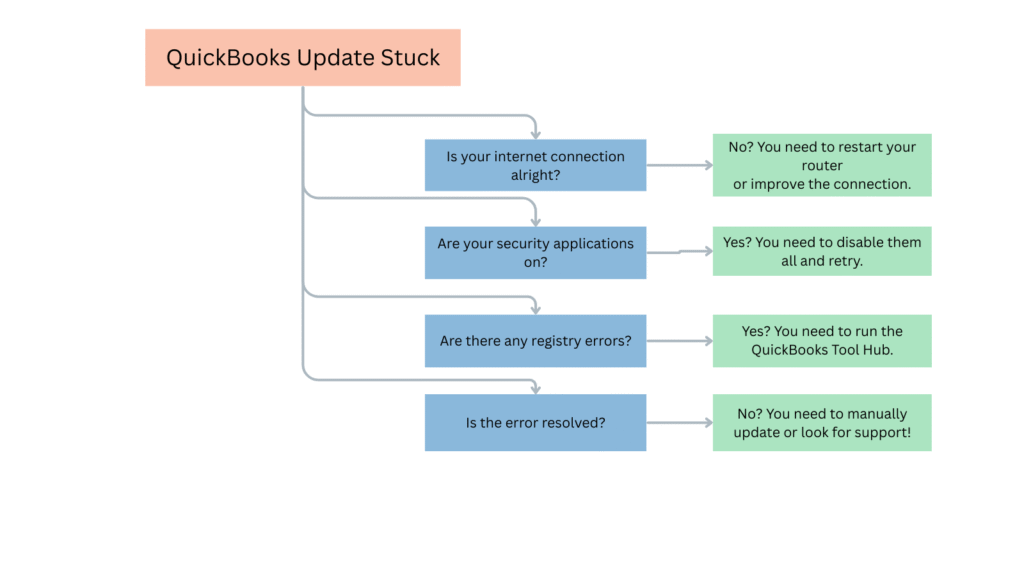
Now is the time to implement the solutions provided in this blog post. You can also dial the toll-free number to look for professional help.
Wrapping It Up!
In this blog, we have discussed comprehensive solutions to resolve problems easily. We have also mentioned why you might find the QuickBooks update stuck. You can prevent this issue by running the application as an administrator, ensuring a stable Internet connection, temporarily disabling the antivirus, etc. If you need help with fixing the QB update error, don’t hesitate to contact our Accounting Helpline experts at 1.855.738.2784.
FAQs
Why is my QuickBooks not updating?
There can be several reasons for QuickBooks failing to update. Generally, internet security or firewall settings can cause issues with QuickBooks updates. Outdated QuickBooks or Windows operating systems can also interfere with QuickBooks updates.
How do you update QuickBooks?
Once you log in to QuickBooks with your credentials, you will be taken to the update now tab. Here, you need to select the most recent version of QuickBooks. Now, you just need to make your selection and click the Get Updates option.
When does the QuickBooks update error occur?
The QuickBooks won’t update, or the QuickBooks Update Is Stuck problem arises when you’re doing the following:
– Undertaking manual updates
– Automatic updates show no results
– The update loading screen halts
How do I force an update of QB Desktop?
The immediate update method includes the following:
– Open QBDT.
– Tap Help.
– Select Update QB Desktop.
– Pick the updates to download.
– Hit Get Updates.
– Close and reboot QuickBooks.
– A wizard will emerge asking to install the app now or later.
How can I fix QuickBooks Update stuck on “Initializing”?
QuickBooks usually lags during the “initializing” phase due to conflicts with background processes or damaged installation files. You can fix this issue by:
– Begin by closing all QB processes in Task Manager.
– Then, restart the PC and launch QB as Admin.
– Next, reboot your router and ensure you have a strong connection.
– In QuickBooks Tool Hub, use the Quick Fix My Program.
– Use the Clean Install Tool to reinstall QB, if needed.
Do I need admin rights to update QuickBooks?
Yes, you need to have admin rights when updating QuickBooks to modify the registry, install files, and access the system folder. You should use an admin account, as it helps the update finish properly.
Related Posts-
QuickBooks 941 Form: Filing, Due Dates, Errors, & Solutions
QuickBooks Check Alignment Problems – Troubleshoot Guide
QuickBooks Sales Tax Center Not Working? Know How to Fix in Simple and Quick Steps
Resolving QuickBooks Payroll Not Deducting Taxes Issue With Causes & Solutions to Fix
Fixing the ‘QuickBooks Requires that You Reboot Loop’ Issue in Simple Methods
How to Fix the QuickBooks Error 61696? A Complete Guide

Edward Martin is a Technical Content Writer for our leading Accounting firm. He has over 10 years of experience in QuickBooks and Xero. He has also worked with Sage, FreshBooks, and many other software platforms. Edward’s passion for clarity, accuracy, and innovation is evident in his writing. He is well versed in how to simplify complex technical concepts and turn them into easy-to-understand content for our readers.