

Last Updated on March 6, 2026
The QuickBooks error H101 is a hosting error that can occur while a user tries to access the company file in multi-user mode. This can be due to misconfigured Firewall settings or incorrect hosting settings. It can hamper your workflow and have a negative impact on your important business processes. You can resolve it by using the Database Server Manager from the QB Tool Hub. In this blog, we’ll cover the in-depth troubleshooting methods to fix the QuickBooks error code H101. First, let’s start with the causes of the H101 error.
Are you unable to access your QuickBooks company file over a shared network? Contact our Accounting Helpline’s experts at 1.855.738.2784 today to resolve your issue in no time!

Potential Causes if Your QuickBooks Cannot Switch to Multi-User Mode
Given below is a list of the potential factors that can trigger the QuickBooks error H101 to pop up on your screen:
- The company file is either damaged or corrupted.
- Your Windows Firewall might be blocking the QB Desktop application.
- The Network Data (.ND) file might be damaged or corrupted.
- There can be issues with your internet connection.
- More than one system can be hosting your company file.
- The QuickBooks Database Server Manager can have issues.
- Incorrect DNS settings.
These were the factors that can cause H101 error in QuickBooks Desktop.
Troubleshooting the QuickBooks Error Message H101 | Guided Solutions
Given below are the guided troubleshooting methods you can use to resolve the H101 error in a step-by-step manner.
Utilize the QuickBooks Database Server Manager
You can utilize the QuickBooks Database Server Manager from the QB Tool Hub to fix error H101 in QuickBooks with the following steps:
- Download and install the latest version of the QuickBooks Tool Hub.

- Then, open the Tool Hub application.
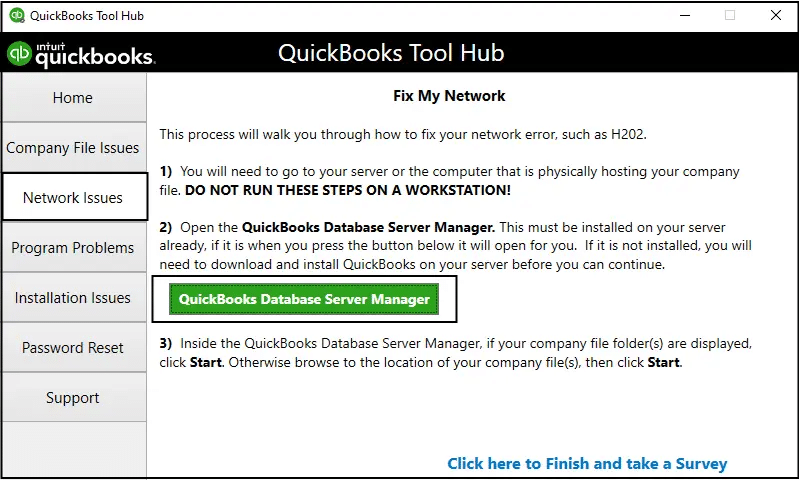
- Now, navigate to the Network Issues tab.
- Click on QuickBooks Database Server Manager.

- If you haven’t installed QuickBooks on the server, you’ll be prompted to install it.
- Press Start Scan in the QuickBooks Database Server Manager if you see the folder(s) of your company file:
- If you don’t see your company file, press Browse to locate it and press Start Scan.
- The Database Server Manager will repair the Firewall permissions automatically.
- Select Close after the scan is finished.

Now, the QuickBooks H101 error will be fixed.
Stop Hosting the Company File from Non-Server Workstations
You might be seeing the QuickBooks error H101 because non-server workstations might have host multi-user settings turned on. Check all your non-server systems with the steps given below:
- Open QuickBooks Desktop on any non-server workstation.
- Do not open your company file.
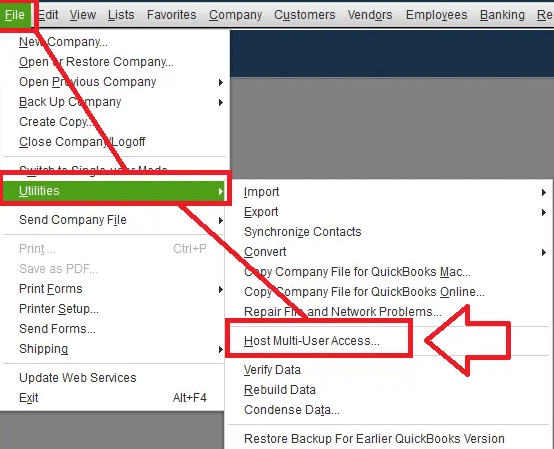
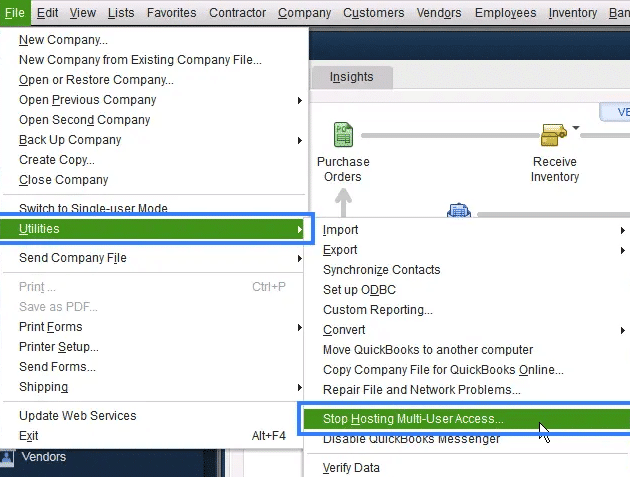
- Click on the File menu.
- Select Utilities.
- If you see the option stating Host Multi-User Access, don’t select it:

- This means that this PC isn’t causing the problem.
- Move on to the next workstation.
- If you see Stop Hosting Multi-User Access, then select it.

- Repeat the steps for every non-server PC.
Now, check the settings of your server workstation with these steps:
- Open QBDT on the server system.
- Click on the File menu, followed by pressing the Utilities option.
- If the Host Multi-User Access option is visible, click on it.
- If the Stop Hosting Multi-User Access option is visible, leave it be.
The QuickBooks Desktop error H101 would be fixed after performing these steps.
Restart the Base Filtering Engine Service
You can restart the Base Filtering Engine service to resolve QuickBooks error H101 with the following steps:
Stop the Base Filtering Engine Service
- Open the Start menu on your server PC.
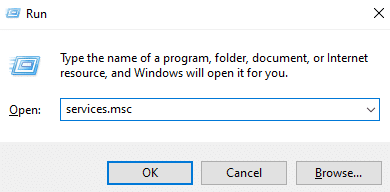
- Type Run into the search bar.
- Open the Run menu.
- Now, type in services.msc.

- Hit Enter.
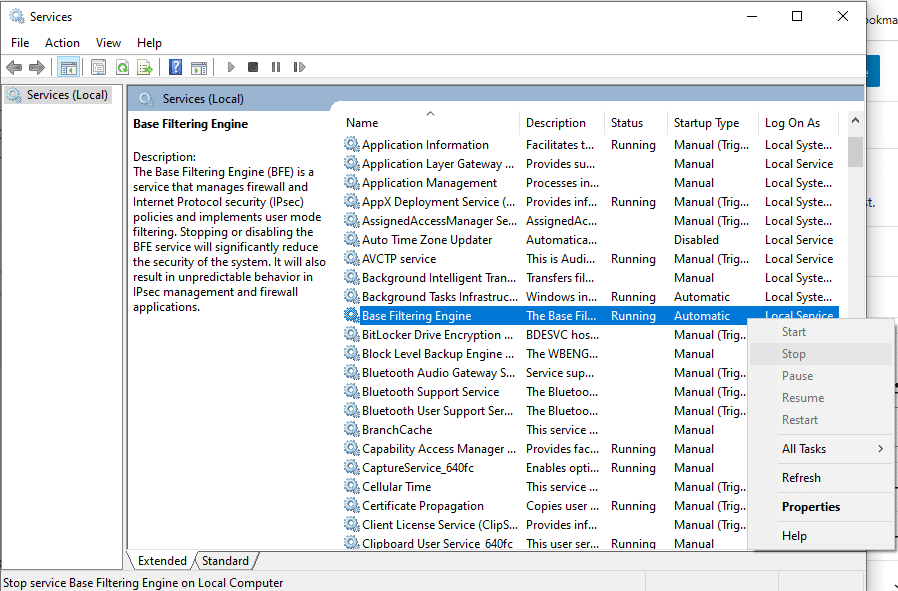
- Now, locate Base Filtering Engine in the list of services.

- Right-click on Base Filtering Engine.
- Press Stop.
- If you are greeted by an error message, dismiss it and press Stop again.
Scan Your QuickBooks Files
- Open the Start menu.
- Type in QuickBooks Database Server Manager.
- Open the QuickBooks Database Server Manager.
- Choose the folder containing your company files.
- Or you can select Browse to locate the folder.
- Press Start Scan.
- After the scan is finished, press Close.
Start the Base Filtering Engine Service Again
- Open the Start menu.
- Type in Run in the search bar.
- Open the Run menu.
- Feed in services.msc in the Run menu.
- Press Enter.
- Now, find Base Filtering Engine from the services list.
- Right-click on Base Filtering Engine.
- Then, press Start.
- If greeted by an error message, dismiss it and re-select Start.
- Before you close the window, find Windows Firewall in the services list.
- Ensure that the Firewall is running.
- If the Firewall isn’t running:
- Right-click on Windows Firewall.
- Click on Properties.
- Lastly, press Start.
This would fix the QuickBooks error H101.
Use the QuickBooks File Doctor
You can utilize the QuickBooks File Doctor from the QB Tool Hub to troubleshoot error H101 with the following steps:
- Open the QuickBooks Tool Hub.
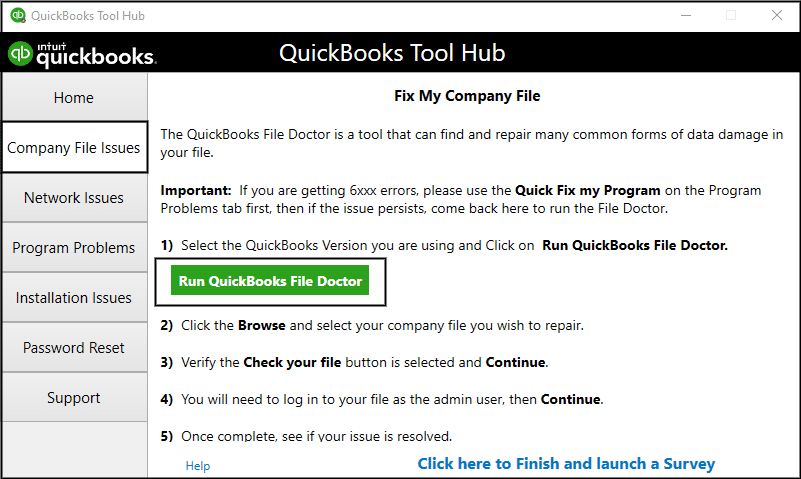
- Navigate to the Company File Issues tab.
- Then, click on Run QuickBooks File Doctor.

- It can take up to a minute to open:
- If it doesn’t open, you open it manually by searching for the QuickBooks Desktop File Doc.
- Now, in the File Doctor, select your company file from the dropdown menu.
- If your company file is not visible, select Browse to find its location.
- Then, proceed to select the Check your file and Network option.
- Press Continue.
- Enter the admin password of QuickBooks and hit Next.
This would resolve the error H101 in QuickBooks Desktop.
Create the Firewall Port Exclusions for QuickBooks Desktop
You can create the Windows Firewall port exclusions for QBDT to fix the QuickBooks error H101 with the following steps:
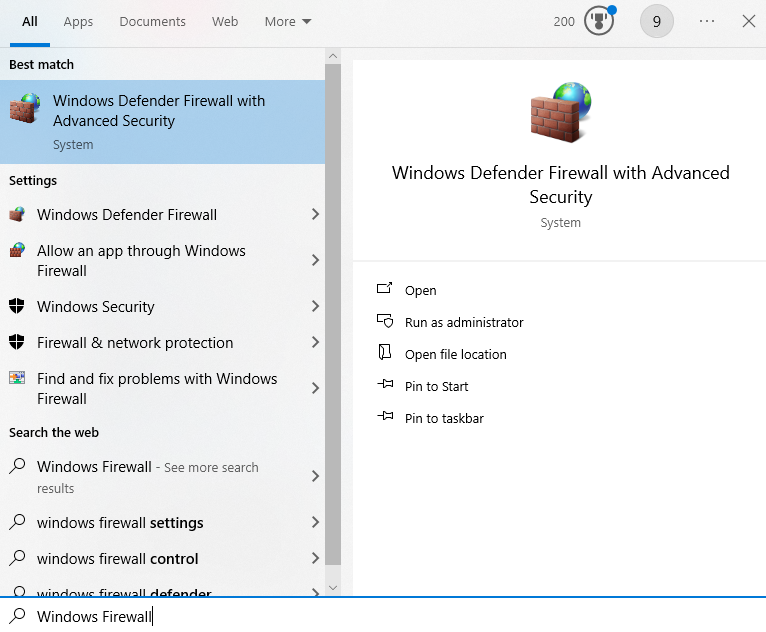
- Open the Start menu.
- Search for the Windows Firewall.

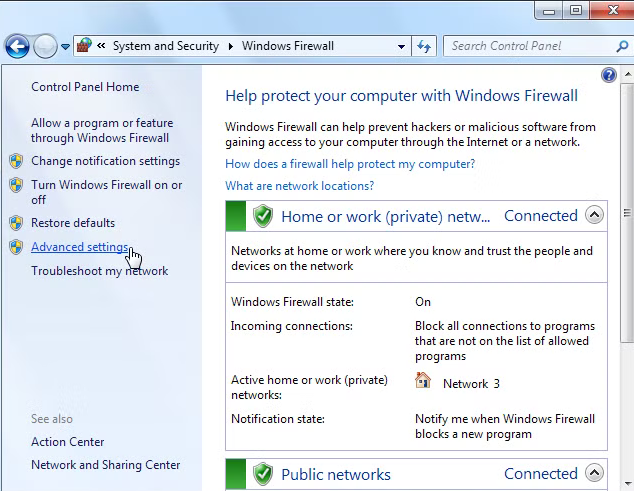
- Open the Windows Firewall.
- Then, proceed to click on Advanced Settings.

- Right-click on Inbound Rules.

- Now, select New Rule.
- Click on Port.

- Hit Next.
- Make sure that TCP is selected.
- Go to the Specific local ports field.

- Now, enter the specific ports for your QB version:
- For QuickBooks Desktop 2020 and above: 8019, XXXXX
- For QuickBooks Desktop 2019: 8019, XXXXX
- For QuickBooks Desktop 2018: 8019, 56728, 55378-55382
- For QuickBooks Desktop 2017: 8019, 56727, 55373-55377
- After entering the port number, click on Next.
- Press Allow the Connection.
- Select Next.
- Ensure all the profiles are marked if you are prompted.
- Click on Next.
- Create a rule.
- Name it something like QBPorts(Year).
- Press Finish.
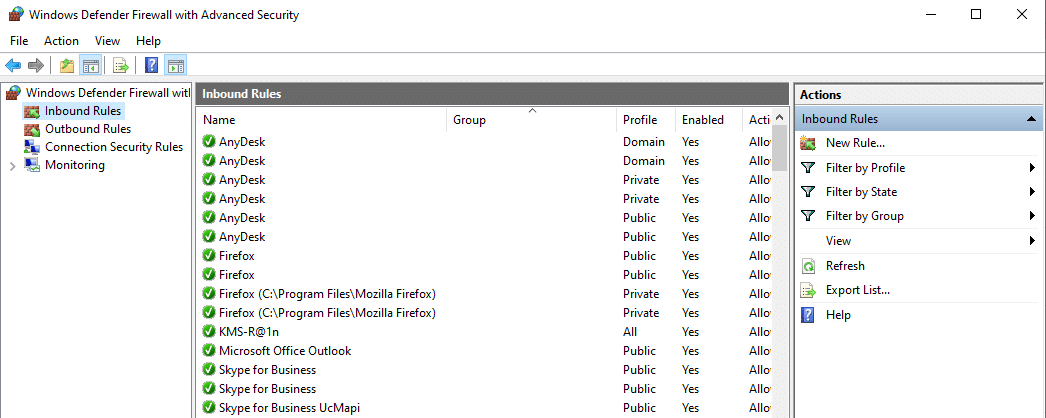
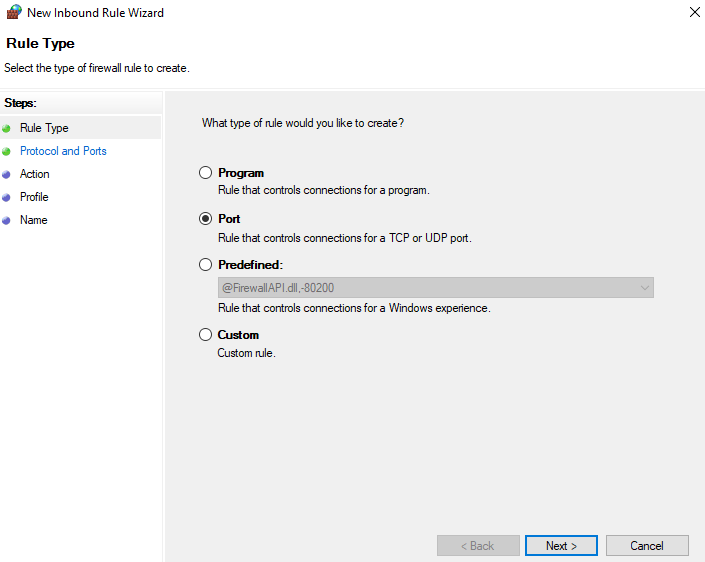
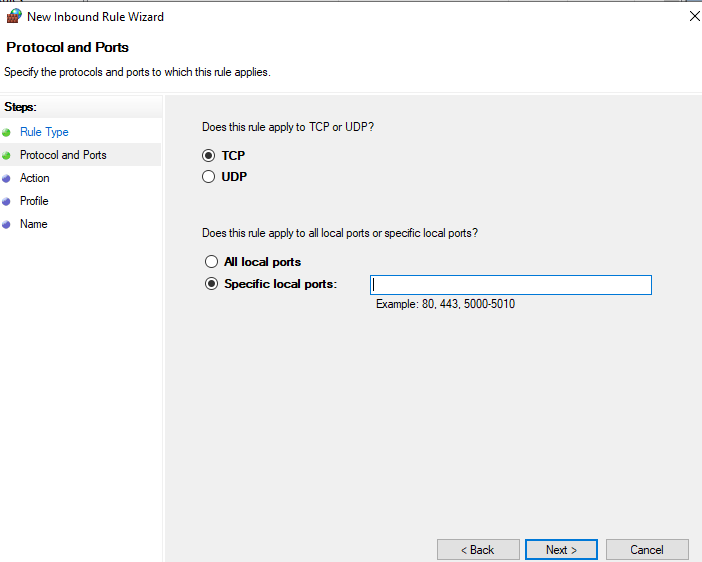
Performing these steps would resolve the QB error H101.
Utilize the Quick Fix My Program Tool
You can use the Quick Fix My Program tool from the QuickBooks Tool Hub to resolve the H101 error with the following steps:
- Open the QuickBooks Tool Hub application.
- Navigate to the Program Problems tab.
- Select the Quick Fix My Program tool.

- Let the tool finish working.
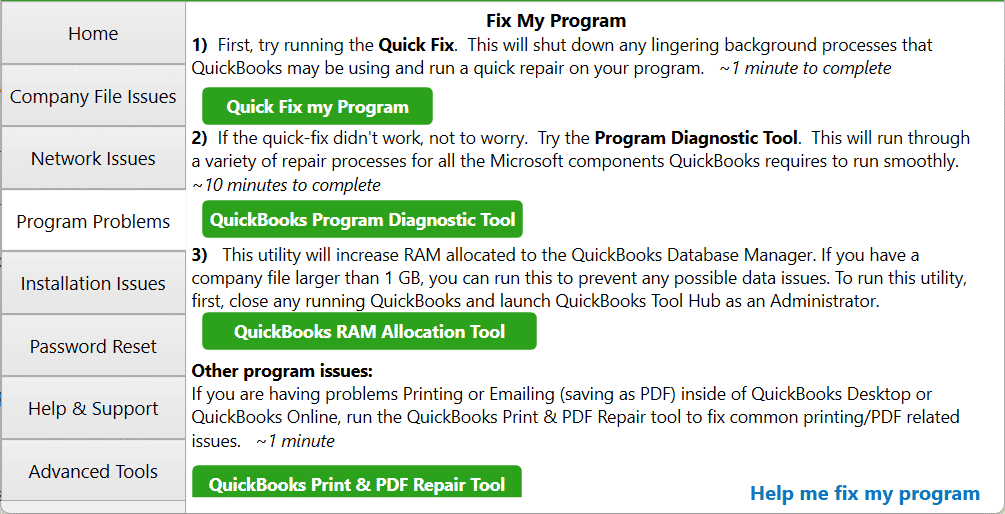
The Quick Fix My Program tool would fix the QuickBooks error H101.
Update the QB Desktop Application
If your QBDT app is outdated, it can lead to various problems, such as the error H101. You can fix that by updating your QuickBooks Desktop to the latest version. It would also fix any other issues that you might be trying to deal with.
Change the Name of the Network Data File
A damaged Network Data (.ND) file can cause the error H101 to appear on your screen. You can rename the file with the following steps:
- Navigate to the folder containing your company file.
- Look for the Network Data file related to your company file.
- If your QB company file name is MyCompanyFileName.qbw, the network data file would be saved as MyCompanyFileName.nd in the folder.
- Right-click on the MyCompanyFileName.qbw.nd file (your company’s network data file).
- Press the Rename option.
- Then, add .old at the end of the file name.
- The file should now look something like MyCompanyFileName.qbw.nd.old.
This would fix the H101 QuickBooks error.
QuickBooks Error H101 – A Quick View Table
In the table below is given a concise summary of this blog on the topic of the QuickBooks error code H101:
| Description | The QuickBooks error H101 is a hosting error that can occur while turning on multi-user mode or accessing the company file in QB Desktop. It can hamper your workflow and important business processes. |
| Its causes | A damaged or corrupted QB company file, the Windows Firewall blocking QB, a damaged network data file, an outdated QB Desktop app, an unstable internet connection, more than one PC hosting the company file, and problems with QuickBooks Database Server Manager. |
| Methods to fix it | Use the QuickBooks Database Server Manager, stop hosting the data file from non-server systems, restart the Base Filtering Engine, use the QB File Doctor, create Firewall exceptions for QB, use Quick Fix My Program, and update QB Desktop. |
Conclusion
In this blog, we talked about the QuickBooks error H101 and the potential factors that can trigger this issue to appear on your screen. Additionally, we also provided you with in-depth step-by-step guided troubleshooting methods that you can use to patch this error yourself. If you are still at bay with the same problem, contact our Accounting Helpline’s experts at 1.855.738.2784 today. Our experts can help resolve your issue in no time!
FAQs
Why am I seeing the QuickBooks error H101?
You might be seeing the QuickBooks error code H101 due to the following reasons:
– An outdated QB Desktop application.
– A damaged network data file.
– The Windows Firewall is blocking QB Desktop.
– Issues with the QuickBooks Database Server Manager.
– More than one system is hosting the company file.
– An unstable internet connection.
How can I fix the error code H101 in QB Desktop?
You can fix the error code H101 in QB Desktop with the following methods:
– Using the QuickBooks Database Server Manager.
– Stop hosting the QB data file from non-server workstations.
– Restarting the Base Filtering Engine service.
– Using the QuickBooks File Doctor.
– Creating Firewall exceptions for QBDT.
– Utilizing Quick Fix My Program.
– Updating the QBDT app.
– Changing the name of the network data file.
How can I fix hosting issues with the QB Desktop app?
To fix hosting issues with the QB Desktop app, you can use the QuickBooks Database Server Manager from the QB Tool Hub.
Related Posts-
[Resolved] QuickBooks Reactivate Subscription Not Working
6 Ways to Troubleshoot QuickBooks Error 1642
Troubleshooting Methods to Fix the QuickBooks Error 10000
QuickBooks Error 213 | Guided Steps to Resolve It
Expert Guide to Fix QuickBooks Printer Not Activated Error Code 41
Effortless Fixes to the QuickBooks Error 6138 105 – 6000 Series

Edward Martin is a Technical Content Writer for our leading Accounting firm. He has over 10 years of experience in QuickBooks and Xero. He has also worked with Sage, FreshBooks, and many other software platforms. Edward’s passion for clarity, accuracy, and innovation is evident in his writing. He is well versed in how to simplify complex technical concepts and turn them into easy-to-understand content for our readers.