
Last Updated on September 5, 2025
QuickBooks Desktop is a time-tested accounting and bookkeeping software used by small to medium-sized businesses. Many accountants also rely on this application for their work processes, as it is extremely flexible and robust. However, the process for QuickBooks download and installation can be equally challenging. This is precisely why we have crafted this blog.
It will walk you through how to download and install QuickBooks Desktop with guided steps and then activate it. So let us begin without further ado!
Are you facing issues while installing the QuickBooks Desktop? You can contact our Accounting Helpline’s experts at 1.855.738.2784 to make the QB installation process smooth sailing.

How to Download QuickBooks Desktop? Detailed Steps
To download QuickBooks software, you can follow these steps:
- Go to the QuickBooks website.
- Navigate to the Download & Updates page.
- Now, select your:
- Country from the Select Country dropdown menu.
- Product from the Select Product dropdown menu.
- Version from the Select Version dropdown menu.
- Hit the Search button.
- Then, in the Here’s your product window, select Download.
These were the steps for the QuickBooks free download. You can skip this step if you bought a software CD. Now, before installing QB Desktop, you should have your product and license info with you to activate it.
Find Your QuickBooks Product and License Numbers
Before installing the QB Desktop application, you should keep the following information with you:
- Product name
- Version
- License number
- Product number
- Release
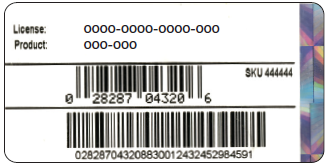
If you bought QuickBooks digitally, the product and license information should be in the confirmation email of your purchase. However, if you purchased QuickBooks from a retail store:
- The product and license numbers would be on the label of the packaging.

Now, we’ll list the requirements you need to keep in mind before you install the QBDT.
System Requirements for the QuickBooks Desktop Application
Listed in the table below are the needed system requirements to have the best experience while using the QuickBooks Desktop:
| Operating systems | Windows 11 or Windows 10 (64-bit) that is natively installed |
| Database servers | Windows Server 2022, Standard and EssentialsWindows Server 2019, Standard and EssentialsWindows Server 2016, Standard and Essentials |
| Browser requirements | QuickBooks Desktop requires Google Chrome and a stable internet access |
| Processor | Minimum 2.4GHz |
| RAM for the workstation | Minimum 8 gigabytes of RAM16 gigabytes is recommended |
| RAM for the server | For multi-user/server setup20+ users would need 20+ GB RAM15 users would need 16 GB RAM10 users would need 12 GB RAM1-5 users would need 8 GB RAM |
| Disk space | Minimum 2.5GB of disk space is required, and additional space would be required for data files. |
| Optical drive | A 4X DVD-ROM drive is needed for installation through a physical CD |
| Screen resolution | The QB display is made for a resolution of 1280 x 1024 or higher. Supports up to 2 extended monitors. Also, it is best optimized for the default DPI settings of the PC. |
Now, we’ll take a look at the steps you need to perform to install the QuickBooks application on your device.
Detailed Steps to Install the QuickBooks Desktop Software
The steps to install QuickBooks Desktop on your PC are given to you below:
Installation Procedure for One Computer With No Network Sharing
Firstly, ensure you have a good internet connection and follow the steps given below:
- Open the folder containing the QB installation file.
- Click twice on QuickBooks.exe.
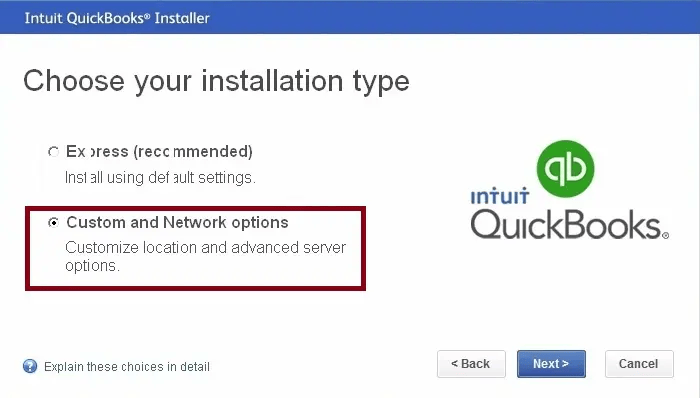
- Now, select between the two options accordingly:
- Express Install
- Select this option if you’re reinstalling your QB application and want to save your preferences.
- Custom and Network Options
- This lets you install QuickBooks to a custom location.
- This lets you set up new preferences.
- Express Install
- Click on Next.
- Finally, hit Install.
If you want to download and install QuickBooks Desktop for a dedicated server or workstation, you can check the method below.
Installation Procedure for a Dedicated Server or Workstation
You go through the steps below to install QuickBooks on a dedicated server or workstation that would have access to the company file over the shared network. You would require a stable network connection before you install:
- Locate the QuickBooks.exe file you downloaded.
- Open it.
- Press Custom and Network Options.

- Select Next.
- Now, choose between the following:
- I’ll be using QuickBooks Desktop on this computer.
- This option is to install the workstation only.
- I’ll be using QuickBooks Desktop on this computer, AND I’ll be storing our company file here so it can be shared over our network.
- This option is to:
- Install the QB on a server and host files on the same system.
- Select this option to also:
- Install QBDT on a Terminal Server.
- This option is to:
- I will NOT be using QuickBooks on this computer. I will be storing our company file here so it can be shared over our network
- This will only install the QB Database Server Manager to host the company file data.
- I’ll be using QuickBooks Desktop on this computer.
- Click on Next.
- Press Next again to start the installation procedure.
- Select Change the install location if you wish to change it:
- Press Browse.
- Select the folder where you want to install QBDT.
After you install QuickBooks Desktop, you will be prompted to activate the application. The steps to activate QBDT are given in the section below.
Activate the QuickBooks Desktop Application
QBDT will ask you to activate it after installing. However, you can also do so with the following steps:
- Open the QB Desktop.
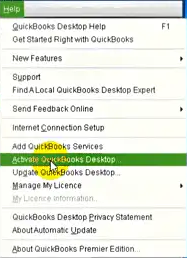
- Go to the Help menu.
- Click on Activate QuickBooks Desktop.

- Now, just follow the steps on your screen to verify your information.
If you run into any errors, we’ll resolve them in the section provided after the steps to open a company file.
Open a QuickBooks Company File
Now, you’ll need to set up a folder to create and store the QuickBooks company file. We’ll list the steps to do so below.
Open a Company File On One Computer With No Network
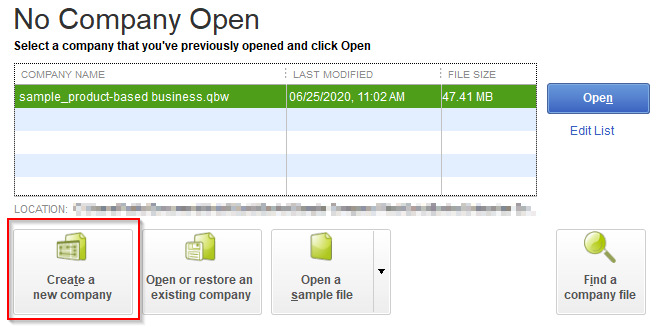
- Open QuickBooks Desktop.
- Select the Create A New Company option:

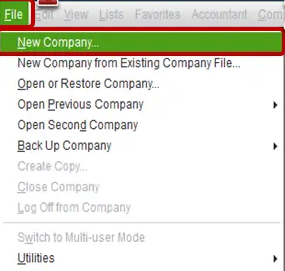
- Or you can go to the File menu.
- Select New Company.

- Now, press Express Start.
- Now, follow the guide on your screen to create a new company file.
Open a Company File On a Network With Multiple Systems
- First, set up a folder to store the company files.
- Install the QB on all the workstations.
- Now, you would have to turn on multi-user mode:
- Open QuickBooks Desktop.
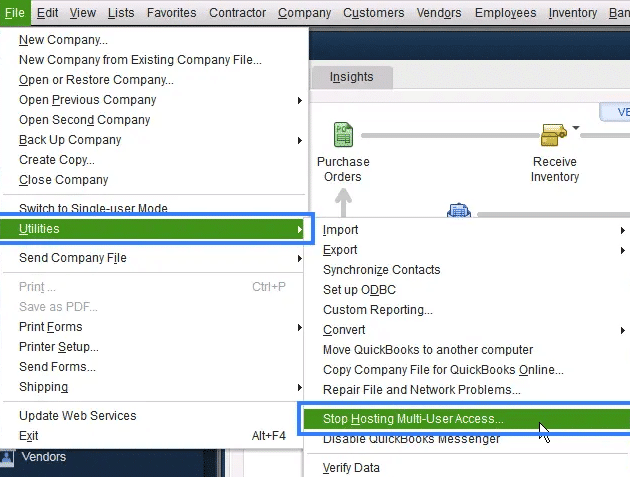
- Go to the File menu.
- Ensure you see Stop Hosting Multi-User Access.

- For QBDSM:
- You would need to scan your company files.
- Then, configure the Windows Firewall settings for QuickBooks.
- Now, proceed to map a network drive with the following steps:
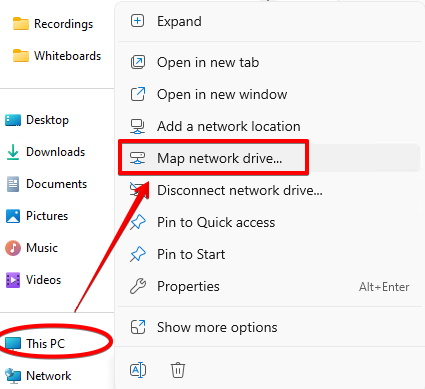
- Open the File Explorer.
- Go to This PC.
- Now, press Ctrl + F1:
- This would open the Ribbon.
- Choose the Map network drive option.

- Select a drive letter in Drive.
- You can either:
- Enter the complete path of the folder that needs to be mapped.
- Select Browse.
- Find the folder after entering the path to the system from which the file is hosted.
- Press the Reconnect at sign-in option.
- Finally, press Finish.
This would now set up a fresh company file in QuickBooks Desktop.
Fix Common Errors While Activating the QuickBooks Application
You can fix the activation and registration errors after QuickBooks download and installation with the following methods.
Use the Quick Fix My Program
You can use the Quick Fix My Program tool from the Tool Hub to cure the activation and registration problems you may face after you download and install QuickBooks Desktop with the steps given below:
- Download and install the QuickBooks Tool Hub app.

- Open the Tool Hub.
- Now, go to the Program Problems tab.
- Then, click on Quick Fix My Program.
- Let the tool run.

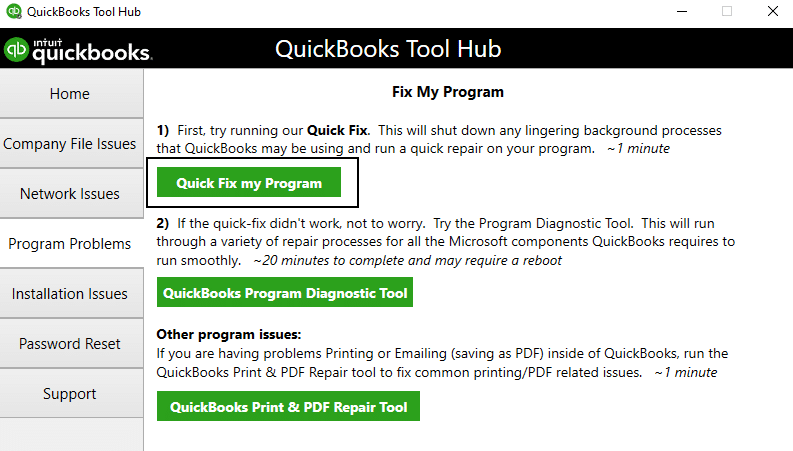
After the tool finishes, try activating QuickBooks again.
Use the 3371 Error Fix Tool from the Tool Hub
The 3371 Error Fix Tool from the QuickBooks Tool Hub can be used to fix activation errors with the following steps:
- Open the QB Tool Hub.
- Go to the Installation Issues tab.

- Click on 3371 Error Fix.
- Press OK.
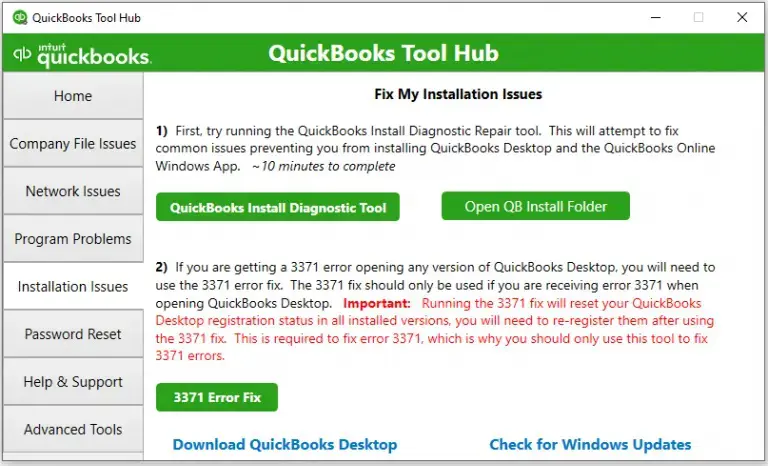
Now, you would be able to activate it again.
Fix the Error 1603 that Occurs While You Install QuickBooks Desktop
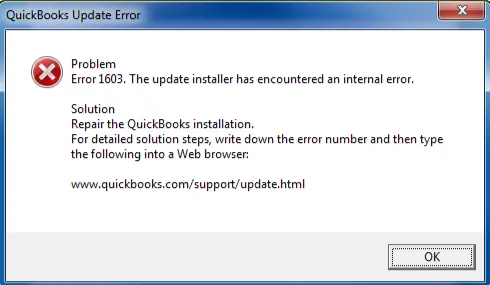
If you want to fix the 1603 installation error in QuickBooks Desktop, you can follow the methods below.
Utilize the QuickBooks Installation Diagnostic Tool
Use the Install Diagnostic Tool from the QB Tool Hub to fix the error 1603 with the following steps:
- Run the QuickBooks Tool Hub.
- Go to the Installation Issues tab.
- Now, click on QuickBooks Install Diagnostic Tool.

- Let the tool run.
- The tool can take up to 20 minutes.
- Restart your system after the tool finishes working.
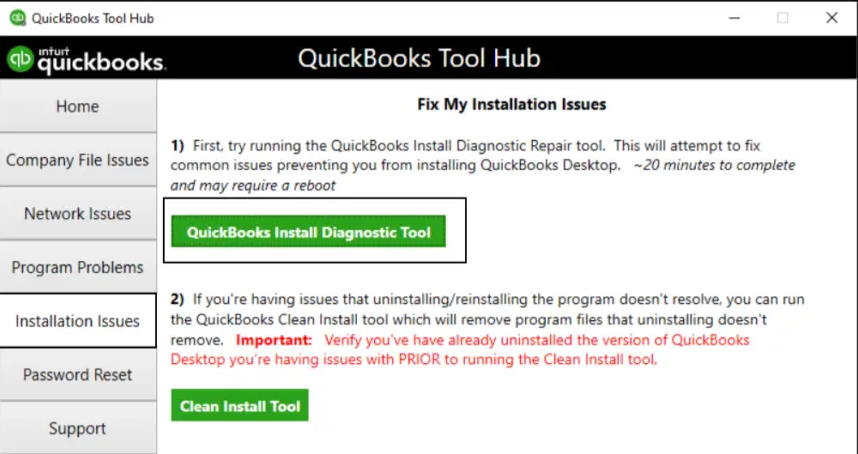
This would resolve the error 1603 that may occur when you try to install QuickBooks Enterprise or other Desktop editions.
Install QuickBooks Desktop in Selective Startup Mode
You can also install QuickBooks Desktop in selective startup if you want to get rid of error 1603. Follow these steps:
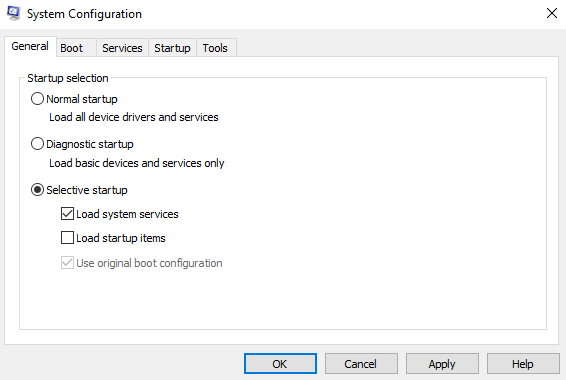
- Open the Run menu (Windows + R).
- Type in msconfig.
- Click on OK.
- Go to the General tab.
- Press Selective Startup.

- Click Load system services.
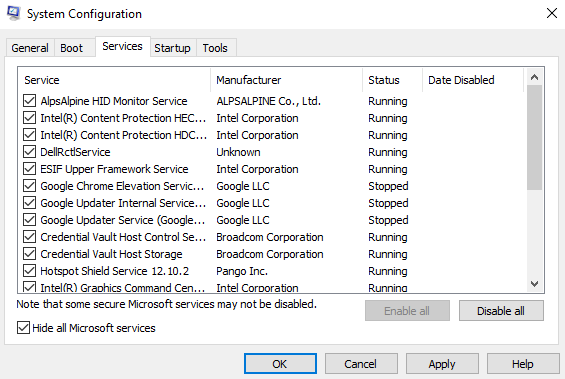
- Now, navigate to the Services tab.
- Click Hide all Microsoft Services.

- Press the Disable all option.
- Uncheck Hide all Microsoft Services.
- Select Windows Installer.
- Select OK.
- Press Restart in the System Configuration window.
- Install QuickBooks Desktop.
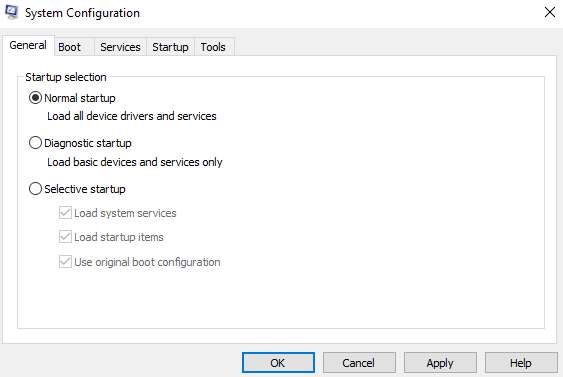
- Open msconfig again.
- Go to the General tab.
- Choose Normal startup.

- Press OK.
- Restart your system.
This would fix the error 1603 in QuickBooks.
How to Install QuickBooks Desktop – A Quick View Table
Given in the table below is a short summary of this blog that teaches you how you can download and install QuickBooks Desktop application:
| How to download QuickBooks Desktop | Go to the official QB website, open Downloads & Updates, search for your product’s version, name, and year, and press the Download button. |
| Steps to install QuickBooks Desktop | Open the QuickBooks.exe file, select between Custom Install and Express install, and finally follow the instructions to install. |
| Open a company file | Open QBDT, choose Create a New Company Option, and press Express Start. |
| Fix errors while activating QB Desktop | Use the QuickBooks Install Diagnostic tool install QBDT in selective startup |
| Fix error 1603 while installing QB Desktop | Use the QuickBooks Install Diagnostic tool to install QBDT in selective startup |
| Tools used | Quick Fix My Program 3371 Error Fix QuickBooks Install Diagnostic Tool |
Conclusion
In this blog, we talked about how you can download and install QuickBooks Desktop, activate it, and open a new company file in it. Additionally, we also provided you with steps to resolve any activation or installation errors that may arise during the process. If you’re still trying to deal with installation errors in QuickBooks, you can contact Accounting Helpline’s experts by dialing 1.855.738.2784 today!
FAQs
Can I download QuickBooks Desktop for free?
QuickBooks is an accounting and bookkeeping software that has stood the test of time and is still being used by most small businesses today. You can download it for free with a 30-day trial.
How to install QuickBooks Desktop on a new computer without a disk drive?
To install QB Desktop, open the QuickBooks.exe file, select between Custom and Express install, and follow the prompts on your screen to complete the process.
Can I Install QuickBooks On a PC With 4 GB of RAM?
No, QuickBooks recommends a minimum of 8 GB of RAM, and 16 GB RAM is recommended for the best experience.
Related Posts-
How To Fix QuickBooks Error PS038? Easiest Method
Step-by-step instructions to resolve QuickBooks Error 12157
QuickBooks File Doctor Not Working! Here’s What to Do
I Encountered QuickBooks Error 12038! – What’s Next?
Top 7 Methods to Fix the QuickBooks Error Code 523
QuickBooks Multi-User Mode Not Working: Fix Connection & Access Issues

Edward Martin is a Technical Content Writer for our leading Accounting firm. He has over 10 years of experience in QuickBooks and Xero. He has also worked with Sage, FreshBooks, and many other software platforms. Edward’s passion for clarity, accuracy, and innovation is evident in his writing. He is well versed in how to simplify complex technical concepts and turn them into easy-to-understand content for our readers.