
Last Updated on September 22, 2025
QuickBooks is a leading accounting and bookkeeping software for small businesses. It helps them maintain their financial data with no difficulty at a minimal cost. However, you might get the QuickBooks error QBW32.exe– FATAL APPLICATION EXIT, which can cause your QBDT app to close automatically, ultimately making you unable to work on your company file. This can, in turn, hamper your workflow and impact your critical business processes. In this blog, we’ll cover the methods you can implement to fix the QuickBooks QBW32.exe error, along with its potential causes.
Are you facing issues with working on your QB Desktop application? Contact our Accounting Helpline’s experts at 1.855.738.2784 today to resolve your problem in no time!

Factors that Can Cause the QuickBooks Error QBW32.EXE
Given in the list below are the potential factors that can trigger the QuickBooks Fatal Error QBW32.exe:
- The QuickBooks app might have inherent installation issues.
- The QBWUSER.INI file might be damaged or corrupted.
- There might be a missing file or component needed to run the QBDT app.
- The QB company file can be damaged or corrupted.
- Your hard drive might have damaged sectors.
- The QB Desktop app wasn’t installed correctly.
- Your QBDT app might be outdated.
Now that we know about the causes of the QBW32.exe Not Responding issue, let’s take a look at the methods to fix it.
Methods to Fix the QuickBooks Not Responding QBW32.EXE Error
Given below are the troubleshooting methods you can implement to fix the QuickBooks Fatal Error QBW32.exe:
Verify and Rebuild Your Company Data
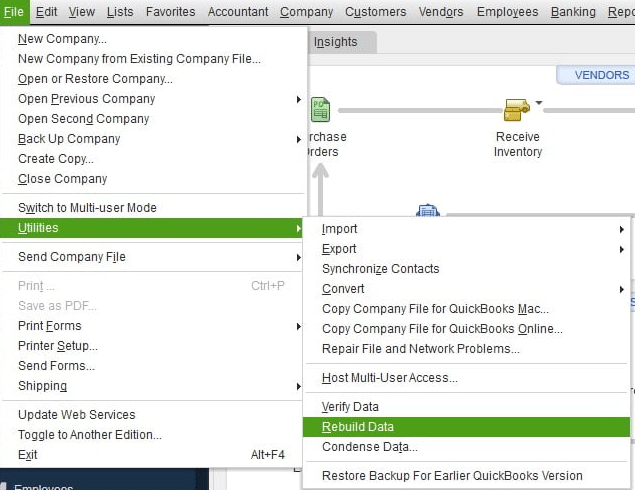
You can verify and rebuild your company file data in QuickBooks Desktop to fix the QuickBooks QBW32.EXE error with the following steps:
- Navigate to Window.
- Then, click on Close All.
- Now, open the File menu.
- Select the Utilities option.
- Press Verify Data.

- Now, open the File menu again.
- Click on Utilities.
- Choose the Rebuild data option.

- QB will ask to make a backup of your company file.
- Click on OK:
- A backup is required before rebuilding your data.
- Choose where the backup would be saved.
- Select OK.
- Do not replace any other backup files.
- Enter a new name in the File Name field.
- Press Save.
- The Rebuild has completed message would appear.
- Press OK.

Now, the QuickBooks error QBW32.EXE will be fixed.
Use the QB Install Diagnostic Tool
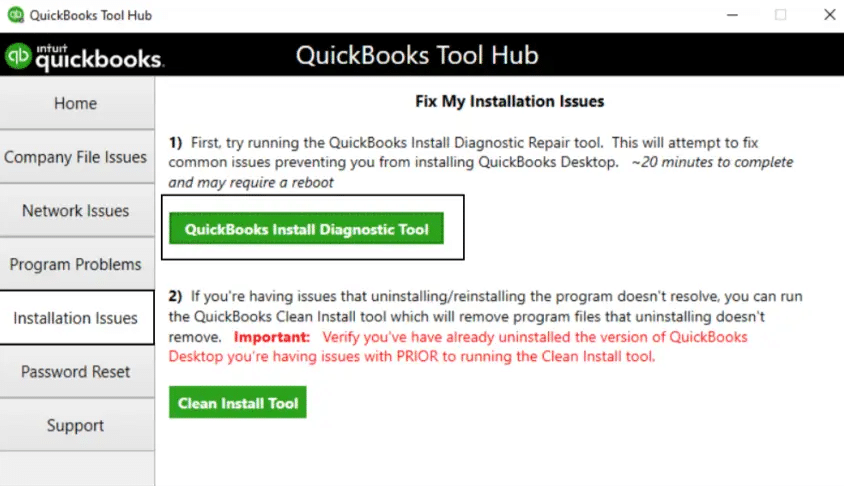
You can use the install diagnostic tool from the QuickBooks Tool Hub to resolve any inherent installation problems present in QBDT with the following steps:
- Download and install the QuickBooks Tool Hub application.

- Open the app.
- Go to the Installation Issues tab.
- Click on QuickBooks Install Diagnostic Tool.

- Wait for the tool to finish working.

Performing these steps would resolve any inherent installation issues with the app.
Update QuickBooks Desktop
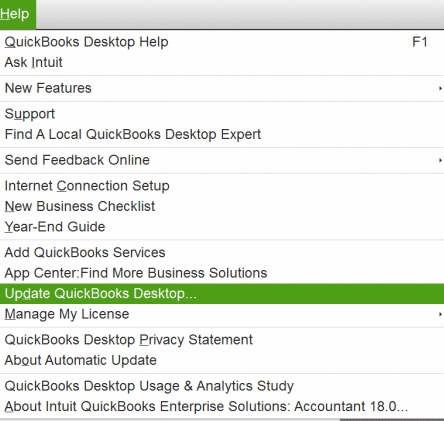
The steps to update the QB Desktop application in order to resolve the QuickBooks error QBW32.EXE are given below:
- Run QB as an administrator.
- Navigate to the Help menu.
- Click on Update QuickBooks.

- Go to the Options tab.
- Click Mark All.
- Select Save.
- Move to the Update Now tab.
- Mark the Reset Update checkbox.

- Select the Get Updates option.
- Wait for the Update Complete message to appear.
- Restart the QB Desktop app.
- When prompted to install the update, select Yes
- Restart your PC after the update is installed
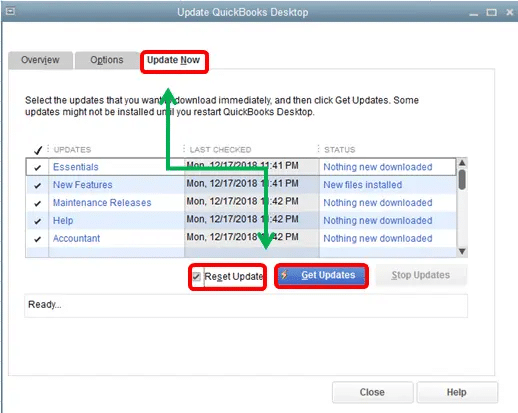
This would fix the QuickBooks error QBW32.exe.
Use Quick Fix My Program from the Tool Hub
Some issues might be present in your QB Desktop application. You can resolve them using the Tool Hub with the following steps:
- Open the QuickBooks Tool Hub.
- Navigate to the Program Problems tab.
- Click on Quick Fix My Program.

- Let the tool run.
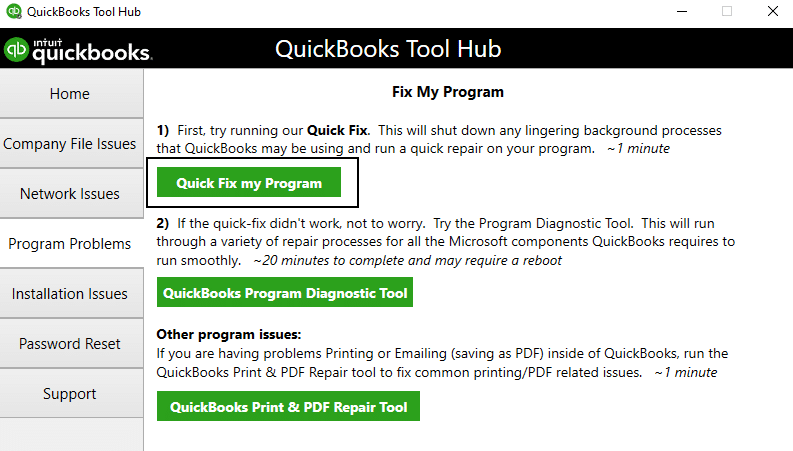
The tool would fix the program problems with your QBDT app and eliminate the QuickBooks error QBW32.exe.
Rename the QBWUSER.ini File
The QBWUSER.ini file being damaged or missing can cause your QBDT app to not work properly. You have to rename it with the following steps to fix it:
- Open the folder containing your QBWUSER.ini file:
- Users[Your user name]AppDataLocalIntuitQuickBooks [year].
- If the file is not visible, you may have to enable hidden files and folders.
- Right-click the QBWUSER.ini file.
- Click on Rename.
- Now, add.OLD at the end of the file name:
- QBWUSER.ini.OLD.
- Reopen the QBDT app.
Now, the QuickBooks Fatal Error QBW32.exe has been resolved.
Reinstall the Microsoft Visual C++
QBDT needs Microsoft Visual C++ to run smoothly. If Visual C++ is damaged, it can lead to QBW32.exe not responding. Therefore, you should reinstall it with the following steps:
Uninstall Microsoft Visual C++
- Close all the running programs.
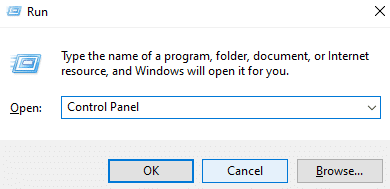
- Press Windows + R on your keyboard.
- This would open the Run menu.
- Type in Control Panel.

- Hit Enter.
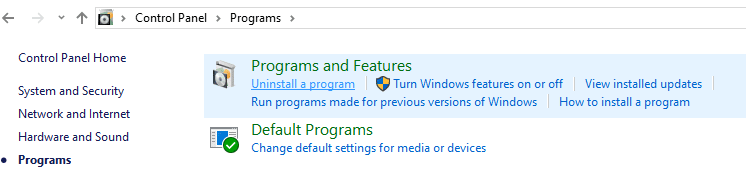
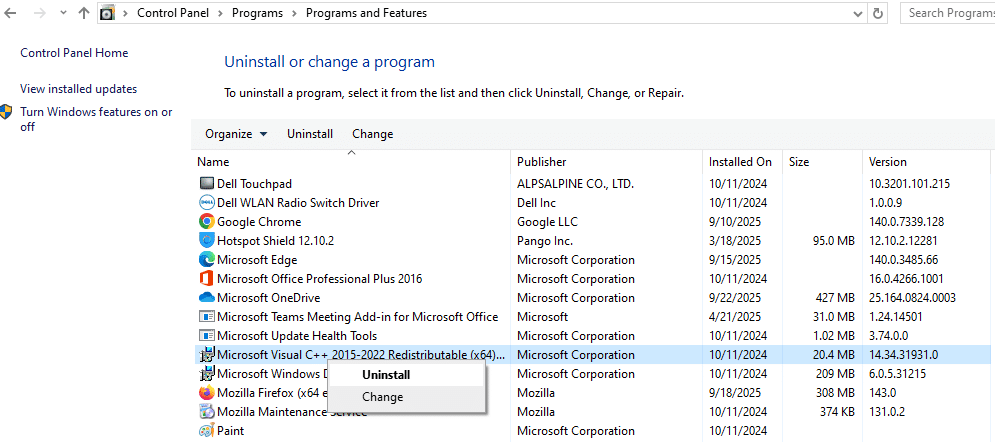
- Now, click on Uninstall a Program.

- Then, select Microsoft Visual C++ for your version of QB.
- Click on Uninstall.

- Follow the guide on your screen to uninstall it.
- Restart your PC.
Install Microsoft Visual C++
If you use a CD to install QB, follow these steps:
- Insert the QuickBooks CD in your CD drive.
- Close the installation window if it opens.
- Open Windows File Explorer.
- Navigate to CD:\ThirdParty\CRT9:
- Or CD:\ThirdParty\CRT8.
- CD represents your CD drive letter.
- Then, double-click on vc_red.msi:
- Or vcredist_x86.exe.
- Follow the guide on your screen to install the software.
If you don’t use a CD to install QB, download Microsoft Visual C++ from the Microsoft website and install it to resolve the QuickBooks error QBW32.EXE.
Register the MSXML DLL Files
An unregistered MSXML DLL file can cause the QBW.32.EXE- FATAL APPLICATION EXIT error message to appear on your screen. To register the MSXML files, follow the steps given below:
For 64-Bit Windows OS
- Open the Start menu.
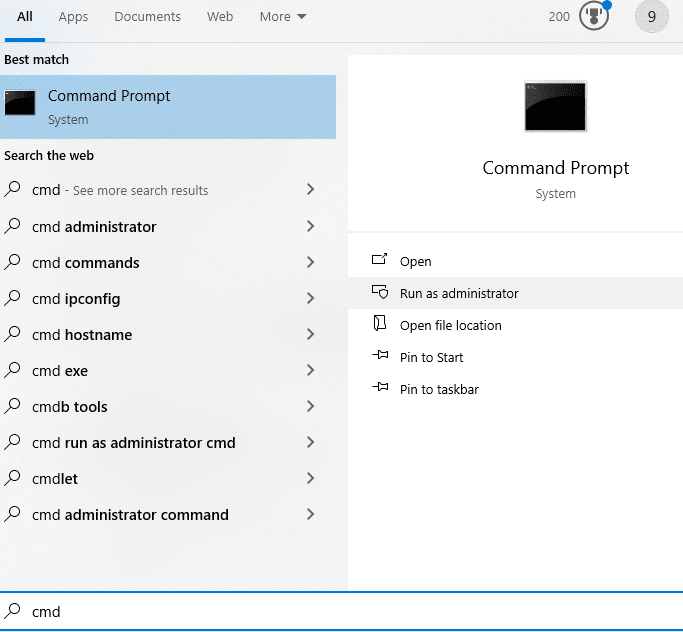
- Type in cmd.
- Then, right-click on the Command Prompt option.
- Now, proceed to click on Run as Administrator.

- Go to the C: prompt.
- Type cd\windows\syswow64.
- Press Enter.
- Now, type regsvr32 MSXML6.dll and hit Enter.
For 32-Bit Windows OS
- Press Windows + R on your keyboard
- The Run menu would pop up on your screen
- Type in cmd
- Hit Enter
- Now, type regsvr32 MSXML6.dll
- Lastly, press Enter on your keyboard
The QuickBooks error QB32.exe would now be eradicated.
Repair the Microsoft .NET Framework
Microsoft .NET Framework can cause the QuickBooks QBW32.exe error to appear on your screen. Fix that with the help of the steps given below:
- Close all running applications and programs.
- Open the Start menu.
- Search for the Control Panel.
- Open it.
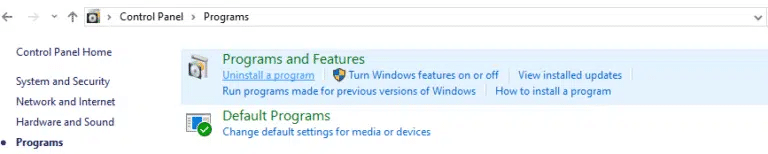
- Go to Programs and Features.
- Now, click on Uninstall a Program:

- You will not be uninstalling anything, so do not worry.
- Select the Turn Windows features on or off option.

- Now, locate .NET Framework in the list.
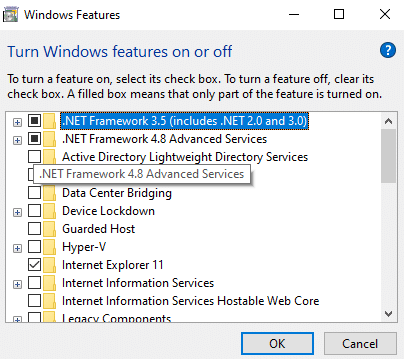
Now, the steps would vary depending on whether your .NET Framework is on or off.
If .NET Framework is Not Turned On:
- Mark the check box to turn on .NET Framework.
- Click on OK to save the changes.
- Restart your PC.
If the .NET Framework is Turned On
- Mark the checkbox to turn off .NET Framework.
- Don’t turn it on yet.
- Select OK and save the changes.
- Restart your computer.
- Turn on .NET Framework again.
Now, you won’t have to face the QuickBooks error QBW32.exe again.
Repair QB Desktop from the Control Panel
Repair the QB Desktop app from the Control Panel to resolve the QBW32.exe error in QuickBooks with the following steps:
- Open the Start menu on your PC.
- Search for the Control Panel.
- Open it.
- Select Programs and Features.
- Click on Uninstall a Program.
- Now, choose QuickBooks from the list of programs you see.
- Select Uninstall/Change.
- Click on Continue.
- Press Next.
- Then, click on Repair.
- Hit Next again.
- Finally, click on Finish.
This would get rid of the QuickBooks error message QBW.32.EXE- FATAL APPLICATION EXIT.
Clean Install the QB Desktop App
You can eliminate the QuickBooks error QBW32.exe by clean installing the QB Desktop application. This would resolve any problems you might be facing, providing a fresh new start.
QuickBooks Error QBW32.EXE – A Quick View Table
In the table, there is a short summary of this blog on the topic of the QBW32.exe not responding error:
| Description | The QuickBooks error QBW32.exe can cause your QBDT to not open or have unexpected shutdowns. This can hamper your workflow and important business processes. |
| Its causes | Damaged or corrupted QB Desktop files, improper or incomplete installation of the QBDT app, outdated QuickBooks software, damaged QBWUSER.ini file, damaged hard drive sectors, and a corrupt company file. |
| Ways to fix it | Verify and rebuild the company file, use the QuickBooks Install Diagnostic Tool, update the QBDT app, use Quick Fix My Program, change the name of the QBWUSER.ini file, reinstall Microsoft Visual C++, register MSXML DLL, repair the .NET Framework, repair QBDT, and clean install QB Desktop. |
Conclusion
In this blog, we talked about the QuickBooks error QBW32.exe, along with the potential factors that can cause it. Moreover, we also provided you with the in-depth step-by-step troubleshooting methods you can use to mend this problem on your own. If you are still at bay with the same issue, don’t hesitate to contact our Accounting Helpline’s experts at 1.855.738.2784. Our team will resolve any errors you might be facing on a priority basis in no time!
FAQs
Why am I seeing the QBW.32.EXE- FATAL APPLICATION EXIT message on my screen?
Listed below are the factors that can cause the QBW.32.EXE- FATAL APPLICATION EXIT message to pop up on your screen:
– Damaged or corrupted QBDT files.
– Incomplete or improper installation of QB Desktop.
– Damaged QuickBooks company data.
– A corrupted QBWUSER.ini file.
How can I fix the QuickBooks QBW32.exe error?
To fix the QuickBooks QB32.exe error, you can implement the troubleshooting methods given in the list below:
– Update your QBDT app.
– Use the QB Install Diagnostic Tool.
– Use Quick Fix My Program.
– Rename the QBWUSER.ini file.
– Repair the Microsoft Visual C++.
– Register the MSXML DLL files.
Related Posts-
Expert-Approved Resolution Guide to QuickBooks Unrecoverable Error Codes
A Comprehensive Guide to Troubleshoot QuickBooks Error 12009
Guide to Fix QBCFMonitorService Not Running On This Computer
All About QuickBooks Payroll Subscription: You Must Know
Resolving QuickBooks Error H505: Causes and Troubleshooting Solutions
QuickBooks Cannot Communicate with the Company File [SOLVED]

Edward Martin is a Technical Content Writer for our leading Accounting firm. He has over 10 years of experience in QuickBooks and Xero. He has also worked with Sage, FreshBooks, and many other software platforms. Edward’s passion for clarity, accuracy, and innovation is evident in his writing. He is well versed in how to simplify complex technical concepts and turn them into easy-to-understand content for our readers.