

Last Updated on June 1, 2026
You must know that there are a number of issues and errors that you might encounter with QuickBooks. QuickBooks error 14106 is one of the common errors that you might face. This error occurs when you try to use an older version of the company file with the new version of QB. This error may occur if you try to open a company file in the new version. This error can block access to your company file until it is properly upgraded. It may also occur if the file conversion process was incomplete or interrupted. You can avoid this error by ensuring that QuickBooks and the company file are in sync. Let’s now discuss this problem in detail below.
What are the Causes of the QuickBooks Error Code 14106?
Here, we will discuss the causes of the QuickBooks error 14106. Check out the following points:
- QB error 14106 can occur due to corrupt or incomplete update files.
- A third-party security application or Windows Firewall can block the installation of the update file, leading to error 14106.
- If the QuickBooks installation is broken, it can cause QB error code 14106.
- User Account Control (UAC) settings or restricted system permissions can interrupt the software updates.
Review the causes of QuickBooks error 14106 to resolve it more quickly.
What are the Resolutions for the QuickBooks Desktop Error 14106?
Above, we briefly covered QuickBooks Desktop Error 14106. Now, we will discuss solutions to resolve QuickBooks Error Code 14106.
Solution 1: Regress the File to the Backup File
You must revert the file to the backup to fix QB error 14106. You need to perform the steps correctly mentioned below:
- First, shut down all running programs, then run the QBDT.
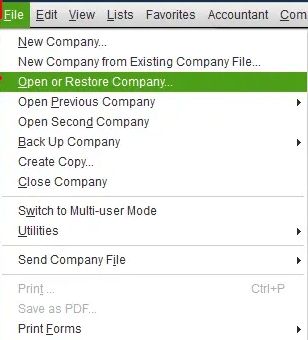
- Then, select the Open or Restore Company option from the File menu.

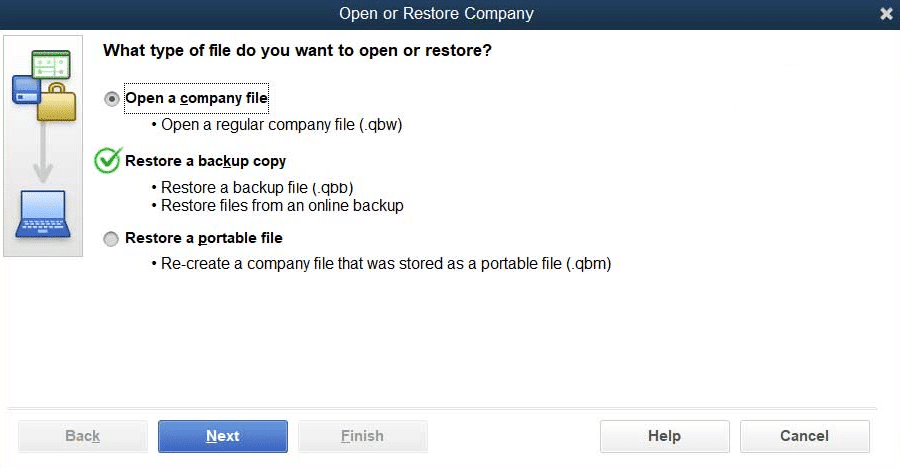
- Next, click the Next button after selecting the “Restore a backup copy” option.

- After that, hit the Local Backup again, select Next, and find your backup file (company file name.qbb).
- Select a folder when saving a file. The location of your original file shouldn’t be this one.
- Click Open, then choose Save.
- Now, you will see a few overwriting prompts on the screen; carefully follow them and offer your consent.
- Finally, restart the PC and launch QBDT again.
If you are still encountering QuickBooks Error 14106, you must perform the next method to resolve it.
Solution 2: Convert QuickBooks to Older Versions
It is recommended to revert QuickBooks to an earlier version to fix error 14106. You need to follow the steps given below:
Step 1: Update QuickBooks
- First, ensure that no one is currently using QB.
- Next, you need to access the updated version of QuickBooks.
- Then, click on the File tab.
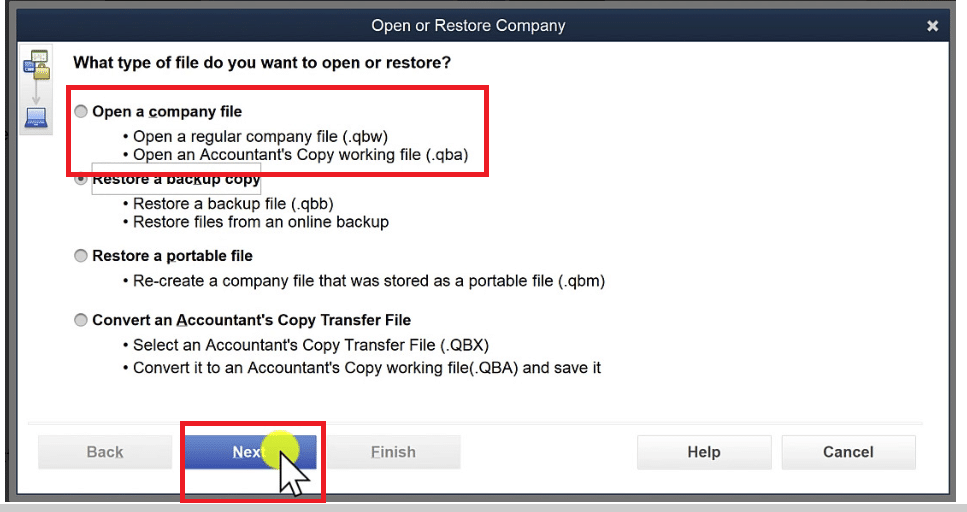
- Navigate to the File menu, then choose Open or Restore Company.
- After that, click on Open a company file.

- You have to select the recent company file stored on the device.
- Then, go for the open tab.
- You have to use the admin login details to access the company file.
- Next, go for the update now tab.
- Once the process ends, the user should tap on the Done tab.
Step 2: Switch to QuickBooks Desktop 2022 version
You can resolve QB error 4106 by following this crucial step, ie, switching to the QBDT 2022 version. Follow the steps mentioned below:
- First, you need to uninstall the current version of QBDT from the Control Panel.
- Then, download the QBDT 2022 version from the Intuit website or use installation media.
- Next, launch the installer and complete the setup procedure.
- Finally, open the software and activate it using the license and product key.
After following the steps mentioned above, you can proceed with opening the company file in the chosen version.
Step 3: Perform the process of QuickBooks Data Conversion
In many cases, you will need to switch to a different version of QB, which can happen when it is upgraded or downgraded.
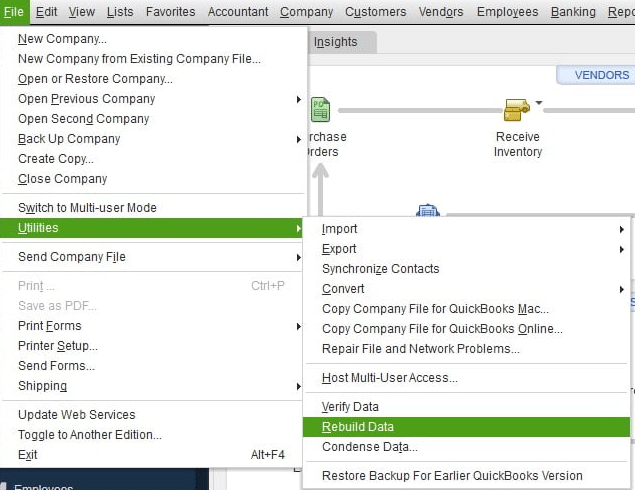
- First, go to File > Utilities, run Verify Data, then Rebuild Data.

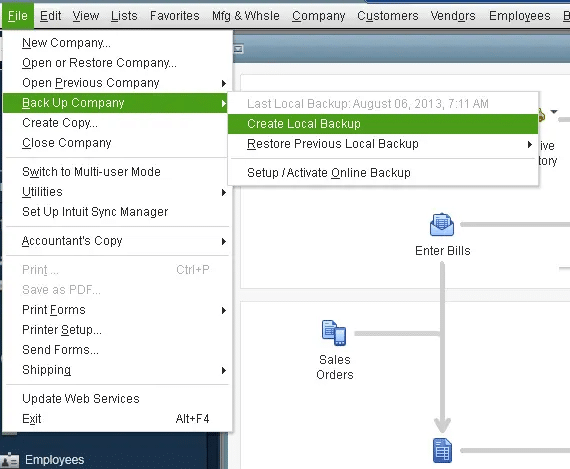
- Then, choose File > Back Up Company to create a local backup.

- Next, you need to open your new version of QuickBooks.
- Lastly, sign in as Admin and click Update Now.
If you are still encountering QuickBooks Desktop Error 14106, you should proceed to the next resolution.
Solution 3: Launch the QuickBooks Install Diagnostic Tool
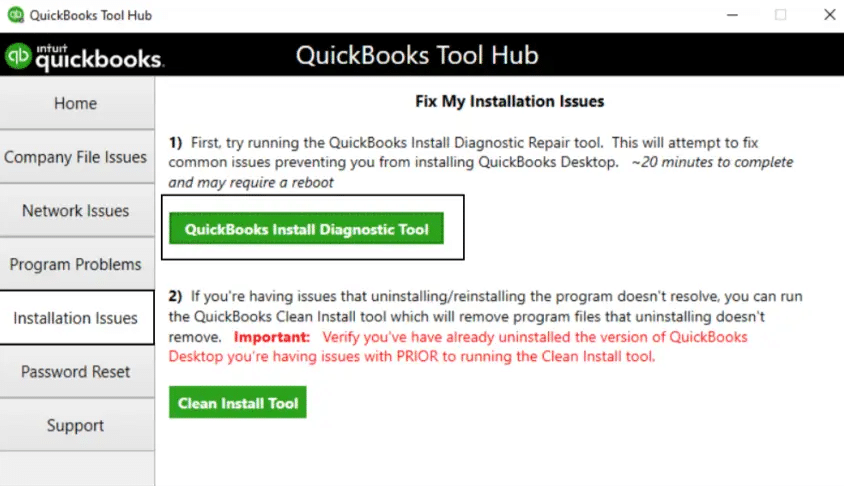
By running the QB install diagnostic tool, you can resolve error 14106 in QuickBooks Desktop. This tool will automatically detect and repair problems with MS components used in the QB program. You need to follow the step-by-step solution:
- First, open QuickBooks Tool Hub.
- Then, navigate to the “Installation Issue” tab.
- Next, you need to click on QuickBooks Install Diagnostic Tool.

- After that, let the tool run for approximately 10-20 minutes.
- Now, restart the system after it finishes.
- Finally, reopen QuickBooks.
If the QBDT error 14106 persists, proceed to the next solution.
Solution 4: Update QuickBooks Desktop
You need to update the QuickBooks Desktop to the latest release to fix the error 14106 in QuickBooks. If you are facing this error, perform the next method.
Solution 5: Launch Quick Fix My Program from QuickBooks Tool Hub
You can fix the QuickBooks error 14106 by running Quick Fix My Program from QB Tool Hub. Perform the steps mentioned below:
Step 1: Download and install the QB Tool Hub
The QB Tool Hub helps resolve common errors. For the best experience, we recommend using Tool Hub on Windows 10, 64-bit.
- First, close QuickBooks.
- It is recommended to download the latest version (1.4.0.0) of the QB Tool Hub. You have to save the file somewhere you can easily identify it.
Note: If you have already installed Tool Hub before, you can find out which version it is. Choose the Home tab. The version will appear in the bottom-right corner, or you can choose About to see it. - Then, open the file you downloaded (QuickBooksToolHub.exe).

- You need to follow the on-screen steps to install and accept the terms and conditions.
- When the installation process completes, double-click the icon on the Windows desktop to open the tool hub.
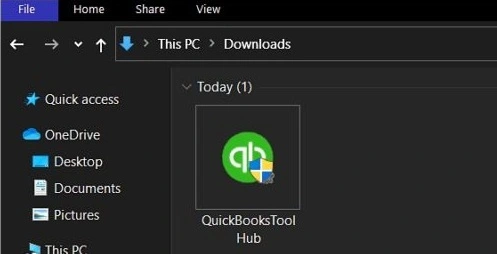
Note: If you can’t find the icon, search Windows for “QB Tool Hub” and select the program.
Step 2: Run the Quick Fix my Program from the Tool Hub
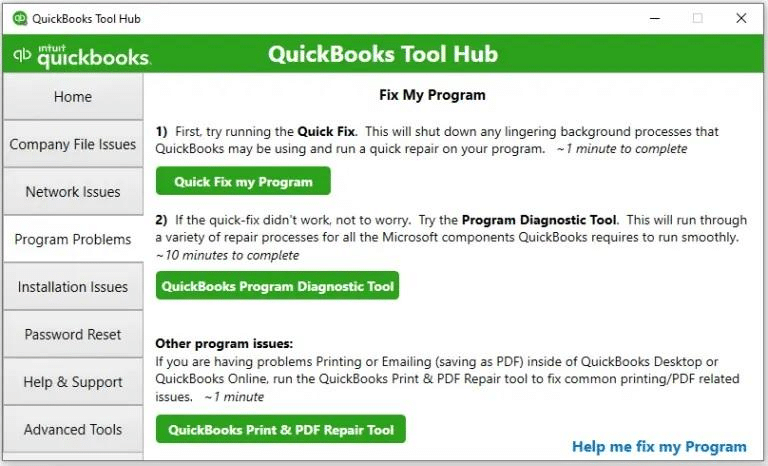
The Quick Fix will shut down any open background processes QB uses. It will launch a quick repair on the program.
- First, select Program Problems in the QuickBooks Tool Hub.
- Then, choose Quick Fix my Program.

- Finally, start QuickBooks Desktop and open the data file.
If you are still facing this error, you must perform the next method.
Solution 6: Use QuickBooks Desktop Verify and Rebuild Utility
The QB error 14106 can be fixed by using the QuickBooks Verify and Rebuild Utility. Follow the steps mentioned below:
- First, run QBDT, then go to the File menu.
- Then, choose Utilities, then click Verify Data.

- If the Verify Data tool does not resolve the error, you can use the Rebuild Utility.
- Again, you need to navigate to the File menu and choose Utilities.
- Now, select Rebuild Data, then choose OK to confirm.
- Last, it is crucial to follow the on-screen instructions to finish the process.

If you’re still facing QBDT error 14106, you must move to the next solution.
Solution 7: Rename the QBWUSER.ini File
You can rename the QBWUSER.ini file to resolve the error code 14106 in QuickBooks. You need to follow the steps mentioned below:
Steps to rename the file:
- First, open the folder where the QBWUSER.ini file is saved: Users[Your user name]AppDataLocalIntuitQuickBooks [year]
- You might need to enable hidden files and folders if you can’t see the folder.
- Then, right-click the QBWUSER.ini file and choose Rename.
- Next, add .old to the end of the file name (e.g., QBWUSER.ini.old).
- Now, rename the EntitlementDataStore.ecml file.
- Finally, reopen QuickBooks Desktop.
Go through the QuickBooks error 14106 resolutions to resolve it quickly and conveniently.
What are the Expert Tips to Resolve QuickBooks Error Code 14106?
Now we will mention the healthy practices that you must follow to prevent the QuickBooks error code 14106:
- You should run QuickBooks as Administrator to avoid error 14106.
- It is recommended to update or temporarily disable antivirus software to prevent this issue.
- This error can be avoided by using QuickBooks Tool Hub.
- You must correct the system date/time.
You should go through these expert tips to avoid the occurrence of the QuickBooks error message 14106.
QuickBooks Error 14106 – Quick View Table
Let’s look at the crucial points we discussed in the blog:
| Error Description | The 14106 error is due to damaged or erroneous update download files, third-party anti-virus software or Windows Firewall, damaged QB installation, User Account Control (UAC) settings, or lack of system permissions. |
| What are the Causes of This Error? | The 14106 error is due to damaged or erroneous update download files, third-party anti-virus software or Windows Firewall, damaged QB installation, User Account Control (UAC) settings, or lack of system permissions. |
| Ways to Fix This Error | You can fix this error by restoring the file from the backup, converting QB to an older version, updating QBDT, and using the QuickBooks Desktop Verify and Rebuild Utility. |
Conclusion
In this blog, we discussed the QuickBooks error 14106 in detail. We also mentioned the causes of this issue, such as corrupt or incomplete update files, third-party security applications or Windows Firewall, and a broken QB installation. We also recommended healthy practices to avoid it. If you encounter QuickBooks Pro error 14106, don’t hesitate to contact our Accounting Helpline experts at 1.855.738.2784.
Frequently Asked Questions
Why am I encountering QuickBooks error code 14106 even if the installation process is complete?
QuickBooks (QB) has been upgraded, but the company files can’t update to the new version’s schema. So, the file and program are not compatible. So, the file and program aren’t in sync.
When does QuickBooks Pro error 14106 occur?
The QuickBooks Pro error 14106 generally occurs while trying to open a company file created in an older version with the latest version. So, this error is most likely to happen when the direct upgrade path is broken or the file metadata is not updated.
Is there any solution to fix the QuickBooks Desktop error 14106 when the company file is too old to upgrade?
If the company file is too old to update directly, you can resolve the error by installing a “middle” version of QuickBooks Desktop. For instance, if you have QuickBooks 2010, you can install QuickBooks 2013 and then 2026. You can open, update, and open the company file in the new version.
How can I tell if QuickBooks Error Code 14106 is caused by antivirus interference?
If the QuickBooks error 14106 is caused by the antivirus, it keeps reappearing and temporarily shuts down the antivirus.
Related Posts-
QuickBooks Payroll Error PS032: How to Fix with Experts’ Tips?
Effortless Fixes for QuickBooks Error PS077: Get Your Business Back on Track
Don’t Fix QBDBMgrN Not Running on This Computer Without Reading This
QuickBooks Error H202 in Multi-User & Solutions to Fix it
QuickBooks Multi-User Mode Not Working: Fix Connection & Access Issues
QuickBooks Error 6000 83 – Description, Causes, and Quick Fix

Edward Martin is a Technical Content Writer for our leading Accounting firm. He has over 10 years of experience in QuickBooks and Xero. He has also worked with Sage, FreshBooks, and many other software platforms. Edward’s passion for clarity, accuracy, and innovation is evident in his writing. He is well versed in how to simplify complex technical concepts and turn them into easy-to-understand content for our readers.