

Last Updated on May 7, 2026
You may receive a message saying, “It looks like something in your company file is causing your balance sheet out of balance in QuickBooks on a cash basis.” We understand this can be frustrating and concerning, as it can suddenly affect your financial reports. However, you don’t need to worry, as this issue can be resolved easily. For this purpose, we have compiled a comprehensive guide covering both minor and major issues. First, running the Verify and Rebuild tools or the Condense Data utility can help.
Balancing your QuickBooks Desktop balance sheet is vital for gaining useful and meaningful insights into your company’s financial status and will help you make informed business decisions. If you fix these balance sheet discrepancies, it will ensure the accuracy of your financial records. Read on to learn the steps to resolve an unbalanced balance sheet.
What Is a Balance Sheet in QuickBooks?
A balance sheet in QuickBooks is a cumulative financial report that provides a snapshot of a business’s financial health for a particular date. It calculates the business’s worth (equity) by listing assets (what is owned), liabilities (what is owed), and equity (owner’s stake). The report follows:
Assets = Liabilities + Equity
Where,
- Assets include cash, inventory, and accounts receivable.
- Liabilities include accounts payable, loans, and taxes owed.
- Equity includes retained earnings and owner investment.
Important: QB automatically generates a report based on your entered transactions to track company growth and financial stability.
Why Does Your QuickBooks Balance Sheet Go Out of Balance?
The following are possible reasons why your QuickBooks Desktop balance sheet is out of balance:
- If you have sold one or more inventory items.
- If you have a discount item.
- If a customer returned one or more inventory items.
- If you have an open credit memo, and you entered an offsetting general journal entry, and then you linked it to the credit memo.
- In case you have transactions that negatively affect inventory.
- If you have a negative inventory, that might be affecting your cash basis balance sheet.
- If you recorded the payment against the invoice and entered the discount on the Discount/Credit tab.
- If your customer has several jobs.
- If you receive payment for the invoice, but your customer includes a discount for Job A in the payment.
Top 5 Ways to Fix an Unbalanced Balance Sheet
Consider the following steps that need to be implemented in order to fix a balance sheet that’s out of balance.
Run the report on an accrual basis
Running reports on an accrual basis in QB gives a more accurate, real-time picture of profitability by recording income when earned and expenses when incurred, regardless of when cash moves.
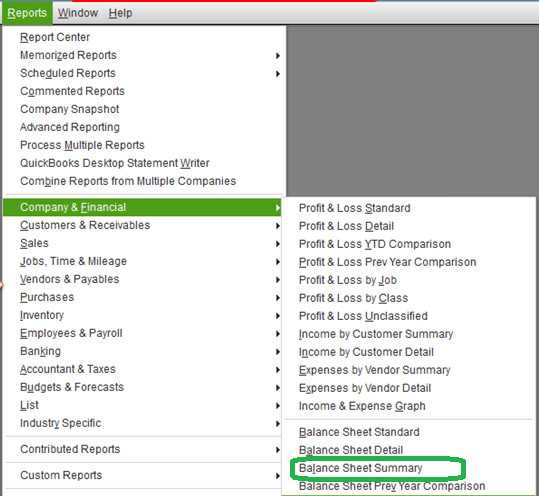
- Click on “Company & Financial” in the Reports menu.
- Choose Balance Sheet Summary.

- Select Customize Report.
- Now, on the Display tab.
- Choose Accrual under Report Basis.
- Hit OK.
If your balance sheet is out of balance on an accrual basis, rebuild your company file. Here is how to repair company data using the Rebuild Data tool:
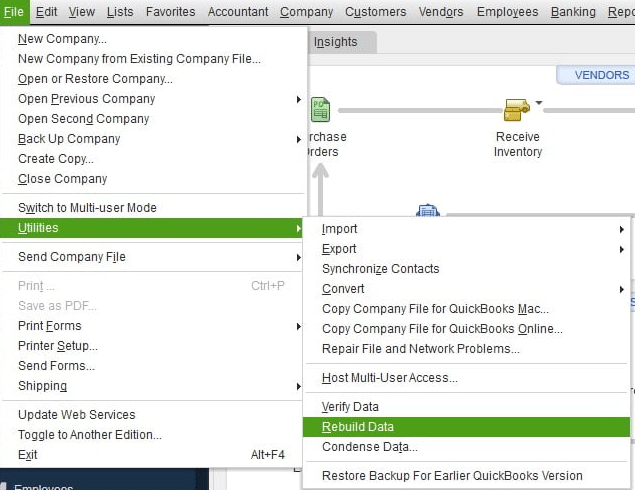
- Go to the File menu.
- Click on Utilities and choose Rebuild Data.

- It will ask you to create a backup of the company file data.
- Choose OK to do so.
- Follow the on-screen guidelines to save a backup.
- Let the tool work and repair your file, which might take some time. QuickBooks may seem stuck, but the tool is still working.
- When the tool finishes, choose OK.
- Head back to the File menu.
- Hover over the Utilities tab.
- Choose Verify Data.

- Let the tool check for additional damage.
- If QuickBooks doesn’t find damage, choose OK and continue using your company file.
- If it finds any damage, select Rebuild Now.

If your balance is out of balance on a cash basis or even after the rebuild, move to step 2:
Figure out the date when your balance sheet went out of balance
You need to find the date when your balance sheet went out of balance to locate the transactions.
- Move to the Reports menu.
- Click on Company & Financials.
- Choose Balance Sheet Summary.
- Click Customize Report.
- Hover over the Display tab.
- Select the Dates dropdown.
- Click All.
- Head over to the Report Basis section.
- Choose Accrual if your balance sheet is out of balance in accruals only. Alternatively, select Cash.
- Go to the ‘Display Columns by’ dropdown and select Columns.
- Choose Year, followed by OK.
- Now, you will have to compare your Total Assets to Total Equity. Then figure out when your balance sheet goes out of balance.
After you have found the year, go through the same steps to find the exact date.
- You need to follow the above steps again, but this time, you will have to select Month from the Display columns by dropdown.
- When you have narrowed down the month, follow the steps again to choose the week this time.
- And after finding the week, repeat the steps again and choose the Day.
- Now, you have the date on which your report went out of balance.
Let’s move to step 3 and narrow down the transactions that are causing the balance sheet to be out of balance.
Discover the transactions responsible for your balance sheet being out of balance
Run the Custom Transaction Detail report for the date you found.
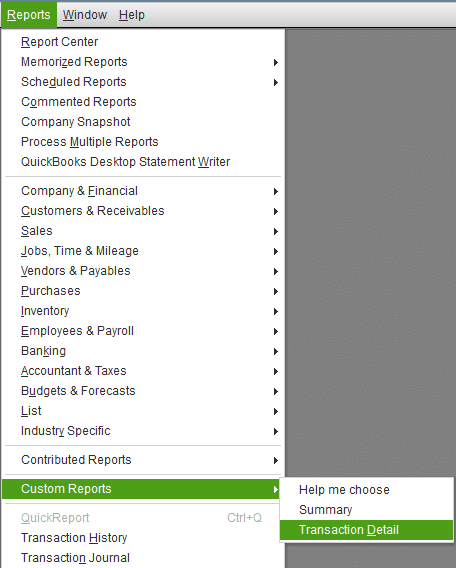
- Move to the Reports menu.
- Choose Custom Report.
- Next, choose Transaction Detail.

- Now, in the Modify Report window, search for the Report Date Range section.
- Enter the date the report went out of balance in the From and To fields.
- Head over to the Report Basis section.
- Choose Accrual if your balance sheet is out of balance in accruals only. Alternatively, select Cash.
- Hover over the Report Basis section.
- Unmark the Account, Split, Clr, and Class options.
- Tap Amount to make the report more readable.
- Choose the Paid Amount column.
- Tap OK.
- Verify that the ending balance in the Paid Amount column is equal to the amount that is out of balance.
- Go through the report to narrow down the transaction or transactions that add up to this amount.
Move to step 4 if you still can’t find the transactions.
Re-date the transactions
Change the date on which the balance sheet went out of balance.
- After you have found the transactions, change the dates on them. Note down their current dates.
- Now, you need to edit the date on each transaction to a day 20 years in the future.
- Save each transaction.
- Refresh the report.
- If you found the correct transactions, then the Paid Amount column will be zero.
- Go to the transaction you gave the future date and restore the original date.
Note: This step re-links the transactions and may fix the issue.
If this doesn’t help you resolve the QuickBooks Balance Sheet out of Balance, jump to step 5.
Delete and enter the transactions again
If none of the above steps help, consider deleting and reentering them.
If you are still unable to find the transactions, perform advanced troubleshooting for Balance Sheet issues.
Advanced Troubleshooting for Balance Sheet Issues
In case simple fixing methods do not help you fix the out-of-balance sheet, try implementing advanced steps to resolve it:
Run the reports to locate the transaction or transactions that might be causing the problem.
To narrow down the transactions, you will have to run the following reports through the steps given. After finding that transaction, you need to redate it to 20 years in the future. If nothing works, follow step 5 from the section above and delete and re-enter the transaction.
Run a Customer Report
Follow the steps below to run the customer report.
- Move to the Reports menu.
- Choose Custom Reports.
- After this, click on the Transaction Detail.
- It will open the Modify Report window automatically.
- You can choose Customize Report if it doesn’t open the window.
- Go to the Display tab.
- Now, in the Display tab, do the following:
- Set the Report Basis to Accrual.
- Set the From and To fields to the day the balance sheet goes out of balance.
- Set Total by Customer.
- Head to the Filter tab and implement the steps below:
- Choose Transaction Type in the Filters tab.
- Hover over the Transaction Type dropdown, choose Multiple Transactions.
- Mark Bill, Bill Credit, and Bill Payment.
- Choose OK.
- If you notice that the total amount is the amount that made the balance sheet go out of balance on this date:
- You will have to search for the vendor who has a non-zero (positive or negative) sub-total. This vendor has damaged transactions.
- If the total is non-zero (positive or negative) and not the amount that made the balance sheet go out of balance. You can add other transactions to the transaction Type filter, such as Journal Entries and Checks.
Now, go to step 2 and know the steps to run a vendor report.
Run a Vendor Report
Running a vendor report is similar to running a customer report. So, follow the same steps above.
Move to step 3 and learn how to run a journal report.
Run a Journal Report
Below are the steps to run a journal report.
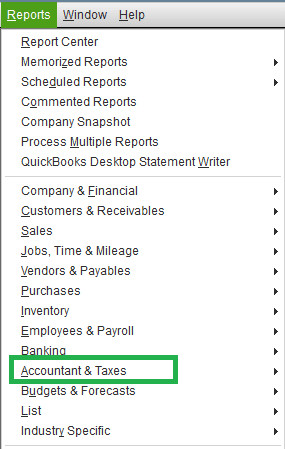
- Go to the Reports menu.
- Choose Accountant and Taxes.

- Click Journal and then choose Customize Report.
- Move to the Display tab.
- Set the Report Basis to Accrual.
- Also, set the From and To fields to the day the balance sheet went out of balance.
- Choose OK and remember that the Debit and Credit Totals will not match, confirming that the date when the balance sheet was out of balance is right.
- You will need to identify the specific transactions that show a mismatch between the debit and credit totals or that one of its accounts is blank under the Account column.
- Open the transaction, delete or recreate it if necessary.
- Now, we know how to run a journal report; let’s proceed and explore the steps to run a report for other transactions.
Proceed and learn the steps to run another transaction’s report.
Run a Report for Other Transactions
Follow the steps below to run a report for other transactions.
- Head to the Reports menu.
- Choose Custom Reports.
- Click on Transaction Detail.
- It will open the Modify Report window automatically.
- If you don’t see this window, tap Customize Report.
- Go to the Display tab.
- Now, in the Display tab.
- Set the Report Basis to Accrual
- From the Dates dropdown, choose All
- Set Total by to Account List
- Hover over the Columns list
- Mark Item
- Choose OK.
- Scroll down to the report and see if the last group of transactions has the heading No account, and the Account column is blank; it means these transaction targets have no accounts assigned to them. Here is how to fix it:
- Move to the Lists, and choose Item List.
- Right-click on the item.
- Choose Edit Item.
- Change the Account and then pick OK.
- Follow steps b, c, and d again and change the account back to the original account.
- Choose OK.
- Follow step f for each transaction that doesn’t have an account.
Now, you understand how to resolve the out-of-balance issue on the balance sheet. Let’s move ahead and have a look at the table below to understand more easily.
Quick Overview Table: Balance Sheet Out Of Balance in QuickBooks
To provide you with a complete understanding of the problem causing and the solutions, we have created a table below. Let’s look at it:
| Explanation of the balance sheet in QuickBooks | It is a cumulative financial report that provides a snapshot of a business’s financial health for a particular date |
| Reasons why the balance sheet out of balance in QuickBooks Desktop | When you sell one or more inventory items, have a discount item, or the customer returns one or more inventory items |
| Solutions | 1. Run verify and rebuild the data utility 2. Run the report in accrual basis 3. Figure out the date when your balance sheet went out of balance 4. Discover the transactions responsible for your balance sheet being out of balance 5. Re-date the transactions 6. Delete and enter the transactions again |
Conclusion
To give you an overall summary of the guide, we can say the balance sheet out of balance in QuickBooks is a financial report to manage the financial growth of businesses. There can be multiple reasons why the balance sheet is out of balance in QuickBooks. For instance, it may happen if the customer has many jobs, or if you have sold one or more inventory items. Try running the Verify and Rebuild Data utility to fix it. Moreover, you have been provided a couple of methods to resolve the issue. If none of the above solutions work, contact an Accounting Helpline expert for assistance at 1.855.738.2784.
Frequently Asked Questions
How to fix a balance sheet out of balance in QuickBooks?
To fix an unbalanced balance sheet in QuickBooks:
– Run the report on an accrual basis
– Narrow down the date when your balance sheet went out of balance
– Discover the transactions that are making your balance sheet unbalanced
– Update the transaction dates
– Delete and re-enter the transactions
Will QuickBooks Desktop close in 2026?
No, but Intuit will not sell QuickBooks Desktop any longer. Existing users will still be able to use it until another notice appears.
How to clean up the balance sheet in QuickBooks?
Cleaning up the balance sheet in QuickBooks involves clearing uncategorized transactions, merging duplicate accounts, reconciling all bank and credit card accounts, and reviewing equity for owner draws.
Why do balance sheets go unbalanced?
A balance sheet may be unbalanced if your customer returned one or more inventory items, if you have a negative inventory, or if you recorded the payment against the invoice.
Related Posts-
What is the QuickBooks Error 1638? A Complete Guide
Discussing the Methods to Resolve QuickBooks Web Connect Import Error
QuickBooks Error 6209 0 (Fix Company File Opening Issue)
Resolving QuickBooks Error H505: Causes and Troubleshooting Solutions
Troubleshoot QuickBooks Error 15311 – Can’t Update Software and Payroll
Ultimate Troubleshooting Guide to Resolve the QuickBooks Error 6000 95

Edward Martin is a Technical Content Writer for our leading Accounting firm. He has over 10 years of experience in QuickBooks and Xero. He has also worked with Sage, FreshBooks, and many other software platforms. Edward’s passion for clarity, accuracy, and innovation is evident in his writing. He is well versed in how to simplify complex technical concepts and turn them into easy-to-understand content for our readers.