

Last Updated on April 23, 2026
A QuickBooks Web Connect Import Error occurs when the software cannot verify the bank details in a .QBO file. This usually occurs during the import process when QB shows an error indicating it cannot authenticate the bank data. This problem often arises from mismatches between QB records and the.QBO file’s bank ID. Sometimes, the file from the bank is outdated or incorrectly formatted, preventing QB from linking it to the correct bank. You can resolve this error by downloading a new version.QBO file from your bank’s website, but ensure that it matches your QuickBooks setup.
You can prevent future issues by keeping QuickBooks up to date, using supported banks, backing up your data, avoiding file edits, and ensuring a stable internet connection. There may be an issue with Web Connect if you see one of these messages mentioned when you download transactions from your bank:
- “QuickBooks found an error. We can’t read the file [Your financial institution] sent.”
- “An error occurred while processing your online banking data.”
- “Your data was not imported into QuickBooks.”
- “QuickBooks is unable to verify the Financial Institution information for this download.”
- QuickBooks seems stuck and asks you to select a new or existing account when you try to download.
- “To download and import transactions, sign in with your Intuit account.”
Why Do the Web Connect Import Issues Occur?
Web Connect Import Issues in QuickBooks Desktop usually cause QuickBooks to display an error indicating it cannot authenticate the bank data during the import process. It is crucial to know more about the causes of this issue to resolve it more conveniently:
- The web connect issue in QB can occur if the transactions have already been imported.
- If the web connect file doesn’t contain any new transactions, this can also lead to this issue.
- The damaged QuickBooks files can also cause the QuickBooks Web Connect Import Error.
- This issue can also occur if the web connect statement includes dates that were previously imported into the company file.
You should know about the causes of the Web Connect Import Issues to resolve them more quickly.
What to do Before Fixing the QuickBooks Web Connect Import Error?
Before performing the steps and methods to fix the Web Connect Import Error, follow the instructions given below:
- Ensure to create a backup of the company file.
- It is crucial to ensure that you are using a supported version of QBDT.
- You may need to sign in to your Intuit Account or switch modes if you use Advanced Mode in bank feeds.
Go through these points to perform the solutions more easily and quickly.
Steps to Troubleshoot QuickBooks Web Connect Import Error
You can perform the steps mentioned below to fix the QuickBooks web connect import error. Follow instructions correctly:
Step 1: You need to download the Web Connect file
You need to download your Web Connect file directly from your bank, not from inside QB. It is important to ensure that the file you download from your bank is a .qbo file, the only type Web Connect can read.
- Start by signing in to your bank’s website.
- Then, find and download the Web Connect file.
- Next, open QuickBooks and your company file, then import the .qbo file.
If you import and see your transactions in QB, you’ll need to disconnect your account and set it up again.
There may be an issue with your bank if you encounter an error when downloading the file. You should reach out to your bank for help. If you still encounter the issue when importing the file, proceed to the next step.
Step 2: Check notifications from the bank
Your bank may notify you of changes or the requirement to confirm your identity. It is important to sign in to the bank’s website, verify your messages, and follow any instructions.
If the bank no longer uses Web Connect, follow the steps to disconnect the account.
Step 3: Switch Bank Feeds modes
- Hover over Bank Feeds and select Change Bank Feeds Mode from Banking.
- Choose Classic mode (Register mode).
- Then, import the .qbo file.
If you are still encountering this error, move to the next step.
Step 4: Create a test file
Verify whether the problem is with your company file. Import your transactions into a new company file.
- First, choose the File option, then New Company.
- Then, choose Express Start or Start Setup and fill out the needed fields. Add the word “Test” to the company name to make it more convenient to recognize.
- Choose the Start Working option.
- Import the .qbo file into the test company. You need to download the transactions into the same bank account you are facing issues with in your main company file.
Follow these steps correctly to fix QuickBooks Desktop Web Connect Import Issues.
What to Do If You Were Able to Import the File and See Your Transactions?
If you were able to import the file and see your transactions, there may be a settings issue. You need to go back to your original company file and reset it.
- First, open the original company file.
- Then, disconnect the account you are facing issues with.
- Next, reconnect the account.
- Once it is reconnected, import the .qbo file again.
When you can import the transactions into your original company file, everything is resolved.
What to Do If You Couldn’t Import the File or Don’t See Your Transactions?
The problem is likely with the .qbo file from the bank if you can’t import it or don’t see your transactions. You should reach out to your bank for help, or to Financial institutions that use Web Connect, which know how to handle these types of problems.
- Before contacting your bank, it is important to get your bank’s log files. This will help them identify the problem or error.
- You should speak to a bank representative familiar with QB Bank Feeds and account activation.
- Ask them to ensure the QuickBooks account(s) are set up for Web Connect.
- If required, you should ask the representative to file a case through the Open Financial Exchange. Don’t forget to note the case number.
If you are still facing the error, check out the solutions mentioned below.
Resolutions for the QuickBooks Web Connect Import Error
Method 1: Restore the Backup
You can restore a backup that was created before importing the web connect file containing the missing transactions. When it is done, you can import the web connect file again.
Method 2: Enter the Transactions Manually
You can just enter the transactions manually in the bank or credit card register if there are only a few transactions for the period. Follow this simple method to fix this error.
Method 3: Make Changes in the QuickBooks Web Connect (.qbo) File
If you edit the account ID in the QBO file, you can import transactions from a web connect file that has already been imported. This account ID ensures you don’t import duplicate entries. Remember that this should only be a one-time event in case a downloaded transaction has been deleted.
Important: You must follow these steps carefully to avoid importing duplicate transactions.
- First, choose the Chart of Accounts option from the Company menu.
- While holding down the Control key, choose the bank or credit card account you want to import the .qbo file into.
- Then, select Edit Account, then choose the Online Settings button.
- Next, choose Not enabled from the Download transactions drop-down.
- Download a new QB Web Connect file from the bank that includes only the required dates. Don’t go back further to prevent manually matching transactions.
- After that, open the QBO file in a text editor like TextEdit.
- Scroll down until you see ACCTID, then locate your account or credit card number.
- Now, delete the last digit of the account number, then save the changes and close the text editor.
- Finally, import the QB web connect file and select the correct account.
When you try to import a Web Connect file again, you must repeat the steps mentioned above. You no longer need to delete any digits from the ACCTID.
Method 4: Update QBDT
Another simple solution to fix the QuickBooks Web Connect Import Error is to update the QuickBooks Desktop to the latest release. Ensure to check the latest release of the QBDT before updating it. If you are still facing this issue, proceed to the next method.
Method 5: Launch Verify and Rebuild Data tools in QBDT
You can run the Verify and Rebuild Data tools in QBDT to resolve the QuickBooks Web Connect Import Error. You need to perform the steps mentioned below:
- First, you need to go to Windows, then choose Close All.
- Then, navigate to File, then choose the Utilities option.
- Choose the Verify Data option. If you see:

- QuickBooks detected no problems with your data. This means your data is clean, and you don’t need to take any action.
- An error message: You need to search for it on the QBDT support site to find how to resolve it.
- Your data has lost integrity – this message indicates that data damage was found in the file. You need to rebuild your data to fix it.
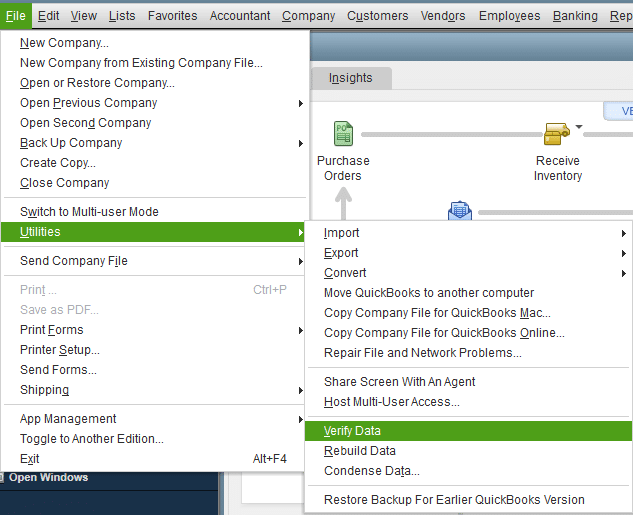
This is one of the effective methods for resolving Web Connect Import Issues in QuickBooks Desktop. Now, we will discuss below the healthy practices to avoid this error.
What Healthy Practices Should You Follow to Prevent QuickBooks Web Connect Import Error?
You must follow the expert tips given below to avoid the QuickBooks Web Connect Import Error:
- It is crucial to update QuickBooks to the latest version.
- Ensure that your bank supports Web Connect and that the file format is correct.
- A stable internet connection reduces the risk of this error occurring.
- You need to delete the browser’s cache and cookies.
- It is advised to verify your QuickBooks login details.
- You should launch the “Rebuild Data” tool for data issues.
- Make sure to download the transaction file again if needed.
- You should contact your bank or QuickBooks support if the problem persists.
Go through these tips and follow them to avoid this error from occurring.
A Quick View Table – QuickBooks Web Connect Import Error
Let’s quickly see the crucial points that we have discussed in this blog:
| Error Description | A QuickBooks Web Connect import error usually shows a message indicating that the.QBO file cannot be read or imported. |
| Causes | This error can occur when the transaction has already been imported, the web connect file doesn’t contain any new transactions, the QuickBooks files are damaged, or if the web connect statement includes dates that were previously imported into the company file. |
| Resolutions for This Error | This issue can be resolved by restoring the backup, manually entering the transactions, making changes to the QuickBooks Web Connect (.qbo) file, updating QBDT, and launching the Verify and Rebuild Data tools in QBDT. |
Conclusion
In this blog, we discussed the QuickBooks Web Connect Import error in detail. This error usually occurs during the import process when QB indicates it cannot authenticate the bank data. We mentioned more causes of the QB Web Connect error. We also covered the steps and solutions for resolving this issue. We also recommended healthy tips to help prevent this issue.
Frequently Asked Questions
Can I enter the transactions manually from the Web Connect file if I encounter the QuickBooks Web Connect Import Error?
Yes, if you encounter the QuickBooks Web Connect Import Error, you can enter the transactions manually into QB. You need to review the transactions in the Web Connect file and enter them manually in the correct accounts and categories in QB.
Does a QuickBooks company file issue lead to the QuickBooks Web Connect Import Error?
Data corruption in the QuickBooks company file can also lead to the QuickBooks Web Connect Import Error.
Are there any specific file formatting needs for the Web Connect file to prevent the QuickBooks Desktop Web Connect Import Issues?
Yes, you must ensure the Web Connect file meets the specific formatting requirements for successful import into QB. It is crucial to know that the correct file format is QBO or QFX.
Does using an old version of QuickBooks cause a Web Connect Import Error?
Yes, if you use an old version of QuickBooks, it can cause a Web Connect Import error. This is because older versions may not support updated bank file formats or the security protocols required for import.QBO files successfully.
Related Posts-
QuickBooks Error 6000 83 – Description, Causes, and Quick Fix
How to Patch QuickBooks Error 12002: Guided Solutions
Powerful Methods to Overcome QuickBooks Payroll Error PS036
QuickBooks Full Service Payroll for Small Businesses
What is the QuickBooks Error 1638? A Complete Guide
QuickBooks Error H202 in Multi-User & Solutions to Fix it

Charlotte Reed is an accountant and bookkeeping expert, proficient in GAAP, Xero, NetSuite, and QuickBooks. She holds a bachelor’s degree in accounting and is a Certified Public Accountant (CPA). Charlotte has more than a decade of experience in the financial industry and has helped thousands of clients manage their books, prepare financial statements, and do their taxes. She now shares her knowledge and insights with users online, aiding their accounting experience.