

Last Updated on September 25, 2025
You might come across QuickBooks error 1317 when installing or updating the application. The issue can be frustrating to deal with and can halt your operations. Moreover, without the latest version of QB, more errors may arise from using the outdated software.
To resolve QuickBooks error code 1317, one should first understand what gives rise to it. In this blog, we will go through the leading factors for this issue along with practical methods to resolve it.
Error code 1317 in QuickBooks may slow down your accounting tasks. If you want a quick resolution and guidance to fix it, then connect with an Accounting Helpline’s expert. Dial 1.855.738.2784 today.

An Overview of QuickBooks Error Code 1317
QuickBooks error 1317 appears when the user tries to install or update the QB Desktop program, indicating that the application failed to access folders because of a lack of permissions.
“Error 1317: The given folder path is invalid.”
“Error 1317: An error occurred while attempting to create the directory drive name:/folder.”
Along with these messages, you will experience symptoms such as the company file getting locked or the failure of Microsoft .NET Framework, CC+, and MSXML components.
When this error occurs with your QuickBooks Desktop, you might observe that:
- The company file you are currently using may become locked, requiring you to enter the admin password to unlock it.
- Crucial Microsoft components such as the CC+, .NET Framework, and MSXML fail to run, likely due to potential damage in them.
- If your Windows operating system is not up to date with the latest version, then there is a higher probability of QuickBooks error 1317 occurring.
- You lack the administrator permissions to run the install or update.
- The Windows temporary folder does not have enough storage.
Now, let’s go through some potential causes that may have led to the error code 1327 in QuickBooks Enterprise.
Potential Reasons Behind Error 1317 in QuickBooks
The following key factors may lead to QuickBooks installation issues, which prevent you from installing or updating the application.
- QuickBooks may fail to create a directory path due to an installation issue.
- There may be some third-party programs running in the background, which may cause interference with installation.
- There may be a lack of permissions to a particular drive and its SYSTEM account.
- The ‘Visual Studio 2005‘ or ‘Visual Studio .NET‘ might have gotten access to the said drive, which causes interference with the ‘SYSTEM‘ account.
- The drive that is being used to perform the installation or update may not have sufficient access or permissions.
- If any unwarranted changes were made to the Windows registry, then it might cause the QuickBooks error 1317.
- Crucial Microsoft CC+, .NET Framework, and MSXML components or files may have been damaged or corrupted on your system.
- The RAM or the hard disc memory may not have sufficient space.
These are the leading factors behind the QuickBooks installation error 1317. Now, to troubleshoot this problem, you can go through the following section.
Delve into Troubleshooting Methods for QuickBooks Error 1317
Listed below are resolutions to fix the QB installation issues, as well as prevent them from occurring again.
Solution 1. Re-run the Installer as a Regular User
You should try to run the installer as a regular user of Windows rather than running it as an Administrator.
- Turn on your computer and press Windows + E keys.
- The File Explorer will open.
- Head to where the installer is stored.
- Double-click on the installer that you downloaded.
- Ensure that you don’t select “Run as Administrator”.

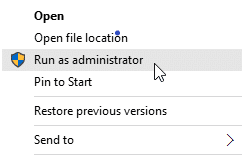
Now, let the installation process run and complete on its own. If you are able to install it with this method, then there may have been an issue with the admin user. If the QuickBooks error 1317 still occurs, then you can run the compatibility troubleshooter by following the next method.
Solution 2. Launch the Compatibility Troubleshooter
It’s possible there are some compatibility issues with the installer and the installation files, which cause the QuickBooks Desktop installation issue. To fix this, follow the process given below for running the Windows compatibility troubleshooter.
- Press the Windows and X keys together to choose File Explorer.

- Head to the folder containing the installer.
- Right-click the installer and choose Properties from the menu.
- Select the Compatibility tab in the top bar.
- Press the ‘Run compatibility troubleshooter’ button.

- The Program Compatibility Troubleshooter window will detect issues.

- You will then have to select the troubleshooting option from the following:
- Try recommended settings: If you choose this option, then a program test can be run by using the recommended compatibility settings.
- Troubleshoot program: With this option, you will get to choose compatibility settings depending on the issues that you are facing.
- Proceed with the Try recommended settings option.
- You will be asked to test compatibility settings for the program.

- Click on the ‘Test the program…’ button to troubleshoot.
- Once the process is complete, you will have the following options:

- Yes, save these settings for this program
- No, try again using different settings
- No, report the problem to Microsoft and check online for a solution
- If you continue to face the QuickBooks error 1317, then you should reinstall the installer.
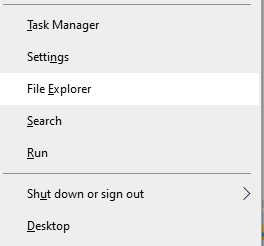
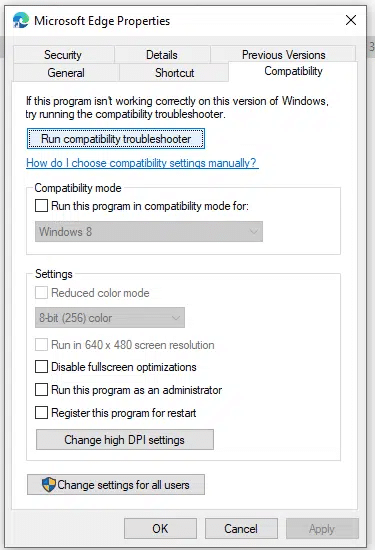
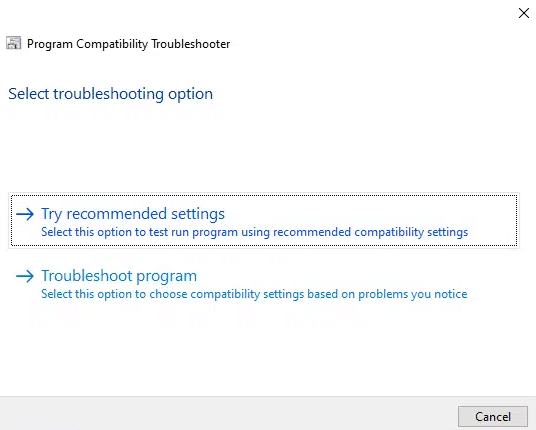
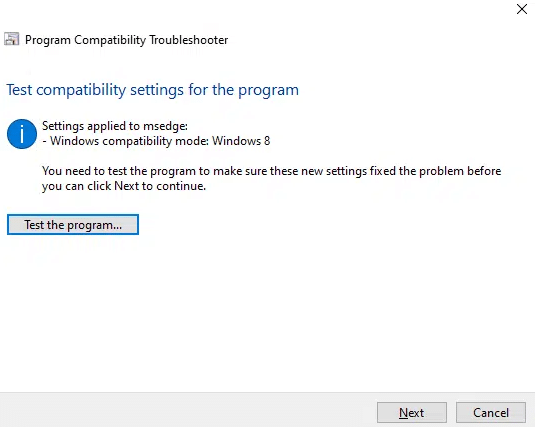
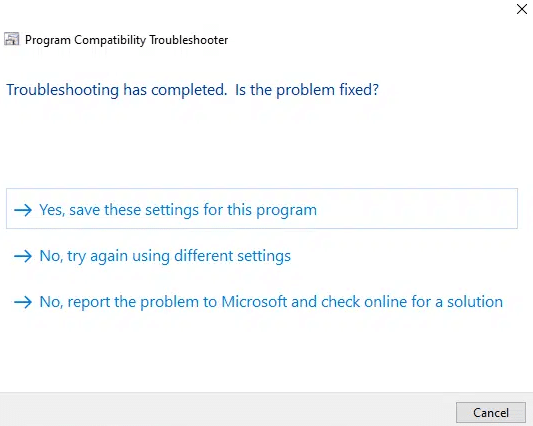
By following these steps, you can resolve the QB installation issue as well as any other underlying errors with the installer. If this method did not work out for you, then proceed to the next solution for downloading the installer once again.
Solution 3. Download the QuickBooks Installer Again
There is a chance that the QB installer file that you downloaded is corrupted or has become damaged. Therefore, you are facing an installation issue while trying to install or update QuickBooks Enterprise. In order to fix the QB error 1317, you will be required to download the installer file again. You can refer to this article to swiftly download the file as well as install it on your system.
If you are still facing the QuickBooks error code 1317, then move to the following section and run the QuickBooks install diagnostic tool.
Solution 4. Run the QuickBooks Install Diagnostic Tool
You can use the QuickBooks Tool Hub to resolve any installation issues with the software. To do so, you can launch the QB install diagnostic tool with the following method.
- Download and install the QB Tool Hub on your system.

- Tap the Windows menu and search for ‘QuickBooks Tool Hub’ to open it.
- Select the Installation Issues tab from the left panel, as shown above.
- Click on the ‘QuickBooks Install Diagnostic Tool’ button under the 1) section.

- The tool will begin to run and repair any issues that it detects.
- Once the process is finished, restart your PC.

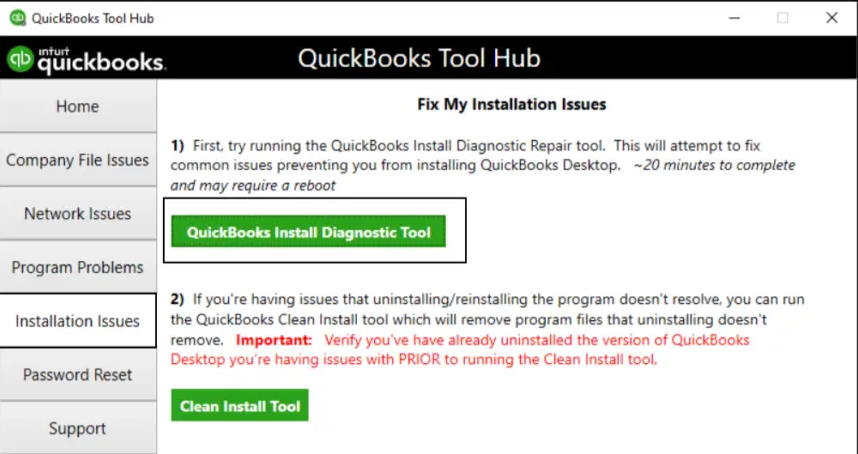
Do you still face the QuickBooks error 1317 despite running the QB Install Diagnostic Tool? Then ensure that you are up-to-date with the latest version of Windows and QuickBooks Desktop.
Solution 5. Update the Windows Operating System and QuickBooks Enterprise
You may run into the error code 1327 in QuickBooks Desktop if the Windows operating system and the QB application on your computer are outdated. The new software is released with a lot of features and fixes to enhance usability and get rid of errors from the previous versions. If you continue to use the outdated software without updating your Windows OS or the QBDT program to the latest release, then errors are bound to occur. Read the guide for each to easily update QuickBooks Enterprise and Windows.
If the QB update gets stuck, then you can refer to this guide and resolve it seamlessly. Now, verify if this process helped resolve the QB installation issue; if not, then proceed to the following method to fix the Windows components.
Solution 6. Manually Repair the Microsoft .NET Framework
If crucial components like the .NET Framework are damaged, then the chances of running into errors are high. It is likely that the QuickBooks error 1317 may have been caused by damaged Microsoft components. In order to get rid of this problem, you can take the following steps to repair these components.
- Click on the Windows icon to open the Start menu.
- Find and head to the ‘Control Panel’ by typing it in the search bar.
- Navigate to the Programs section and select the Programs and Features option.

- Then, click on the ‘Turn Windows Features On or Off’ option from the left panel.

- You might be asked to enter the admin password.
- After that, locate and untick the damaged .NET Framework component in the list.
- By unticking the component, it will be disabled after you restart your system.
- Now, repeat the same steps till you reach the ‘Turn Windows Features On or Off’ section.
- Tick the checkbox for the Microsoft .NET Framework component to install it again.
- Once it has been installed, press OK and restart your computer.
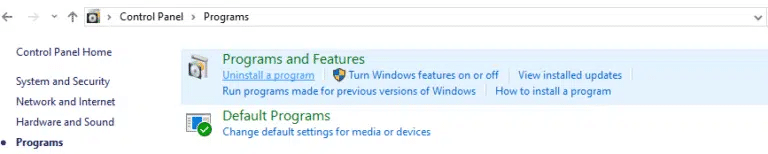
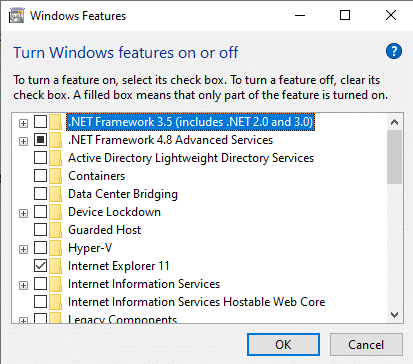
Repeat the same procedure to repair other components, such as the MSXML and more. After you are done, verify whether QuickBooks error 1317 has been resolved by repairing and reinstalling the Microsoft .NET Framework component on your system. Follow the next method to fix the Microsoft XML Core Services (MSXML) to ensure the smooth operation of applications.
Solution 7. Repair the Microsoft MSXML Service
If the Microsoft XML Core Services (MSXML) in your computer system is damaged, then it can cause the QuickBooks installation error 1317 as well. The MSXML service is crucial for running applications and programs that are coded in Script, VBScript, and Microsoft development tools. In order to repair it, you can take the following steps.
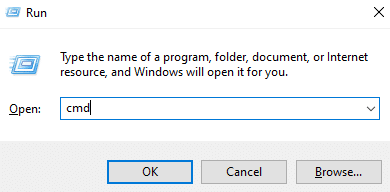
- Press the Windows and R keys together to launch the Run dialog box.
- Type in ‘cmd’ in the search box next to the Open.

- Click OK to launch the Command window.
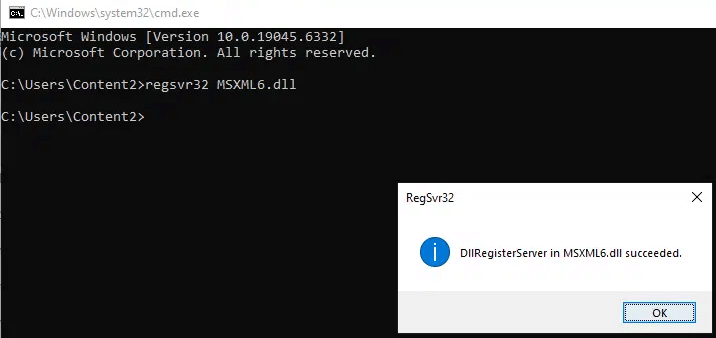
- Paste the following command into the Command window:

- regsvr32 MSXML6.dll
- Tap the Enter button, and you will see the message shown below.
- Once you complete these steps, proceed to installing the QuickBooks Enterprise.
This should fix the QuickBooks error 1317 on your system. But if the issue persists, then proceed to the following method for installing QB Desktop in the Selective Startup/ Safe mode.
Solution 8. Install QuickBooks Desktop in Safe Mode
Before you proceed with this method, make sure that you create a backup of your company file in OneDrive or your local storage and note down the product and license info of QuickBooks Desktop. Now, follow the steps outlined below to install or update the QB Enterprise application in Selective startup or Safe mode.
Step 1. Turn on the Selective Startup / Safe Mode
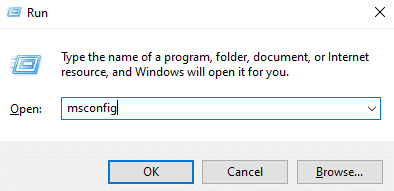
- Press the Windows + R keys on your keyboard to open the Run box.
- Type ‘msconfig’ in the search box, as shown below, and tap OK.

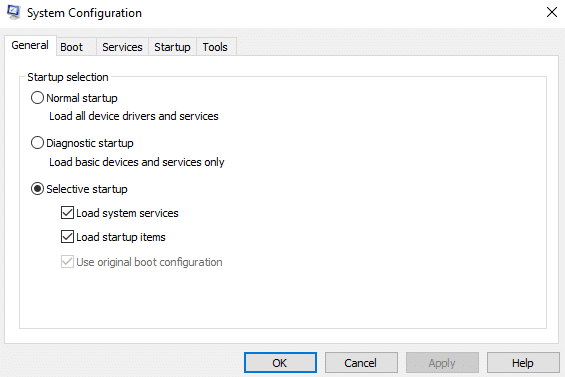
- The System Configuration Utility window will open.
- In the General tab, click on Selective startup followed by Load system services.

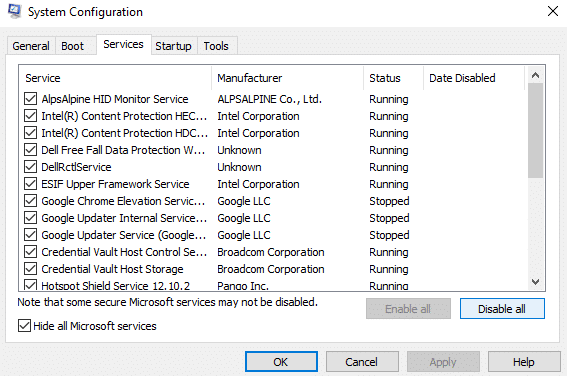
- Then, head to the Services tab and select the Hide all Microsoft Services checkbox.

- Then, untick the checkbox by tapping the “Disable all“ option.
- After that, double-click on Windows Installer from the list of services and press OK.
- Once done, hit the Restart button on the System Configuration window.
Step 2. Uninstall or Reinstall the QuickBooks Desktop
- Firstly, reinstall the QBDT application.
- Launch the Run box by tapping the Windows and R keys.
- In the search box, enter ‘msconfig’ and click OK.
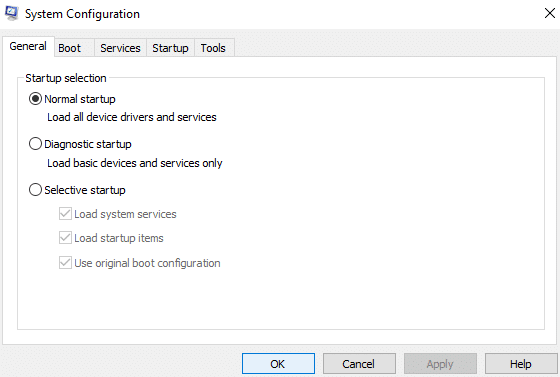
- Navigate to the General tab in the System Configuration Utility window.
- Then, select the Normal Startup option and hit OK.

- Press Restart on the System Configuration window after you complete these steps.
If you are unable to back up QuickBooks company files, then read this guide to create a backup properly. Once you are done with this process, verify whether the QuickBooks error 1317 has been resolved yet.
The resolutions that we have listed above are working methods for fixing the installation issue in QuickBooks Enterprise. Now, move on to the following table to get an overview of the entire blog.
A Quickview Table for QuickBooks Error Code 1317
In this segment, we have provided you with a tabulated overview of the QuickBooks error 1317, which causes installation issues while installing or updating the QBDT application.
| Error message | “Error 1317: The given folder path is invalid.” “Error 1317: An error occurred while attempting to create the directory drive name:/folder.” |
| Its indications | Your company file might get locked, Microsoft components like CC+ and MSXML may show failure, you may have an outdated Windows OS, you lack the administrator permissions to install or update QuickBooks Enterprise, or there is not enough storage in the Windows temporary folder. |
| Its causes | QB Desktop may be unable to create a directory path, other programs in the background might be interfering, a particular drive and its ‘SYSTEM account’ may not have sufficient permissions, a particular drive’s access may have been compromised by the ‘Visual Studio 2005‘ or ‘Visual Studio .NET‘, the drive for installation or update lacks sufficient access or permissions, Windows registry underwent some unwarranted changes, Microsoft components or files got damaged or corrupted, not enough space in the RAM or hard disc memory. |
| Troubleshooting methods | try to run the installer but not as an admin user, use the Windows Compatibility Troubleshooter, redownload the QuickBooks installer, use the QB install diagnostic tool, update to the latest version of Windows operating system and QuickBooks Enterprise, fix the Microsoft .NET Framework component manually, repair Microsoft MSXML service from command prompt, and lastly, reinstall the QuickBooks Desktop in selective startup or safe mode. |
| Tools required | QuickBooks Install Diagnostic Tool, QuickBooks Tool Hub. |
Bringing It All Together
QuickBooks error 1317 occurs when you are trying to install or update the QB Desktop application, leading to an installation issue. We have listed out various reasons that cause this error on your computer, along with some indications to detect it early on. If you do run into this problem, then try out the proven troubleshooting methods given in this guide. However, you may face some technical issues while attempting to resolve the QB error 1317. But you don’t have to worry. Our experts are always ready to assist you. Dial 1.855.738.2784 and speak with an Accounting Helpline’s specialist to get back on track.
Frequently Asked Questions (FAQs)
What is error code 1317 in QuickBooks?
The QuickBooks error 1317 is a problem that manifests itself when you are trying to install or update the application. This happens when QB Desktop is unable to create a directory or folder, mainly due to a lack of permission or access. Moreover, there might not be enough space in the RAM or hard disk memory. In order to get rid of this issue, you can run the QuickBooks Install Diagnostic Tool, use the installer as a regular Windows user, or reinstall the QB Enterprise in selective startup or safe mode.
Why am I getting QuickBooks error 1317?
There are multiple reasons why you are getting the error code 1317 in QB Desktop. It primarily occurs due to a lack of permissions or access, leading to installation issues. Additionally, QB Desktop may fail to create a directory path, or other applications running in the background may cause interference. If a particular drive and its ‘SYSTEM account’ lacks required permissions or the permissions have been granted to ‘Visual Studio 2005‘ or ‘Visual Studio .NET‘, then the QB error 1317 may arise. Furthermore, if the Microsoft components like the CC+, .NET Framework, and MSXML are damaged, then you may run into the QuickBooks installation issue.
How to resolve QuickBooks error 1317 in QBDT?
In order to get rid of the QuickBooks error 1317, you can try various solutions, some of which include running the installer again, but as a regular Windows user and not as an admin. Alternatively, you can use the Windows Compatibility Troubleshooter to repair the installer file or download the file again. You can also run the QuickBooks Install Diagnostic Tool to repair any installation issues and make sure that you are up to date with the latest versions of the Windows operating system and the QBDT application. If the error code 1327 in QuickBooks Enterprise still persists, then repair the Microsoft components or reinstall the application in safe mode.
Related Posts-
I Encountered QuickBooks Error 12038! – What’s Next?
Fix QuickBooks Error 15241: Payroll Update Issue Resolved
Don’t Fix QBDBMgrN Not Running on This Computer Without Reading This
Learn How to Fix QuickBooks Banking Error 163
QuickBooks Payroll Error PS032: How to Fix with Experts’ Tips?

Edward Martin is a Technical Content Writer for our leading Accounting firm. He has over 10 years of experience in QuickBooks and Xero. He has also worked with Sage, FreshBooks, and many other software platforms. Edward’s passion for clarity, accuracy, and innovation is evident in his writing. He is well versed in how to simplify complex technical concepts and turn them into easy-to-understand content for our readers.