
Last Updated on April 16, 2026
Reconciling is not just associated with cross-checking your current and savings bank accounts. A lot more needs to be done to ensure your finances are accurate. Reconciliation is essential to get the correct financial report for your business. We all know that apart from the benefits of reconciling the accounts during the tax season, you must also carry out reconciling payroll liabilities in QuickBooks and the reconciliation of payroll liabilities in QuickBooks.
Before discussing how to reconcile payroll liabilities in QuickBooks, you should know what they are. Payroll liabilities are amounts a business owes but has not yet paid. They are categorized into two basic categories: employer expenses and employee liability.
Reconciling payroll liabilities in QuickBooks is the process of ensuring that payroll taxes and employee deductions, along with employer-paid taxes, match the amounts reported on payroll reports and paid to tax authorities. In this article, we will discuss how to reconcile payroll tax returns and payroll garnishments, as well as the final steps to clear overdue payroll liabilities in QuickBooks.
If you find it overwhelming to reconcile on your own or find yourself stuck on a problem, you can contact our Accounting Helpline experts at 1.855.738.2784 for quick assistance.
Why Should You Reconcile Payroll Liabilities in QuickBooks?
Reconciling payroll liabilities in QuickBooks is crucial for maintaining the reliable financial data of the business. Now, we will discuss the other important reasons to reconcile your payroll liabilities in QB:
- Reconciling payroll liabilities in QuickBooks ensures that the payroll you’re preparing matches the payroll recorded in your general ledger, which helps you maintain accurate financial records and documents.
- Reconciliation helps avoid mistakes, which might lead to penalties from the IRS.
- If employees notice errors in their paychecks, they may feel undervalued and become less motivated; thus, reconciliation helps retain employees.
- Precise payroll records make it easier to streamline financial reporting, generate quarterly and annual tax reports, and pass audits and financial reviews.
- Reconciling payroll liabilities in QuickBooks helps companies comply with accounting standards and fulfill compliance requirements.
Reconciling payroll liabilities in QuickBooks ensures a smooth month-end close and keeps your payroll account in perfect alignment with tax requirements.
Understanding the Payroll Liabilities in QuickBooks
Payroll liabilities in QB mean the amounts the business owes but has not yet paid. Depending on your business’s bookkeeping system, let us look into the liabilities. Later in the blog, we list down details of Payroll Tax Deductions and Payroll Garnishments.
Payroll Tax Deductions
Employer expenses and employee liabilities fall under Payroll Liabilities. The expenses will be labeled according to your state’s tax laws, as they vary by state. In Utah, the liabilities are broken down into Federal income tax, state income tax, Social Security withholding, and Medicare withholding. These are the items that should never appear on your expense report and should be recorded in the liability accounts your bookkeeper set up when the books were started.
The balances in these liabilities should be almost zero. In simple words, the money is withheld from the employee’s paycheck and paid to the IRS or the appropriate tax agency. A portion of the employee’s paycheck is an expense and should be booked to a liability account. The same goes for the tax check. After entering both checks, you will see that the payroll liability accounts have transactions, but they net out to zero.
Payroll Garnishments
The garnishments should not appear on your expense reports, as they are withheld from the employee’s paycheck and paid to the proper agencies. The money is to be properly accounted for and booked to a corresponding liability account. The wages are to be garnished by the business owners, and when talking about the category, they fall into the following:
- Child support, Spousal support, and Medical support
- Creditors
- Federal and State Tax Levies
- Federal debts such as Student Loans and AWG (administrative wage garnishments).
You zero out payroll liabilities in QuickBooks once the monies are paid to the agencies. What needs to be kept in mind is that this money is not an expense and hence must not be reflected in the business’s profit and loss.
Step-By-Step Method for Reconciling Payroll Liabilities in QuickBooks Payroll
You might find it daunting to align every detail of your payroll. The process can be easily handled by breaking it down into manageable steps. Follow the detailed steps mentioned below to perform the process of reconciling payroll liabilities in QuickBooks:
Step 1 – List Your Liability Accounts
Initially, you have to make a list of your liability accounts that you may need to reconcile, which are listed below –
- Federal income tax you deducted from employees’ paychecks but haven’t yet paid to the IRS.
- State tax you deducted from employee paychecks but haven’t paid to the concerned state tax agencies (local income taxes may fall under this category).
- FICA tax payable includes both employee and employer Social Security and Medicare taxes that are outstanding.
- 401(k) or retirement benefit premiums payable include employees’ contributions to their 401 (k), and you can also include any contributions your business is matching into this account.
- The health insurance payable account should include any health insurance premiums and employee insurance premiums that have been deducted as business expenses but haven’t yet been paid.
Note: Remember that you’re reconciling liability accounts, so the funds should remain in the account until they are paid out.
Once the liability account list is created, proceed to the next step: creating transaction labels.
Step 2 – Create Transaction Labels
QuickBooks allows you to assign transaction labels to identify employee and employer funds. This helps organize data much faster while researching payroll liabilities. To create transaction labels, follow the steps mentioned below –
- Go to Settings, select QuickBooks Labels, and tagging transactions will be available.
- Turn on the Tags feature, click Done, and wait for the confirmation that the plug-in has been added.
- Go to Settings and click Tags to create a new tag group.
- Now, select New, click Tag Group, then name it Payroll Liabilities, and hit Save.
After creating the transaction labels, you need to move to Step 3.
Step 3 – Set Up Your Payroll Liability Reconciliation Sheets
You must download your payroll liability reconciliation spreadsheet to easily track account activity. When setting up the reconciliation sheet, ensure to collect payroll records, review the payroll register, and verify the employee details. Moreover, you must calculate and compare gross pay and validate deductions.
You need to create copies for each payroll liability account and enter the liability account name at the top of the spreadsheet, along with the beginning and ending balances for each, which tie to the general ledger balance records. Make sure to leave ample space for reconciling items.
Note: These transactions may not appear in the general ledger, and you’ll recognize the reconciling items because they won’t clear smoothly or in a timely manner.
After setting up the report of reconciling payroll liabilities in QuickBooks, perform the next step.
Step 4 – Print Reports from QB Payroll & General Ledger
You can print payroll reports by using the QB payroll feature and make the necessary adjustments to the general ledger. You’ll need reports from the general ledger and the payroll software to begin.
If you’re reconciling payroll liabilities in QuickBooks every month, you’ll need a monthly transaction report for each payroll liability account, which should show both the beginning and ending balances. To run the payroll transaction report, implement the following steps –
- Select Accounting, then click Chart of Accounts, and select the liability account you need to reconcile.
- Now, click the drop-down arrow beside View Register and select Run Report.
- You’ll see a list of transactions, and you can adjust the report dates (e.g., 30 days, 90 days, or the entire year) by selecting the box on the left.
- Once the report is ready, click the Print icon and repeat this process for each liability account.
Reports you might need for your payroll software include payroll register, payroll tax report, payroll deduction report, and payroll cash reports.
After printing reports, move to Step 5 below and review each transaction.
Step 5 – Review Each Transaction & Reconcile Outstanding Items
After printing the reports, you can download the transactions from QuickBooks into an Excel spreadsheet to organize the transactions clearly as follows –
- Select the Export icon in the upper-right corner, click Export to Excel, and check the ending balance.
- If there is a balance at month’s end (other than $0), evaluate each transaction that did not clear out.
- You can delete the transactions that net to $0 and maintain a separate tab that shows all transactions, whether cleared or not.
Once each transaction is verified and outstanding items reconciled, fix the reconciling item in the next step.
Step 6 – Fix Payroll Liability Reconciling Item
After determining the final balance transactions for each payroll liability, determine whether or not they should be there. For example, if you withheld the Quarter 1 tax deposit from the employee’s paycheck and it is now Quarter 3, there is probably a problem that needs to be addressed. You must determine why this transaction was omitted and track the related invoice. Also, check the payroll deductions and assess where they align with what you charged and what was paid.
Depending on the answers, you might need to reverse a transaction, determine if the invoice needs to be corrected, or keep the money for the next month’s bill.
Once the process ends, all your payroll liabilities will be successfully reconciled.
How to Adjust Payroll Liabilities in QuickBooks Desktop?
Look out for Discrepancies in the Payroll: Before you move ahead with adjusting tax liabilities in QuickBooks, this step is essential to get all the information that you need to make the adjustment. Once you have gathered the details, you need to adjust payroll liabilities in QuickBooks Desktop.
Step 1 – Run a Payroll Checkup
Payroll Checkup is the tool available in QuickBooks Desktop that helps to do the following:
- You need to scan the payroll data to identify missing information and discrepancies.
- Review employee records, payroll item setup, wages, and tax amounts.
- Give suggestions related to the identified tax amount discrepancies on the flat-rate tax.
- Click on Employees and select My Payroll Service.
- After that, select Run Payroll Checkup.
- Go through the steps as they appear on the screen. Hit Continue and go through the various steps.
Correct the errors that are detected by the Payroll Checkup tool:
- For each item that has an error, read “fix this error now” in the Data review. You will find all troubleshooting information and detailed instructions in the displayed window.
- Print the Payroll Item Discrepancies report if you find wage and tax discrepancies.
- When you click NO, you grant Payroll Checkup permission to create wage-based discrepancy adjustments.
After launching the payroll checkup, proceed to the next step.
Step 2 – Run a Payroll Detail Review Report
It is required to use the Payroll Detail Review Report to identify the tax discrepancies. This will help you reduce payroll liabilities in QuickBooks. Manual adjustments must be created to correct wage or tax discrepancies.
Steps to Create a Payroll Summary Report
You can create a payroll summary report by following the instructions given below:
- Select the Reports menu and click on Employees & Payroll.
- Choose Payroll Summary and set a date range.
- Hit Refresh and Remove Hours and/or Rate.
- From the Print drop-down, select Report to print.
- (Optional) Change the printer setting and then select Print.
- Adjust tax liabilities in QuickBooks.
Once the payroll detail review report is launched, you need to perform the process of QuickBooks adjusting payroll liabilities.
Step 3 – Adjust Your Payroll Liabilities in QuickBooks Payroll
The next step is to adjust your payroll liabilities in QuickBooks Payroll by implementing the following steps:
- Navigate to the Employees menu and select Payroll Taxes and Liabilities.
- Click Adjust Payroll Liabilities.
- With the tips provided below, you can effortlessly complete the fields.
- The date must match the last paycheck date of the affected quarter. If you are working on the current quarter, use the present date.
- Using the effective date, calculate the amounts on Forms 940 and 941.
Based on where you need to make the adjustments, select the following:
- Click Employee Adjustment to make an adjustment to a company-paid item.
- Select Company Adjustment if you want the balance to be removed from the Payroll Liability Balances Report.
- Select Employees.
- Fill in the Taxes and Liabilities.
- Choose the Item Name that you want to adjust.
- Enter the adjustment amount.
- Wage Base is not used much.
- Income subject to tax is adjusted within the wage base.
- To enter a note about QuickBooks payroll liabilities adjustment, use the Memo field.
- Click on Accounts Affected, where you want to zero out payroll liabilities in QuickBooks, and press OK.
- To leave the balances unchanged for the liabilities and expense accounts, select Do not affect accounts.
- Select the Affect liability and expense accounts to enter an adjusting transaction in the liability and expense accounts. With this, you will be able to adjust Tax Liabilities in QuickBooks Payroll.
If required, repeat the steps for other employees; that is how you reconcile payroll liabilities in QuickBooks. After adjusting QuickBooks payroll liabilities, see that the liabilities are updated. You need to run the Payroll Summary report again to ensure everything is correct.
How to Reconcile Payroll Liabilities in QuickBooks Online: A Walkthrough
A number of reasons might require you to edit payroll liabilities, including payroll credits, penalties and interest, late filings, and many more. Follow the steps for the same. Follow the steps below for manually reconciling payroll liabilities in QuickBooks Online.
Before reconciling payroll liabilities in QuickBooks, match up the data from the following sources –
- The employee data and records, including pay rate, wages, and tax amounts.
- Payroll tax filings, including income taxes and FICA taxes.
- The amount withheld from employee pay.
- The banking activities and the accounting data, such as transactions posted.
Once done, follow the instructions given below for reconciling payroll liabilities in QuickBooks Online:
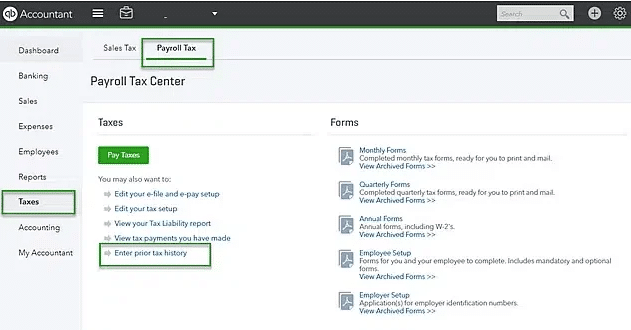
- In the QuickBooks Online Navigation bar, select Taxes.
- Click on the Payroll Taxes option, and under Pay taxes, press Enter prior tax history.

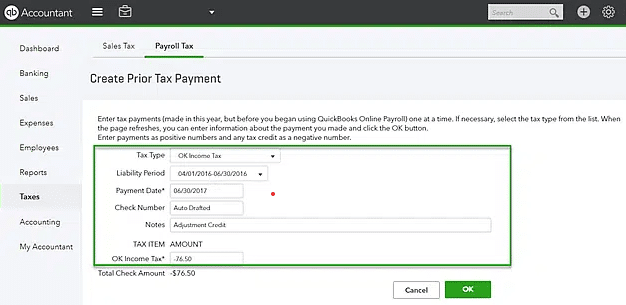
- Choose the Current Year and Liability Period.

- After you click Add Payment, select Tax Type to reconcile payroll tax returns.
- Enter the Liability Period and Period date, along with the Check number and Notes.
- By creating a negative amount, make a credit.
- Click on OK once you have entered all the necessary information.
Once the process ends, you will successfully reconcile the payroll liabilities in QuickBooks Online.
A Quick View Table on Reconciling Payroll Liabilities in QuickBooks
Let’s quickly go through the crucial points that we have mentioned in the blog:
| What are Payroll Liabilities? | Payroll liabilities are amounts a business owes, such as employee deductions and employer taxes, that haven’t been paid yet. These should be recorded in liability accounts and cleared once payments are made. |
| Why should you perform reconciling payroll liabilities in QuickBooks? | Reconciling payroll liabilities in QuickBooks ensures that payroll data matches financial records and helps prevent costly errors or penalties. It also helps maintain compliance, accurate reporting, and employee trust. |
| How to Reconcile in QuickBooks? | Reconciling payroll liabilities in QuickBooks includes listing liability accounts, reviewing reports, matching transactions, and fixing discrepancies. Final adjustments ensure that balances are accurate and liabilities are properly cleared. |
Conclusion
In this blog, we discussed the step-by-step process of reconciling payroll liabilities in QuickBooks. We also discussed the methods for adjusting payroll liabilities in QuickBooks Desktop and QuickBooks Online. We hope this comprehensive guide helps you reconcile and adjust payroll liabilities in QuickBooks. If you are still struggling with reconciling payroll liabilities in QuickBooks, you can contact our Accounting Helpline experts at 1.855.738.2784 for immediate assistance.
FAQs
What are the different types of payroll liabilities?
There are various types of payroll liabilities, which include the following:
– Employee compensation for salary, hourly, and independent workers.
– Payroll taxes and insurance, including federal tax withholdings.
– Voluntary deductions, like retirement plans, union dues, etc.
– Payroll service costs incurred to retain an accountant or service.
What are the most common reconciliation items when reconciling QuickBooks payroll liabilities?
The most common reconciliation items you may encounter while reconciling payroll liabilities are:
– There is a voided check that was never cleared from the general ledger.
– There are errors or issues on the invoice that your benefits provider billed you.
– You’re still expensing employer match funds for retirement and other benefits for terminated employees.
– You have expensed amounts for the business for which the employees are responsible.
How can I reconcile payroll deductions in QuickBooks?
To reconcile the payroll deductions in QuickBooks, you can check the payroll register and ensure all the data is correct. Then confirm employee time cards and check pay rates. It is crucial to verify that all the deductions are correct and record wages and deductions in the general ledger.
How to zero out payroll liabilities in QuickBooks?
You can zero out payroll liabilities in QB by deleting or removing a scheduled payroll liability. Follow the steps mentioned below to perform this process:
– Initially, select the Employees option.
– Then, choose the Payroll Center option and tap on the Payroll Liabilities tab.
– Navigate to the Other Activities drop-down list, then choose the Change Payment Method option.
– From the QuickBooks Payroll Setup window, click on Benefit and then Other Payments.
– Choose Schedule Payment and then tap the Payroll Item to Delete or Edit.
What are the common scenarios that a payroll liability adjustment can correct?
Common scenarios that can be corrected by payroll liability adjustment include:
– You set up a Health Insurance Company Contribution with the wrong tax tracking type and need to amend the liability amount after creating a new company contribution item with the correct tax tracking type.
– You need to adjust year-to-date wages, deductions, or additional payroll items for an employee who is terminated and will not be receiving any more future paychecks.
– You need to change (increase/decrease) the amount of other company contribution items.
Related Posts-
QuickBooks Clean Install Tool: The Right Way to Reinstall
How to Quickly Rectify QuickBooks Error 6155 0
How to Make QuickBooks Error 15224 Disappear?
QuickBooks Error 30134 – What Do I Do Next?
Why QuickBooks Desktop Keeps Crashing- Answers & Solutions
QuickBooks Error -6177 0: Resolve with Pro Steps

Charlotte Reed is an accountant and bookkeeping expert, proficient in GAAP, Xero, NetSuite, and QuickBooks. She holds a bachelor’s degree in accounting and is a Certified Public Accountant (CPA). Charlotte has more than a decade of experience in the financial industry and has helped thousands of clients manage their books, prepare financial statements, and do their taxes. She now shares her knowledge and insights with users online, aiding their accounting experience.