
Last Updated on August 25, 2025
QuickBooks Payroll is an add-on subscription feature that helps make tasks like sending paychecks and calculating taxes much easier. However, you might receive a QuickBooks Payroll setup error while trying to use payroll for the first time. Some of the error messages you may receive can be “Payroll setup information for the following account couldn’t be saved: [account name] (Exception from HRESULT:0x80040A03)” or “QuickBooks Payroll Setup 2024 – Error”. This can be extremely frustrating and time-consuming for the majority of QB users.
In this blog, we’ll discuss the different solutions for the different errors you might face while setting up payroll in QuickBooks.
Facing problems while setting up payroll in QuickBooks? Contact our helpline to speak to our Accounting Helpline’s experts today at 1.855.738.2784, who can help resolve any problem you’re having.

Why Am I Facing a Problem with QuickBooks Payroll Setup?
Although setting up QuickBooks Payroll is quite straightforward, sometimes you may face a problem or run into errors while doing so. Here’s a list of potential triggers of the payroll setup error:
- Duplicate vendor or item in the payroll list.
- Same employee name in the payroll list.
- Any employee with blank spaces or special characters in their name.
- The employee does not have a state set up in their profile.
- Installation issues in the QBDT application.
Now, let us take a look at various payroll setup errors in QuickBooks individually and see how to resolve them.
Troubleshooting QuickBooks Payroll Setup Error – Guided Methods
Let’s now proceed to troubleshoot the different QB payroll setup errors, such as QuickBooks payroll setup error 05396 40000, that you might be dealing with. The solutions are given case-wise, with easy-to-follow guided steps.
QuickBooks Payroll Setup 2020 Error or 2024 Error
If you see the QuickBooks Payroll Setup 2024 – Error window pop up on your screen, you have to first check the error message of your case to resolve it. So let’s see how to do that.
- In the QuickBooks Payroll Setup 2024 – Error window, press View report.

- Now, click twice on ReportHeader.xml.
- Then, hit CTRL + F on your keyboard.
- This would open the search box.
- Lastly, enter Exception String 0 in the search box.
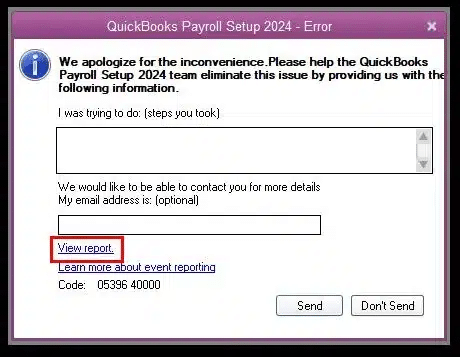
Now, you’ll see an error message that can vary user-to-user. So let us now resolve them all.
Error Message – Item has already been added. Key in dictionary: “[Vendor or payroll item name]” Key being added
If you see this message on your screen, that means there is a duplicate vendor or payroll item name. To patch it, follow these steps:
- First, click on the Vendors menu.
- Then, select the Vendor Center option.
- Or select Items, followed by Payroll Item List, depending on the situation.

- Or select Items, followed by Payroll Item List, depending on the situation.
- Now, find the Vendor or the Payroll item name that is listed in the error message.
- If there is more than one item, skip the next step, or else follow along.
- Click on Show Inactives, which will then show the duplicate items.
- Try to delete the duplicate item.
- If the item has been used in any transaction in QB, you won’t be able to delete it.
- You can edit the item and rename it to fix it.
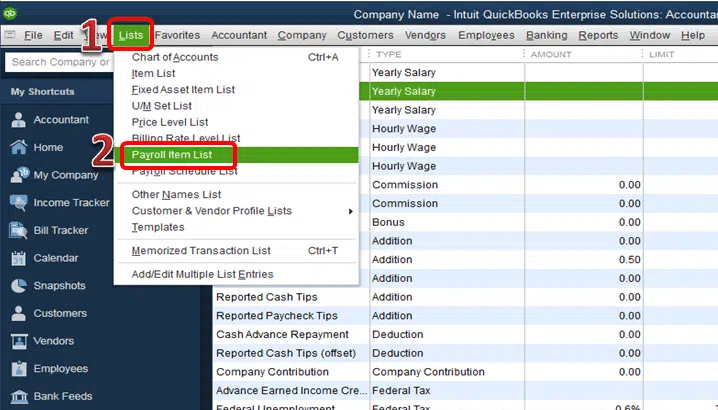
Now, we’ll take a look at the next error message you might see.
Item has already been added. Key in dictionary: ‘(unnamed employee)’ Key being added – Error Message
Similar to the vendor and item name list error, this message indicates that a duplicate employee name exists in the employee list of your Payroll. You can fix it by:
- Go to the Employees menu.
- Click on the Employee Center option.

- Now, select the View dropdown menu.
- Click on All Employees, which would list all inactive employees.
- Search for and find duplicate employee names.
- Then right-click on the duplicate name.
- Press the Delete Employee option.
- You might not be able to delete the employee name; it might be due to existing payroll transactions. For that:
- Move the transaction to the first listed employee.
- Now, delete the duplicate employee.
- If you don’t find any existing payroll transactions for the employee, it can be due to their time card data being corrupted.
- Fix that by navigating to Employees, followed by Enter Time.
- Look for entries with odd or invalid characters and delete them.
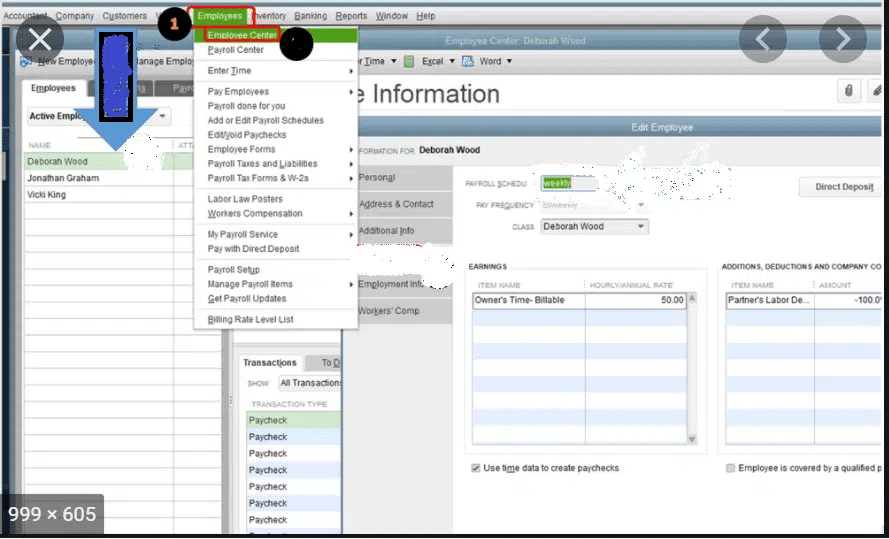
This would fix the error message you’re trying to tackle.
Item has already been added. Key in dictionary: ‘(unnamed employee)’ ‘the specified special account already exists’
This error message usually denotes a blank space in the employee’s first or last name. The name fields can also be completely blank. This might only show on the ‘Print on check as’ field in the employee profile and might be completely normal in the employee list. Therefore, review each employee with the following steps:
- Click on the Employees menu.
- Select Employee Center.
- Press the View dropdown menu.
- Click on All Employees.
Now, review every employee’s name and check for blank spaces and delete them. If they are missing from the ‘Print on check as’ field, then add them.
Value does not fall within the expected range
This error comes with a specific code – Error 00000 99867. This usually occurs due to the employee not having a state set up in their profile. Fix that by following these steps:
- Open the Employees menu.
- Click on the Employee Center.
- Now, right-click anywhere in the employee list.
- Click Customize Columns.
- Go to the Available Columns list.
- Press State Lived, followed by Add.
- Navigate to the Available Columns list again.
- Select State Worked.
- Click on Add.
- Hit OK.
- Now, double-click on the employee name with a missing state.
- Press Payroll Info.
- Select the Taxes option.
- Now, click the State tab.
- Choose the correct state.
- Repeat the steps for every employee with a missing state.
This would fix the error 00000 99867. If you’re dealing with the error code 00000 88703, then follow the solution just above this one.
Font ‘Arial does not support style ‘Regular’…
This means that the Arial font in your Windows operating system is missing or corrupted. Contact an expert to fix this problem.
The storage category map is invalid for the Local tax payroll item
It signifies that the local tax is not correctly added to the employee profile. You can resolve it by following these steps:
- Create an Employee Withholding Report.
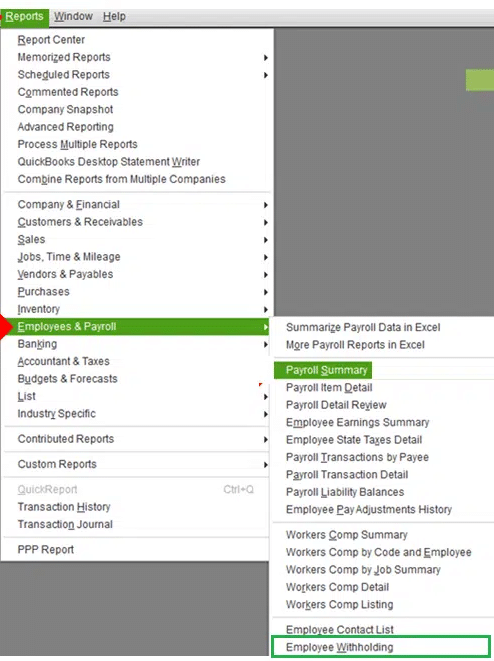
- Click on the Reports menu.
- Select Employees & Payroll.
- Then, press Employee Withholding.

- Select Customize Report.
- Now, go to Columns and remove all checkmarks.
- Then, select these items:
- Employee
- Local Tax 1
- Local Tax 2
- Local Tax 3
- Local Tax 4
- Local Tax 5
- Local Tax 6
- Local Tax 7
- Local Tax 8
- Local Tax 9
- Local Tax 10
- Local Tax 11
- Local Tax 12
- Click on the Filters tab.
- Select Active Status, followed by All.
- Press OK.
- Now, leave the report open.
- Select Excel, and press Create New Worksheet.
- This would export the report to Excel.
- Now, create a report for Payroll Item Listing.
- Click on Reports.
- Press Employees & Payroll.
- Choose Payroll Item Listing.
- Click the Customize Report button.
- Remove the checkmarks from all items.
- Just keep Payroll Item and Type selected.
- Then, select Active Status, followed by All.
- Click on the Filters tab.
- Press OK.
- Leave the report open.
- Click on Excel, followed by Create New Worksheet to export to Excel.
- Now, compare the two generated reports.
- Search for Local Taxes that don’t have type Other.
- Now, edit every employee who doesn’t have a tax item with type Other.
- To open the employee profile, you can double-click the employee from the Employee Withholding report.
- Click the Payroll Info option.
- Click on Taxes.
- Press the Other tab.
- Remove all tax items that don’t have type Other.
- Hit OK twice.
Now, the QuickBooks Payroll setup error will be resolved for you.
System.IO.FileNotFoundException: not load file or assembly… – Error Message
This error message signifies that some of the QuickBooks files are either corrupted or missing. To resolve it, first try to repair your QB Desktop application. If you still face the same issue, clean install your QuickBooks Desktop software.
Error Code 00000 11234 when completing payroll setup
It represents that one or more of your employees might have a special character or blank space in the first, middle, or last name field in the employee profile. Remove the special characters with these steps:
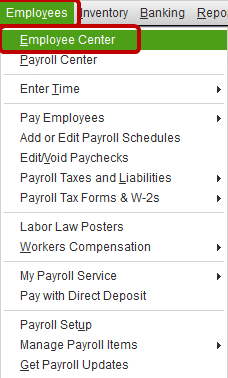
- Open the Employees menu.
- Click the Employee Center option.

- Click on the View dropdown menu.
- Press All Employees.
- Open each employee profile.
- Review the first, middle, and last name fields.
- Remove any special characters or blank spaces.
You won’t face the QuickBooks Payroll setup error again.
Resolve Payroll setup information for the following account…
To resolve the error message “Payroll setup information for the following account couldn’t be saved: [account name] (Exception from HRESULT:0x80040A03)” when you try to set up your bank account for e-pay and e-file for Payroll, first understand its causes:
- Your bank account’s tax-line mapping can be set to something other than Unassigned.
- Your bank account has special characters.
- or missing fields.
- In the Chart of Accounts, your bank account might be damaged.
- The Accountant changes might still be pending.
Now, let’s resolve each of the key triggers of this error.
Incorrect Tax-Line Mapping Setting
- First, open the Lists menu.
- Then, select Chart of Accounts.
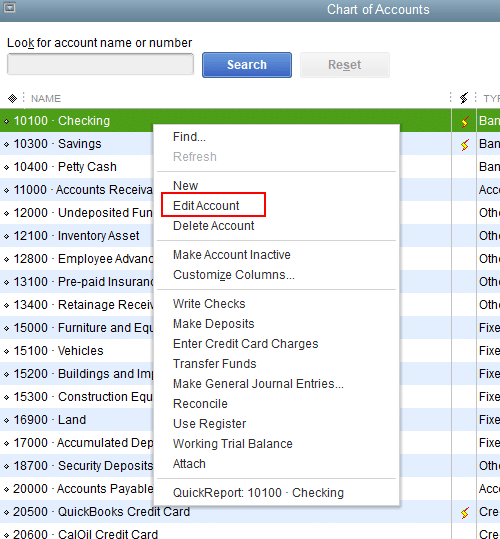
- Right-click the bank account.
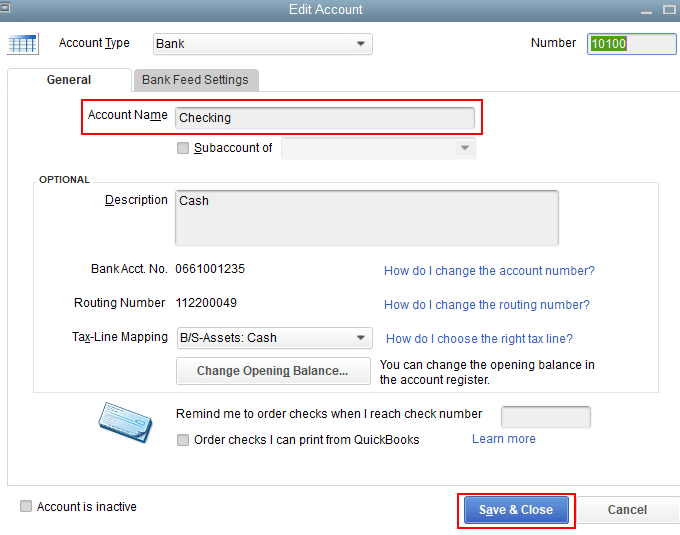
- Press Edit Account.

- Click on the Tax-Line Mapping dropdown menu.
- Select Unassigned.
- Press Save & Close.
- Now, set up the bank account again.
Now, the QuickBooks Payroll setup error won’t occur again.
Special Characters in the Online Banking Account
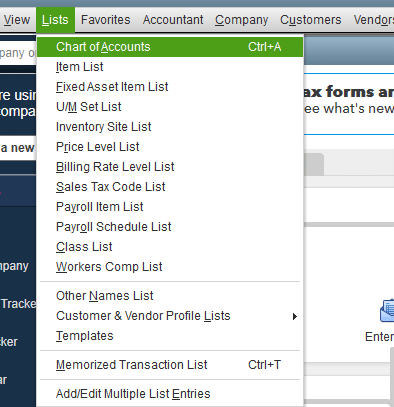
- Go to the Lists menu.
- Click on Chart of Accounts.

- Alternatively, press Ctrl + A.
- Right-click on the bank account.
- Hit the Edit Account option.
- Now, press the Bank Feed Settings tab.
- Then, verify the Account Customer ID.
- Remove any special characters not needed.
- Click on Save & Close.
- Now, use Payroll Setup to set up your bank account.
The Bank Account is Damaged
You can fix it in two ways; let’s discuss them both in order.
OPTION 1: Disable the Online Services and Enable Them Again
- Navigate to the Lists menu.
- Press Chart of Accounts.
- Right-click on the bank account.
- Press the Edit Account option.
- Open the Bank Feed Settings tab.

- Select Deactivate All Online Services.
- Hit Save & Close.
- A message would tell you that doing this doesn’t cancel the services with the bank.
- Click OK.
- Select Save and Close.
- Now, set up the bank account for e-file and e-pay.
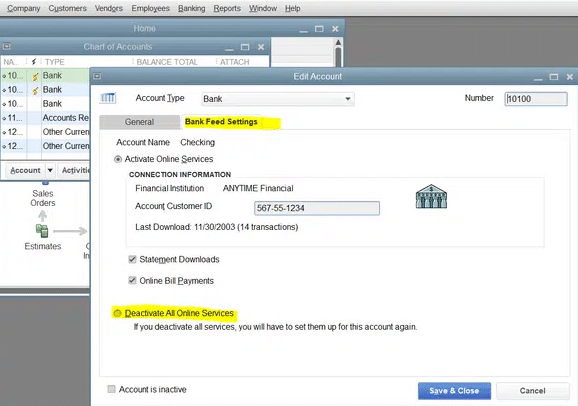
After the bank is set up, enable the online services again:
- Open the Chart of Accounts option again.
- Right-click the bank account and press Edit Account.

- Choose the Set Up Bank Feed option.
OPTION 2: Create a New Bank Account and Merge it With the Pre-Existing One
- Access the Lists menu.
- Select the Chart of Accounts option.
- You can press Ctrl + A to do the same
- Click on the Account dropdown menu.
- Click New.
- The Account Type window would open.
- Click on Blank, followed by Continue.
- Now, enter the bank account name.
- Should be different than the name on the original account.
- Press Save & Close.
- If the Set Up Bank Feed window pops up, select No.
- Now, go to the Chart of Accounts again.
- Right-click on the original bank account.
- Then, select Edit Account.
- Change its name to the name of the account you just created.
- Click on Save & Close.
- A message would appear – “This name is already being used. Would you like to merge them?”.
- Click on Yes.
- Now, rename it with the original account’s name.
- After merging.
- Set up the bank account for e-pay.
- and e-file.
Remove the Accountant’s Copy Restrictions
- Open the File menu in QB Desktop.
- Click on Send Company File.

- Press the Accountant’s copy option.
- Then, click on the Client Activities option.
- Now, press Remove Restrictions.
- Then, click on Yes, I want to remove the Accountant’s Copy restrictions.
- Lastly, press OK.
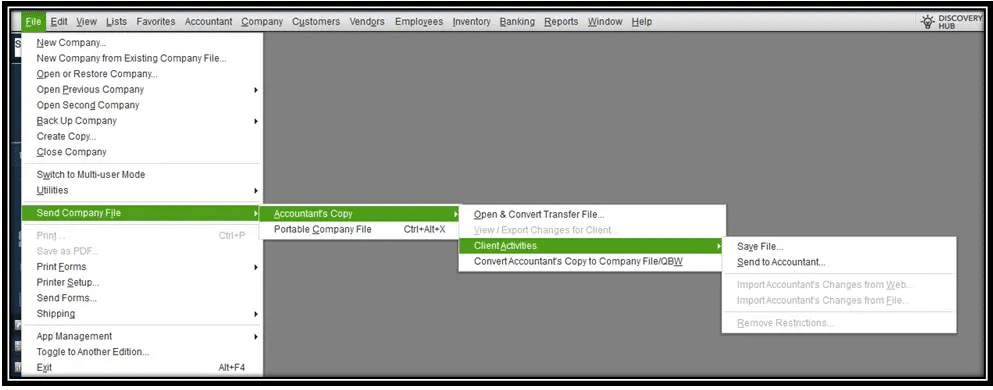
Performing these steps would eliminate the QuickBooks Payroll Setup Error.
QuickBooks Desktop to Online Payroll Setup Error
There are certain limitations when transferring from QBDT Payroll to QB Online Payroll. If you’re facing any setup errors, you should consider the multiple factors given below:
- The payroll data and history might not fully transfer in the migration process from QuickBooks Desktop to Online. This is especially true if you’re using older versions of QBDT or a non-standard payroll service.
- Due to this, payroll summaries and paycheck details might not appear automatically in QBO.
- The payroll data needs to be handled carefully, so it becomes necessary to manually verify and enter the payroll info, as the data is needed for tax compliance and much more.
- You should check every payroll field manually and verify if the info is correct before migrating.
- You should export payroll reports from QBDT and compare them with the QBO reports before migrating to verify any discrepancies.
- If any discrepancies are found, you should adjust the manual entries in QuickBooks Online to ensure that the info matches between QBDT and QBO.
These are some of the things you need to consider before migrating from QBDT Payroll to QBO Payroll. Failing to do so can result in the QuickBooks Payroll setup error, which can ultimately cause your work progress to come to a halt.
Troubleshooting General QuickBooks Payroll Setup Error
Some of the general methods through which you can fix the QB Payroll Setup error are given below:
Using Quick Fix My Program from QuickBooks Tool Hub
Fixing problems like activating QuickBooks Enhanced Payroll setup error can be done by using the Quick Fix My Program from the QB Tool Hub with the following steps:
- Open the QB Tool Hub.
- Navigate to the Program Problems tab.
- Click on Quick Fix My Program.

- Let the tool finish working.
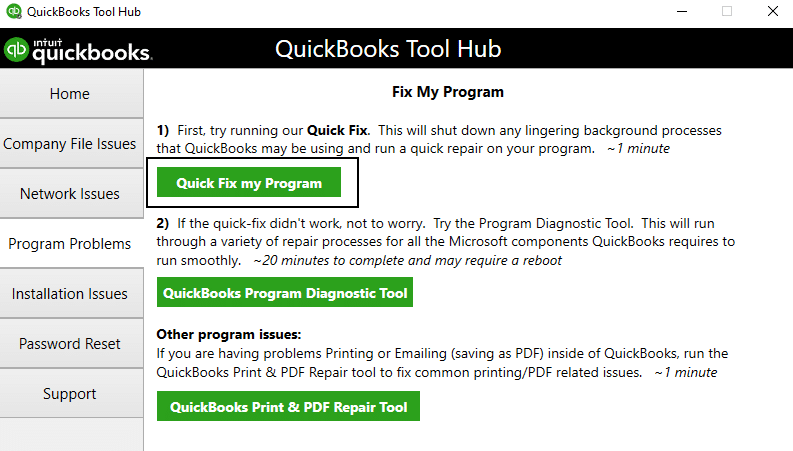
This would resolve any payroll setup errors you might be facing.
Using the QuickBooks Install Diagnostic Tool
You can fix the QuickBooks payroll setup error by using the QB install diagnostic tool with these steps:
- Run the QuickBooks Tool Hub.
- Navigate to the Installation Issues tab.
- Click on QuickBooks Installation Diagnostic Tool.

- Let the tool run
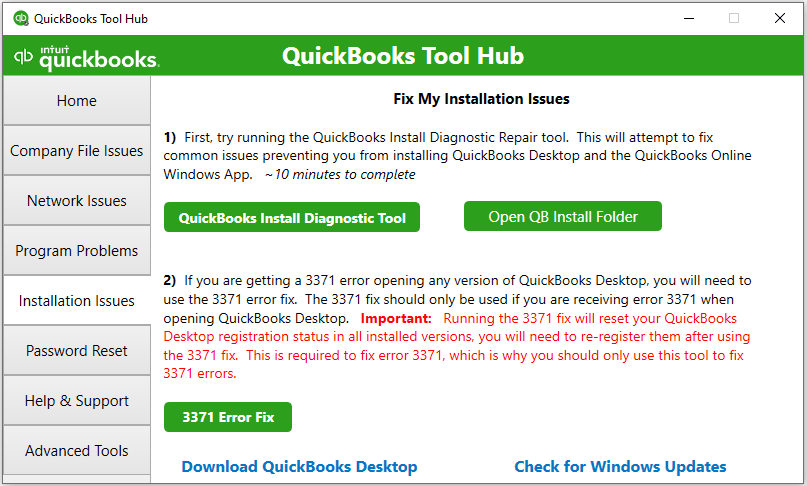
Now, the payroll setup error in QuickBooks has been resolved.
QuickBooks Payroll Setup Error – A Quick View Table
Presented in the table below is a quick summary of this blog on the topic of QuickBooks Payroll setup error and its solutions.
| Description | The QuickBooks payroll setup error occurs when a user is trying to set up payroll to perform critical tasks, such as sending paychecks and calculating taxes. |
| Types of errors | QuickBooks Payroll setup 2024 error, and QuickBooks Desktop to Online Payroll setup error. |
| Ways to fix it | Check the error message and resolve it accordingly, use Quick Fix My Program and QuickBooks Install Diagnostic Tool. |
Conclusion
In this blog, we discussed the QuickBooks Payroll setup error and why you might be facing it. Additionally, we provided you with a step-by-step guide you can use to resolve the problems with payroll setup you might be dealing with on your own.
If you need any further assistance with QuickBooks payroll, contact our Accounting Helpline’s professionals today at 1.855.738.2784. They will help you resolve the issue in no time.
FAQs
Why is my QuickBooks Payroll update not installing?
Your QuickBooks Payroll update not installing can be due to various factors, like a corrupted QB installation file, incorrect information in the paycheck, not updating with administrator rights, or having an invalid payroll service key.
How do I fix QuickBooks Desktop installation issues?
To fix QB Desktop installation errors, you can use the QuickBooks Install Diagnostic Tool from the QB Tool Hub to fix any inherent installation issues with your software.
How to fix the QuickBooks Payroll update error?
To fix the QuickBooks update error, you can adjust the date and time settings of your PC, check your internet connection, repair your QB program, make firewall exceptions, and use Quick Fix my Program from the QB Tool Hub.
Related Posts-
How to Set up Payroll in QuickBooks? An In-depth Guide
QuickBooks Multi-User Setup – Benefits, Precautions & Limitations
Effortless Fixes for QuickBooks Error PS077: Get Your Business Back on Track
How to Fix QuickBooks Error 20 While Printer Activation
How to Fix QuickBooks Error 1327: Invalid Drive Installation
How to Fix QuickBooks Error 2308 with Expert’s Advice

Edward Martin is a Technical Content Writer for our leading Accounting firm. He has over 10 years of experience in QuickBooks and Xero. He has also worked with Sage, FreshBooks, and many other software platforms. Edward’s passion for clarity, accuracy, and innovation is evident in his writing. He is well versed in how to simplify complex technical concepts and turn them into easy-to-understand content for our readers.