
Last Updated on September 12, 2025
You probably use QuickBooks to create reports like financial reports on a weekly, monthly, and yearly basis, and then you may need to know how to convert them into PDFs. The QuickBooks PDF converter is a tool that easily lets you share financial reports with people in PDF format, like Adobe Portable Document Format files. When you convert the QBO file to PDF, people will find it easier to read the reports without having to install QuickBooks on their system.
This tool is easy to use and can be downloaded and installed in a few easy steps. And you can learn to use it effectively with minimal effort. In this guide, we have covered all these topics with the aim of simplifying the QuickBooks PDF converter download for you.
Our specialists are just a call away for assistance to install the QuickBooks PDF converter. Reach out at 1.855.738.2784, and our Accounting Helpline’s experts will guide you.

Understanding the QuickBooks Desktop PDF Converter
In QB Desktop, you can use the QuickBooks PDF converter to convert your financial reports, transaction statements, balance sheets, pay stubs, and other documents into PDFs, making it a very useful and essential tool. By doing this, it will be a lot easier for others to access these reports without having to download or install QuickBooks Enterprise. Along with this tool, the QB print component assists in this conversion with its numerous features that are really beneficial to you.
Moreover, there is no need for you to perform a QuickBooks PDF converter download, as it is a built-in feature of the software and can be used without much hassle. But if there are issues with the PDF feature, then you might need to reinstall QuickBooks PDF converter. Or you may have to install it again to convert and share files with your clients.
What Benefits do you get by using QuickBooks PDF Converter?
In this section, we have listed out the key advantages you get by using the PDF converter for QuickBooks.
- It helps you share reports with clients and business partners in the QBO file to PDF format, so that they can see the reports without having to download the QuickBooks PDF converter.
- You can easily transform your financial reports, transaction statements, balance sheets, pay stubs, and other documents into PDFs to share with others.
- If you experience any issues while you print, save, or email the PDF file with the QuickBooks file converter, then the software can be updated easily through the application.
- As you install QuickBooks PDF converter, you will be able to download the Print Repair Tool & QBs PDF easily from the Intuit website without any hassle.
These are some of the significant benefits that you get with this tool. Furthermore, we will delve into how you can use the QuickBooks PDF converter on your computer with easy-to-follow steps.
Easy Method for Using the QuickBooks PDF Converter?
Now that you know what this tool is and what the advantages are that it offers to you, let’s go through the simple steps for using it. You can follow the process outlined below for converting a QBO file to PDF format.
- Launch the QuickBooks Enterprise.
- Select the reports or invoices to convert into PDF.
- Open the File menu from the top bar and click on Save as PDF.
- Then, specify the folder to save the PDF on your computer.
- Lastly, enter a name for the File, then finish with Save.
You can repeat this process for as many reports and invoices as you want. Now, we will walk you through the process of installing the QuickBooks PDF converter tool on your device in the following section.
Procedure To Perform the QuickBooks PDF Converter Installation
You can follow through this section to download the QuickBooks PDF converter and install it on your computer.
- Select the QB Desktop icon on the Windows home screen.
- Open the Properties window from the menu.
- Click on the Find Target button to find the location of the File.
- Choose the Install.exe or Install App to install the QuickBooks to PDF converter.
- When it is successfully installed, simply hit OK.
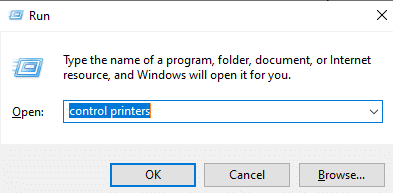
- Press the Windows and R keys at once to open the Run dialog box.
- Then, enter ‘control printers’ into the search bar and tap OK.

- This will take you to the Devices & Printers section in the Control Panel.
- Locate and select the Document Converter and hit Rename from the menu.
- Lastly, type QuickBooks PDF Converter and hit Enter.
Once you complete the above steps to install QuickBooks PDF converter, you can proceed to use it as per your needs. Furthermore, we will show you the steps for deleting this tool from your computer.
How to Uninstall QuickBooks Desktop PDF Converter?
You might come across unexpected errors and problems in cases where you are using the PDF converter for QuickBooks. To remove these problems, you may refer to the steps provided below to delete the QB PDF converter tool from your system.
- Firstly, open Windows as an Administrator.

- Press the Windows and R keys to open the Run box.
- Type ‘control printers’ in the search bar and press OK.
- The Control Panel will be open, and you will see the Devices & Printers window.
- Next, follow the instructions above and go to the Devices & Printers window.
- Find and right-click on the QuickBooks PDF converter there.
- Click Delete on the menu and then complete with OK.
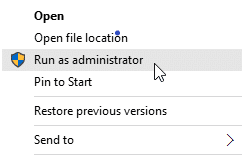
After successfully uninstalling it, you can install QuickBooks PDF converter once more and check whether you have any problems or not. Continue to the next section to get more information about the reinstallation process.
Why do you need to reinstall QuickBooks PDF Converter?
As we had mentioned before, some underlying errors within the tool may lead to it not working properly. When this happens, you are forced to delete the tool from your computer to get rid of the issues and problems along with it. Once you do that, you can then install QuickBooks PDF converter again, without the same issues happening.
Moreover, the QuickBooks to PDF converter works as an integrated tool, which means that it can convert a number of QB formats into Adobe Portable Document Format. The reports that you generate with this tool are a lot easier to share. These can be easily accessed by people who do not have QB Enterprise installed on their systems. Now, you can check out the following section to learn the importance of reinstallation.
What are the Advantages of Reinstalling the QuickBooks PDF Converter?
Read through the following lists of benefits that you can get by reinstalling the QB PDF converter.
- You will have enhanced shared access with the associates of your company for all the financial reports, transaction statements, balance sheets, pay stubs, and other documents.
- After you convert the QBO file to PDF, you can email the PDFs to your associates as well as the clients.
- The PDFs can also be uploaded to the Intranet, Web browser, or a Computer server, which can be accessed by others freely.
- The generated PDF file is highly compatible with numerous platforms, preventing any issue from opening the file, and it can be opened through apps like PDF-XChange Viewer, Adobe Reader, Foxit Reader, or Perfect PDF Reader.
- If you reinstall QuickBooks PDF converter, then it allows for an efficient way of sharing the data, which helps to make well-informed decisions so that the business can focus on boosting profits.
With the points given above, you should now understand how beneficial it is to reinstall the QuickBooks PDF converter. Now, let’s proceed to the following section to learn the steps for reinstalling it.
Simple Steps to Reinstall QuickBooks PDF Converter
After you have successfully deleted the tool from your system, you can then proceed to reinstall it. Refer to the outlined steps for reinstalling QB PDF Converter.
- Open your Windows system as an administrator.
- Head to the Devices & Printers section in the Control Panel.
- The Control Panel will open, and you will see the Devices & Printers window.
- There, locate and right-click on QuickBooks PDF Converter.
- Choose Delete from the opened menu to uninstall it.
- Now, click on the QuickBooks icon on the home page.
- Head to the Properties section and choose Find Target.
- Then, navigate to the Windows Explorer and tap Install Application or Install.exe file.
- Commence the installation and setup process. Once done, hit OK.
- Then open the Windows Start menu or press Windows + R keys to open the Run dialog box.
- Enter ‘control printers’ in the search bar and tap OK.
- You will be directed to the Devices & Printers page in the Control Panel.
- There you find the Amyuni Document Converter.
- Open its menu and tap Rename, then change it to QuickBooks PDF Converter.
- QuickBooks 2006-2009 R8: QuickBooks PDF converter
- QuickBooks 2009 R9 and later: PDF converter 3.0
- QuickBooks 2010 R1 and R2: PDF converter 2.0 QuickBooks
- Ensure that you have entered the name correctly, then save it.
- Then, for the default printer, choose NO and press Next.
- Under the Do not share this printer option, tap the Next option.
- Lastly, on the print a test page window, click NO and finish by tapping Next.
Once you complete this procedure, the reinstallation of the tool will be done. If you find the QuickBooks PDF converter not working, then we will help you fix it.
What to do When You Find The QuickBooks PDF Converter Not Working
Sometimes, underlying errors and issues may lead to the problem of the QuickBooks PDF converter not working, but don’t worry. In this section, we have listed the top troubleshooting methods for when this issue occurs. Go through each process one by one to resolve this issue in QB Desktop and get your work back on track.
Method 1: Launch the QuickBooks Print & PDF Repair Tool
The PDF & print repair tool in QB Enterprise is an in-built utility that can be used to repair any PDF and printing-related issues. You can follow the given steps to run this tool for resolving the problems with the QuickBooks PDF converter.
- Firstly, close all the windows for the QuickBooks application.
- Download and install the QuickBooks Tool Hub.

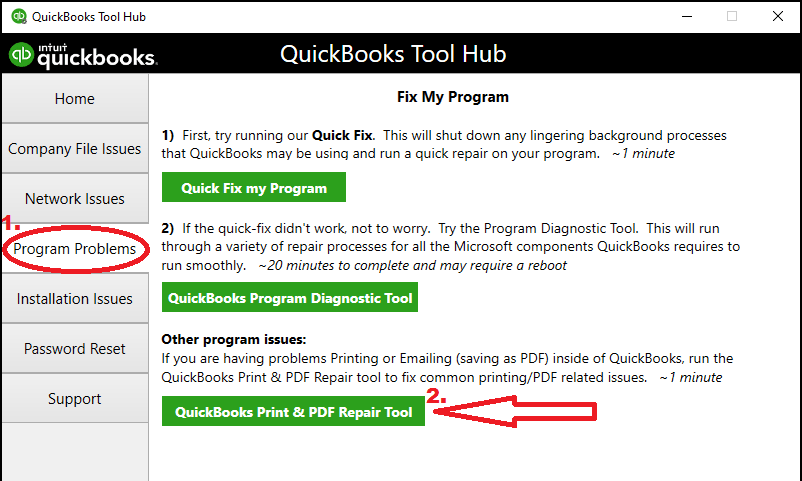
- Head to the Program Problems section, as shown below.
- Locate and select the QuickBooks PDF & Print Repair Tool button.

- The tool will start to run a scan and repair any issues.
- When the process is over, you can open the PDFs.

After you have completed this process, you will have to reboot your system. Did the QuickBooks PDF converter not working issue not get resolved even after this? Then, you can change the permissions for the temp folder with the following method.
Method 2: Reset the Temp Folder Permissions
It’s possible that the issue with the PDF converter for QuickBooks may be occurring due to temp folder permissions. Follow the procedure given below to review and reset the temp folder permissions.
- Press the Windows + R keys to open the Run window.
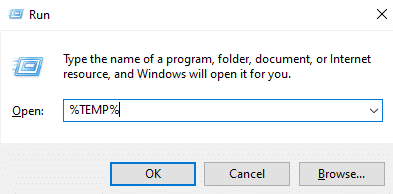
- Enter ‘%TEMP%’ in the search box and tap OK.

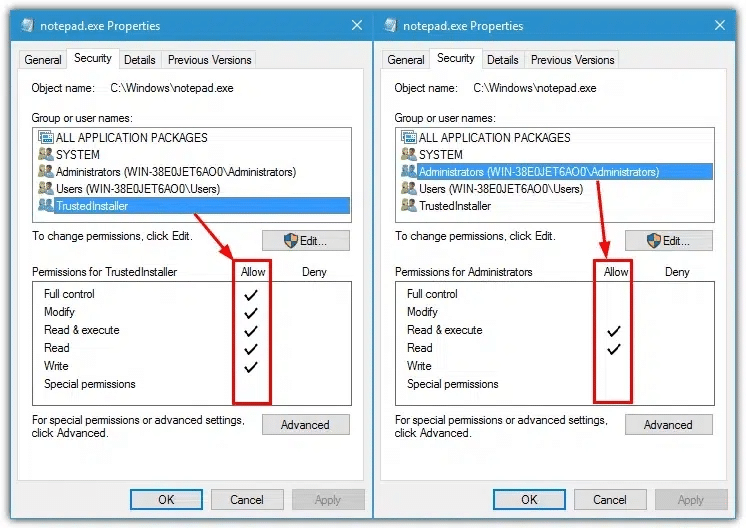
- Right-click anywhere on the temp folder and head to the Properties section from the menu.
- Then, open the Security tab from the top bar.
- Tick the ‘Full control’ option for all the users and groups.


- Lastly, go to QB Desktop and try the Save as PDF button.
Once done, you shouldn’t face the QuickBooks PDF converter not working issue again. If you do, then proceed to the following method to verify whether the XPS document is working correctly.
Method 3: Verifying the Microsoft XPS Document Writer
If your Microsoft XPS Document Writer is not working properly, then you might not be able to print documents properly, as it is used by QB Enterprise to save as a PDF. Firstly, you have to verify whether the XPS document is working with outlined steps so that QuickBooks can print and save PDFs.
- Open the Windows Start menu and enter ‘Notepad’ in the search bar.
- Launch Notepad and type anything in there.
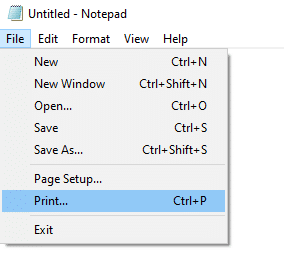
- Then, click on the File menu on the top bar and choose ‘Print…’.

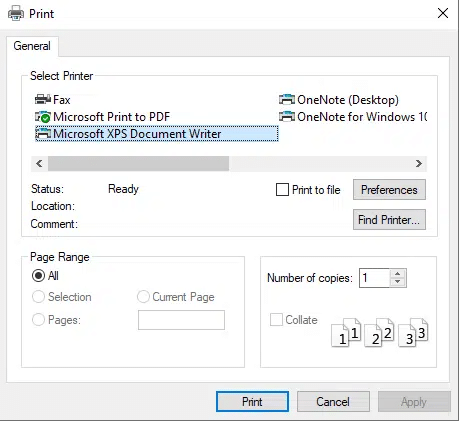
- Then, the Print window will appear on your screen.
- Choose the Microsoft XPS Document Writer under the Select Printer section.

- Click on the Print button, as shown above.
- You’ll be asked to name your file before saving it on the computer.
- Then, open File Explorer and locate the Document Printed from Notepad.
Try to make prints of files other than QuickBooks to confirm whether the printer is working properly. If the QuickBooks PDF converter not working issue persists, then you might need to reinstall the Microsoft XPS Document Writer.
Method 4: Reinstall the Microsoft XPS Document Writer
If you find that the issue is happening with the XPS document writer itself, then it’s best to reinstall the software to get rid of such errors.
- Be sure to check the XPS document writer with another application, except QuickBooks Enterprise.
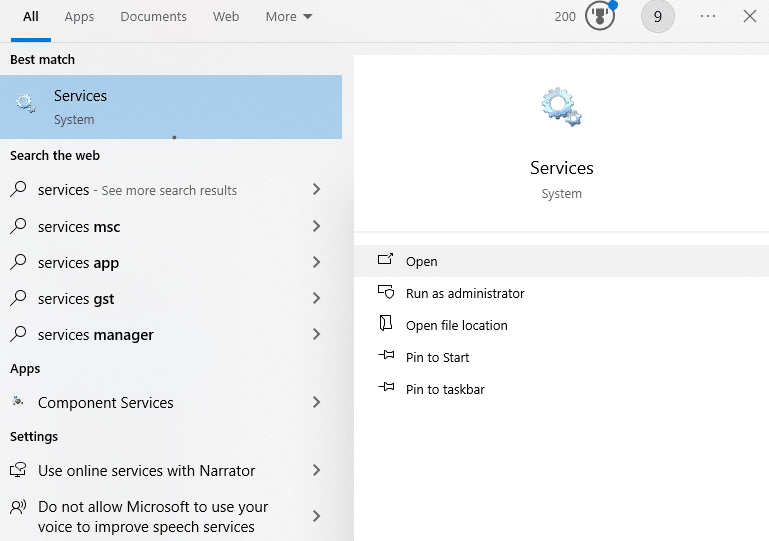
- Click on the search box in the taskbar and enter ‘Services’.

- Open Services in the system and locate the XPS services in the list.
- Review whether it is running or not in the Status column.
- If it causes errors even though the service is running, then reinstall it.
- Set up the Windows user permissions for the Microsoft XPS document writer.
- Modify the security software settings for the application.
- You may also install and repair the MSXML 6.0.
Once you are done with the process above, go ahead and make a new template for the form to avoid the print spooler. If the QuickBooks PDF converter not working issue continues, then you should change the antivirus settings with the next method to prevent any disruption to the software.
Method 5: Configure the Antivirus Settings
A lot of times, the antivirus software causes disruptions with the other programs on your system and leads to a hindrance in their performance. In order to get the QuickBooks to PDF converter back on track, you may have to configure the antivirus settings or delete antivirus software entirely.
Now, we hope that you understood the procedures and methods that are listed above. You can perform these resolutions in the given order to prevent any issues and resolve the QuickBooks PDF converter missing or not working problem seamlessly.
Quickview Table for QuickBooks PDF Converter
Tabulated below is a summary of the QuickBooks Desktop PDF converter, which lets you turn financial reports, transaction statements, balance sheets, pay stubs, and other documents into PDFs.
| What is a QuickBooks PDF converter? | Reports can be shared with clients and partners in PDF format, which makes it easier for them to view it without installing QB Enterprise. You can choose any type of document and convert it into a PDF; moreover, you can email the PDF easily. |
| Its benefits | Reports can be shared with clients and partners in PDF format, which makes it easier for them to view them without installing QB Enterprise. You can choose any type of document and convert it into a PDF; moreover, you can email the PDF easily. |
| Troubleshooting Methods | Use the QuickBooks Print and PDF Repair tool, reconfigure the Temp Folder permissions, ensure the Microsoft XPS document writer is active, reinstall the XPS document, readjust the Antivirus settings, and reinstall the QuickBooks PDF converter. |
| Tools required | QuickBooks Print & PDF Repair Tool |
Bringing It All Together
The QuickBooks PDF Converter is an in-built utility in the QB programs that can be used to convert documents of various types into PDFs. The tool can help in converting financial reports, transaction statements, balance sheets, and pay stubs into PDFs. By doing so, it will be easier to share these reports with clients and business partners, so that they can open them without having to install the QB Enterprise or log into the QuickBooks Online. Additionally, we have covered a number of resolutions for when you run into the QuickBooks PDF converter missing or not working issue.
Although it is simple to perform these methods, some errors can occur as well. Therefore, you can connect with our Accounting Helpline’s specialists. You may reach out at 1.855.738.2784 to get guidance from us.
Frequently Asked Questions (FAQs)
How to export invoices from QuickBooks to PDF?
If you want to export the invoices from QuickBooks to PDF, then navigate to an invoice and open it. Click on the more icon and choose the Print or Preview button, then tap on the Download icon on the opened tab. In case you are trying to export more than one invoice, then click on the Sales menu from the top bar on the QB home screen. The Invoices option will be there, and you will need to tick the checkboxes of the invoices that you wish to export. Next, choose the Batch actions drop-down and select the Print Invoices option. It will open the preview window, and you can use the Download icon, and the invoices will be stored as a single PDF.
How do I fix a QuickBooks PDF converter?
In order to troubleshoot the QuickBooks PDF converter, you can try various resolutions that have proven to work. Some of these solutions include downloading the QB tool hub to run the QuickBooks Print & PDF Repair tool, or resetting the permissions for the Temp Folder on Windows. Moreover, you should confirm the Microsoft XPS document writer status in the system Services. If all else fails, then you might need to reinstall the XPS document or the QB PDF Converter, and also configure or delete Antivirus software.
How do I install QuickBooks PDF converter?
If you are looking to install QuickBooks PDF converter, then we have covered it for you in just 5 steps that you can follow:
– Open the Properties window for QB Desktop and head to Find Target.
– Find the location of the File, then click on Install.exe or Install App to install QB PDF converter.
– Open the Run dialog box and enter ‘control printers’ to go to the Devices & Printers window.
– You will see the Document Converter there, right-click, and select Rename from the menu.
– Type ‘QuickBooks PDF Converter’ for the name and then hit Enter.
How to convert a QuickBooks file to PDF?
If you want to convert a QuickBooks file to PDF, then first open the file or report for converting on QB Desktop. Expand the File menu from the top bar and click on the Save as PDF option. To convert the file from QBO to PDF, follow the same steps till the File menu. After that, you will find the Print option in the menu, which will open the print window. There, you will find the Download icon, which will save the file as a PDF on your device with a name that you enter and to the location you choose.
Related Posts-
QuickBooks Error 12152: Expert Tips and Solutions
How to Fix QuickBooks Error 6147 with Effective Methods
How to Transfer QuickBooks License to New Computer?
QuickBooks Cannot Communicate with the Company File [SOLVED]
Fix QuickBooks Error 1722 With Expert Tips and Solutions

Edward Martin is a Technical Content Writer for our leading Accounting firm. He has over 10 years of experience in QuickBooks and Xero. He has also worked with Sage, FreshBooks, and many other software platforms. Edward’s passion for clarity, accuracy, and innovation is evident in his writing. He is well versed in how to simplify complex technical concepts and turn them into easy-to-understand content for our readers.