

Last Updated on February 24, 2026
The QuickBooks Outlook is not responding error is an email error that can appear on your screen and render you unable to email invoices, bills, etc. via the QB Desktop application. It usually occurs due to conflicts from outdated versions or settings. This can hamper your workflow and have a negative impact on your important accounting and bookkeeping processes. You can use the Quick Fix My Program tool from the QB Tool Hub to resolve this problem. We’ll cover the methods you need to troubleshoot the error if your Outlook is not responding in QuickBooks in this blog. First, let’s see the causes of the QuickBooks error message Outlook is not responding.
Is your Outlook not working with your QuickBooks Desktop application? Feel free to contact our Accounting Helpline’s experts at 1.855.738.2784 today to resolve your issue in no time!

Reasons Why Outlook Freezes When Sending Emails from QuickBooks
Given below are the potential factors that can trigger the issue of QuickBooks Outlook Not Responding to appear on your screen:
- An incorrectly installed QB Desktop application.
- Installation issues, such as a damaged installation, can also cause this problem.
- The QB Desktop email settings or preferences might be incorrect.
- The MAPI file might be damaged or corrupted.
- Program problems with the QB Desktop application.
- Not logging into Windows as an admin can also cause this issue.
These are the causes of the QuickBooks Outlook is not responding error.
Methods to Resolve the QuickBooks Sending Email through Outlook is not Responding Issue
The methods you can use to troubleshoot the problem of the QuickBooks Outlook is not responding are given below:
Use Quick Fix My Program
You can use the Quick Fix My Program tool from the QB Tool Hub if Outlook is not responding in QuickBooks with the steps given below:
- Download and install the QuickBooks Tool Hub.

- Open the QB Tool Hub app.
- Navigate to the Program Problems tab.
- Click on Quick Fix My Program.

- Let the tool run.

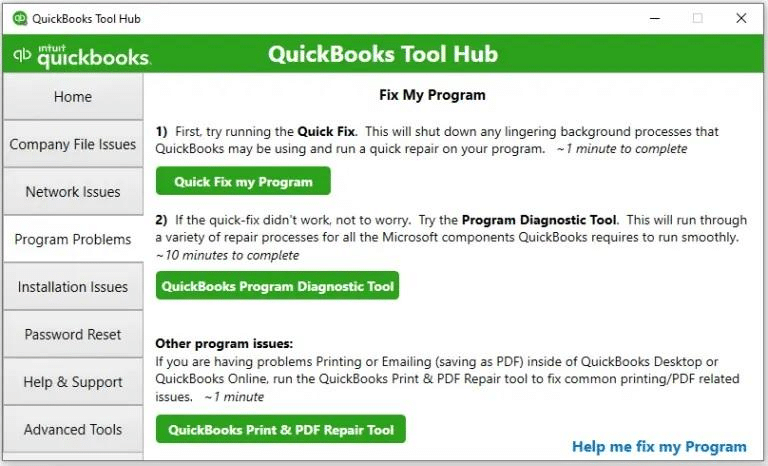
This should fix the issue you were dealing with.
Utilize the QB Install Diagnostic Tool
The QB Install Diagnostic Tool can be used from the QB Tool Hub to fix the issue if Outlook is not responding when trying to send from QuickBooks , with the steps given below:
- Open the QB Tool Hub app.
- Navigate to the Installation Issues tab.
- Click on the QuickBooks Install Diagnostic Tool.

- Let the tool run.
- It can take up to 20 minutes to finish working.
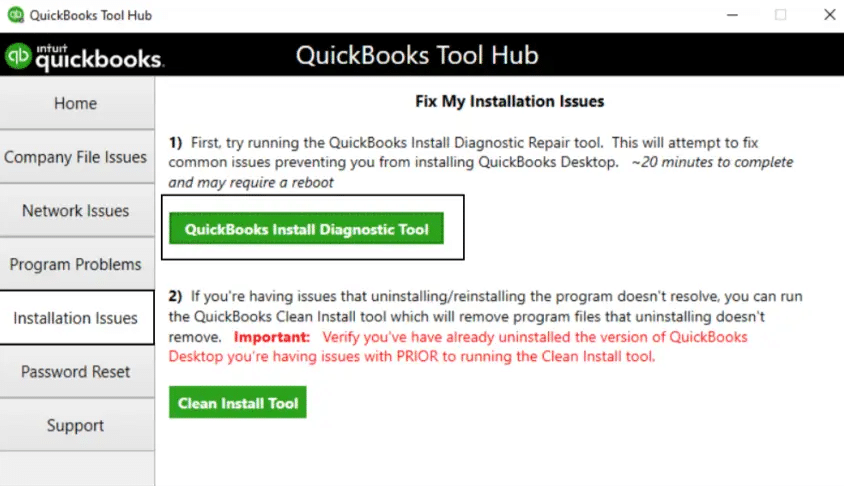
This would resolve the issue you were encountering.
Verify & Rebuild the Company File Data
A damaged company file can be the reason why your QB Outlook is not responding. You can verify and rebuild your company file data to fix it with the steps given below:
- Open the QB Desktop app.
- Navigate to the File menu.
- Click on Utilities.
- Select Verify Data.

- Then, go to the File menu again.
- Select Utilities.
- Click on the Rebuild Data option.

- QB will ask to create a backup before rebuilding your company file.
- Hit OK.
- A backup is required to rebuild your company file data.
- Choose where the backup would be saved.
- Press OK.
- Ensure not to replace an existing backup file.
- Enter a unique name in the File name field.
- Hit Save
- You will get a message stating that “Rebuild has completed”.
- Click on OK.

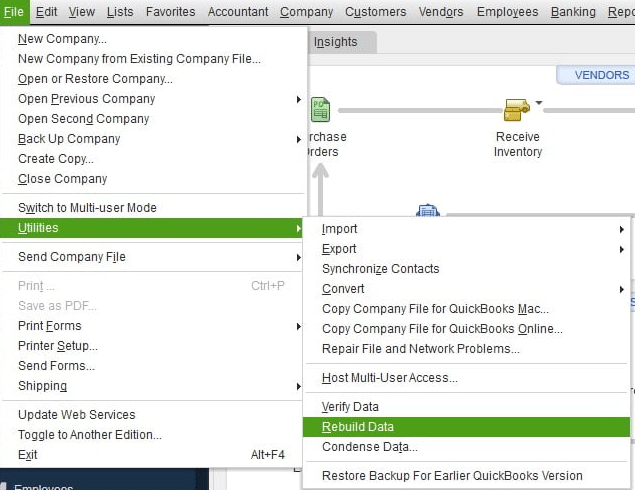
Now, the issue would be patched.
Make Sure QB is Set to Run as Admin
You can set your QB Desktop application to always run as admin if QuickBooks 2019 Outlook is not responding with the steps given below:
- Right-click on the QB Desktop icon.
- Click on the Properties option.
- Navigate to the Compatibility tab.
- Mark the “Run this Program as Administrator” checkbox.

- If the option is already marked, leave it like that.
- Press Apply.
- Hit OK.
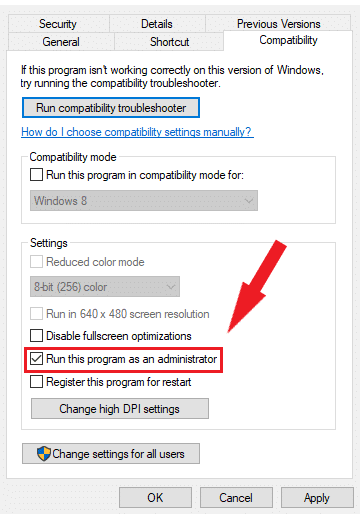
This would resolve the problem.
Try Sending Mails Via Webmail in QuickBooks
If you are unable to send emails via Outlook in QB Desktop, you can send them using Webmail with the steps given below:
- Open the QB Desktop app.
- Navigate to the Edit menu.
- Click on the Preferences option from the list.
- Select Send forms.
- Navigate to the My Preferences tab.
- Move to the send email section.
- Choose the webmail provider.
- Select the service you want to use.
- Click on Add.
- Fill in all the details.
- Add the email account.
- Click on OK.
- Press OK again.
- This would change the preferences.
You should now be able send mails via QB Desktop again.
QuickBooks Outlook is Not Responding – A Quick View Table
In the table below is given a concise summary of this blog on the topic of the QB Outlook not responding:
| Description | The QuickBooks Outlook is not responding error is an email error that can appear on your screen, preventing you from emailing invoices, bills, etc. via the QB Desktop application. It usually occurs due to conflicts from outdated versions or settings. This can hamper your workflow and negatively impact your critical accounting and bookkeeping processes. You can use the Quick Fix My Program tool from the QB Tool Hub to resolve this problem. |
| Its causes | 1. An incorrectly installed QB Desktop application. 2. Installation issues, such as a damaged installation, can also cause this problem. 3. The QB Desktop email settings or preferences might be incorrect. 4. The MAPI file might be damaged or corrupted. 5. Program problems with the QB Desktop application. 6. Not logging into Windows as an admin can also cause this issue. 7. A damaged QB Desktop company data file. |
| Ways to fix it | Use Quick Fix My Program, use the QB Install Diagnostic Tool, verify and rebuild the company file data, ensure that QB is set to run as admin, and try sending mails via webmail. |
Conclusion
The QuickBooks Outlook is not responding error is an email error that can appear on your screen, preventing you from emailing invoices, bills, etc. via the QB Desktop application. It usually occurs due to conflicts from outdated versions or settings. This can hamper your workflow and negatively impact your critical accounting and bookkeeping processes. You can use the Quick Fix My Program tool from the QB Tool Hub to resolve this problem. We have covered the potential factors that can trigger this issue to appear on your screen, along with the methods you need to know to troubleshoot it, in this blog.
If you are somehow still facing the problem and are unable to send emails in QuickBooks via Outlook, feel free to contact our Accounting Helpline’s experts at 1.855.738.2784 today, who can resolve your issue at a moment’s notice!
FAQs
Why is my QuickBooks Outlook not responding?
Your QuickBooks Outlook might not be responding due to these reasons:
– An incorrectly installed QB Desktop application.
– Installation issues, such as a damaged installation, can also cause this problem.
– The QB Desktop email settings or preferences might be incorrect.
– The MAPI file might be damaged or corrupted.
– Program problems with the QB Desktop application.
– Not logging into Windows as an admin can also cause this issue.
– A damaged QB Desktop company data file.
How do I fix the issue of QB Outlook not responding?
You can fix the issue of QB Outlook not responding with these methods:
– Use Quick Fix My Program.
– Use the QB Install Diagnostic Tool.
– Verify and rebuild the company file data.
– Ensure that QB is set to run as admin.
– Try sending emails via webmail.
Related Posts-
QuickBooks Connection Has Been Lost: Restoration Tips and Tricks
QuickBooks Error H101 | 8 Proven Methods to Resolve It
QuickBooks File Doctor Not Working! Here’s What to Do
How To Fix QuickBooks Error PS038? Easiest Method
QuickBooks File Doctor Tool – Fix Network and Company File Error
QuickBooks Subscription Has Lapsed: Learn How to Counter It

Edward Martin is a Technical Content Writer for our leading Accounting firm. He has over 10 years of experience in QuickBooks and Xero. He has also worked with Sage, FreshBooks, and many other software platforms. Edward’s passion for clarity, accuracy, and innovation is evident in his writing. He is well versed in how to simplify complex technical concepts and turn them into easy-to-understand content for our readers.