
Last Updated on September 26, 2025
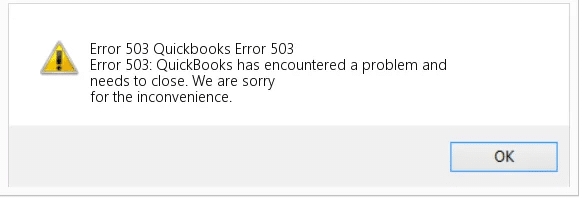
The QuickBooks error 503 is a software error that usually occurs due to the settings of your Windows operating system being incorrect. This can hamper your workflow and important business processes. It comes with an error message stating “Error 503: QuickBooks has encountered a problem and needs to close. We are sorry for the inconvenience.” This can make your QB application crash over and over again. In this blog, we’ll cover the in-depth troubleshooting methods to resolve the 503 error code in QuickBooks Desktop.
Are you unable to open the QuickBooks Desktop app due to the 503 error? Contact our Accounting Helpline’s experts at 1.855.738.2784 to resolve your problem today in no time!

Potential Factors that Can Trigger the QuickBooks Error Code 503
Given below is the list of causes due to which you might be seeing the QuickBooks error 503 on your screen:
- Incorrect settings of the Windows operating system.
- An outdated MS Windows OS.
- Problems with the Windows Registry can also cause it.
- An outdated QuickBooks Desktop application.
- Compatibility issues between QBDT and Windows OS.
- An improper installation of QB Desktop.
- Outdated drivers of the Windows operating system.
Now that we know about the causes of QB error 503, let us look at the methods to troubleshoot it.
Troubleshooting Methods to Fix QuickBooks Error Code 503
Given below are the troubleshooting methods you can use to fix the error code 503 in QuickBooks Desktop:
Use the QuickBooks Install Diagnostic Tool
You can use the QuickBooks Install Diagnostic Tool from the QB Tool Hub to resolve the error code 503 in QBDT with the following steps:
- Download and install the QuickBooks Tool Hub.

- Open the Tool Hub application.
- Navigate to the Installation Issues tab.
- Click on QuickBooks Install Diagnostic Tool.

- Let the tool finish its work process.

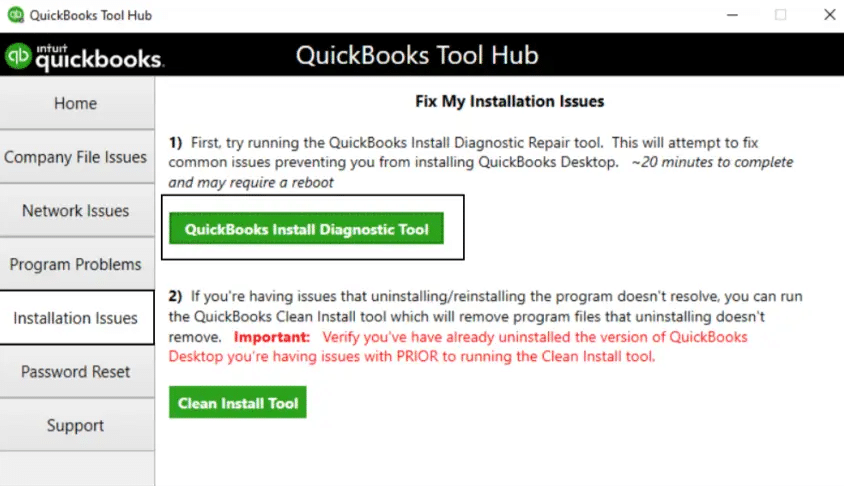
This would resolve the error 503 in QuickBooks Desktop.
Utilize Quick Fix My Program
You can utilize Quick Fix My Program to fix the error 503 from the QB Tool Hub with these steps:
- Open the QB Tool Hub app.
- Go to the Program Problems tab.
- Select the Quick Fix My Program option.

- Let the tool run.
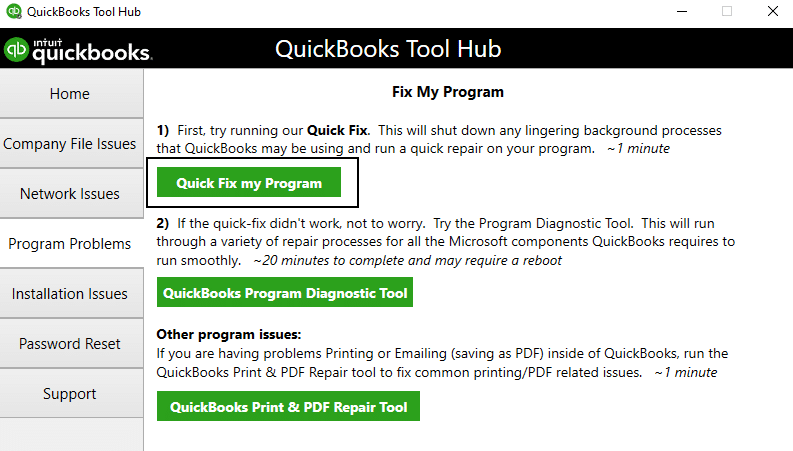
You would now be able to work on your QB Desktop app without any issues.
Repair the QuickBooks Desktop App from the Control Panel
You can repair the QB Desktop application from the control panel to resolve QuickBooks error 503 with the following steps:
- Open the Start menu on your PC.
- Search for the Control Panel.
- Then, open the Control Panel.
- Click on Uninstall a Program.

- Now, choose QuickBooks from the list of programs you see.
- Select Uninstall/Change.

- Press Continue.
- Click on Next.
- Now, select Repair and hit Next.
- Follow the guide on your screen to repair the program.
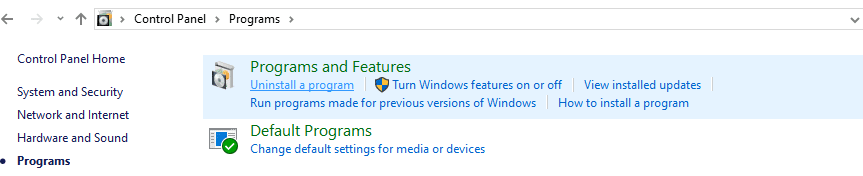
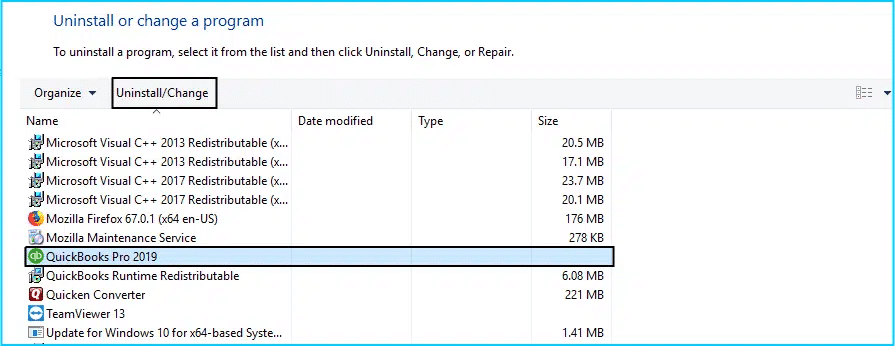
Now, the QB error code 503 would be resolved.
Verify and Rebuild the Company Data
You can verify and rebuild your QB company file data to fix the QuickBooks error 503 with the following steps:
- Go to the Window and press Close All.
- Now, navigate to the File menu.
- Click on the Utilities option.
- Press the Verify Data option.

- Now, open the File menu again.
- Select Utilities.
- Then, press Rebuild Data.

- QuickBooks would ask to make a backup file before rebuilding your data.
- Select OK.
- A backup file is required for rebuilding the data.
- Now, choose where the backup file would be saved.
- Press OK.
- Do not replace an existing backup file.
- Enter a new name in the File name field.
- Select Save.
- When you see the Rebuild has completed message, press OK.

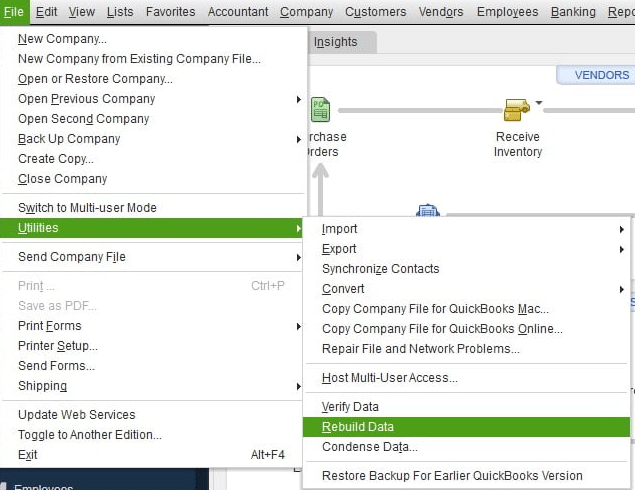
This would verify and rebuild your company data.
Rename the QBWUSER.ini File
You can change the name of the QBWUSER.ini file to patch the 503 error code in QuickBooks with the following steps:
- Open the folder containing the QBWUSER.ini file:
- The location is Users[Your user name]AppDataLocalIntuitQuickBooks [year].
- Right-click on the QBWUSER.ini file.
- Press Rename.
- Now, add .old at the end of the file name:
- It should look like QBWUSER.ini.old.
- Save it.
Now, you would be able to open the QB Desktop app.
Update the QuickBooks Desktop Software
An outdated QB Desktop software can also cause the QuickBooks error 503 to appear on your screen. To resolve it, update your QuickBooks Desktop application to the latest released version. This would also fix any other issues you might be facing with the QBDT software.
Clean Install the QuickBooks Desktop App
You might have to clean install the QB Desktop app to troubleshoot the QuickBooks error 503 with the following steps:
Uninstall the QB Desktop Application
- Open the Control Panel on your PC.
- Select Uninstall a Program under the Programs and Features section.
- Now, select QuickBooks from the list of programs you see.
- Then, press Uninstall/Change.
- Select Remove and hit Next:
- If this option isn’t visible, sign in to Windows as an admin user
Rename QB Installation Folders
- Open the Start menu.
- Search for the File Explorer.
- Then, open the File Explorer.
- Find and open the folder containing your company files.
- The folder is usually in one of these four locations:
- C:\ProgramData\Intuit\QuickBooks (year)
- C:\Users\(current user)\AppData\Local\Intuit\QuickBooks (year)
- C:\Program Files\Intuit\QuickBooks (year)
- 64-bit version C:\Program Files (x86)\Intuit\QuickBooks (year)
- Right-click on the folder.
- Select Rename.
- Add the word old at the end of the folder name.
If you see errors while renaming the installation folders of the QBDT app, perform these steps:
- Right-click on the Taskbar.
- Choose the Task Manager option.
- Navigate to the Processes tab.

- Select the Name column header:
- It would sort the list name-wise.
- Select the following processes from the list:
- QBDBMgrN.exe
- QBDBMgr.exe
- QBCFMonitorService.exe
- Qbw32.exe
- Now, press End Process for each of these tasks.
- If you see the message stating “WARNING: Terminating a process can cause undesired results…”, press Yes.
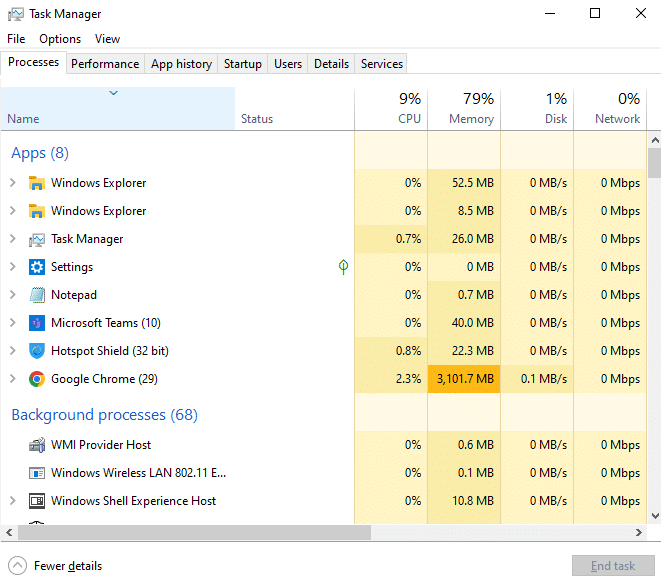
Install QuickBooks Desktop Again
- Open the QuickBooks setup file.
- Now, choose between the two options:
- Express Install
- Custom and Network Options
- Press Next.
- Hit Install.
Performing these steps would clean install the QB Desktop app on your PC. If you need to install QuickBooks Desktop on a server, you can check our comprehensive guide on it.
Reinstall the Microsoft Visual C++
To reinstall the Microsoft Visual C++ in order to get rid of the QuickBooks code 503, follow these steps:
Uninstall Microsoft Visual C++
- Close all open programs and applications.
- Open the Start menu.
- Search for and open the Control Panel.
- Select Microsoft Visual C++ (for your version of QuickBooks) from the list of programs you see:
- QuickBooks Desktop Pro, Premier, and Enterprise use Microsoft Visual C++ 2008 Redistributable.
- Select Uninstall.
- Follow the guide on your screen to uninstall it.
Reinstall Microsoft Visual C++
If you use a CD to install QuickBooks:
- Insert the QB CD in your CD drive.
- If the QuickBooks installation window opens, close the window.
- Open the File Explorer on your PC.
- Now, navigate to E:\ThirdParty\CRT9 or E:\ThirdParty\CRT8:
- E: represents your CD drive letter
- Then, double-click on vc_red.msi or vcredist_x86.exe.
- Follow the guide on your screen to install Visual C++.
If you didn’t use a CD to install QB, download Visual C++ from Microsoft’s official website. This would fix the QuickBooks error code 503.
QuickBooks Error 503 – A Quick View Table
Given in the table below is a short summary of this blog on the topic of the QuickBooks error code 503:
| Description | The QuickBooks error 503 is an application error that can cause your QBDT app to crash unexpectedly. This can hamper your workflow and important business processes. |
| Its causes | Incorrect settings of the Windows OS, an outdated Windows operating system, issues with the Windows registry, outdated QB Desktop application, installation issues with the QBDT app, and outdated Windows os drivers. |
| Ways to fix it | Utilize the QuickBooks Install Diagnostic Tool, use Quick Fix My Program, repair the QBDT app, verify and rebuild the QB company file data, change the name of the QBWUSER.ini file, update the QB Desktop app, clean install QBDT, and reinstall Microsoft Visual C++. |
Conclusion
In this blog, we talked about the QuickBooks error 503 along with the factors that can cause it to pop up on your computer screen. Additionally, we provided you with the in-depth step-by-step troubleshooting methods you can use to resolve this error on your own. If you are still at bay with the same issue, contact our Accounting Helpline’s experts at 1.855.738.2784 to fix your problem today on a moment’s notice!
FAQs
How can I fix the QuickBooks error code 503?
You can fix the QBDT error code 503 with the methods given below:
– Update the QB Desktop app.
– Use Quick Fix My Program.
– Utilize the QuickBooks Install Diagnostic Tool.
– Reinstall Microsoft Visual C++.
– Clean install QB Desktop.
– Rename the QBWUSER.ini file.
– Verify and rebuild the QB company file data.
– Repair QBDT from the Control Panel.
Why am I seeing the QuickBooks error 503?
You might be seeing the QuickBooks error 503 due to these reasons:
– An outdated QB Desktop application.
– Installation issues with the QBDT app.
– An outdated Windows OS.
– Problems with the Windows registry.
– Outdated Windows operating system drivers.
– Issues with Microsoft Visual C++.
How can I fix a QB Desktop error?
To fix a QB Desktop error, follow these steps:
– Open the QuickBooks Tool Hub.
– Navigate to the Program Problems tab.
– Click on the Quick Fix My Program tool.
– Let the tool run.
Related Posts-
QuickBooks Migration Failed Unexpectedly: Here’s What to Do Now
All About QuickBooks Error 80040408: Meaning, Causes, and Solutions
QuickBooks Subscription Has Lapsed: Learn How to Counter It
QuickBooks Error 80029c4a: Here’s a Quick Method to Fix
QuickBooks Error 6000 83 – Description, Causes, and Quick Fix
How to Fix QuickBooks Detected that a Component Required to Create PDF?

Edward Martin is a Technical Content Writer for our leading Accounting firm. He has over 10 years of experience in QuickBooks and Xero. He has also worked with Sage, FreshBooks, and many other software platforms. Edward’s passion for clarity, accuracy, and innovation is evident in his writing. He is well versed in how to simplify complex technical concepts and turn them into easy-to-understand content for our readers.