

Last Updated on April 23, 2026
QuickBooks error 1642 is an update error that usually occurs while trying to download or install the latest QB Desktop app updates. This is caused by Microsoft .NET Framework issues or an improper installation of the QBDT app. It can hamper your workflow and important business processes. You can fix it by repairing the NET Framework and using the QuickBooks Install Diagnostic Tool. In this blog, we’ll cover the in-depth troubleshooting methods you need to resolve the error 1642 in QuickBooks Desktop. First, let’s start with its causes.
Are you unable to update your QuickBooks application to the latest released version? Contact our Accounting Helpline’s experts at 1.855.738.2784to resolve your problem today!
Factors that Can Lead to the QuickBooks Installation Error 1642
Given in the list below are the potential factors that can trigger the QuickBooks error 1642 to appear on your screen:
- Your Windows installation file is either damaged or corrupted.
- Problems with the Microsoft .NET Framework.
- Inherent installation issues with the QB Desktop app.
- The Windows Firewall is blocking your QBDT software.
- You are not installing the updates with admin rights.
Now that we know about the causes of QB Desktop error 1642, let’s proceed to troubleshoot it.
Troubleshooting the QuickBooks Error Code 1642 – Guided Methods
Listed below are the troubleshooting methods you can use to resolve the QuickBooks update error 1642:
Install the QB Updates With Admin Rights
If you are not installing the QB Desktop updates with admin privileges, you can come across the QuickBooks error 1642. To fix it, download the QB updates with admin rights by following these steps:
- Close the QuickBooks Desktop app.
- Navigate to your PC’s home screen.
- Right-click on the QB Desktop icon.
- Select Run as Administrator.

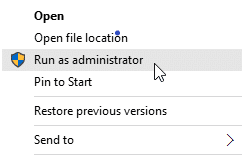
Now, you will be able to install the latest QB Desktop updates.
Check Your PC’s Date and Time
Incorrect date and time settings on your PC can hinder you from installing the latest QB Desktop updates. You can verify the date and time settings with these steps:
- Right-click on the system clock on your desktop.
- Press Adjust Date/Time.
- Select the Change date and time option.

- Specify the current date and time.
- Press OK twice.
- Close and reopen QB Desktop.
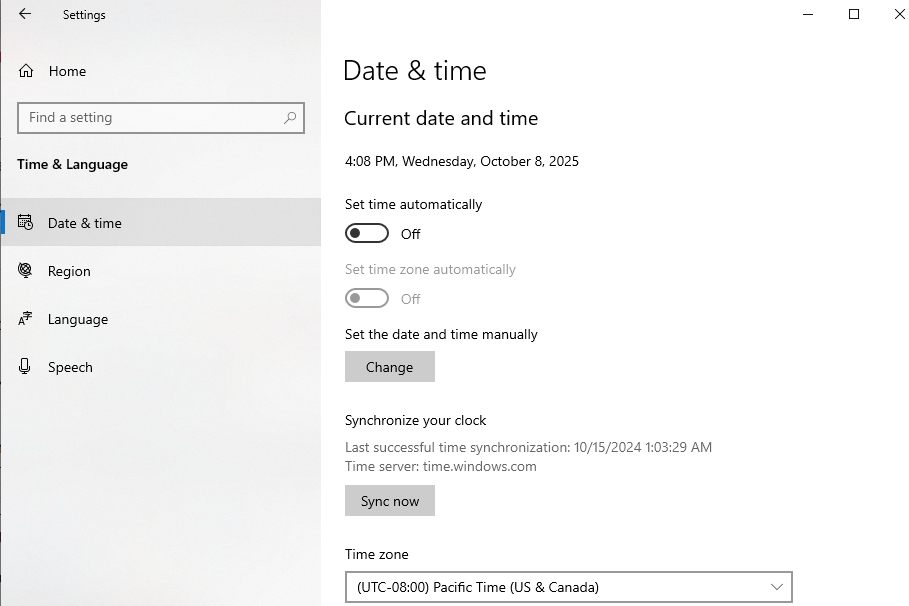
This would resolve the QB error code 1642.
Reinstall the QuickBooks Desktop Application
To fix the QBDT error 1642 by reinstalling QB Desktop, follow the steps given below:
Uninstall QuickBooks Desktop
- Open the Start menu.
- Search for and open the Control Panel.
- Click on Programs and Features:

- Or Uninstall a Program
- Select the version of QuickBooks Desktop you wish to remove from the list of programs you see.
- Click Uninstall/Change.
- Press Remove.
- Click on Next.
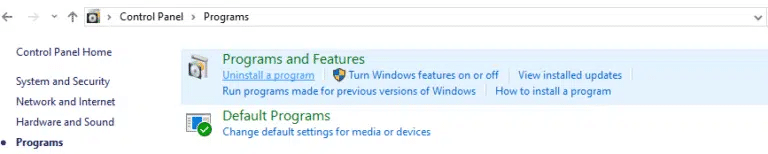
Now, proceed to install QuickBooks Desktop.
Install QuickBooks Desktop
- Open the QuickBooks.exe file.
- Select between the two options you see:
- Express Install
- Custom and Network Options
- Click on Next.
- Lastly, press Install.
If you want to install QBDT on a server, you can read our comprehensive guide on it.
Make Windows Firewall Exceptions for QBDT
You can make Windows Firewall exceptions to fix the QBDT update error 1642 with the following steps:
- Open the Start menu.
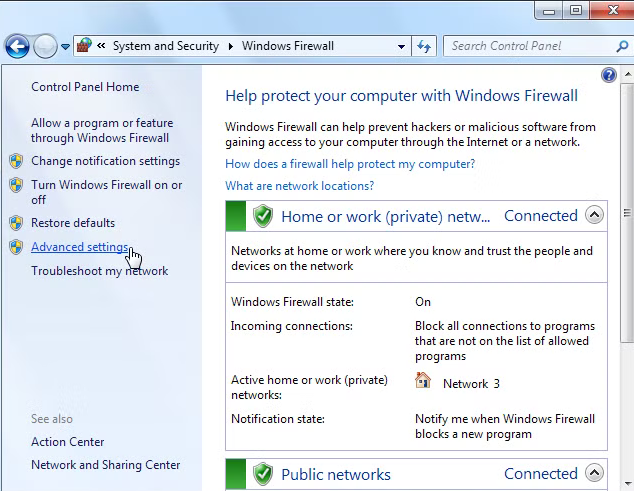
- Search for Windows Firewall.

- Then, open the Windows Firewall.

- Click on Advanced Settings.
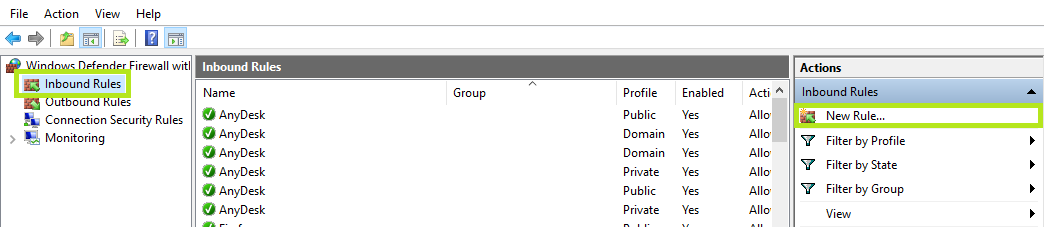
- Now, right-click on Inbound Rules.
- Then, press New Rule.

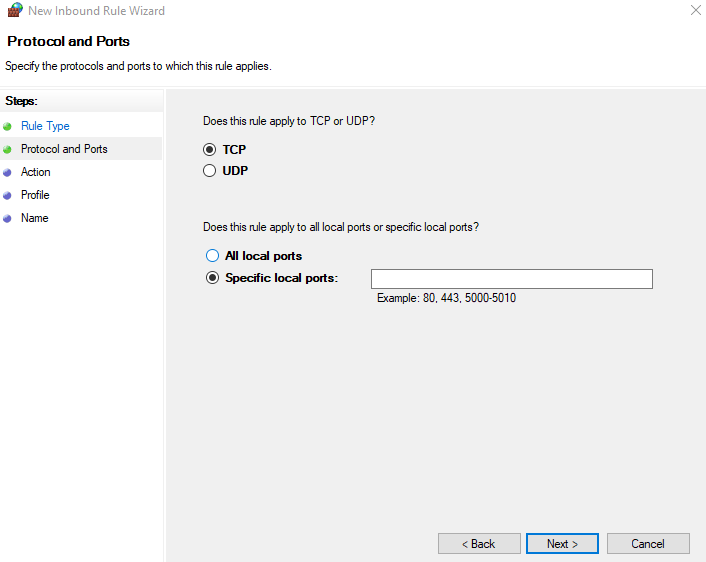
- Select Port and press Next.
- Ensure that TCP is selected.

- Now, enter the port for your QB Desktop version in the Specified local ports field:
- QuickBooks Desktop 2020 and above:
- 8019, XXXXX
- QuickBooks Desktop 2019:
- 8019, XXXXX
- QuickBooks Desktop 2018:
- 8019, 56728, 55378-55382
- QuickBooks Desktop 2017:
- 8019, 56727, 55373-55377
- QuickBooks Desktop 2020 and above:
- Hit Next after entering your port number.
- Press Allow the Connection.
- Click on Next.
- Create a rule.
- Name it something like QBPorts(year).
- Press Finish.
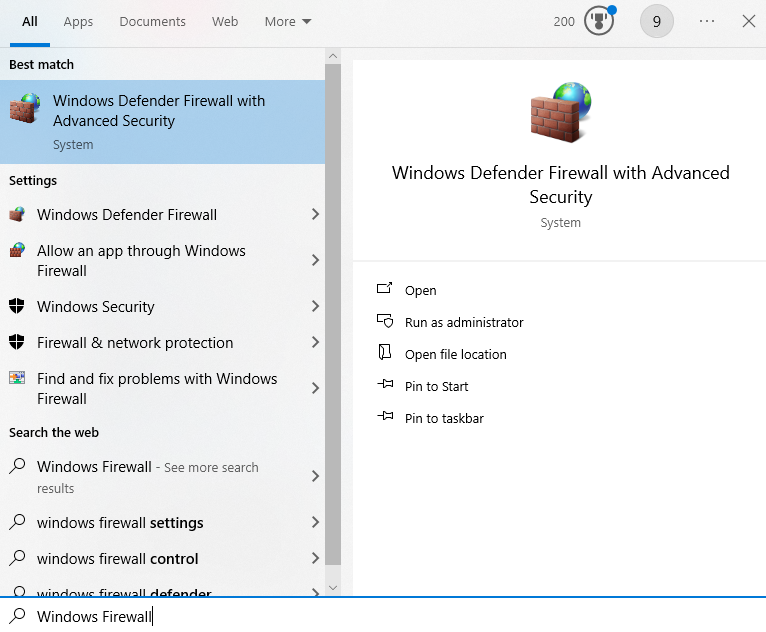
Performing these steps would resolve the QuickBooks error 1642.
Repair Microsoft .NET Framework
A damaged .NET Framework can be the culprit behind the error 1642 in QuickBooks. You can repair the Framework with these steps:
- Close all open programs and applications.
- Open the Start menu.
- Search for the Control Panel.
- Open it.
- Go to Programs and Features.
- Select Uninstall a Program.
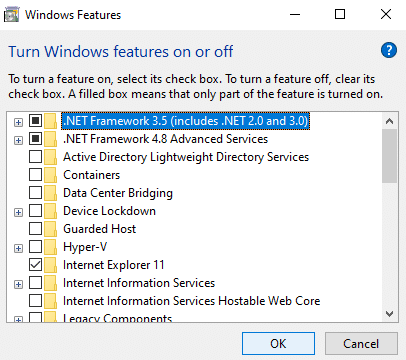
- Press the Turn Windows features on or off option.

- Find .NET Framework on the list.
- Now, follow the steps as per what you see:
- If the .NET Framework is not turned on:
- Turn on .NET Framework by marking the checkbox.
- Press OK.
- Restart your PC.
- If the .NET Framework is already on:
- Mark the checkbox to turn off .NET Framework.
- Select OK.
- Restart your PC.
- Turn on the .NET Framework by following the steps above.
- If the .NET Framework is not turned on:
This would resolve the QuickBooks update error 1642.
Utilize the QuickBooks Install Diagnostic Tool
You can use the QuickBooks Install Diagnostic Tool from the QB Tool Hub to fix the error code 1642 with the following steps:
- Download and Install the QuickBooks Tool Hub.

- Open the QB Tool Hub app.
- Navigate to the Installation Issues tab.
- Click on the QuickBooks Install Diagnostic Tool.

- Let the tool run.

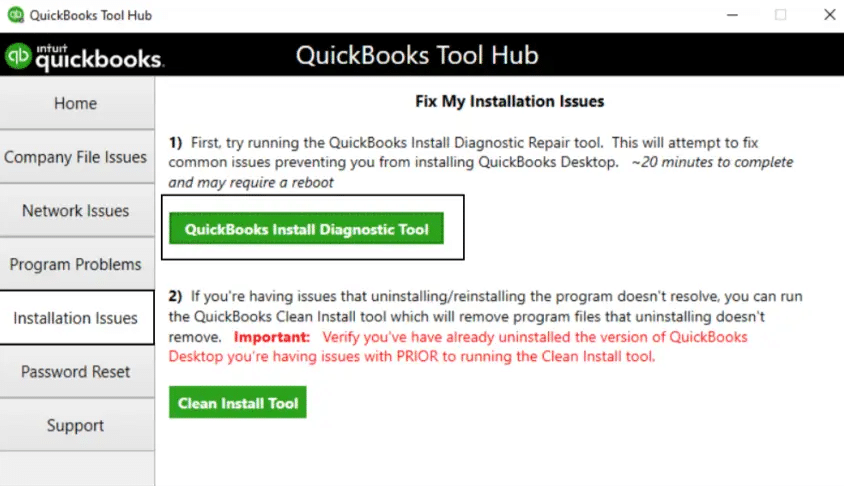
This would fix error code 1642 in QuickBooks Desktop.
QuickBooks Error 1642 – A Quick View of this Blog
In the table below is given a concise summary of this blog on the topic of the QuickBooks error code 1642:
| Description | The QBDT error code 1642 is an update error that occurs while downloading and installing the latest QB updates. This can hamper your workflow and important business processes. |
| Its causes | Improper installation of the QB Desktop app, problems with the .NET Framework, the Firewall blocking the QBDT app, and not installing updates with admin privileges. |
| Ways to fix it | Install the QuickBooks updates with admin rights, verify the date and time of your PC, reinstall the QB Desktop app, make Windows Firewall exclusions for QB, repair the NET Framework, and use the QuickBooks Install Diagnostic Tool. |
Conclusion
In this blog, we talked about the QuickBooks error 1642, along with the factors that can cause this issue to appear on your screen. Additionally, we provided you with the troubleshooting methods you can use to resolve this problem on your own. If you are still at bay with the same issue, contact our Accounting Helpline’s experts at 1.855.738.2784 today. Our experts will help resolve your problem in no time!
FAQs
Why am I seeing the QuickBooks error 1642 on my screen?
Given in the list below are the reasons you might be seeing the QB error 1642 on your screen:
– Windows Firewall is blocking QB Desktop.
– Not installing updates with admin rights.
– Improper installation of the QBDT app.
– Issues with the NET Framework.
How do I fix the QB error code 1642?
You can fix the QB error code 1642 with the troubleshooting methods given below:
– Download the QB updates with admin rights.
– Use the QuickBooks Install Diagnostic Tool.
– Repair the NET Framework.
– Configure the Windows Firewall for QB.
– Verify the date and time of your system.
– Reinstall QuickBooks Desktop.
How can I fix installation issues with QB Desktop?
To fix installation issues with QBDT, follow these steps:
– Open the QB Tool Hub app.
– Navigate to the Installation Issues tab.
– Click on the QuickBooks Install Diagnostic Tool.
– Let the tool run.
Related Posts-
QuickBooks Migration Failed Unexpectedly: Here’s What to Do Now
Guide to Fix QBCFMonitorService Not Running On This Computer
QuickBooks Multi-User Mode Not Working: Fix Connection & Access Issues
QuickBooks Error 6000 83 – Description, Causes, and Quick Fix
Troubleshooting Methods to Fix the QuickBooks Error 10000
QuickBooks Error 213 | Guided Steps to Resolve It

Edward Martin is a Technical Content Writer for our leading Accounting firm. He has over 10 years of experience in QuickBooks and Xero. He has also worked with Sage, FreshBooks, and many other software platforms. Edward’s passion for clarity, accuracy, and innovation is evident in his writing. He is well versed in how to simplify complex technical concepts and turn them into easy-to-understand content for our readers.