
Last Updated on April 16, 2026
QuickBooks Payroll is an add-on subscription-based feature provided by Intuit for the QB software. This makes processes such as sending paychecks, calculating taxes, and much more hassle-free and less time-consuming. This overall boosts your productivity, ultimately rocketing your business progress. However, you can encounter the issue of QuickBooks Payroll not calculating taxes or deducting taxes. This is generally caused by an outdated payroll and tax table. It can hamper your workflow and important business processes. In this blog, we’ll cover everything you need to know in order to resolve the problem of QuickBooks not calculating payroll taxes. First, let’s start with the causes of this problem.
Are you having trouble calculating taxes in QuickBooks? Contact our Accounting Helpline’s experts at 1.855.738.2784 today to resolve your problem in no time!
Taxes Not Calculating in QuickBooks Desktop & Online: Common Reasons
Given in the list below are the potential factors that can be behind the QB software not calculating taxes:
- Payroll item setup or employee setup problems.
- Wage limits might have been reached.
- The tax rates or SUI are incorrect.
- Incorrect Year-to-Date amount (YTD):
- For QuickBooks Online Payroll only.
- An outdated QB Desktop application.
- Outdated payroll and tax tables.
- The gross wages of the employee might be too low.
- Program problems with the QB Desktop app.
- Installation issues with QuickBooks Desktop.
- A damaged QB company file.
These are the causes of QuickBooks Payroll not calculating taxes.
Troubleshoot the Problem of QuickBooks Not Deducting Payroll Taxes | Desktop Solutions
Listed below are the troubleshooting methods you can use to resolve the problem of QuickBooks not calculating and deducting payroll taxes in QB Desktop:
Review the Employee Profile Setup
If you encounter the issue of QuickBooks not withholding enough federal taxes, you will have to review your employee’s profile and see if it is set up correctly. The QB Desktop App calculates federal withholdings according to the factors given below:
- Taxable wages
- Number of allowances/dependants
- Pay frequency
- Filing status
If you wish to review whether your employee’s profile setup is correct, follow the steps given below:
- Open the QB Desktop application.
- Navigate to the Employees menu.
- Click on Employee Center.
- Double-click the employee’s name (one at a time).
- Click on Payroll Info from the left.
- Ensure that the Pay Frequency is set up correctly.
- Then, select the Taxes button.
- Go to the Federal tab.
- Review the following fields:
- Filing Status
- Allowances
- Ensure the information in these fields is correct:
- If not, make the necessary corrections
- Press OK.
- Hit OK again.
This should resolve the problem of QuickBooks not withholding federal taxes.
Update the QB Desktop App
An outdated QB Desktop app can result in QuickBooks Payroll taxes not being deducted. This can be fixed by updating the QB Desktop app with the following steps:
- Open the QB Desktop app.
- Navigate to the Help menu.
- Click on Update QuickBooks Desktop.

- Press Update Now.
- Then, select Get Updates.

- Close and reopen the QB Desktop app to install the updates
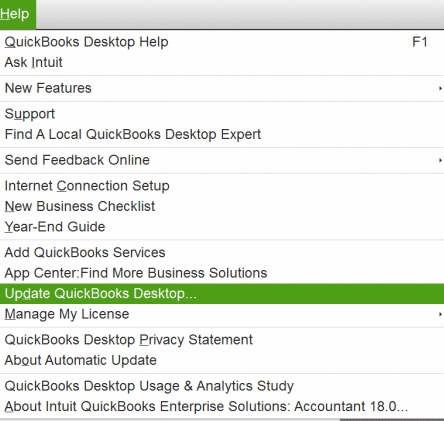
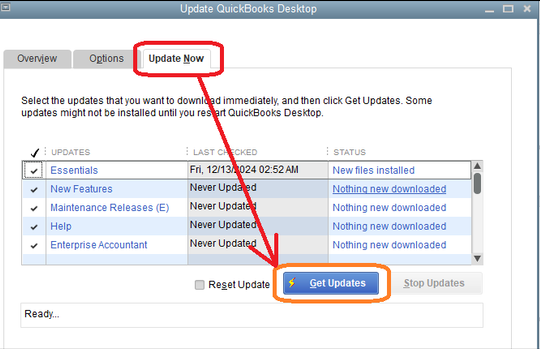
This should resolve the problem you were trying to deal with.
Update the QB Payroll & Tax Table
An outdated tax table can result in QuickBooks Payroll not calculating taxes correctly. To ensure the smooth functioning of QB Payroll, follow the steps given below to update it:
- Open the QB Desktop application.
- Navigate to the Employees menu.
- Click on the Get Payroll Updates option.

- Select Download Entire Update.
- Press Update.
- An informational window would appear when the download is complete
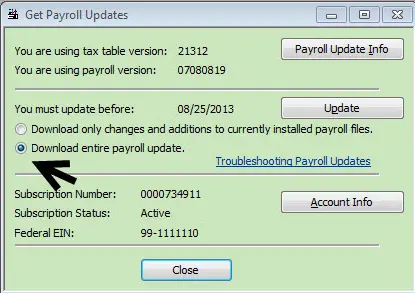
This should resolve the problem of QuickBooks Payroll not calculating taxes.
Fix the Issue of Income Tax Not Calculating Correctly
To resolve this problem, you have to first figure out if it’s happening with just one employee’s paycheck or with all the employees’ paychecks. Then, follow the steps given below:
- If it’s happening to all the employees:
- Revert the Paycheck:
- Open the QB Desktop app.
- Navigate to the Employees menu.
- Click on Scheduled Payroll:
- Or Unscheduled Payroll.
- Then, select Resume Scheduled Payroll.
- You’ll see some employees’ names highlighted in yellow.
- These are the employees who have had changes.
- Right-click on each employee’s name highlighted in yellow.
- Press Revert Paychecks.
- Then, recreate the paycheck.
- Revert the Paycheck:
- If it’s happening with one employee:
- Review the employee profile setup with the first solution.
- Open the QB Desktop app.
- Navigate to the Employees menu.
- Click on Employee Center.
- Choose the name of the employee.
- Press Payroll Info.
- Click on Taxes.
- Go to the Federal tab.
- Navigate to the W-4 Form dropdown menu.
- Select the applicable form.
- Feed in the employee’s W-4 info.
- If they claim exempt on their W-4, open the Filing Status dropdown menu and select Exempt.
- Press OK to save.
Now, the QuickBooks Payroll not calculating taxes problem should be resolved.
Fix the Issue of SUI Being Incorrect
In QuickBooks Desktop, the tax table doesn’t include the State Unemployment Insurance (SUI) rate. To update SUI manually, follow these steps:
- If it happens to all employees:
- Open the QB Desktop app.
- Navigate to the Lists menu.
- Click on Payroll Item List.

- Double-click on [state abbreviation] – Unemployment Company.
- Keep hitting Next until you reach the Company Tax Rates window.
- Feed in the correct rates for each quarter.
- Press Next.
- Select Finish.
- If you have surcharges or assessments, follow the steps given below:
- Go to the Lists menu in QBDT.
- Click on Payroll Item List.
- Double-click on the State Surcharge item.
- Press Next.
- Follow the steps on your screen.
- The Company Tax Rate page would open.
- Enter the rate as a percentage.
- If it happens to a single employee:
- Verify the year-to-date amount if it has reached the wage base limit on the employee’s paycheck detail
- Open the QB Desktop app
- Navigate to the Employees menu
- Click on the Employee Center
- Double-click the employee’s name
- Select Payroll Info
- Hit Taxes
- Review the SUI checkbox
- Make any needed corrections
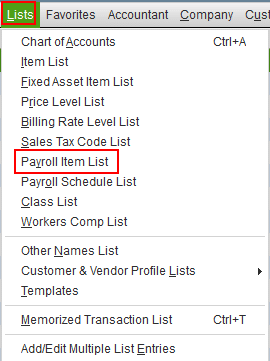
Performing these steps to update the SUI in the QB Desktop app would resolve the problem of QuickBooks not taking out payroll taxes.
Verify and Rebuild the Company File Data
You can verify and rebuild your company file data to resolve the issue of taxes not calculating in QuickBooks Desktop with the steps given below:
- Open the QB Desktop app.
- Navigate to the File menu.
- Click on Utilities.
- Select Verify Data.

- Then, go to the File menu again.
- Select Utilities.
- Click on the Rebuild Data option.

- QB will ask to create a backup to rebuild your company file.
- Hit OK.
- A backup is required to rebuild your company’s data.
- Choose where the backup would be stored.
- Hit OK.
- Ensure not to replace an existing backup or company file.
- Enter a unique name in the File name field.
- Press Save.
- Hit OK when the Rebuild has completed message appears.

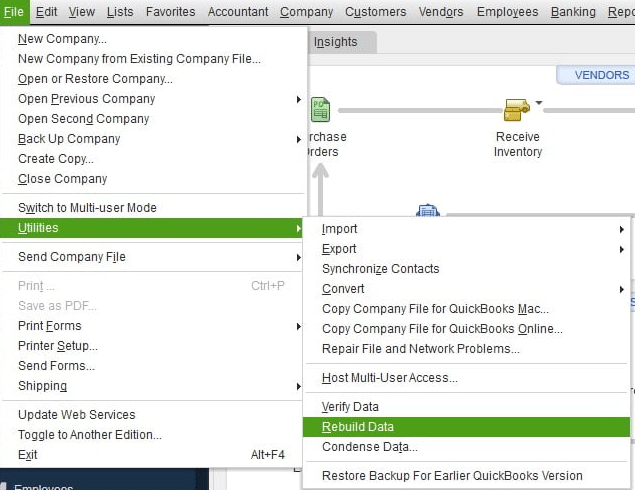
This should resolve the issue of QuickBooks Payroll not withholding taxes.
Utilize Quick Fix My Program
Program problems with the QB Desktop application can cause the QuickBooks Payroll taxes to not calculate correctly. You can resolve it using Quick Fix My Program from the QB Tool Hub with the steps given below:
- Download and install the QuickBooks Tool Hub.

- Open the QB Tool Hub app.
- Navigate to the Program Problems tab.
- Click on Quick Fix My Program.

- Let the tool run.

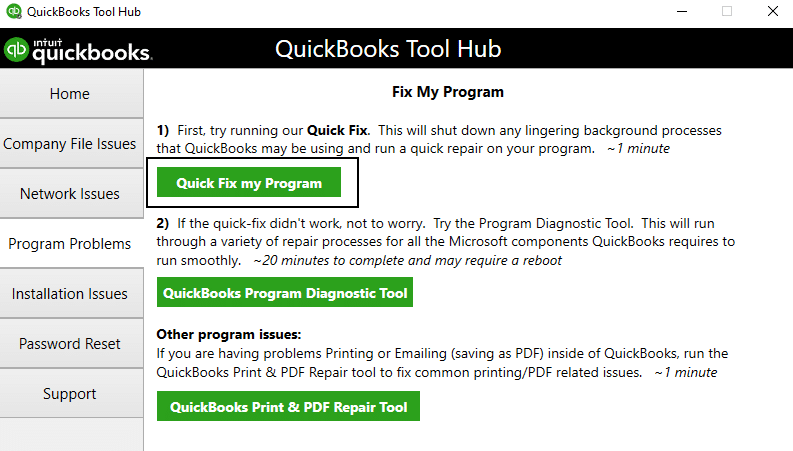
The tool would fix any program problems with your QB Desktop software.
Use the QuickBooks Install Diagnostic Tool
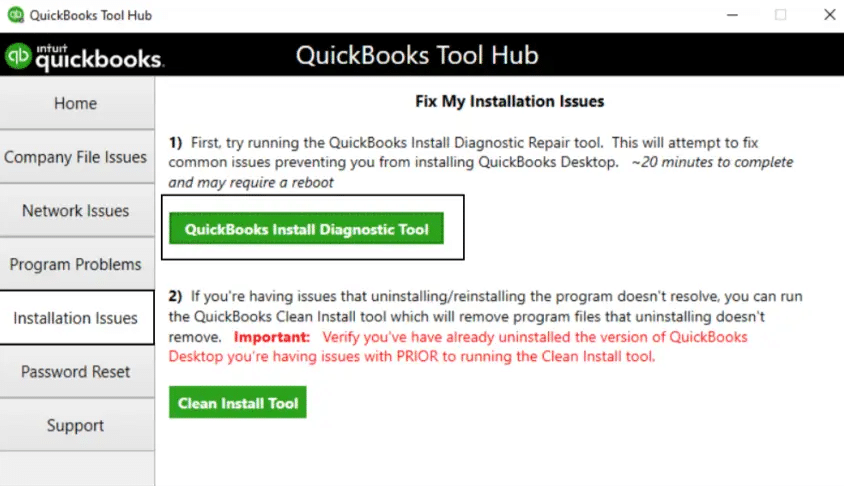
You can use the QB Install Diagnostic Tool from the QB Tool Hub to resolve the problem of QuickBooks Payroll not calculating taxes with the steps given below:
- Open the QB Tool Hub app.

- Navigate to the Installation Issues tab.
- Click on the QuickBooks Install Diagnostic Tool.

- Let the tool run.
- It can take up to 20 minutes to finish working.
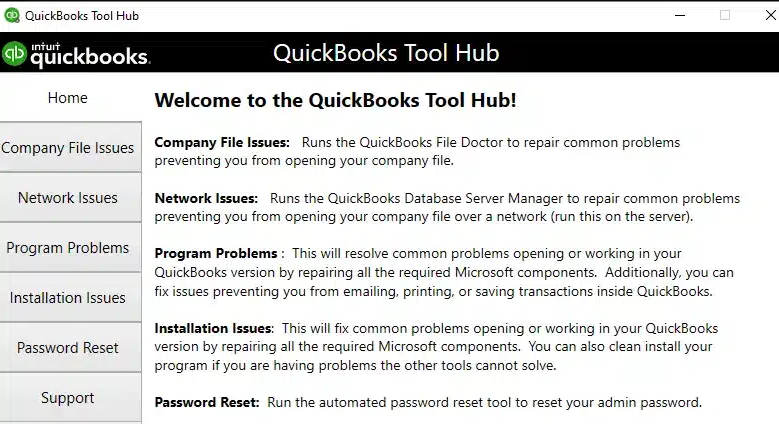
Performing these steps would resolve the problem of payroll taxes not calculating in QuickBooks Desktop.
Check the Employee’s Federal and State Withholding Forms
You are required to get a federal W-4 and state withholding equivalent form (if applicable) from each of your employees to use services like direct deposit in QuickBooks Payroll. You should verify these forms with your employees to ensure that they are correct. Look for the following factors:
- How much the employee is paid
- How often is the employee paid
- The employee’s marital status
- The number of dependents on the employee
- External sources of the employee’s income
Check the minimum thresholds for federal tax withholding from the IRS website. Make any changes if applicable.
Correct the Employee’s W-4 Information
Before your employee fills out the new W-4 form, here are some important factors to consider:
- The federal W-4 form has two versions: 2020 and later, and before 2020. Your employee can use either of the two W-4 forms
- Each and every employee working under you should fill out a W-4 form
- As per IRS guidelines, if you don’t receive a completed W-4 form from an employee, withhold their tax as if they’re single
- If the employee switches to the 2020 or later W-4 form, they might notice a difference in Federal Withholding on their paychecks, including the amount of tax owed or refunded when filing their personal tax return
- If the employee needs help to understand the W-4 form or needs tax-related guidance, they should consult a tax advisor or a financial planner. Intuit and the employer cannot legally provide W-4 guidance.
Now, with all these things in mind, follow the steps below to enter your employee’s W-4 information in QuickBooks Desktop Payroll:
- Click on Employee Forms.
- Select the appropriate W-4 form for your employee:
- Federal W-4 2019 and Prior
- Federal W-4 2020 and Later
- A PDF file would open.
- Click on File.
- Select Print.
- Make your employee fill out the printed W-4 form.
- Then, open QB Desktop.
- Select the name of the employee.
- Click on Payroll Info.
- Select Taxes.
- Go to the Federal tab.
- Click on the W-4 Form dropdown menu.
- Choose the applicable form.
- Enter the employee’s W-4 info:
- Click on the Filing Status dropdown menu and select Exempt if your employee claims exempt on their W-4.
- Hit OK.
The QuickBooks Payroll not calculating taxes problem should now be resolved.
Fix Calculation Problems With Deduction or Contributions Payroll Items
You can fix calculation problems with deduction or contributions payroll items with the steps given in this section. These are some of the items you might need to adjust:
- Social Security
- Medicare
- Federal Income Tax
- State Income Tax
- State Unemployment Insurance
To update the wage bases and limits, you can update your QB Payroll with the steps given in the third solution. Reference wage bases and limits for the year 2025 are given in the table below:
| Tax Type | Employer Rate | Employee Rate | Wage Base Limit |
| Social Security | 6.2% | 6.2% | $176,100.00 |
| Medicare | 1.45% | 1.45% | Varies |
| Additional Medicare | 1.45% | 2.35% | Varies |
| FUTA | 0.6% | N/A | $7000.00 |
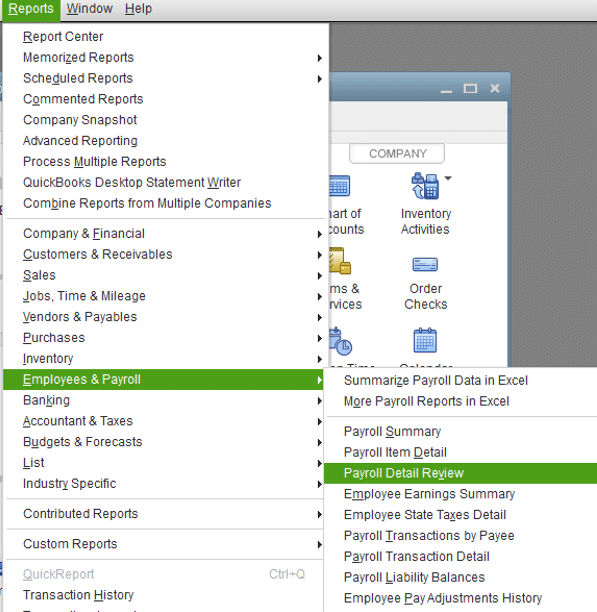
To see your employee’s wage base limits, follow the steps given below:
- Open the QB Desktop app.
- Navigate to the Reports menu.
- Click on Employee & Payroll.
- Select Payroll Detail Review.

- Go to the Dates dropdown menu.
- Select This Calendar Year.
- Press Refresh.
If the deduction item is incorrect, set it up correctly with the steps given below:
- Open the QB Desktop app.
- Navigate to the Lists menu.
- Click on Payroll Item List.
- Select the Payroll Item dropdown menu.
- Press New.
- Click on Custom Setup.
- Hit Next.
- Choose Deduction.
- Hit Next.
- Enter the name of the deduction.
- Hit Next.
- Choose the name of the plan administrator if applicable:
- And the account number.
- Press Next.
- Choose the applicable Tax tracking type:
- Press None if the deduction is after-tax.
- Hit Next thrice:
- For the None tracking type, choose the Net Pay in the Gross vs. net window and hit Next.
- Leave the Default rate and limit fields empty unless they apply to all your employees.
- Add the rate and limit when the item is added to the employee profile.
- Select Finish.
- Then, go to the Employees menu.
- Click on the Employee Center.
- Choose your employee.
- Select Edit.
- Press Payroll Info.
- Add the deduction item from Additions, Deductions, and Company Contributions.
- Enter the amount per period and a limit (only if applicable).
- Press OK.
If you need to edit a payroll deduction item, you can follow the steps given below:
- If you wish to change the payroll item:
- Open the QB Desktop app.
- Navigate to the Lists menu.
- Click on Payroll Item List.
- Right-click on the item.
- Select Edit Payroll Item.
- Change the info as required on each window.
- Press Finish.
- If you wish to change the deduction amount for an employee:
- Open the QBDT application.
- Go to the Employee menu.
- Click on the Employee Center.
- Choose your employee.
- Select Payroll Info.
- Change the amount or limit.
- Hit OK.
If you need to delete a payroll deduction item, follow these steps:
- Open the QB Desktop app.
- Go to the Lists menu.
- Select the Payroll Item List.
- Right-click on the item you wish to delete.
- Click on Delete Payroll Item.
- You will get the message stating “Are you sure you want to delete this payroll item?”.
- Hit OK.
If you want to make a payroll deduction item inactive, you can do so by following these steps:
- Open the QB Desktop app.
- Go to the Lists menu.
- Select Payroll Item List.
- Right-click on the item that you wish to make inactive.
- Click on the Make Payroll Item Inactive option.
This would resolve the issue of QuickBooks Payroll not calculating taxes.
Use the QB File Doctor Tool
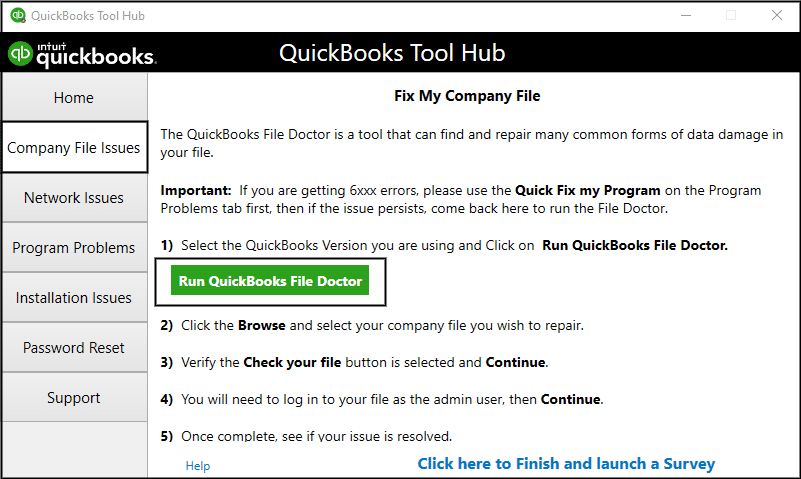
You can use the QB File Doctor Tool from the QB Tool Hub to resolve the problem of QuickBooks not taking out payroll taxes with the steps given below:
- Open the QuickBooks Tool Hub app.
- Navigate to the Company File Issues tab.
- Click on Run QuickBooks File Doctor:

- It can take up to a minute for the File Doctor to open. If it doesn’t open, search for QuickBooks Desktop File Doc and open it manually.
- Choose your company file from the dropdown menu in the File Doctor:
- If you can’t see your file, select Browse and search to locate your file.
- Click on the Check your file option.
- Press Continue.
- Enter your QB admin password.
- Hit Next.
Repairing the company file with the help of the QB File Doctor would resolve the issue if your QuickBooks did not withhold taxes.
Resolve QuickBooks Payroll Not Calculating Taxes in QuickBooks Online
The troubleshooting methods you can use to resolve the problem of QuickBooks not deducting payroll taxes are given below:
Fix QB Online Payroll Not Calculating Income Tax Properly
If your income tax is not calculating properly in QB Online Payroll, follow the steps given below to resolve it:
- Select your employee.
- Go to Tax withholdings.
- Press Start or Edit.
- Review the federal state withholding.
- Update it if needed.
- Hit Save.
If your employee is not exempt from withholding taxes, but you notice that the income tax on the paycheck is $0, this can be because the employee’s wage didn’t meet the minimum threshold.
Resolve QuickBooks Not Withholding Unemployment Taxes
To fix the issue of State Unemployment Insurance (SUI) not being withheld, identify if the issue is from your end or the employee’s end, then follow the steps given below:
Employee’s End:
- Go to Tax withholding.
- Click on Edit.
- Review the SUI checkbox.
- Correct it if needed.
- Press Save.
Employer’s End
- Navigate to Settings.
- Select Payroll Settings.
- Click on Edit next to your state.
- Go to the Unemployment Insurance (UI) section.
- Hit Edit.
- Press Continue.
- Review the rate and effective date.
- Then, update it if needed.
- Press Save.
- Select Done.
This should resolve the issue of QuickBooks Payroll not calculating taxes.
Clear Cache and Cookies
Storing cache and cookies in your web browser can cause your QB Online website to not function properly. This includes being unable to deduct or calculate taxes properly. To resolve this problem, clear the QuickBooks cache and cookies from your web browser.
QuickBooks Payroll Not Calculating Taxes – A Quick View Table
Given in the table below is a concise summary of this blog on the topic of QuickBooks not deducting payroll taxes:
| Description | QuickBooks Payroll can have issues while calculating or deducting taxes and other items from a single employee’s or all employees’ paychecks. This can hamper your workflow and important business processes. |
| Its causes | Payroll item setup or employee setup problems, wage limits might have been reached, the tax rates or SUI are incorrect, an incorrect Year-to-Date amount (YTD), an outdated QB Desktop application, outdated payroll and tax tables, gross wages of the employee might be too low, and program problems with the QB Desktop app |
| Ways to fix it in QBDT | Check the profile setup of your employee, update the QBDT application, update the QB Payroll & tax tables, fix the income tax not calculating correctly problem, fix SUI being incorrect, verify and rebuild your QB company file, use Quick Fix My Program, utilize the QuickBooks Install Diagnostic Tool, check the federal and state withholding forms of your employee, fix the employee’s W-4 info, fix calculation issues with deduction payroll items, and use the QuickBooks File Doctor. |
| Ways to fix it in QBO | Fix the issue of income tax not calculating correctly, resolve withholding issues with unemployment taxes, and clear QB cache and cookies. |
Conclusion
The QuickBooks Payroll not calculating taxes problem is one that many users face, and can make you unable to comply with the IRS and state tax agencies’ norms. This can hamper your workflow and important business processes. We have covered the potential factors that can cause this issue, along with the methods you need to troubleshoot it, in this blog. If you are still unable to calculate or deduct taxes correctly from your employees’ paycheck(s), contact our Accounting Helpline’s experts at 1.855.738.2784 today to resolve your issue with an expert’s guidance.
FAQs
Why is QuickBooks Payroll not taking out federal taxes?
Your QuickBooks Payroll might not be deducting federal taxes due to the following reasons:
– An outdated QB Desktop app.
– An outdated payroll and tax table.
– Your employee profile setup might be incorrect.
– Issues with your employee’s W-4 information.
– A damaged QB company file.
– The employee claimed to be exempt.
– Insufficient employee wages for the pay period.
How to fix QuickBooks Payroll not calculating taxes?
You can fix the problem of QuickBooks Payroll not calculating taxes with these methods:
– Review the employee profile setup.
– Update the QBDT app.
– Update the QB Payroll and tax table.
– Resolve the problem of income tax not being calculated properly.
– Resolve SUI not being deducted.
– Verify and rebuild the QB company file.
– Use Quick Fix My Program.
– Utilize QuickBooks Install Diagnostic Tool.
– Verify the federal and state withholding forms for your employee.
– Check the employee’s W-4 info.
– Resolve calculation problems with the deduction of payroll items.
– Utilize QB File Doctor.
How to fix QuickBooks Online Payroll not deducting taxes?
You can fix the problem of QuickBooks Online Payroll not deducting taxes with the steps given below:
– Fix the issue of income tax not being calculated properly.
– Fix the issue of incorrect Year-to-Date amounts.
– Resolve incorrect SUI amounts.
– Clear QB cache and cookies.
Does QuickBooks automatically calculate payroll taxes?
Yes, QuickBooks Payroll calculates your taxes automatically. This saves time and helps you focus more on your business progress.
Related Posts-
QuickBooks Clean Install Tool: The Right Way to Reinstall
QuickBooks Event ID 4 Error: Pro-Recommended Solutions
How to Set up Payroll in QuickBooks? An In-depth Guide
QuickBooks Error 80029c4a: Here’s a Quick Method to Fix
Resolutions for the QuickBooks Company File Won’t Open Issue
QuickBooks Print and PDF Repair Tool: How to Fix Print Problems

Edward Martin is a Technical Content Writer for our leading Accounting firm. He has over 10 years of experience in QuickBooks and Xero. He has also worked with Sage, FreshBooks, and many other software platforms. Edward’s passion for clarity, accuracy, and innovation is evident in his writing. He is well versed in how to simplify complex technical concepts and turn them into easy-to-understand content for our readers.