
Last Updated on April 23, 2026
You may encounter some errors and problems for some reason when you perform your daily tasks with QuickBooks Enterprise. These issues are annoying to deal with as they interfere with your work, hinder your productivity, and delay necessary tasks. QuickBooks error 30 is a timeout error that arises when you are unable to print a PDF and the printer does not activate. A lot of users often run into this error while printing, but it can be resolved quickly as well.
In this guide, you will get to know the causes of the QuickBooks printer error code 30, the precautions that you should take, and proven-to-work resolutions. As you are already aware, the first thing that you should do is understand what caused the error before trying to get rid of the problem.
The QuickBooks error 30 is a complicated issue, and non-tech-savvy users may require additional support to resolve it. Connect with our Accounting Helpline experts and fix the error right away. Call 1.855.738.2784 Now!
Understanding the QuickBooks Printer Error 30
The QuickBooks error 30 usually happens while you are using the application, but you are unable to activate the printer to print PDFs. As you fail to modify your PDFs or print them out, it will lead to a hindrance to your productivity and disrupt the workflow. Moreover, if you try to install the QuickBooks PDF converter, then it will get interrupted and stopped by the QuickBooks error code 30, printer not activated as well. The following messages are displayed on your screen when this issue occurs:
“Error 30: QuickBooks has encountered a problem and needs to close. We are sorry for the inconvenience.”
“Printer not activated. Error Code -30”
“QuickBooks Printer Not Activated”
The first and foremost solution you can try is to reboot your computer. If that doesn’t work for QB error 30, we can then try several troubleshooting methods. Additionally, there are some preventative measures that you can take to prevent it from occurring.
Key Factors that Lead to the QuickBooks Error 30
Before you proceed to troubleshoot the QuickBooks printer not activated error code 30 Windows 10, you should understand what caused it. Therefore, in this section, we have listed the leading factors for this issue.
- Your computer may not have the latest released version of the Windows operating system.
- You might be using a very old version of QuickBooks Desktop software that cannot provide some features.
- It is possible that you have a damaged Windows registry, which does not operate with some tasks.
- There may be an improper installation of the QB PDF Converter.
- The Printer drivers of your computer might be damaged, leading to the QuickBooks error 30.
- The QuickBooks PDF Converter may have become corrupted or damaged.
- Your computer may have a virus or malware, which is affecting its performance.
- You may not have logged in as an administrator, and as a result, you did not have permissions to do some of the tasks.
- The Windows registry might have invalid files that are causing disruption and leading to error 30.
The above list shows all the major reasons that can cause the QuickBooks error code 30 Printer not activated. Now, let’s talk about the precautions that you can take before you resolve this problem.
Before You Troubleshoot the QuickBooks Printer Not Activated Error Code 30 Windows 10
Listed below are some factors to consider before proceeding with the resolutions for fixing the QuickBooks printer error code 30. These considerations will help you ensure a secure resolution, resolve the error, and prevent it from occurring again.
- Verify and check that your printer is connected securely to the computer to prevent QuickBooks printer error 30.
- Download and install the most recent version of QuickBooks that is released and available.
- Don’t forget to check whether your printer is working and has enough ink and blank sheets to operate.
- Make sure you have also updated yourself on the latest version of the Windows operating system.
- Remember to log in as an administrator so that QuickBooks can gain the necessary administrator permissions on Windows.
If these considerations fail to get rid of the error or you are already caught up with the given factors, then proceed with the troubleshooting methods. In the following section, we have listed a number of solutions that have proven to work for resolving the QuickBooks printer not activated error code 30 Windows 10.
11 Expert-Recommended Ways to Resolve the QuickBooks Error 30
After learning about the causes and precautions, you must resolve the QuickBooks printer error code 30 to continue your work process. There are many possible methods that you can try out yourself to fix it. We have discussed each of the resolutions in great detail to help you perform them easily.
Method 1: Download and Install the QuickBooks Tools Hub
You can use the QB Tool Hub to eliminate common errors and issues like QuickBooks Error 30 Printer Not Activated. We advise you to use the QuickBooks Tool Hub on Windows 10, 64-bit, to resolve this error.
- Exit and close all the running windows of QBDT.
- Go to the Intuit website and download the QuickBooks Tool Hub (1.6.0.8) or the newest available version.

- Save the installation file on Windows File Explorer to access it easily later.
- Now, select the QuickBooksToolHub.exe file on Windows File Explorer.
- Follow the given instructions on your screen to install the tool.
- Once installed, return to the Windows home screen and click on the QB Tool Hub icon.

- If you already have the QB Tool Hub installed on your device, then open it.
- Head to the Home tab and make sure to verify the version at the bottom of the screen.


Note: If the QB Tool Hub icon or shortcut does not appear on the home screen of your computer, then look it up through the search bar in the Windows Start menu.
After successfully installing the QB Tool Hub on your computer, move ahead to the next method for launching Quick Fix My Program. It will help you in resolving the QuickBooks error 30 by repairing any underlying issues with the application.
Method 2: Run Quick Fix My Program
It’s possible that there are internal errors in QB Enterprise or Desktop that lead to the QuickBooks printer error code 30. In order to fix that, you can follow the procedure given below to repair such issues by running the Quick Fix My Program in the QB Tool Hub.
- Download and install the QuickBooks Tool Hub.
- Open the QB Tool Hub on your device.
- Head to the Program Problems section, as shown above.
- Locate and click on the ‘Quick Fix my Program’ button.

- You may be asked to sign in to your company file to run this utility.
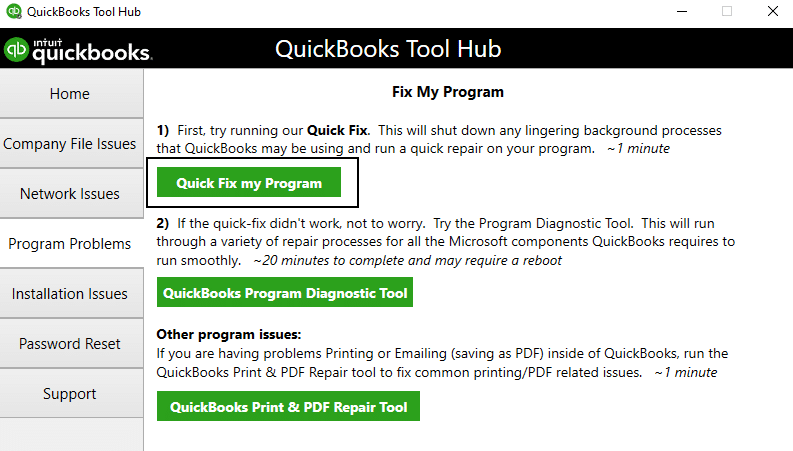
After you complete these steps, a quick repair of the company file will commence to diagnose and troubleshoot issues like the QuickBooks error 30. Did the error not get resolved even after this? Then, you can proceed to the next method for running the QuickBooks PDF & Print Repair Tool.
Method 3: Run the QuickBooks PDF and Print Repair Tool
If you are facing any PDF and printing-related errors, then you can use the QB PDF & print repair tool to repair them. This tool is an in-built utility for PDF-related errors that you can launch by following the outlined steps.
- Download and set up QuickBooks Tool Hub from the Intuit website.
- Head to the Program Problems section from the left panel.
- Tap on the QuickBooks PDF & Print Repair Tool button to launch the tool.
- It will take some time for the utility to run a complete scan and fix any detected errors.
- Once the process has been completed, try to print the PDF again.
Now, we hope that you clearly understood the methods and procedures that we have listed out for you to fix the QuickBooks error 30. If these methods did not work, then you can follow the upcoming processes that might be a bit complicated to perform to fix the error. You can take assistance from a QB expert as well.
Method 4: Reinstall the QuickBooks PDF Converter
You might be experiencing the QuickBooks printer error 30 due to a corrupted or partially installed QB PDF converter. In such a case, you should reinstall the tool in order to prevent the problem with the following procedure.
- Log in to your computer system as an administrator.
- In the Windows Start menu, search for the Control Panel.
- On the Control Panel, go to the Devices and Printers.
- Then, select the QuickBooks PDF Converter.
- Click on the Delete button from the menu to uninstall the tool.
- Go back to the Windows home screen and right-click on the QuickBooks icon.
- From the opened menu, click on Properties.
- Then tap on the Find Target in the Properties section.
- Click on Install Application or Install.exe file in the Windows Explorer.
- Hit OK after the program has been installed and the application configured.
- Press Windows and R keys simultaneously to bring up the Run dialog box.
- Type ‘control printers’ in the Run box and press OK.

- The Devices & Printers page will open in the Control Panel.
- Locate the Amyuni Document Converter under the Printers section.
- Right-click on Amyuni Document Converter and select Rename.
- Change the name to QuickBooks PDF Converter with reference to the following list.
- QuickBooks 2006-2009 R8: QuickBooks PDF converter
- QuickBooks 2009 R9 and later: PDF converter 3.0
- QuickBooks 2010 R1 and R2: PDF converter 2.0 QuickBooks
- Type the name correctly and avoid making any mistakes before saving it.
- Tap NO for the default printer, then hit Next.
- Now, press Next below the Do not share this printer option.
- When asked to print a test page, tap NO and hit Next to finish.
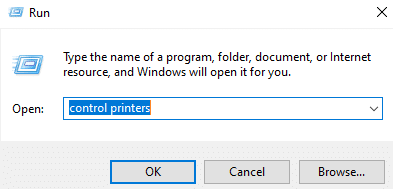
By using the above-mentioned procedure, it is possible to install the QB PDF converter tool again in an attempt to eliminate the QuickBooks error 30. Do you continue to face the same issue? Follow the method below for configuring your preferred printer as the default printing device.
Method 5: Set your Preferred Printer as the Default Printing Device
If your preferred printer is not set as the default printer on your computer system, then it might be a crucial factor that is causing the QuickBooks printer error 30. If you are connected with multiple printers on your computer but have not set a default printing device, then your system might fail to access the correct printer and its information. Follow the steps listed below to resolve the QuickBooks error 30.
- Open the Run window by clicking the Windows and R keys together.
- Type ‘control panel’ in the search box next to Open and tap OK.
- Alternatively, you can open it by going to the Windows Start menu and typing “Control Panel” in the search bar.

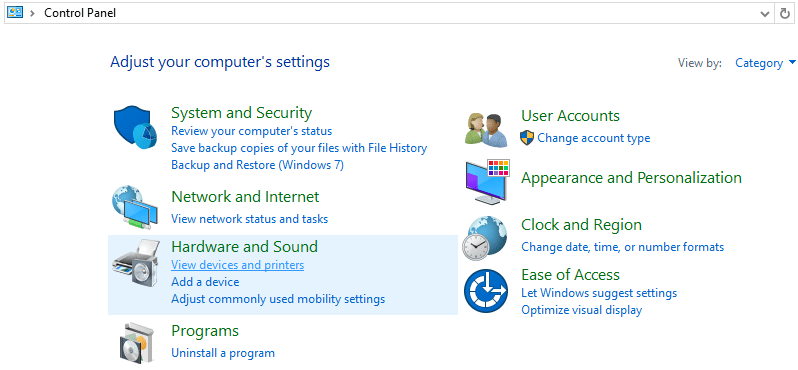
- Then, in the Control Panel, select the Hardware and Sound section, which is depicted in the image below.

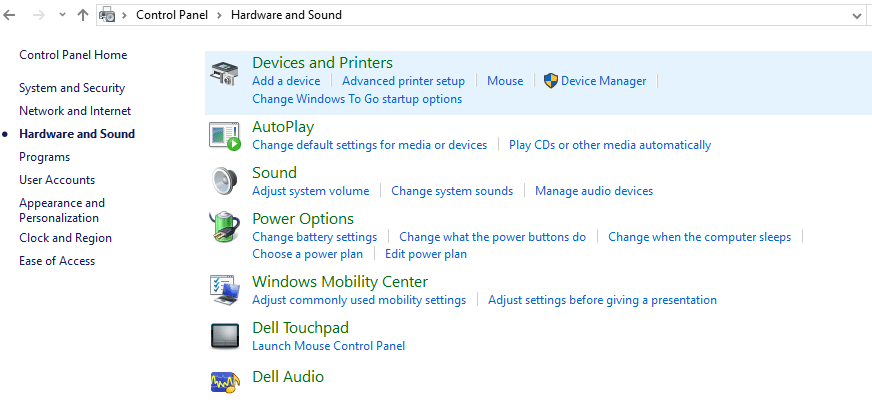
- At this point, click on the Devices and Printers button in the Hardware and Sound window.

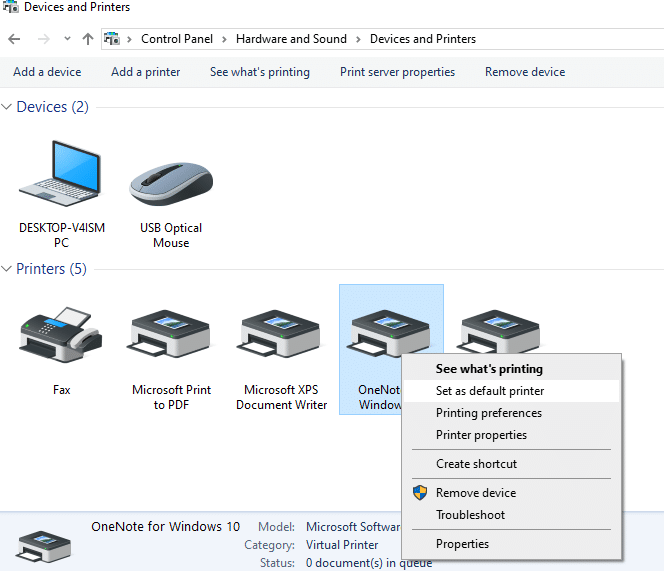
- You will find your preferred printer in the Printers section.
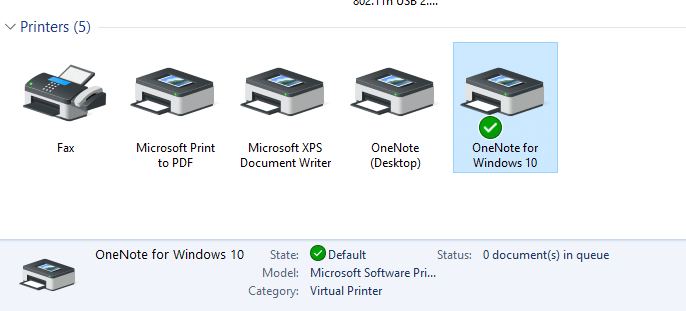
- Right-click your preferred printer and hit the “Set as default printer” button from the menu.

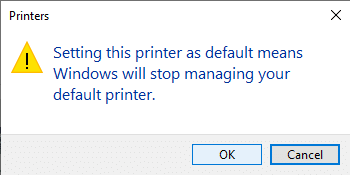
- If you get a prompt as shown in the image above, then tap OK and continue.

- The printer will show a green tick over the device, and the State will be updated as Default.

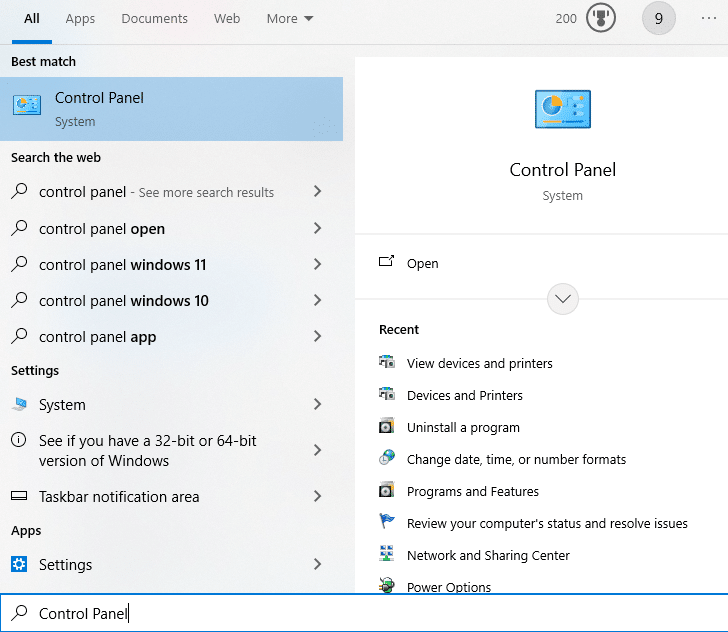
Once you complete these steps, you may restart the computer and then proceed to print the PDF. If you continue to face the QuickBooks error 30, then move on to the next method for deleting the USB composite device.
Method 6: Delete the USB Composite Device in Device Manager
When the USB Composite Device is not installed properly or it is configured improperly, then it may lead to errors such as the QuickBooks printer not activated error code 30 Windows 10. To fix this, you may remove the USB Composite Device, after which you can reinstall it by following the given procedure.
- Either press the Windows key on your keyboard or the Windows icon on your computer’s home screen.
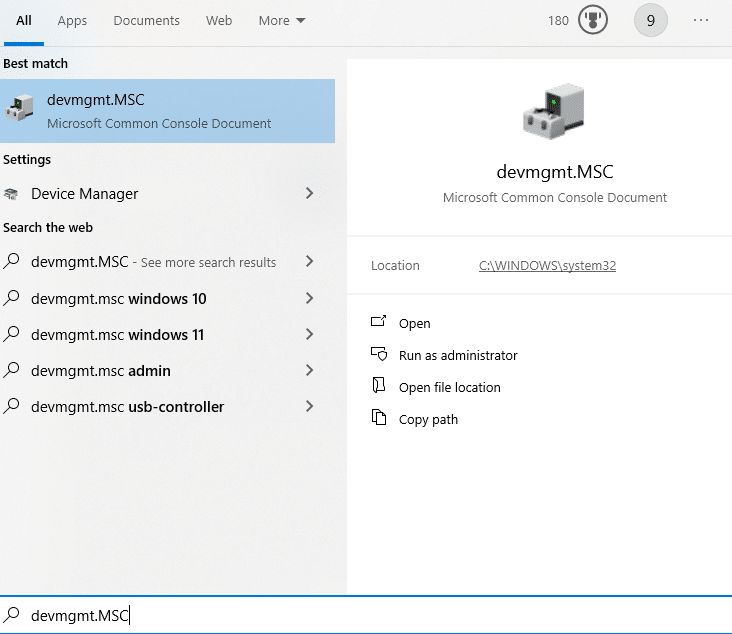
- The Start menu will open, where you have to enter ‘devmgmt.MSC’ in the search box.

- Be sure to log in as an Administrator while you open the Device Manager.
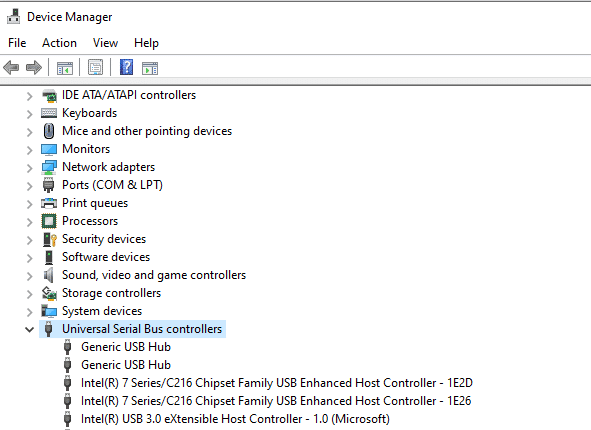
- Now, scroll down and find the ‘Universal Serial Bus Controllers’ option from the list and expand it.

- Right-click on the USB Composite Device from the expanded list.
- Select Uninstall from the menu to delete the USB Composite Device.
- Now, unplug your printer from the computer and then replug it.
- By doing so, a prompt will appear on your screen to install the Printer.
- Install it with the help of the given instructions.
- Once done, go ahead and try to print your PDF.
By following the above steps, you can resolve the QuickBooks error 30. However, if this doesn’t work, then you should back up the Windows registry and restore point processing with the following method.
Method 7: Back up the Windows Registry and Restore Point Processing
You can follow the outlined procedure to back up your Windows registry, followed by restoring the point processing for QB Enterprise. By doing so, you may be able to get rid of the QuickBooks error code 30 printer not activated issue. Just a warning that this is an advanced process and might cause issues if you do it incorrectly; therefore, we recommend consulting an expert.
- Tap the Windows and R keys together to launch the Run window.
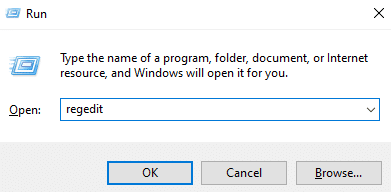
- Enter ‘regedit’ in the search bar next to Open, as shown in the image below.

- Press OK to open the Windows Registry Editor window.

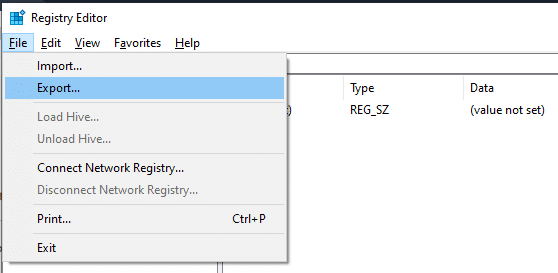
- Then, expand the File menu from the top bar.
- Locate and select the ‘Export…’ button.
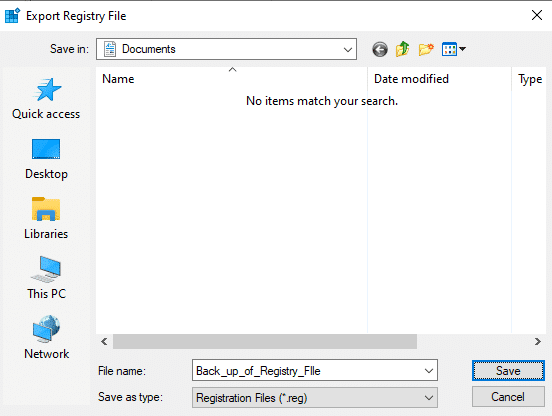
- You will be redirected to save the exported file.

- Enter an appropriate File name and hit the Save button.
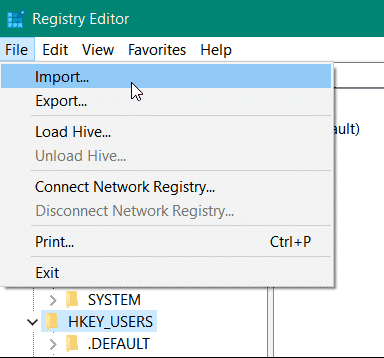
- Now, select the ‘Import…’ button and restore the file that you backed up.

- You will have to wait for some time till your system restores the point creation processing.
- Once the process is finished, tap OK.
Once done, proceed to reboot your system and then attempt to print a PDF to see if the QuickBooks error 30 still occurs. If it does, then move on to the next step for updating your Windows operating system.
Method 8: Update the Windows Operating System
When you use an outdated version of the Windows operating system, it can cause a number of issues and lead to errors like QuickBooks printer error code 30. You can follow the steps outlined below to update your Windows operating system to the latest release.
Updating Windows 11
With the following procedure, you can update the operating system in Windows 11 to avoid the QuickBooks error 30:
- Launch Windows and stay on the Home screen.
- Click on the Start menu and select Settings.
- Click on the Windows Update button.

- Tap on the option of Check for updates.
- If there are any available updates, then they will appear on your screen.
- Hit the Download & Install button.
Updating Windows 10
If you are facing the QuickBooks printer not activated error code 30 Windows 10, then follow these steps to update the operating system.
- Turn on your computer system.
- Press the Windows key and go to Settings.
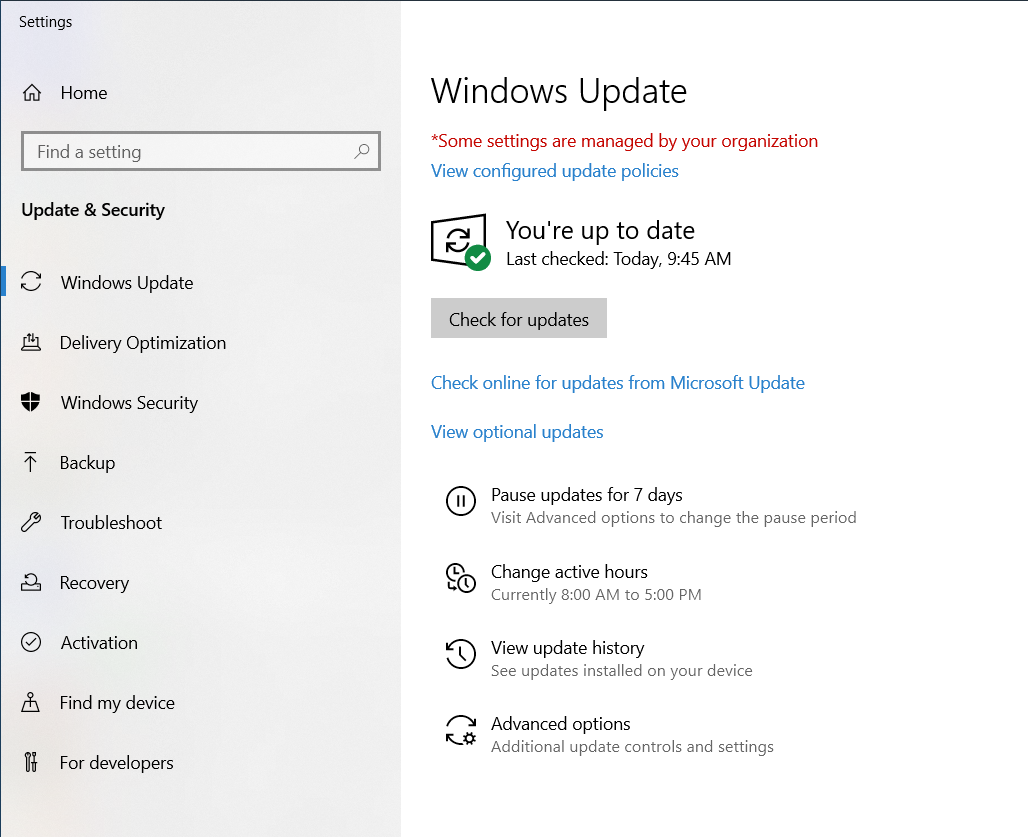
- Click on the Update & Security option.
- Hit the button for Check for updates, as shown in the image above.
- You can press the Download & install button if there are any available updates.
Furthermore, any new upcoming updates in the future will be downloaded and installed automatically in your computer system. This also ensures that the Microsoft components are not damaged and up to date with new features to avoid any issues like the QuickBooks error 30. If it does not resolve the issue, then you should update the QB Enterprise program through the next step.
Method 9: Update the QuickBooks Desktop
If you use an outdated version of the QB application, then it may lead to some issues and problems, including the QuickBooks error code 30 printer not activated. You can follow the process below to download the latest version of QB Enterprise.
Updating QuickBooks through the Desktop Application
Take the following steps to update the QB Desktop program through the application itself and get rid of the QuickBooks printer error 30.
- Launch QuickBooks on your computer.
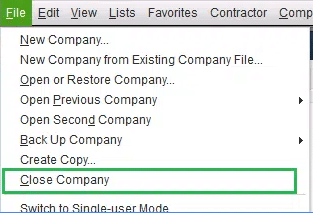
- Expand the File menu and press the Close Company option.

- Once done, exit the application and close QB.
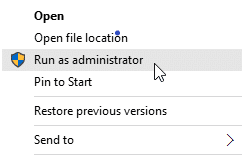
- Right-click the QuickBooks Desktop icon on the home screen.
- Select the Run as Administrator option from the expanded menu, as shown below.

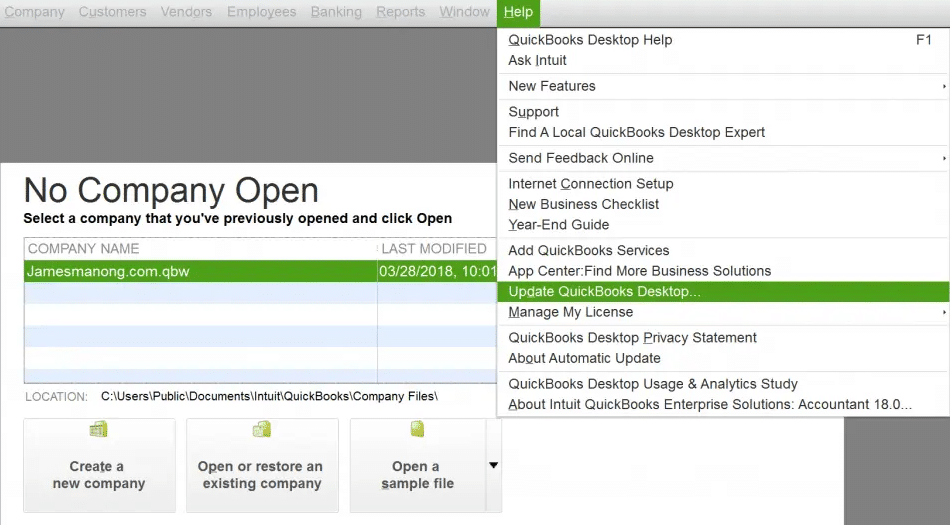
- You will see the No Company Open tab on your screen.
- Next, click on the Help menu and proceed with Update QuickBooks.

- Expand the Options menu, and tick the Mark All checkbox, then press Save.
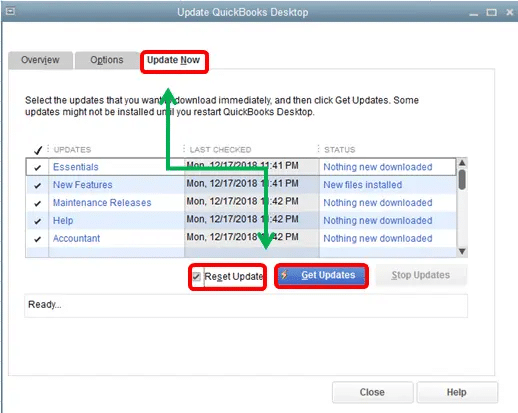
- Now, under the Update Now menu, select the Reset Update box.

- Lastly, press the “Get Updates” option and close the application.
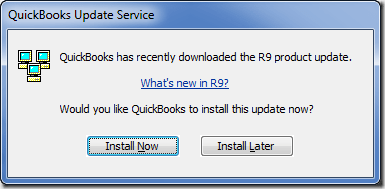
- You will see the QuickBooks Update Service pop-up as shown above.

- Select the Install Now option to commence installation of updates.
- After all the updates have been installed, reboot your system.
If you want to update the program using the Intuit website, then you can skip to the following process.
Updating QuickBooks through the Intuit Website
To resolve the QuickBooks error 30, you can follow the process outlined below to update the QB Desktop application by visiting the Intuit website.
- Open your preferred browser and head to the Intuit website.
- Navigate to the Downloads & Updates page and click on the Product menu.
- Now, select the QuickBooks Product from the dropdown.

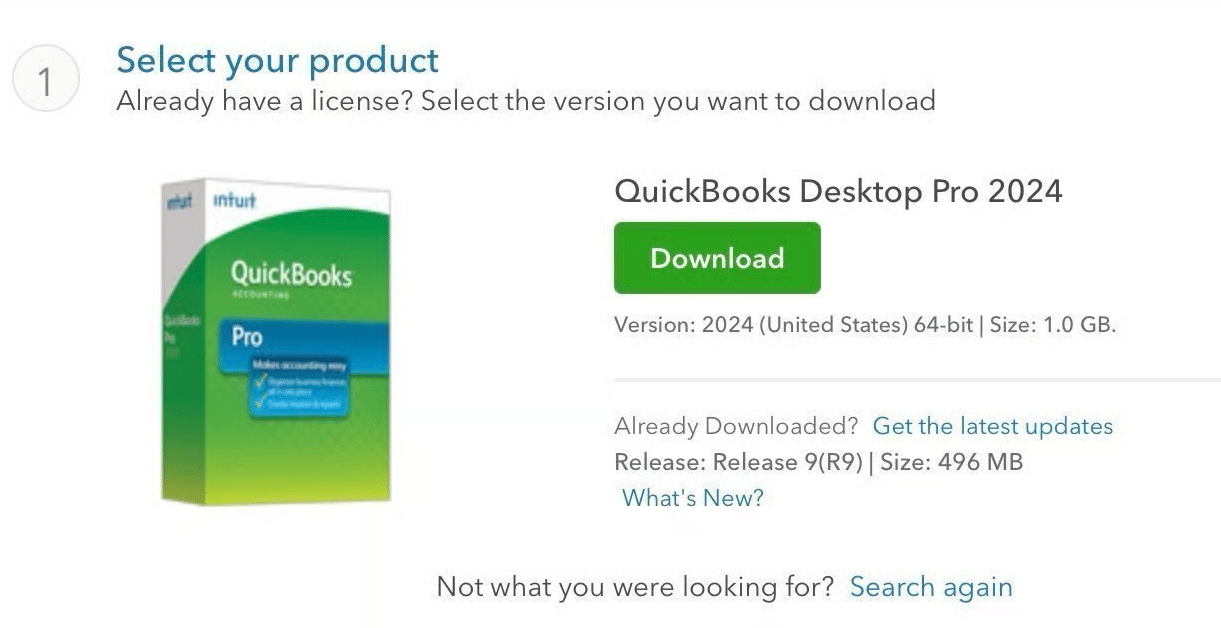
- Make sure that you have chosen your preferred QuickBooks version and year from the Version dropdown.
- Now click on the “Get the latest updates“, as shown in the image above.
- Then click on Save or Save File to commence downloading.
- Once downloaded, hit Windows + E keys to open File Explorer.
- Select the update file and install it with the help of the given instructions.
- Once you are done updating the application, restart your computer to load the changes.
Once you have successfully updated the QB application, you should not run into the QuickBooks error 30 anymore. If you do, then go to the following method for repairing the QB print file.
Method 10: Fix the QuickBooks Print File
Sometimes, the QB print file may consist of damaged data. It means that the data has compromised its integrity. In such cases, you need to restore its integrity by repairing these files. The instructions below will help you repair any damage in the print file that caused the QuickBooks error code 30 Printer not activated issue.
- Put the QB 20XX Disk into your computer.
- Press the Windows and R keys to launch the Run box.
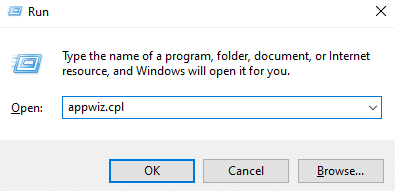
- Type ‘appwiz.cpl’ next to Open into the search bar and hit OK.

- You will see the Programs and Features window in the Control Panel.
- Find and right-click the QB 20XX from the list.
- Hit the Repair option from the menu.
- Follow the instructions on your screen to start the repair.
- Once the repair process is over, restart your computer.
If you complete these steps, then the damage to the QuickBooks print file will be repaired, and the QB error 30 will be resolved as well. But, in case this method does not work for you, then the print spooler service may be a cause and needs to be restarted with the following method.
Method 11: Reactivate the Print Spooler Service
In order to resolve the QB PDF and print-related problems, such as the QuickBooks error 30, you should check and restart the print spooler service. The steps below will tell you how to activate the service in Windows again.
- Open the Windows Start menu and enter ‘Services’ into the search bar.
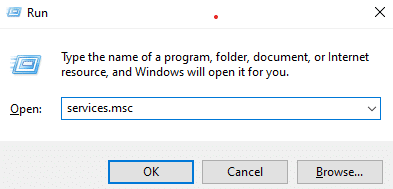
- You can also tap Windows + R keys and enter ‘services.msc’ in the Run box.

- Locate and right-click the Spooler service from the list.
- Hit Stop from the menu and then press the Start button.
- Or, simply tap the Restart button, as shown above.
Once done, the print spooler service will be restarted and continue to work normally without causing the QuickBooks printer error 30. We hope that these methods are easy to understand and help you troubleshoot this problem.
A Quickview Table for QuickBooks Error 30
Tabulated below is a summary of the blog that provides a concise overview of the QuickBooks printer error code 30:
| Error message | “QuickBooks Printer Not Activated”or“Error 30: QuickBooks has encountered a problem and needs to close. We are sorry for the inconvenience.” |
| Its causes | Using an outdated version of QuickBooks which does not support new features, having a Windows operating system that is not updated to the latest version, a corrupted or damaged QB PDF converter, Windows registry might have become corrupted, the QuickBooks PDF Converter is not installed properly, damaged printer drivers in your system, a lack of administrator permissions, presence of virus or malware affecting your computer’s performance, invalid files in the Windows registry. |
| Precautions to take | Update to the latest QuickBooks version, install the new version of the Windows operating system, confirm that your printer is connected securely, make sure that your printer is working with enough ink and blank sheets, and log in as an admin to provide required administrator permissions. |
| Troubleshooting methods | Download the QB Tools Hub to run the Quick Fix My Program as well as the QuickBooks PDF and Print Repair tool, re-install QB PDF converter, ensure that your preferred printer is set as the default printing device, uninstall USB Composite Device from the device manager, create a back up of Windows registry then restore point processing, get the latest version of Windows operating system and the QuickBooks Desktop, repair the QuickBooks Print File in computer, restart the Print Spooler Service. |
| Tools used | QuickBooks Tool Hub, Quick Fix My Program, and QuickBooks PDF and Print Repair Tool |
Bringing It All Together
In this guide, we have discussed a number of reasons that lead to QuickBooks error 30, along with ways to avoid it. If you do run into this error, then you can go through the solutions that are guaranteed to fix it.
If you are looking for quicker resolutions without the headache of running these solutions, then we are here for you. Let our professionals handle your tech troubles. Call at 1.855.738.2784 now to speak with an Accounting Helpline’s expert.
Frequently Asked Questions (FAQs)
How to fix the QuickBooks printer not activated error code 30?
If you are looking for ways to resolve the QuickBooks error 30, then we have discovered some of the best solutions for it. You can ensure that your preferred printer is set as the default, and you can update the Windows printer drivers on your computer. Moreover, make sure to log in as the administrator to avoid any permissions-related issues and restart the printer. Alternatively, you can use the QuickBooks Tool Hub to run utilities like Quick Fix My Program, QuickBooks PDF and Print Repair Tool.
What does QuickBooks error code 30 mean?
If you see the QuickBooks error 30, then it indicates that your computer is facing the printer not activated issue, which causes failure while trying to print. When this error occurs, you will be unable to print invoices or PDFs. There can be multiple reasons for this issue to arise, such as incorrect printer settings or outdated printer drivers. Additionally, it can happen due to a lack of administrator permissions and a damaged QuickBooks PDF converter. You can try out several resolutions in order to resolve this error and continue working seamlessly.
How do I fix PDF and print problems in QuickBooks?
In order to resolve the PDF and print issues in QuickBooks Desktop, you can perform various troubleshooting methods. You can use the QB Tool Hub to run the QuickBooks PDF and Print Repair Tool, which is a built-in utility in the application. Alternatively, make sure that the QB print file is not damaged. If it is, then repair it by going to the Programs and Features section in the Control Panel, where you will find QB 20XX in the list and repair it through the menu.
Why am I seeing a printer not activated error in QuickBooks?
The QuickBooks printer not activated error code 30 occurs due to reasons like outdated or damaged printer drivers on your system. Furthermore, factors like an incorrectly set-up printer or the Windows print spooler service not working properly may lead to this error as well. Additionally, if there are any underlying issues with the QuickBooks PDF converter, then it might cause the printer to not work as well. You can fix this error by using the QB PDF and Print Repair utility, or reinstalling the QB PDF converter or restarting the print spooler service.
Related Posts-
Fix QuickBooks Error PS033 With Pro-Recommended Techniques
Resolving QuickBooks Error H505: Causes and Troubleshooting Solutions
QuickBooks File Doctor Not Working! Here’s What to Do
QuickBooks Payroll not Working? Here’s How to Fix it
How to Fix QuickBooks Detected that a Component Required to Create PDF?
A Guide to Fix QuickBooks Printing Problems with Invoices

Edward Martin is a Technical Content Writer for our leading Accounting firm. He has over 10 years of experience in QuickBooks and Xero. He has also worked with Sage, FreshBooks, and many other software platforms. Edward’s passion for clarity, accuracy, and innovation is evident in his writing. He is well versed in how to simplify complex technical concepts and turn them into easy-to-understand content for our readers.