
Last Updated on April 2, 2026
QuickBooks error 15311 can show up when you try to update QuickBooks Desktop. This is truly an obstacle for many reasons.
Payroll and software updates play a crucial role in day-to-day QuickBooks accounting. They ensure that the software continues to perform smoothly and stay compatible with the operating system and third-party components. Moreover, you need to have the latest tax table installed before you can run payroll operations.
QuickBooks Error code 15311 prevents you from getting these updates and thus can halt your accounting operations. Thus, it is crucial to troubleshoot it as soon as possible. In this blog, we will take you through every step of the same.
It is possible to self-troubleshoot QuickBooks payroll update errors. However, they might often prove to be stubborn and time-consuming. If that seems the case, you can connect with an Accounting Helpline expert at 1.855.738.2784 for real-time assistance!

QuickBooks Error 15311 – An Overview
QuickBooks error 15311 is an issue that users commonly run into when downloading and installing payroll updates. This can be because of numerous reasons, such as an invalid digital signature, problematic Windows configurations, or damaged installation files.
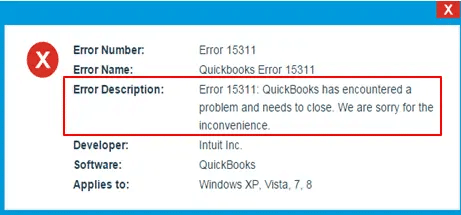
To be honest, there are numerous factors that can lead to this problem, which we will go through in the next section.
All the Potential Reasons for QuickBooks Payroll Update Error 15311
There are various factors that can lead to the QuickBooks payroll update error 15311. For instance:
- The system is unable to verify digital signatures, which might result from an outdated or missing digital signature.
- Windows system files are damaged, leading to miscellaneous problems when updating or installing applications.
- There is an issue with how the Shared Download drive was mapped.
- Windows Firewall blocks QuickBooks from accessing the necessary ports and thus interrupts its communication with Intuit servers.
- Antivirus prevents QB programs (like qbupdate.exe) from running in the background, or it can’t let QuickBooks access the ports.
- QuickBooks File Copy Service (FCS) might be disabled. QuickBooks File Copy Service (FCS) is an essential Windows service you need to have enabled for background processes in QBDT, including the updates.
- Crucial Windows components, registry keys, or installation files have become damaged or have been modified.
- You might lack the necessary permissions.
Now, we will see how to address the problem.
Step-by-step Troubleshooting for QuickBooks Error 15311
Let us walk you through the complete procedure for addressing QuickBooks Desktop error 15311. Go through the steps given and carry them out as instructed.
Run the Updates as an Administrator
Launch the QuickBooks Desktop as an administrator to make sure you have the authority to make changes.
- Close all QuickBooks windows.
- Right-click the QuickBooks Desktop icon on the desktop and choose Run as Administrator.

- When asked for confirmation, select the Yes option, and if asked for the administrator password, enter the same.
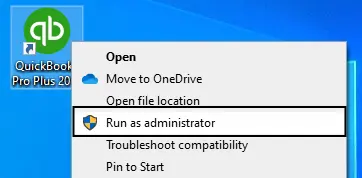
Now, retry getting updates. If you see QuickBooks error code 15311, move to the next step.
Utilize the Quick Fix my Program
First, you need to close all QuickBooks windows and download and install the QuickBooks Tool Hub on your computer. Then, carry out the steps below:
- Launch QuickBooks Tool Hub.

- Navigate to the Program Problems tab.

- Choose Quick Fix my Program.

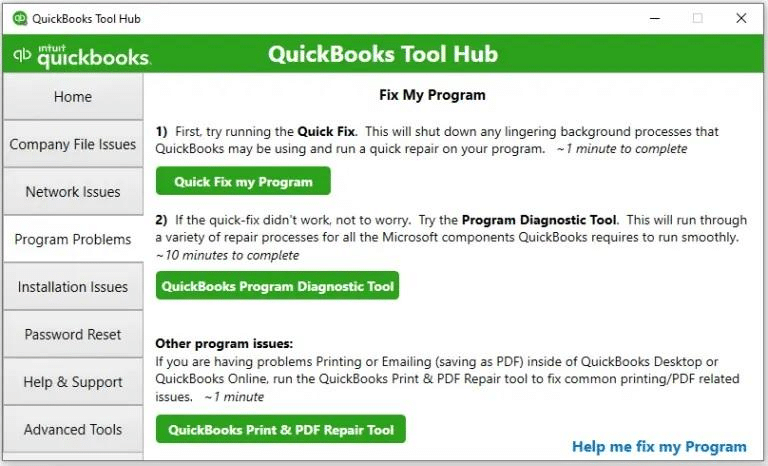
Launch QB Desktop and install updates.
Delete Components and Reset Updates
If you still get QuickBooks error 15311, you can try resetting updates.
However, first, you will need to delete the components in the following manner:
- First, begin by closing your QuickBooks Desktop application.
- Navigate to C:\ProgramData\Intuit\QuickBooks XX\Components in the File Manager.
Note: XX represents the last two digits of your version year. For instance, if you are on QuickBooks Desktop 2024, XX will be 24. - Now, right-click Components and choose Delete.
Next, reset updates:
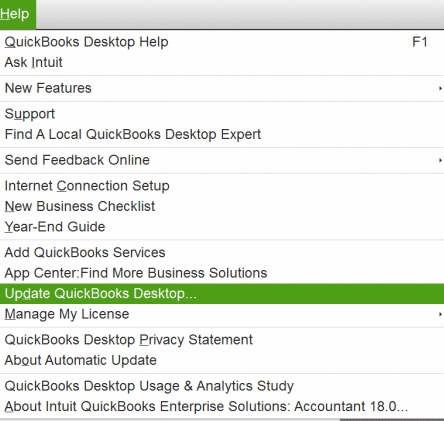
- Launch QuickBooks Desktop and pull up the Help menu.
- Choose Update QuickBooks Desktop, followed by Update Now.

- Mark the Reset Update checkbox and choose Get Updates.

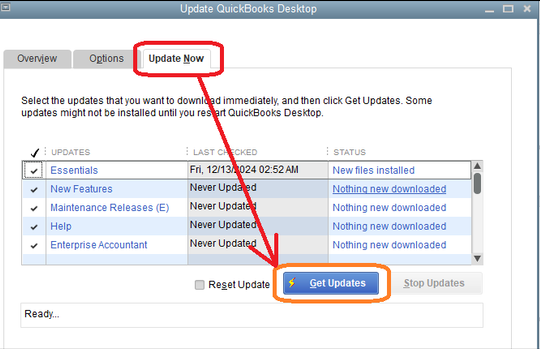
After the update process completes, close the QuickBooks application and relaunch it.
- Open the Help menu and choose Update QuickBooks Desktop.
- Click on the Overview section, and click on Update Now.
If this doesn’t help, we should run the QuickBooks Install Diagnostic Tool from the Tool Hub.
Utilize the QuickBooks Install Diagnostic Tool
QuickBooks Tool Hub has tools to repair the installation files and damaged components. Thus, you will need to do so manually.
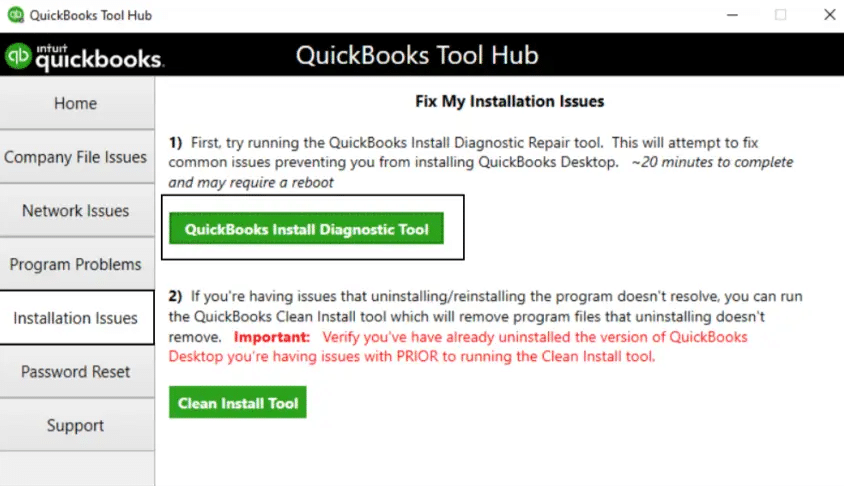
- Launch QuickBooks Tool Hub.
- Navigate to the Installation Issues tab.
- Select the QuickBooks Install Diagnostic Tool option.

- It will take some minutes for the QuickBooks Install Diagnostic Tool to initiate.
- Follow as instructed, and once it starts running, it will take 10 to 15 minutes to finish repairing.
Once done, restart the computer, and check if you can install the updates without error code 15311 in QuickBooks.
Install QuickBooks Digital Signature Certificate
Follow the steps below to install a fresh copy of the digital signature certificate for QuickBooks Desktop.
- Open the File Explorer and navigate to C:\Program Files\Intuit\QuickBooks.
- Right-click the QBW32.exe file and choose Properties.
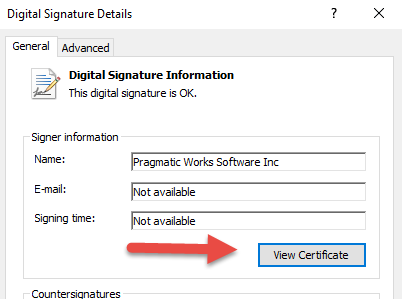
- Click on Digital Signature.
- Ensure that you see Intuit marked in the signature list.
- Choose Details.
- You will see the View Certificate option in the Digital Signature Details window. Choose it
- Now, click the Install Certificate option.
- Continue clicking Next until you see the Finish option, and when you do so, choose Finish.
Restart your computer and open QB. Get the updates.
Configure Windows Firewall and Security Software
QuickBooks needs to access certain ports to connect to the internet and communicate with Intuit servers. Only then can it download updates.
You will need to configure Firewall ports in Windows Firewall. If you have an antivirus or security software installed, create antivirus exemptions as well. After that, restart the computer and resume updates.
Clean Install QuickBooks Desktop
If you continue to struggle with payroll update error 15311, you might need to reinstall QuickBooks Desktop to repair the damage.
We recommend performing a clean installation of QuickBooks Desktop rather than a traditional reinstallation. This will remove the malicious files that can continue to cause errors.
Enable QuickBooks Desktop File Copy Service (FCS)
You must enable the QuickBooks Desktop File Copy Service. The following steps will help you do so:
- Press the Windows + R keys to launch the Run window.
- Enter COMPMGMT.MSC into the Run command and hit OK.
- When you see the Computer Management Window open, click on Services and Applications.
- Select Services and scroll down to Intuit QuickBooks FCS. Double-click it.

- Tap on Startup type and select Manual.
- Finally, choose Apply followed by OK.
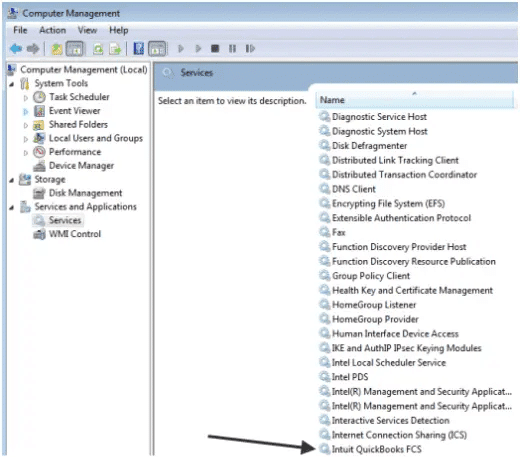
Now, restart the computer, and see if the QuickBooks error 15311 is resolved.
Refresh the Payroll Connection
You should revalidate the payroll service key to refresh the connection.
- Open the QuickBooks application and pull up the Employees.
- Select My Payroll Service and choose Activate Service Key.

- Now, in the Service Keys window, highlight the current payroll Edit.
- Finally, tap Next until you see Finish, then tap Finish.
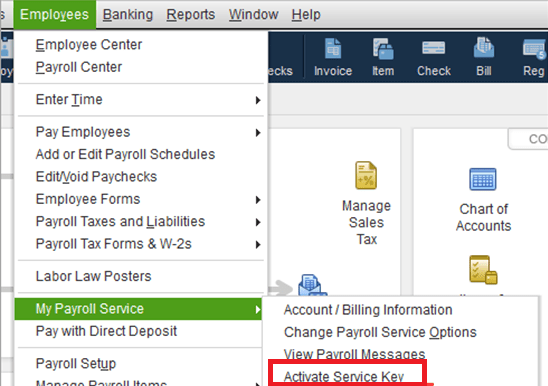
Check if you can update QuickBooks software or payroll.
QuickBooks Error 15311 – Quick View Table
In this section, we will provide a condensed view of what we have covered in this blog.
| Description | Users run into QuickBooks error 15311 when installing software or payroll updates |
| What causes it | Invalid digital signature, firewall blocking, missing file or components, incorrectly mapped shared drive, corrupt program or tax table, disabled QuickBooks File Copy Service (FCS) |
| How to fix it | Install the digital signature certificate, enable QuickBooks File Copy Service (FCS), run Quick Fix my Program and QuickBooks Install Diagnostic Tool, repair QuickBooks Desktop, reset QuickBooks updates, configure Windows Firewall, and create antivirus exceptions for QB programs. |
Final Words
Payroll and software updates are an integral part of QuickBooks accounting. QuickBooks error 15311 can keep you from installing these updates, and thus, it becomes crucial to resolve it.
In this blog, we have guided you on how to troubleshoot the error. However, if it doesn’t address the problem, and you continue to struggle with it, you can reach out to an Accounting Helpline expert. Dial 1.855.738.2784 to connect with an expert who is available round the clock and will help you rectify the error in no time.
Frequently Asked Questions
How to fix QuickBooks error 15311?
To resolve QuickBooks error 15311, you will need to address various aspects. Begin by running the updates as an administrator and updating your Windows operating system. Another thing you need to ensure is that the QuickBooks File Copy Service is enabled. Moreover, you might need to install a fresh copy of the digital signature certificate for QuickBooks Desktop.
Why can’t I update QuickBooks payroll?
You might not be able to update QuickBooks Payroll owing to a restrictive firewall, antivirus, or third-party interruption, or an invalid or outdated digital signature. Other reasons may be that crucial Windows components, registry keys, or installation files have been damaged or modified.
How to fix the QuickBooks payroll update not working issue?
If you find that the QuickBooks payroll update isn’t working, check your internet connection and ensure that your payroll subscription is active. Moreover, ensure the date and time are set correctly, reset QuickBooks updates, and repair the installation.
Related Posts-
What is the QuickBooks Error 1638? A Complete Guide
Learn How to Perform QuickBooks Bank Reconciliation
Here’s How to Reconciling Payroll Liabilities in QuickBooks
Learn How to Set Up Email In QuickBooks Effortlessly
QuickBooks Error 1328: Comprehensive Guide to Fix
Resolving QuickBooks Error H505: Causes and Troubleshooting Solutions

Edward Martin is a Technical Content Writer for our leading Accounting firm. He has over 10 years of experience in QuickBooks and Xero. He has also worked with Sage, FreshBooks, and many other software platforms. Edward’s passion for clarity, accuracy, and innovation is evident in his writing. He is well versed in how to simplify complex technical concepts and turn them into easy-to-understand content for our readers.