

Last Updated on March 11, 2026
You might sometimes find that the QuickBooks search not working. When QuickBooks Online and Desktop users encounter this strange problem, where the search function suddenly stops working, they are left clueless about how to address it. That’s precisely why we have made this blog.
After analyzing the problem and its causes, we will outline the critical steps you need to take to resolve the QuickBooks search not working error. So read this blog until the end for further information and guided solutions. First, let’s start with a quick explanation of this issue.
Get the help of an Accounting Helpline’s expert for troubleshooting it if the QuickBooks search stops working. Dial 1.855.738.2784, and get real-time assistance today!

What is the QuickBooks Search Not Working Error? | A Short Explanation
QuickBooks Desktop and Online platforms have several features that one can utilize to reduce the time and effort that goes into managing daily bookkeeping tasks. One of such features is the QuickBooks search feature that makes it easier to find a transaction, client, company file, or any type of desired data. After you search, QB will instantly filter out the results you are looking for.
However, sometimes when working on QuickBooks, you might notice that the search function is not working. This can be due to accumulated cookies and cache in your browser.
What Causes the QuickBooks Search to Not Work?
Most of the time, the QuickBooks search not working error arises after cookies and cache accumulate in QBO. In QBDT, this might happen when the updates are not correctly installed after downloading them. Some other reasons that can trigger this error in the QuickBooks search feature are listed below:
- Registry error in the Windows operating system.
- The Windows Firewall or a third-party firewall is blocking QuickBooks Desktop.
- Outdated version of QuickBooks Desktop.
- Damaged QuickBooks Search Index file.
- Damaged or corrupted QB files.
- A damaged company file.
Now, let us proceed to list the troubleshooting methods for this problem.
How to Troubleshoot the QuickBooks Search Not Working Error
Given below is a list of tested methods you can use to resolve this issue in both QuickBooks Desktop and Online in a step-by-step manner:
Note: If you are a QuickBooks Online user, you can skip to solution 7 for fixing the QBO search not working problem.
Solution 1: Rename the QuickBooks Search Index File
A corrupt QB search index file is one of the most common causes of this issue. Renaming the file will force QuickBooks to create a new one, which can help rectify the problem. You can follow these steps to rename the file:
- Open QuickBooks and exit the company file.
- Press the Windows Start button and type *.SearchIndex in the Search Programs and Files search box.
Note: Alternatively, you can open File Explorer, go to This PC, and search for *.SearchIndex in the search box at the top right corner. - Press Enter.
- Now Windows will take you to C:\Users\UserName\Public\Documents\Intuit\QuickBooks\Company\Companyfilename.QBW folder
- Now, locate qbw.SearchIndex
- Type “OLD” at the end of the folder name.
- Then, proceed to open your QuickBooks Company File again.
- Go to the top left corner of the window.
- Click the Search/Magnified Glass tab.
- Now, from the left side panel, click the Update Search Information option.
- Once you see the update in progress, please wait for the notification and click OK.
- After the update completes, try using the search feature.
If you are still not able to use the search feature of QuickBooks, then follow the next troubleshooting step.
Solution 2: Update Your QuickBooks Desktop App
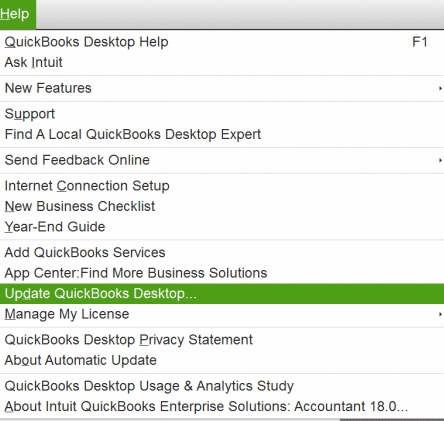
An outdated version of the QBDT software can lead to various program problems, including the search bar not working. Update your QuickBooks Desktop application to resolve this issue today and start working again hassle-free.
Solution 3: Make Firewall Exceptions for QuickBooks
Your Windows Firewall blocking QuickBooks can be the reason for your search not working. To resolve this, make Firewall exclusions for your QB Desktop application. This would also fix any other issues arising due to the same reason.
Solution 4: Verify and Rebuild Your Company Data
A damaged company file can cause your QuickBooks search to not work properly. You can resolve that by verifying and rebuilding the data file with the following steps:
- First, go to Windows.
- Click on Close All.
- Now, navigate to the File menu.
- Press the Utilities option.
- Click on Verify Data.

- Then, open the File menu again.
- Click on Utilities.
- Press the Rebuild Data option.

- Select OK if QuickBooks asks you to make a backup file:
- Choose where you want to save the backup.
- Press OK.
- Enter a new File name.
- Select Save.
- You will get the message stating Rebuild data completed.
- Press OK.

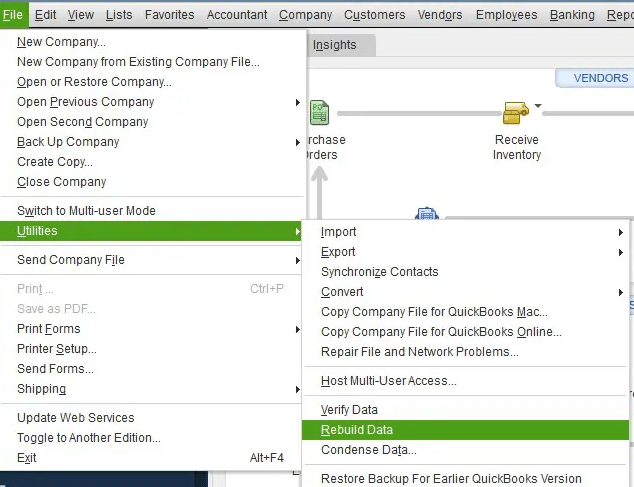
Now the QuickBooks search not working issue will be fixed.
Solution 5: Repair QuickBooks Desktop
You can repair your QuickBooks Desktop application to fix the search not working problem with the following steps:
- Download and install the QuickBooks Tool Hub.

- Go to the Installation Issues tab.
- Click on the QuickBooks Install Diagnostic Tool.

- Let the tool initialize and run a complete repair.

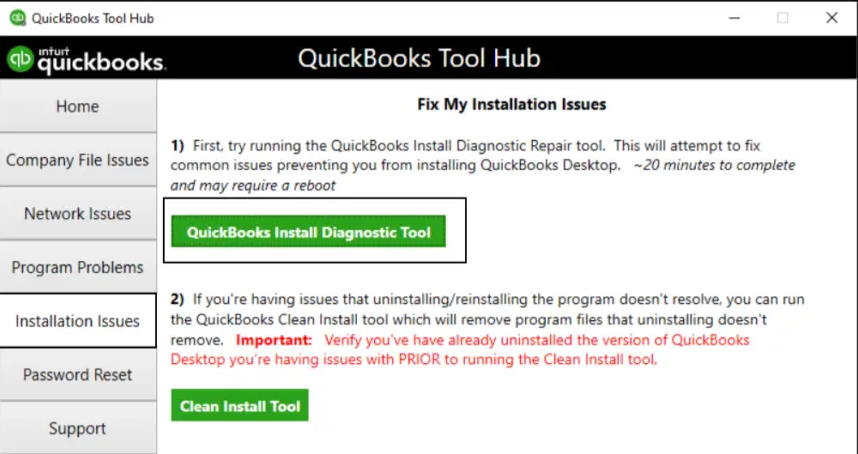
This would fix the installation issues with your QuickBooks Desktop application and resolve the search not working issue.
Solution 6: Fixing the Windows Registry
To troubleshoot this issue, you must have a deep and in-depth understanding of the Windows operating system. If you are not very familiar with editing registries, then contact your IT admin or get in touch with our experts.
Solution 7: Clear QuickBooks Cache and Cookies
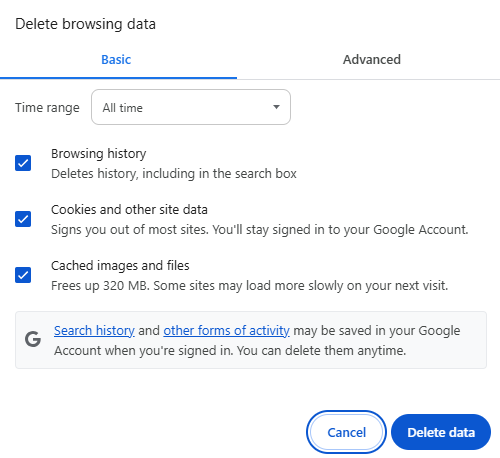
Piled-up cookies and cache in your web browser can cause your QuickBooks Online website to not work properly. This might be the exact reason your QuickBooks search is not working. You can try opening QBO in an incognito or private window.
The shortcuts below will help you open the private or incognito window, depending on the browser you use:
- Ctrl + Shift + N for Google Chrome.
- Ctrl + Shift + P for Firefox.
- Command + Shift + N for Safari.
- Ctrl + Shift + N for Microsoft Edge.
Next, you should clear the QB cache and Intuit cookies to resolve this error and have a smooth browsing experience.
QuickBooks Search Not Working – A Quick View Table
Given in the table below is a concise summary of this blog on the topic of the QuickBooks search not working:
| Description | The QuickBooks search not working is an issue that many users face, in which their search bar doesn’t work, and they are unable to filter out the required results. |
| Causes | Registry error in Windows, the Firewall blocking QuickBooks, an outdated QB Desktop application, a damaged QB search index file, and a corrupted company file. |
| Methods to fix it | Rename the QB search index file, update QB Desktop, make QB Firewall exceptions, verify and rebuild the company file, repair QBDT, fix the Windows registry, and clear QuickBooks cache and cookies. |
Conclusion
In this blog, we talked about the QuickBooks search not working problem and the various factors that can cause it. Additionally, we provided you with the troubleshooting methods you can implement to resolve this issue on your own. However, if you’re not able to resolve the error on your own and are still at bay with it, you can always reach out to us at 1.855.738.2784 to get in touch with one of our Accounting Helpline’s experts, who will help you resolve the error in no time!
FAQs
Why is the QuickBooks Online search not working?
The reason your QuickBooks Online search is not working can be piled-up cache and cookies in your web browser. The cookies and cache, when accumulated, can cause the website to not function properly, hence leading to this error.
What is the best browser to use QuickBooks with?
The best browser to use QuickBooks with is Google Chrome, as it is recommended by Intuit for the best browsing and user experience. However, it is still recommended to add Intuit as a trusted website in Chrome.
How do I search in QuickBooks?
To search for all data in QuickBooks, go to the Edit option and click on Find. Then, in the Search Windows, enter the thing you’re looking for, and QuickBooks will match and show all results within different areas of your company file. Now, go to the left panel to view the results of your search. To filter the results, click on the Filter icon and adjust the limits to find the data you want. To save the search results, click on Save current results. Navigate to Saved Searches to run the same search again. To go to the original transaction, you can double-click on the search result.
Related Posts-
QuickBooks Error 6000 83 – Description, Causes, and Quick Fix
Expert-Approved Resolution Guide to QuickBooks Unrecoverable Error Codes
How to Fix QuickBooks Error 6147 with Effective Methods
QuickBooks Cannot Communicate with the Company File [SOLVED]
Don’t Fix QBDBMgrN Not Running on This Computer Without Reading This
QuickBooks Error 1328: Comprehensive Guide to Fix

Edward Martin is a Technical Content Writer for our leading Accounting firm. He has over 10 years of experience in QuickBooks and Xero. He has also worked with Sage, FreshBooks, and many other software platforms. Edward’s passion for clarity, accuracy, and innovation is evident in his writing. He is well versed in how to simplify complex technical concepts and turn them into easy-to-understand content for our readers.