
Last Updated on February 10, 2026
If you are dealing with the QuickBooks not calculating unemployment correctly issue, it can be due to the incorrect state unemployment rate in the payroll item list. This can also occur due to company file issues in the QuickBooks Desktop application. It can hamper your workflow and have a negative impact on your important accounting and bookkeeping processes. QB might not calculate your unemployment taxes correctly due to several different reasons. In this blog, we’ll cover the methods you need to know to troubleshoot the unemployment taxes not calculating issue in QB Desktop and Online correctly.
Is QuickBooks not calculating your unemployment tax correctly? Feel free to contact our Accounting Helpline experts today at 1.855.738.2784 to resolve your issue in no time!

Potential Causes for QuickBooks Not Calculating Your Unemployment Correctly
The factors that potentially trigger the issue of inaccurate unemployment tax calculation in QuickBooks:
- An outdated QB Desktop application.
- Outdated payroll and tax tables in QB Desktop.
- The tax setup in QB Desktop is not correct.
- Incorrect state unemployment tax (SUI) rate in QBDT.
- Store QB cache and cookies in your web browser.
These are the causes of QuickBooks not calculating unemployment correctly.
Methods to Resolve the Unemployment Tax Not Calculating Correctly Issue in QB Desktop
Listed below are the methods you can use to resolve the issue of inaccurate unemployment tax calculation in QuickBooks:
Update Your SUI Rates
In the QB Desktop application, SUI or state unemployment insurance rates aren’t part of the normal tax table updates. You have to update the SUI rates manually with the steps given below:
- Open the QB Desktop app.
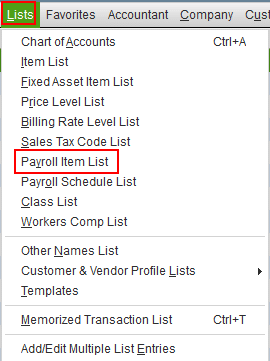
- Navigate to the Lists menu.
- Click on the Payroll Item List.

- Then, proceed to double-click on [state abbreviation] – Unemployment Company.
- Hit Next until you reach the Company tax rates window.
- Enter the correct rates for each quarter.
- Hit Next.
- Click on Finish.
If you have surcharges or assessments, you might have to update additional rates in QuickBooks with the following steps:
- Navigate to the Lists menu.
- Click on the Payroll Item List.
- Double-click on the State Surcharge item.
- Press Next.
- Follow the steps given on your screen.
- On the Company Tax Rate page, enter the rate as a percentage.
This would resolve the issue you were dealing with.
Verify the SUI Tax Exemptions
If you or your employee should be or shouldn’t be exempt from SUI tax, check and update your tax exemptions if needed in QBDT with the steps given below:
- Open the QB Desktop app.
- Navigate to the Employees menu.
- Click on the Employee Center.
- Double-click on the employee’s name.
- Proceed to click on Payroll Info.
- Then, choose the Taxes option.
- Review the SUI checkbox and correct if needed.
This would resolve the problem you were dealing with.
Use Quick Fix My Program
Program problems with the QB Desktop app can also trigger the QB not calculating unemployment correctly problem. You can use the Quick Fix My Program tool to fix such issues with the steps given below:
- Download and install the QuickBooks Tool Hub.

- Open the QB Tool Hub app.
- Navigate to the Program Problems tab.
- Click on Quick Fix My Program.

- Let the tool run.

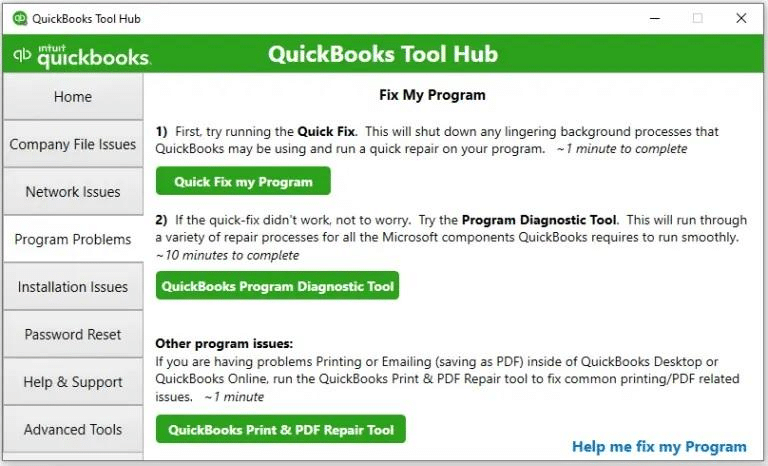
The tool would run and fix issues with the QB Desktop app.
Update the QB Desktop App
An outdated QBDT app can cause the state unemployment tax to not be calculated correctly in QuickBooks. You can fix it by updating the QB Desktop app with the steps given below:
- Open the QuickBooks Desktop software.
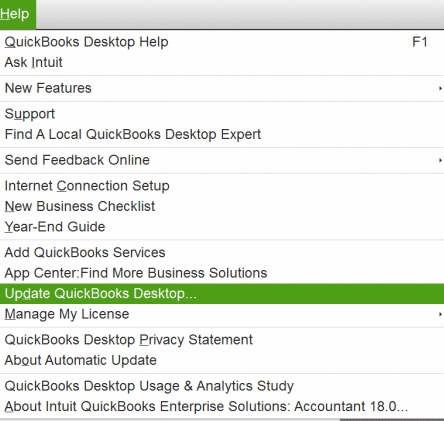
- Navigate to the Help menu.
- Click on Update QuickBooks Desktop.

- Then, select Update Now.
- Click on the Get Updates option.

- Close and reopen the QBDT app to install the updates.
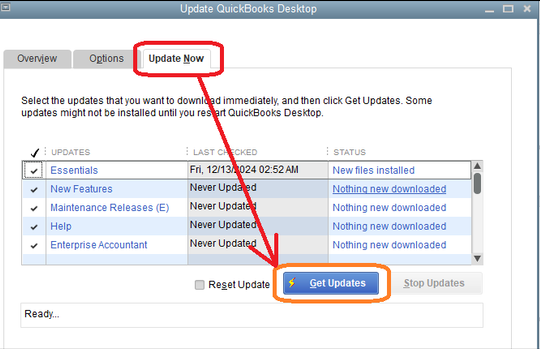
Now, the problem should be fixed.
Verify and Rebuild the Company File Data
A damaged company file can be the reason why you’re dealing with the QuickBooks not calculating unemployment correctly issue. You can use the verify and rebuild data utility to fix the issue with the steps given below:
- Open the QB Desktop app.
- Navigate to the File menu.
- Click on Utilities.
- Select the Verify Data option.

- Then, open the File menu again.
- Select Utilities.
- Click on the Rebuild Data option.

- QB will ask to create a backup file before it rebuilds your data.
- Press OK.
- A backup is required to rebuild your company file.
- Choose where the file would be saved.
- Hit OK.
- Make sure not to replace an existing backup file.
- Enter a unique name in the File name field.
- Press Save.
- You will get a message stating that Rebuild has completed.
- Hit OK.

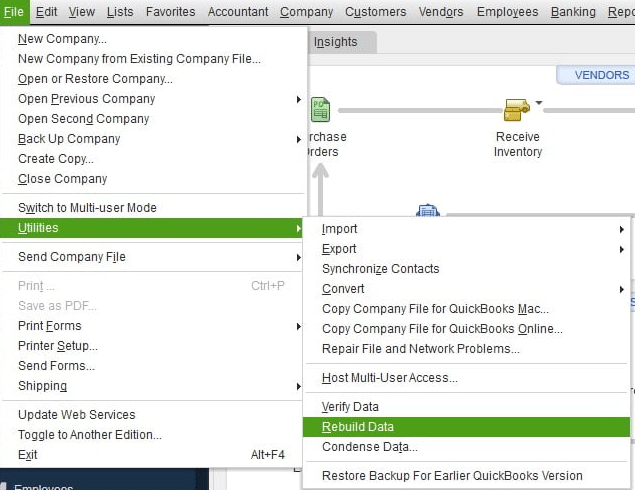
This should resolve the problem you were dealing with.
Methods to Resolve the Unemployment Tax Not Calculating Correctly Issue in QB Online
Given below are the methods you can use to resolve the unemployment tax not calculating issue:
Update the SUI Rate in the QB Online
You can update the SUI rates manually in the QuickBooks Online website using the steps given below:
- Open the QB Online website.
- Navigate to Settings.
- Click on Payroll Settings.
- Click on Edit next to the state you wish to update.
- Choose Change or add a new rate in the State Unemployment Insurance (SUI) Setup section.
- Feed in your new rate and its effective date:
- For most states, the effective date is 1/1. For NJ, TN, and NJ, the date is 7/1
- Choose or enter any surcharge or assessment rates.
- Press OK.
Now, the issue should be patched.
Verify the SUI Tax Exemptions in QB Online
If you or your employee should be or shouldn’t be exempt from SUI tax, check and update your tax exemptions if needed in QBO with the steps given below:
Employee
- Select Edit for Tax withholding.
- Check the SUI checkbox and make any needed changes.
- Hit Save.
Employer
- Navigate to Settings.
- Click on Payroll Settings.
- Hit Edit next to your state.
- Press Edit in the Unemployment Insurance (UI) section.
- Click on Continue.
- Review the rate and effective data.
- Update it if needed.
- Press Save.
- Click on Done.
Now, the problem will be solved.
Clear the QB Cache and Cookies
QB cache and cookies stored in your web browser can result in QuickBooks not calculating unemployment correctly. The steps you can use to clear Intuit cache and cookies from different web browsers are given below:
Google Chrome
- Firstly, open your Google Chrome browser.
- Then, select Customize and control Google Chrome.
- Click on the three vertical dots at the top right corner to do that.
- Press the Settings option.
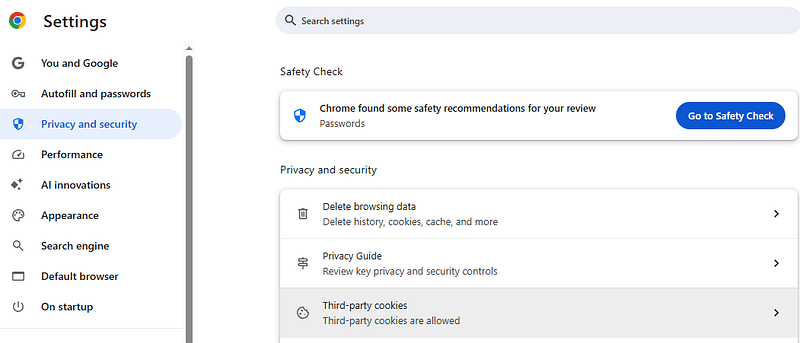
- Now, go to the Privacy and Security tab.

- Click on Third-party cookies.
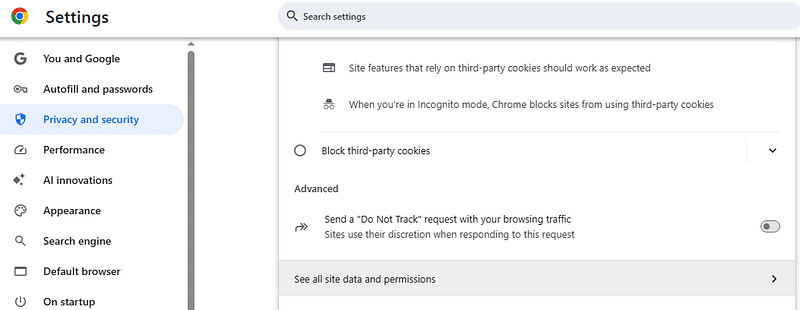
- Select See all site data and permissions.

- Go to the search bar.
- The search bar would be located on the right of third-party cookies.
- Type in Intuit.
- Hit Enter.
- Finally, choose the Remove All option.
Safari for Mac
- Open the Safari browser on your Mac.
- Select the Preferences option.
- Now, go to the Privacy section.
- Press Manage Website Data.
- Then, proceed to type Intuit in the search box.
- Hit Enter.
- Select the Remove All button.
Mozilla Firefox
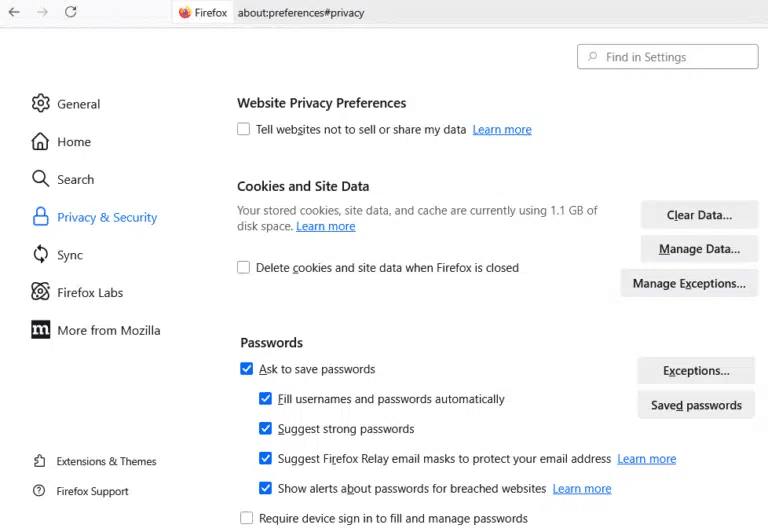
- Open the Mozilla Firefox application.
- Click on the three lines.
- At the top right corner.
- Located below the Close (X) window option.
- Press the Settings option.
- Now, click on Privacy & Security.

- Go to Cookies and Site Data.
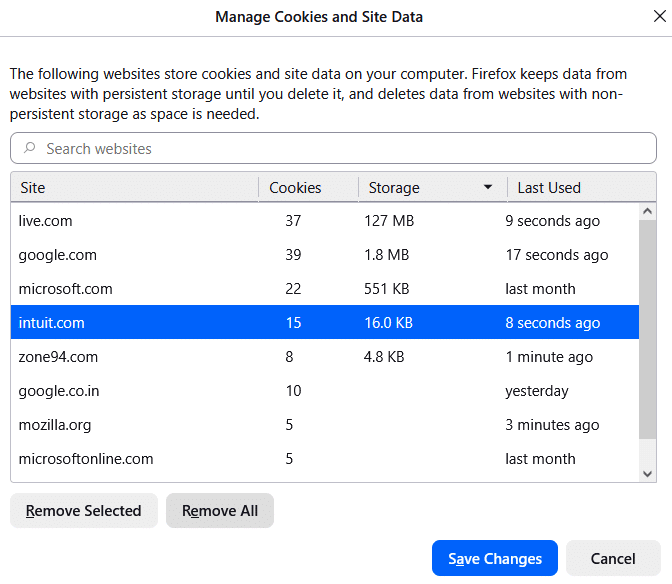
- Then, proceed to open the Manage Data window.
- Now, navigate to the Search Websites bar.
- Type Intuit.
- Press the Enter key on your keyboard.
- Select the Remove All Shown option.

- Click on Save Changes.
Microsoft Edge
- Double-click on the Microsoft Edge browser icon.
- This would open the browser.
- Select the Settings and More option.
- Located in the top-right corner.
- You can also press Alt + F to open it.
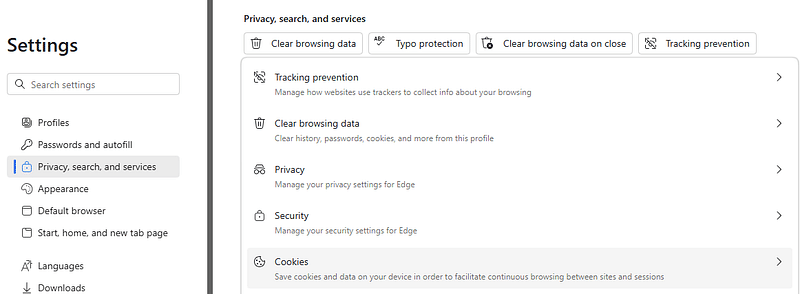
- Choose to press the Settings option.
- Then, browse to the Privacy, search, and services tab.

- Click on the Cookies option.
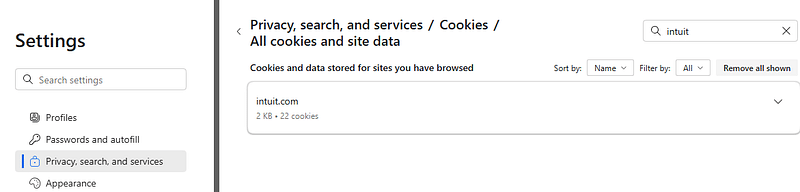
- Select the See all cookies and site data option.
- Go to the search bar and type Intuit.
- Then, press the Enter key on your keyboard.
- Select Remove all shown.

- Finally, just click on Clear.
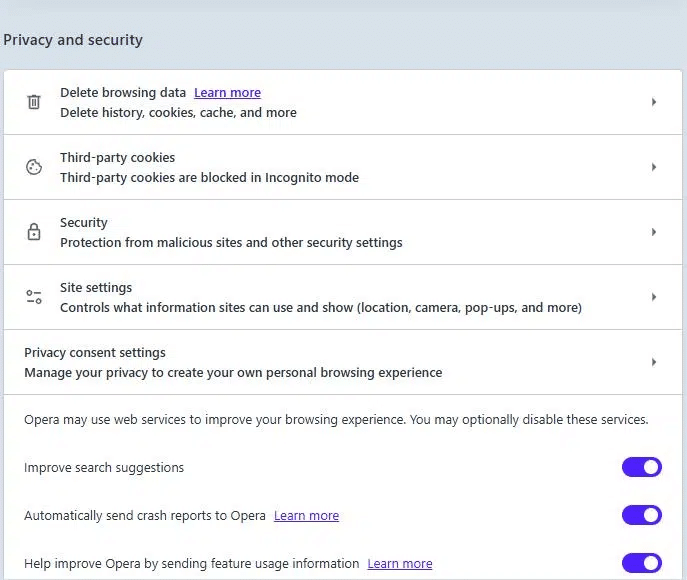
Opera Browser
- Open the Opera browser.
- Click on the three horizontal lines below the minimize option.
- Press the Privacy and Security tab.

- Select the Third-party cookies option.
- Click on See all site data and permissions.
- Go to the search bar.
- Type in Intuit.
- Press the bin beside the Intuit results you see.
- Click on Delete.
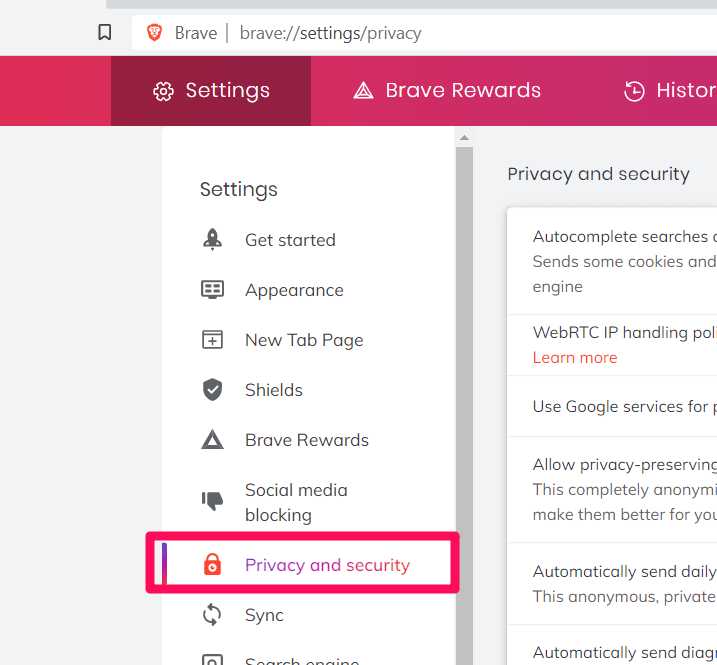
Brave
- Run the Brave browser.
- Click on the menu in the top right.
- Select Settings.
- Then, go to the Additional Settings option.
- Press Privacy and Security.

- Select Site and shield settings.
- Click on Cookies and site data.
- Select View permissions and data stored across sites.
- Go to the search bar.
- Feed in Intuit.
- Click on Remove All Shown.
The cache and cookies would now be cleared from your web browser.
QuickBooks Not Calculating Unemployment Correctly – A Quick View Table
In the table below is given a concise summary of this blog on the topic of QuickBooks not calculating unemployment correctly:
| Description | If you are dealing with the QuickBooks not calculating unemployment correctly issue, it can be due to the incorrect state unemployment rate in the payroll item list. This can also occur due to company file issues in QuickBooks Desktop. It can hamper your workflow and negatively impact your key accounting and bookkeeping processes. QB might not calculate your unemployment taxes correctly due to several different reasons. |
| Its causes | 1. An outdated QB Desktop application. 2. Outdated payroll and tax tables in QB Desktop. 3. The tax setup in QB Desktop is not correct. 4. Incorrect state unemployment tax (SUI) rate in QBDT. 5. Stored QB cache and cookies in your web browser. |
| Methods to fix it in QBDT | Update your SUI tax rates, verify the SUI tax exemptions, utilize the Quick Fix My Program tool, update the QB Desktop app, and verify and rebuild your company file data. |
| Methods to fix it in QBO | Update your SUI tax rates, verify the SUI tax exemptions, and clear Intuit cache and cookies from your web browser. |
Conclusion
If you are dealing with the QuickBooks not calculating unemployment correctly issue, it can be due to the incorrect state unemployment rate in the payroll item list. This can also occur due to company file issues in QuickBooks Desktop. It can hamper your workflow and negatively impact your key accounting and bookkeeping processes. QB might not calculate your unemployment taxes correctly due to several different reasons. We have covered the potential factors that can trigger the issue of the unemployment tax not calculating correctly to appear on your screen, along with the methods you need to know to troubleshoot it in this blog.
If you are still dealing with the same problem, feel free to contact our Accounting Helpline experts at 1.855.738.2784 today, who can help resolve your SUI tax not calculating issue correctly at a moment’s notice!
FAQs
Why is my QuickBooks not calculating unemployment correctly?
Your QB might not be calculating unemployment correctly due to the following reasons:
– An outdated QB Desktop application.
– Outdated payroll and tax tables in QB Desktop.
– The tax setup in QB Desktop is not correct.
– Incorrect state unemployment tax (SUI) rate in QBDT.
– Stored QB cache and cookies in your web browser.
How do I fix the QB Desktop not calculating unemployment correctly?
You can fix the QB Desktop not calculating unemployment correctly issue with the following methods:
– Update your SUI tax rates.
– Verify the SUI tax exemptions.
– Utilize the Quick Fix My Program tool.
– Update the QB Desktop app.
– Verify and rebuild your company file data.
How do I fix QB Online not calculating unemployment correctly?
You can fix QB Online not calculating unemployment correctly with the following methods:
– Update your SUI tax rates.
– Verify the SUI tax exemptions.
– Clear the Intuit cache and cookies from your web browser.
Related Posts-
QuickBooks Migration Failed Unexpectedly: Here’s What to Do Now
QuickBooks Error H202 in Multi-User & Solutions to Fix it
QuickBooks Error 6000 83 – Description, Causes, and Quick Fix
QuickBooks Clean Install Tool: The Right Way to Reinstall
QuickBooks Desktop has Reached the Expiration Date – Fix Instantly!

Edward Martin is a Technical Content Writer for our leading Accounting firm. He has over 10 years of experience in QuickBooks and Xero. He has also worked with Sage, FreshBooks, and many other software platforms. Edward’s passion for clarity, accuracy, and innovation is evident in his writing. He is well versed in how to simplify complex technical concepts and turn them into easy-to-understand content for our readers.