
Last Updated on March 6, 2026
The QuickBooks error 1310 is an installation issue that might bother you when you try to install the QBDT app or its latest updates. It can often come with error messages, such as:
“Error writing to file C:\Program Files\Intuit\QuickBooks 20xx\BusinessObjectProvider.dll”
Or
“1310: Error writing to file: C:Config.Msi…”
This can be caused by an unregistered Windows installer or file permission issues. It can hamper your workflow and important business processes. In this blog, we’ll cover the in-depth troubleshooting methods needed to fix the QuickBooks Desktop writing to file error 1310. First, let us start with the causes of the 1310 error code in QB.
Are you having trouble installing the QuickBooks Desktop app or its updates? Contact our Accounting Helpline’s experts at 1.855.738.2784 today to resolve your problem in no time!

Potential Causes of Error 1310 Updating/Installing QuickBooks Desktop
Given below is a list of all the potential factors that can trigger the error code 1310 in QuickBooks Desktop:
- An unregistered Windows installer.
- The Firewall is blocking the QB Desktop application.
- You have an unstable internet connection.
- Incorrect date and time settings on your PC.
- Invalid folder permissions while installing the QBDT app.
These were the causes of the QBDT error 310.
Methods to Resolve the QuickBooks Installation Error Code 1310
Listed below are the troubleshooting methods you can use to resolve the QuickBooks error message code 1310:
Utilize the QB Install Diagnostic Tool
You can use the QB Install Diagnostic Tool from the QB Tool Hub to resolve the QuickBooks Desktop error 1310 with these steps:
- Download and install the QuickBooks Tool Hub.

- Open the Tool Hub app.
- Navigate to the Installation Issues tab.
- Click on the QuickBooks Install Diagnostic Tool.

- Let the tool run.

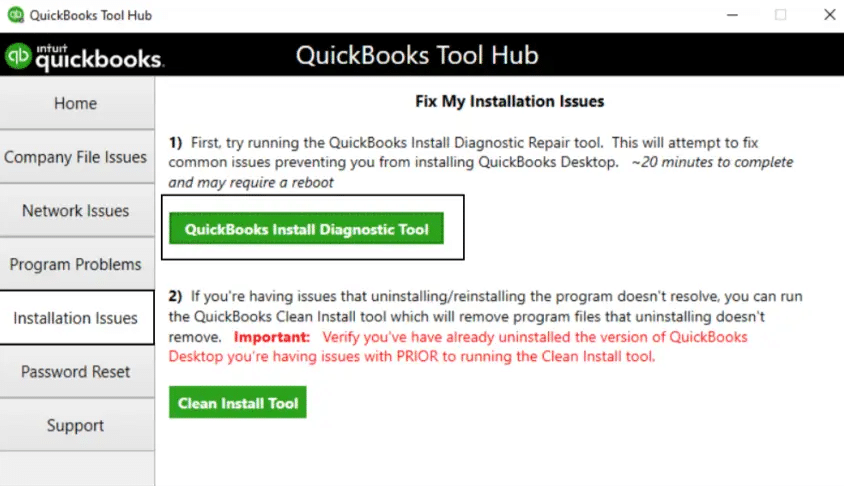
This would resolve the installation problem you were facing.
Change the UAC Settings
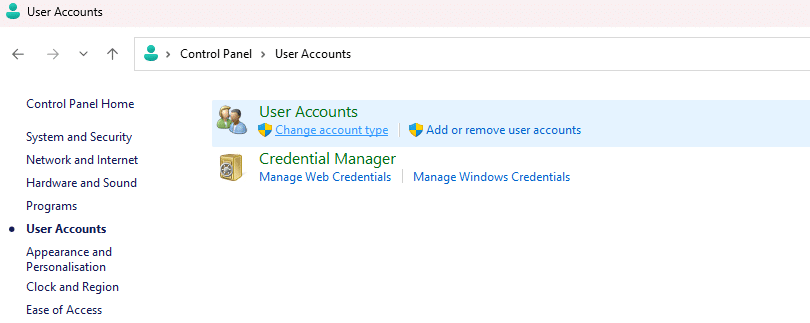
The User Account Control (UAC) settings can be changed to fix the error code 1310 in QuickBooks Desktop with the following steps:
- Press Windows + R to open the Run menu.
- Type in Control Panel.
- Hit Enter.
- Click on User Accounts.

- Then, select User Accounts (Classic view).
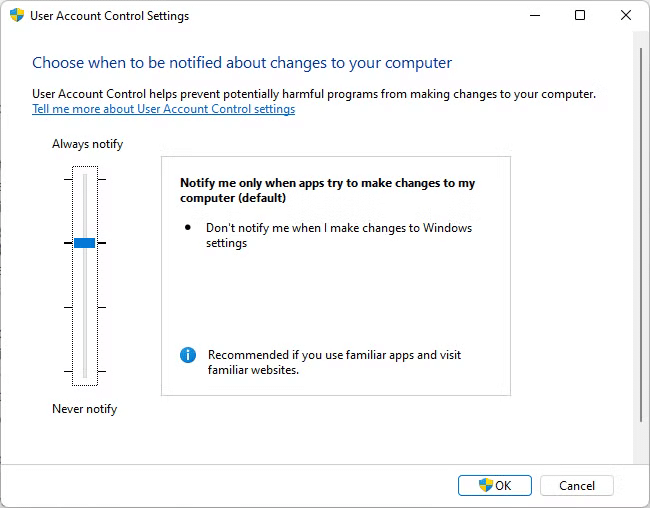
- Now, click on Change user account control settings.

- Move the slider:
- Set to Never Notify and hit OK to turn UAC OFF.
- Set to Always Notify and press OK to turn UAC ON.
- Restart your PC.
This would resolve the QB error code 1310.
Register the Microsoft Windows Installer Again
The QuickBooks Desktop installation error can be fixed by re-registering the MS Windows installer with the following steps:
- Open the Windows Start menu.
- Type in msiexec /unreg.
- Hit Enter.
- Open the Start menu again.
- Type in msiexec /regserver.
- Select Enter.
Now, install the QuickBooks Desktop app again.
Assign Admin Access to the Installer
The issue of inadequate permissions can be fixed by assigning admin access to the installer with the following steps:
- Open the Start menu on your PC.
- Search for All Programs.
- Select Accessories.
- Right-click on Command Prompt.
- Press Run as Administrator.
- Then, type in icacls “C:\Config.Msi” /T /C /grant administrators: F in the Command Prompt:
- Replace Config.Msi with the folder referenced in the error message you received.
- Hit Enter.
- Exit the Command Prompt.
The can’t update QuickBooks Error 1310 should now be resolved.
Register the MSXML DLL Again On Your PC
You can register the MSXML DLL again on your system to fix the QuickBooks error code 1310 with the following steps:
- For 64-bit Operating Systems:
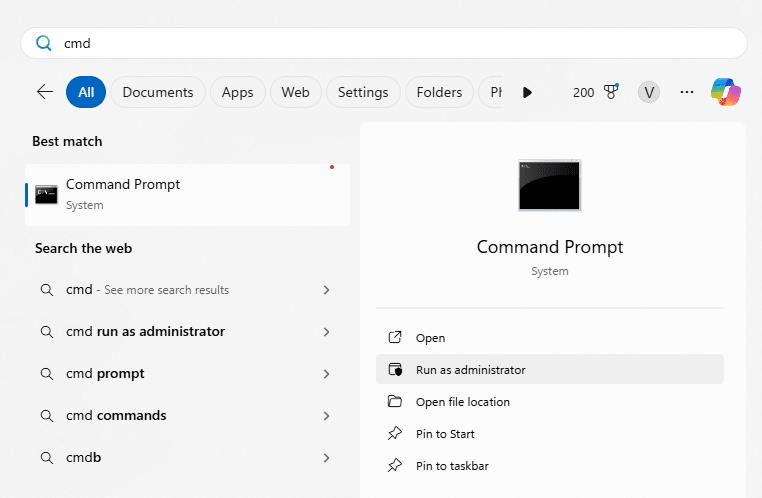
- Open the Start menu on your PC.
- Search for cmd.
- Right-click on the Command Prompt.

- Click on Run as Administrator.
- Go to the C: prompt.
- Type in cdwindowssyswow64 and hit Enter.
- Then, type in regsvr32 MSXML4.dll.
- Press Enter.
- Type in regsvr32 MSXML6.dll.
- Hit Enter.
- For 32-bit Operating Systems:
- Open the Run menu by pressing Windows + R.
- Type in cmd.
- Hit Enter.
- Type in regsvr32 MSXML4.dll.
- Press Enter.
- Then, type in regsvr32 MSXML6.dll.
- Hit Enter.
This would resolve the QuickBooks error 1310.
Check the Date and Time Settings of Your System
Verify the date and time settings on your PC to resolve the QuickBooks error 1310 during installation with the following steps:
- Close the QB Desktop app.
- Right-click on the clock on your taskbar.
- Press Adjust Date/Time.
- Check if your date and time settings are correct.
- If incorrect, go to the Date & Time tab.

- Set the date and time for the current day.
- Press Apply.
- Hit OK.
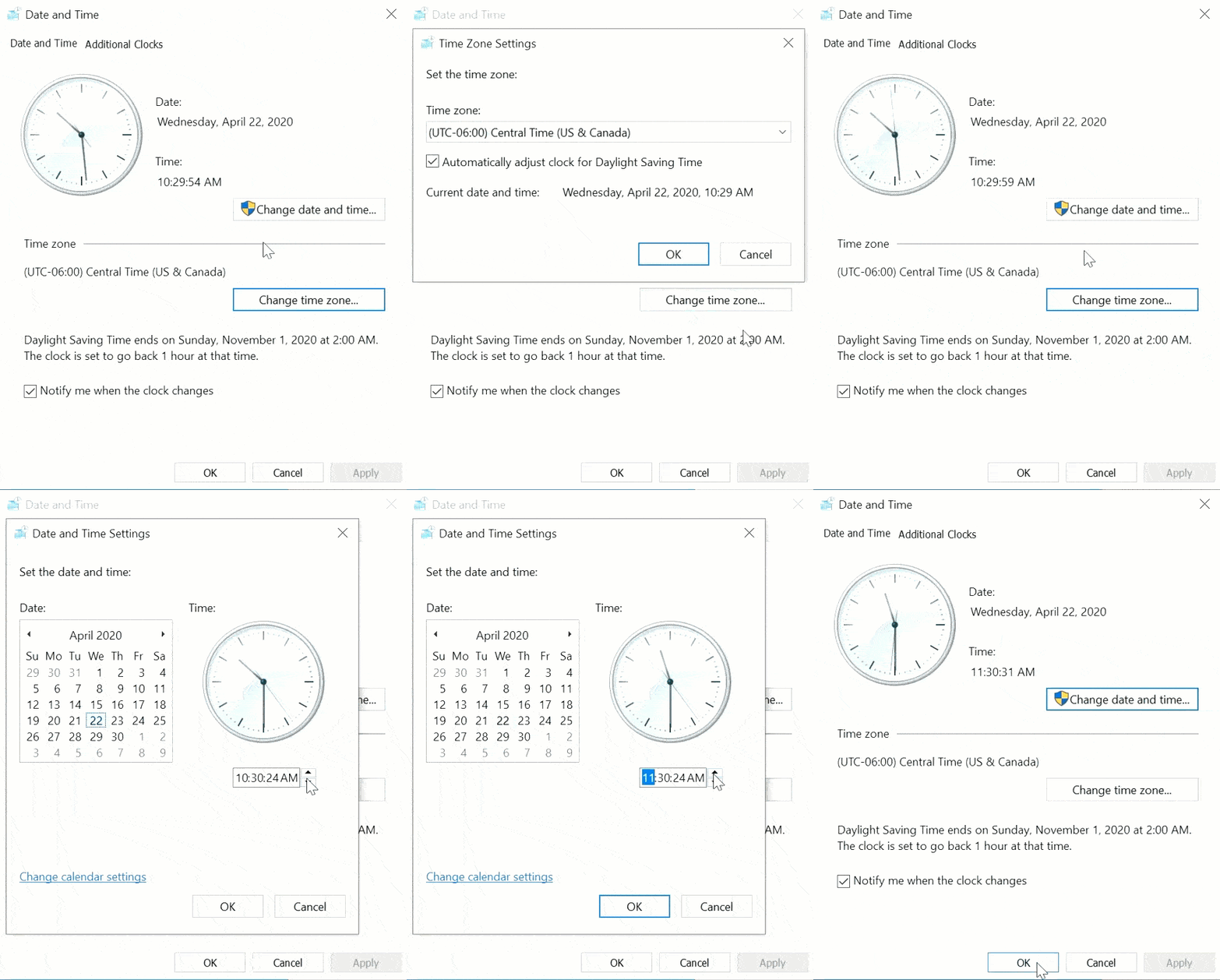
Now, the QuickBooks error 1310 has been resolved.
Use the Compatibility, Troubleshooter
You can fix the QB Desktop installation error 1310 by using the compatibility troubleshooter with the following steps:
- Right-click on the QBDT installer.
- Select Properties.
- Go to the Compatibility tab.
- Select Run compatibility, troubleshooter.

- Press Try recommended settings.

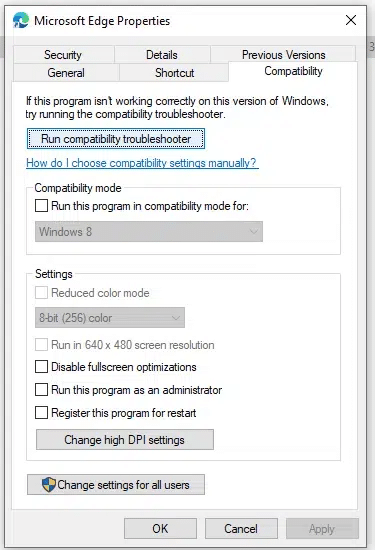
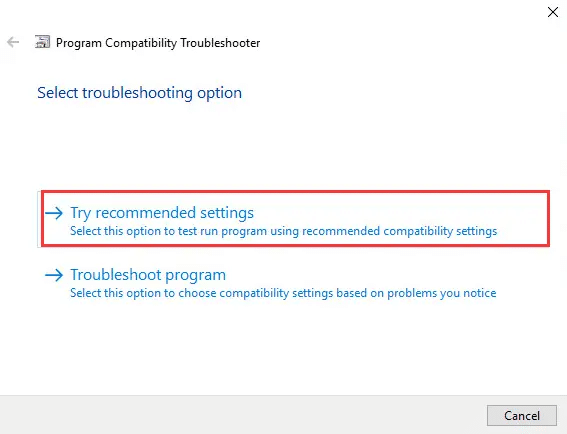
Performing these steps would patch the QuickBooks error code 1310.
Install QB Desktop in Selective Startup Mode
You can install the QB Desktop app in selective startup mode to mend the error code 1310 in QuickBooks with the steps given below:
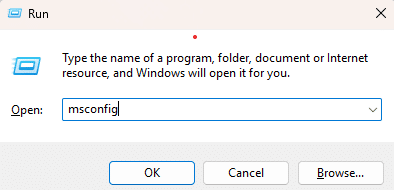
- Open the Run menu:
- Windows + R
- Type in msconfig.

- Hit Enter.
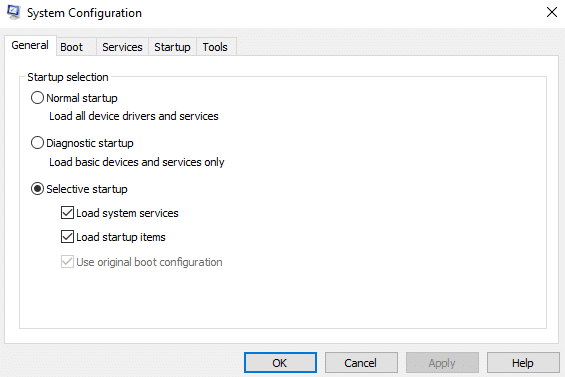
- Navigate to the General tab.
- Press Selective Startup.

- Then, select Load system services.
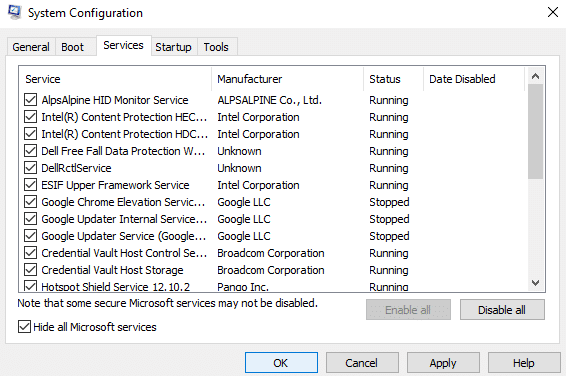
- Go to the Services tab.
- Press Hide all Microsoft services.

- Click on Disable all.
- Unmark Hide all Microsoft services.
- Choose Windows Installer from the list of services.
- Hit OK.
- Go to the System Configuration window and hit Restart.
- Install the QB Desktop app
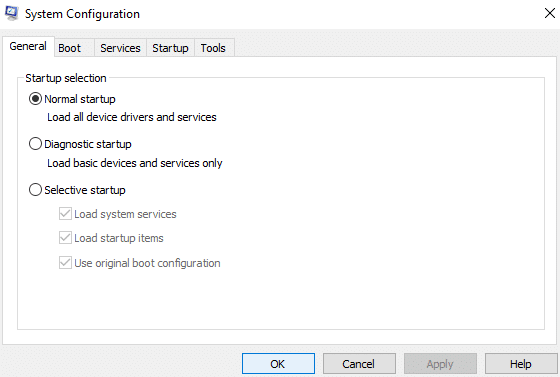
- Then, open MSConfig again.
- Go to the General tab.
- Press Normal startup.

- Hit OK.
- Restart your pc.
The QuickBooks error 1310 should now be fixed.
Edit the Permissions of Your Temp Folder
Editing the permissions of your temp folder can be fruitful in troubleshooting the QuickBooks error code 1310 with these steps:
- Open the Start menu on your PC.
- Search for and open the %temp% folder.

- Open its Properties.
- Navigate to the Security tab.
- Press Edit.
- Choose your Windows username.
- Go to the Allow column.
- Select Full Control.
- Hit OK twice.
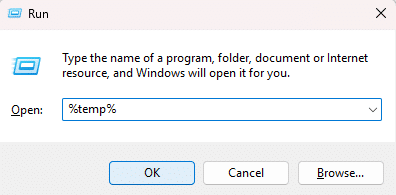
Now, you won’t have an issue installing the QuickBooks Desktop app.
QuickBooks Error 1310 – A Quick View Table
Given in the table below is a concise summary of this blog on the topic of the QuickBooks error code 1310:
| Description | The QuickBooks error 1310 is an installation error that occurs when you try to install the QB Desktop application. This can hamper your workflow and important business processes. |
| Its causes | An unregistered Windows installer, the Firewall is blocking the QBDT app, your internet connection is not stable, incorrect date and time settings on your PC, and inadequate folder permissions. |
| Ways to fix it | Use the QB Install Diagnostic Tool, change the UAC settings, register the MS Windows installer again, assign admin access to the installer, register MSXML DLL files, check the date and time settings of your system, use the compatibility troubleshooter, install the QB Desktop app in selective startup, and edit the permissions of the temp folder. |
Conclusion
The QuickBooks error 1310 is an installation error that can occur when you try to install the QB Desktop app or install its updates. We have covered all the potential factors that can trigger this issue, along with the step-by-step troubleshooting methods you need to resolve it. If you are still unable to install or update your QuickBooks Desktop app, contact our Accounting Helpline’s experts at 1.855.738.2784 today to fix this error.
FAQs
Why am I seeing the QB error code 1310?
You can see the QB error code 1310 due to these reasons:
– An unregistered Windows installer.
– The Firewall is blocking the QB Desktop app.
– An unstable internet connection.
– Incorrect date and time settings on your PC.
– Inadequate folder permissions.
How do I fix the QuickBooks error 1310?
You can fix the QB error code 1310 with these methods:
– Use the QB Install Diagnostic Tool.
– Change the UAC settings.
– Re-register the Windows installer.
– Assign admin access to the installer.
– Register the MSXML DLL files.
– Verify the date and time of your system.
– Utilize the compatibility troubleshooter.
– Install QBDT in selective startup mode.
– Edit the permissions of the temp folder.
How to fix installation issues with the QB Desktop app?
You can fix installation issues in QBDT using the QB Tool Hub with the following steps:
– Open the QuickBooks Tool Hub.
– Navigate to the Installation Issues tab.
– Click on the QuickBooks Install Diagnostic Tool.
– Let the tool run.
Related Posts-
Sorry We Need to Verify Your Subscription QuickBooks | Methods to Fix It
QuickBooks Migration Failed Unexpectedly: Here’s What to Do Now
QuickBooks Error H202 in Multi-User & Solutions to Fix it
QuickBooks Error 503 | 8 Guided Methods to Fix it
All-Encompassing Guide to Set up the QuickBooks Scheduled Backup
How To Fix QuickBooks Error PS038? Easiest Method

Edward Martin is a Technical Content Writer for our leading Accounting firm. He has over 10 years of experience in QuickBooks and Xero. He has also worked with Sage, FreshBooks, and many other software platforms. Edward’s passion for clarity, accuracy, and innovation is evident in his writing. He is well versed in how to simplify complex technical concepts and turn them into easy-to-understand content for our readers.