
Last Updated on October 6, 2025
The QuickBooks error 213 usually occurs when a duplicate entry is made in your company file’s data, such as an account name or customer name. This can also prevent you from verifying your company file data. You can fix it by rebuilding your company file data from the Utilities option in the File menu. In this blog, we’ll talk about the in-depth troubleshooting methods you need to fix the QuickBooks error 213 in no time!
Are you unable to work on your company file in QuickBooks Desktop? Contact our Accounting Helpline’s experts today at 1.855.738.2784 to resolve your problem at a moment’s notice!

What are the Causes of the QuickBooks Error Code 213?
The one and only potential cause of the QuickBooks error 213 is having duplicate names in the company file data. The duplicate names can be present in the QBWin.log file, Primary Name List, or in the regular lists (accounts, items, templates, etc). This can cause the message “Error: Verify U/M Set list. Duplicate name encountered. Name: piece Records 164 (98) and 163 (99). To fix, edit this element in the list and change its name” to appear on your screen. Let us now discuss the troubleshooting methods you can use to fix it.
Troubleshooting Methods to Fix Error 213 in QuickBooks Desktop
Given below are the troubleshooting methods you can use to fix the QuickBooks error code 213:
Run the Rebuild Data Utility from the File Menu
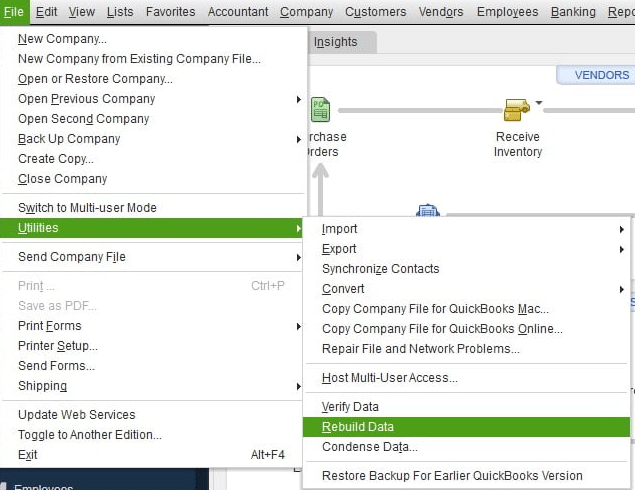
You can verify and rebuild your company data from the file menu to fix the QuickBooks rebuild error 213 with the following steps:
- Open the File menu in QuickBooks Desktop.
- Click on Utilities.
- Press Verify Data.

- Open the File menu again.
- Select Utilities.
- Click on Rebuild data.

- You will be asked by QB to make a backup file.
- Hit OK.
- A backup file is required for rebuilding data.
- Choose where the backup will be saved.
- Make sure not to replace an existing backup file.
- Type a new name in the File Name field.
- Press Save.
- Hit OK when you see the message stating that Rebuild has completed.

Now, the QuickBooks error 213 will be fixed.
Find and Edit the Duplicate Names from the QBWIN.log File
You can find and edit the duplicate names from the QBWIN.log file with the steps given below:
- Open the QuickBooks Desktop app.
- Press F2 on your keyboard to open the Product Information window.

- Now, press F3 to open the Tech Help window.
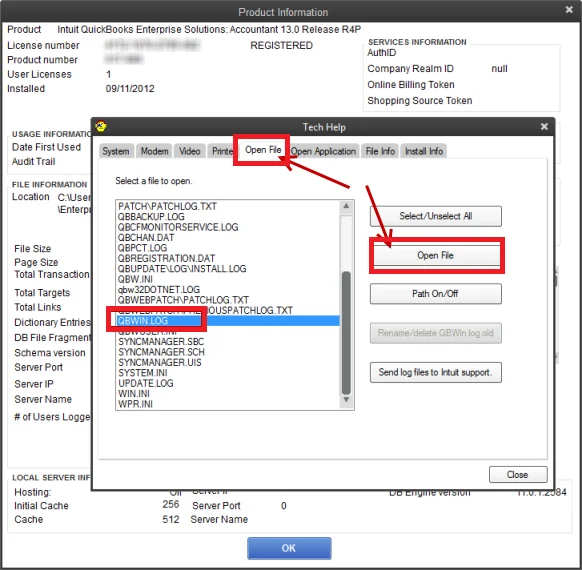
- Then, click on the Open File tab.
- Select QBWin.log and press the Open File option:

- Alternatively, you can open it by navigating to C:\Users\YOUR USER NAME\AppData\Local\Intuit\QuickBooks\log\XX.X\QBWin.log
- XX.X represents your QB version
- Now, press Ctrl + End on the keyboard to move to the end of the file.
- Then, press Ctrl + F.
- Type in duplicate to search for duplicates.
- Note down the name, account, or customer message shown in the error.
- Then, in QBDT, open the list with a duplicate name on it.
- Find the duplicate name and select it twice to edit it.
- Change at least one character to make the name different.
- Hit OK.
- Repeat the steps for every duplicate name mentioned in the QBWin.log file.

This would resolve the QuickBooks error 213.
Use the Name List to Find and Edit Duplicate Names
You can find and edit duplicate names from the Name List in QuickBooks Desktop with the steps given below:
- Open the QB Desktop app.
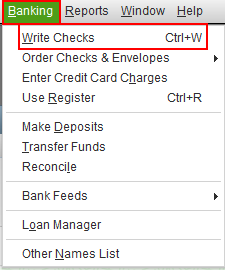
- Navigate to the Banking menu.
- Select the Write Checks option:

- Or hit Ctrl + W on your keyboard
- The Write Checks window would open.
- Click on the PAY TO THE ORDER OF dropdown menu:
- Or select Ctrl + L
- The Name List windows would open.
- Press the Include Inactive checkbox to show all the names.
- Press the Name column to alphabetically sort the list.
- Note down the duplicate names you see.
- Then, open the list with the duplicate name on it.
- Select a duplicate name twice to edit.
- Change at least one character.
- Hit OK.
Now, the problem of duplicate names in your company file data would be fixed.
Delete or Change Duplicate Items from the Item List
You can delete or change duplicate items from the item list in QB Desktop with the steps given below:
- Open QBDT.
- Navigate to the Lists menu.
- Select the Item List option.
- Click on the dropdown arrow for the Item tab.
- Mark the Show Inactive Items checkbox.
- Locate a duplicate name in the list.
- Change or delete the name of the duplicate item.
Performing these steps would eliminate the QuickBooks error code 213.
QuickBooks Error Code 213 – A Quick View of this Blog
Given in the table below is a concise summary of this blog on the topic of the QuickBooks error code 213:
| Description | The QuickBooks error 213 occurs when there is a duplicate name in your company file’s data. This can make you unable to work on your company file, ultimately hampering your workflow. |
| Its cause | A duplicate name is present in the company file’s data. |
| Ways to fix it | Use the verify and rebuild data utility, find and edit the duplicate names in the QBWIN.log file, find and edit the duplicate names in the Name List, and delete or change the duplicate items in the item list. |
Conclusion
In this blog, we talked about the QuickBooks error 213 and the one and only factor that can trigger this error code to pop up on your screen. Additionally, we also provided you with the step-by-step guided troubleshooting methods you can use to resolve this problem on your own. If you are still facing the same issue and need professional assistance, contact our Accounting Helpline’s experts today at 1.855.738.2784 to resolve your problem in no time!
FAQs
How to fix error 213 in QuickBooks?
To fix the QuickBooks error code 213 in QuickBooks Desktop, find and change or delete the duplicate names present in your company file.
Why am I seeing the QuickBooks error code 213 on my screen?
The reason for you seeing the error 213 in QuickBooks is a duplicate name present in your QB company file’s data.
Related Posts-
The Guide You Need to Fix QuickBooks Direct Deposit Issues
Powerful Methods to Overcome QuickBooks Payroll Error PS036
Effectively Troubleshooting the QuickBooks Status Error Code 5528
Fix QuickBooks Error 1601: Problem with Windows Installer
A Comprehensive Guide to the QuickBooks Migration Tool for Data Transferring
QuickBooks Error 80029c4a: Here’s a Quick Method to Fix

Edward Martin is a Technical Content Writer for our leading Accounting firm. He has over 10 years of experience in QuickBooks and Xero. He has also worked with Sage, FreshBooks, and many other software platforms. Edward’s passion for clarity, accuracy, and innovation is evident in his writing. He is well versed in how to simplify complex technical concepts and turn them into easy-to-understand content for our readers.