

Last Updated on April 20, 2026
You can face problems converting QuickBooks Desktop to Online due to certain circumstances when you’re trying to move your company file data. These problems can include failed or interrupted migration, data integrity issues, inventory or report errors, time limit constraints, etc. These are generally caused by data transfer failures due to file/size corruption or a corrupted QuickBooks Desktop company data file. It can hamper your workflow and have a negative impact on your accounting and bookkeeping processes. We have covered the steps you need to know to resolve any problems you might face while converting from QuickBooks Online to Desktop or Desktop to Online in this blog.
Are you having trouble migrating from QuickBooks Desktop to Online? Feel free to contact our Accounting Helpline experts today at 1.855.738.2784 to resolve your issue in no time!
Why You Might Face Problems Converting QuickBooks Online to Desktop or Desktop to Online
Given below are the potential causes that might lead to problems while converting QBDT to QBO or QBO to QBDT:
- A damaged or corrupted QB Desktop company file.
- Program problems with the QB Desktop app.
- Installation issues with QB Desktop.
- Not knowing what moves and what doesn’t.
These are the causes of any problems you might face while converting from QBDT to QBO.
Troubleshoot the Problems You Might Face Converting from QB Desktop to Online or Online to Desktop
Listed below are the solutions you can use to resolve the issues while converting from QBO to QBDT or QBDT to QBO:
Verify and Rebuild the Company File Data
You can verify and rebuild the company file data to resolve problems while converting QuickBooks Desktop to Online with the steps given below:
- Open the QB Desktop app.
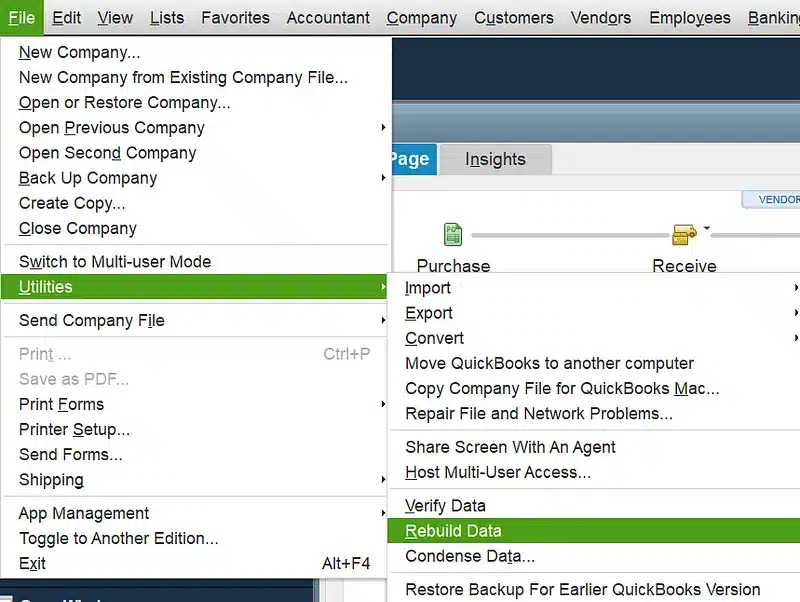
- Navigate to the File menu.
- Click on Utilities.
- Select the Verify Data option.

- Then, open the File menu again.
- Select Utilities.
- Click on the Rebuild Data option.

- QB will ask to create a backup file before it rebuilds your data.
- Press OK.
- A backup is required to rebuild your company file.
- Choose where the file would be saved.
- Hit OK.
- Make sure not to replace an existing backup file.
- Enter a unique name in the File name field.
- Press Save.
- You will get a message stating that Rebuild has completed.
- Hit OK.

This would resolve the issue you were dealing with.
Update the QB Desktop App
An outdated QB Desktop app might be the reason you’re dealing with problems converting QuickBooks Desktop to Online. You can update QBDT with the steps given below:
- Open the QuickBooks Desktop software.
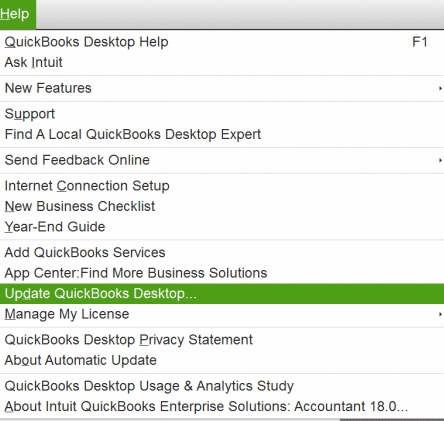
- Navigate to the Help menu.
- Click on Update QuickBooks Desktop.

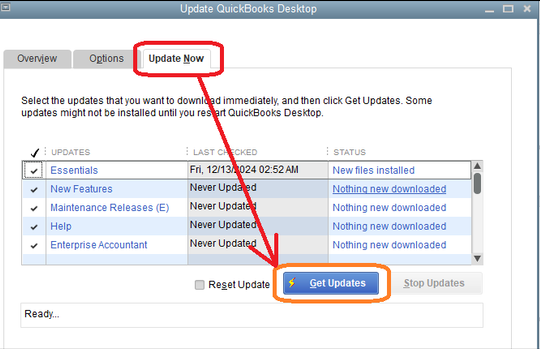
- Then, select Update Now.
- Click on the Get Updates option.

- Close and reopen the QBDT app to install the updates.
Now, the problem should be fixed.
Use the Quick Fix My Program Tool
You can use the Quick Fix My Program tool from the QB Tool Hub to resolve problems converting QuickBooks Desktop to Online with the steps given below:
- Download and install the QB Tool Hub.

- Open the QB Tool Hub app.
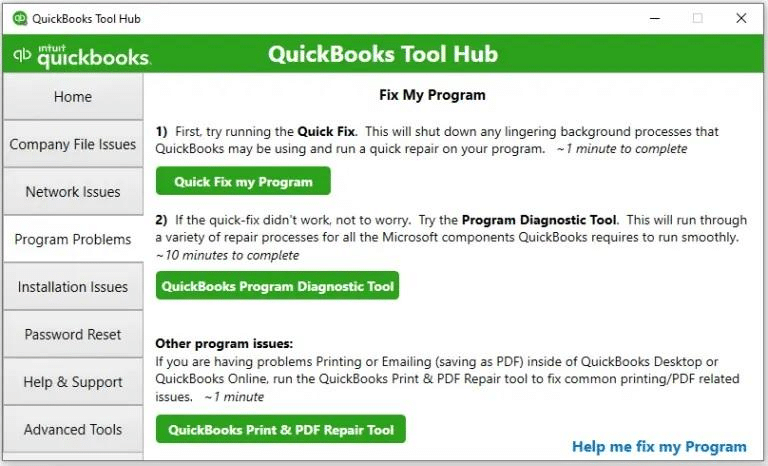
- Navigate to the Program Problems tab.
- Click on Quick Fix My Program.

- Let the tool run.

This would resolve the problem you are dealing with.
Check What Moves and What Doesn’t
While moving from QB Online to Desktop, refer to the table given below to check what moves and what doesn’t:
| What Moves to QB Desktop | What Doesn’t Move to QB Desktop |
| Multi-currency | |
| Payroll | |
| Reconcile 1. In QuickBooks Desktop, all reconciled transactions have a bold check mark in the cleared column. 2. In QuickBooks Desktop, all the cleared transactions would have a light checkmark in the Cleared column. | |
| Sales Tax 1. In QB Desktop, the sales tax would be listed as a line item. 2. The rates and items of sales tax move as service items. | The adjustments and sales tax payments won’t move. |
| Projects The projects are moved as customer jobs in QB Desktop. | |
| Chart of Accounts 1. Account detail types do not move to QB Desktop. 2. Account numbers would appear after turning on the account number preference. 3. Deleted accounts move without account numbers as inactive accounts. | The inventory shrinkage account won’t move to QBDT. |
| Class List Classes that have been deleted would move as inactive classes in QBDT. | |
| Customers Deleted customers would be moved to inactive customers in QBDT. | The following customer information won’t move to QBTD: 1. Due to PCI compliance, your customers’ credit card info doesn’t move 2. Customer notes 3. Preferred delivery method 4. Mobile and/or pager number 5. Is Taxable |
| Vendors Deleted Vendors would be moved to inactive vendors in QB Desktop. | 1. Vendor notes 2. Mobile and/or pager number |
| Employees Deleted employees would be moved to inactive status in QB Desktop. | |
| Other lists The following lists don’t move from QB Online to Desktop: 1. Customer type 2. Vendor type 3. Job type 4. Memorized reports 5. Other names 6. Payroll item 7. Price level 8. Sales rep 9. Ship via 10. Templates 11. To do | |
| Payment Method List | |
| Terms | |
| Bundles | |
| Inventory 1. Inventory asset account 2. Cost of goods sold account 3. Purchase account 4. Sales account 5. Quantity (QTY) on hand 6. Asset values | |
| Categories 1. Categories move as Parent items in QuickBooks Desktop. 2. Categories will match the item type of the Products and Services listed under them in QuickBooks Online. | |
| Company info | |
| User preferences | |
| Location lists | |
| Audit log reports | |
| Reconciliation reports | |
| Memorized reports | |
| Cash purchases Cash purchases would move as checks in QB Desktop | 1. Estimates 2. Purchase orders 3. Recurring transactions |
| Time tracking | Physical timesheets would not move to QB Desktop |
| Checks | |
| Credit memos | |
| Sales receipts | |
| Received payments | |
| Bills | |
| Bill payments | |
| Invoices | |
| Refund receipts | |
| General journal entries Transactions that have multiple accounts receivable or accounts payable lines move to journal entries in QB Desktop | |
| Deposits | The billable status won’t show up in QB Desktop from QB Online. |
| Transfer funds These transactions move as journal entries in QB Desktop | |
| Paychecks Paychecks would move as checks in QBDT. | |
| Liability adjustments | |
| Inventory adjustments | |
| Credit card payments |
This would resolve any problems converting QuickBooks Online to Desktop.
Utilize the QB File Doctor Tool
A damaged company file can be the reason you’re having problems converting QuickBooks Desktop to Online. Fix a damaged company file with the steps given below:
- Download and install the QuickBooks Tool Hub.
- Open the QB Tool Hub app.
- Navigate to the Company File Issues tab.
- Click on Run QuickBooks File Doctor:

- If it doesn’t open, search for QuickBooks Desktop File Doc and open it manually.
- Select your company file from the dropdown menu:
- If you can’t see your file, click Browse and search to locate your file.
- Click on the Check your file option.
- Select Continue.
- Enter your QB admin password.
- Press Next.
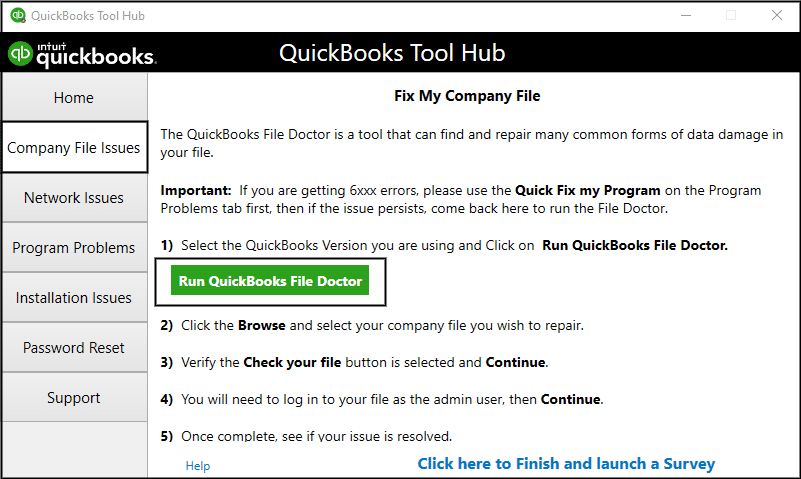
The issue should now be fixed.
Problems Converting QuickBooks Desktop to Online – A Quick View Table
In the table below is given a concise summary of this blog on the topic of problems while converting from QBDT to QBO:
| Description | You can face problems converting QuickBooks Desktop to Online due to certain circumstances when you’re trying to move your company file data. These problems can include failed or interrupted migration, data integrity issues, inventory or report errors, time limit constraints, etc. These are generally caused by data transfer failures due to file/size corruption or a corrupted QuickBooks Desktop company data file. It can hamper your workflow and negatively impact your accounting and bookkeeping processes. |
| Its causes | 1. A damaged or corrupted QB Desktop company file 2. Program problems with the QB Desktop app 3. Installation issues with QB Desktop 4. Not knowing what moves and what doesn’t |
| Methods to fix it in QBDT | Verify and rebuild the company file data, update the QB Desktop app, use Quick Fix My Program, and use the QB File Doctor Tool. |
| Methods to fix it in QBO | Check what moves and what doesn’t move while converting. |
Conclusion
You can face problems converting QuickBooks Desktop to Online due to certain circumstances when you’re trying to move your company file data. These problems can include failed or interrupted migration, data integrity issues, inventory or report errors, time limit constraints, etc. These are generally caused by data transfer failures due to file/size corruption or a corrupted QuickBooks Desktop company data file. It can hamper your workflow and negatively impact your accounting and bookkeeping processes. We have covered the potential factors that can trigger problems while converting, along with the steps you need to know to troubleshoot these problems while moving from QB Online to Desktop or Desktop to Online, in this blog.
If you are still facing issues, feel free to contact our Accounting Helpline experts at 1.855.738.2784 today to resolve your problem at a moment’s notice!
FAQs
Why am I facing problems converting QuickBooks Desktop to Online?
You might be facing problems while converting from QB Online to Desktop or Desktop to Online due to these reasons:
– A damaged or corrupted QB Desktop company file.
– Program problems with the QB Desktop app.
– Installation issues with QB Desktop.
– Not knowing what moves and what doesn’t.
How do I fix problems converting QuickBooks?
You can fix problems converting QB with the following methods:
– Verify and rebuild the company file data.
– Update the QB Desktop app.
– Use Quick Fix My Program.
– Use the QB File Doctor Tool.
– Check what moves and what doesn’t move while converting.
What are the limitations of converting QB Desktop to Online?
While using the Intuit migration tool to convert QB Desktop to Online, there are certain limitations:
– File size up to 700,000 lines is converted. Any file that is greater than 700,000 can be migrated as lists only, without transactional data.
– Only Employee lists are converted.
– Some payroll details, company settings, bank/credit card connections, custom templates, and certain features that don’t match between Desktop and Online are not converted and won’t move.
Related Posts –
Effective Ways to Get Rid of QuickBooks Error 1920
Effective Fixes to Eliminate QuickBooks Restore Failed Error
What is QuickBooks Data Migration Service & How to do Migration
Know How to Rectify QuickBooks Error 6094
Troubleshooting Methods for Intuit Data Protect Has Stopped Working Error
How to Fix QuickBooks Error 6147 with Effective Methods

Edward Martin is a Technical Content Writer for our leading Accounting firm. He has over 10 years of experience in QuickBooks and Xero. He has also worked with Sage, FreshBooks, and many other software platforms. Edward’s passion for clarity, accuracy, and innovation is evident in his writing. He is well versed in how to simplify complex technical concepts and turn them into easy-to-understand content for our readers.