
Last Updated on May 7, 2026
QuickBooks Time is a cloud-based time tracking system that allows employees to clock in/out through the web and mobile app. QuickBooks users log in through the Intuit portal or QuickBooks Workforce app to track hours, manage projects, and sync data directly with payroll. Additionally, it offers GPS tracking, scheduling, and remote team management features. On the web, employees can access tsheets.intuit.com directly or via the general Intuit login, and in the mobile app, they use the QuickBooks Time Tracking App to track time, view schedules, and check pay stubs. In the upcoming segment, we will discuss the advantages of using QuickBooks Time and QuickBooks Time login issues. So, without any delay, read this guide for complete insights.
Advantages of Using QuickBooks Time
It is an inbuilt feature provided by Intuit to track employees and their working hours. In this segment, we will uncover some perks of using QB Time.
- Offers unlimited support via phone and online channels.
- PS tracking helps monitor and record team members’ locations.
- It assists in capturing all the costs.
- The ‘Who’s Working’ feature helps you see who is working and where.
- Employee time tracking ensures accurate invoices and payroll processes.
Now we know the perks of using QuickBooks Time. However, you might encounter issues using QB Time. We will uncover some potential factors in the section below.
Why Do You Face the Issues During QuickBooks Time Tracking Login?
Here is a list of general causes behind QuickBooks Time login issues.
- It can occur due to internet connectivity problems.
- If you enter the wrong login credentials, this error might occur.
- Issues related to the browser can cause such login problems.
- An inactive user account or expired credentials can contribute.
- You might be using an outdated URL to access the QB Time tracking login.
After identifying the causes of the QuickBooks time login issues, let’s explore different methods to fix them.
How to Resolve Issues With QuickBooks Time Login
If you are unable to log in to QB Time, here are some effective solutions you can use to fix it:
Recover Your Password
Follow the steps below to reset your password in case you have forgotten it:
- Head over to the QuickBooks Time Login page.
- Tap on Forgot Password.
- Go through the instructions to reset via email.
If resetting the password doesn’t work, move to the next method and try to fix it.
Log in to QB Time in a Different Way
Follow the steps below to restore the account, reset the password, or sign in using another method.
By using a one-time code to log in
You will receive a code at the phone number or registered email if you don’t remember the password.
For computer:
- Go to the QuickBooks Time Login page.
- Select Text a code (phone number). Alternatively, select Sign in a different way to have a code sent to the phone number or email address on file or to the user.
- Enter the code to log in.
For a mobile device:
- Choose Sign in after launching QuickBooks Workforce.
- When you have entered the user ID or email, tap Sign in.
- Select Sign differently.
- Choose an appropriate option to receive a code via email or text message at the contact information registered in the user’s file.
- Enter the code to log in.
- After signing in, change the password.
In case you have already logged in and want to just change the details, go through the steps mentioned below:
Modify the Sign-in Details
If you only want to modify the sign-in details, follow the steps:
On a computer:
- Open the drop-down menu for Profile in QuickBooks Time.
- Choose Profile.
- Click on Manage User ID or Password.
- Select Security and Sign in.
- Select the User ID, Email Address, Password, or Phone section.
- Make the necessary changes.
- Once it is done, choose Save.
In a mobile device:
- After you have logged into QuickBooks Workforce, go to the Profile.
- Choose the name, and then select Manage Intuit Account.
- When you are asked, enter the password or a one-time code to authenticate the account.
- Click Sign in and Security.
- Tap the User ID, Email Address, Password, or Phone section.
- Make the necessary changes.
- When it is done, choose Save.
You may need to follow the account recovery process if you are confused about the details connected to the QuickBooks Time account. Jump to the next method.
Use a Supported Browser
This issue can occur if you are not using a supported browser to log in to QuickBooks Time. Let’s have a look at the following to know the supported browsers:
- Google Chrome: version 78 or newer
- Mozilla Firefox: version 76 or newer. Note: To preview and print forms on Mac OS, you’ll also need the Firefox PDF plugin.
- Microsoft Edge: version 79 or newer
- Safari: version 12 or newer (Mac only)
- Opera: version 68 or newer
- Samsung: version 10 or newer
If you find that the problem is not due to unsupported browsers, move to the next method and try to fix the problem.
Delete the Browser’s Cache or History
You might be unable to log in to QB Time due to the browser’s cache or history. Follow the steps below to clean the browser’s cache.
For Google Chrome:
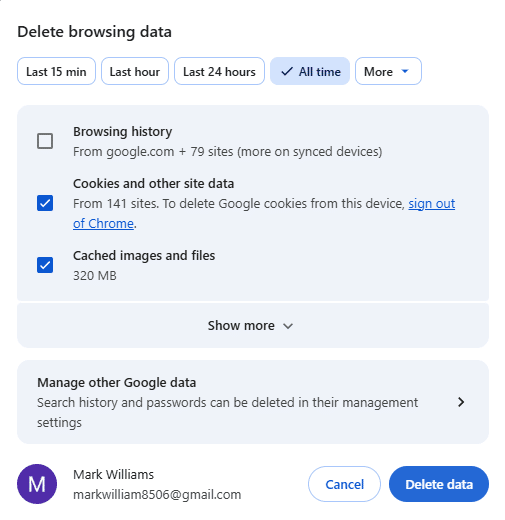
- Click on the menu represented as three vertical dots in the top right corner of the browser’s page.
- Choose History.
- Select Delete Browsing Data.

- Tap on All Time as the time range.
- Check Cookies and other site data, Cached images and files.
- Select Clear Data.
For Safari:
- Click Safari in the top menu bar.
- Choose Settings or Preferences.
- Head over to the Privacy tab.
- Select Manage Website, Data.
- Tap Remove All.
For iOS (Safari/iPad):
- Go to the Settings app.
- Choose Safari.
- Select Clear History and Website Data.
If you are unable to fix the issue by clearing the browser’s cache, you can try to log in to QuickBooks Time in incognito mode.
Use an Incognito Mode to Log in
There are times when the browser is full of data cache, which can affect account performance. Incognito mode helps identify issues since it doesn’t store cache or data files. Use the following shortcut keys to open incognito windows for different browsers.
- Google Chrome: Ctrl + Shift + N
- Mozilla Firefox & Microsoft Edge: Ctrl + Shift + P
- Safari: Command + Shift + N
If you tried logging into the incognito window but did not succeed, go to the next method and fix this issue.
Make Sure You Receive the Verification Code
Follow the steps below if you don’t receive the verification code.
- You might get the verification code in the spam or junk mail folder. Check it out to see the code.
- You might have used another email address, so verify each email address that might have been used to create the account.
- You can unblock or add Do_not_reply@intuit.com to the email app’s list of approved senders.
- You should visit the cell provider’s website to look at the text messages in case you have lost the phone.
- It might be possible that the phone number was blocked from the text sent. For this purpose, you need to unblock or allow the numbers 88811 and 97962 on your iOS or Android device.
After ensuring the above, if you are unable to access the code, verify your account using the steps below in the next method.
Verify Your Account When the Verification Code Fails to Work
Even after entering the exact code, you can’t fix the issue. Use these steps to verify the account:
- Choose either I didn’t get an email, or I didn’t get a text message to receive a new code if your code didn’t work.
- You must use the latest code, not the one previously sent to you.
- If you close the window, the code will become invalid. So keeping the code entry form window is crucial.
- Check the email in a new tab, or open a new window to keep the verification code page open.
We hope that the solutions mentioned have helped you overcome login issues in QuickBooks Time.
A Tabular Overview of QuickBooks Time Login
The table below has the condensed version of the information that we have covered in the blog so far.
| Explanation of QuickBooks Time | QuickBooks Time helps track employee work hours, schedules, and activities |
| Perks of using it | 1. Unlimited support through phone or online 2. Helps the tracking team members record 3. Accurate invoices and payroll processes |
| Causes behind QuickBooks Time login issues | 1. Internet connectivity problems 2. Wrong login credentials, 3. Issues related to the browser 4. Outdated URL |
| Solutions | 1. Reset your password 2. Log in to QB Time in a different way 3. Use a supported browser 4. Delete the browser’s cache or history 5. Use an incognito mode to log in 6. Make sure you receive the verification code 7. Verify your account when the verification code fails to work |
Conclusion
We have covered several segments explaining QuickBooks Time, its advantages, factors behind QuickBooks Time login issues, and effective methods to fix them. However, we advise you to consult a professional and get it resolved by them. To connect with an Accounting Helpline expert, contact 1.855.738.2784.
Frequently Asked Questions
Why am I not able to log in to QuickBooks Time?
When you don’t use the right ID and password, you might fail to log in to QuickBooks Time. Wrong credentials restrict login and show an error in QB Time.
How does QuickBooks Time tracking work?
QuickBooks Time Tracker includes GPS features that track employees’ locations and record their login and logout status.
How to log into QuickBooks Time?
Follow the steps below:
– Move to the QuickBooks Time sign-in page.
– Input your phone number, email address, user ID, and click Sign in.
– Type in your password.
– Hit Continue.
– Go to QuickBooks Time.
– Choose Sign in from the top right.
– Select the QuickBooks Time dropdown.
– Enter your email address and username.
– Choose Continue.
– Select Sign in with QuickBooks Time or Sign in with Intuit.
– Enter the password and hit Sign in.
What is the correct login URL?
Visit tsheets.intuit.com rather than the old tsheets.com to log in to QuickBooks Time and ensure you are on the correct, updated sign-in page.
Can I stay logged in longer in QuickBooks Time?
Yes, admins can change the session time-out settings to keep it last up to 90 days on the desktop. Although the default time-out settings are 2 days.
Related Posts-
How to Fix the QuickBooks Error 61696? A Complete Guide
How to Get Rid of QuickBooks Error 6176 Once and for All
What Steps to Follow When QuickBooks Won’t Open
QuickBooks Error 12029! Try these 5 Steps for a Quick Fix
What is the QuickBooks Error 1638? A Complete Guide
QuickBooks Payroll not Working? Here’s How to Fix it

Edward Martin is a Technical Content Writer for our leading Accounting firm. He has over 10 years of experience in QuickBooks and Xero. He has also worked with Sage, FreshBooks, and many other software platforms. Edward’s passion for clarity, accuracy, and innovation is evident in his writing. He is well versed in how to simplify complex technical concepts and turn them into easy-to-understand content for our readers.