

Last Updated on April 23, 2026
QuickBooks Payroll is a feature that allows users to perform multiple operations, such as setting up employee or company information, managing tax tables, and generating customer reports. However, you may encounter QuickBooks error 05396 40000 when working with payroll in your system. This can occur if you try to open the payroll setup wizard or if your payroll tax tables are outdated. When this error occurs, you might see a window prompting users to provide details about when they encountered it. The error message may vary depending on the reason for the issue in your system. The following are the error messages that are displayed on the screen.
“Item has already been added. Key in dictionary: “[Vendor or payroll item name]” Key being added”
“Item has already been added. Key in dictionary: ‘(unnamed employee)’ Key being added”
“Item has already been added. Key in dictionary: ‘(unnamed employee)’ ‘the specified special account already exists’”
This blog covers the causes of this QuickBooks error 05396 40000 and the troubleshooting methods to help you resolve it.
If you need further assistance with the payroll table in QuickBooks, please contact our Accounting Helpline’s experts at 1.855.738.2784.
Potential Causes Behind QuickBooks Error 05396 40000
The QuickBooks payroll error 05396 40000 can occur due to several reasons. Below is the list of all the potential reasons:
- An outdated version of the QuickBooks Desktop.
- The payroll tax table is missing the updated version.
- If the Windows operating system is corrupted.
- There can be internal issues or damage in the windows that can trigger the error.
- If there are duplicate employees in the list of employees.
- When the employee doesn’t have a state set up in their employee profile.
- An employee profile incorrectly includes the local tax.
Now that you know what can be the reason behind the causes in your system, let’s move on to the next section.
Top Troubleshooting Methods to Fix QuickBooks Error 05396 40000
In this section of the blog, we will go into detail on methods that will help you resolve QuickBooks error code 05396 40000.
Solution 1: Update the QuickBooks and Tax Table
To get the latest QuickBooks and tax table version, follow the steps mentioned below:
- Access the QuickBooks application.
- Move to the Help menu.
- Tap on the Update QuickBooks option.

- Then, click on the Update Now section.
- Mark the Reset Update checkbox.

- Next, click on the Get Updates option.
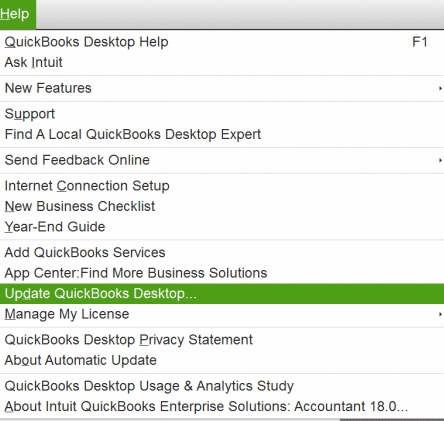
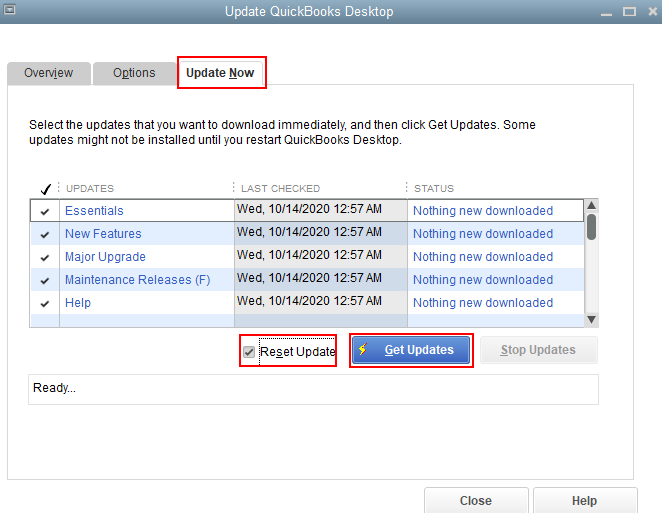
After the update is installed, restart the QuickBooks application. Now, let’s update the payroll tax table to the latest version.
- Access the QuickBooks Desktop.
- Go to the Employees tab.
- Then click on the Get Payroll Updates section.

- Now, mark the Download Entire Update section.

- Tap on the Update button.
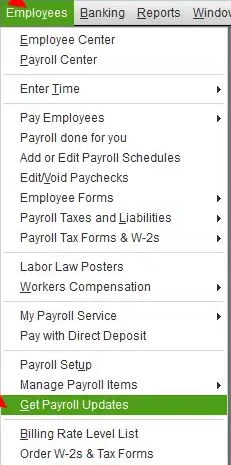
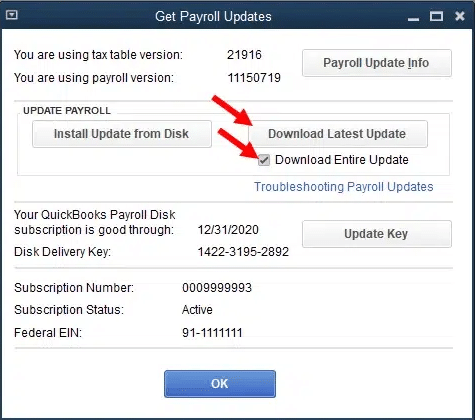
A pop-up message will appear on the screen when the update is complete. Restart your system and check if the error persists.
Solution 2: Fix the Payroll Error Message
There are times when you may receive different types of error messages, as follows, along with their troubleshooting methods.
Error Message 1: Item has already been added. Key in dictionary: “[Vendor or payroll item name]” Key being added
To fix the duplicate vendor or payroll item issue, follow the steps below:
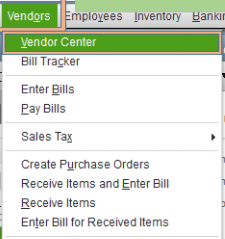
- Choose the Vendors option.
- Then select the Vendor Center or Items.

- Tap on the Payroll Item List.
- Look for the Vendor or Payroll item name listed in the error message.
- If there is more than one item, then choose the Show Inactives option to see duplicate names.
- Now, delete the duplicate item only from the list.
Error Message 2: Item has already been added. Key in dictionary: ‘(unnamed employee)’ Key being added.
When there is more than one duplicate employee in your QuickBooks payroll, here’s what to do:
- Choose the Employees menu.
- Tap on the Employee Center.
- Click on the View drop-down menu.
- Choose the All Employees section to include the inactive employees.
- Then, search for duplicate employee names in the list.
- Now, right-click the duplicate name and select Delete Employee.
After the steps are done, check if you still face QuickBooks payroll setup 05396 40000 in your system.
Error Message 3: Item has already been added. Key in dictionary: ‘(unnamed employee)’ ‘the specific special account already exists.’
The above-mentioned message can be seen when there is a blank space at the start or the end of an employee’s first or last name. Here’s how you can fix it.
- Head to the Employees tab in QuickBooks Desktop.
- Then, click on the Employee Center.
- Tap on the View menu.
- Choose the All Employees option to include inactive employees.
- Access each employee profile to check the employee’s first and last name.
After completing the steps, restart QuickBooks and open the setup wizard to verify whether the payroll occurrence has been removed.
Error Message 4: The storage category map is invalid for the local tax payroll item
When the local tax is incorrectly added to an employee profile, this error message can be seen. To fix it, follow the steps below:
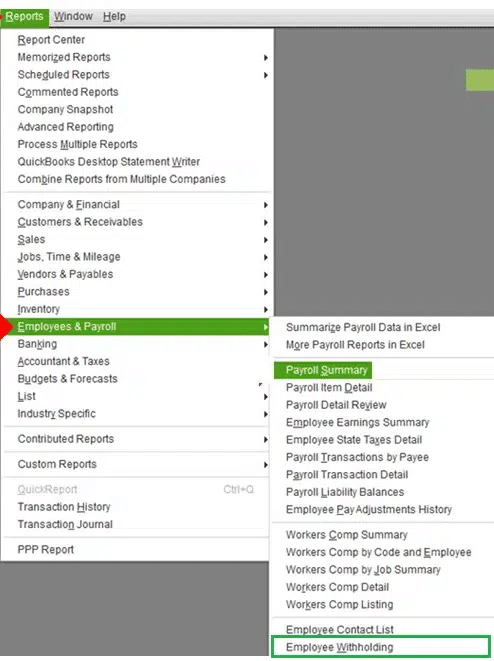
- Make an Employee Withholding Report in QuickBooks Payroll. To help you create it, here are the steps:
- Choose the Reports option.
- Then, click on the Employees & Payroll option.
- Choose the Employee Withholding option.

- Select the Customize Report option and head to the Columns.
- Remove the checkmarks from the current items and choose the following: Employee, Local Tax 1, Local Tax 2, Local Tax 3, Local Tax 4, Local Tax 5, Local Tax 6, Local Tax 7, Local Tax 8, Local Tax 9, Local Tax 10, Local Tax 11, Local Tax 12.
- Then, choose the Filters option.
- Tap Active Status, then tap All.
- Click OK, then keep the report open, print, or choose Excel to create a new worksheet for export.
- Create a Payroll Item Listing Report with the help of the steps below:
- Tap on the Reports option and choose Employees & Payroll.
- Now, click on Payroll Item Listing.
- Select Customize Report, then remove the selection from all items except Payroll Item and Type.
- Choose the Active Status.
- Tap on All.
- Move to the Filters tab.
- Click on OK.
- Leave the listing report open, print it, or export it to Excel.
- Create a New Worksheet to export.
- After both reports are made, compare them and locate the Local Taxes that don’t have the type Other.
- Now, double-click on the employee from the Employee Withholding report to open the employee profile, then edit each employee with a tax item that is not of type Other.
- Tap on the Payroll info and click Taxes.
- Choose the Other tab.
- Remove the tax that does not have the type Other and click OK.
Now, let’s look for the next error message.
Error Message 5: System.IO.FileNotFoundException: Could not load file or assembly
If you see this error message, it indicates that the QuickBooks file is corrupted or damaged. Here’s what you can do to resolve it. You can use the Tool Hub to resolve this error message.
- Launch the QuickBooks Tool Hub.

- Go to the Program Problems section.
- Click on the Quick Fix my Program option.


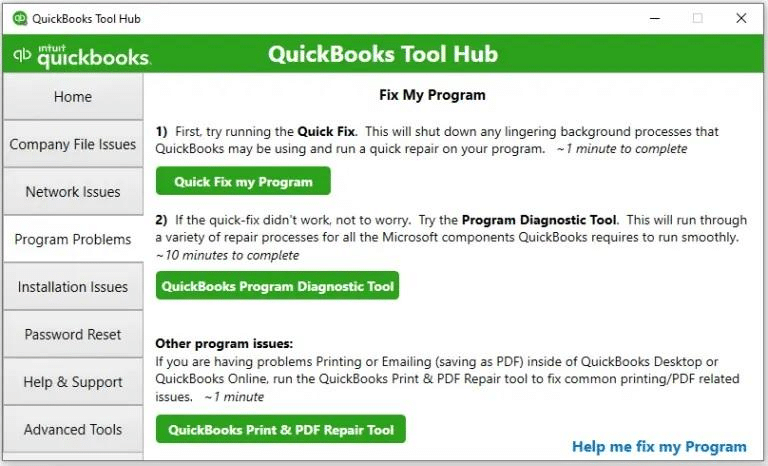
This will help the tool run and fix the issue in the system. If the problem is not with the program, then use the Install diagnostic tool.
- Launch the QuickBooks Tool Hub.
- Head to the Installation Issues section.
- Then, choose the QuickBooks Install Diagnostic Tool.

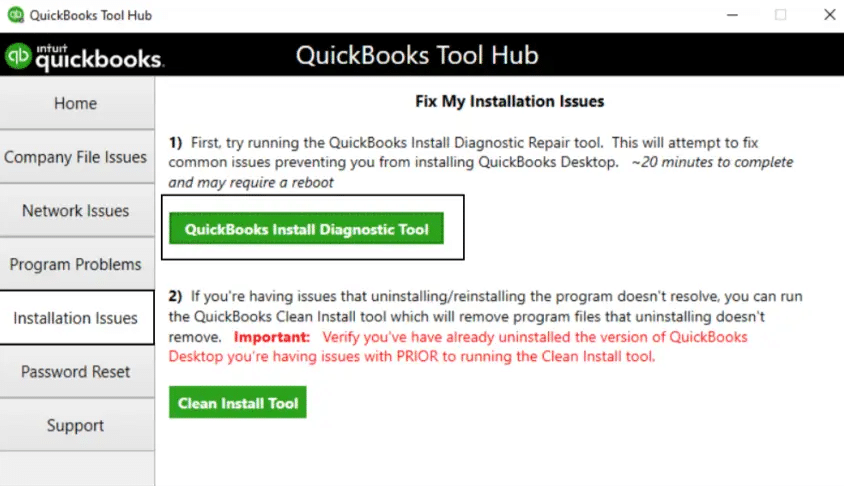
The tool will run for 15-20 minutes and help you fix the QuickBooks error 05396 40000 in your system.
Solution 3: Install the QuickBooks Desktop in Selective Startup Mode
To install the QBDT in selective startup mode, all you need to do is perform the steps below:
- Press Windows + R on the keyboard.
- In the Run dialog box, search for msconfig.

- Tap on OK.
- Go to the General tab, choose the Selective Startup option.

- Select the Load System Services option.
- Head to the Services menu.
- Now, tap on the Hide All Microsoft Services option.

- Choose the Disable All option and unmark the Hide All Microsoft Services option.
- Choose the Windows Installer option.
- Tap on OK.
- Access the System Configuration and choose the Restart option.
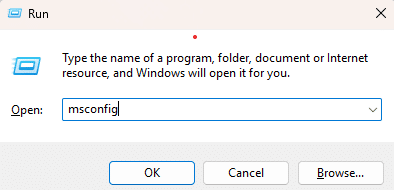
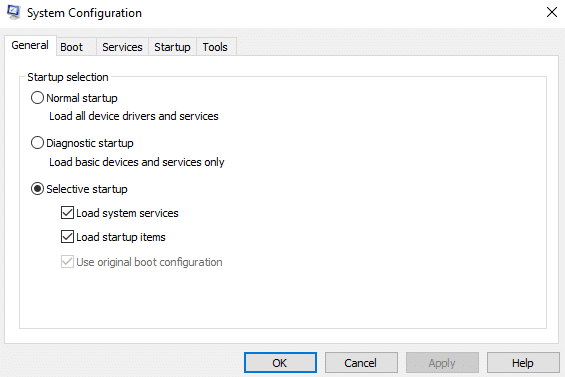
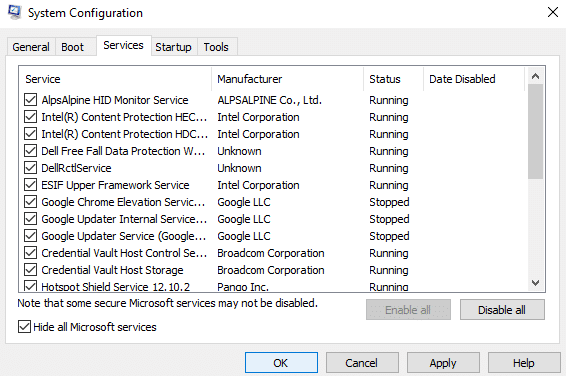
After your system switches to selective startup mode, you are requested to move to the next step.
- Access the Start menu.
- Search and access the Control Panel.
- Go to the Programs or Features option.

- Select QuickBooks Desktop from the list of applications.
- Tap and choose the Uninstall option.
- Click Remove, then click Next to uninstall the application.
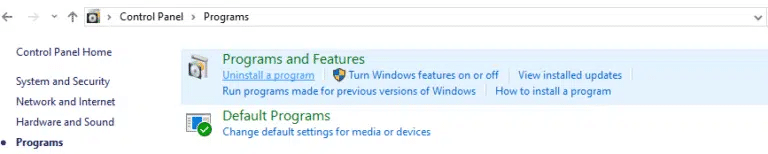
Once the uninstallation is complete, reinstall the application.
- Download the latest version of QuickBooks from the Intuit website.
- Run the setup file and follow the on-screen instructions.
- Accept the license agreement and tap on OK.
- Tap on Next and enter the product and license numbers on the screen.
- Click on Next to activate the license.
- Choose the Installation Type from the list.
- Select Express as the installation type.
- Click on Next and hit the Install option.
- Go to the Help menu.
Tap on the Activate QuickBooks Desktop option and follow the steps on the screen. Now, let’s switch to the normal mode.
- Tap Windows + R on the keyboard.
- Search for msconfig in the dialog box.
- Head to the General tab.
- Move to the Normal Startup option and hit OK.

- Go to the System Configuration option.
- Tap on the Restart option, and it will help the system switch back to normal startup mode.
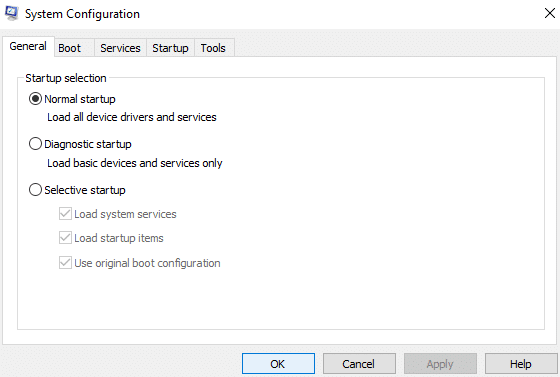
Following the steps mentioned will help you easily reinstall the QuickBooks application in selective startup mode.
Quick View Table for QuickBooks Error 05396 40000
The table below provides a quick view of what we understood from the blog.
| Error Description | QuickBooks payroll setup error 05396 40000 occurs when accessing the payroll setup wizard on your system and performing payroll operations. |
| Causes | There are several possible causes of the QuickBooks error 05396 40000, including an outdated version of QuickBooks Desktop. The payroll tax table might be missing the updated version, have a corrupted Windows installation, be affected by internal issues or Windows damage, include duplicate employees, or have an employee without a state configured. An employee profile might incorrectly consist of the local tax. |
| Ways to Fix | To resolve this issue, first update the QBDT application and the payroll tax table, fix the payroll error message with alternative messages and solutions, and run QuickBooks in selective startup mode. |
Conclusion
In this blog, we have helped you understand why QuickBooks error 05396 40000 occurs on your system. Additionally, we have added instructions on how to easily resolve the payroll tax table error and get started with tax filing. If you still need any help with your payroll, feel free to contact our Accounting Helpline’s experts at 1.855.738.2784!
Frequently Asked Questions (FAQs)
What is the QuickBooks Payroll setup wizard?
QB Payroll Wizard is a tool that helps you set up payroll information, including employee benefits, wages, deductions, taxes, and more. It streamlines your tasks and allows you to perform the operations.
What are the reasons that trigger the QuickBooks error 05396 40000 in your system?
The causes behind the payroll error can be damaged license files, such as QBWUSER.ini and entitlementdatastore. ecml, internet connectivity issues, inactive or incorrect license numbers, wrong date or time, or outdated QuickBooks or payroll versions.
What is the important information required to set up taxes in QuickBooks Payroll?
To set up employee taxes in QuickBooks Desktop, you’ll need the following information.
– Federal Employer Identification Number (FEIN).
– State Withholding or Unemployment account numbers.
– State tax rates.
– State and federal deposit frequencies.
– The IRS and the state are to pay the taxes.
Related Posts-
QuickBooks Error 12029! Try these 5 Steps for a Quick Fix
QuickBooks Error 1328: Comprehensive Guide to Fix
Try These Effective Fixes to Eliminate QuickBooks Error 15106
Why QuickBooks Desktop Keeps Crashing- Answers & Solutions
Is Your QuickBooks Running Slow Over Network? 09 Solutions to Make QuickBooks Run Fast
Getting QuickBooks Error 1935? Here’s How to Fix It

Edward Martin is a Technical Content Writer for our leading Accounting firm. He has over 10 years of experience in QuickBooks and Xero. He has also worked with Sage, FreshBooks, and many other software platforms. Edward’s passion for clarity, accuracy, and innovation is evident in his writing. He is well versed in how to simplify complex technical concepts and turn them into easy-to-understand content for our readers.