
Last Updated on April 17, 2026
It so happens sometimes that you might have closed your books and later found errors in them, such as incorrect transactions posted, mismatches, and so on. In such situations, you’d need to undo reconciliation. We will show you how to undo reconciliation in QuickBooks Online and Desktop.
However, first, we will discuss some things you must consider before you remove a transaction from reconciliation. Alright then, let us begin!
You might sometimes face a problem when reconciling or unreconciling transactions. In that case, you can connect with an Accounting Helpline expert. They will help you address diverse issues in books and sort them out. Dial 1.855.738.2784!
When Might You Need to Remove Transactions from Reconciliations?
There can be various instances when you might need to undo reconciliations. For instance:
- You might have reconciled a transaction into the wrong account.
- You might have sorted a transaction into a category it doesn’t belong in.
- There are duplicate transactions that you have reconciled.
This will ensure that you do not commit a mistake that you might need to spend a long time rectifying.
Before You Proceed to Unreconciling Transactions in QuickBooks
However, before you unreconcile transactions in QuickBooks Online or Desktop, there are some things to keep in mind:
- You need to ensure that the beginning balance, opening balance, and ending balance are accurate.
- Before you remove a transaction from reconciliation, figure out why the account balance is wrong. Sometimes, you might have reconciled by mistake, and there might be errors that you might need to delete.
Now, let us move to un-reconciliation. We will discuss this separately, first for QuickBooks Online and then for QuickBooks Desktop.
Section A: How to Undo Reconciliation in QuickBooks Online in Simple Steps
To undo reconciliation in QuickBooks Online, follow the steps mentioned below:
- Choose Accounting from the left pane.
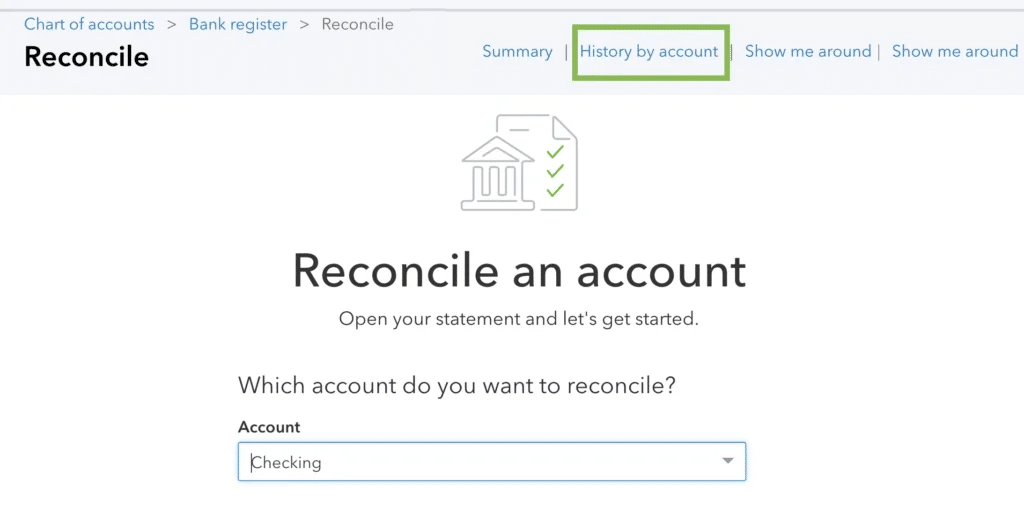
- Move to the Reconcile tab and then click on History by account.

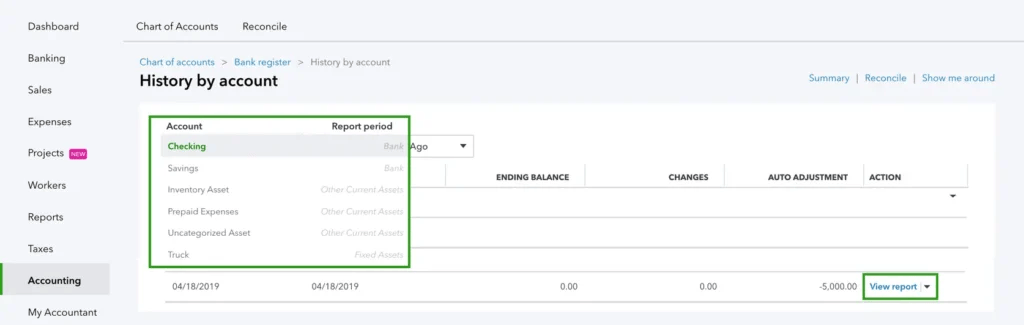
- Now, select the account that you want to unreconcile.
- Choose a date range from the drop-down menus.
- Look for reconciliation in the list.

- Tap on View Report to fetch the Reconciliation Report.
- Check for discrepancies and changes that you wish to make.
- When you finalise that you want to undo the reconciliation, click on the dropdown menu in the Action column.
- Choose Undo and then click on Yes.
- Finally, select Undo to confirm.
This will undo bank reconciliation in QuickBooks Online.
How Can You Manually Un-reconcile Each Transaction in QuickBooks Online?
Sometimes, you might not be able to un-reconcile for a complete accounting period. In such situations, you can manually unreconcile each transaction.
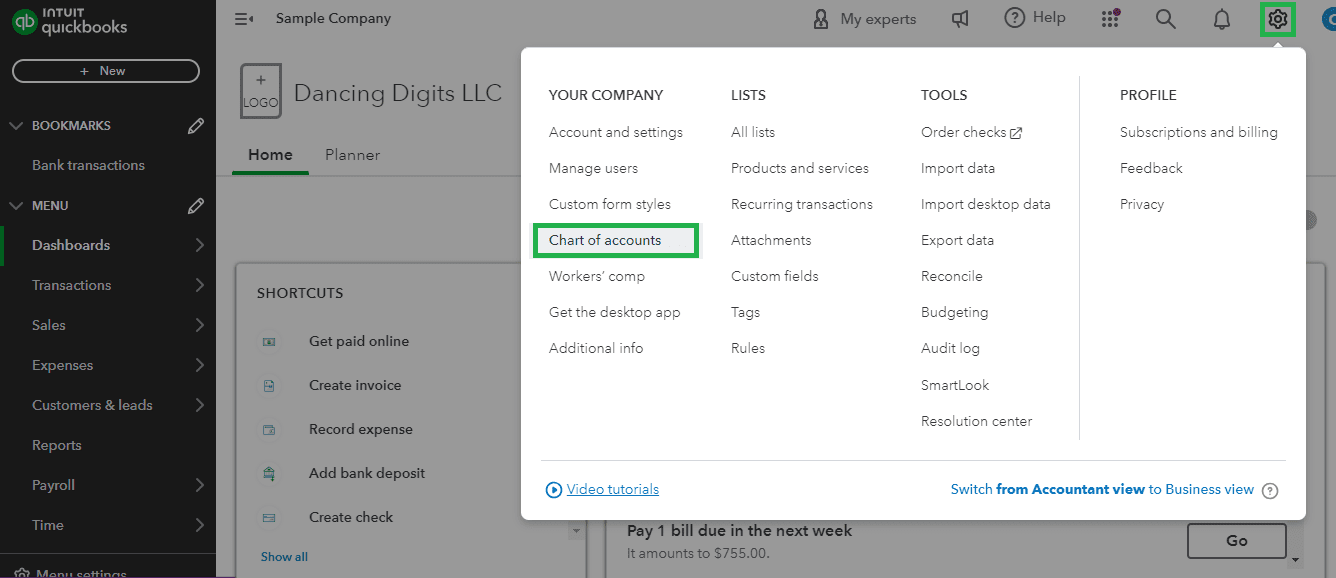
- Open the Accounting menu and choose the Chart of Accounts.

- Find the account and click on Account history.
- Choose the transactions that you wish to reconcile.
- Verify the check column.
- The transactions that are reconciled will have an R tick box. Continue clicking on the R box until the box is blank. This will remove the transaction from reconciliation.
- Finally, choose Save.
Do this for all the transactions that you need to unreconcile.
Section B: How to Undo Previous Reconciliation in QuickBooks Desktop
Before you undo the previous reconciliation in QuickBooks Desktop, you must create a backup of your company file. Then, follow the steps below:
- Open the Banking menu and choose Reconcile.
- Now you will see an option to Undo Last Reconciliation if there is a previous reconciliation. Tap on Undo Last Reconciliation.
- Choose the account that you wish to undo reconciliation for in the window that appears.
- Select Continue.
This will undo bank reconciliation in QuickBooks Desktop.
What Impact Does Unreconciling the Transactions Have on Books and Accounts
When you unreconcile a transaction, you essentially reset things. It is like changing a line in a large code that can have multiple consequences in the overall code or program.
- Unreconciling a transaction disrupts the accuracy of books and might unbalance them.
- When you undo a reconciliation in the previous accounting period in QuickBooks or any other accounting software, the beginning balance of the upcoming reconciliation period changes. This is because the beginning balance of the upcoming reconciliation period is the closing balance of the last reconciliation period.
- Inaccuracies in books make it more likely that discrepancies will be found in audits.
- Problems with books are directly reflected in financial statements such as balance sheets, income statements, etc.
Pro Tips to Uplevel Your Reconciliation Game
While reconciliation can be hectic, time-consuming, and even come off as a hassle, there are various practices that professionals incorporate in their day-to-day accounting routine to simplify and even elevate their reconciliation tasks.
- You should use automated methods and accounting software powered with artificial intelligence and machine learning to automatically identify patterns and exceptions.
- You should connect the bank accounts directly to the accounting system or ERP, so that you can avoid the errors and delays in manual uploads.
- Consider utilising the tools that compare period-over-period balances automatically and figure out anomalies in real time.
- You should focus on the items that do not match instead, using an exception pro strategy.
Moreover, QuickBooks has mobile apps that you can use to capture receipts and track expenses to minimize human errors.
How to Fix Reconciliation Discrepancies in QuickBooks Desktop and Online
There can sometimes be inconsistencies between the bank account and QuickBooks registers, which are called reconciliation discrepancies. Correcting reconciliation discrepancies includes finding modified, deleted, redundant, or duplicate transactions.
To learn how to fix reconciliation discrepancies in QBDT or QBO, you should consult our dedicated guide on the same.
Final Words
This was all about how to undo reconciliation in QuickBooks Online and Desktop. We saw how you can undo a previous reconciliation or manually unreconcile each transaction. This should help you get rid of discrepancies in books and close them.
However, if you find yourself stuck and need assistance, you can connect with an Accounting Helpline expert at 1.855.738.2784!
Frequently Asked Questions (FAQs)
Why can’t I undo a reconciliation in QuickBooks Online?
You might not be able to undo a reconciliation in QuickBooks Online. This can be because the undo button is only available for QuickBooks Online Accountant (QBOA) users.
What does revert in QuickBooks mean?
When you select the revert option in QuickBooks for the transactions, it undoes the unsaved changes. This is usually the case for an invoice, bill, or check.
Who can undo reconciliations in QuickBooks Online?
It needs you to be an accountant or a user with special accountant access to undo an entire reconciliation. If you are not a QuickBooks Online Accountant, but on a standard QuickBooks Online account, you will need to manually un-reconcile each transaction.
How do I undo a reconciliation in QuickBooks Desktop?
If you need to undo a reconciliation in QuickBooks Desktop, open the Banking menu and click on Reconcile. You will see the option to see Undo Last Reconciliation in case there is a previous reconciliation.
What happens if I delete a reconciled transaction in QuickBooks Desktop?
Deleting a reconciled transaction in QuickBooks Desktop will create a discrepancy in the bank reconciliation. The reason is that the transaction amount will be removed with a cleared flag in the history, which might result in an erroneous beginning balance.
Related Posts-
Intuit Data Protect Backup Failed Error- Easy Actions to Fix
Learn How to Perform QuickBooks Bank Reconciliation
Why QuickBooks Desktop Keeps Crashing- Answers & Solutions
Powerful Methods to Overcome QuickBooks Payroll Error PS036
What Steps to Follow When QuickBooks Won’t Open
Is Your QuickBooks Running Slow Over the Network? 09 Solutions to Make QuickBooks Run Fast

Edward Martin is a Technical Content Writer for our leading Accounting firm. He has over 10 years of experience in QuickBooks and Xero. He has also worked with Sage, FreshBooks, and many other software platforms. Edward’s passion for clarity, accuracy, and innovation is evident in his writing. He is well versed in how to simplify complex technical concepts and turn them into easy-to-understand content for our readers.