

Last Updated on June 10, 2026
Employee payments may not be processed due to QuickBooks Direct Deposit Not Working. Incorrect payroll submission timing, unconfirmed or inactive bank accounts, out-of-date QuickBooks software, expired payroll subscriptions, inaccurate employee banking information, a bad internet connection, corrupted data files, or Intuit service interruptions are common reasons. Payroll not being submitted, direct deposit rejection, and error codes like 2107 or 40001 are examples of errors.
Make sure payroll is submitted at least two business days prior to payday in order to address this. Make sure all bank account information is accurate and up to date. Run the Verify/Rebuild Data tool (for desktop users), update QuickBooks and your payroll subscription, and review the Direct Deposit Activity report. Keep software up to date, plan payroll in advance, confirm employee information, and keep an eye on Intuit email warnings to avoid future problems. Before making any changes, make sure you have a reliable internet connection and always make a backup of your company information.
Why Are You Facing the Issue of QuickBooks Direct Deposit Not Working?
You may discover that QuickBooks Direct Deposit isn’t functioning. The QuickBooks Direct Deposit Not Working for the following reasons.
- Your chosen pay date may coincide with a weekend or bank holiday.
- It’s possible that you did not submit all of the contractor’s or employee’s account information.
- It’s possible that you typed the employee’s account details wrong.
- It’s possible that the bank account was canceled, deemed illegitimate, or underfunded.
- The server of the bank or other financial institution may be having problems.
- The paycheck may be filed after the PST (Pacific Standard Time) deadline.
- The payroll tax table in your QuickBooks program may be out of date.
Go through the point above to know why you are facing the Issue of QuickBooks Direct Deposit Not Working.
What are the Resolutions for the Issue of QuickBooks Direct Deposit Not Working?
This issue of QuickBooks payroll direct deposit not working can be resolved by following the solutions that we have discussed below. Perform the steps of the method correctly:
Start the Direct Deposit in QuickBooks
You have to allow direct deposits before you can generate them in QuickBooks. Let us demonstrate how to enable direct deposit, though, if you haven’t already.
- First, open QBDT and hit the F2 key (or Ctrl + 1).
- To open the Tech Help screen, you have to press the F3 key (or Ctrl + 2).
- Next, click on the Open File tab.
- You have to double-click the qbw.ini file to open it.
- Now, identify the part of the qbw.ini file that says [QBLICENSE] PAYROLL_BUNDLE_STATE=Y.
- You have to edit the Y to N.
- After that, save the file by opening the File menu in the top-left corner and choosing the Save option.
- Then, navigate to the QBDT and access the WF Invites or PTC again.
- When you reach the Payroll Activation screen, perform the same steps with the .qbw file. Instead of editing Y to N there, delete the section: [QBLICENSE] PAYROLL_BUNDLE_STATE=Y].
If you’re still encountering the issue of QB direct deposit not working, move to the next solution.
Update QuickBooks Software and Payroll
Payroll and QuickBooks software updates guarantee that you have the most recent tax tables and changes, which can fix the issue of QuickBooks Desktop direct deposit not working. To finish the upgrade procedure, adhere to the instructions below:
- First, you have to open QBDT and install its latest update.
- Then, choose the Reset Update checkbox before starting the update.
- Next, download and apply the latest payroll tax table.
- After that, make a direct deposit to verify if the issue is resolved.
- Finally, you have to verify the funding time settings if the direct deposit fails.
If this solution doesn’t work for you, perform the next solution mentioned below.
Verify the Bank Account and Company Info
To avoid issues of QuickBooks Direct Deposit Not Working, make sure all necessary company info submitted with Intuit is correct:
- First, you have to check that all the necessary company info shared with Intuit is right:
- Legal company name, physical address, and EIN (Employer Identification Number).
- Principal officer’s full name, date of birth, Social Security Number, and home address.
- Correct bank account number, routing number, and login credentials if applicable.
- It is crucial to make sure that the bank has enough funds for the direct deposit.
- Unverified or incorrect details can block direct deposit from processing.
If verifying the bank account and company info doesn’t resolve the error, you must perform the next method.
Verify and Confirm the Funding Time
QuickBooks allows you to define a number of funding times, which control how Intuit handles paychecks after you send them. The following are typical funding timeframes that Intuit offers:
- Same-day: To ensure that employees receive their paychecks on the day you send them to Intuit, you may set the funding time to the same day if you have a Premium or Elite membership.
- Next-day: If you select this option, employees’ paychecks will be deposited into their bank accounts the day after they are sent to Intuit for processing.
- Two-day: If you select this option, employee paychecks will be deposited two days after they are sent to Intuit for processing.
- Five-day: If you select this option, employee paychecks will be deposited into their bank accounts five days after they are sent to Intuit for processing.
Therefore, you should examine the funding time specified in QuickBooks if you discover that the paychecks are not deposited by the desired time.
- You have to log in to the QBO company and select the Gear or Settings icon.
- Next, go to Payroll settings and then navigate to the Direct Deposit section.
- Verify the funding time and, if it’s required, you have to change it.
If this method doesn’t resolve the issue of direct deposit not working in QuickBooks, you should perform the next solution.
Check the Employee’s Banking Info
You must submit important information when attempting to pay an employee by direct deposit. The QuickBooks Direct Deposit Not Working issue can occur if there are inaccuracies. As a result, double-check every aspect of the worker you are paying.
Reconnect the Bank Account
Reconnecting the bank account will enable the direct deposit. Here are some simple steps to accomplish that.
- First, open the QB company and navigate to the Employees menu.
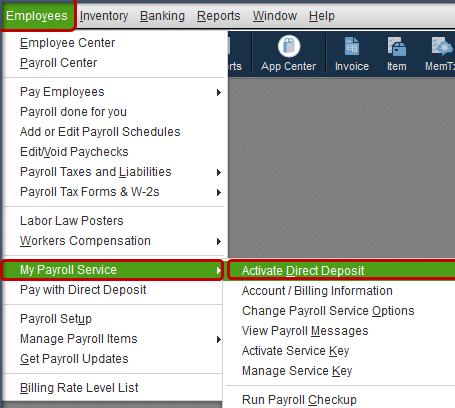
- Then, choose the My Payroll Service option, followed by Activate Direct Deposit.

- Select the Getting Started option, then Start on the Business tab, and lastly choose the Next option.
- Type the principal officer’s information, then select the Next option.
- Select the option to add a new bank account.
- You have to type the bank’s name, online banking login info, or, if prompted, the bank routing and account numbers.
- You have to make a PIN that you have to type each time you send payroll to QB. Therefore, enter a PIN that you can remember and note it down.
- Check the PIN twice and then select Submit.
- Click on the Next option, followed by Accept and Submit.
- If you’re asked to, check the principal officer’s SSN, then press the Submit button.
Go through the solutions mentioned above to resolve the issue of QuickBooks payroll direct deposit not working quickly and effectively.
Quick View Table – QuickBooks Direct Deposit Not Working
Let’s discuss the important points that we discussed in the blog:
| Error Description | The QuickBooks direct deposit not working issue is a problem where direct deposit transactions in QB fail to process correctly, preventing employees or vendors from receiving payments through the direct deposit system. |
| Causes of this error | The reasons for this issue of QuickBooks Direct Deposit Not Working are that you have not set up your direct deposit in the right way, have an inactive QB Payroll subscription, or are not using the latest QB and QB Payroll versions. Additionally, the company bank account might not have been checked or linked, the employee bank details are wrong, or you don’t have a strong internet connection. Another reason is that you might not be logged into QB as an admin. |
| Methods to resolve this issue | You can resolve this issue by setting up direct deposits correctly, updating the QB application and QB Payroll, verifying your banking information, checking your employee’s banking information, ensuring you have activated QB direct deposit, and verifying if the payday falls on a federal holiday. |
Conclusion
In this blog, we discussed the issue of QuickBooks direct deposit not working. We covered the reasons why you encounter this issue. Also, we mentioned the solutions to resolve it and different scenarios that you might face while making a direct deposit. If you are experiencing an issue related to direct deposit not working in QuickBooks, don’t hesitate to reach out to our Accounting Helpline experts at 1.855.738.2784.
Frequently Asked Questions
If the QB direct deposit is unsuccessful, what will happen?
If the issue of QuickBooks Direct Deposit Not Working occurs, you will get the money in the business account you used to make the deposit within a few business days.
What is the duration of the QB direct deposit?
The recipient’s bank account, that is, whether they are an employee or an independent contractor, determines how long QuickBooks direct deposit takes. The employee’s bank account is often credited between midnight and the early hours of the payday.
In QB, how do I undo a direct deposit?
If it is finished within business days of the payday, you can seek a DD reversal in QB. The recovery monies aren’t guaranteed, though. A direct deposit reversal must be requested in QB. To accomplish that, open the Direct Deposit Reversal Form, choose Add Request, fill out the required information, and hit Save.
Despite submitting payroll, why isn’t my employee being paid?
This may occur if there were not enough funds in your company account, the employee’s bank account information is inaccurate, or the account is closed. Additionally, make sure you submitted payroll before the deadline and that the pay date wasn’t a weekend or bank holiday.
Related Posts –
Troubleshoot QuickBooks Error 15311 – Can’t Update Software and Payroll
Ultimate Hacks to Remove QuickBooks Error 30114
How To Fix QuickBooks Error 2501 | 6 Guided Solutions
QuickBooks Error 50004: Reasons and Solutions
QuickBooks Error 40001 Expert Reasons and Solutions
Learn How to Set Up Email In QuickBooks Effortlessly

Edward Martin is a Technical Content Writer for our leading Accounting firm. He has over 10 years of experience in QuickBooks and Xero. He has also worked with Sage, FreshBooks, and many other software platforms. Edward’s passion for clarity, accuracy, and innovation is evident in his writing. He is well versed in how to simplify complex technical concepts and turn them into easy-to-understand content for our readers.