
Last Updated on April 17, 2026
If you have come across QuickBooks error 2501 when making changes to direct deposit, you are at the right place.
One of the most integral parts of the QuickBooks application is the payroll service, which helps you in maintaining employee-related funds and calculating taxes. It includes a direct deposit service, which eliminates the need for manually printing paychecks and helps in sending the wages directly into your employees’ bank accounts. However, many users struggle with updating the information for their payroll direct deposits. This can be due to the QuickBooks error code 2501. This is an extremely frustrating error and can hamper your workflow. Here is the message that might accompany the error code:
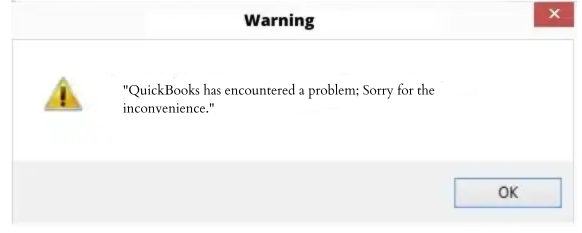
“QuickBooks has encountered a problem; Sorry for the inconvenience.”
This error occurs when there’s a change in the direct deposit account and prohibits the user from taking any further actions in the payroll window, which directly affects their operations. Therefore, in order to resolve the issue, you must thoroughly review the direct deposit account and then proceed. So let us provide you with the steps to eliminate error 2501 in this blog.
Tried multiple hacks but still can’t find the right way to resolve QuickBooks Error 2501? This is your sign to get in touch with our Accounting Helpline experts. Dial 1.855.738.2784 right now and get personalized troubleshooting tips just in time.
Things that Lead to QuickBooks Error Message Code 2501
Given below are some of the potential causes that can lead to the QuickBooks error message 2501 popping up on your screen:
- Changes might have been in the direct deposit account that haven’t been saved.
- If the user has not deselected the box for Direct Deposit Safety, it can lead to this error.
- If you’re using an outdated QBDT app, Payroll, or tax tables, you can see the error 2501 on your screen.
- The Firewall might be blocking the QuickBooks app.
- An incomplete installation of the QuickBooks Desktop application.
QuickBooks Error Code 2501: Expert-Backed Troubleshooting Methods
Now that we know the potential factors that can trigger the QB error code 2501, let us learn the possible methods you can implement to troubleshoot this issue.
Solution 1: Deselect the Direct Deposit Safety Box
QuickBooks payroll error 2501 generally occurs when changes made in direct deposit are not saved. You can follow the steps given below to fix this problem:
- Open the QuickBooks application.
- Navigate to the Payroll menu.
- Click on the Paychecks & Payroll Setup option.
- Now, go to the Direct Deposit tab.
- Look for the Direct Deposit Safety checkbox.
- De-select the checkbox.
- Finally, press Save and close the window.
If this doesn’t fix the QuickBooks error 2501, move ahead to the next solution.
Solution 2: Manually Update Your QB Desktop Application
Sometimes, you may not be able to update the QBDT app automatically. This can lead to you seeing the error 15102. To fix this, you can update QB manually with these steps:
- Click on the Windows button:
- This would open the Start menu.
- In the search panel:
- Type QuickBooks Desktop.
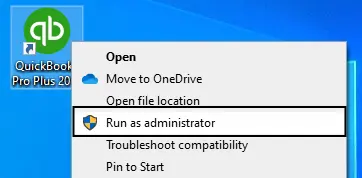
- Right-click on QuickBooks Desktop.
- Select the Run as Administrator option.

- You would be directed to the No Company Open window.
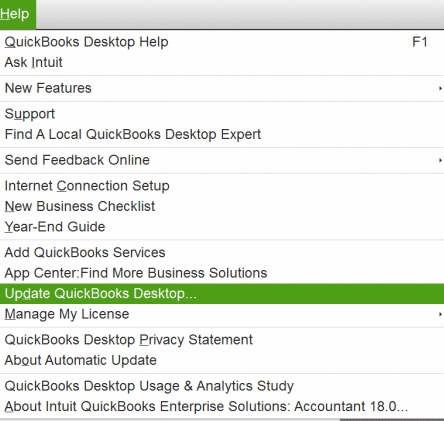
- Tap on the Help menu.
- Select Update QuickBooks Desktop from the drop-down menu.

- Next, you need to click on the Options tab.
- Then, choose the Mark All option.
- Press the Save button.
- Now, select the Update Now tab.

- Then, press the Reset Update box.
- Click on the Get Updates option.
- Relaunch QBDT.
- Install the downloaded updates.
- Try to work on your direct deposits again.
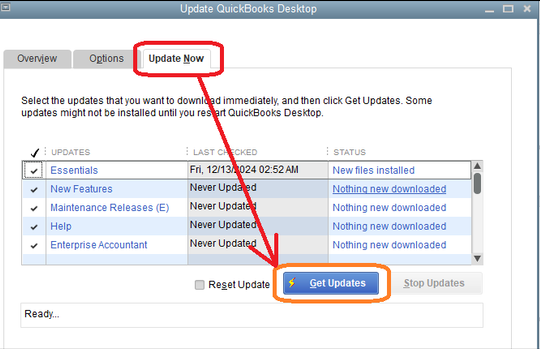
This would resolve the error 2501 in QuickBooks.
Solution 3: Update Your Windows Operating System
Just as an outdated QB Desktop app can lead to issues, an outdated Windows OS can also give rise to various errors, such as error 2501 in QuickBooks. This is why you must keep your Windows updated at all times. Follow these steps:
- Open the Windows Start menu.
- Click on the Settings option.
- Then, proceed to click the Update & Security button:

- This would open the Windows Update screen.
- Press Check for Updates and allow the OS to check if there are any updates available.
- If there are any available updates, hit the Get Updates button.
- Wait for the system to download the latest Windows OS updates.
- Finally, select Restart and Update from the Start menu to complete the update installation.
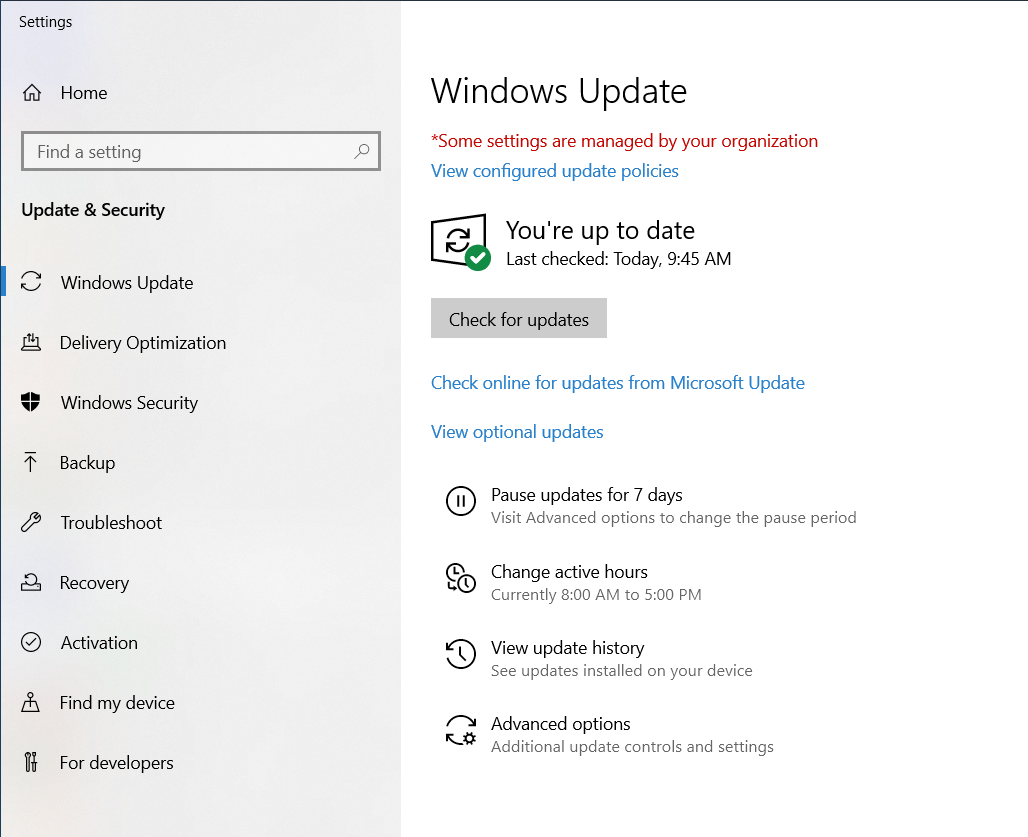
If you still aren’t able to use direct deposit, you can add QB Firewall exceptions.
Solution 4: Make Firewall Exceptions for QuickBooks
The Windows Firewall can block QB from performing important functions. It is basically restricting its activities by not letting QB connect to the internet. Exclude QuickBooks from the list of the firewall this way –
- Open the Start menu.
- Go to the search bar.
- Type Windows Firewall and open it.
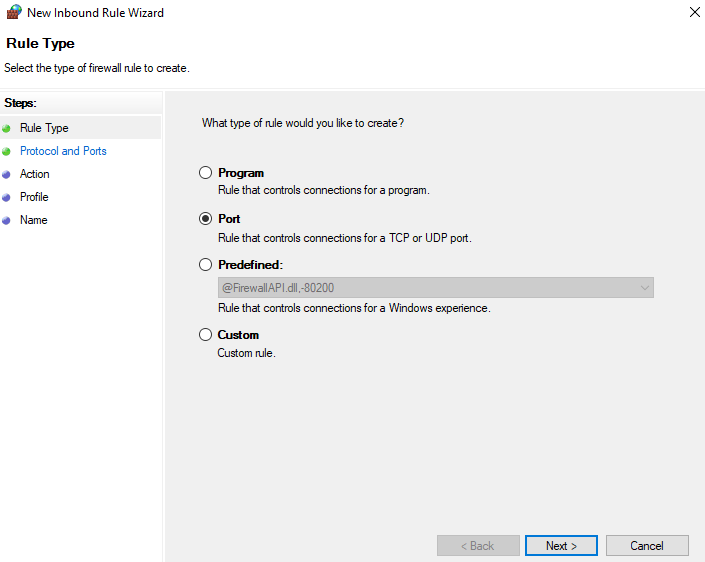
- Go to the Advanced Settings section.

- Then, right-click on the Inbound Rules option.

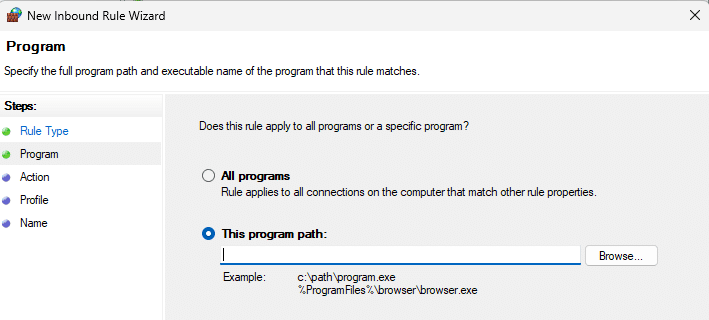
- Select New Rule, then Program, and hit the Next button.

- Now, select This Program Path and press Browse.

- A list of QuickBooks executable files will be shown on the screen; choose one of the files. You must perform these steps for all of the executable files.
- Press Next and then Allow the Connection.
- Click on Next and confirm that all profiles are pre-marked.
- Hit the Next button.
- Create the rule by naming it “QBFirewallException(name.exe).”
- Repeat the above steps to create Outbound Rules separately.
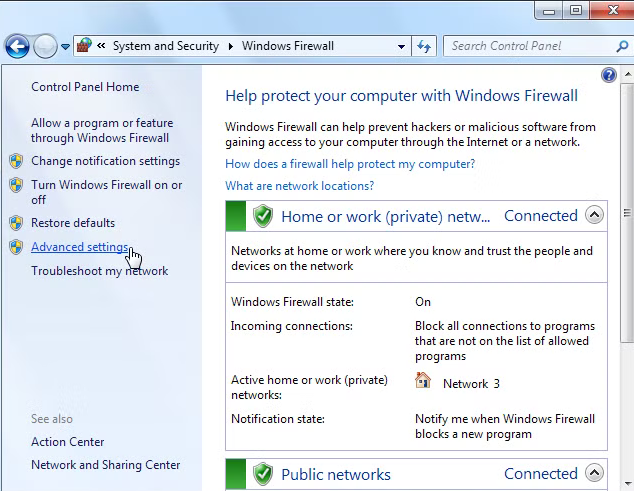
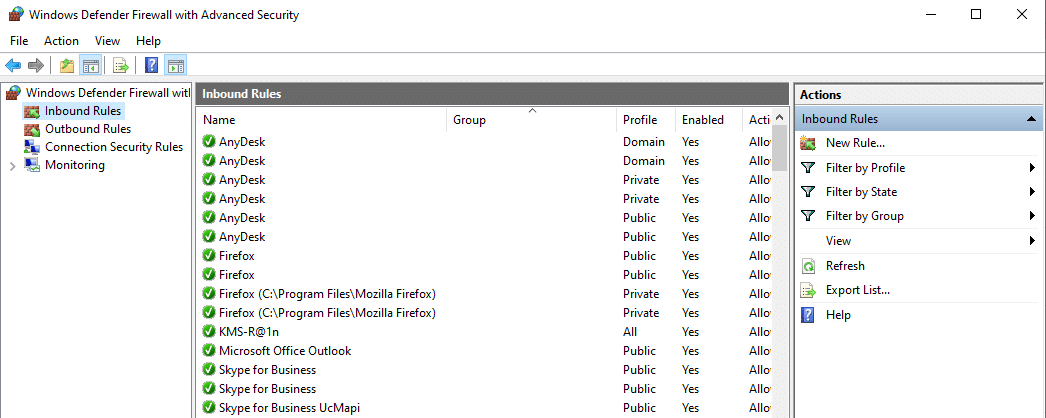
Proceed to the next solution if your issue isn’t fixed.
Solution 5: Reinstall the QuickBooks Desktop Application
In some cases, your QB Desktop application might not be installed correctly, leading to the QuickBooks error 2501. You can resolve that with the following steps:
- Press and hold the Windows and R keys together on your keyboard to open the Run prompt.
- In the search field, type Control Panel and click on the OK button to open a new window.
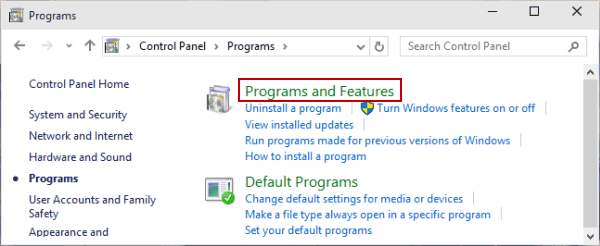
- Here, you must press the Programs and Features tab.

- Click on Uninstall a Program and locate the QuickBooks Desktop application.
- Select it and then hit the Uninstall/ Change button.
- Press Next and choose to Remove the application.
- Once the process is complete, reinstall the QB application.
Now, you would be able to use direct deposit again.
Solution 6: Clear Unpaid Checks in Direct Deposit
Unpaid checks in direct deposit can lead to the QuickBooks error code 2501 appearing on your screen. To fix that, follow these steps:
- Verify the QB app for unpaid checks.
- Pay them.
- Now, clear your direct deposit:
- Click on the Employees menu.
- Press the Employee Center option.
- Double-click the employee name for whom you need to remove the direct deposit.
- Go to the Payroll Info tab.
- Select Direct Deposit.
- Deselect the Use Direct Deposit box.
- Press OK.
Now, the issue would be resolved.
QuickBooks Error 2501 – A Quick View Table
Given in the table below is a concise summary of this blog on the topic of the QuickBooks error code 2501:
| Description | The QuickBooks error 2501 occurs when the changes you made to the direct deposit weren’t saved or implemented. It makes you unable to send out direct deposits, ultimately hampering your workflow. |
| Causes | It is caused by unsaved changes in direct deposit, a selected direct deposit safety checkbox, an outdated QB app and payroll, outdated tax tables, the Firewall blocking QuickBooks, and an incomplete installation of the QBDT app. |
| Ways to fix it | You can fix it by deselecting the direct deposit safety checkbox, updating QBDT manually, updating the Windows OS, making Firewall exclusions for QB, reinstalling the QBDT app, and clearing unpaid checks in direct deposit. |
Conclusion
In this blog, we talked about the QuickBooks error 2501 and its causes. Additionally, we also discussed the step-by-step guided solutions for this error. Hopefully, now you must be able to resume your business operations. In case you require additional support in carrying out the steps or are facing the same error time and again, feel free to reach out to our Accounting Helpline experts at 1.855.738.2784 at any time of your convenience.
FAQs
What are some quick ways to fix error code 2501 in QuickBooks?
The ways you can fix the Error Code 2501 in QuickBooks are by deselecting the direct deposit safety checkbox, updating QBDT manually, updating the Windows OS, making Firewall exceptions for QB, reinstalling the QBDT app, and clearing unpaid checks in direct deposit.
Why can’t I update direct deposit information?
You might not be able to update the direct deposit information due to the QuickBooks error, which usually occurs because of unchanged changes. You can fix it by first trying to update the QBDT app, and if it doesn’t work, you can update the Windows OS.
Related Posts –
The Ultimate Guide to Fixing QuickBooks Network Connection Error
QuickBooks Multi-user Mode not working! Here’s What to Do
Fix QuickBooks Error 3371 Status Code 11118 With Effective Ways
How to Verify and Rebuild Data in QuickBooks Desktop: Easy Steps
Fix QuickBooks Error 6129, 0 with Expert Tips and Solutions
Guide to Fix QBCFMonitorService Not Running On This Computer

Edward Martin is a Technical Content Writer for our leading Accounting firm. He has over 10 years of experience in QuickBooks and Xero. He has also worked with Sage, FreshBooks, and many other software platforms. Edward’s passion for clarity, accuracy, and innovation is evident in his writing. He is well versed in how to simplify complex technical concepts and turn them into easy-to-understand content for our readers.