

Last Updated on April 15, 2026
The QuickBooks error 6000 80 is a company file error that might occur when you try to open your company file in the QuickBooks Desktop application. This error is generally caused by inadequate folder permissions or the Firewall blocking your QBDT software. This can hamper your workflow, ultimately slowing down your work progress. Therefore, it’s essential to resolve this error in time. You can fix the 6000 80 error by ensuring the Windows permissions are set correctly for QB Desktop. We’ll cover the troubleshooting methods you need to fix this issue in this blog. First, let’s cover the causes of the error 6000 80 in QuickBooks Desktop Pro.
Are you unable to open your company file in the QB Desktop application due to error 6000 80? Contact our Accounting Helpline experts at 1.855.738.2784 today to resolve this error code at a moment’s notice!
Factors that Can Cause Error 6000 80 Opening the Company File
Given in the list below are the factors that can potentially trigger the QuickBooks error 6000 80 to appear on your screen:
- Inadequate folder permissions.
- A damaged company file.
- Incorrect UAC settings.
- An outdated QB Desktop application.
- The company file is set to read only.
- The Firewall is blocking the QBDT software.
- Program problems with the QB Desktop app.
These are the reasons why you’re unable to open a company file getting error 6000 80.
Methods to Resolve the QuickBooks Enterprise Error Message 6000 80
Listed below are the troubleshooting methods you can use to fix the 6000 80 error in QuickBooks Desktop:
Update the QB Desktop App
An outdated QBDT app can be the culprit behind the error 6000 80 in QuickBooks Desktop. To fix it, update the QB Desktop app with these steps:
- Open the QuickBooks Desktop software.
- Navigate to the Help menu.
- Click on Update QuickBooks Desktop.

- Then, select Update Now.
- Click on the Get Updates option.

- Close and reopen the QBDT app to install the updates.
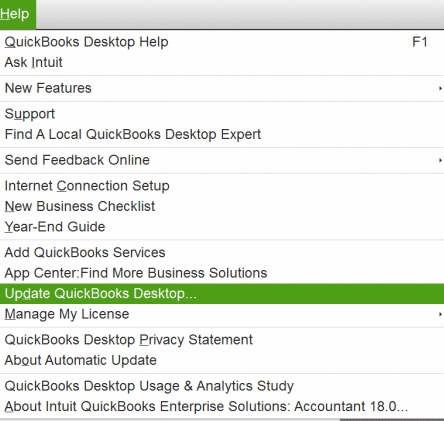
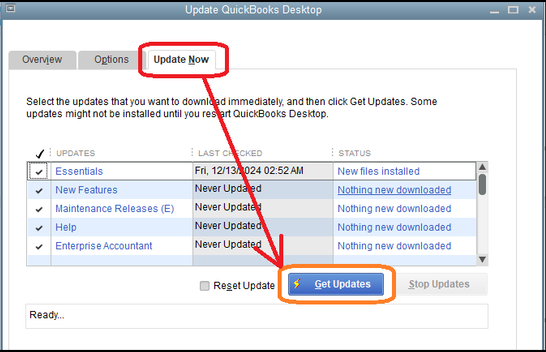
This would fix the issue you were dealing with.
Use QB as an Administrator
If you’re not using QB Desktop as an admin and getting the QuickBooks error 6000 80, use the app as an admin with these steps:
- Close the QB Desktop app.
- Right-click on the QuickBooks icon.
- Click on Run as Administrator.

- Try to open your company file again.
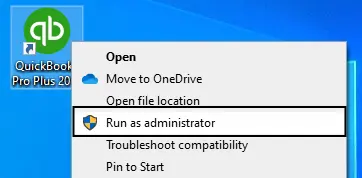
Now, the QuickBooks error code -6000 80 should be resolved.
Toggle the UAC Settings
You can change the User Account Control settings (UAC) to patch the QuickBooks multi-user error 6000 80 with the steps given below:
- Close the QB Desktop app.
- Open the Start menu.
- Search for and open the User Account Control.
- Navigate to Settings.
- Click on Change User Account Control Settings.

- Move the slider to Always Notify.
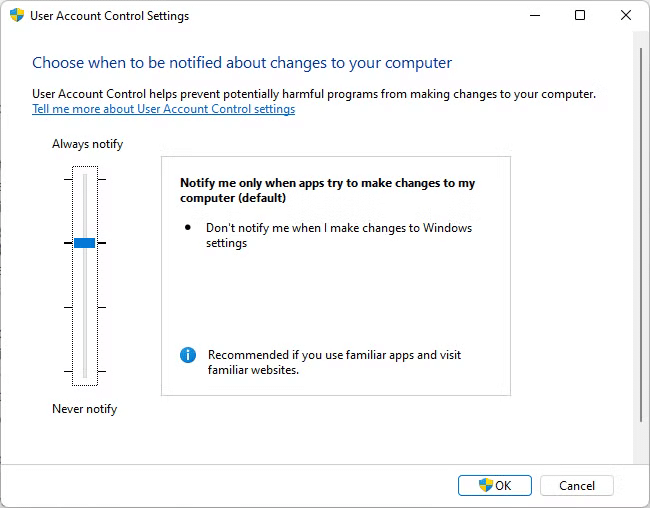
The problem should now be patched.
Make Sure the File is Not Set to read-only
If your QB company file is set to read-only, you would have trouble accessing it. You can ensure it is not set to read-only with these steps:
- Open the File Explorer.
- Navigate to the folder where your company file is located.
- Find your company file.
- Right-click on your company file (.QBW).
- Select Properties.
- Navigate to the General tab.
- Unmark Read Only if it is checked.
- Press OK.
The error 6000 80 opening the company file should be fixed.
Use the QB File Doctor Tool
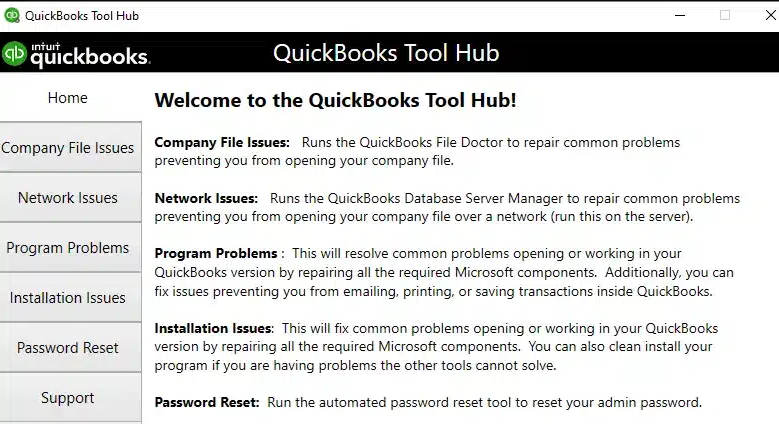
You can use the QB File Doctor Tool from the QB Tool Hub to fix the QuickBooks error 6000 80 with the steps given to you below:
- Download and install the QuickBooks Tool Hub.

- Open the QB Tool Hub app.
- Navigate to the Company File Issues tab.
- Click on Run QuickBooks File Doctor:

- If it doesn’t open, search for QuickBooks Desktop File Doc and open it manually.
- Select your company file from the dropdown menu:
- If you can’t see your file, click Browse and search to locate your file.
- Click on the Check your file option.
- Select Continue.
- Enter your QB admin password.
- Press Next.

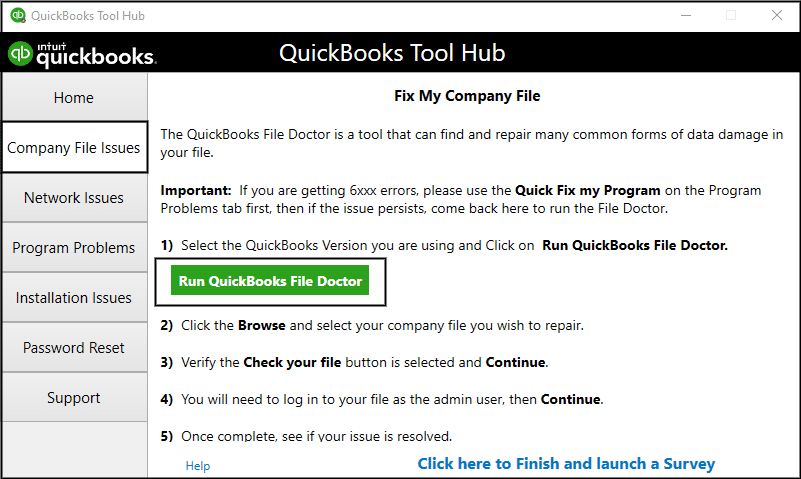
You would now be able to open your company file in QB Desktop.
Verify the Windows Permissions for QBDT
Ensure that the Windows permissions are set correctly for the QB Desktop app to fix the QuickBooks error 6000 80 with the following steps:
- Open the File Explorer.
- Navigate to the Intuit folder’s location.
- Right-click on the Intuit folder.
- Select the Properties option.
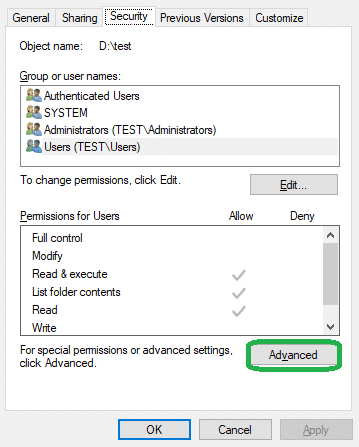
- Navigate to the Security tab.

- Click on the Advanced button.
- Then, in the Owner field, make sure the Users group is selected.
- If you see System or something other than Users, perform these steps:
- Go to Advanced Security Settings.
- Click on Change in the Owner field.
- Type in USERS.
- Hit Enter.
- Mark the Replace owner on sub-containers and objects checkbox.
- Click on Users (YOUR COMPUTER NAME\Users) and mark Full Control.
- Press OK.
- Now, click on Edit in the Security tab.
- Press Users (YOUR COMPUTER NAME\Users).
- Mark the Full Control box.
- Hit OK.
This should resolve the company file error you were dealing with.
Restore a Backup Copy of Your Company File
You can restore a backup copy of your company file to resolve the QuickBooks error 6000 80 with the steps given below:
- Open the QB Desktop app.
- Navigate to the File menu.
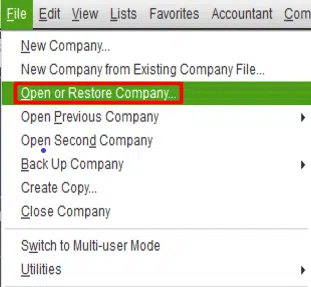
- Click on Open or Restore Company.

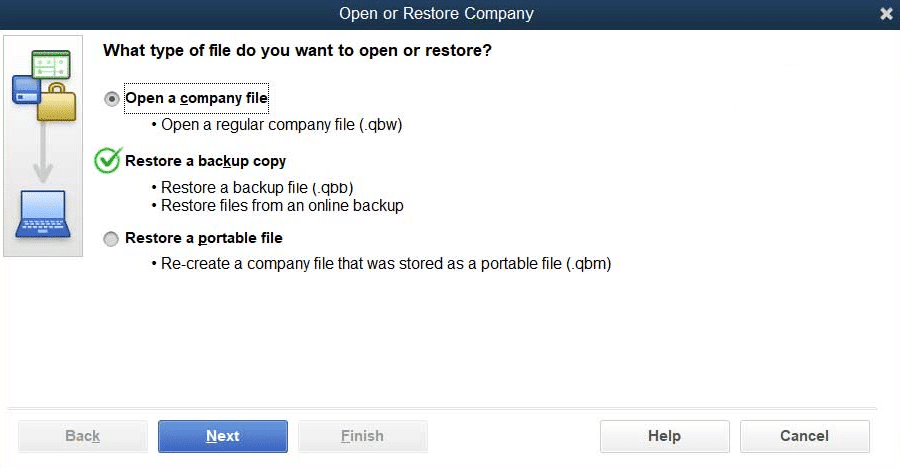
- Select the Restore a backup copy option.

- Press Next.
- Select Local Backup.
- Hit Next.
- Find the backup file on your PC.
- The backup file looks like this: [Your company name].qbb.
- Choose the folder where your restored file would be saved.
- Select Open.
- Hit Save.
- If you see a warning about overwriting data, choose the option that best suits your needs.
- Do not overwrite anything unless you wish to.
Now, the QuickBooks company file error 6000 80 should be fixed.
Verify and Rebuild Your Company File
The verify and rebuild data utility can be used to resolve the QuickBooks Desktop error 6000 80 with the steps given below:
- Open the QB Desktop app.
- Navigate to the File menu.
- Click on Utilities.
- Select the Verify Data option.

- Then, open the File menu again.
- Select Utilities.
- Click on the Rebuild Data option.

- QB will ask to create a backup file before it rebuilds your data.
- Press OK.
- A backup is required to rebuild your company file.
- Choose where the file would be saved.
- Hit OK.
- Make sure not to replace an existing backup file.
- Enter a unique name in the File name field.
- Press Save.
- You will get a message stating that Rebuild has completed.
- Hit OK.

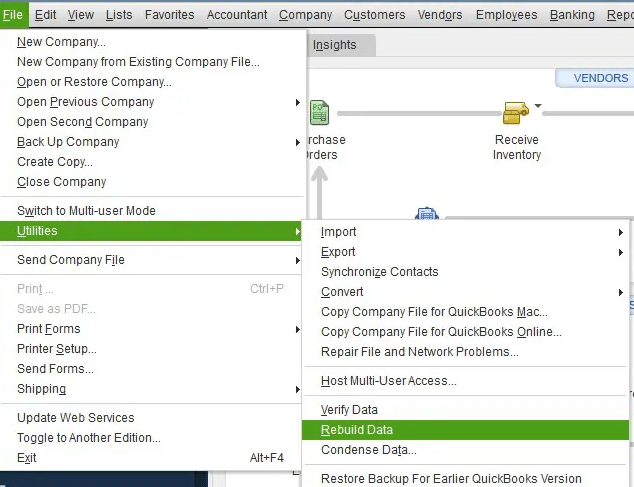
This would let you open your company file again in QB Desktop.
Create Firewall Exclusions for the QB Desktop App
You can make Windows Firewall exclusions for the QB Desktop application to resolve the QBDT error 6000 80 with the steps given below:
- Open the Start menu.
- Search for and open the Windows Firewall.
- Click on Advanced Settings.

- Right-click on Inbound Rules:
- You’ll make Outbound Rules later.
- Select the New Rule option.
- Click on Port.

- Hit Next.
- Ensure that TCP is selected.
- Go to the Specific Local Ports field.

- Type in the port for your QB Desktop app:
- QuickBooks Desktop 2020: 8019, XXXXX
- QuickBooks Desktop 2019: 8019, XXXXX
- QuickBooks Desktop 2018: 8019, 56728, 55378-55382
- QuickBooks Desktop 2017: 8019, 56727, 55373-55377
- Hit Next after entering the port number.
- Select Allow the Connection.
- Hit Next.
- Ensure all profiles are marked if prompted.
- Press Next.
- Create a rule.
- Name it something like QBPorts(year).
- Press Finish.
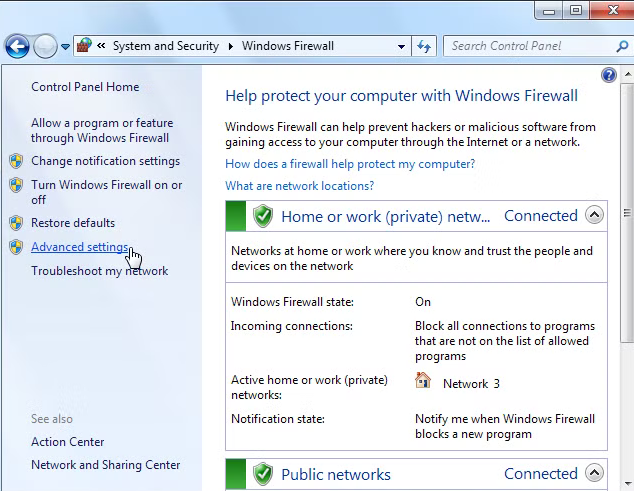
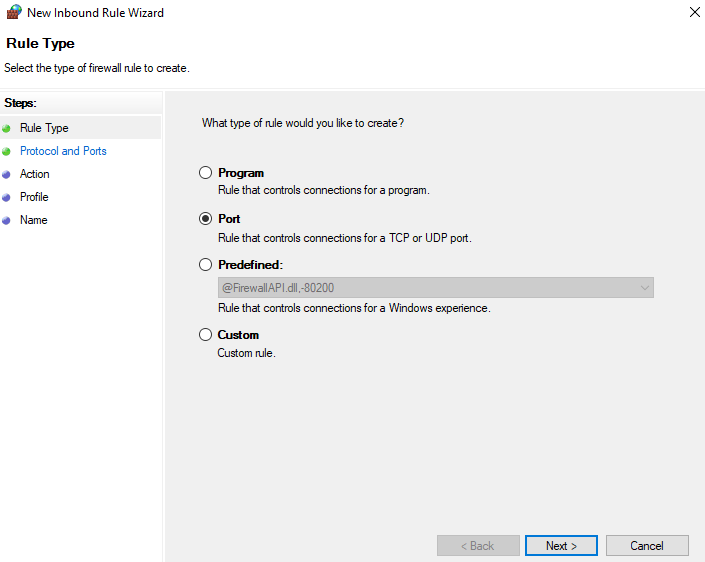
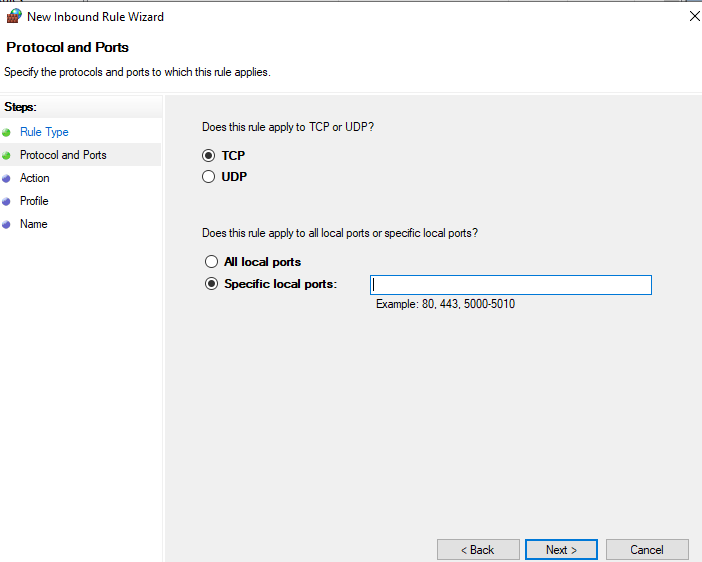
This would patch the QuickBooks Desktop error code 6000 80.
Use Quick Fix My Program
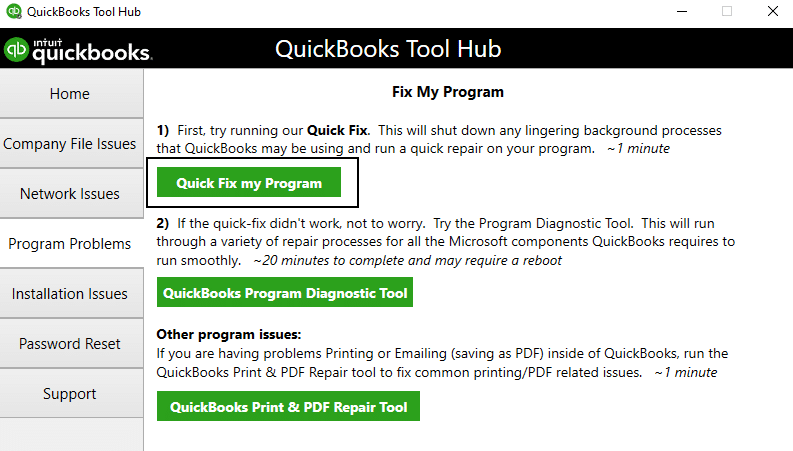
The Quick Fix My Program tool present in the QB Tool Hub can be used to resolve the QuickBooks error 6000 80 with the following steps:
- Open the QuickBooks Tool Hub.

- Navigate to the Program Problems tab.
- Click on Quick Fix My Program.

- Let the tool run.
Now, you should be able to open your company file again.
QuickBooks Error 6000 80 – A Quick View Table
Given in the table below is a concise summary of this blog on the topic of the QuickBooks company file error 6000 80:
| Description | The QuickBooks error 6000 80 is a company file error that can occur when you try to open your company file in the QB Desktop app. This can hamper your workflow and important business processes. |
| Its causes | Inadequate folder permissions, a damaged QB company file, incorrect UAC settings, an outdated QBDT application, the company file is set to read-only, the Firewall is blocking the QB Desktop app, and program problems with the QB Desktop app. |
| Ways to fix it | Update the QBDT app, use the QB app as an admin, toggle the UAC settings, ensure the file isn’t set to read-only, use the QB File Doctor tool, verify the Windows permissions, restore a backup of your company file, verify and rebuild your company data, create Firewall exclusions for QBDT, and use the Quick Fix My Program tool. |
Conclusion
The QuickBooks error 6000 80 is a company file error that can appear on your screen when you try to open the QB Desktop application. We have covered the factors that can potentially trigger this error, along with the troubleshooting methods needed to fix it in this blog. If you are still unable to open your company file, contact our Accounting Helpline experts at 1.855.738.2784 today to resolve your problem in no time!
FAQs
Why am I seeing the QuickBooks error 6000 80?
You can see the QuickBooks error 6000 80 due to these reasons:
– A damaged company file.
– Inadequate folder permissions.
– Program problems with the QB Desktop app.
– Firewall is blocking the QBDT app.
– Incorrect UAC settings.
– An outdated QBDT app.
– The QuickBooks company file is set to read-only.
How do I fix the QBDT error 6000 80?
You can fix the QBDT error 6000 80 with these methods:
– Update the QuickBooks Desktop app.
– Use QB Desktop as an admin.
– Toggle the UAC settings.
– Ensure the company file isn’t set to read-only.
– Utilize the QB File Doctor Tool.
– Verify the Windows permissions.
– Restore a backup copy of your company file.
– Verify and rebuild the QuickBooks company data.
– Create Firewall exceptions for QB Desktop.
– Use the Quick Fix My Program Tool.
What are the different error codes that may accompany QuickBooks error 6000 80?
The following error codes or messages may appear with or without QuickBooks error 6000 80, indicating the connection to the company file in Windows has been lost:
“The file you specified cannot be opened. Make sure that it is not currently being used by another program or a read-only file. The Windows error was: The system cannot find the path specified.”
– 6000, -80
– 6176, 0
– 6000, -77
– Server Busy
How can I create a new Windows administrator account to access my company file and resolve the QuickBooks error 6000 80?
Here’s how you can create a new Windows admin account and fix the QuickBooks error 6000 80:
Part 1: Create a local user account
– Initiate by clicking on Start, followed by navigating to Settings and then selecting Accounts. In some Windows versions, you may find it under Other users.
– Adjacent to “Add other user,” click the Add account button.
– Click “I don’t have this person’s sign-in information.” Now, when the next page appears, choose to Add a user without a Microsoft account.
– Input a username, password, or password hint where required—or alternatively, select security questions—and proceed by selecting Next.
Part 2: Changing a local user account into an administrator account
– Initiate the process by selecting Start, then navigating to Settings and clicking Accounts.
– When you get to the Family & Other Users section, locate the account owner’s name (see “Local account” beneath the name) and then select Change account type.
Note: Ensure that your selected account displays an email address or explicitly mentions “Local account.” This ensures you are granting administrator permissions to a local account, not a Microsoft account.
– Under Account type, go with Administrator, and subsequently select OK.
– Complete the process by signing in using the newly established administrator account.
How do I set Windows access permissions to share company files to ensure no errors occur while accessing the file?
Ensure that QuickBooks maintains the appropriate access level to reduce potential challenges when handling company files over the network.
– Launch the Windows Start menu and initiate File Explorer.
– Identify and right-click on the directory where your company files are kept.
– Choose Properties, followed by Sharing, and then click Share Add.
– Hit the relevant QBDataServiceUserXX matching your version.
– Toggle the permission level for both users to Full Control and proceed to select Share.
How else can I configure firewall and security settings to resolve the QuickBooks error 6000 80?
You can run the QuickBooks File Doctor to configure firewall and security settings and fix the QuickBooks error 6000 80. Additionally, the File Doctor tool can help you fix file-related errors leading to this code:
Section 1: Download and Install QuickBooks Tool Hub (If Not Installed)
– Close QuickBooks and any open company files, then launch your web browser.
– Download QuickBooks Tool Hub onto your PC from the official Intuit website.
– Save the installation files in a convenient location by clicking the download link.
– Once the download is complete, navigate to the saved location, get the files, and double-click QuickBooksToolHub.exe to initiate QuickBooks Tool Hub installation.
– Follow the on-screen InstallShield instructions to complete the installation successfully, ensuring you accept the License Agreement.
– Start using QuickBooks Tool Hub after the installation is finished.
Section 2: Get help from QuickBooks File Doctor
– Launch the QuickBooks Tool Hub after ending the installation.
– Go to the Company File Issues section within the QuickBooks Tool Hub.
– Tap “Run QuickBooks File Doctor.”
– Upon launching, locate and choose the specific company file you want to scan. If it’s not in the drop-down list, hit the Browse option to find it manually.
– Hit ‘Check your file and network‘ and click the Continue option.
– Enter your QuickBooks admin password when prompted and then hit Next.
Related Posts-
How to Resolve QuickBooks Error 15263 Like a Pro?
Comprehending the QuickBooks Error 15276 With Causes & Solutions
Effortless Fixes for QuickBooks Error PS077: Get Your Business Back on Track
Practical Troubleshooting Ways to Fix QuickBooks Error 6000 95
Getting QuickBooks Error 1935? Here’s How to Fix It
The Progressive Guide to Change QuickBooks License Number

Edward Martin is a Technical Content Writer for our leading Accounting firm. He has over 10 years of experience in QuickBooks and Xero. He has also worked with Sage, FreshBooks, and many other software platforms. Edward’s passion for clarity, accuracy, and innovation is evident in his writing. He is well versed in how to simplify complex technical concepts and turn them into easy-to-understand content for our readers.