

Last Updated on March 13, 2026
QuickBooks is a popular accounting and bookkeeping software with a user-friendly interface and multiple features. But it also has some flaws, as it isn’t immune to technical issues, and one of the common problems faced by users is QuickBooks error code 523. It can occur when a user is trying to view or open PDF documents on Adobe Acrobat/Reader. Some of the common causes of this error include outdated Adobe Reader versions, interruptions from other applications, or the protected mode feature in Adobe.
These can trigger “There is a problem with Adobe Acrobat/Reader. If it is running, please exit and try again. (523.523)”, or “QuickBooks, there is a problem with Adobe Acrobat/Reader 523,” which prevents users from opening PDF files. In this article, we’ll go through the leading factors, symptoms, and troubleshooting methods to resolve the QuickBooks error code 523 to get the program back on track for seamless access to your documents.
The QuickBooks error code 523 might prevent you from opening a PDF. If you want a quick resolution and guidance to fix it, then connect with an Accounting Helpline’s expert. Dial 1.855.738.2784 today.

What Does QuickBooks Adobe Error 523 Look Like?
You may encounter QuickBooks error code 523 when you are trying to open a PDF. It is an annoying issue and is probably caused by an outdated version of Adobe Reader software. Your screen shows the following warning message about this problem:
” QuickBooks, there is a problem with Adobe Acrobat/Reader 523. “
” There is a problem with Adobe Acrobat/Reader. If it is running, please exit and try again. (523.523). “
Also, the QuickBooks running instance of Acrobat error may disrupt your system network connectivity and hinder the essential Windows services. In order to resolve this problem, you may need to download the latest Adobe updates to ensure it does not create any disruptions.
Common Indications of QuickBooks Error Code 523
When you run into technical issues with QB applications, first, you should identify the specific error that is affecting your system. The following things will help you determine if the QuickBooks error code 523 is actually leading to failure while opening PDFs. Read through the following signs and verify them on your system.
- The first and foremost sign of QuickBooks error 523 will be this message that might be displayed on your screen: “Adobe has stopped responding“.
- The PDF document that you’re trying to open fails to display on screen or stops working correctly.
- You are unable to import or export any PDF documents.
- QuickBooks unexpectedly closes all windows.
- You see a malfunctioning screen or a completely blank white screen.
If you have experienced these symptoms, then the QuickBooks error code 523 may be occurring on your system. Now, let’s go through some potential causes that may have caused this issue.
What are the Leading Factors for QuickBooks Error 523?
Before you proceed to fix error code 523 in QuickBooks, you need to know what has led to it. In this way, you can implement preventive action to avoid this issue in the future. And if the QuickBooks running instance of Acrobat error does happen, it will be easier to track down the cause and eliminate it in the shortest possible time.
- You might be using an outdated version of QuickBooks or Adobe software.
- There may be other Adobe processes that are actively running in the background on your system.
- There might be underlying issues with the installation of Adobe applications.
- The Protection Mode feature is active and has been left turned on in the Adobe settings configuration.
These are the leading factors behind the QuickBooks error code 523. Now, to troubleshoot this problem, refer to the following section.
7 Proven Methods To Resolve the QuickBooks Adobe Error 523
Listed below are the top 7 resolutions that may help you fix the QB error 523 effectively, as well as prevent it from occurring again.
Update the QuickBooks Desktop
An outdated version of QBDT can be one of the reasons for numerous problems on your system. It can also be the cause of the QuickBooks error code 523, so to eliminate this error, you may need to upgrade the software to the latest release version.
- Close your company files and exit QuickBooks.
- Launch the Windows Start menu.
- Look up QuickBooks Desktop and select ‘Run as Administrator‘.

- On the ‘No Company Open’ screen, select ‘Update QuickBooks Desktop‘ from the Help menu.

- In the Options tab, click “Mark All,” followed by “Save.”
- Tick the Reset Update checkbox from the Update Now tab.

- Finally, hit “Get Updates” when you’re ready.
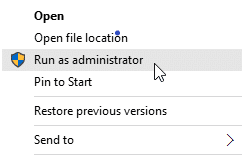
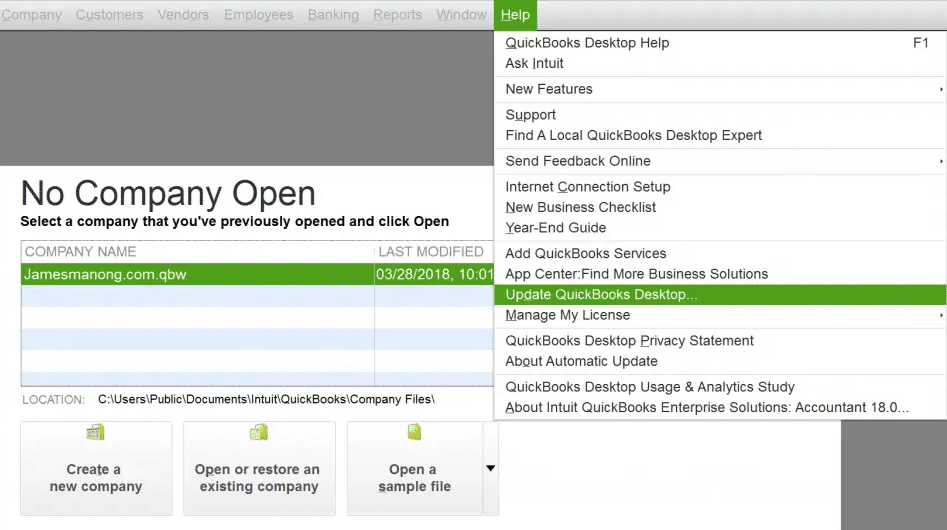
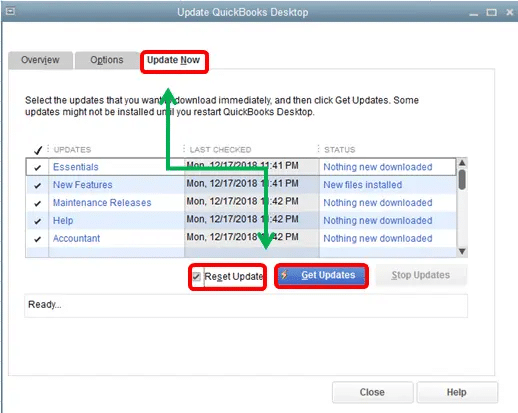
Once the QuickBooks Enterprise has been successfully updated, try opening a PDF to determine whether you still get the QuickBooks error 523. Moreover, when you have an old version of Adobe, you just need to download and install the new software to prevent all these problems. In case the error is still there, then use the method below.
Set Adobe as the Default Application
To prevent interruptions from non-Adobe programs, you should set Adobe as the default PDF viewer in your system. The non-Adobe software might be set as the default to open PDF files, and this could become a problem when you are trying to open PDF files with Adobe. You can go through the following steps to make Adobe the default program to view PDFs on your system.
- Click on the search box in the Windows Start menu.
- Open Settings and choose Apps.
- Then go to Default Apps from the left panel.

- Select “Choose default apps by file type” at the bottom.
- Scroll down and locate the .pdf option, and tap Choose a Default.
- Now choose Adobe as the default for PDFs.
- Save the changes and close the window.
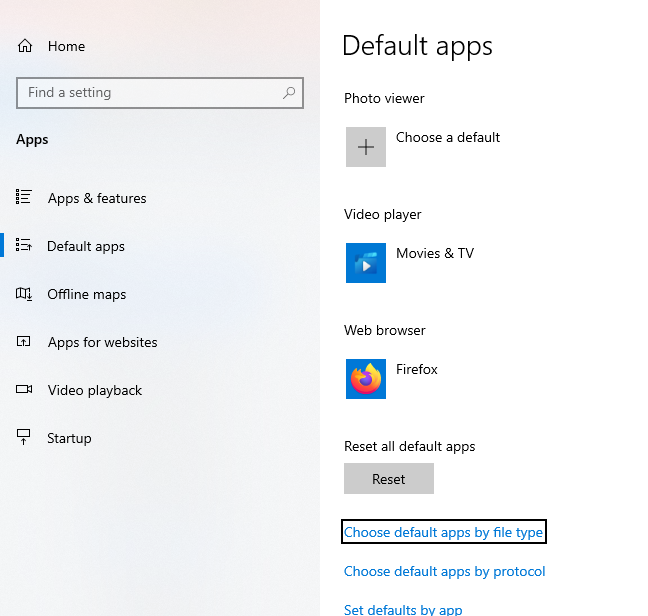
After setting up Adobe as the default application, it should solve any problems with PDF, and you can open the documents without the QuickBooks error code 523.
Stop Adobe Processes Running in the Background
Other processes of Adobe may be running in the background and may interfere with PDF files. It might not open a PDF and will give QuickBooks error code 523. Such background processes may also be a contributing factor to other unforeseen issues or crashes. To eliminate this, then proceed with the following steps to shut down Adobe and QuickBooks processes.
- Close all the open windows on your desktop.
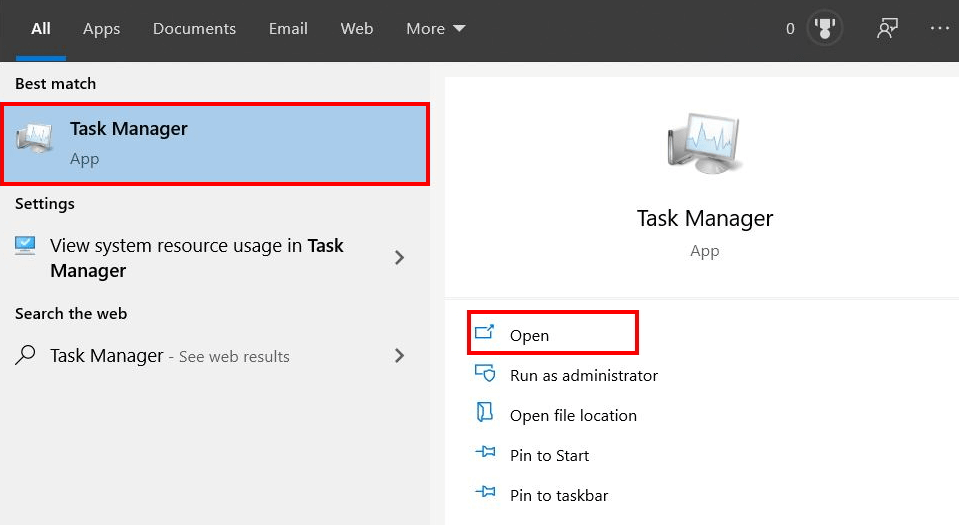
- Open the Start Menu, and type Task Manager in the search box.

- Open the Task Manager, then navigate to Processes.
- Find any ongoing Adobe or QuickBooks process.
- Select them and click End Task from the menu.
- Repeat these to stop all background tasks.
- When this is complete, close the Task Manager and reboot your system.
Once you restart your computer, open your PDF or reports to see whether the QuickBooks error 523 has now been solved. If the error continues to cause difficulties with your work, you can disable the Enabled Protection Mode in Adobe.
Disable Protected Mode in Adobe
Protected Mode is an option within Adobe Reader that enhances security when you access PDF files. But this mode could be denying you access or blocking your ability to open documents. To overcome this error, you can disable the protected mode by performing the following steps.
- Close QuickBooks and launch the Adobe Reader.
- Click on Edit, then select Preferences from the menu.
- Select Categories, and choose Security (Enhanced).
- In the protection settings, untick the Enable Enhanced Security checkbox.
- If the box is not checked, then leave it as it is.
- In Sandbox Protections, go to Enable Protected Mode at Startup.
- If it is checked, then also uncheck.
- Now, click on OK to save and exit Preferences.
- Finally, reboot your computer in order to load the new settings.
You can also prevent any limitations that could be preventing you from opening the PDF and triggering QuickBooks error code 523 by turning the Protected Mode off in Adobe.
Repair the Adobe Application
If the QuickBooks Adobe error 523:523 is primarily occurring due to the Adobe Acrobat/Reader, despite being up to date with newer versions, then you can follow the method below to repair it.
- Close all windows and exit the Adobe application.
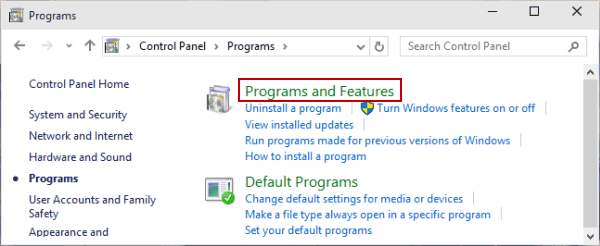
- Open the Control Panel and head to Programs.
- Then select Programs and Features.

- Locate Acrobat or Adobe Reader from the list.
- Right-click and select Repair from the menu.
- Hit Next, followed by Finish.
- Once it has been repaired, restart Adobe.
The following method can be used to repair the QB Enterprise application as well, in case you suspect that there are some issues. If you still face the QuickBooks error code 523, then try running the Quick Fix my Program with the procedure below.
Run the Quick Fix My Program Tool
It’s possible that the QuickBooks running instance of Acrobat error may be occurring due to internal errors in QB Enterprise. Follow the procedure given below to repair such issues by running the Quick Fix My Program utility.
- Download the QuickBooks Tool Hub.

- Open the QB Tool Hub and go to the Program Problems section.
- Click on the ‘Quick Fix my Program’ button as shown above.

- Lastly, you might be asked to sign in to your company file.

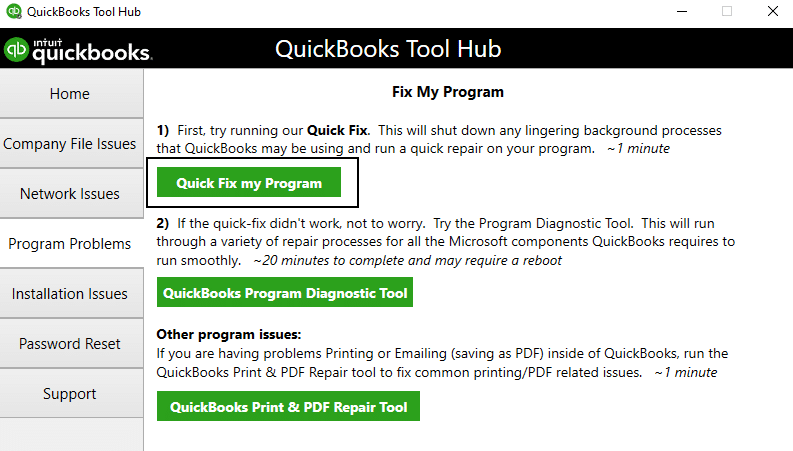
A quick repair of the company file will commence with this procedure to diagnose and troubleshoot issues like QuickBooks error code 523. Did the error not get resolved even after this? Then, you can run the QB PDF & Print Repair Tool with the following method.
Run the QuickBooks PDF and Print Repair Tool
The QB PDF & print repair tool is an in-built utility that you can use for repairing any PDF and printing errors. You can follow the given steps to run it smoothly.
- Download QuickBooks Tool Hub from the official Intuit website.
- Open to the Program Problems section, as shown above.
- Click on the QuickBooks PDF & Print Repair Tool button to run the tool.
- The tool will take some time to run a scan and repair any errors.
- Once the process is complete, try to open the PDF.
Now, we hope that you clearly understood the methods and procedures that we have listed out for you. You can follow these methods in the given order to avoid any confusion and fix the QuickBooks error 523 seamlessly.
Quickview Table for QuickBooks Error Code 523
Tabulated below is a summary of the QuickBooks Adobe error 523 that occurs while you are trying to open a PDF:
| Error message | “QuickBooks: There is a problem with Adobe Acrobat/Reader. 523.“”There is a problem with Adobe Acrobat/Reader; if it is running, please exit and try again. (523:523).” |
| Its symptoms | “Adobe has stopped responding” message on your screen, PDF document fails to open, you can’t import or export PDF documents, QuickBooks closes abruptly, a malfunctioning screen, or a blank white screen is displayed. |
| Its causes | An outdated QuickBooks version, the Adobe software, or other Adobe processes running in the background may cause issues. Additionally, problems with the Adobe installation itself or the Adobe Protection Mode feature being active can also lead to problems. |
| Troubleshooting methods | QuickBooks Tool Hub, Quick Fix My Program, QuickBooks PDF, and Print Repair Tool. |
| Tools required | QuickBooks Tool Hub, Quick Fix My Program, QuickBooks PDF and Print Repair Tool. |
Bringing It All Together
The QuickBooks error code 523 is a frustrating issue that stops you from opening PDF documents. It might stem from outdated Adobe or QB software, Adobe’s Protected Mode, or ongoing processes in the background. Once you get to the root cause of QuickBooks error 523, it will be easier for you to troubleshoot it effectively.
In this blog, we’ve provided you with 7 working methods to fix the QuickBooks running instance of Acrobat error. These methods include updating your QuickBooks and Adobe software to the latest version, turning off the Enabled Protected Mode in Adobe, or repairing the applications through Windows tools, and running Quick Fix My Program or PDF & Print Repair Tools. If the QuickBooks error code 523 persists, you should not delay your operations anymore; you should connect to an Accounting Helpline expert and allow them to resolve the problem quickly. Dial 1.855.738.2784 Today!
Frequently Asked Questions (FAQs)
How do I fix QuickBooks error code 523?
In order to fix the QuickBooks error code 523, you can try out the following troubleshooting methods listed below.
– Disable the Enable Protected Mode in Adobe Reader.
– Update the Adobe or QuickBooks Desktop application to the latest version.
– Set Adobe as your default Windows PDF viewer.
– Close any ongoing Adobe processes in the background.
– Use Windows’ built-in repair tool for Adobe.
– Run Quick Fix My Program.
– Launch QuickBooks PDF and Print Repair Tool.
What is QuickBooks Adobe Error 523?
The error message that you see on screen with QuickBooks Adobe error 523 is: “There is a problem with Adobe Acrobat/Reader. If it is running, please exit and try again. (523.523)”. This can happen when you have a glitch with your Adobe software, which is not allowing QuickBooks to open PDF files. The most prominent causes of QuickBooks error code 523 are old versions of the Adobe application or background programs that can disrupt it. It is easy to eliminate this error by trying a few working solutions.
What Causes QuickBooks Error 523?
The QuickBooks error code 523 occurs when the Adobe software is experiencing some problems and fails to open PDF files properly. Some of the root causes for this issue are listed below.
– Outdated version of QuickBooks or Adobe.
– Adobe processes that may be running in the background.
– Issues with the Adobe installation.
– Enabled Protection Mode in Adobe.
Related Posts-
QuickBooks PDF Converter | Convert QuickBooks Files to PDFs
QuickBooks Save as PDF not Working? Here’s How to Resolve it
QuickBooks Unable to Locate PDF Viewer! Here’s What to Do
Easy Procedures to Help You Fix QuickBooks Error 30
Complete Guide to Print W2 Forms in QuickBooks Online Payroll
How to Set up Payroll in QuickBooks? An In-depth Guide

Edward Martin is a Technical Content Writer for our leading Accounting firm. He has over 10 years of experience in QuickBooks and Xero. He has also worked with Sage, FreshBooks, and many other software platforms. Edward’s passion for clarity, accuracy, and innovation is evident in his writing. He is well versed in how to simplify complex technical concepts and turn them into easy-to-understand content for our readers.