
Last Updated on September 10, 2025
Are you using Google Chrome to run QuickBooks Online? Chrome is the browser recommended by Intuit for the best QBO browsing experience. However, you might face issues while running QB Online on the browser due to unforeseen factors. One of the most common errors that users encounter is QuickBooks Online Not Loading in Chrome, which usually occurs due to stored cache and cookies in your browser. You might also get the “the site can’t be reached” error message due to network problems. If you are also dealing with such problems, then we suggest you follow the troubleshooting steps mentioned in this blog to resolve the issue in no time!
We have tried our best to help you resolve the issue manually, but with sensitive company data on QuickBooks, are you ready to risk it? A wrong step might cause irreversible damage to your QB company data. Instead, it is recommended to take help from the Accounting Helpline’s experts available at 1.855.738.2784.

Causes for Your QuickBooks Online Not Working in Chrome:
- Your Google Chrome is outdated.
- The date and time on your system are not correct.
- Stored QB cache and cookies in your browser.
- The Firewall is blocking QuickBooks.
- Intuit is not added as a trusted site in your browser.
Now, let us see the types of QBO errors that can be caused by this list of potential triggers.
Different Types of QuickBooks Online Errors in Google Chrome
Listed below are some of the errors you might face while using QuickBooks Online in Google Chrome:
- The QuickBooks Online is not working with Chrome.
- QuickBooks Online does not load correctly and might have missing pages.
- Blank or black screen after logging in to QuickBooks Online.
- QuickBooks Online does not respond after you log in to your account.
- Chrome might be unable to load the QuickBooks Online login page.
- The unexpected failure of Google Chrome while opening QuickBooks Online.
All these errors can arise because of incorrect configuration of the Chrome browser, stored cache and cookies, and network connection problems. Follow the detailed troubleshooting instructions mentioned in the next section to resolve this problem.
Troubleshooting Methods for QuickBooks Online Not Working in Chrome
IMPORTANT: Before troubleshooting this error, make sure that you are using the correct login credentials to sign in to your online account. Also, ensure that your internet connection is stable.
Solution 1: Update the Google Chrome Browser
An outdated Google Chrome browser can cause compatibility issues with QuickBooks Online. You can update it with the steps given below:
- Open Google Chrome.
- Then, select the Customize and control Google Chrome option.
- Now, scroll down in the pop-up menu.
- Select Settings.
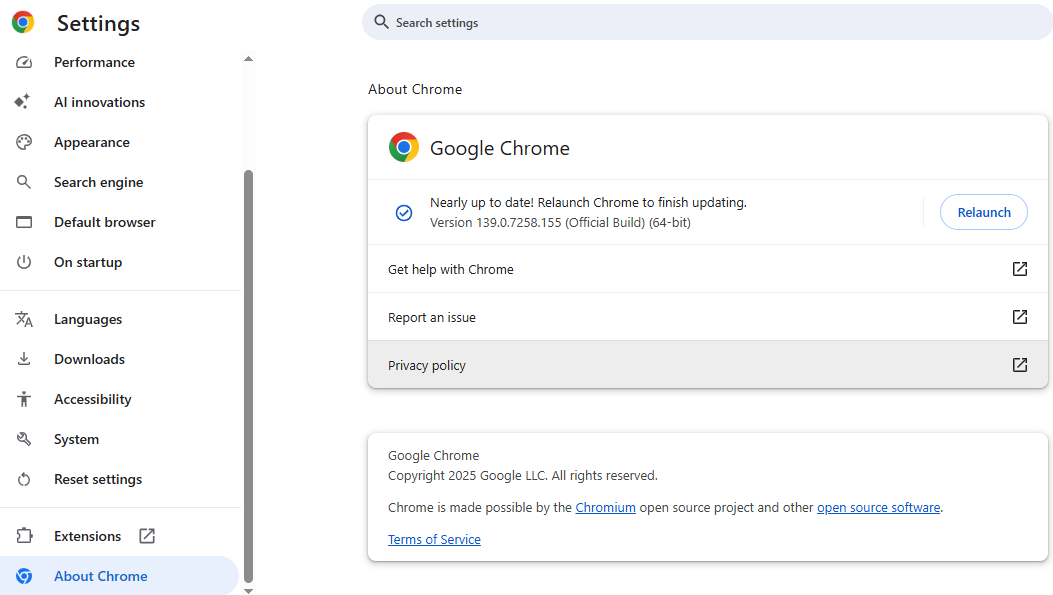
- In the sidebar, scroll down and select About Chrome.

- Chrome would now automatically update the browser.
If this doesn’t work for you, check out the next solution.
Solution 2: Check the Date and Time of your PC
An incorrect system date and time are one of the primary causes of QuickBooks Online not working on your Chrome browser. Check if your PC’s date and time are correct; if not, follow the steps given below:
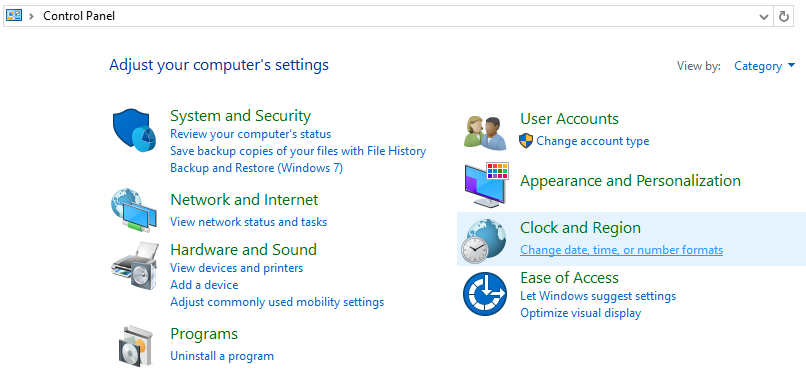
- Press Windows + R and type Control Panel.
- Press Enter.
- Search for Date and Time from the search bar at the top.

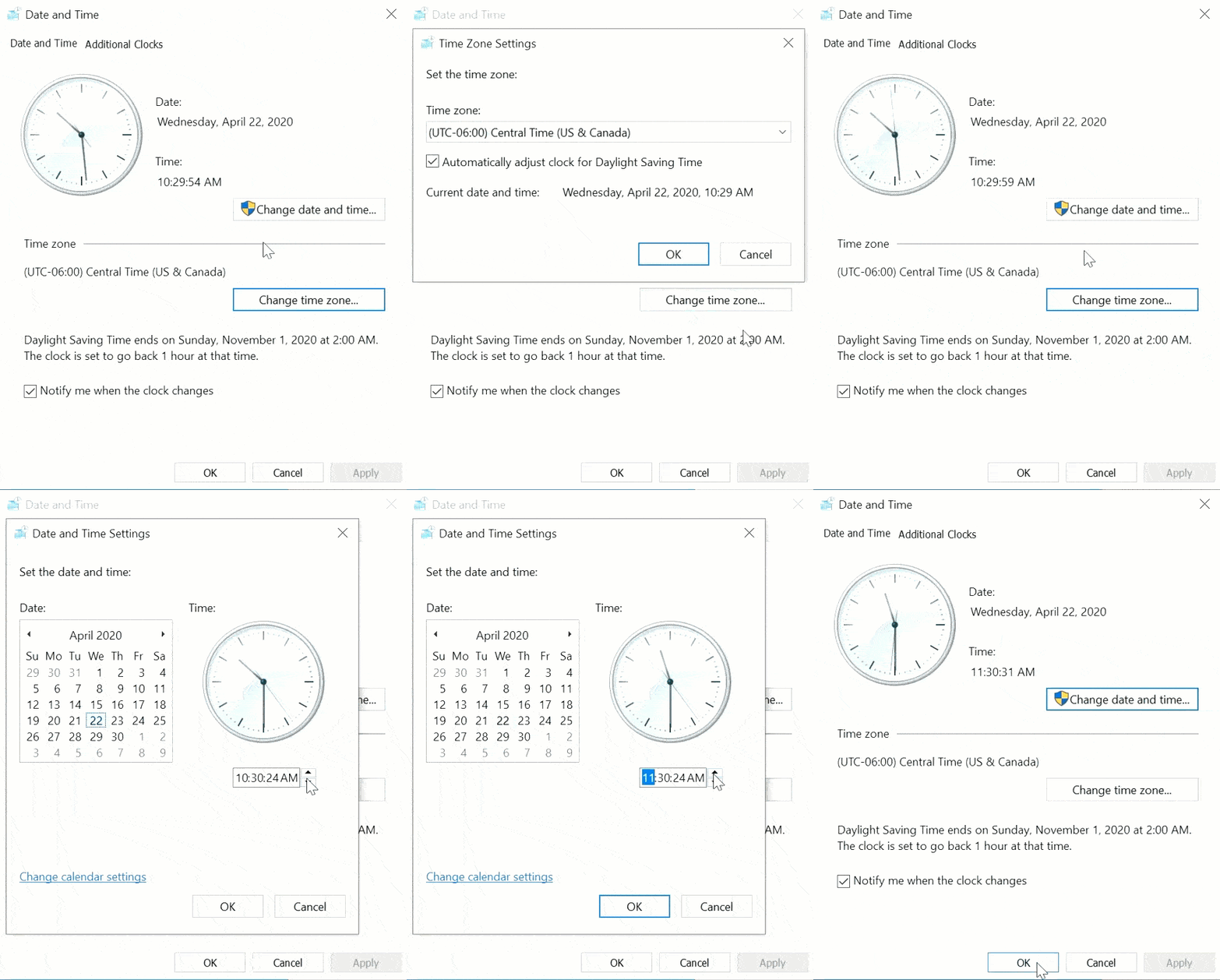
- Click on the Set the Time and Date option under the Date and Time section.
- Then, click Change date and Time.

- Set the correct Date and Time for your location, and then hit Apply and lastly press OK.
Solution 3: Open QuickBooks Online in a Private Window
You can open your QB Online website in a private window to resolve the problem of it not loading in Chrome. Shortcut keys to open a private window in different browsers are given below:
- Google Chrome – Ctrl + Shift + N.
- Safari – Command + Shift + N.
- Mozilla Firefox – Ctrl + Shift + P.
- Opera – Ctrl + Shift + N.
- Microsoft Edge – Ctrl + Shift + N.
- Brave – Ctrl + Shift + N.
If you are able to access your QBO website without any issues, you should clear your browser’s cache and cookies with the next solution.
Solution 4: Clear Browser Cache and Cookies
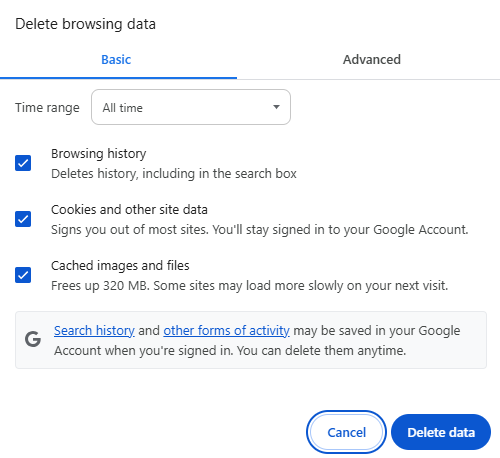
Storing Intuit cache and cookies in the Chrome browser can cause your QuickBooks Online website to not function properly. Clear the QB cache and Intuit cookies from your browser with the help of our guided blog crafted especially for this topic.
Solution 5: Configure your Antivirus and Windows Firewall Settings for QBO
Antivirus and Firewall applications sometimes block the access of your web browser to the QuickBooks server. This can trigger several issues, like QuickBooks Online not loading in Chrome. You can fix this by configuring your Windows Firewall settings to make exclusions for QuickBooks. This would resolve the QB Online not loading in Chrome problem.
Solution 6: Add Intuit as a Trusted Site in Google Chrome
- Open the Google Chrome Application.
- Choose the Customize and control Google Chrome option.
- Click on Settings.
- Go to the Privacy and Security tab.
- Select Site settings.
- Now, choose the Third-party cookies option.
- Scroll to the Sites allowed to use third-party cookies section.

- Click on Add.
- Type *.intuit.com and press Add to save.
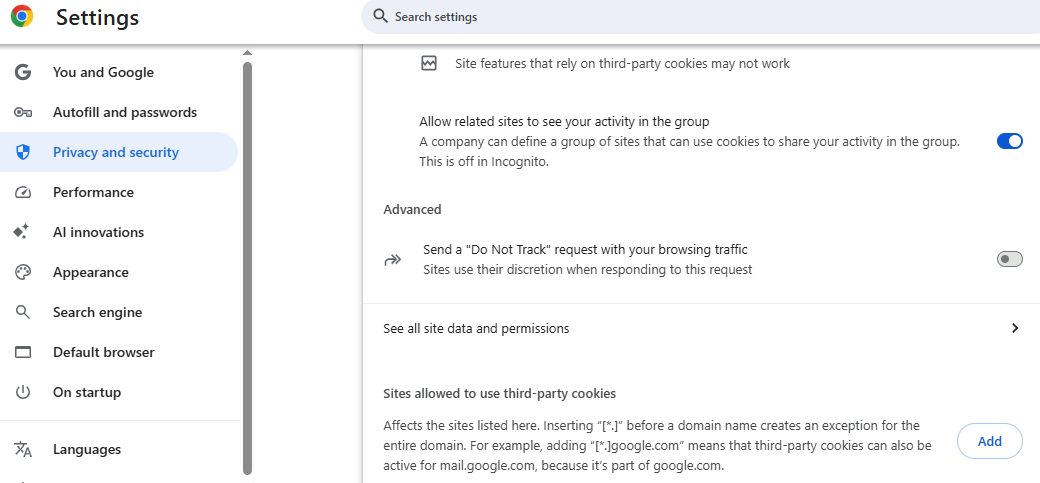
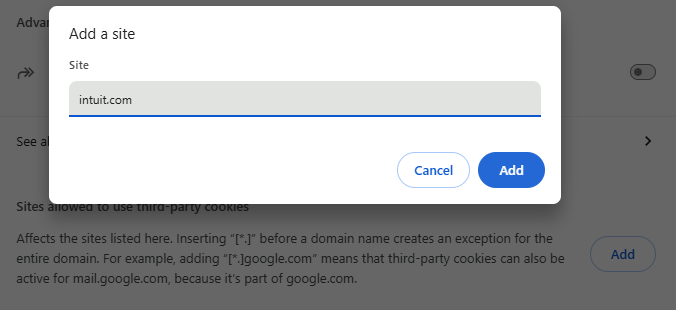
This would resolve the issue of QuickBooks Online not loading in Chrome.
QuickBooks Online Not Loading in Chrome – A Quick View
Given in the table below is a concise summary of this blog on the topic of the QB Online website not loading in the Chrome browser:
| Description | QuickBooks Online not loading in Chrome is an issue that many users face, in which the website is unable to load in their browser. This can hamper their workflow and important business processes. |
| Causes | Outdated Google Chrome, incorrect date and time of the PC, piled up QB cache and cookies, the Firewall blocking QB, and Intuit not being a trusted site in Chrome. |
| Methods to fix it | Update the Chrome browser, correct the system date and time, clear the QB cache and cookies, configure Windows Firewall, and add Intuit as a trusted website in Chrome. |
Conclusion
In this blog, we talked about the QuickBooks Online Not Loading in Chrome issue and the factors that can trigger it. Additionally, we provided you with the steps you can take to resolve this problem on your own. If you need help from one of our Accounting Helpline specialists, then call us at 1.855.738.2784. Our experts can help resolve any problem in no time!
FAQs
Why is QuickBooks not working on Google Chrome?
The reason for your QuickBooks Online not working on Google Chrome can be stored QB cache and cookies in your web browser. It can also be due to an unstable network connection. If you have already verified your network strength, clear the QB cache and cookies in your browser to resolve this.
Why is QuickBooks Online not loading?
Your QuickBooks Online might not be loading due to an unstable network connection, Windows Firewall blocking QB, a piled-up QuickBooks cache and cookies in your web browser, and incorrect system date and time settings. Most of the time, it’s fixed by just clearing the QB cache and cookies.
Which browser is compatible with QuickBooks Online?
Intuit recommends Google Chrome for the best browsing experience. However, you can also use it on Firefox (version 76 or newer), MS Edge (version 79 or newer), Safari (version 12 or newer), and Opera (version 68 or newer).
Related Posts-
QuickBooks Error 15222: Find Fixes in This Expert Guide
QuickBooks Error 6123, 0- Fix with Expert Guide
QuickBooks Error 1328: Comprehensive Guide to Fix
QuickBooks Error 1723: Tips For Quick Troubleshooting
Easy and Quick Methods to Resolve QuickBooks Error PS060
Don’t Fix QBDBMgrN Not Running on This Computer Without Reading This

Edward Martin is a Technical Content Writer for our leading Accounting firm. He has over 10 years of experience in QuickBooks and Xero. He has also worked with Sage, FreshBooks, and many other software platforms. Edward’s passion for clarity, accuracy, and innovation is evident in his writing. He is well versed in how to simplify complex technical concepts and turn them into easy-to-understand content for our readers.