

Last Updated on September 22, 2025
While trying to work on your accounting and bookkeeping data, you can encounter the QuickBooks black and white screen problem. This can be annoying to deal with and can hamper your workflow and impact your critical business processes. It is generally caused by incorrect QB DPI settings (in Desktop) or stored cache and cookies on your browser (in Online). In this blog, we’ll provide you with the troubleshooting methods if your QuickBooks screen turns black and white. First, let’s discuss the key factors that can trigger the black and white screen problem in both QBDT and QBO.
Are you facing troubles with a black and white screen while using your QB app? Contact our Accounting Helpline’s experts today at 1.855.738.2784. Our team will resolve your problem on a priority basis in no time!
Potential Causes if Your QuickBooks Desktop Screen Turned Black and White
Given below is the list of causes if your QB Desktop and Online screen turned black and white:
- Corrupted or outdated video drivers in your system can cause it.
- Issues with your graphics card can also lead to this error.
- Damage to the registry files can result in this issue.
- Your QuickBooks DPI settings might be incorrect.
- Your screen resolution might not be properly optimized for QB.
- There can be cookies and cache stored in your web browser.
- The QB Desktop application is outdated.
- Damaged firmware can lead to this problem.
Now that we know about the causes of the black and white screen in QB, let’s proceed to troubleshoot it.
How to Resolve the QuickBooks Black and White Screen Problem
You can resolve the QB black and white screen problem with the troubleshooting methods given below:
Change the QB DPI Settings
To fix the QuickBooks black and white screen error, you can change the DPI settings with the following steps:
- Close the QB Desktop app.
- Navigate to your PC’s home screen.
- Find the QBDT icon.
- Right-click on it.
- Then, proceed to select Properties.
- Now, go to the Compatibility tab.
- Select the Disable display scaling on high DPI settings option.

- Press Apply and hit OK.
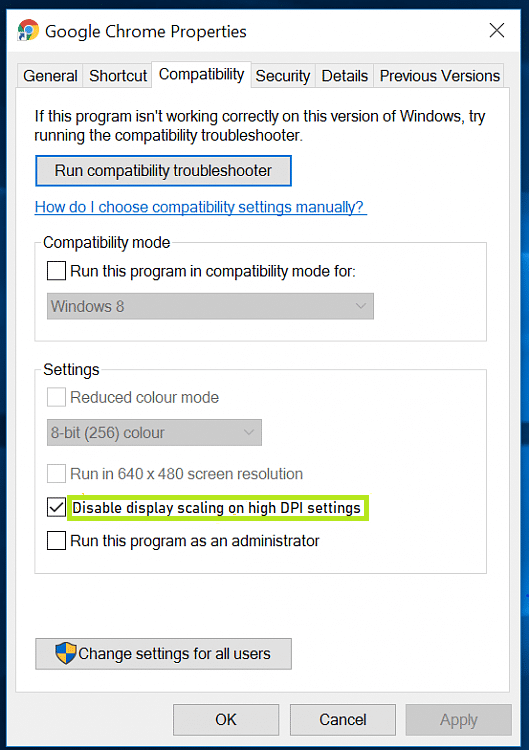
This would resolve the black and white screen problem with the QBDT app.
Change the View Preference of Your QB Desktop
You can change the view preference of the QuickBooks Desktop application with the steps given below:
- Open the QuickBooks Desktop app.
- Go to the Edit menu.
- Then, select the Preferences option.
- Click on Desktop View.
- Press the My Preferences option.
- Lastly, switch from Multiple Windows to One Window.
Now, your QB Desktop screen would function normally.
Use the Quick Fix My Program Tool
You can use the Quick Fix My Program tool from the QB Tool Hub to resolve this issue with the following steps:
- Download and install the QuickBooks Tool Hub.

- Open the Tool Hub app.
- Navigate to the Program Problems tab.
- Click on Quick Fix My Program.

- Let the tool finish its work progress.

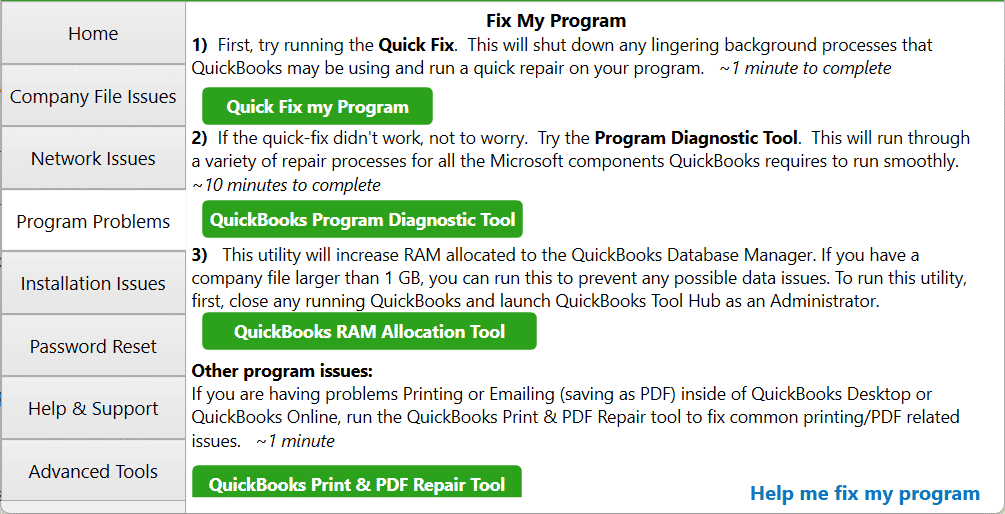
This would patch the QuickBooks black and white screen issue.
Update Your QB Desktop Application
You can update the QBDT application to mend the QuickBooks black and white screen problem. Updating the app would also fix any other problems you might be facing while working on your accounting and bookkeeping data.
Update Your Graphics Card Drivers to the Latest Version
Outdated drivers of your graphics card can cause the QuickBooks desktop screen to display black instead of white. You can update the drivers with the steps given below:
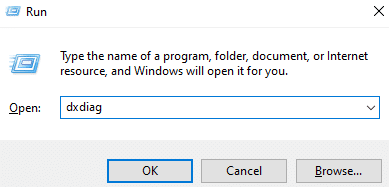
- Hit Windows + R on your keyboard.
- This would open the Run menu.
- Type in dxdiag.

- Hit Enter.
- Click on Display 1.

- Note down the Manufacturer/Model.
- Download the latest drivers from the manufacturer’s website
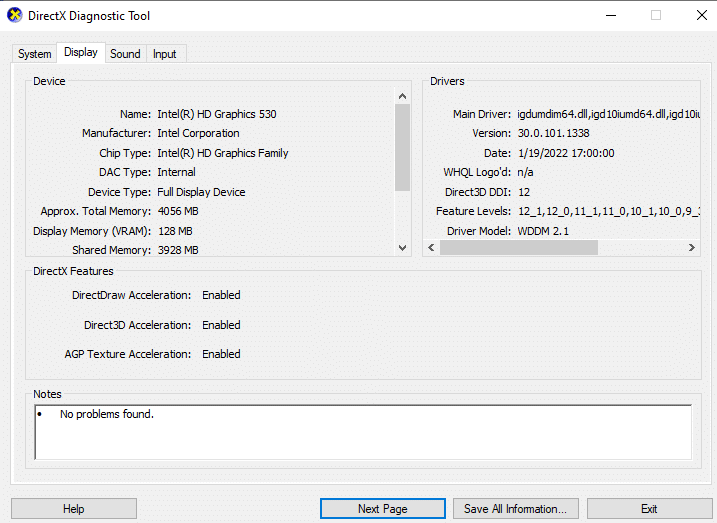
If this doesn’t mend the black and white screen problem in QB, move on to the next solution.
Change the Theme of Your Windows to Basic
You can change your Windows theme to Basic in order to resolve the QB black and white screen problem with the following steps:
- Right-click anywhere on an empty area on your PC’s home screen.
- Select one of the Windows Basic themes.
- Restart your PC.
Now, the problem should be fixed.
Edit Your QBW.ini File
You can edit the QBW.ini file to patch the QuickBooks black and white screen error with the following steps:
- Close the QBDT app.
- Open your File Explorer.
- Now, navigate to the QBW.ini file path matching your QB version:
- QuickBooks 2020: C:\ProgramData\Intuit\QuickBooks 2020\QBW.ini.
- Enterprise Solutions 20.0: C:\ProgramData\Intuit\QuickBooks Enterprise Solutions 20.0\QBW.ini.
- QuickBooks 2019: C:\ProgramData\Intuit\QuickBooks 2019\QBW.ini.
- Enterprise Solutions 19.0: C:\ProgramData\Intuit\QuickBooks Enterprise Solutions 19.0\QBW.ini.
- QuickBooks 2018: C:\ProgramData\Intuit\QuickBooks 2018\QBW.ini.
- Enterprise Solutions 18.0: C:\ProgramData\Intuit\QuickBooks Enterprise Solutions 18.0\QBW.ini.
- Go to the end of the file.
- Copy and paste the given text:
- [COLORS] Classic=0.
- Save the QBW.ini file.
This would mend the problem you were dealing with.
Verify and Rebuild Your Company Data
You can verify and rebuild your company data in order to patch the black and white screen problem with the following steps:
- Go to the File menu in QB Desktop.
- Click on the Utilities option.
- Click on Verify Data.

- Open the File menu again.
- Select Utilities.
- Press the Rebuild Data option.

- QB would ask you to back up your data file.
- Click on OK.
- Choose where you want to save the backup.
- Enter a name in the File name field.
- Select Save.
- A message would appear stating that Rebuild has completed.
- Select OK.

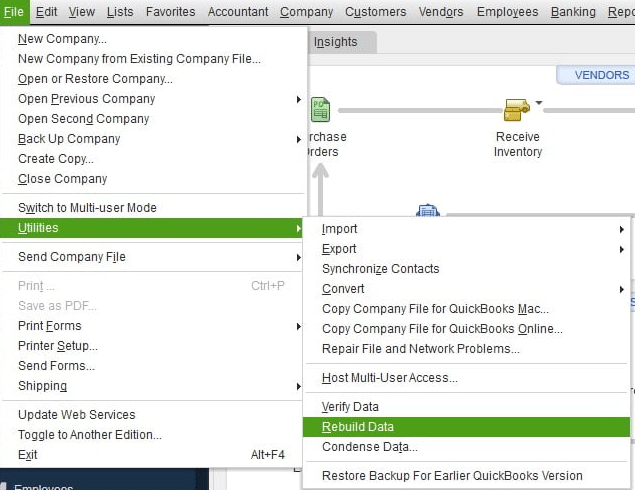
Now, the problem with your QB screen would be resolved.
Clear the QuickBooks Cache and Cookies from Your Browser
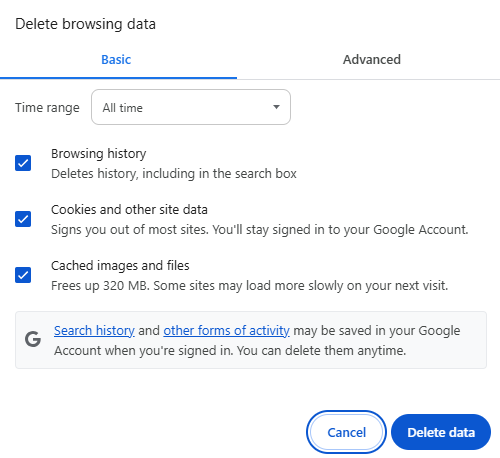
You can clear the QuickBooks cache and cookies in your browser to resolve the black and white screen issue in the Online version. Piled-up cache and cookies can cause your QBO website to not work properly. Clearing them would fix the problem and any other issues you were facing.
QuickBooks Black and White Screen – A Quick View Table
Given in the table below is a short summary of this blog on the topic of the black and white screen in QuickBooks:
| Description | The QuickBooks black and white screen issue is one that many users face. This can pop up while trying to work on your company data and can hamper your workflow and important business processes. |
| Its causes | Outdated video drivers of your PC, corrupted graphics card, damaged company data, incorrect QB DPI settings, outdated QBDT app, damaged firmware, and stored QuickBooks cache and cookies. |
| Ways to fix it | Change the DPI settings of QuickBooks, change QBDT view preferences, use Quick Fix My Program, update QBDT, update the graphics card drivers, change Windows theme to Basic, edit the QBW.ini file, verify and rebuild the company file, and clear QBO cache and cookies from your browser. |
Conclusion
In this blog, we talked about the QuickBooks black and white screen problem and what factors can cause it to occur. Additionally, we provided you with the troubleshooting methods to resolve this problem on your own. If you are unable to tackle this issue and are still at bay with it, you can contact our Accounting Helpline’s experts today at 1.855.738.2784!
FAQs
Why did my QuickBooks turn black and white?
The reasons your QB turned black and white are given in the list below:
– The video drivers of your system are outdated.
– Your QB Desktop software is outdated.
– The company file might be damaged.
– QB DPI settings might be incorrect.
– Stored QuickBooks cookies and cache in your browser.
How can I fix the black and white screen in QuickBooks?
You can fix the black and white screen issue in QuickBooks with the methods given in the list below:
– Change the DPI settings of QB Desktop.
– Change QuickBooks view preferences.
– Use the Quick Fix My Program tool.
– Update the QBDT app.
– Update the drivers of your graphics card.
– Change your Windows theme to Basic.
– Make changes to the QBW.ini file.
– Verify and rebuild the company file data.
– Clear QB cache and Intuit cookies.
How do I resolve issues with my QBDT app?
To resolve any issues with your QB Desktop app, use the Quick Fix My Program tool from the QB Tool Hub.
Related Posts-
Know what to do when QuickBooks Hosting Mode is Off
QuickBooks Error PS101 – What is It? How to Resolve It?
QuickBooks Cannot Communicate with the Company File [SOLVED]
QuickBooks Error 3140: Pro-Recommended Troubleshooting
QuickBooks Error -6177 0: Resolve with Pro Steps
Fix QuickBooks Error 3371 status code 11118/11104/1 With Hustle Free

Edward Martin is a Technical Content Writer for our leading Accounting firm. He has over 10 years of experience in QuickBooks and Xero. He has also worked with Sage, FreshBooks, and many other software platforms. Edward’s passion for clarity, accuracy, and innovation is evident in his writing. He is well versed in how to simplify complex technical concepts and turn them into easy-to-understand content for our readers.