
Last Updated on April 23, 2026
While trying to preview and print checks from the QB Desktop application, you can come across the problem of QuickBooks print & preview not working. It is generally caused by stored cache and cookies in your browser in the online version, and program problems in the desktop version. You can resolve it by using the QuickBooks PDF & Print Repair Tool. We’ll cover the guided troubleshooting methods you need to resolve this error in this blog. First, let us start with the causes of the print and preview not working issue in QB.
Are you facing issues with previewing and printing checks in the QB Desktop app? Contact our Accounting Helpline’s experts at 1.855.738.2784 today to resolve your problem in no time!
Factors that Can Cause the Problem of Print & Preview Not Working in QuickBooks
Given below in the list are the potential factors that can trigger the problem of QuickBooks print & preview not working:
- Stored cache and cookies in your web browser.
- Program problems with the QB Desktop app.
- Inadequate permissions for the XPS printer.
- A damaged company file.
- An incorrect printer setup.
These were the causes of the print and preview problem in QBDT.
Methods to Resolve the Print & Preview Not Working Issue in QB Desktop
Listed below are the troubleshooting methods you can implement to fix the problem of the print & preview function not working in the QBDT application:
Use the PDF & Print Repair Tool
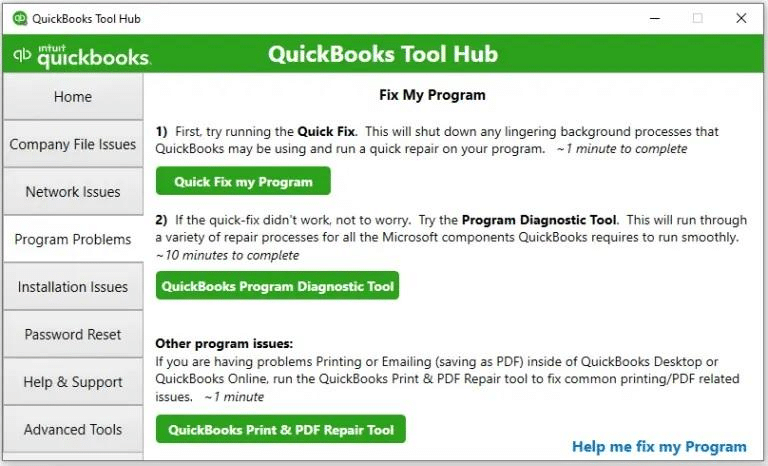
You can use the QuickBooks PDF & Print Repair Tool from the QB Tool Hub to resolve the print & preview not working error with the following steps:
- Download and install the QuickBooks Tool Hub.

- Open the QB Tool Hub application.
- Navigate to the Program Problems tab.
- Click on the QuickBooks PDF & Print Repair Tool.

- It will take about a minute to run.

This would resolve the issue you were dealing with.
Reset the Permissions of Your Temp Folder
Inadequate folder permissions can be resolved by resetting the permissions of your temp folder with the steps given below:
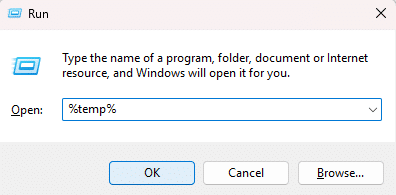
- Open the Run menu by pressing Windows + R.
- Type in %TEMP% and hit Enter.

- Right-click an empty area in the folder.
- Select the Properties option.
- Navigate to the Security tab.
- Ensure that all the user names and groups in the Security section have Full Control.
- Save the permissions.
Now, the QuickBooks print & preview not working issue should be fixed.
Allow Your PC to Print to Your XPS Printer
Allowing your system to print to your XPS printer can be useful in patching the QB Desktop print & preview not working issue with these steps:
- Open the Start menu.
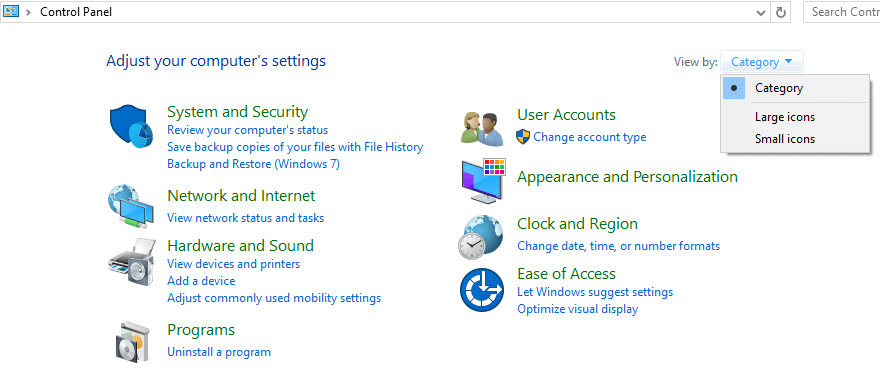
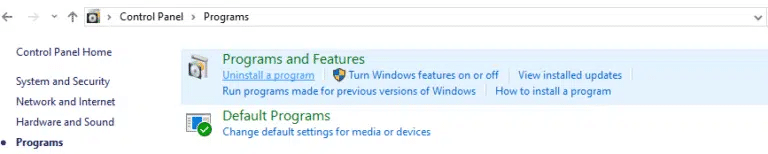
- Search for and open the Control Panel.

- Switch to Category View.
- Click on Programs.
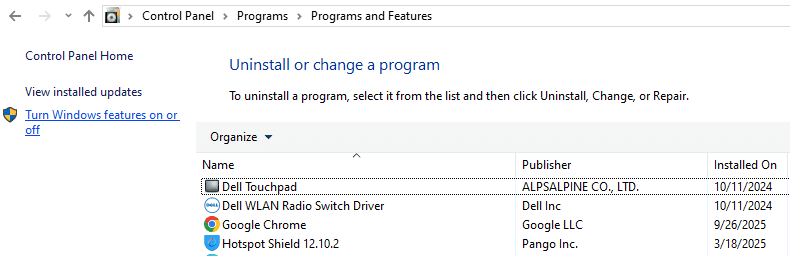
- Go to the Programs and Features section.

- Select Turn Windows features on or off.

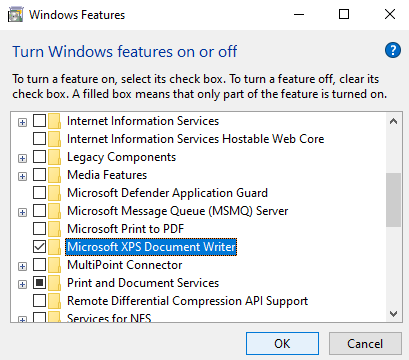
- Mark Microsoft XPS Document Writer in the list of services.

- Press OK.
This would mend the issue you were dealing with.
Update Your Print Spooler Service Properties
The print spooler service properties can be changed to mend the problem of the QBDT print & preview not working error with the steps given below:
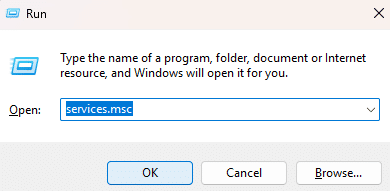
- Open the Run menu:
- Hit Windows + R
- Type in services.msc.

- Hit Enter.
- Locate the Print Spooler service.

- Right-click on the Print Spooler service.
- Select the Properties option.

- Go to the Startup type section.
- Select Automatic.
- Press Apply, followed by OK.
- Right-click on the Print Spooler service again.
- Press Start to start the service.
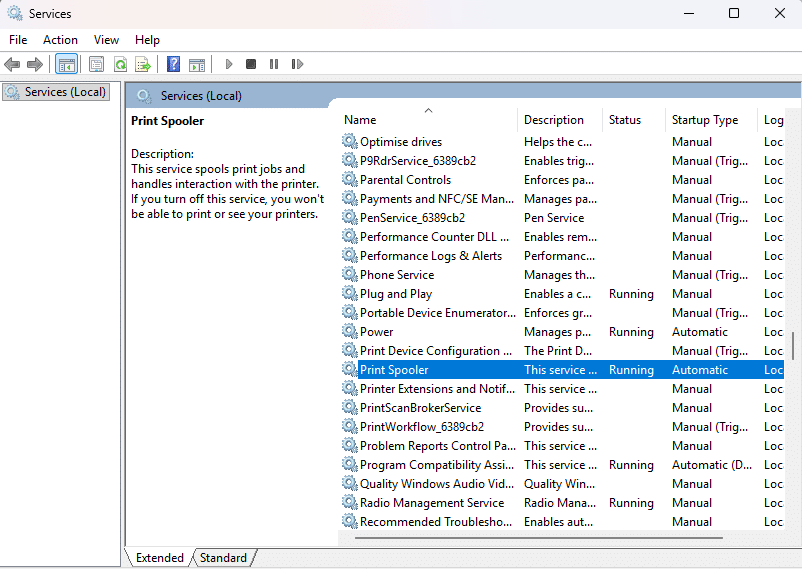
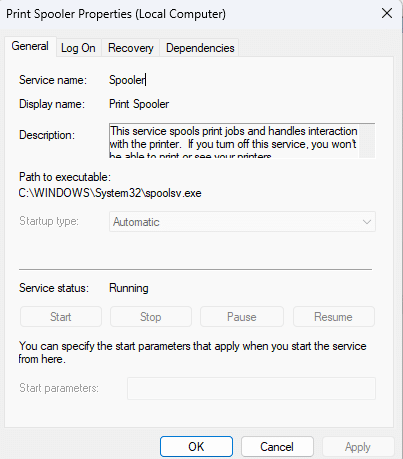
Performing these steps would resolve the problem of QuickBooks print & preview not working.
Update the QB Desktop App
An outdated QBDT app can be the reason why your print & preview is not working. You should update the QB Desktop app to resolve this problem with the following steps:
- Open the QuickBooks Desktop app.
- Navigate to the Help menu.
- Click on Update QuickBooks Desktop.

- Select the Update Now option.
- Then, click on Get Updates.
- Close and reopen the QBDT app to install the updates.
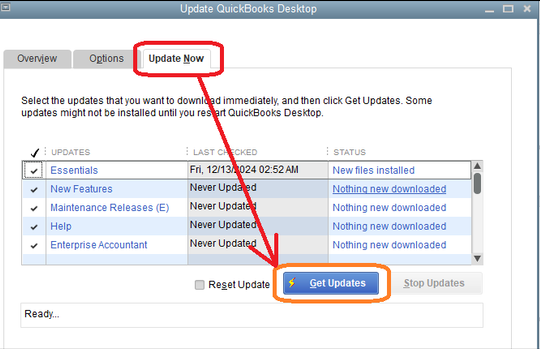
Now, the QuickBooks print & preview not working problem will be fixed.
Verify the Printer Setup on Your System
You can use the steps given below to verify your printer setup in order to fix the problem of print & preview not working:
Step 1: Ensure the Printer is Set Up Correctly
- Restart your PC.
- Open the Start menu.
- Search for and open the Control Panel.
- Double-click on Printers and Faxes.
- If your printer shows Offline, right-click on the printer.
- Select the Use Printer Online option.
- Double-click the printer.
- Select Printer, click on Cancel All Documents.
- Close the Window.
- Right-click the printer.
- Select the Properties option.
- Press Print Test Page.
Step 2: Ensure that the Printer is the Right One
- Open the QB Desktop app.
- Navigate to the File menu.
- Click on Printer Setup.
- Choose the form you wish to print.
- Ensure the name of the printer matches exactly the printer you want to use.
- If the name doesn’t match, correct it in your system’s Printer Setup first.
Step 3: Print to a Different Printer
- Open the QBDT app.
- Go to the File menu.
- Click on Printer Setup.

- Select the form you wish to print.
- Choose a different printer
- Like the Microsoft XP printer
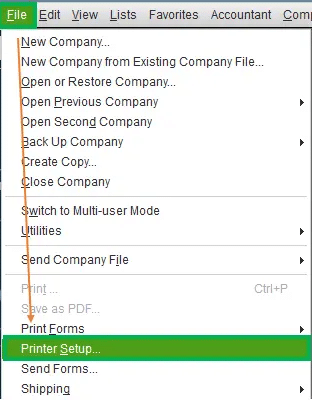
This would help resolve the QuickBooks Print & Preview Not Working issue you were dealing with.
Verify and Rebuild the QB Company Data
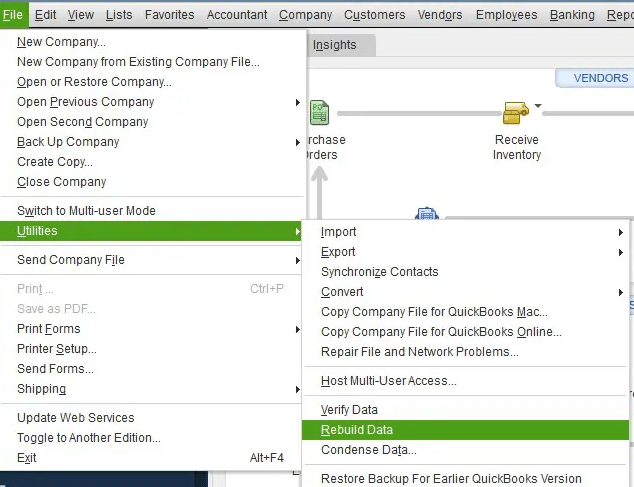
A damaged company file can be fixed with the help of the verify and rebuild data utility for resolving the issue of QuickBooks print & preview not working, using the steps given to you below:
- Open the QB Desktop app.
- Navigate to the File menu.
- Click on Utilities.
- Select Verify Data.

- Then, open the File menu again.
- Select Utilities.
- Click on the Rebuild Data option.

- QB will ask to make a backup file before rebuilding your company data.
- Press OK.
- A backup is needed to rebuild your company file.
- Choose where the file would be saved.
- Press OK.
- Ensure not to replace an existing backup file.
- Type in a new name in the File name field.
- Hit Save.
- You will get the message stating that Rebuild has completed.
- Hit OK.

The error should now be resolved.
Use the QB Install Diagnostic Tool
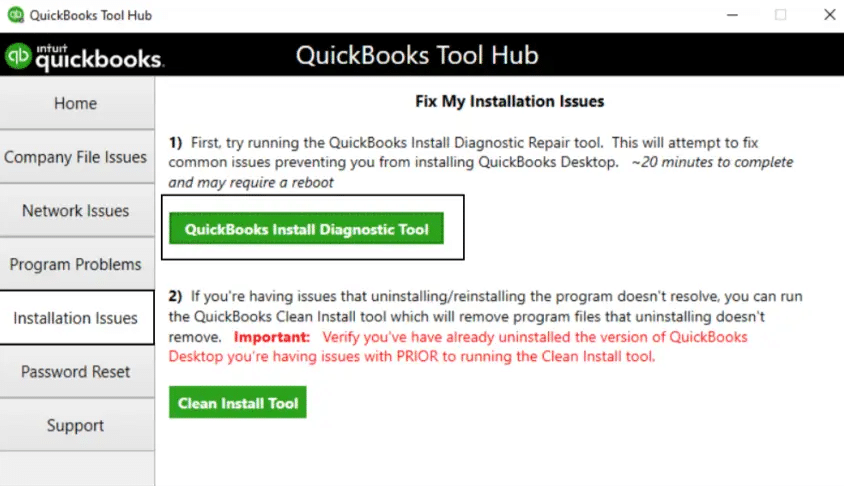
You can use the QB Install Diagnostic Tool from the QB Tool Hub to resolve the QuickBooks Print & Preview Not Working problem with these steps:
- Open the QuickBooks Tool Hub app.
- Navigate to the Installation Issues tab.
- Click on the QuickBooks Install Diagnostic Tool.

- Let the tool run.
- The tool can take up to 20 minutes to finish working.
The error you were facing should now be fixed.
Clean Install the QBDT Application
You can clean install the QB Desktop app to resolve the QuickBooks Print & Preview Not Working problem with the steps given below:
Step 1: Uninstall the QBDT App
- Open the Start menu.
- Search for and open the Control Panel.
- Click on Programs and Features:
- Or Uninstall a Program.
- Select QuickBooks Desktop from the list of programs you see.
- Click on Uninstall/Change.
- Select Remove.
- Hit Next.
Step 2: Rename the QB Installation Folders
- Open the File Explorer.
- Move to the folder where your company file is stored.
- It’s usually in one of these locations:
- C:\ProgramData\Intuit\QuickBooks (year)
- C:\Users\(current user)\AppData\Local\Intuit\QuickBooks (year)
- C:\Program Files\Intuit\QuickBooks (year)
- 64-bit version C:\Program Files (x86)\Intuit\QuickBooks (year)
- Right-click on the folder.
- Press Rename.
- Add the word old at the end of the folder.
Step 3: Install QB Desktop Again
- Open the QB installation file:
- QuickBooks.exe
- Choose between the two options:
- Express Install
- Custom and Network Options
- Press Next.
- Hit Install.
The QuickBooks Print & Preview not working error should now be fixed.
Resolve the QuickBooks Cannot Preview and Print Check in QB Online
The print and preview check not working issue in QuickBooks Online can be caused by stored Intuit cache and cookies in your web browser. This can hamper your workflow and important business processes. You can use your QBO website in a private browsing window to see if the feature works now. The shortcut keys to open a private window in different browsers are given below:
Google Chrome: Ctrl + Shift + N
Mozilla Firefox: Ctrl + Shift + P
Microsoft Edge: Ctrl + Shift + N
Safari: Command + Shift + N
If this fixes your problem, proceed to clear the QuickBooks cache and cookies from your web browser.
QuickBooks Print & Preview Not Working – A Quick View Table
Given in the table below is a concise summary of this blog on the topic of the QB print & preview feature not working:
| Description | While trying to preview and print checks in QB, you can come across the problem of QuickBooks print & preview not working. This can hamper your workflow and important business processes. |
| Its causes | A damaged QBDT app, a damaged company file, stored QB cache and cookies in your web browser, installation issues with the QB Desktop app, program problems with QBDT, and inadequate folder permissions. |
| Ways to fix it in QBDT | Use the QB PDF & Print Repair Tool, reset the temp folder permissions, allow the PC to print to the XPS printer, update the Print Spooler service, update the QBDT app, verify the printer setup, verify and rebuild your company file, use the QuickBooks Install Diagnostic Tool, and clean install the QB Desktop app. |
| Ways to fix it in QBO | Use the QB Online website in a private window and clear the QuickBooks cache and cookies from your web browser. |
Conclusion
When you try to preview and print checks through QB (Desktop and Online), you can come across the QuickBooks print & preview not working problem. We have discussed the factors that can cause it, along with the troubleshooting methods needed to resolve it, in this blog. If you are still facing the same problem, feel free to contact our Accounting Helpline’s experts at 1.855.738.2784 today to resolve your issue.
FAQs
Why is my print & preview not working in QB?
Your print and preview might not be working in QB due to these reasons:
– A damaged QBDT app
– A damaged company file
– Stored cache and cookies in your web browser
– Installation issues with the QB Desktop app
– Inadequate folder permissions
How do I fix the print & preview not working problem in QBDT?
You can fix the print & preview not working problem in QBDT with these steps:
– Use the QB PDF & Print Repair Tool
– Reset the temp folder permissions
– Allow your system to print to the XPS printer
– Update your Print Spooler service properties
– Update the QBDT app
– Verify the printer setup
– Verify and rebuild your company file
– Use the QB Install Diagnostic Tool
– Clean install the QBDT app
Related Posts-
All About QuickBooks 2025 Update: FAQs and Features
How to Set up Payroll in QuickBooks? An In-depth Guide
How to Fix QuickBooks Payroll Error Message 15240 After Update
Understanding QuickBooks Error PS107: Causes of the Error and Troubleshooting Steps
Solution for QuickBooks Unsupported Browser Error

Edward Martin is a Technical Content Writer for our leading Accounting firm. He has over 10 years of experience in QuickBooks and Xero. He has also worked with Sage, FreshBooks, and many other software platforms. Edward’s passion for clarity, accuracy, and innovation is evident in his writing. He is well versed in how to simplify complex technical concepts and turn them into easy-to-understand content for our readers.