
Last Updated on April 17, 2026
The QuickBooks error 10000 is a generic software error that can occur while saving estimates in QB Online or using the QB Desktop application. This can hamper your workflow and cause an obstruction to your business progress. This is generally caused by piled-up cookies and cache in your web browser. You can resolve it by using the QB Online website in private browsing mode. In this blog, we’ll talk about the in-depth troubleshooting methods you can use to fix QuickBooks Online error 10000.
Are you unable to save estimates due to error 10000 in QuickBooks Online? Contact our Accounting Helpline’s experts at 1.855.738.2784 today to resolve your problem in no time!
Causes of the QuickBooks Error Code 10000 On Your System
Given below is the list of potential factors that can trigger the QuickBooks error 10000 to appear on your screen:
- Pile up cookies and cache in your web browser.
- The Windows Firewall is blocking your QB Desktop app.
- Using an outdated QB Desktop application.
- Damaged or corrupted QuickBooks company file data.
- Outdated QB Payroll and tax tables.
- An unstable internet connection can also cause this issue.
Now that we know about the causes of the QuickBooks application error 10000, let us see how to fix it.
Troubleshooting the QuickBooks Error Code 10000 in Online and Desktop
Given below are the troubleshooting methods you can use to fix the QuickBooks Time error code 10000 in Online and Desktop:
Use the QuickBooks Online Website in a Private Browsing Window
Piled-up cookies and cache in your web browser can cause the QuickBooks error 10000 to appear on your screen. You can fix it by using QBO in a private browsing window. The shortcuts for a private window in different browsers are given below:
Google Chrome – Ctrl + Shift + N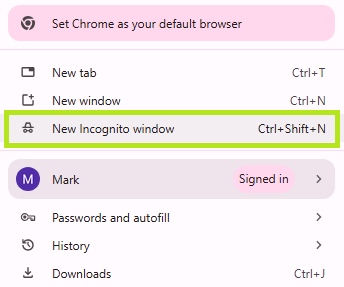
Mozilla Firefox – Ctrl + Shift + P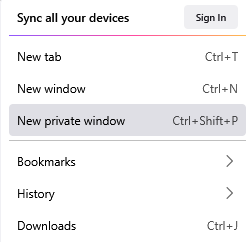
Microsoft Edge – Ctrl + Shift + N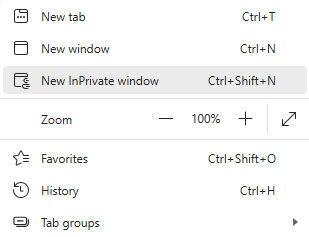
Safari – Command + Shift + N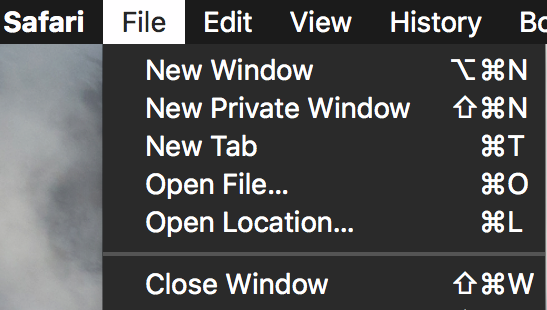
If you are able to use your QBO website without any errors in a private window, you should clear the cache and cookies in your browser. Check out our comprehensive blog to clear QuickBooks cache and Intuit cookies.
Update QuickBooks Desktop to the Latest Version
An outdated QBDT app can lead to you seeing the QuickBooks error code C 10000. To fix it, update QB Desktop with these steps:
- Open the QuickBooks Desktop app.
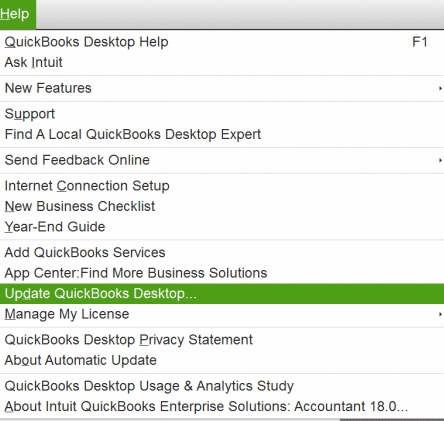
- Navigate to the Help menu.
- Click on Update QuickBooks Desktop.

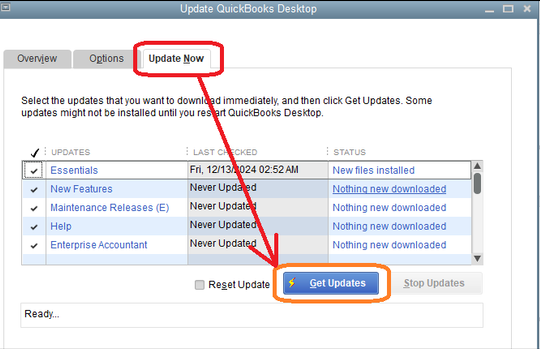
- Select Update Now.
- Press Get Updates.

- Restart QuickBooks after the update finishes downloading.
- Click on Yes when you are asked to install the update.
- Follow the guide on your screen after the installation is finished.
This would fix the QuickBooks error code 10000.
Download the Latest Tax Table Updates in QB Desktop
You can download the latest tax table updates in QBDT to fix the QuickBooks error 10000 with the following steps:
- Open the QuickBooks Desktop app.
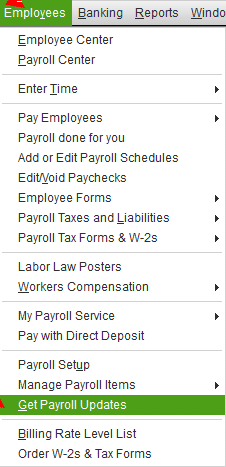
- Click on the Employees menu.
- Press the Get Payroll Updates option.

- Choose Download Entire Update.

- Press Update.
- An informational window would appear after the download is complete.
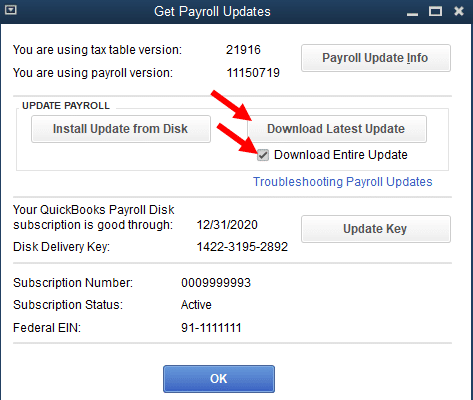
Performing these steps would resolve the QuickBooks error 29272 10000.
Verify and Rebuild the Company File Data
A damaged company file can cause your QB app to not work properly. You can verify and rebuild your company data with these steps:
- Open the QuickBooks Desktop app.
- Then, click on the File menu.
- Select Utilities.
- Press the Verify Data option.

- Now, open the File menu again and select Utilities.
- Click on Rebuild Data.

- Before QB rebuilds your company file, it will ask to make a backup.
- Select OK.
- A backup is needed to rebuild your company’s data.
- Select where you wish to save the backup file.
- Hit OK.
- Do not replace any existing backup file(s).
- Type in a new name in the File name field.
- Press Save.
- When you get the message that Rebuild has completed, hit OK.

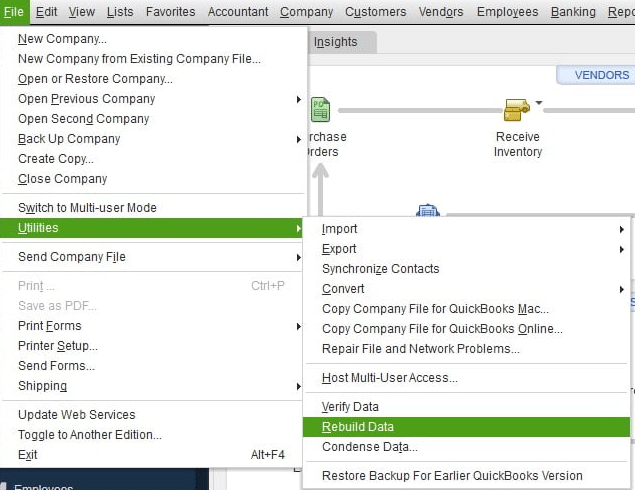
Now, the QuickBooks error 10000 has been resolved.
Utilize the QuickBooks File Doctor
You can use the QuickBooks File Doctor from the QB Tool Hub to resolve the error code 10000 in QBDT with the following steps:
- Download and install the QuickBooks Tool Hub.

- Open the Tool Hub software.
- Click on the Company File Issues tab.
- Press Run QuickBooks File Doctor.

- It might take up to a minute for the File Doctor to run:
- If the File Doctor doesn’t open, you can manually open it by searching for QuickBooks Desktop File Doc.
- Select your company file from the dropdown menu.
- If you don’t see your file, click on Browse and search for your file.
- Select the Check your file option.
- Hit Continue.
- Enter your QuickBooks admin password.
- Press Next.

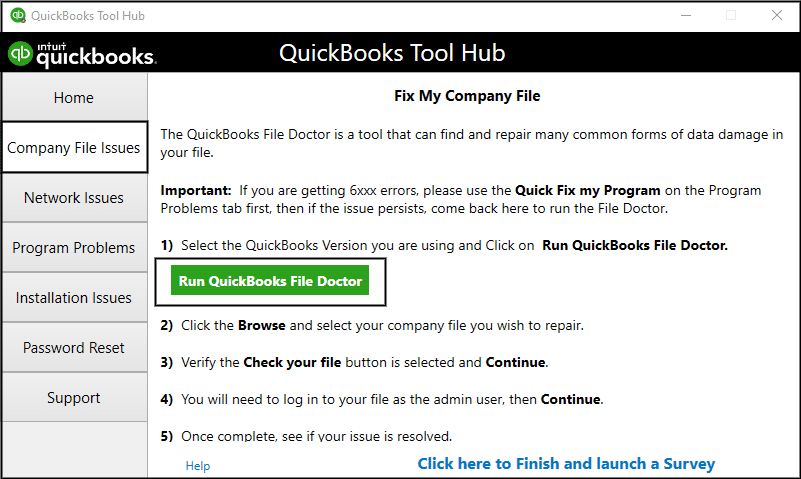
The tool would take up to 10-15 minutes to scan and fix your company file.
Make Windows Firewall Exceptions for QB Desktop
Your Windows Firewall might be blocking the QB Desktop app, leading to the QB error 10000. To fix it, you will have to make Windows Firewall exclusions for QuickBooks with the help of our comprehensive guide on it.
QuickBooks Error 10000 – A Quick View of this Blog
Given in the table below is a concise summary of this blog on the topic of the QuickBooks error code 10000:
| Description | The QuickBooks error 10000 is an application error that can occur in both QB Online and Desktop. This can lead to a hampered workflow and have a negative impact on your business progress. |
| Its Causes | The Windows Firewall blocking your QB app, an outdated QBDT, outdated tax tables and payroll, piled-up cookies and cache in your browser, a damaged or corrupted company file, and program problems with QuickBooks Desktop. |
| Ways to fix it | Use the QBO website in a private browsing window, update QB Desktop, update the tax tables, verify and rebuild your company file data, use the QuickBooks File Doctor, and make Windows Firewall exclusions. |
Conclusion
In this blog, we talked about the QuickBooks error 10000, along with the factors that can potentially cause this error code to appear on your workstation’s screen. Additionally, we provided you with the in-depth step-by-step troubleshooting methods you can use to resolve this problem on your own. If you are still facing the same issue, contact our Accounting Helpline’s experts at 1.855.738.2784 to fix this problem today!
FAQs
Why am I seeing the QuickBooks error code 10000 on my screen?
You might be seeing the QuickBooks error code 10000 due to the reasons given in the list below:
– Piled-up cookies and cache in your web browser.
– An outdated QB Desktop app.
– Outdated tax tables and payroll in QuickBooks Desktop.
– A damaged or corrupted QB company file.
– Program problems with the QB Desktop app.
– The Windows Firewall might be blocking QBDT.
How can I fix the QuickBooks error 10000?
You can fix the QuickBooks error 10000 with the troubleshooting methods given in the list below:
– Use the QBO website in a private window.
– Update the QBDT app.
– Update the QB Payroll and tax tables.
– Verify and rebuild the QB company file.
– Use the QuickBooks File Doctor.
– Make Firewall exclusions for QBDT.
Related Posts-
Guide to Fix QBCFMonitorService Not Running On This Computer
Decoding the QuickBooks Error PS034: Definition, Causes, and Solutions of the Error
Fix QuickBooks Error 15241: Payroll Update Issue Resolved
How to Address QuickBooks Error PS058: Common Causes and Solutions
QuickBooks Payroll not Working? Here’s How to Fix it
How to Fix QuickBooks Payroll Update Not Working Error? Experts Solutions

Edward Martin is a Technical Content Writer for our leading Accounting firm. He has over 10 years of experience in QuickBooks and Xero. He has also worked with Sage, FreshBooks, and many other software platforms. Edward’s passion for clarity, accuracy, and innovation is evident in his writing. He is well versed in how to simplify complex technical concepts and turn them into easy-to-understand content for our readers.