
Last Updated on January 20, 2026
You can recover deleted QuickBooks data files using the QB Auto Data Recovery feature or by restoring a backup copy of your company file. The Auto Data Recovery feature can be used for recent data, only using the last few hours of data, by finding QBW.adr and TLG.adr files in the same location as your company file and renaming the QBW.adr file, or restoring from a backup copy via the File menu for older data, ensuring you save it to a new location to avoid overwriting.
Failing to recover your data can hamper your workflow and have a negative impact on your accounting and bookkeeping processes. We’ll cover the steps you need to know on how to recover deleted QuickBooks files in this blog.
Are you struggling to restore deleted data in QuickBooks? Feel free to contact our Accounting Helpline’s experts today at 1.855.738.2784 to resolve your problem in no time!

Use Auto Data Recovery to Recover Deleted QuickBooks Data Files
You can use the Auto Data Recovery to recover deleted QuickBooks data files. Intuit Data Services can help with data recovery most of the time. However, the process can take some time and can prevent you from using QB Desktop for several days. Using the ADR feature can be a faster way to recover lost or corrupted company file data in the QBDT. But it should only be used after you have tried all the other steps to recover your data. Using Intuit ADR can help you recover your data by:
- Using the Transaction Log file and a copy of your company file to restore lost transactions.
- Restoring all your transactions, except the last few hours, using a copy of your company file and the Transaction Log file.
Here are some things you should know before you use the QuickBooks Auto Data Recovery to recover your data:
- The ADR feature is only available in QuickBooks Pro, Premier, and Enterprise Solutions for Windows.
- The feature is not available in the Accountant Editions.
- The ADR has a file size limit of 1.5GB. If the backup file is bigger than 1.5 Gigabytes, QB would not generate an ADR file.
- Ensure your QB Desktop app is updated to maximize this feature.
Now, let’s see how to restore QuickBooks backup from Auto Data Recovery.
Recover Recent Transactions With the TLG File and QBW.adr File
You can use the transaction log file and the ADR version of the company file to recover all the recent transactions with the steps given below:
- Create a new folder on your PC’s home screen.
- Name it QBTest.
- Navigate to the folder where your company file is saved.
- Look for the tlg file in your company file’s folder.
- It has the same name as your company file.
- Copy the corresponding tlg file of your company file.
- Paste it into the QBTest folder.
- Navigate to the folder where your company file is saved again.
- Open the QuickBooksAutoDataRecovery folder.
- Copy the QBW.adr file.
- Paste it into the QBTest folder.
- The folder should now contain the QBW.adr and tlg file.
- Now, in the QBTest folder, right-click on the QBW.adr file.
- Click on Rename.
- Delete .adr from the end of the file name.
- Open the QB Desktop app.
- Open the company file that you just renamed in the QBTest folder.
- Use the account register to verify if all the transactions are there.
- Go to the File menu.
- Click on Utilities.
- Select the Verify Data option to check the integrity of your company file.
- If the company file is good, move the original company file to a different location, and move the company file from the QBTest file to the original location.
Recover Recent Transactions With the QBW.adr and TLG.adr Files
You can utilize the adr version of the QBW and TLG files to recover all but the last 12 hours of the transactions with the steps given below:
- Create a new folder on your PC’s home screen.
- Name it QBTest.
- Navigate to the folder where your company file is saved.
- Open the QuickBooksAutoDataRecovery folder.
- Look for the TLG.adr and QBW.adr files.
- These files have the same name as your company file.
- Copy the TLG.adr and QBW.adr files.
- Paste them into the QBTest folder.
- Remove the .adr from the end of the file names.
- Now you should have TLG and QBW files in the QBTest folder.
- Open the QB Desktop app.
- Open the company file you saved in the QBTest folder.
- Use the account register to verify if all the transactions are there.
- Go to the File menu.
- Click on Utilities.
- Select the Verify Data option to check the integrity of your company file.

- If the company file is good, move the original company file to a different location, and move the company file from the QBTest file to the original location.

This would recover deleted QuickBooks data files.
Restore a Backup Copy of Your QuickBooks Company File to Recover Deleted QB Data
You can restore a backup copy of your company file to recover deleted QuickBooks data files with the steps given below:
- Open the QB Desktop app.
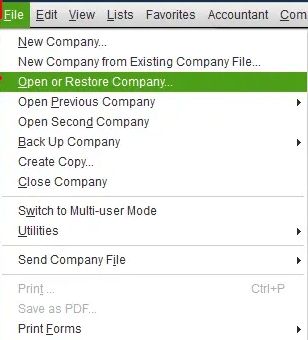
- Navigate to the File menu.
- Click on Open or Restore Company.

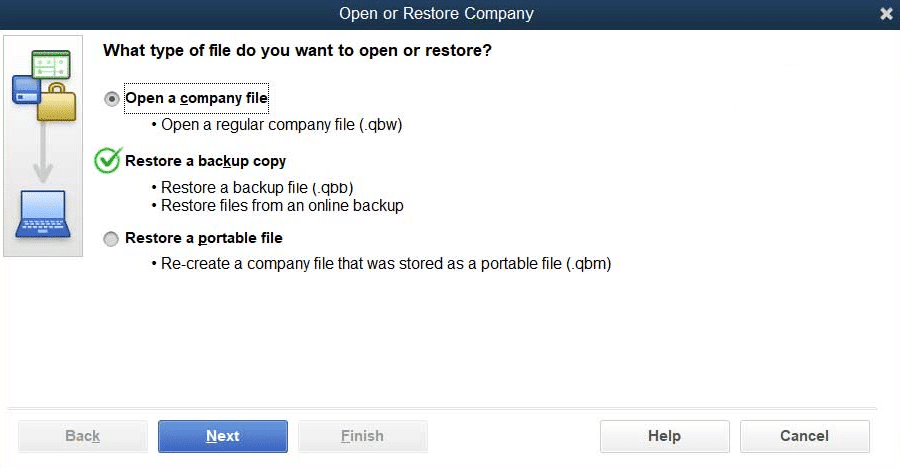
- Then, proceed to select Restore a Backup Copy.

- Hit Next.
- Choose the Local Backup option.
- Press Next.
- Browse your PC for the backup company file:
- It should look like this: [Your company name].qbb.
- Choose a folder where the company file would be restored.
- Press Open:
- If you save the backup file in the same folder as your existing company file, you can overwrite your data.
- You can avoid overwriting data by renaming your existing company file or the backup so the names are unique.
- Otherwise, you can save the backup file in a completely different folder.
- Hit Save when you’re ready.
- If you see any messages about overwriting your data, choose the option that best suits your needs.
- Do not overwrite anything unless you wish to.
Your deleted data would now be restored in QuickBooks.
Recover Deleted QuickBooks Data Files – A Quick View Table
In the table below is given a concise summary of this blog on the topic of recovering deleted QuickBooks company data files:
| Description | You can recover deleted QuickBooks data files using the QB Auto Data Recovery feature or by restoring a backup copy of your company file. The Auto Data Recovery feature can be used for recent data, only using the last few hours of data, by finding .QBW.adr and .TLG.adr files in the same location as your company file and renaming the .QBW.adr file, or restoring from a backup copy via the File menu for older data, ensuring you save it to a new location to avoid overwriting. Failing to recover your data can disrupt your workflow and negatively impact your accounting and bookkeeping processes. |
| Use QB ADR | 1. Create a new folder on your PC’s home screen. 2. Name it QBTest. 3. Navigate to the folder where your company file is saved. 4. Look for the tlg file in your company file’s folder. 5. It has the same name as your company file. 6. Copy the corresponding tlg file of your company file. 7. Paste it into the QBTest folder. 8. Navigate to the folder where your company file is saved again. 9. Open the QuickBooksAutoDataRecovery folder. 10. Copy the QBW.adr file. 11. Paste it into the QBTest folder. 12. The folder should now contain the QBW.adr and tlg file. 13. Now, in the QBTest folder, right-click on the QBW.adr file. 14. Click on Rename. 15. Delete .adr from the end of the file name. 16. Open the QB Desktop app. 17. Open the company file that you just renamed in the QBTest folder. 18. Use the account register to verify if all the transactions are there. 19. Go to the File menu. 20. Click on Utilities. 21. Select the Verify Data option to check the integrity of your company file. 22. If the company file is good, move the original company file to a different location, and move the company file from the QBTest file to the original location. |
| Restore a backup copy | 1. Open the QB Desktop app. 2. Navigate to the File menu. 3. Click on Open or Restore Company. 4. Then, proceed to select Restore a Backup Copy. 5. Hit Next. 6. Choose the Local Backup option. 7. Press Next. 8. Browse your PC for the backup company file. 9. It should look like this: [Your company name].qbb. 10. Choose a folder where the company file would be restored. 11. Press Open. 12. If you save the backup file in the same folder as your existing company file, you can overwrite your data. 13. You can avoid overwriting data by renaming your existing company file or the backup so the names are unique. 14. Otherwise, you can save the backup file in a completely different folder. 15. Hit Save when you’re ready. 16. If you see any messages about overwriting your data, choose the option that best suits your needs. 17. Do not overwrite anything unless you wish to. |
Conclusion
You can recover deleted QuickBooks data files using the QB Auto Data Recovery feature or by restoring a backup copy of your company file. The Auto Data Recovery feature can be used for recent data, only using the last few hours of data, by finding .QBW.adr and .TLG.adr files in the same location as your company file and renaming the .QBW.adr file, or restoring from a backup copy via the File menu for older data, ensuring you save it to a new location to avoid overwriting. Failing to recover your data can disrupt your workflow and negatively impact your accounting and bookkeeping processes.
We have covered the steps you need to know to recover your data using the QB Auto Data Recovery and restoring a backup copy of your company file in this blog. If you are still unable to recover your deleted QuickBooks data files, feel free to contact our Accounting Helpline’s experts at 1.855.738.2784 today, who can recover your data at a moment’s notice!
FAQs
How do I use the Auto Data Recovery function in QuickBooks to recover deleted data?
You can use the Auto Data Recovery function in QuickBooks to recover deleted data by following these steps:
– Create a new folder on your PC’s home screen.
– Name it QBTest.
– Navigate to the folder where your company file is saved.
– Look for the tlg file in your company file’s folder.
– It has the same name as your company file.
– Copy the corresponding tlg file of your company file.
– Paste it into the QBTest folder.
– Navigate to the folder where your company file is saved again.
– Open the QuickBooksAutoDataRecovery folder.
– Copy the QBW.adr file.
– Paste it into the QBTest folder.
– The folder should now contain the QBW.adr and tlg file.
– Now, in the QBTest folder, right-click on the QBW.adr file.
– Click on Rename.
– Delete .adr from the end of the file name.
– Open the QB Desktop app.
– Open the company file that you just renamed in the QBTest folder.
– Use the account register to verify if all the transactions are there.
– Go to the File menu.
– Click on Utilities.
– Select the Verify Data option to check the integrity of your company file.
– If the company file is good, move the original company file to a different location, and move the company file from the QBTest file to the original location.
How do I restore a backup copy of my company file in QuickBooks?
You can restore a backup copy of your company file in QuickBooks with the following steps:
– Open the QB Desktop app.
– Navigate to the File menu.
– Click on Open or Restore Company.
– Then, proceed to select Restore a Backup Copy.
– Hit Next.
– Choose the Local Backup option.
– Press Next.
– Browse your PC for the backup company file.
– It should look like this: [Your company name].qbb.
– Choose a folder where the company file would be restored.
– Press Open.
– If you save the backup file in the same folder as your existing company file, you can overwrite your data.
– You can avoid overwriting data by renaming your existing company file or the backup so the names are unique.
– Otherwise, you can save the backup file in a completely different folder.
– Hit Save when you’re ready.
– If you see any messages about overwriting your data, choose the option that best suits your needs.
– Do not overwrite anything unless you wish to.
Related Posts-
How to Fix QuickBooks Error 6000 77 With Update Methods
How to Get Rid of QuickBooks Error 6176 Once and for All
QuickBooks Error 15270: Expert-Recommended Solutions to Fix It
QuickBooks Subscription Has Lapsed: Learn How to Counter It
How to Fix QuickBooks Error 30159: Troubleshooting Guide
QuickBooks Payroll Error PS032: How to Fix with Experts Tips?

Edward Martin is a Technical Content Writer for our leading Accounting firm. He has over 10 years of experience in QuickBooks and Xero. He has also worked with Sage, FreshBooks, and many other software platforms. Edward’s passion for clarity, accuracy, and innovation is evident in his writing. He is well versed in how to simplify complex technical concepts and turn them into easy-to-understand content for our readers.