

Last Updated on October 27, 2025
The QuickBooks Desktop app provides you with an option to generate different reports that are helpful to your business. The report is generally made from the instructions given by the program to display your QB company file data in an organized and sorted manner. You have the option to generate these reports from the Reports menu. However, you can also use the QuickBooks Desktop combine reports from multiple company files feature to summarize and sort data from multiple company files at the same time. In this blog, we’ll cover exactly how to do so in both QB Online and Desktop with guided steps.
Are you having trouble combining reports from multiple company files in QuickBooks Desktop? Contact our Accounting Helpline experts at 1.855.738.2784 to resolve your issue in no time!

Understanding Reports in QuickBooks | A Brief Description
The QB Desktop application and QBO generate reports based on the set of given instructions called the Report set. This helps QB to extract information from the data file and show it as a set of transaction lines. The Report set is what defines which lines of what transactions are present in the report, and if the generated report will include Source or Target or both. The Report set includes the following:
- The QB Desktop hardcoded structure of the report
- The embedded filters that are part of the report structure
- All the default filters
- The settings that are present on the Display and Filter tabs
The QB Desktop app also uses Source and Target for applying accounting principles and processes. This includes recording transactions and displaying reports. Let us understand Source and Target a little deeper to understand the work process of QBDT reports:
- Source: It is the summary information about a transaction. It contains all the source data, like source account, source name, source memo, etc.
- Targets: It provides detailed information about the transaction, including all target data.
Now, let us proceed to discuss some of the available reports in QuickBooks Desktop.
Available Reports in the QB Desktop App
Given in the table below is a list of various reports you can generate using the QB Desktop application:
| Report Groups | Description |
| Company and Financial | This is used to know the financial situation of your company. |
| Customers and Receivables | This is used to find out how much your customers owe, along with the due dates. |
| Sales Reports | It helps you find sales information regarding customers, items, sales reps, sales orders, and pending sales. |
| Jobs, Time and Mileage | It helps you find how well your company is doing with estimating jobs, calculate the time spent on each job, and the mileage expenses for each vehicle or job. |
| Vendors and Payables | This helps you in calculating how much your company owes and how much is overdue. |
| Employees and Payroll | It can help you find your employees’ info, payroll, and payroll expenses. |
| Banking Reports | You can find information about your banking transactions using this report. |
| Accountant and Taxes | This can help you find info related to accounting activities and income tax preparation. |
| List | You can find lists of useful information about your company through this report. |
QuickBooks Desktop Combine Reports from Multiple Company Files | Guided Steps
Before you combine reports from multiple companies in QuickBooks Desktop Accountant, here are a few things you should keep in mind:
- For easier readability of your reports, make the Chart of Accounts in both the company files as identical as you can
- Accounts will be combined if they have the same:
- Name
- Type
- Hierarchical level
- Account names are not case-sensitive
- The accounts that won’t be combined are:
- The accounts which are at different levels. For example, a telephone account won’t be combined with a telephone subaccount
- Accounts with spelling differences. For example, an account called telephone won’t be combined with an account called phone
- Accounts with different account numbers
Note: Accounts that have an account number won’t be combined with accounts that don’t have an account number
- Accounts are listed by type
- Within each type, the accounts are listed in the order of changes to the first company file
- The accounts from the other company files are added in the order that they are encountered
- You might need to switch your company file to multi-user mode
Now, let us take a look at the steps for QuickBooks Desktop combine reports from multiple company files.
Option 1: Combine Reports from Multiple Companies in QuickBooks Desktop Enterprise
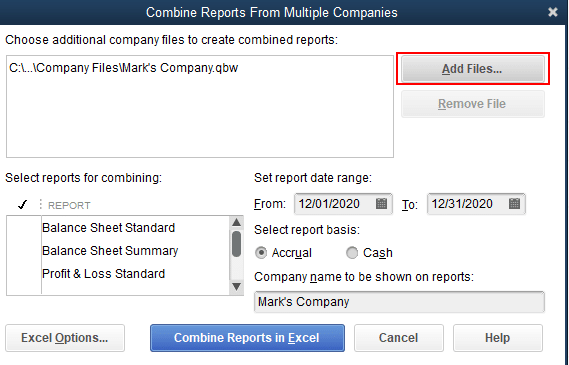
You have the option in QuickBooks Enterprise to combine reports from multiple company files. To combine your reports, follow these steps:
- Open the QuickBooks Desktop Enterprise app
- Click on the Reports menu
- Choose the Combine Reports from Multiple Companies option
- Click on Add File, search for and choose the other company file, and hit Open
- Repeat this step for adding more than one file to combine reports from
- Go to the Select reports for combining section
- Choose the reports you wish to combine
- Then, choose the report’s From and To date range
- Select the report basis
- Click on Combine Reports in Excel
After performing these steps, an MS Excel sheet will open with the combined information.
Types of Reports You Can Combine from Multiple Company Files in QB Enterprise
- Balance Sheet Standard
- Balance Sheet Summary
- Profit & Loss Standard
- Profit & Loss by Class
- Statement of Cash Flows
- Trial Balance
Now, let us see how to combine reports from multiple company files in QB if you don’t use Enterprise.
Option 2: Manually Export and Combine Reports in Excel For Each Company File
You can combine reports from multiple company files in QuickBooks Desktop using Microsoft Excel with the following steps:
- Open the first company file
- Select a report and export it to an Excel worksheet, and save the workbook
- Then, open your second company file
- Create the same report and export it to a new Excel worksheet in the same workbook
- Hit Save
- Then, open MS Excel and open the workbook
- Combine the two reports into a third worksheet
- Save the workbook
This would help QuickBooks Desktop combine reports from multiple company files.
Combine Reports from Multiple Company Files in QuickBooks Online
You can only combine reports from multiple company files in the QBO Advanced version. Before you combine your reports, there are a few things you should know and do:
- Ensure that the Charts of Accounts in each company file are as identical as possible
- The account names aren’t case-sensitive
- The accounts only get combined if they have the same:
- Name
- Type
- Hierarchical level
- The accounts won’t get combined if:
- They’re at different levels. For example, a subaccount won’t combine with a main account
- They have different spellings. For example, a telephone account won’t combine with a main account
- They have different account numbers
- One account has an account number, but the other account doesn’t
Now, proceed to add your QuickBooks Online Advanced company data to Spreadsheet Sync with the following steps:
- Go to the Spreadsheet Sync panel
- Select Company Settings
- Note all the QuickBooks Online Advanced Companies you have access to in Companies
- For creating a new group, select + Create group
- Then, type in a name for your group in the Group name field
- Choose the Currency for your group
- Go to the Connected companies section
- Choose the companies under the Add to group column
- Hit Save
Now, in the Spreadsheet Sync, you would be able to combine these reports from multiple company files:
- Balance Sheet – Multiple Period
- Profit and Loss – Multiple Period
- Trial Balance
So, let us see the steps required to combine reports from multiple company files in QuickBooks Online:
- Go to the Spreadsheet Sync panel
- Click on the Build multi-company reports option
- Choose the group you wish to run the reports for
- Select the report that you want to view
- Press Filters for downloading the data you want from the source
- The filters would vary depending on the type of report
- Hit Run Report for getting the data on your spreadsheet
- Use the built-in features of the Spreadsheet Sync to create custom charts and graphs with your QBO company data
Using this method, you can combine reports from multiple company files in QuickBooks Online Advanced.
QuickBooks Desktop Combine Reports from Multiple Company Files – A Quick View
The table below gives a concise overview of this blog on combining reports from multiple company files in QB.
| Description | You might need to combine reports from multiple company files in your QB application. You can do so in both QuickBooks Online and Desktop. |
| Steps to combine in QBDT | 1. Combine reports in QBDT Enterprise -Go to the Reports menu -Click on Combine Reports from Multiple Companies -Click on Add File -Choose the reports you wish to combine 2. Combine reports in QBDT -Export the reports to Excel and combine them manually |
| Steps to combine in QBO | Navigate to Spreadsheet Sync, click on Build multi-company reports, choose the group, select the report, press Filters, and hit Run Report. |
Conclusion
In this blog, we talked about how to use the function of QuickBooks Desktop Combine Reports from multiple company files. Additionally, we also talked about how you can combine reports from multiple company files in the QB Online Advanced version. If you are facing any issues in combining reports, feel free to reach out to our Accounting Helpline experts at 1.855.738.2784 to resolve your problem today!
FAQs
Is combine reports from multiple companies available in QuickBooks Desktop Accountant?
No, the only QuickBooks Desktop version that comes with the feature of combining reports from multiple company files is QB Desktop Enterprise.
Can I merge two QuickBooks Desktop company files?
You can only merge two company files in QuickBooks Desktop if they have the same name, type, and level.
How to merge two vendors in QuickBooks Desktop?
To merge two vendors in QuickBooks Desktop, follow the steps given below:
– Open the QB Desktop Enterprise app
– Navigate to the Company section
– Click on Accounting Tools
– Select Merge Vendors
– Choose the vendors you wish to merge
– Hit Next
– Select a Primary Vendor
– Click on Merge
– Type Yes to merge the vendors
– Finally, press OK
Related Posts-
The Right Way to Reactivate Payroll Subscription QuickBooks Desktop
[Resolved] QuickBooks Reactivate Subscription Not Working
QuickBooks Error 213 | Guided Steps to Resolve It
Add Colors to the QuickBooks Black and White Screen
QuickBooks 1099 E-File | How to Create and File the Tax Form
How To Fix QuickBooks Error 2501 | 6 Guided Solutions

Edward Martin is a Technical Content Writer for our leading Accounting firm. He has over 10 years of experience in QuickBooks and Xero. He has also worked with Sage, FreshBooks, and many other software platforms. Edward’s passion for clarity, accuracy, and innovation is evident in his writing. He is well versed in how to simplify complex technical concepts and turn them into easy-to-understand content for our readers.