

Last Updated on April 23, 2026
As a QuickBooks user, you can use the dropdown menus built inside it for various functions, which include assigning payroll items, currencies, and choosing other different options. This reduces the labor of manually assigning an item or selecting a function and saves you plenty of time. However, while trying to do the same, you can encounter the issue of QuickBooks drop-down menus not working. This can hamper your workflow and important business processes, as it can prevent you from closing the company, opening a previous company, restoring backups, and performing tasks similar to this. It has also been reported by many users that when they click on the File menu, it turns green, but nothing happens.
This issue can, however, be resolved by using Quick Fix My Program from the QB Tool Hub app. We’ll cover the steps you need to know to troubleshoot this error in this blog. First, let’s see why your drop-down menus are not working in QuickBooks.
Are you facing issues with the drop-down menus in your QuickBooks Desktop app? Contact our Accounting Helpline’s experts at 1.855.738.2784 today to resolve your problem in no time!
Potential Factors for Drop-Down Menus Not Working in QuickBooks
Listed below are the potential factors that can trigger the problem of drop-down menus not working in your QB app or website:
- Incorrect QB display or view settings.
- You might not be using a supported browser to use the QB Online website.
- Damaged or corrupted system files.
- The QB Desktop app you’re using is outdated.
- Your browser has stored QB cache and cookies.
These are the causes of the QuickBooks drop-down menus not working problem.
Methods to Resolve the Issue of QuickBooks Drop-Down Menus Not Working in Desktop
Listed below are the troubleshooting methods you can implement to resolve the problem of QuickBooks drop-down menus not working in the QBDT app:
Update the QB Desktop Application
You can update the QB Desktop app to resolve the issue of QuickBooks drop-down menus not working with the steps given below:
- Open the QB Desktop app.
- Navigate to the Help menu.
- Click on Update QuickBooks Desktop.

- Press Update Now.
- Then, select Get Updates.
- Close and reopen the QBDT app to install the updates.
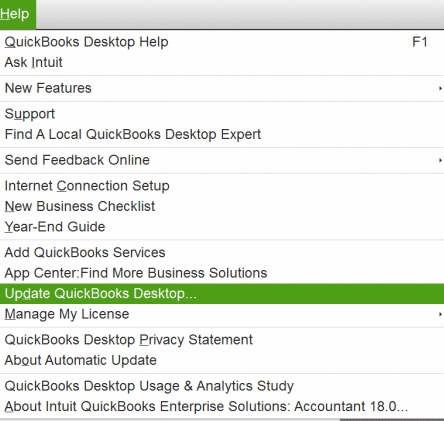
This would resolve the problem you were dealing with.
Change QB Desktop View Preferences
The view preferences can be adjusted in the QB Desktop application if your drop-down menus are not working with the steps given below:
- Open the QB Desktop app.
- Navigate to the Edit menu.
- Click on Preferences.
- Now, press Desktop View.
- Go to the My Preferences tab.
- Now, browse to the View section.
- Choose the One Window option.
- Press OK.
Now, the drop-down menus should work perfectly.
Verify and Rebuild the Company File Data
A damaged company file can be the reason your drop-down menus are not working in the QB Desktop application. You can fix a damaged company file with the steps given below:
- Open the QB Desktop app.
- Navigate to the File menu.
- Click the Utilities option.
- Select Verify Data.

- Then, open the File menu again.
- Select Utilities.
- Click on the Rebuild Data option.

- QB will ask to create a backup before rebuilding your company data.
- Hit OK.
- A backup is necessary to rebuild your company file.
- Choose where the backup would be saved.
- Press OK.
- Ensure not to replace an existing backup file.
- Enter a unique name in the File name field.
- Press Save.
- You will get a message stating that “Rebuild has completed”.
- Hit OK.

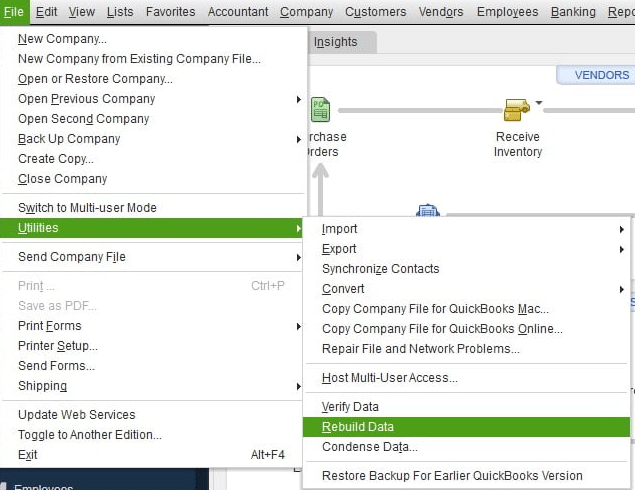
Now, the problem should be resolved.
Modify the Display Settings for QB Desktop
You can modify the display settings for the QB Desktop application to resolve the QuickBooks drop-down menus not working issues with the steps given below:
- Close the QBDT app.
- Open the Start menu.
- Feed in QuickBooks in the search bar.
- Right-click on the QuickBooks icon.
- Click on Open file location.
- Then, proceed to right-click the QuickBooks.exe file.
- Click on Properties.
- Navigate to the Compatibility tab.
- Now, check the Disable display scaling on high DPI settings checkbox:
- You can also click on Change high DPI settings.
- Then, press Override high DPI scaling behavior.
- Press Apply.
- Lastly, hit OK.
The drop-down menus in the QB Desktop app should now work fine.
Use Quick Fix My Program
The Quick Fix My Program tool can be utilized from the QB Tool Hub to troubleshoot program problems with the QB Desktop application using the steps given below:
- Download and install the QuickBooks Tool Hub.

- Open the QB Tool Hub app.
- Navigate to the Program Problems tab.
- Click on Quick Fix My Program.

- Let the tool run.

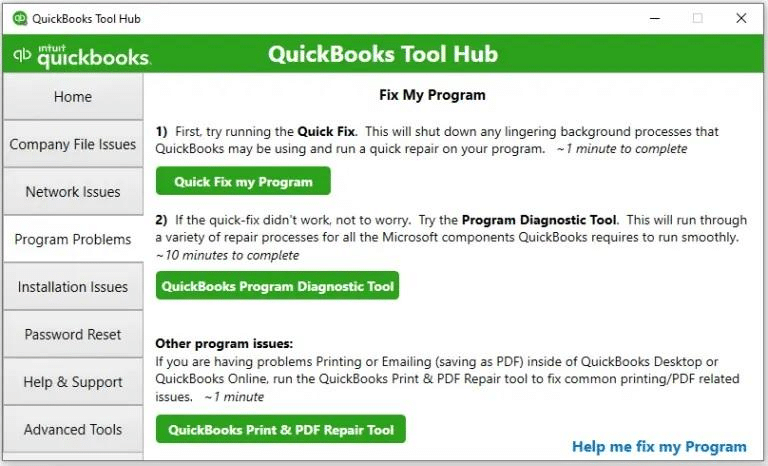
The tool would run and fix the problem you were dealing with.
Methods to Resolve the Issue of QB Drop-Down Menus Not Working in Online
Listed below are the troubleshooting methods you can implement to resolve the problem of QuickBooks Online drop-down menus not working:
Use the QB Online Website in a Private Browsing Window
When the QB Online cookies and cache get stored in your web browser, they can cause the QBO website to not work adequately. This can then cause the issue where you might notice that your drop-down menus are not working. However, this can be easily fixed by using the QB Online website in a private browsing window. We have provided the shortcut keys to open a private browsing window in different web browsers that you might be using below:
- Google Chrome – Ctrl + Shift + N
- Mozilla Firefox – Ctrl + Shift + P
- Microsoft Edge – Ctrl + Shift + N
- Safari – Command + Shift + N
Now, you should check to see if the issue of drop-down menus not working is fixed by using the QBO website in a private browsing window. If it is resolved, you should clear the stored QB Online cache and cookies from the browser.
QuickBooks Drop-Down Menus Not Working – A Quick View Table
In the table below is given a concise summary of this blog on the topic of the drop-down menus not working in QB Online and Desktop:
| Description | You can use the dropdown menus built into it to assign payroll items, currencies, and other options. This reduces the time spent manually assigning an item or selecting a function, saving you significant time. However, when trying to do the same, you may encounter the issue of QuickBooks drop-down menus not working. This can hamper your workflow and critical business processes, as it can prevent you from closing the company, opening a previous company, restoring backups, and performing similar tasks. |
| Its causes | 1. Incorrect QB display or view settings. 2. You’re not using a supported browser to browse QB Online. 3. Damaged or corrupted system files. 4. Your QB software is outdated. 5. Your browser has stored QB cache and cookies. |
| Ways to fix it in QB Desktop | Update the QB Desktop application, change the QB Desktop view preferences, verify and rebuild the company file data, modify the display settings for the QuickBooks Desktop app, and utilize Quick Fix My Program. |
| Ways to fix it in QB Online | Use the QB Online website in a private browsing window, clear the cache and cookies from the web browser, and use a QB Online-supported web browser. |
Conclusion
The QuickBooks drop-down menus not working problem can occur while trying to open the drop-down menus in the QBDT app or the Online website. This can hamper your workflow and critical business processes, as it can prevent you from closing the company, opening a previous company, restoring backups, and performing similar tasks. We have covered the potential factors that can trigger this issue to appear on your screen, along with the methods you need to troubleshoot it, in this blog. If you are dealing with the same problem, feel free to contact our Accounting Helpline’s experts at 1.855.738.2784 today, who can help resolve the issue at a moment’s notice!
FAQs
Why are my drop-down menus not working in QuickBooks?
Your drop-down menus might not be working in QB due to the following reasons:
– Incorrect QB display or view settings.
– You might not be using a supported browser to use the QB Online website.
– Damaged or corrupted system files.
– The QB Desktop app you’re using is outdated.
– Your browser has stored QB cache and cookies.
How do I fix the issue of drop-down menus not working in QB?
– Update the QB Desktop application.
– Change the QB Desktop view preferences.
– Verify and rebuild the company file data.
– Modify the display settings for the QuickBooks Desktop app.
– Utilize Quick Fix My Program.
– Use the QB Online website in a private browsing window.
– Clear the cache and cookies from the web browser.
– Use a QB Online-supported web browser.
Related Posts-
QuickBooks Error 80029c4a: Here’s a Quick Method to Fix
How to Install QuickBooks Database Server Manager Like a Pro
Guide to Fix QBCFMonitorService Not Running On This Computer
Fix QuickBooks Cannot Open Company File in Multi-User Mode
Getting QuickBooks Error 12007? Try These Pro Tricks
Fix QuickBooks Error 3371 status code 11118/11104/1 With Hustle Free

Edward Martin is a Technical Content Writer for our leading Accounting firm. He has over 10 years of experience in QuickBooks and Xero. He has also worked with Sage, FreshBooks, and many other software platforms. Edward’s passion for clarity, accuracy, and innovation is evident in his writing. He is well versed in how to simplify complex technical concepts and turn them into easy-to-understand content for our readers.