
Last Updated on April 23, 2026
QuickBooks Merchant Services is a service provided by Intuit to allow businesses to accept e-payments directly within their QB accounts. It can help businesses accept payments via credit card, debit card, e-check, Apple Pay, Google Pay, and other such modes. However, you might encounter the issue of QuickBooks Merchant Services not working. This can hamper your workflow and important business processes. We’ll cover all the troubleshooting methods to fix this issue in this blog. Let us first start with general methods to fix the QB Merchant Services not working problem.
Are you having trouble using the QuickBooks Merchant Services? Contact our Accounting Helpline professionals to resolve your problem at 1.855.738.2784!
First Course of Action for Fixing the QB Merchant Services Not Working Issue
Given below are the general methods to resolve the problem of QuickBooks Merchant Services not working:
Update the QB Desktop App
You can update the QuickBooks Desktop app to patch the problem of QB Merchant Services not working with the following steps:
- Open the QB Desktop app as an admin
- Navigate to the Help menu
- Press Update QuickBooks Desktop
- Go to the Options tab
- Select Mark All
- Click on Save
- Go to the Update Now tab

- Select the Reset Update checkbox
- Press the Get Updates option
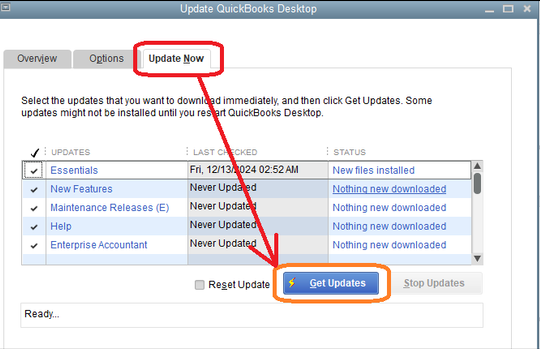
Restart QB after the download is complete and press Yes to install the updates.
Connect Your QB Merchant Services Account Again
You can connect your QB Merchant Services account again with the QBDT app to resolve the issue of the Merchant Service not working with the following steps:
- Open the QB Desktop app
- Navigate to the Customers menu
- Click on Link Payment Service to Company File
- If you receive a message about credit card protection, fill out the fields and hit OK
- Enter your QB Merchant Services (now QuickBooks Payments) user ID and password
- Press Sign In
- Click on Connect
These are the steps to connect your QBMS (QuickBooks Merchant Services) again.
Change the Bank Account of the QB Merchant Services
If your bank account is outdated, you might receive the QuickBooks Merchant Services not working error. You change your QBMS bank account with the following steps:
- Sign in to the Merchant Service Center
- Go to Account
- Click on Account Profile
- Then, navigate to the Deposit Account Information section
- Press Edit
- Feed in the New bank account
- Type your Routing Number
- Enter the Account number
- Confirm Account Number by entering it again
- Ensure that the name in Account Holder/Doing Business As matches the name of the account owner exactly
- Choose the Reason for this account change
- Hit Submit
Now, your problem will be resolved.
Use Quick Fix My Program
You can utilize the Quick Fix My Program tool from the QB Tool Hub to resolve the QBMS not working issue with these steps:
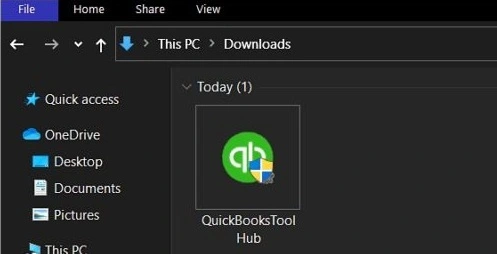
- Download and install the QB Tool Hub

- Open the Tool Hub app
- Navigate to the Program Problems tab

- Select Quick Fix My Program

- Let the tool run
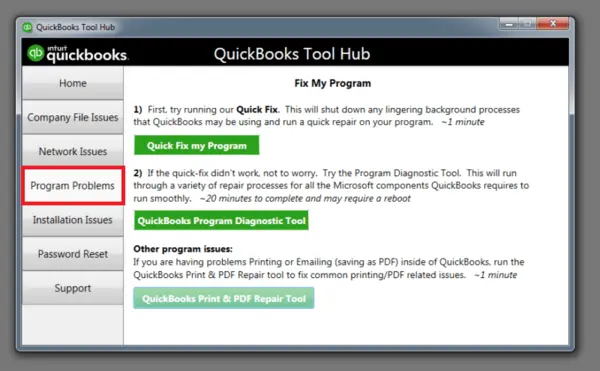
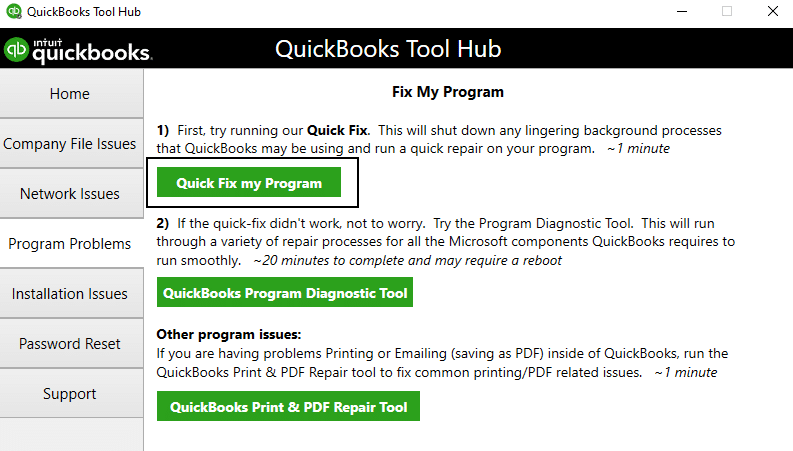
Performing these steps would resolve the QB Merchant Services Not Working problem. Now, let us discuss casewise solutions for some of the issues you might be facing with QB Merchant Services.
Resolve Error in Merchant Deposits “A payment you are trying to download can not be matched or recorded”
Let us discuss how to fix the Error in Merchant Deposits “A payment you are trying to download can not be matched or recorded”, with different solutions:
Case 1. The Invoice is Already Partially or Fully Paid
This can occur if the invoice is either partially or fully paid in QB Desktop. To resolve it, follow these steps:
- Locate the invoice for the payment that is causing this error
- Void the payment
- Or unapply any payments against the invoice so that the full balance is due
- Reopen the Merchant Service Deposits after closing it
- The issue would now be fixed
Case 2: The invoice you are attempting to modify is on or before the closing date
This can occur if you’re trying to modify the invoice on or before its closing date. Follow these steps to fix it:
- Close Merchant Service Deposits
- Sign in to your QB company file as an admin
- Navigate to the Edit menu
- Click on Preferences
- Select Accounting
- Go to the Company Preferences tab
- Click on Set Data/Password
- Change your closing date as needed
- Hit OK twice to save the changes
- Return to Merchant Service Deposits
- Record the payment again
Case 3: The Payment Method is Damaged in QB
The QuickBooks Merchant Services not working error can be caused by a damaged payment method. You can fix your payment method with the following steps:
- Open the QB Desktop app
- Go to the Lists menu
- Click on Customer & Vendor Profile Lists
- Select the Payment Method List option
- Check if the Payment Methods and Payment Types are correct
- Correct any Payment Method that is incorrect or Type
- Your payments should now be recorded
| Payment Method | Type |
| Cash | Cash |
| Check | Check |
| American Express | American Express |
| MasterCard | MasterCard |
| Debit Card | Debit Card |
| E-Check | E-Check |
| Discover | Discover |
| Visa | Visa |
| Gift Card | Gift Card |
Case 4: Damaged Check Payment Method in QB Desktop
If your credit card payments record, but the check payments don’t, you can change the “Check” payment method to a credit card type to fix it with the following steps:
- Open QBDT
- Go to the Lists menu
- Click on the Customer & Vendor Profile Lists option
- Press Payment Method List
- Double-click on Check
- Change the Payment Type to one of the credit card types, such as Visa
- Hit OK
Case 5: A Damaged Accounts Receivable Account in the QuickBooks File
If the Accounts Receivable account is damaged, you can merge the existing account into a new one to resolve the QuickBooks Merchant Services not working problem with these steps:
- Open the QB Desktop app
- Navigate to the Lists menu
- Click on Chart of Accounts
- Select the Account dropdown menu
- Press New
- Choose Other Account Types
- Then, click Accounts Receivable
- Hit Continue
- Now, type in the Account Name as “Accounts Receivable 2“
- Hit Save & Close
- Right-click on your existing Accounts Receivable account
- Press Edit Account
- Change its name to “Accounts Receivable 2“
- Press Save & Close
- Hit Yes to merge the two accounts
- After the accounts have merged, you can change the name of the account to its original name
Now, the QB Merchant Services not working error would be resolved.
Troubleshoot the Merchant Service Deposit Link Not Working
You can troubleshoot the QuickBooks Record Merchant Service deposits not working problem with the method given below:
Step 1: Turn Off the Automatic Matching
- Open the QB Desktop app
- Navigate to the Banking menu
- Click on Record Merchant Service Deposits
- Press Change your deposit settings
- Turn off Auto match & record settings
- Press Save
Step 2: Manually Match and Record Your Payments
- Open the Banking menu in QBDT
- Click on Record Merchant Service Deposits
- Navigate to the Add payments to record tab
- Click on the arrow icon next to the first deposit on the list
- Review the payments in QB
- Go to the Action column
- Select Add payments to add payments to the bank deposit
- Compare the deposit total in QB and your bank statement
- Press Save and Close when everything matches
- Check each bank deposit on the list
- Press Record deposit once all the payments are added in QB
This would fix the QuickBooks Merchant Services not working issue.
Fix the “In order to make a deposit, you need a valid expense account” Error
If you’re seeing this error in the QB Desktop application, then that means you have signed in as a user who doesn’t have adequate permissions. You can switch to an admin user or sign in as an admin and give the user permission to create and print checks. You would need to give them permissions for the following:
- Checks
- Create
- Chart of Accounts
- Create
- Modify
- View Account Balance
- This would mend the problem you were dealing with.
Troubleshoot QuickBooks Services Not Working With QB Online
Given below are the troubleshooting methods for QB Merchant Services not working with QBO in different scenarios:
Case 1: Missing Credit Card Box on Invoice
If you’re creating an invoice and don’t see the credit card box, you can resolve it by checking your invoice setup with the following steps:
- Open the QuickBooks Online website
- Click on the Gear icon
- Select Account and Settings
- Press Sales from the menu on the left side
- Go to the Online Delivery section
- Select the Pencil icon
- Make sure that the additional options dropdown menu is set to Online invoice
- Hit Save
- Press Done
Now, your account has been set up for invoicing payments. If you still don’t see the credit card box, clear the QuickBooks cache and cookies from your web browser to avoid facing further difficulties.
Case 2: Dimmed Credit Card Box On Invoice and Sales Receipt
The credit card box might be dimmed or unavailable due to an invoice being set up for a non-home currency customer. Ensure that the customer’s currency is the same as your home currency to avoid facing errors. You can change your customer’s currency with the steps given below:
Step 1: Make Your Customer Inactive
- Find the customer you want to change the currency for
- Select their name
- Press Edit
- Note down all the information
- Press Make Inactive
- Hit Yes to confirm
Step 2: Create a New Customer
- Click on New Customer
- Fill in the details with the information you noted in the previous step
- After adding the info, navigate to the Payment and Billing tab
- Click on the This Customer pays me with dropdown menu
- Choose your home currency
- Add a currency to their display name
- Press Save
This would resolve the problem of QuickBooks Merchant Services not working.
Case 3: Credit Card Processing Problems
If you’re getting an error while trying to manually process a credit card, ensure the things given below:
- Make your customer confirm that the credit card information that is entered belongs to the home country/currency, with enough available funds
- Ensure that the credit card details are accurate
- Clear the cache and cookies from the browser and submit the details again
- Make your customer submit the info through a pay now link on an invoice
This would resolve the issue of credit card processing in QB Merchant Services. Now, let us discuss the process to change or set up certain things with QBMS.
Update the Deposit Account for Payments in QB Online
If you want to update the deposit account information for QuickBooks Merchant Services, you can update it straight from the QBO website with the following steps:
- Click on the Gear icon
- Press Account and Settings
- Click on Payments from the menu on the left
- Go to the Deposit accounts section
- Click on Change
- Fill in the required information
- Hit Save
- Press Done
This would update your deposit account.
Set Up Invoice Settings for Payments
To resolve the QuickBooks Merchant Services not working issue, you can set up invoice settings for payments with these steps:
- Open the QB Online website
- Click on Account and Settings
- Press Sales from the menu on the left
- Go to the Online Delivery section
- Select the Pencil icon
- Make sure that the additional options dropdown menu is set to Online
- Press Save
- Hit Done
This would set up invoice settings for payments.
QuickBooks Merchant Services Not Working – A Quick View Table
Given in the table below is a concise summary of this blog on the topic of the QB Merchant Services not working:
| Description | The QuickBooks merchant services not working is an issue that many QB users face. Due to this issue, you might not be able to record payments or use the service properly. This can hamper your workflow and important business processes. |
| First course of action | Update the QuickBooks Desktop app, reconnect your QB Merchant Services account, change the bank account in QBMS, and use the Quick Fix My Program tool. |
| Methods to fix different scenarios | Change the invoice closing date, void an already paid invoice, check if the payment method and type are correct, change the check payment type to credit card, merge the Accounts Receivable account, turn off automatic matching and manually record your payments, give adequate permissions to the QB user, ensure the additional options dropdown menu is set to Online invoice, make your customer inactive and create a new one, and clear the QuickBooks cache and cookies from your web browser. |
Conclusion
The QuickBooks merchant services not working issue can occur when you try to process a credit card payment or record a payment. We have covered the factors that can trigger this problem, along with the general and casewise troubleshooting methods needed to resolve it. If you are still dealing with the same issue, contact our Accounting Helpline experts at 1.855.738.2784! to patch it at a moment’s notice!
FAQs
Why I am not able to receive payment from vendor in QuickBooks?
You might not be able to receive a payment from a vendor in QuickBooks due to the following reasons:
– Insufficient funds
– Incorrect payment details
– Incorrect payment method and type
– Bank-related issues
– Issue with QuickBooks Merchant Services
How do I fix the QuickBooks Merchant Services Not Working problem?
You can fix the QB Desktop merchant services not working problem with these troubleshooting methods:
-Update the QB Desktop app
-Reconnect your QuickBooks Merchant Services account
-Change the bank account of your QB Merchant Services
-Utilize the Quick Fix My Program tool
How to fix the “A payment you are trying to download can not be matched or recorded” error in QB Desktop?
You can fix the “A payment you are trying to download can not be matched or recorded” error in QB Desktop with these troubleshooting methods:
-Void a partially or fully paid invoice
-Change the closing date of your invoice
-Check the payment method and type in QuickBooks
-Merge a damaged Accounts Receivable account
How to patch the QuickBooks Merchant Service deposit link not working?
You can patch the QB Merchant Service deposit link not working with these two steps:
-Turn off the automatic matching
-Manually match and record the payments
Related Posts-
All-Encompassing Guide to Set up the QuickBooks Scheduled Backup
QuickBooks Desktop Combine Reports from Multiple Company Files
The Right Way to Reactivate Payroll Subscription QuickBooks Desktop
[Resolved] QuickBooks Reactivate Subscription Not Working
QuickBooks Error 213 | Guided Steps to Resolve It
Add Colors to the QuickBooks Black and White Screen

Edward Martin is a Technical Content Writer for our leading Accounting firm. He has over 10 years of experience in QuickBooks and Xero. He has also worked with Sage, FreshBooks, and many other software platforms. Edward’s passion for clarity, accuracy, and innovation is evident in his writing. He is well versed in how to simplify complex technical concepts and turn them into easy-to-understand content for our readers.